Parsware Platform
Lost phone: replace or reset an authenticator
A new phone doesn't need an administrator. Alex Morgan signed in with a recovery code, moved two-step sign-in to the new phone from Sign-in security, and got ten new codes. For the person with no codes left, an administrator resets the authenticator and the next sign-in sets one up again.
Phones get lost, broken and upgraded. Two-step sign-in has to survive that without becoming a back door. There are two ways through, and the first one needs nobody else:
- Replace it yourself, with a recovery code. This is the normal way.
- An administrator resets it, when you have no codes left.
Replace it yourself
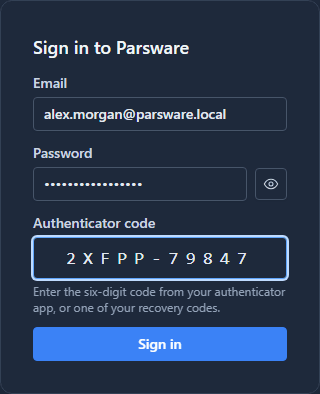
Alex Morgan, from Two-step sign-in, has a new phone and no old one. The sign-in page still asks for a code, and one of the ten recovery codes goes in the same box:
Signed in, Alex opens the user menu (the initial at the top right) and chooses Sign-in security:
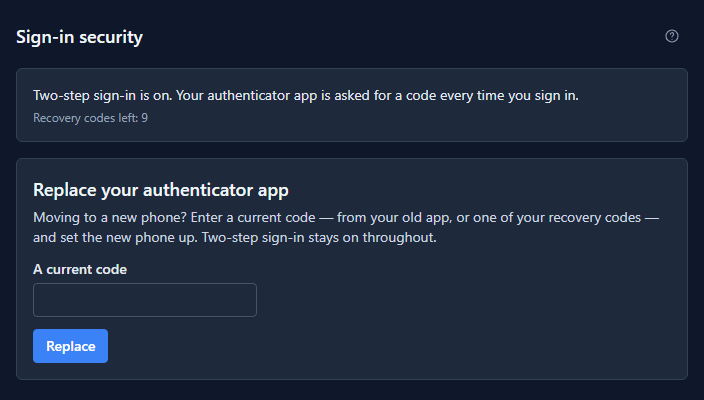
Nine recovery codes are left, because one was just used. Replace your authenticator app asks for a current code, either from the old app or from a recovery code. Alex has no old app, so a second recovery code goes in, then Replace:
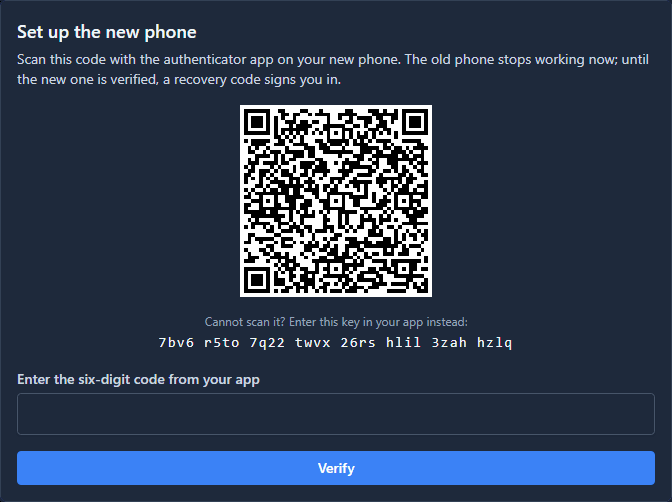
The new key is created at this point and the old phone stops working. Scan it with the new phone, type the code it shows, and select Verify. The new phone gets ten new recovery codes of its own:
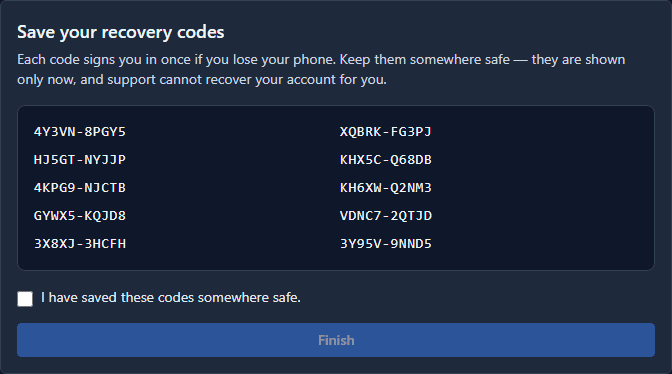
Save them, tick the box and select Finish. Two-step sign-in stays on the whole time; the account is never left without one.
We then checked what the old material still opens. A code worked out from the old key: That code is not right. One of the old recovery codes: the same. A code from the new phone: signed in.
Replacing the phone also signs the account out everywhere else, so a stolen phone that was still signed in doesn't stay signed in. That includes the tab you replaced it from: it asks you to sign in again within the hour, this time with the new phone.
When there are no codes left
Without the phone and without a recovery code, nothing on the sign-in page will let Alex in. An administrator has to reset the authenticator. In the Admin Control Center, open Users. The Authenticator column (switch it on from the column chooser at the top right of the list) shows who has one:
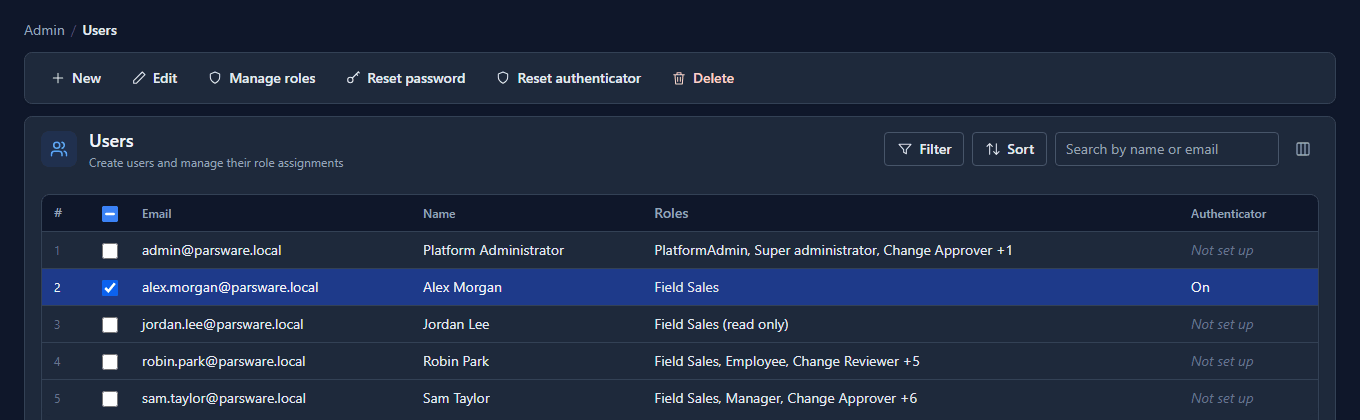
Tick the person and select Reset authenticator. It only works with one person selected, and only if that person has an authenticator. Before anything happens, it asks you to confirm:
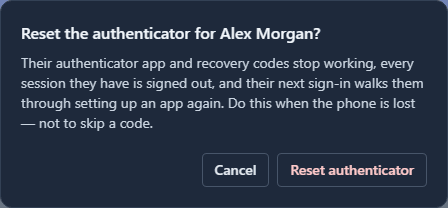
Do this when the phone is lost, not to skip a code. A reset removes a security check from someone's account, so check it's really them asking before you do it, the same way you would for a password.
After the reset, the list says Not set up, and Alex's next sign-in starts with the setup screen from the previous article:

If you've been signed in to the Admin Control Center for more than fifteen minutes, it asks for a code from your own authenticator app before it resets anyone else's. An unlocked laptop shouldn't be enough to take a security check off someone's account.
What we fixed
Replacing a phone, resetting an authenticator and resetting a password all say the person's other sessions end. We tested it: a session started before the reset carried on renewing itself as if nothing had happened. Each of those actions changes a value on the account that marks old sessions as stale, but renewing a session never compared it. Renewing now checks it, so an older session ends within the hour, when its access next has to be renewed.
Good to know
- Use the recovery codes first. Replacing the phone yourself takes a minute and doesn't need anybody to check who you are.
- The codes are for this. Keep them somewhere that isn't the phone: a password manager, or printed and put away.
- Each recovery code works once. Recovery codes left on Sign-in security tells you how many you still have; replacing the phone gives you ten new ones.
Try it
Sign in as a test user with a recovery code, then replace their authenticator from Sign-in security using a second phone or a second authenticator app.
Next: Reset a password.