Parsware Platform
Put a custom control on a field
A custom control does nothing until a form uses it. In the form designer, select the field, choose the control under Custom Control, and save. We put the badge field on the Visitor form, where reception now types b-2210 and the form saves B-2210.
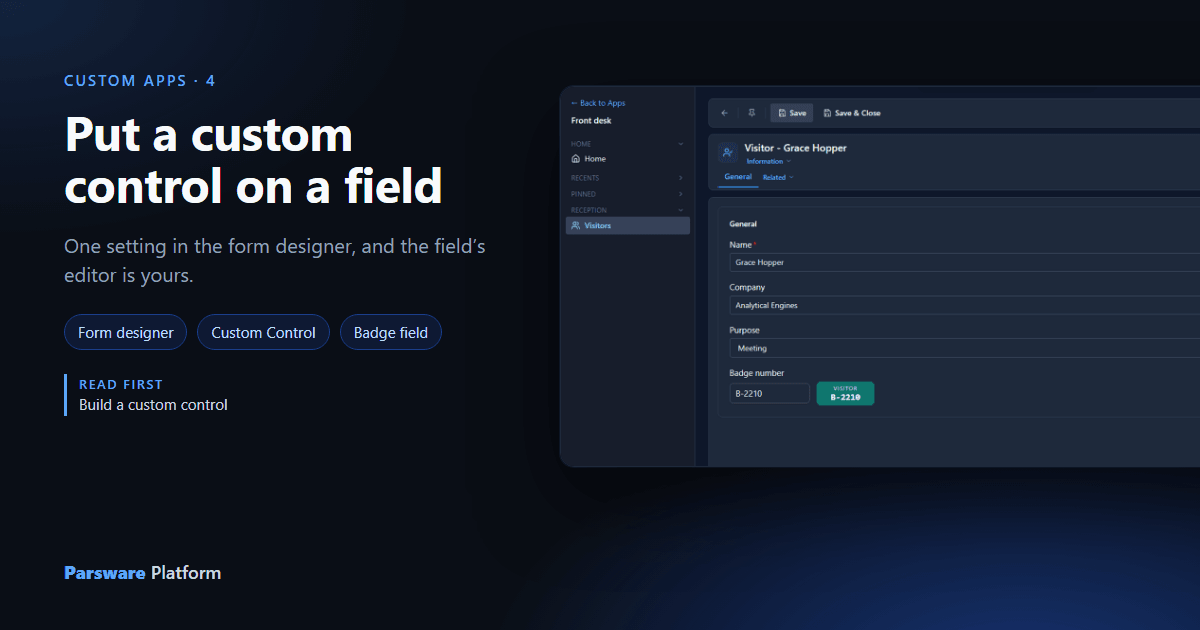
The badge field is installed in the Visitors solution, and so far nothing uses it. A control is only offered; a form has to ask for it. This is the asking, and it's one setting on one field.
On the form
Open the Visitor table's form in the form designer. The Badge number field wasn't on it yet, so we dragged it from Available fields into the General section, under Company and Purpose, and selected it. Properties now has a Custom Control setting, and Badge field is in it:
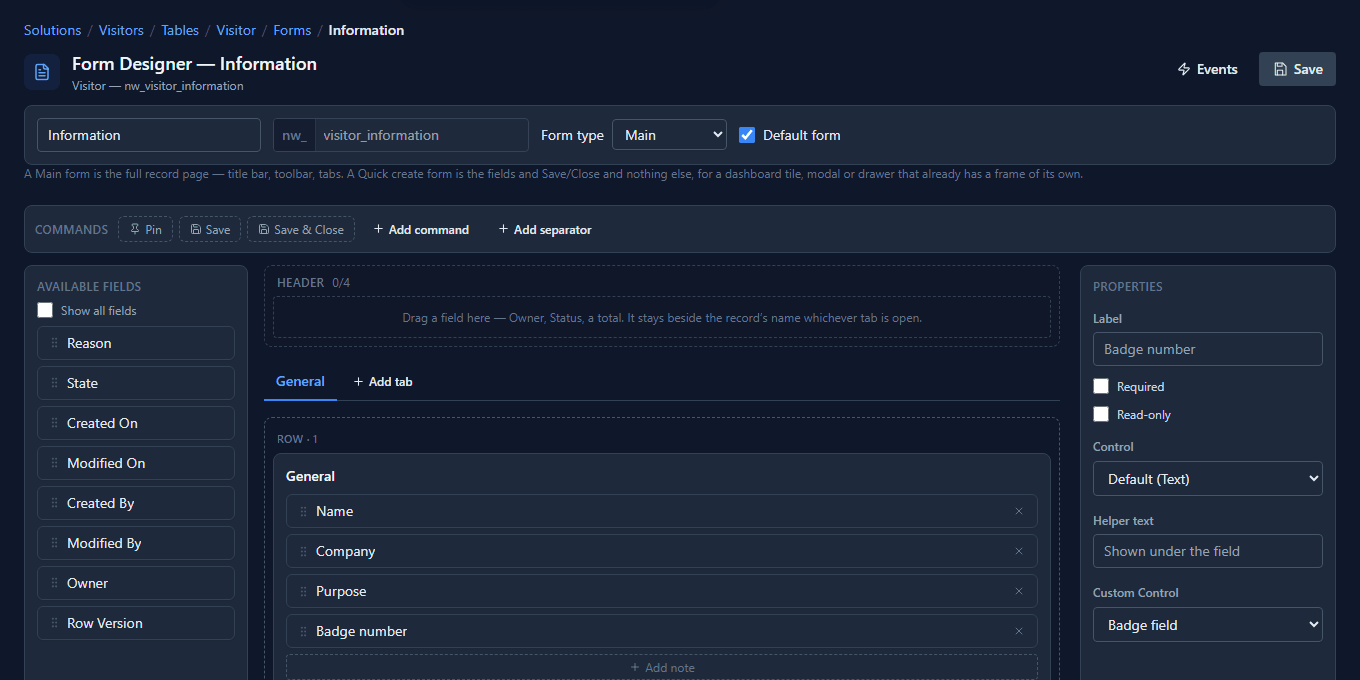
Choose it and Save. That's the whole binding.
- The list only holds controls that fit. A control says which kinds of field it can replace
(the badge field said
Text), so a date field would offer it nothing. When no installed control fits a field, the setting isn't shown at all. - Control and Custom Control are different settings. Control picks between the built-in editors, such as a text box or a dropdown. Custom Control replaces whichever one that is. None puts the built-in editor back.
In the app
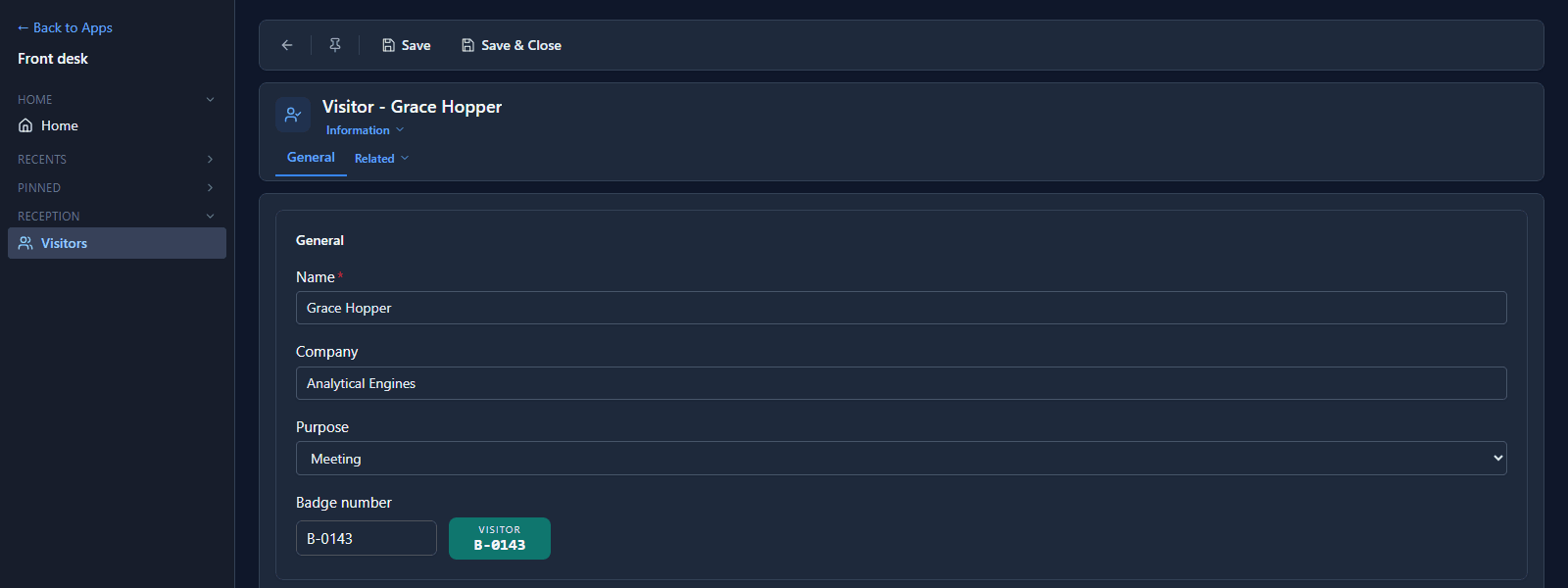
We added the Visitor table to a small Front desk app, so reception has somewhere to open a visitor. Grace Hopper's record shows the badge where a text box used to be:
Her badge was reissued, so reception typed b-2210 and saved:
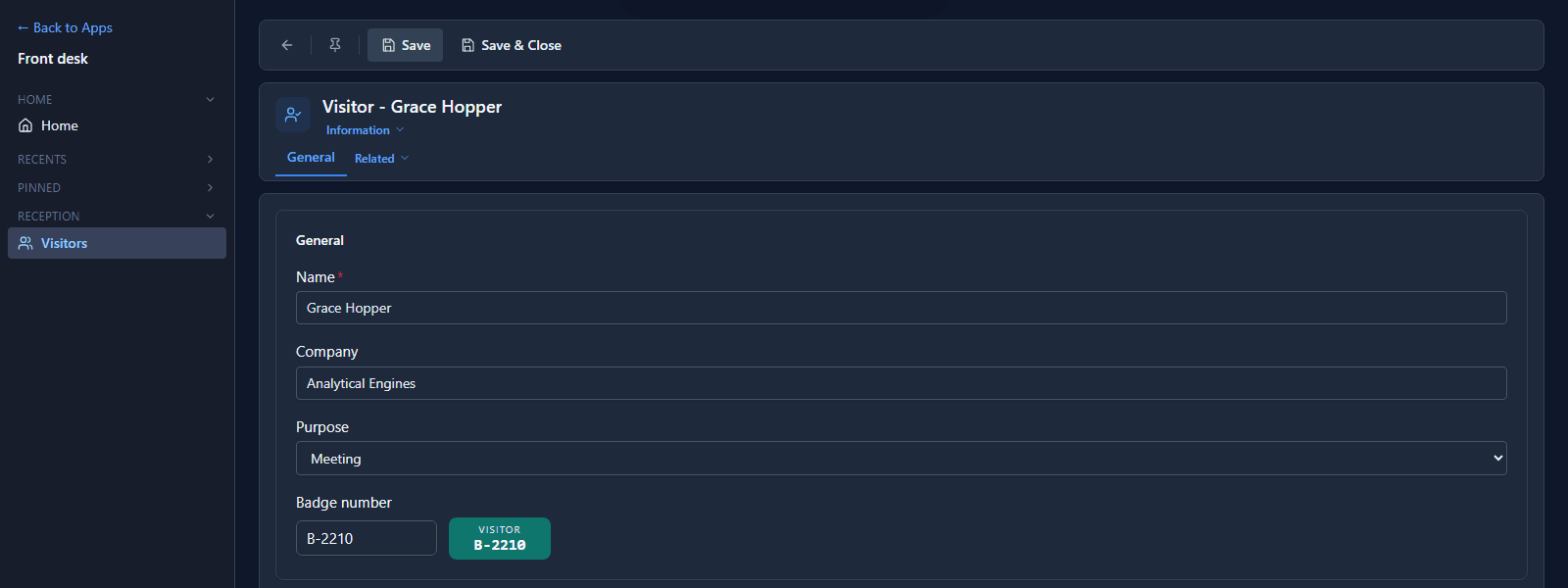
The control tidied what was typed, the form saved B-2210. Nothing about saving changed: the
control reports each edit, and Save, Save & Close, required checks and business rules all
work on what it reported, exactly as they do for the text box it replaced.
If the control isn't there
The form stores the control's name, nothing more. Open the same form in an environment where the control isn't installed and the field shows its own text box again: the record still opens, and the badge is still typed. Which is the reason the control should travel with the form, and the article after next is about exactly that.
What we fixed
The help page for this told makers to open a Forms tab under the table, select Load into builder, pick the field from an Add field from palette list, open a Control dropdown with a Default (native editor) entry and press Save form. None of those exist any more. It now walks through the form designer as it is, in all seven languages. And the Available fields title over the field list was English in every language; it's translated now.
Good to know
- One control, many fields. Nothing in the badge field names the Badge number column, so it can go on any text field of any table.
- Per form, not per table. A table can have several forms; each one chooses its own controls.
- The form travels with the solution. So does the control, if it's in the same solution.
Try it
Put a control on a field of a form you use, save, and open a record. Then set Custom Control back to None and open the record again.
Next: Web resources.