Parsware Platform
Register an external app
Before another system can call Parsware it needs an identity of its own: an app registration, with a client id, a secret, the scopes it may use and the role it holds. We registered a front-desk dashboard that reads visitors and nothing else, and looked at what each of those choices decides.
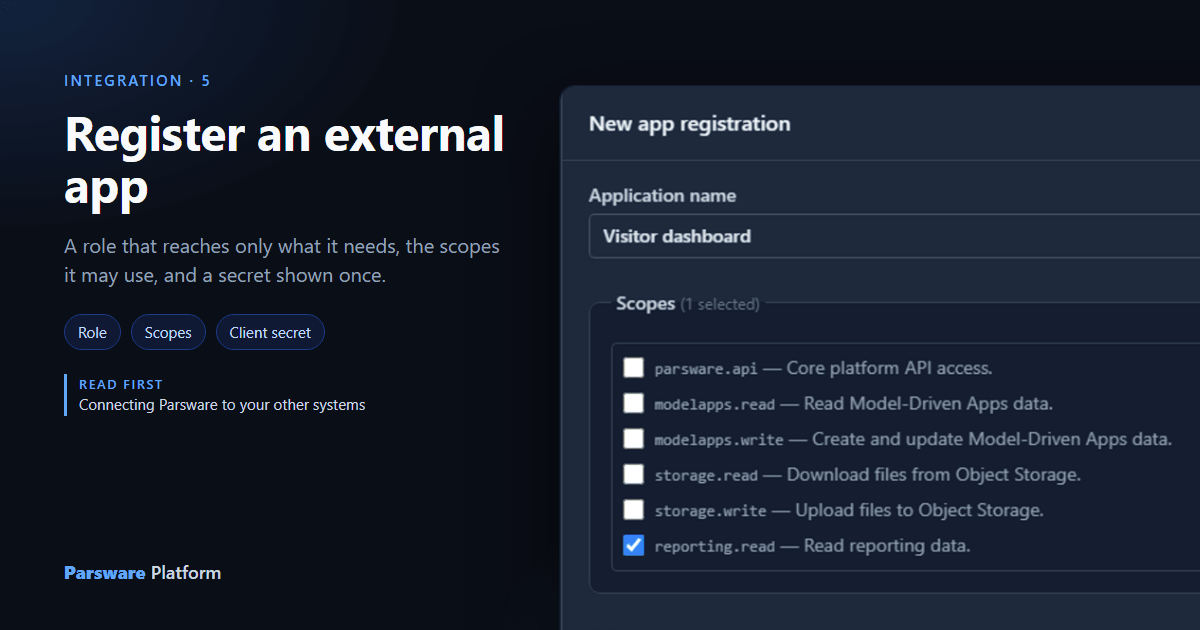
Reception wants a dashboard on the wall: who's visiting today, and from which company. The dashboard is somebody else's software, running on its own machine. To read your data it needs an identity of its own, one you can see, limit and switch off. That identity is an app registration.
A registration answers three questions, and it's worth deciding them in this order:
- Which records may it reach? That's a role, the same kind of role a person holds.
- Which kind of call may it make? Those are scopes: read app data, write it, read reports, use file storage.
- How does it prove who it is? A client id and a client secret, which Parsware generates.
First, a role that reads visitors
Start with the role, because it's what keeps the dashboard to its own business. We made it in the Visitors solution, under Roles, New:
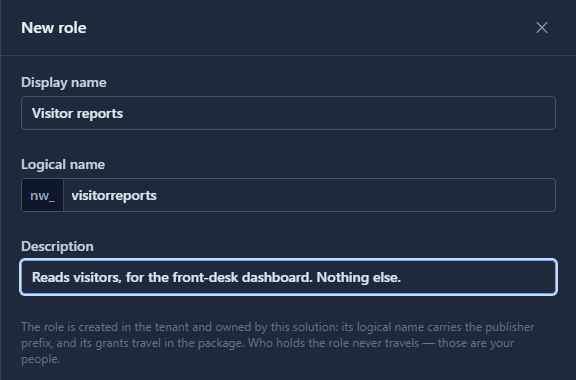
Save opens the role's permissions. The dashboard reads visitors, so Visitors gets Read on Every record, and every other table stays Not granted:
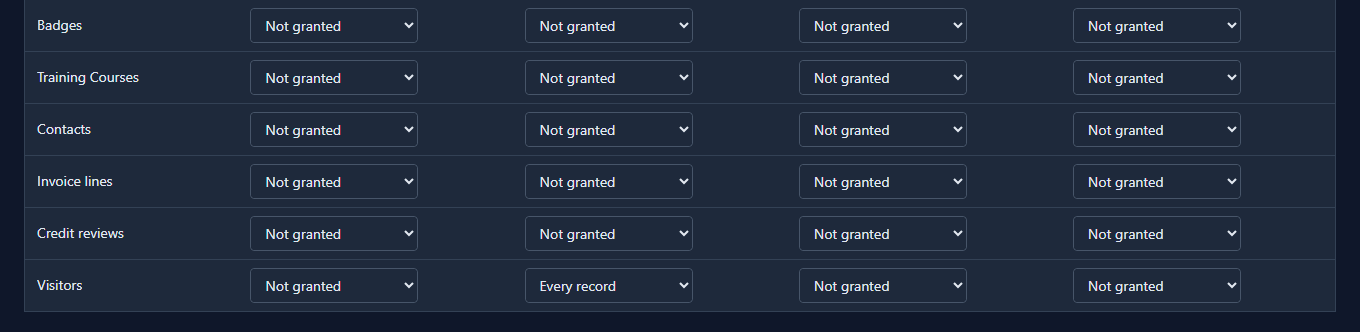
The role belongs to the solution, so its grants travel with it: import Visitors into Test and the same role reads the same table there. Who holds it never travels.
Then the registration
Under Admin, open App Registrations and press New:
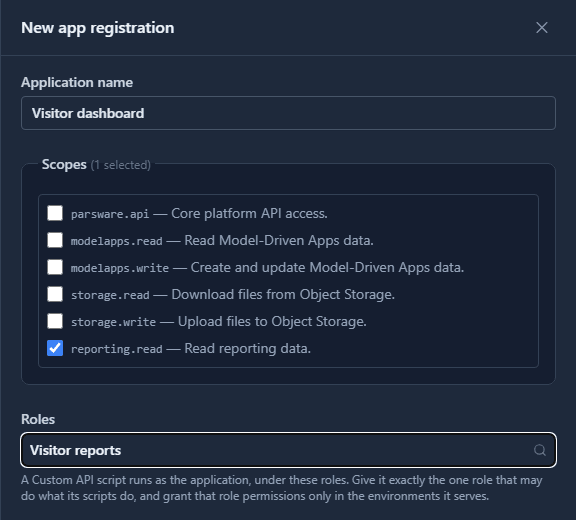
- Application name: the name you'll recognise in a list a year from now. Visitor dashboard.
- Scopes: the dashboard only reads data to show it, so
reporting.readand nothing else. It can't write a record or touch a file, whatever its role allows. - Roles: Visitor reports. With no role at all, the application can call Parsware and reach no record, which is the safe default.
Press Add.
The secret, once
Parsware shows the client id and the client secret, with a copy button beside each:
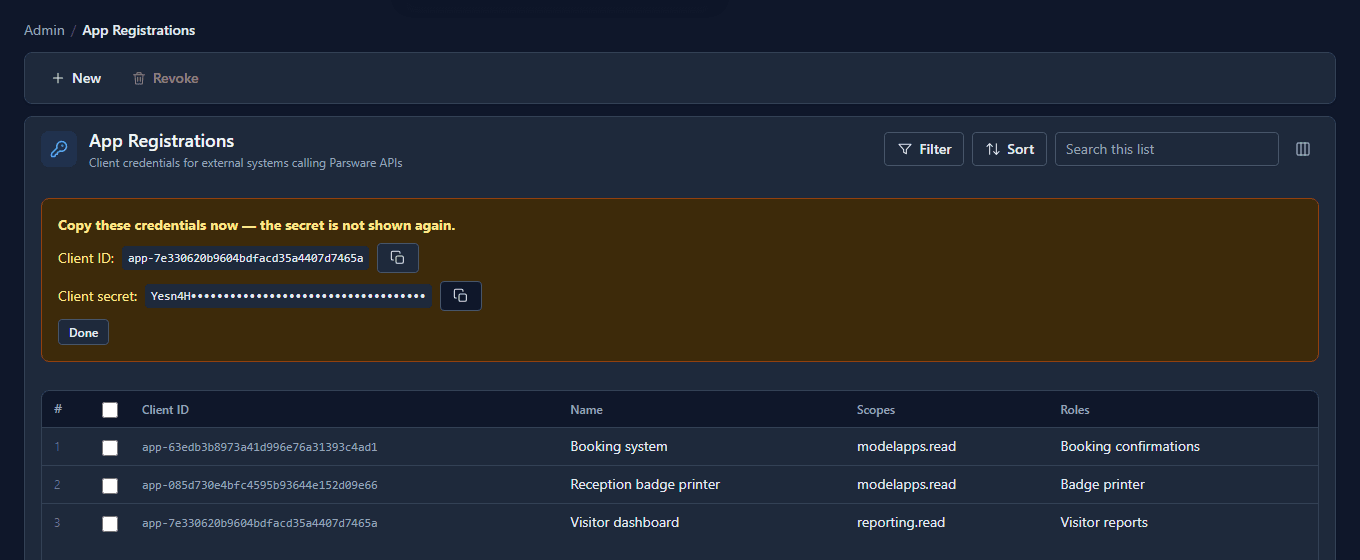
Copy the secret now. Parsware keeps only a hash of it, so nobody, you included, can see it again. Put it wherever the dashboard keeps its settings, the way you'd keep a password: not in a script, not in an email. If it's lost, revoke the registration and register again.
The list now shows what each registration may do at a glance: its scopes and its roles, by name.
Revoking
When the dashboard is replaced, select its row and press Revoke:
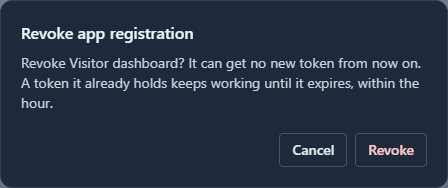
Read it carefully. Revoking stops the application getting new tokens at once. A token it already holds is checked by each service on its own, so it keeps working until it expires, at most an hour. To cut an application off that same minute, take the permissions away from its role as well: those are checked on every call.
What we fixed
Registering the dashboard turned up two things on this screen, both fixed before this was published:
- There was nothing to copy the secret with. The panel told you to copy the credentials now and gave you no button, so you selected a 43-character string by hand and found out it was one character short when the dashboard couldn't sign in. Each value now has its own Copy.
- The Revoke dialog promised too much. It said any system using the credentials "stops working immediately". We revoked one and kept calling with the token it already had, and it kept answering until the token expired. The dialog now says exactly that, and the help page says how to cut an application off at once.
Good to know
- One registration per system. A dashboard and a badge printer are two registrations, even if the same supplier makes both. Then you can revoke one without the other.
- The role is the fence. Scopes say what kind of call; the role says which records. A
registration with
modelapps.readand a role that reads only visitors reads only visitors. - The role is per environment. The registration belongs to your organisation, but a role's permissions are granted in each environment, so the same application can read Test and nothing in Production until you say so.
Try it
Register an application for a system you already run. Give it one scope and one role, copy the secret into its settings, and then look at the list: could you tell, from that row alone, what it can do?
Next: Get an access token, the call that application makes first.