Parsware Platform
Add existing components to a solution
A solution only carries what's in it. When something it needs was built somewhere else, the import into Test is refused. Dependencies shows what's missing, Add existing puts it in, and Remove from solution takes things out without deleting them.
In Moving work from Dev to Test to Prod we moved the Visitors solution from Development to Test. This article changes Visitors again, and the next import into Test is refused. We find out why with Dependencies, fix it with Add existing, and look at Remove from solution.
What went wrong
Since the last release, somebody added a Purpose column to the Visitor table. Purpose is a choice column, so it needed a choice list. They created one called Visit purpose, with the choices Meeting, Interview, Delivery and Maintenance. They did that while Main was the open solution, so Visit purpose went into Main.
The column itself is in Visitors. A new column belongs to the solution that owns its table. The choice list isn't: it belongs to the solution that was open when it was created.
We set Visitors' version to 1.2.0, exported it, switched to Test and imported it:
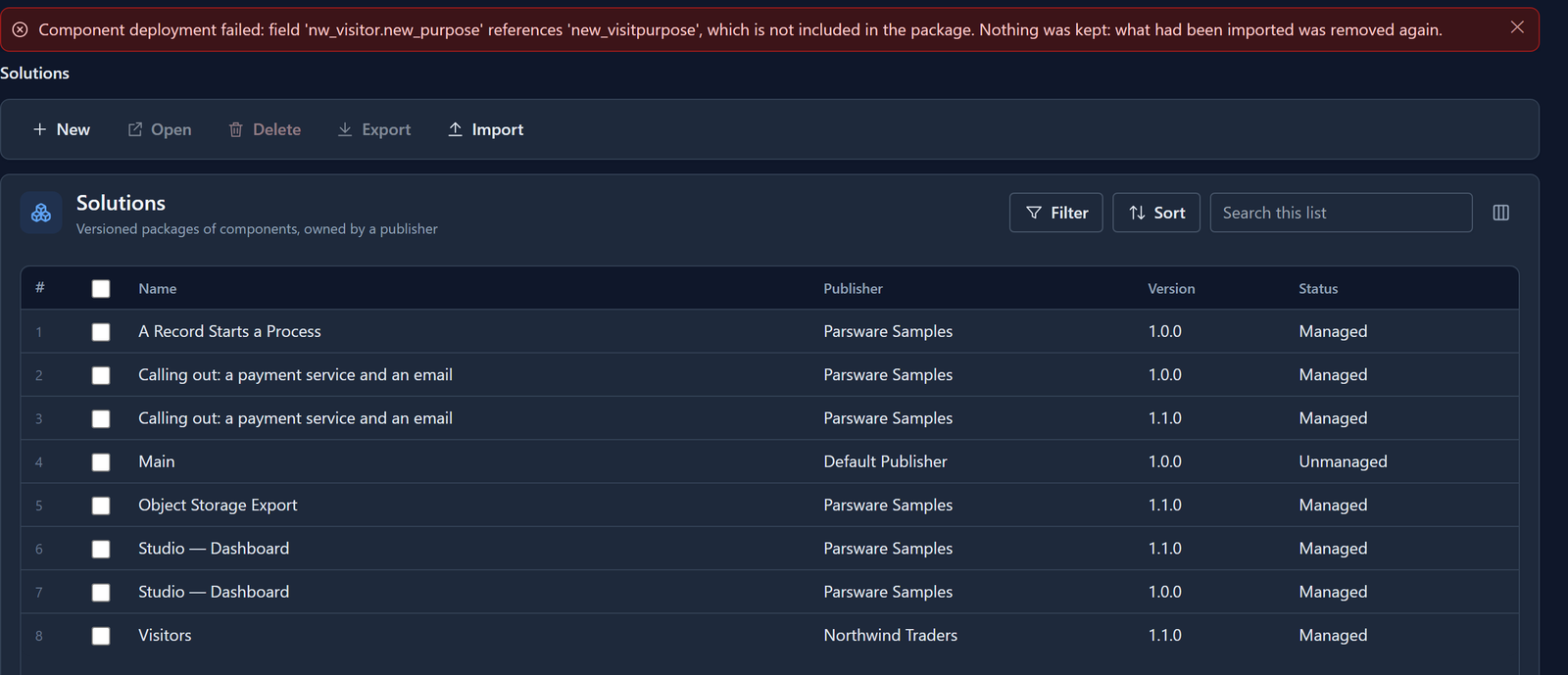
The message names the column, nw_visitor.new_purpose, and what it needs, new_visitpurpose.
Test doesn't have that choice list and the package doesn't bring it, so Parsware refuses the
import before it changes anything. Visitors in Test is still at 1.1.0.
Export doesn't add things a solution needs. It packs what's in the solution, and the environment you import into checks that everything is either in the package or already there. That keeps a package predictable: it carries exactly what the solution lists. It also means everything a solution needs has to be in it, unless every target environment already has it.
Find what's missing with Dependencies
Back in Development, open Visitors, tick the Visitor row and choose Dependencies:
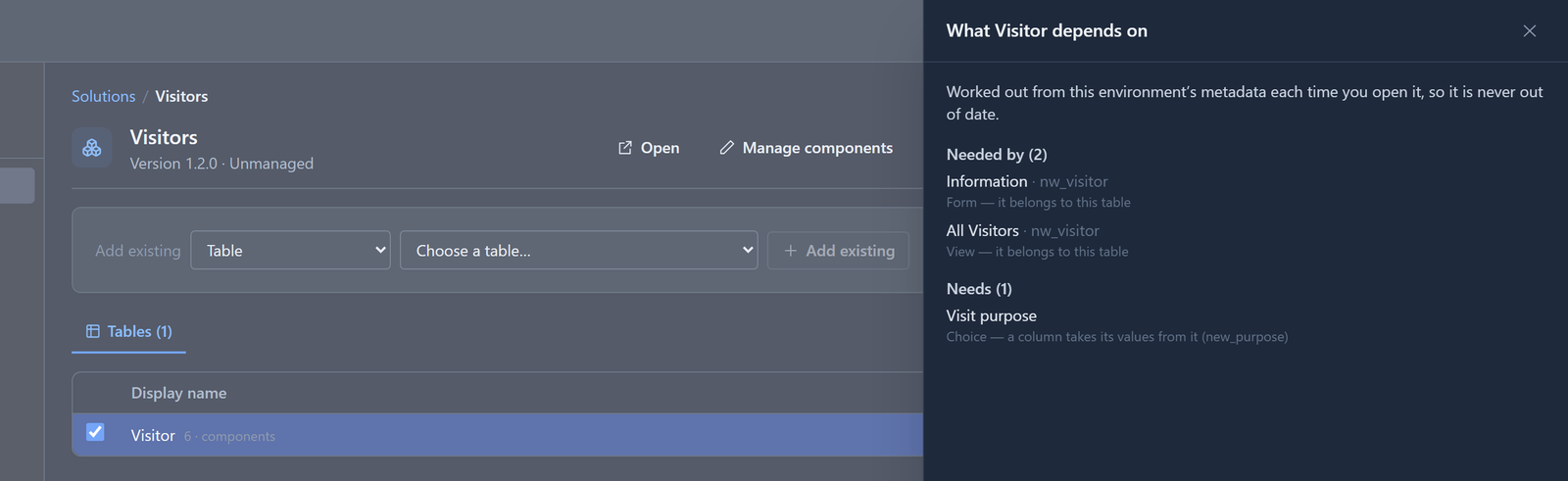
The panel has two lists:
- Needed by lists everything in the environment that depends on the component. Here, the table's own form and view.
- Needs lists what the component depends on. Here, the Visit purpose choice list, because
the column
new_purposetakes its values from it.
Every row says why it's there: a lookup column points at a table, a column takes its values from a choice list, a security role grants a permission on a table, an app's navigation opens a view. The panel is worked out from the environment each time you open it, and it covers the whole environment, not just this solution. That's why it can show something Visitors doesn't carry.
Dependencies is switched off for custom apps, custom controls, web resources, processes, custom APIs and portals. Parsware doesn't track what those depend on, and an empty panel would look like an answer.
Add it with Add existing
The bar at the top of a solution's overview is Add existing. Choose the kind of component, then the component itself. Every kind a solution can hold is in the first list: tables, option sets (choice lists), apps, scripts, Studio screens, processes, environment variables, data policies, reports, saved queries, custom APIs, portals, app guides, custom apps, custom controls, web resources and roles.
Choose Option set, then Visit purpose:
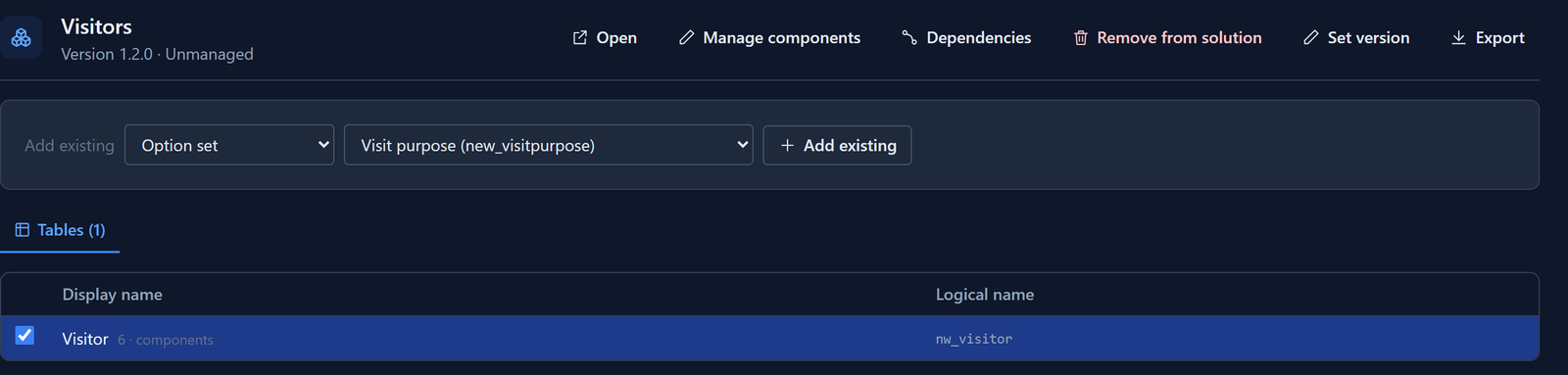
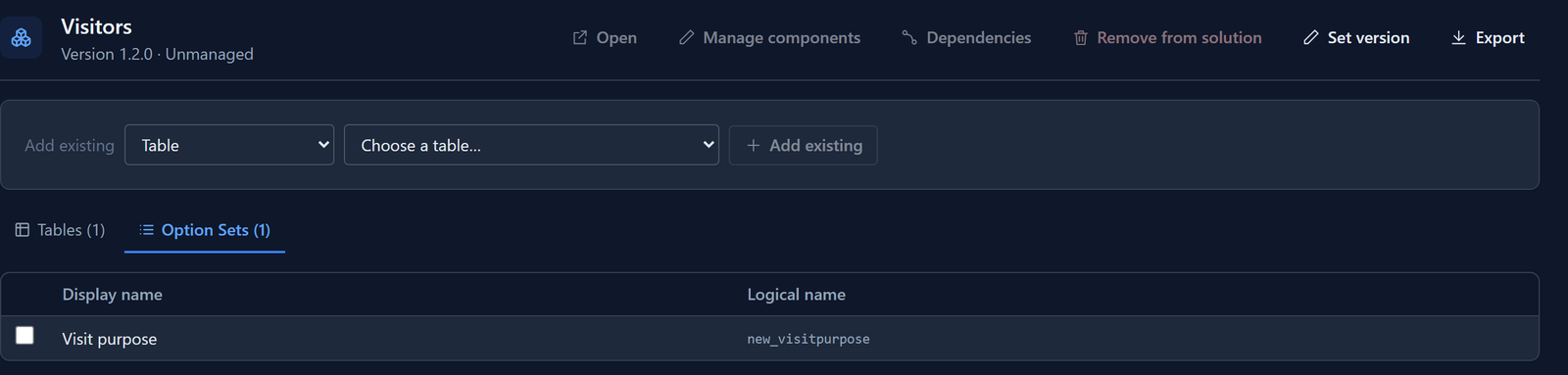
Select Add existing. A new tab appears, Option Sets (1), with Visit purpose in it:
Some things to know:
- The component isn't copied. Visit purpose is still one choice list. It's now in two solutions, Main and Visitors, and a change to it shows in both. An unmanaged component can be in any number of unmanaged solutions.
- The publisher doesn't have to match. Visit purpose has the Default Publisher's prefix,
new_, and Visitors belongs to Northwind Traders,nw_. The prefix records who created a component. It doesn't limit which solutions can carry it. - The list only offers what isn't in the solution yet. Visit purpose won't be offered again. Tables are the exception, below.
- A role opens the Roles page. A role is in a solution because the solution grants it permissions, so choosing Role takes you to the solution's Roles page, where you choose them.
- A report or a saved query goes under its table. You don't choose the table. Parsware knows which table it reads.
With Visit purpose in the solution, we exported Visitors 1.2.0 again and imported it into Test. This time it went through, and Test has Visitors 1.2.0 with the Purpose column and its choices.
Adding a table: choose its parts
A table is several components: its columns, forms, views, relationships and saved queries. When you add an existing table, the Manage components dialog opens so you can choose which of them come with it. The table itself always does. You can open the same dialog later by ticking a table on the Tables tab and choosing Manage components:
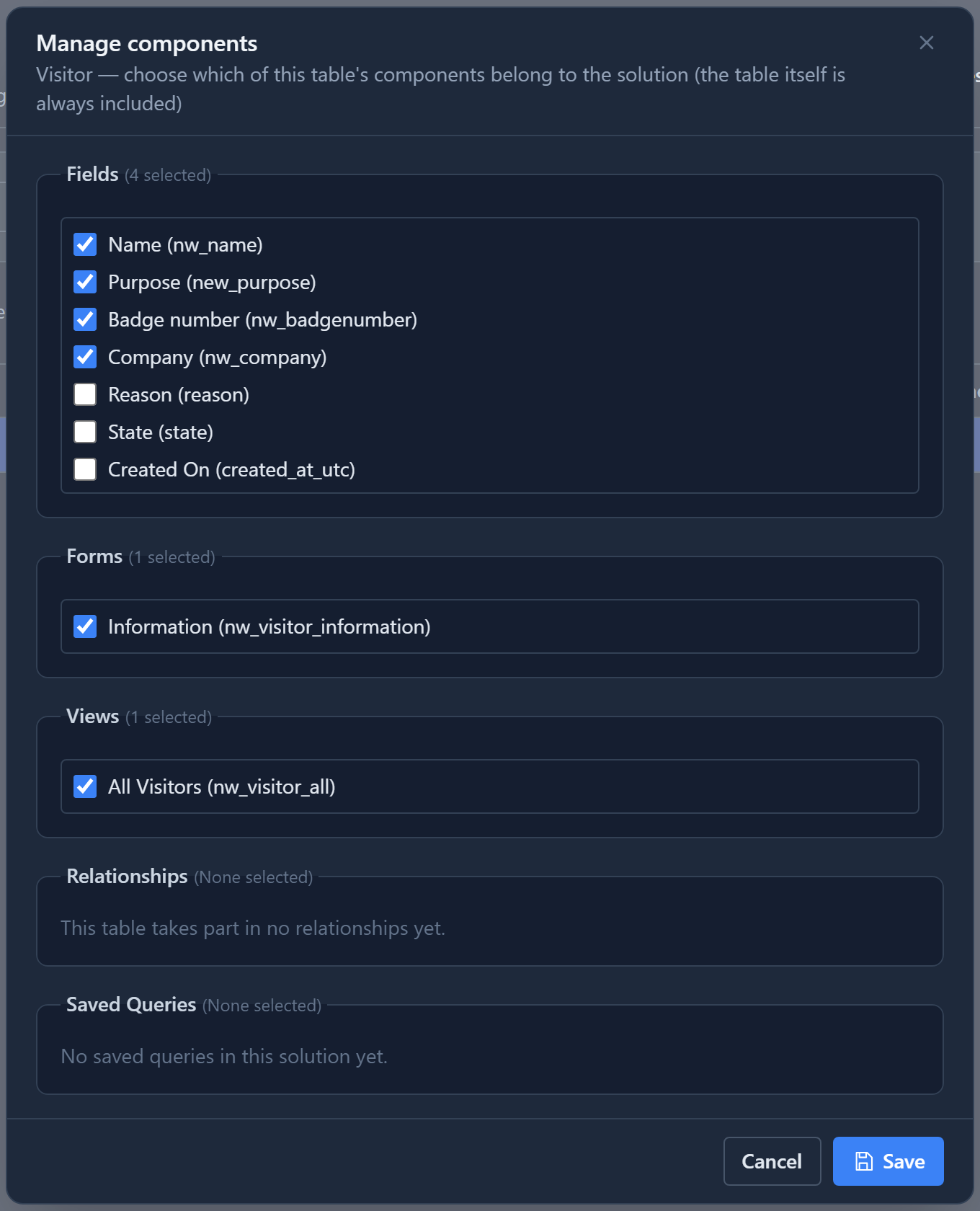
Forms, views and saved queries travel only if they're ticked. That's how you carry a new form for an existing table without taking over the forms somebody else maintains.
Columns and relationships are different. A table's definition holds all of its columns and relationships, and that definition travels whole, ticked or not. When we tried it, the exported Visitor table carried the Reason and State columns although their boxes are clear. Their ticks change what the solution's own Fields list shows, not what the file contains. The help page used to say otherwise, and we've corrected it.
Remove from solution
To take something out, tick it and choose Remove from solution:
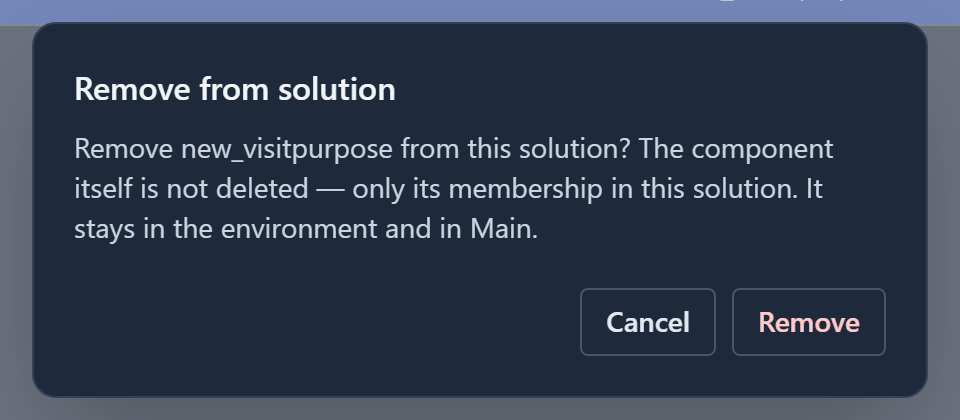
Removing doesn't delete anything. The component stays in the environment and in Main, and so does any data that uses it. The next export of the solution just doesn't carry it. To take a single form or view out, open the table's Manage components and clear its box.
We chose Cancel, and that was the right call. Remove doesn't check whether anything in the solution still needs the component. If we had removed Visit purpose, Visitors would still export, and the next import into a new environment would be refused just like the first one. Before removing something, tick it and open Dependencies. If anything under Needed by is in this solution, leave it in.
Main has neither Add existing nor Remove from solution. It always holds everything in the environment, so there is nothing to add to it, and taking something out of Main would mean deleting it.
Habits that prevent this
- Open the solution you're working on before you build. Whatever you create while a solution is open goes into it. Main is for things that are never going to move.
- Check Dependencies before every export. Tick each table and app and read Needs. Anything listed that isn't in the solution has to be added, or already exist in every environment you'll import into. Standard tables such as Account and Contact exist in every environment.
- Import into Test first. A refused import changes nothing, so Test is where you find out, not Production.
Try it
In Development, create a choice list with Main open and use it for a new column on one of your own solution's tables. Export the solution and import it into Test, and read the error. Then open Dependencies on the table, add the choice list with Add existing, and import again.
Next: managed layers and clean uninstalls.