Parsware Platform
Open a Studio app inside a model-driven app
A model-driven app, Contact desk, with the Contact list screens and the Contact table side by side in its navigation. The drawn screens open as its home page, their own links stay inside it, and the task inbox comes with it.
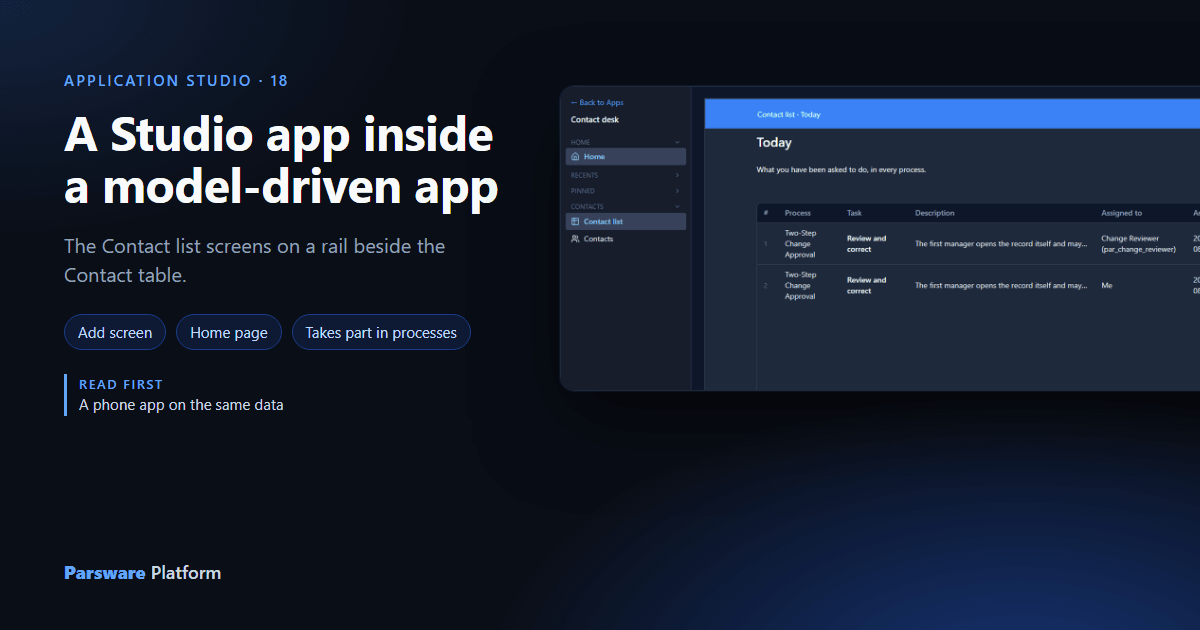
So far Contact list has been opened on its own, from the Shell's app list. That's one way in. The other is to put it in a model-driven app's navigation, beside tables, dashboards and reports, so a designed screen and a table's own list are one click apart.
This article builds Contact desk: the four drawn screens as its home page, and the Contact table next to them.
1. A new app
In your solution, open Apps and press New. We filled in:
- Display name Contact desk. The logical name follows it:
new_contactdesk. - A description, and the Contact icon.
- Takes part in business processes, ticked, because the Today screen lists tasks.
Then, in the first navigation group, which we called Contacts, two items:
- The screen button, the window glyph beside the table and report buttons, and Contact list.
- The table button, and Contact.
Last, Home page: Contact list.
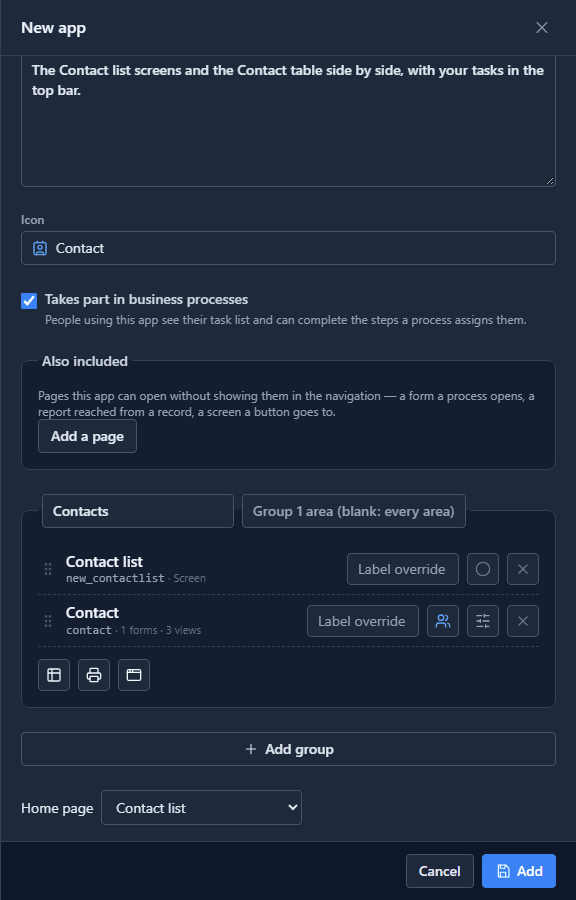
The item's Label override would let the rail call the screen something else, say Start here. We left it as Contact list. Press Add:

2. Open it
Open Contact desk in the Shell. It opens on the drawn app, at its own start screen, Today, with the app's navigation beside it:
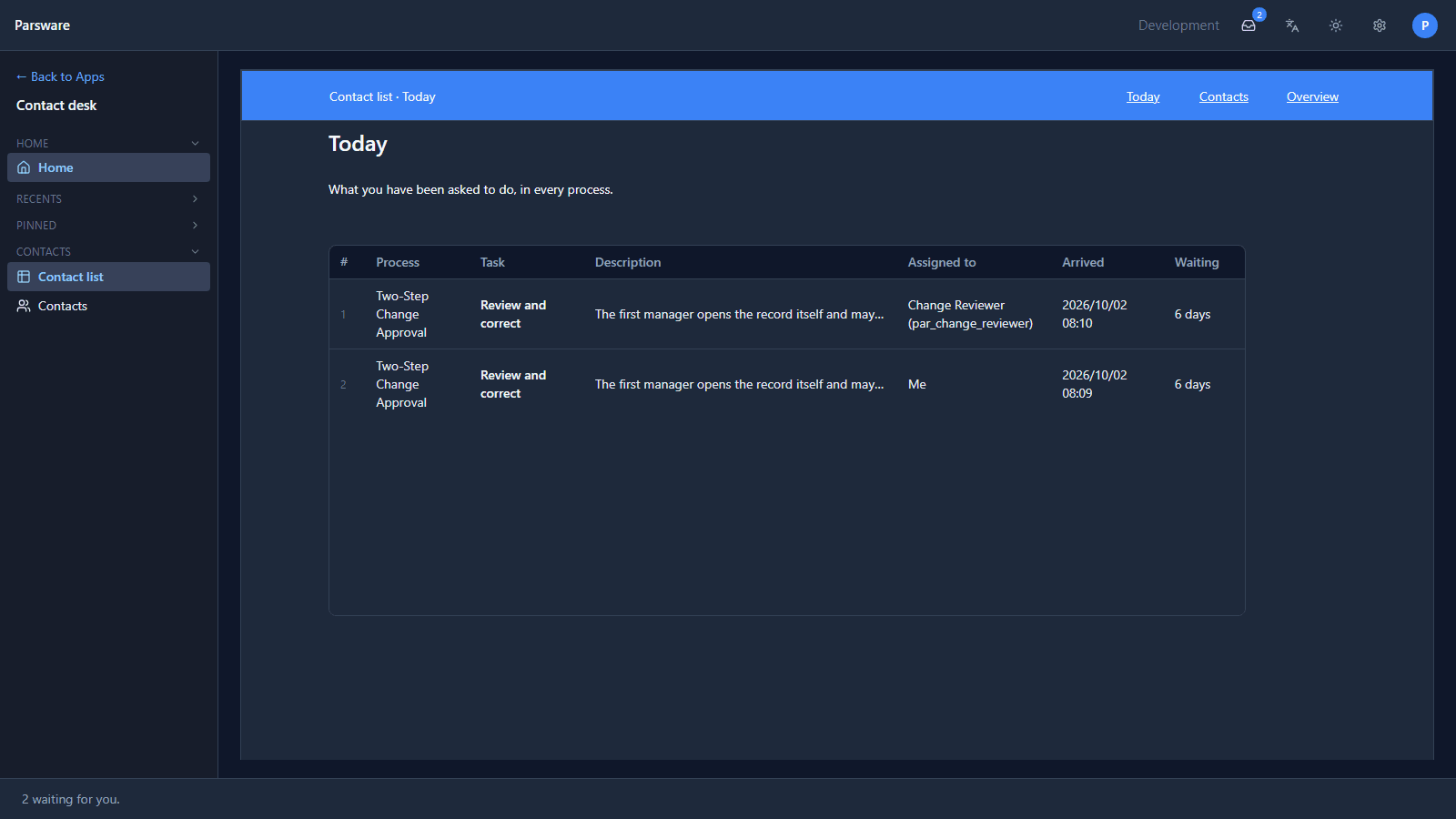
The rail names the app, not its screens: Contact list is one entry, however many screens it has. Its own top bar moves between them. And because Contact desk takes part in processes, the inbox is in the Shell's top bar and the bar along the bottom counts what's waiting.
3. Move between screens
Press Contacts in the drawn bar. The address becomes
/apps/new_contactdesk/screen/new_contactlist/Contacts. You're still in Contact desk, on another
of the drawn app's screens:
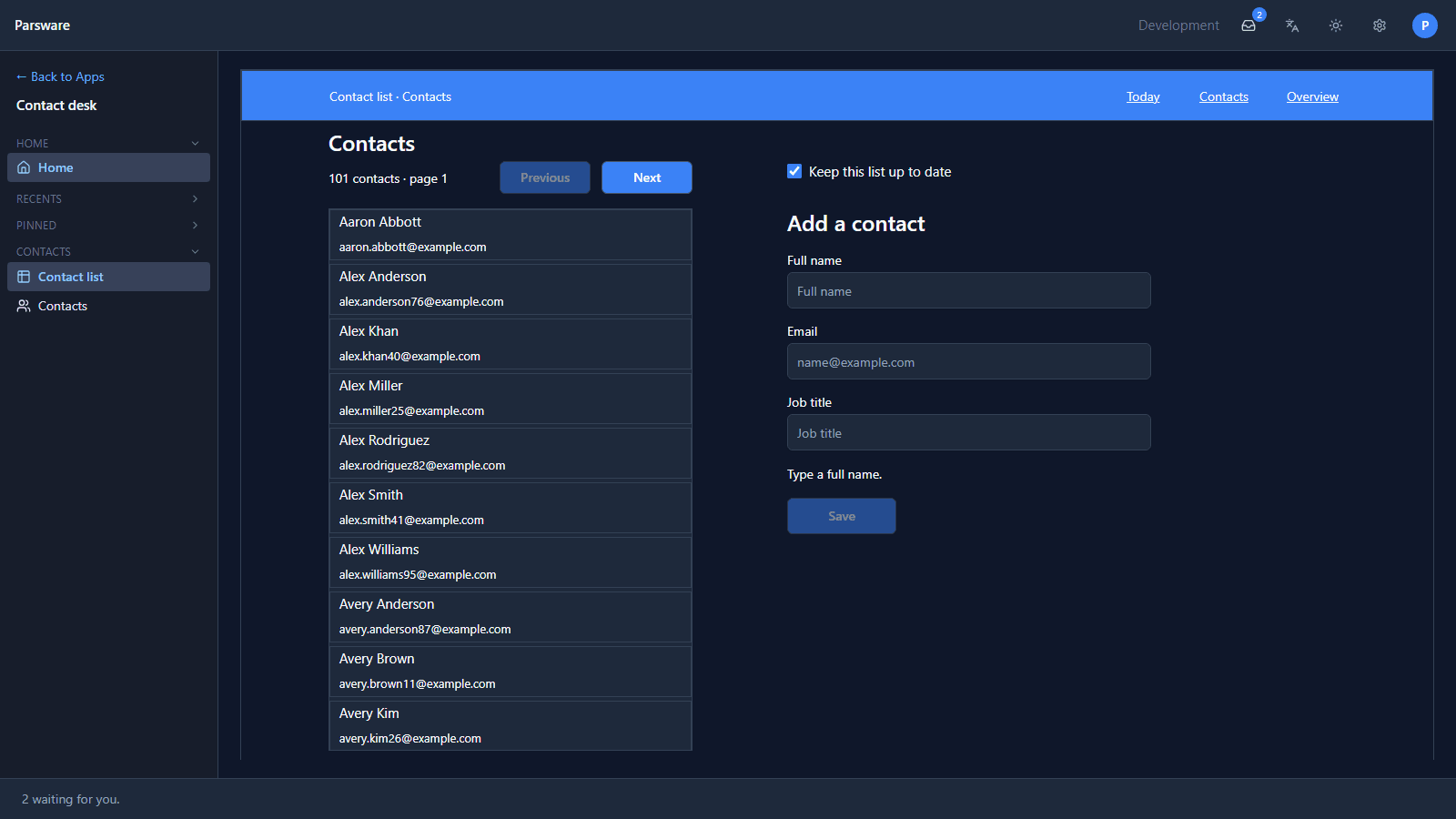
Press a contact, and the Contact screen opens the same way. The browser's Back button walks back through them, one screen at a time:
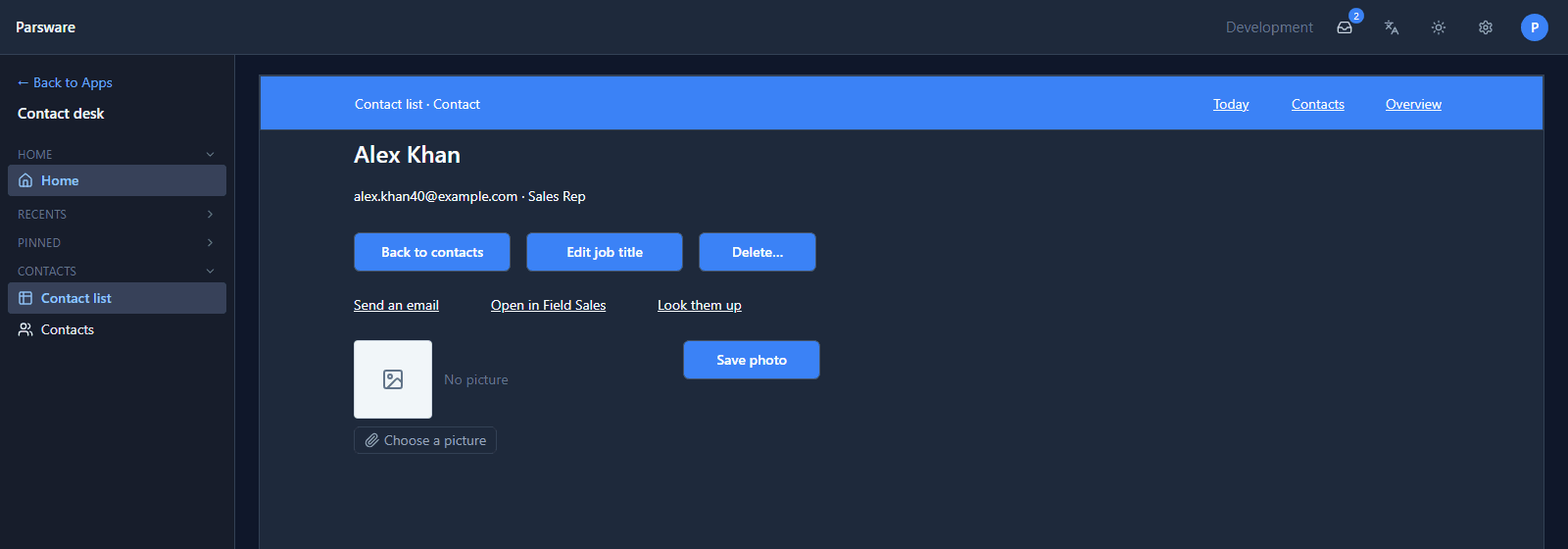
That's why the bar's links name screens (Contacts) rather than addresses
(/apps/new_contactlist/Contacts): on its own and inside Contact desk the same screen has
different addresses, and a link to the screen's name goes to the right one in both.
4. The table beside it
Contacts in the rail is the Contact table's own list, with its views, its command bar and its forms, exactly as in any model-driven app:
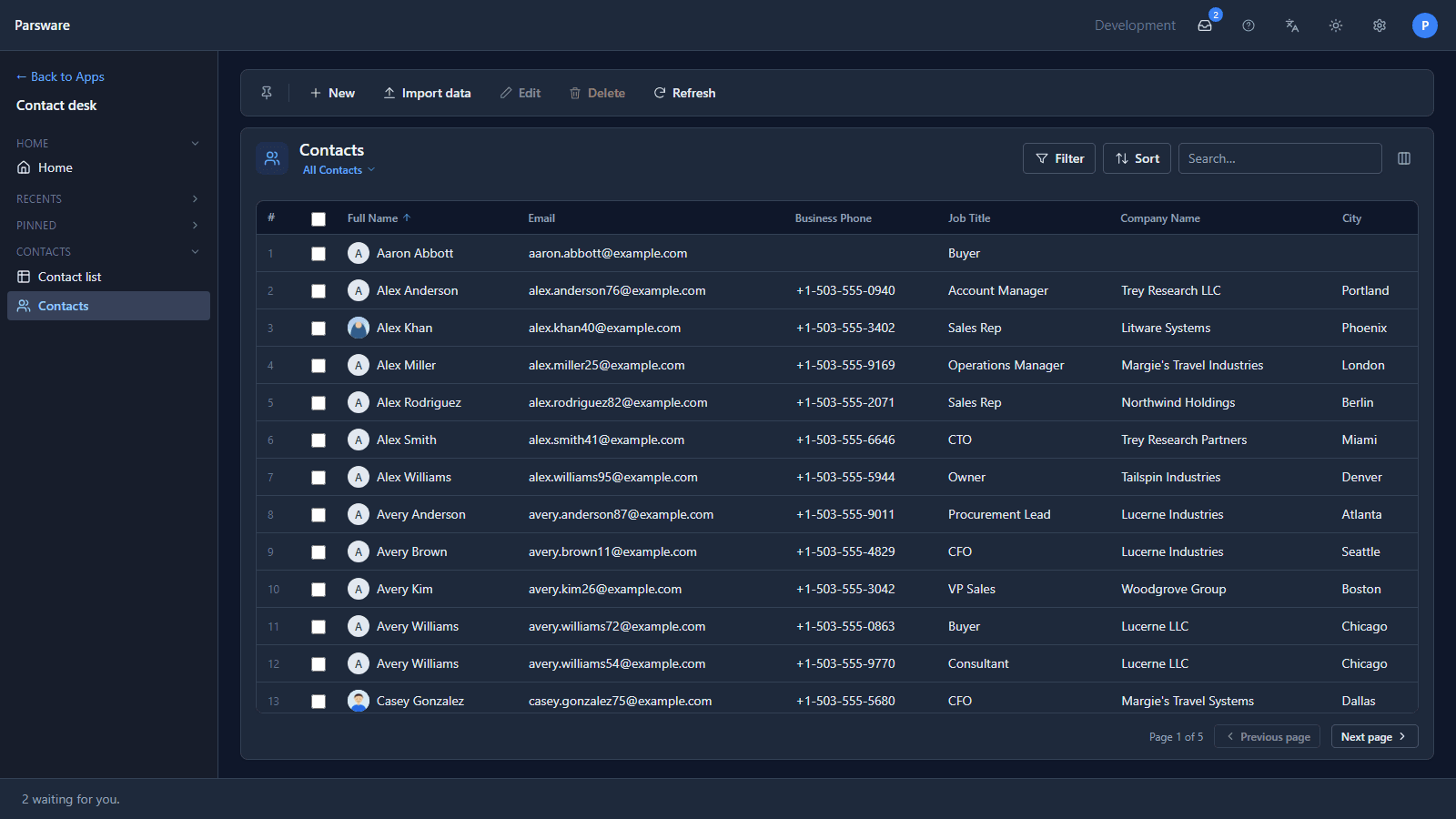
So the drawn screens do what a table's list can't, a home page, a dashboard, a form laid out by hand, and the table does what it's good at, and they're one click apart.
Who can open Contact desk is up to you, as for any app: select it and press Share (see Your first app, shared). Opening the screen is a permission too, given by the same security roles.
What we fixed
Building this turned up a problem, now fixed:
- A link to another screen left the model-driven app. The top bar's links had addresses like
/apps/new_contactlist/Contacts, which is the drawn app opened on its own. Inside Contact desk they took you out of it. A link's address can now be a screen's name,Contacts, and goes to that screen wherever the app is opened, without reloading the page; middle-clicking still opens it in a new tab. The Address box says so, and so does the help page on drawing an app.
Try it
Import the Studio app navigation sample (studio-app-navigation). It ships its Requests
screens both on their own and inside a model-driven app, so you can open each and compare.
Next: running a Studio app on its own.