Parsware Platform
Components shared across screens
The Contact list app had a link or two in a different place on each of its four screens. Now it has one top bar, drawn once beside the screens, placed on all four, and changed in one place.
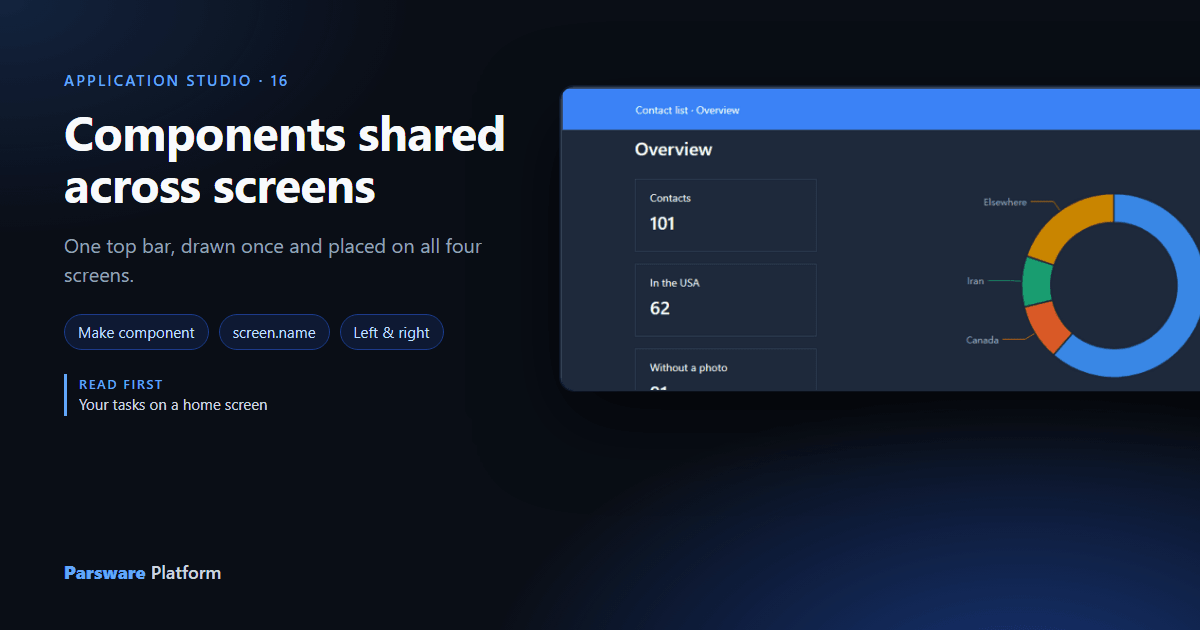
The Contact list app now has four screens: Today, Contacts, Contact and Overview. Each one grew its own way to the others, a link here, a button there, in a different place each time. An app's screens should share a top bar, and a top bar drawn four times is four top bars that drift apart the first time one of them changes.
So draw it once, as a component, and place it on every screen.
1. Draw the bar beside the screens
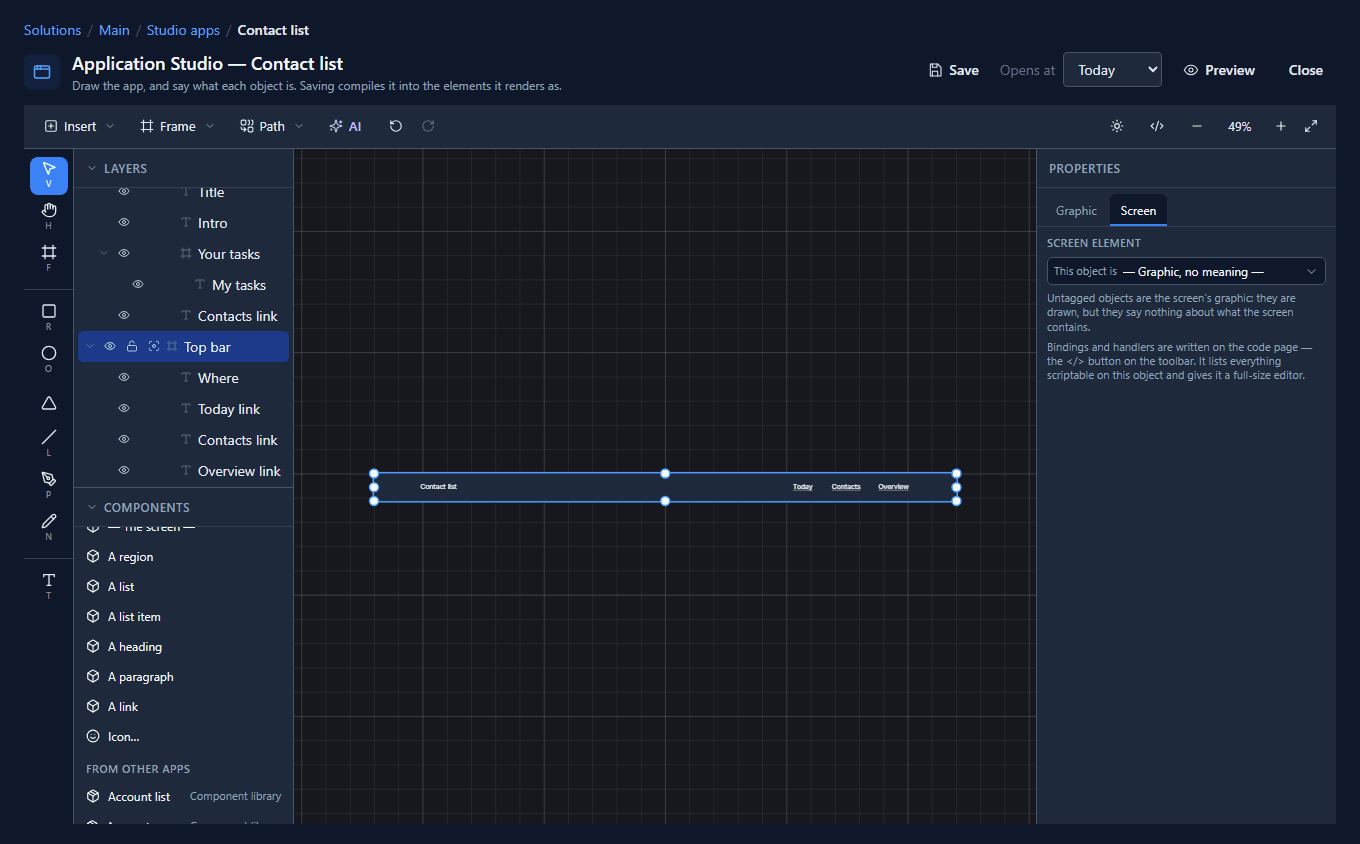
With the Frame tool, draw a frame on bare canvas, to the right of the screens, and make it 1200 by 56. Name it Top bar. It isn't a screen: it's the drawing the screens will copy, so it lives off to the side.
Put four things in it: A paragraph on the left, and three of A link on the right, Today, Contacts and Overview.
2. Say which screen this is
Every copy of the bar will be the same, but each one is on a different screen. The paragraph says which, by binding its Text:
"Contact list · " + screen.name
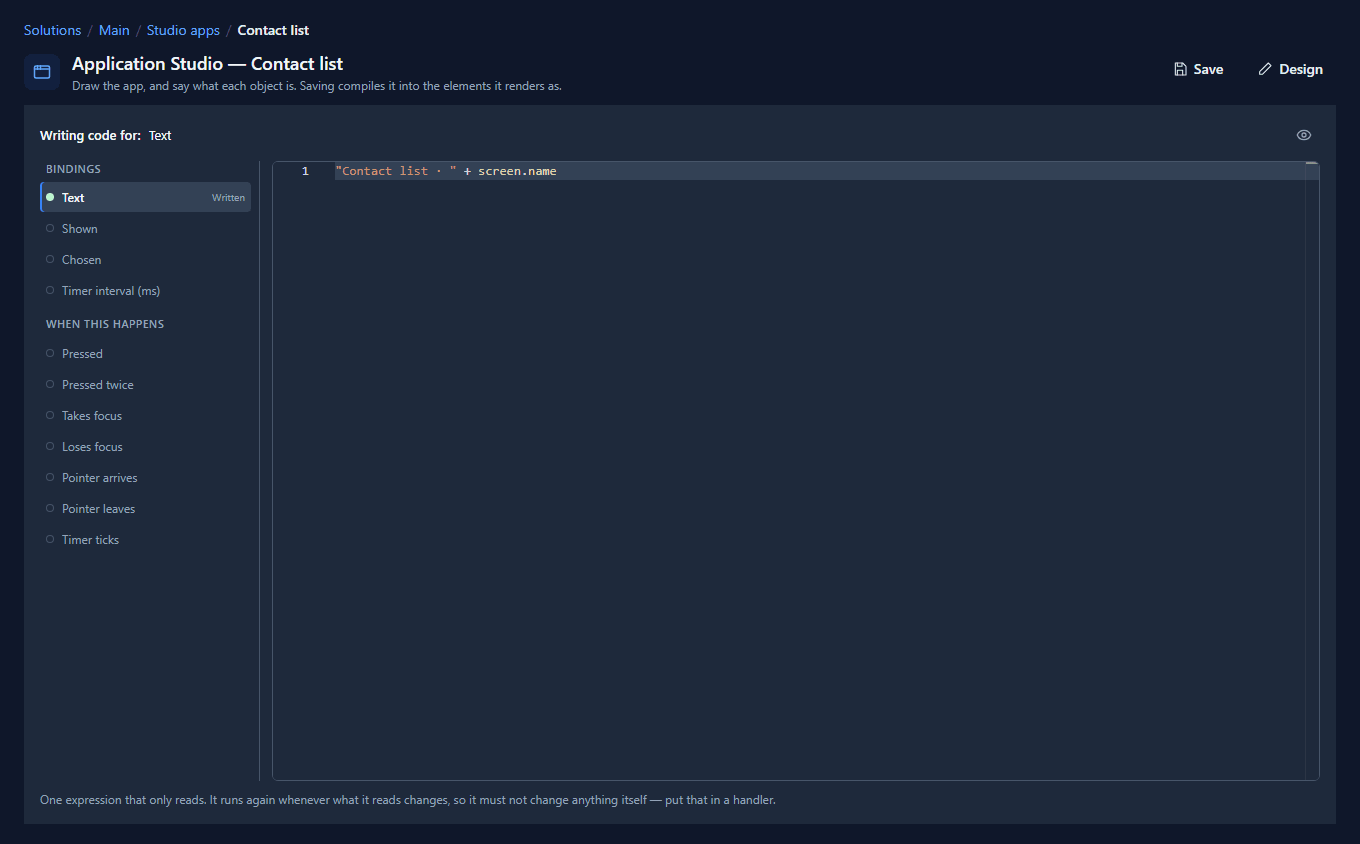
screen.name is the name of whichever screen the bar is on. That's the only thing that differs
from one copy to the next, and nobody has to set it.
3. Make it a component
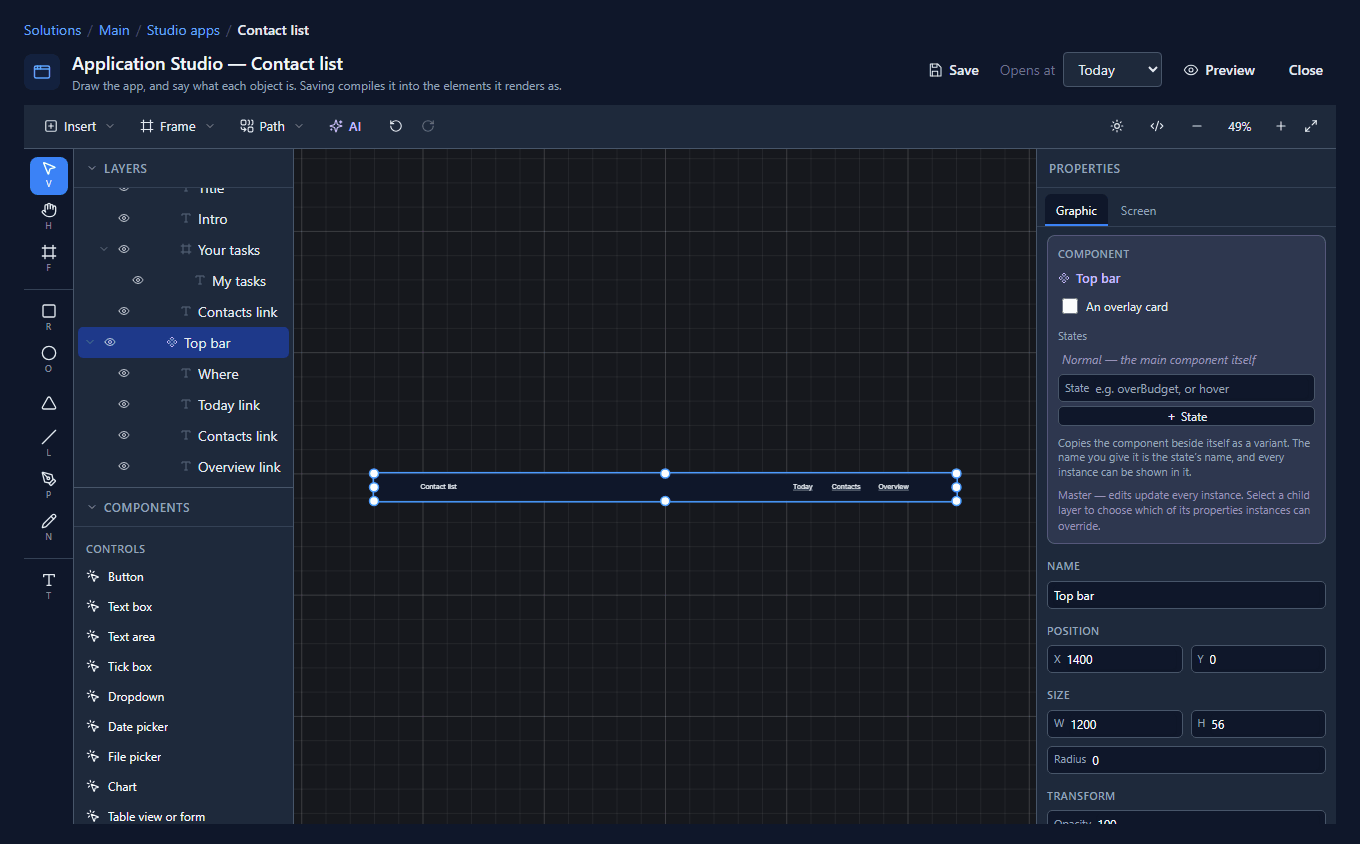
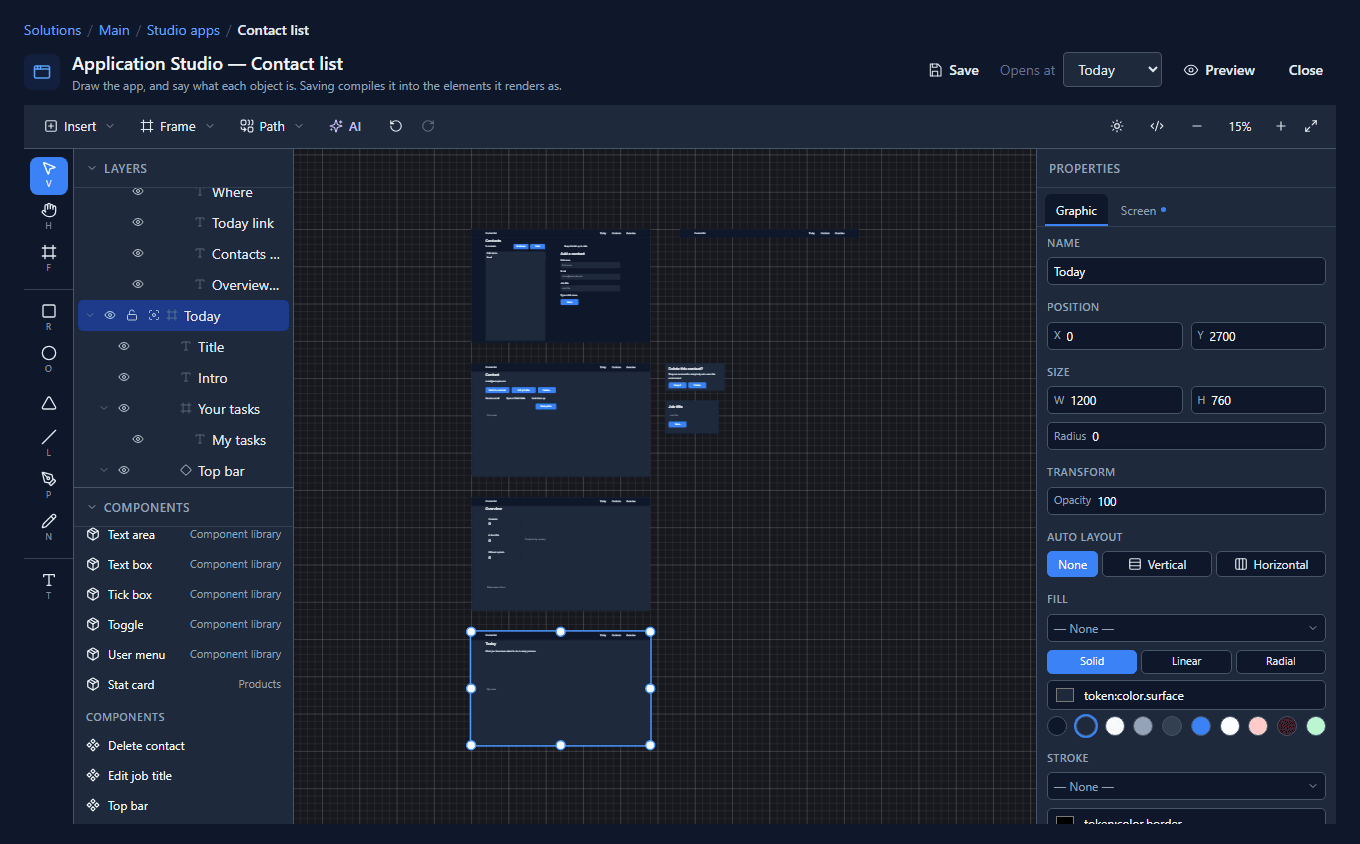
Right-click the bar's empty middle and choose Make component. The inspector now says Component: Top bar, and Top bar is in the Components list:
4. Place it on every screen
Select a screen, click Top bar in Components, and set the copy's X and Y to the screen's top-left corner. Do the same on the other three. Then delete the links each screen had before: Overview on Contacts, and All contacts on the other three.
A link that goes to another screen of the app takes the screen's name as its address. Type
Overview, not /apps/new_contactlist/Overview:
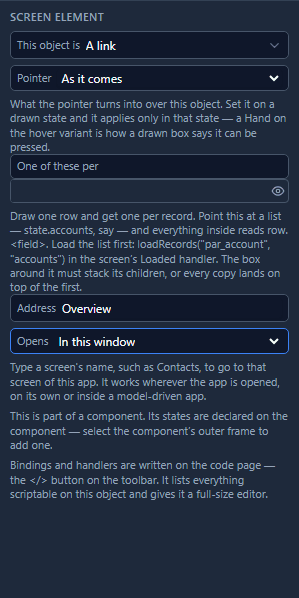
That matters in the next article, where the same screens open inside a model-driven app at a different address.
5. Make it stretch
The screens are drawn 1200 wide and fill whatever window they're opened in, so the bar should stretch with them. Select each copy and set its Horizontal constraint to Left & right:
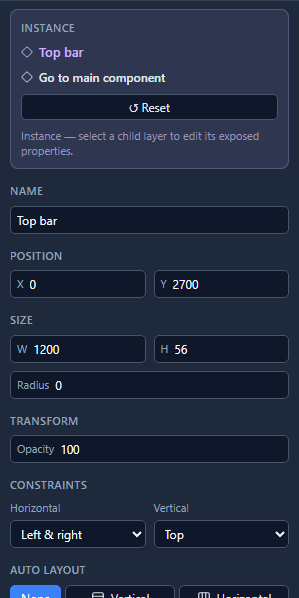
In the drawing, set the three links' Horizontal to Right, so they keep to the right edge of a wider bar (see Resize constraints).
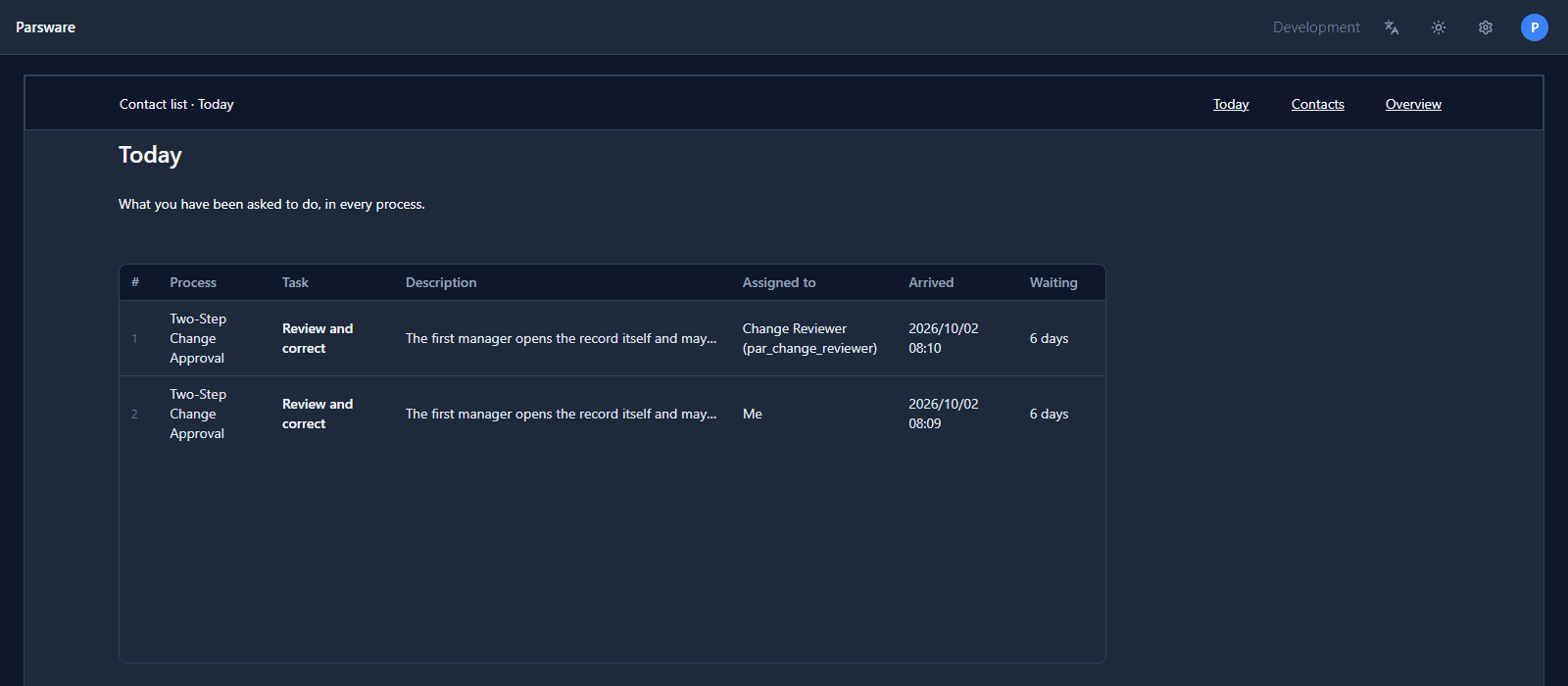
Save, and open the app. The same bar is on every screen, each saying where you are:
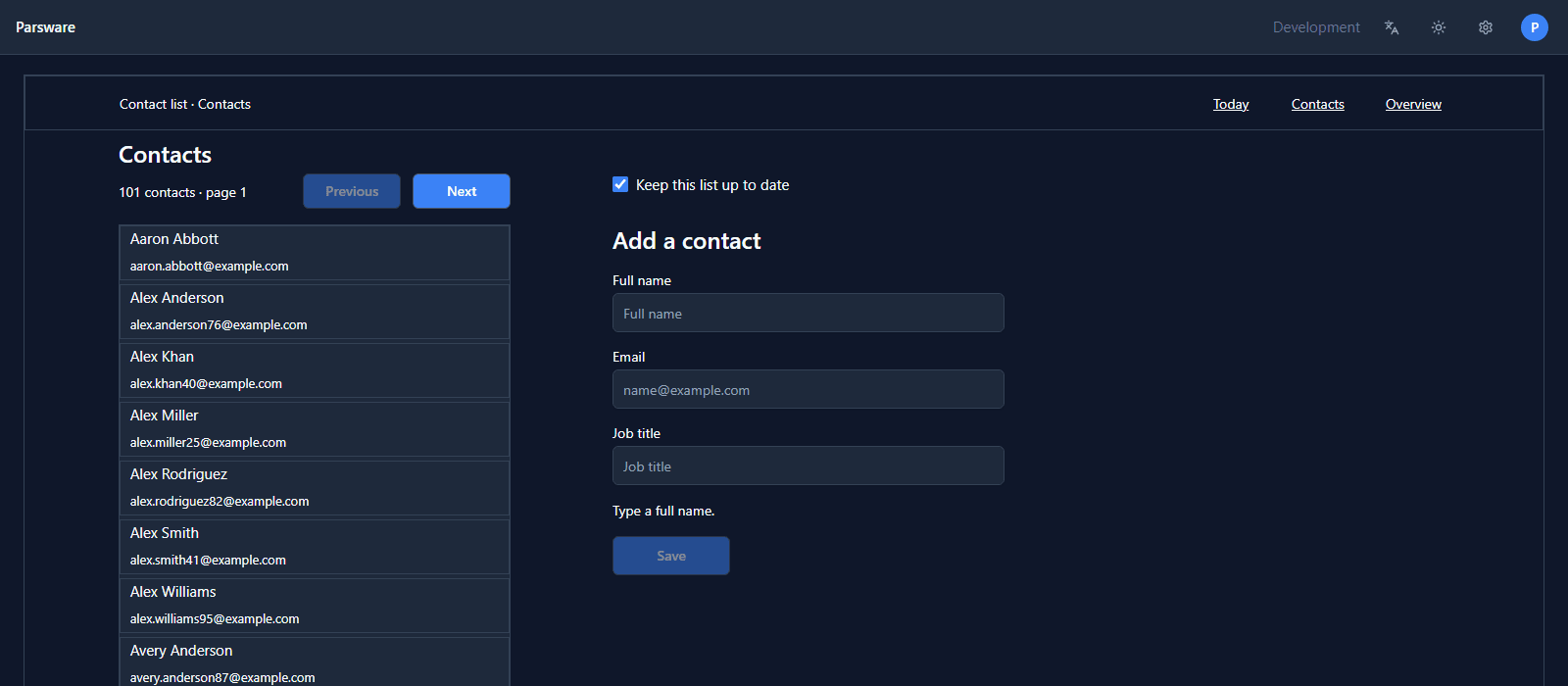
6. Change it once
Select the drawing, Top bar, and give it a Primary fill:
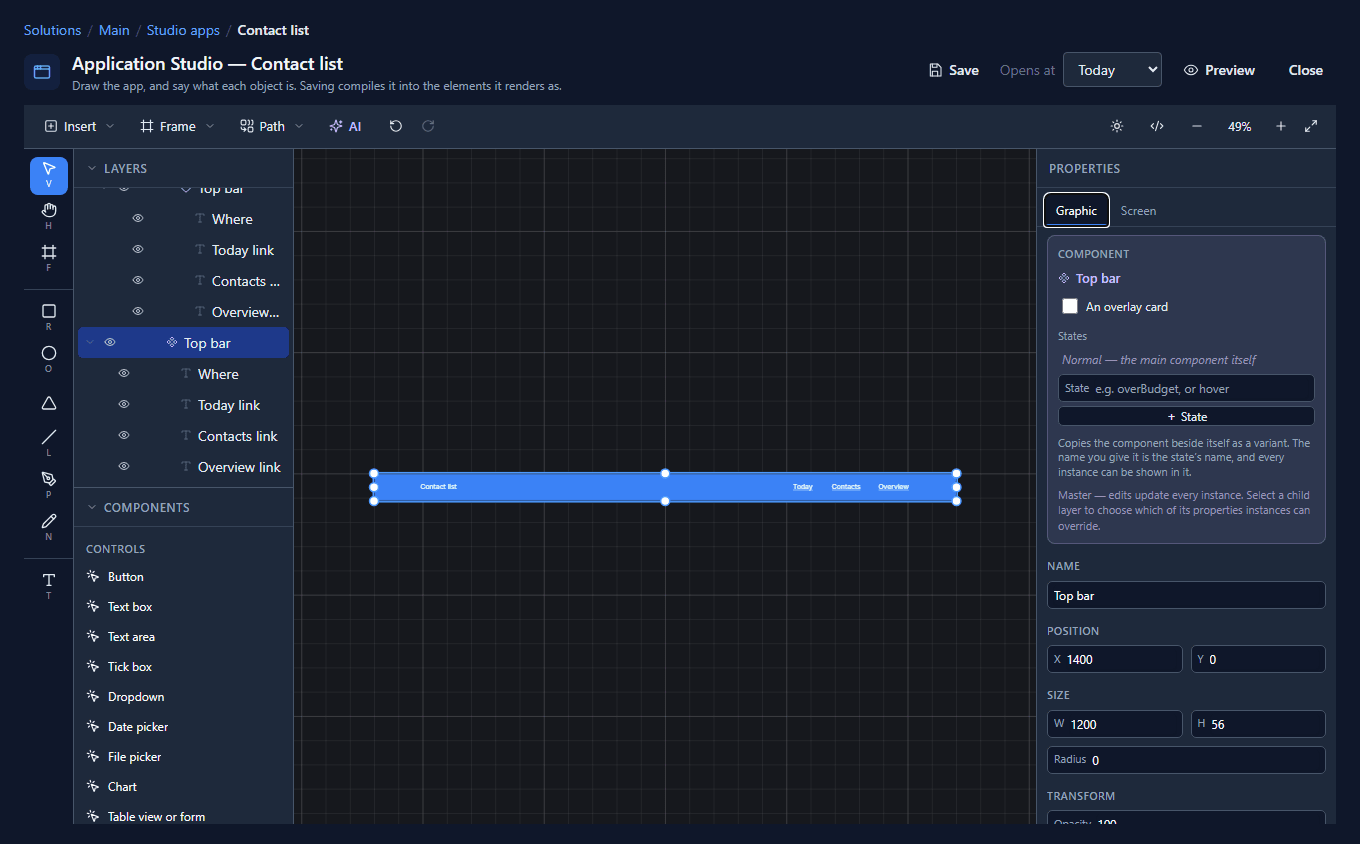
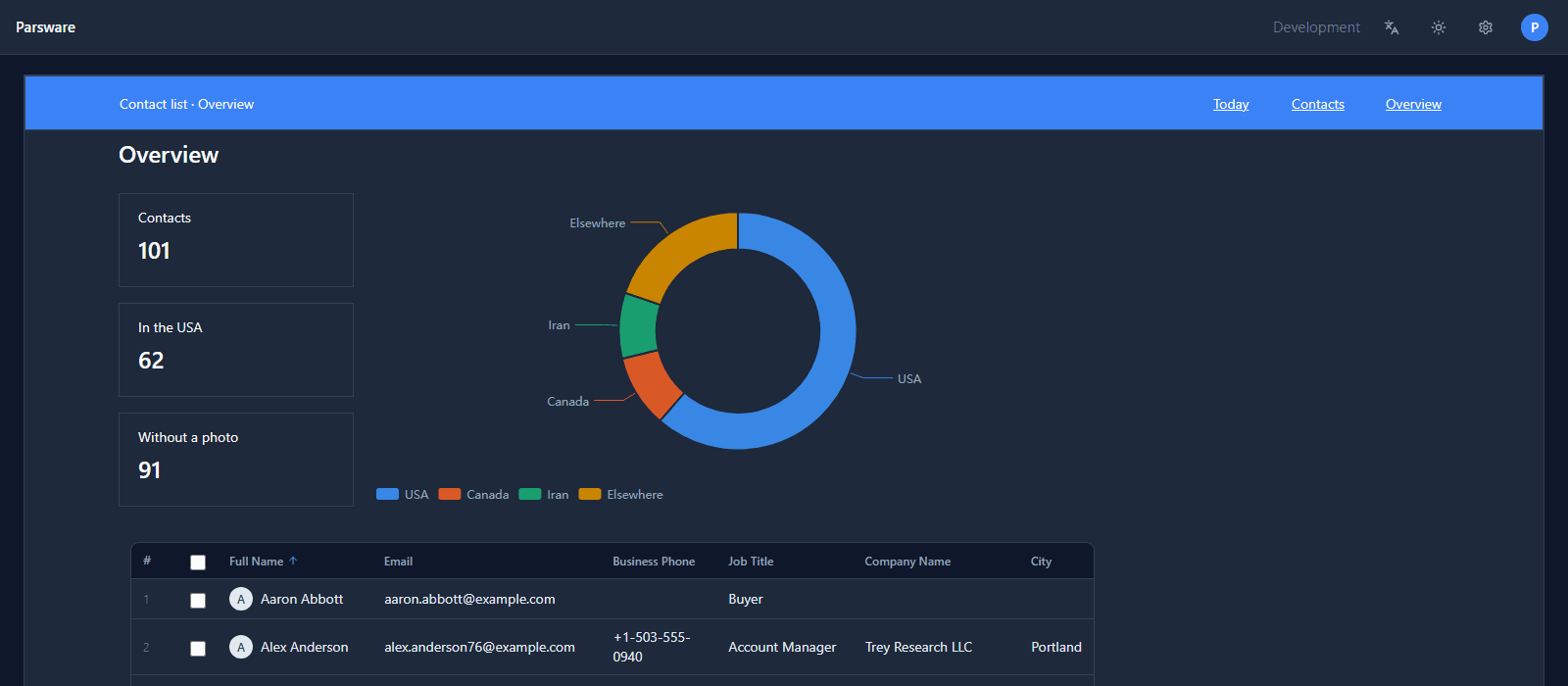
Save. Every screen's bar is blue now. You changed one drawing:
What we fixed
Building the bar turned up two bugs in components, both now fixed:
- A part's constraints didn't reach the copies. We pinned the links to the right in the drawing, and every placed bar kept them on the left, so a stretched bar had its links in the middle. A part's constraints now come from the drawing, like its position does.
- Nor did its address. Changing a link's Address in the drawing changed it in the drawing only, and every copy kept linking where it used to. The same was true of a part's bindings and handlers. None of these can be changed on a copy, so they now always come from the drawing.
Try it
Import the Shared components sample (studio-shared-components). Its Products app draws a
Stat card, and its Orders app places it: a component shared between two apps rather than two
screens.
Next: a phone-sized screen, raised on a phone and approved on a desktop.