Parsware Platform
Undo, history and export
Undo and redo in the Graphic Designer go back one action at a time, a hundred deep. Export turns any part of a drawing into an image, an SVG, or HTML and React code you can take away.
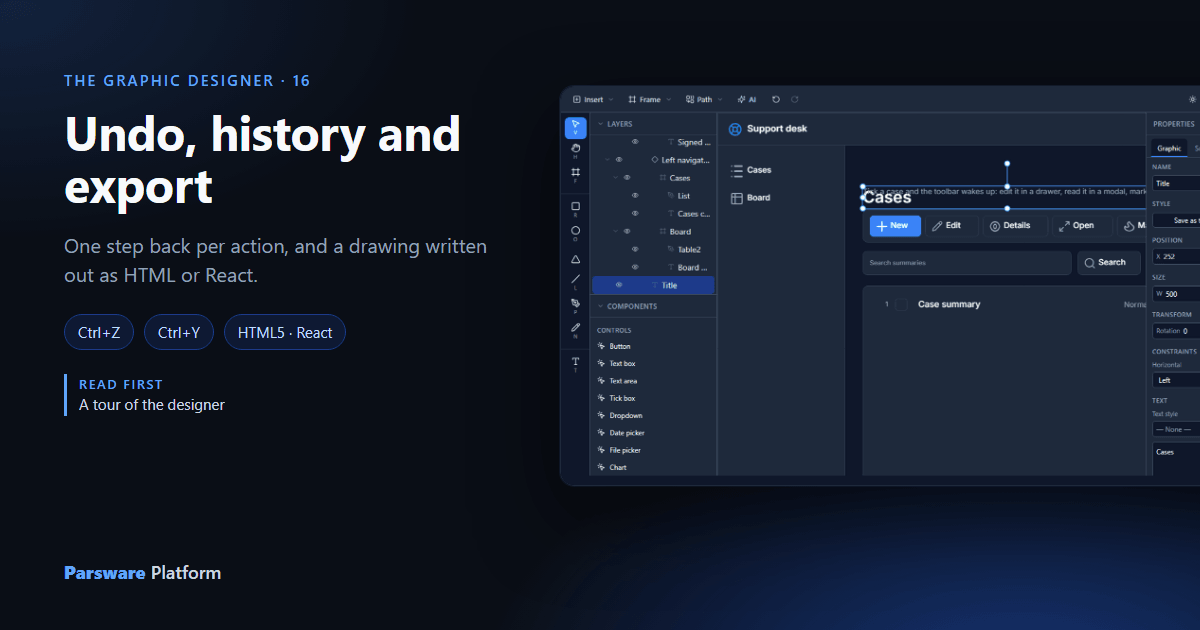
Two things every designer needs: a way back when you get something wrong, and a way to take a drawing somewhere else. In the Graphic Designer the first is undo and redo, and the second is the Export section of the inspector. This article covers both.
We used the Support desk from the studio-starter-app sample. Nothing was saved.
Undo and redo
They're the two arrows on the toolbar, after AI:

The keys are Ctrl+Z to undo and Ctrl+Y to redo (⌘Z and ⌘Y on a Mac). An arrow is greyed out when there's nothing to go back or forward to.
One action is one step
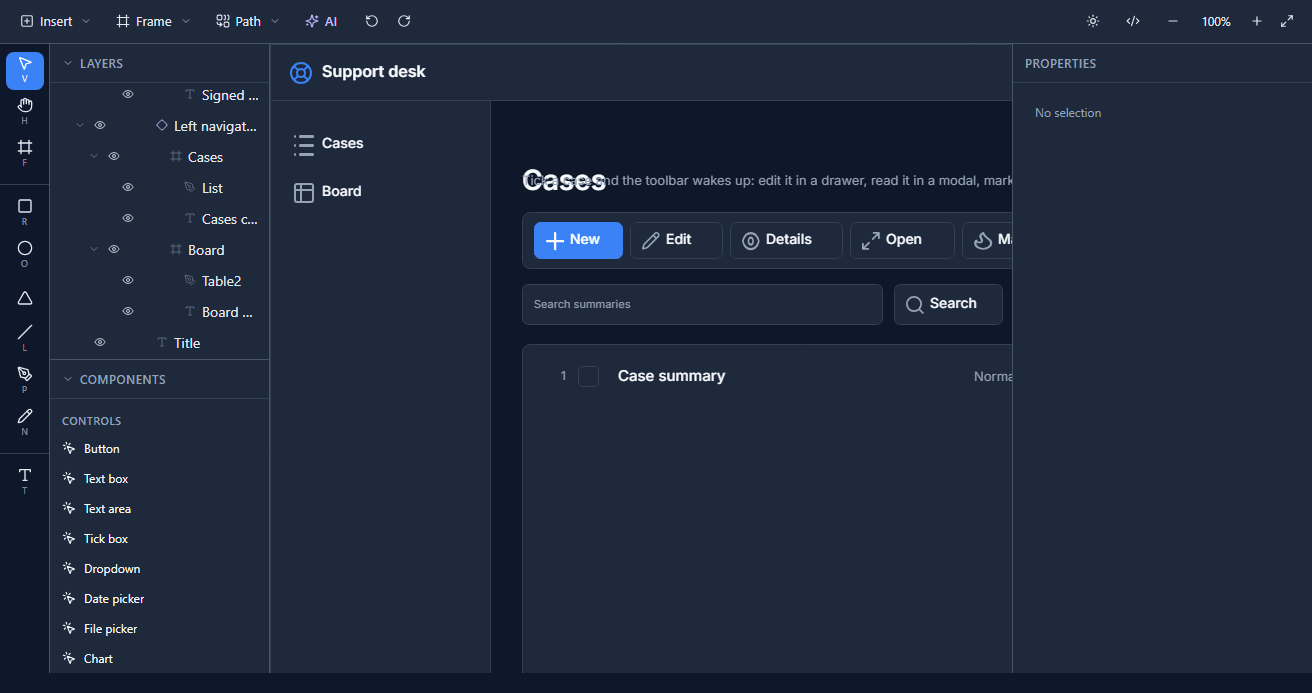
To see how far an undo goes, we selected the Cases title:
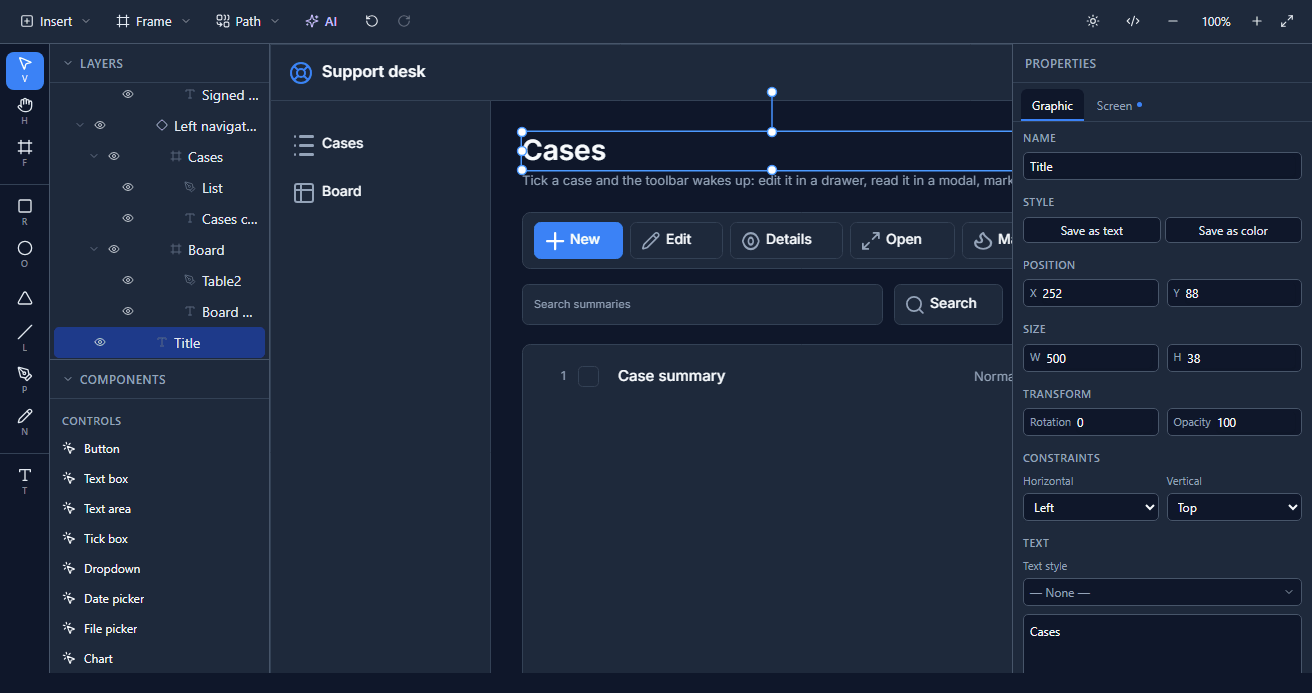
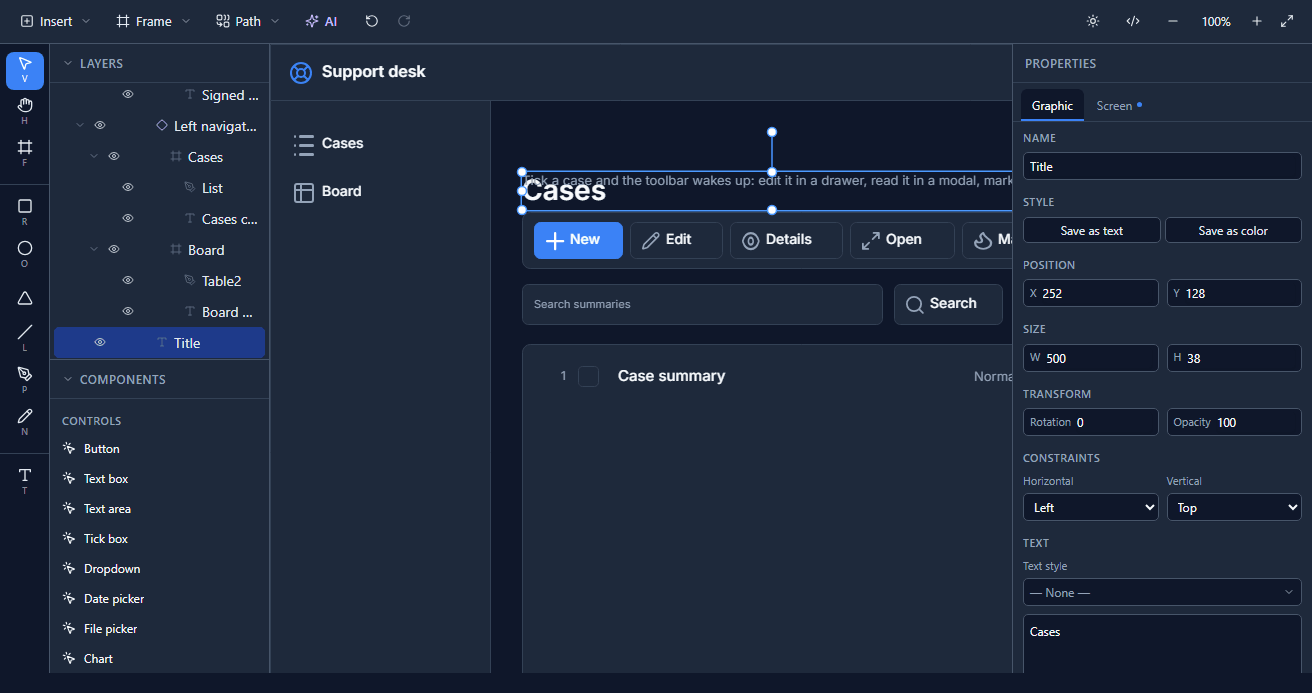
Then we pressed Shift+↓ four times. Each press moves the selection ten pixels, and each press is one action, so the title moved forty pixels in four steps:
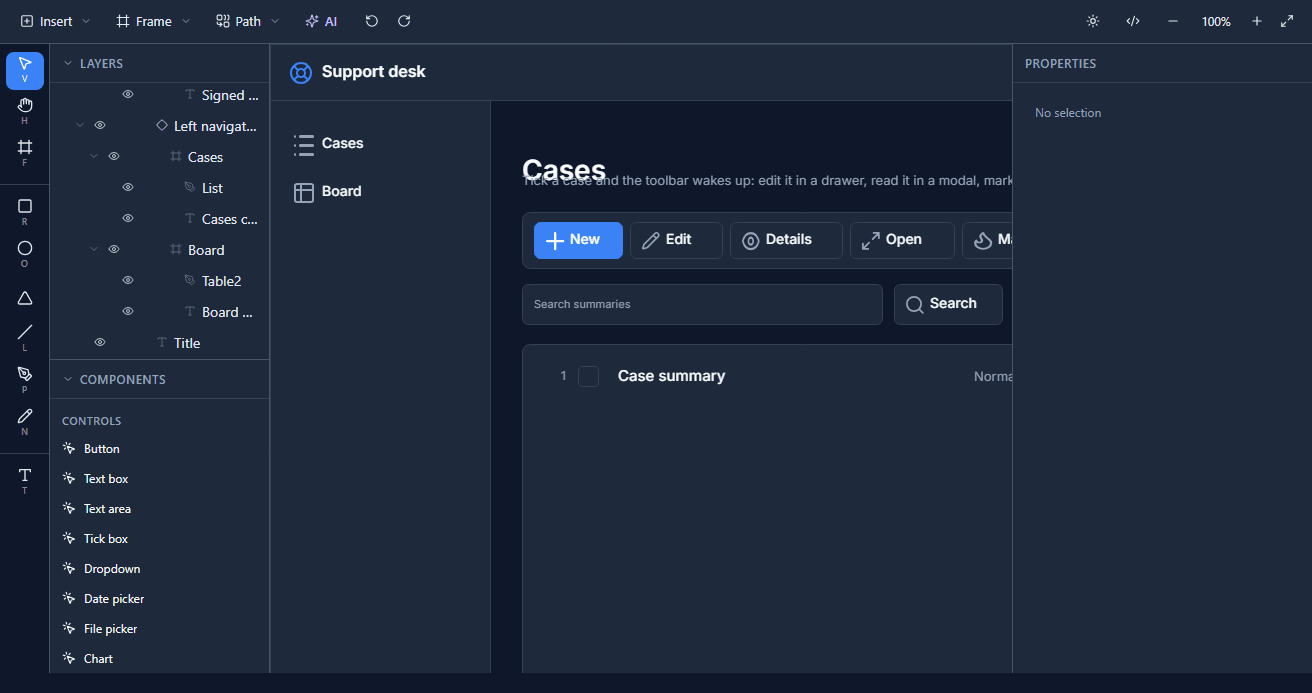
Two presses of Ctrl+Z took back two of them. The title is twenty pixels down, not back where it started:
And one Ctrl+Y put one back:
What counts as one action:
- A change in the inspector: a colour, a size, a name. Several fields changed by one choice, such as picking a shared style, are still one step.
- A drag on the canvas, from pressing the mouse to letting go. Moving a shape across the screen is one step, however far it went.
- A key press: one arrow press, one delete, one paste.
Two more things to know. Undo leaves nothing selected, as the screenshots show, so select the shape again before changing it further. And if you undo and then make a change, the steps you undid are gone: there's one history, not a tree of them.
How far back
The designer keeps the last 100 steps. That history belongs to the open designer: saving doesn't clear it, so you can save and still undo, but closing the designer does. The next time you open it, the history starts again from the drawing as you saved it.
Export
Select a shape, and the inspector's last section is Export:
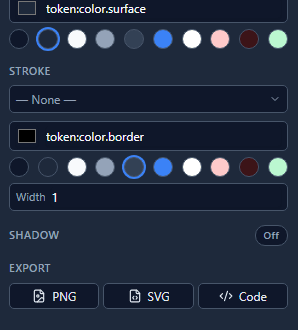
It exports the selection and everything inside it, cropped to its edges. Select a frame to export a whole screen, or one card to export just the card. The section appears when one thing is selected.
- PNG downloads a picture of it, at its actual size.
- SVG downloads it as a vector drawing, which you can scale without losing detail.
- Code opens a window with the drawing written out as code.
We selected the Support desk's Top bar and pressed Code:
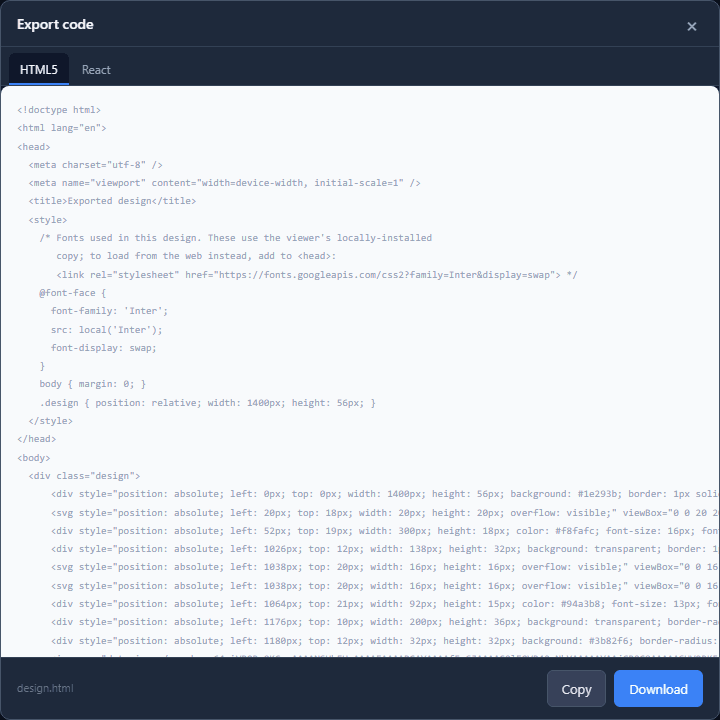
The HTML5 tab is one self-contained page. The React tab is a component you can drop into a React project:
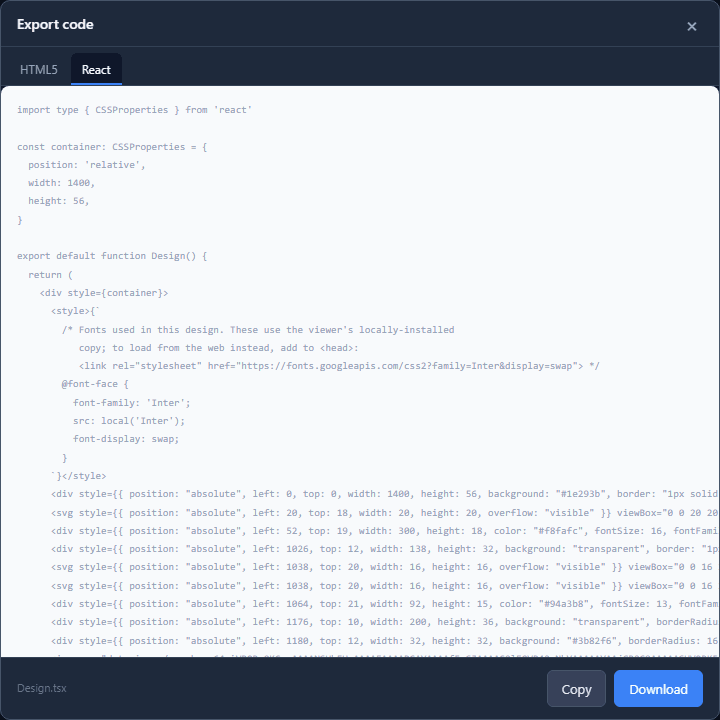
Copy puts the code on the clipboard and Download saves it as design.html or Design.tsx.
We downloaded the HTML and opened it in a browser:

What export is, and isn't
The theme colours come out as the colours you're looking at in the designer: dark ones here, because the designer was previewing dark mode. Switch the preview to light and export again for light colours.
Look closely at the exported bar and you'll see what export leaves behind. The Dark mode button shows both its moon and its sun, the round avatar has no photo, and the email address is the placeholder from the drawing. In the app, a binding hides one of the two icons, fills in the photo and shows who's signed in. Export takes the drawing, not what makes it work: positions, sizes, colours, text and shapes, as absolutely placed boxes.
So use it to hand a design to somebody, put a mock-up in a document, or start a page by hand. To run the screen, publish the app. That's what the platform compiles it into, with its bindings and handlers intact.
What we fixed
- Theme colours are exported as colours. The HTML and React code wrote a theme colour as its
name,
token:color.surface, which no browser understands, so an exported bar had no colours at all. They're now the colours shown in the designer. - The export window speaks your language. Its Copy, Copied and Download were in English whatever language the rest of the window was in. They're translated now.
Try it
Open any Studio app in the designer. Move something with the arrow keys a few times, then undo some of the steps and redo one. Select a frame, press Code under Export, and download the HTML. Then open it in a browser and compare it with the app itself.
Next: drawing screens instead of coding them, the first article on Application Studio apps.