For Power Apps
A component library in the solution
A top bar drawn in one design can be placed in every other design in the environment, and changing it once changes every copy. Publishing now puts each design's drawing in your solution too, so a set of shared parts travels with it and Load from solutions makes them designs again on the other side, with the links between them intact.
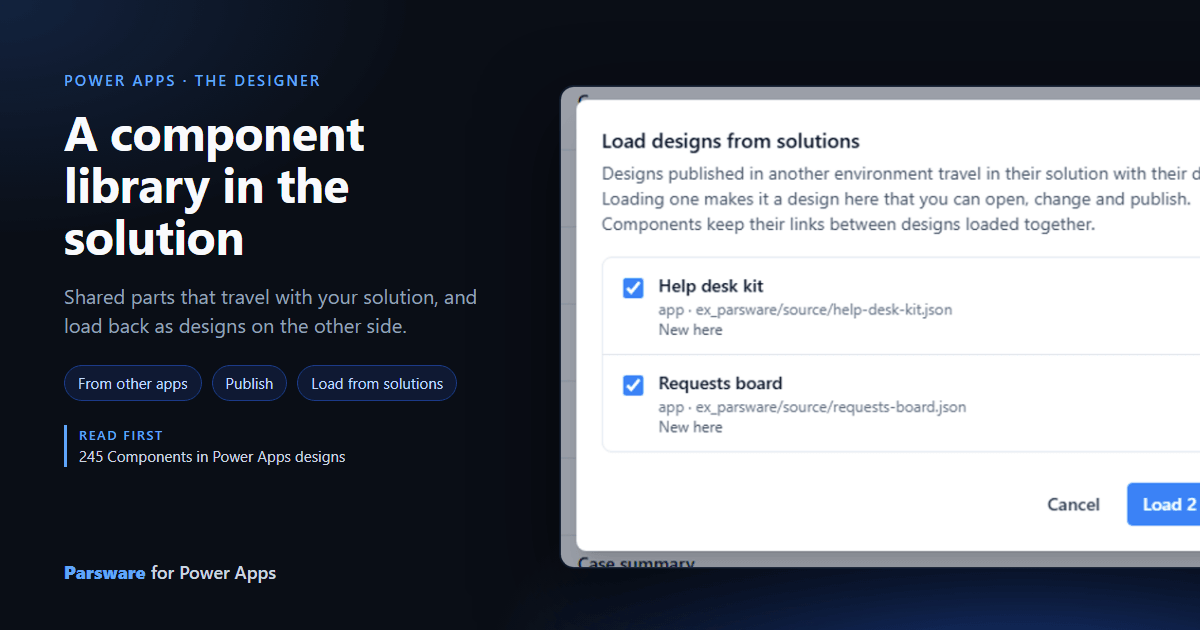
Components in Power Apps designs showed a top bar drawn once and placed on every screen of one design. A team wants more than that: one set of parts, a top bar, a menu and a few dialogs, that every app they build places, kept in step from one place, and moving from environment to environment with their solution.
Both halves are in Parsware for Power Apps now. This article draws on a Help desk kit design, places its top bar in a second design, Requests board, publishes both into a solution, and then loads them back as designs, the way a second environment would after importing that solution.
1. Place a part from another design
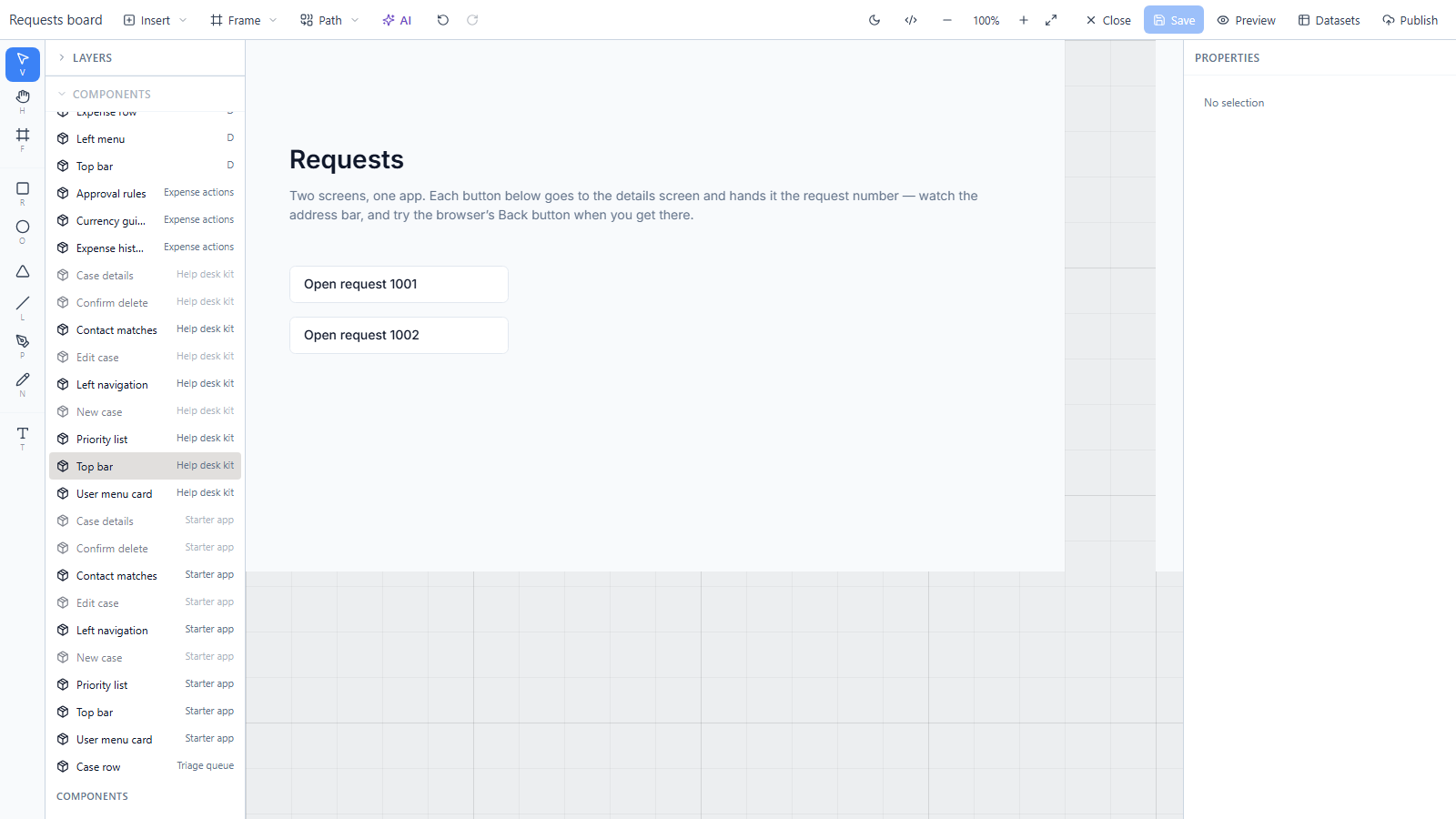
Open a Studio app design and look at the Components list. Below the design's own components and the controls, a group called From other apps lists the components every other app design in the environment has drawn, with the design they come from on the right:
Drag one onto a screen. We dragged Top bar from Help desk kit onto the Requests screen, then set its position to 0, 0 and its width to the screen's 900 in the properties panel:
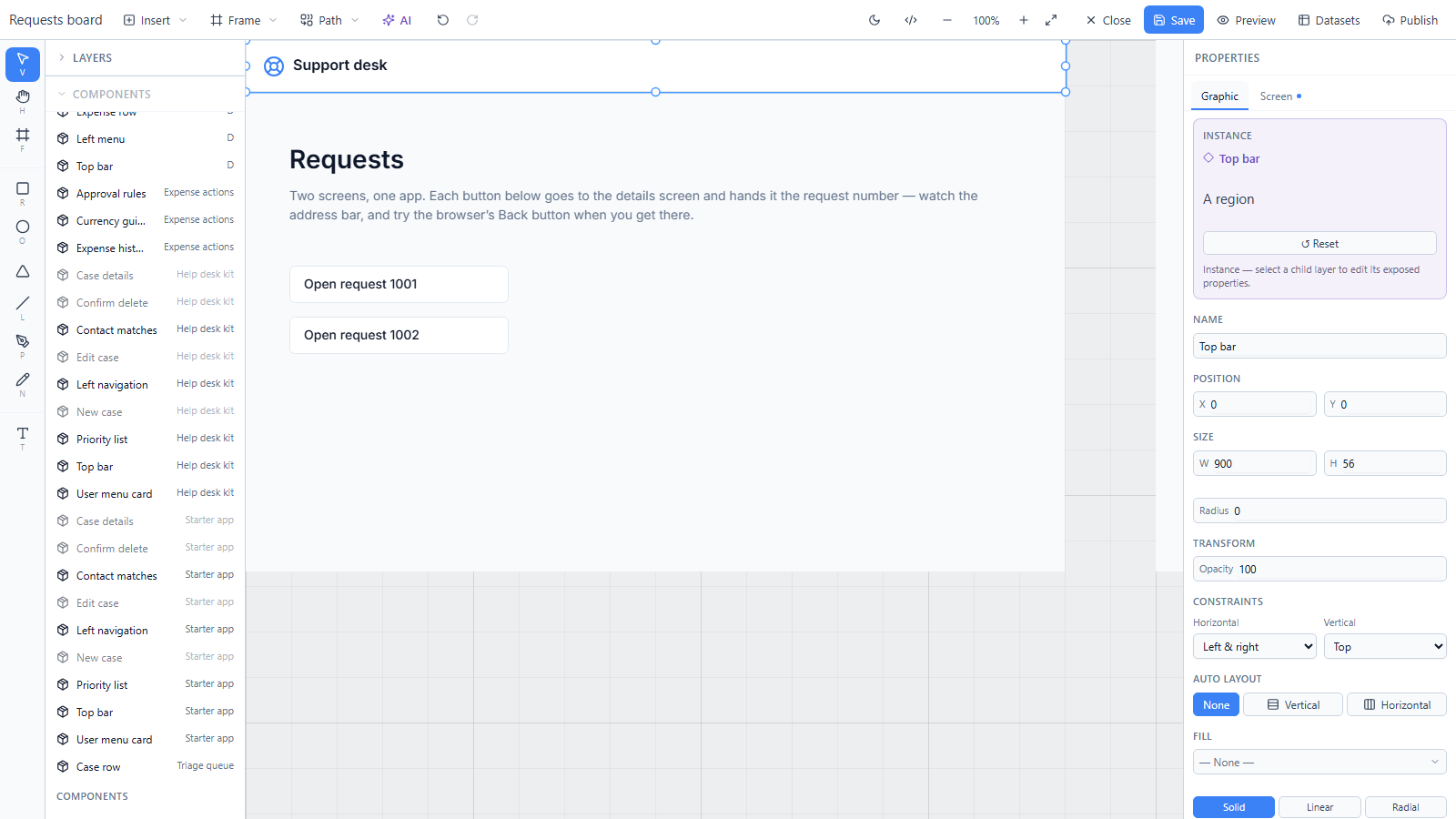
What you placed is a linked copy. You can move it, size it and set whatever its author left open, but its drawing is edited only in the design that drew it. Press Save.
2. Publish both into your solution
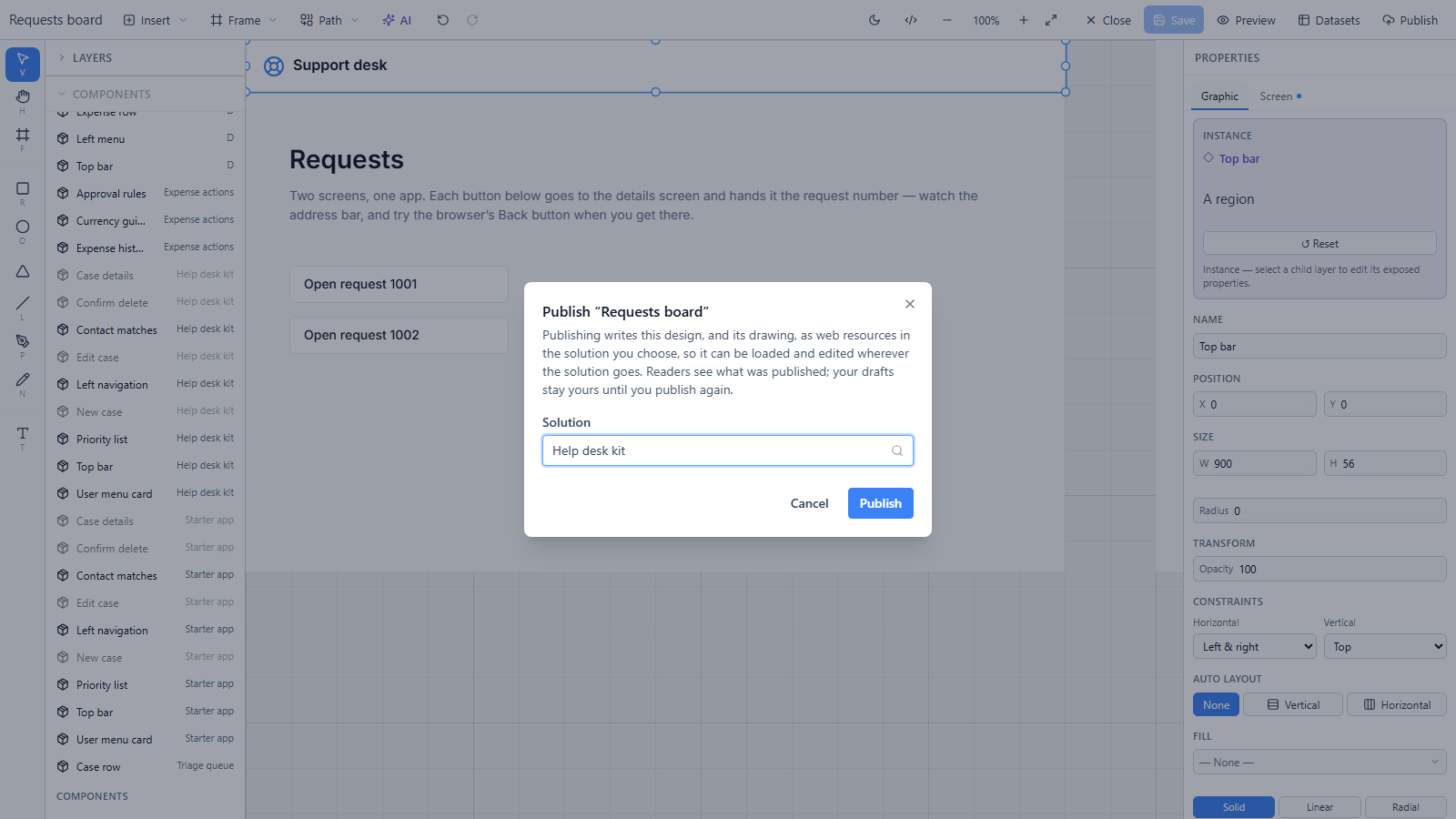
Publishing a design writes it into a solution of yours, which is how it reaches readers and how it moves between environments (Move designs from Dev to Prod). Press Publish, choose the solution and publish:
Do the same for Help desk kit. Each publish now writes two web resources into the solution:
| Web resource | What it is | Who reads it |
|---|---|---|
ex_parsware/help-desk-kit.json |
The compiled design | Readers, through the runtime |
ex_parsware/source/help-desk-kit.json |
The drawing, its datasets and the design's id | The designer, when it loads designs |
ex is the prefix of the solution's publisher, so yours will start with your own. The source file is
the new part. Readers never download it, and the compiled file can't be turned back into a drawing,
so without the source a design arrived in another environment as something people could open and
makers couldn't edit.
3. Load from solutions
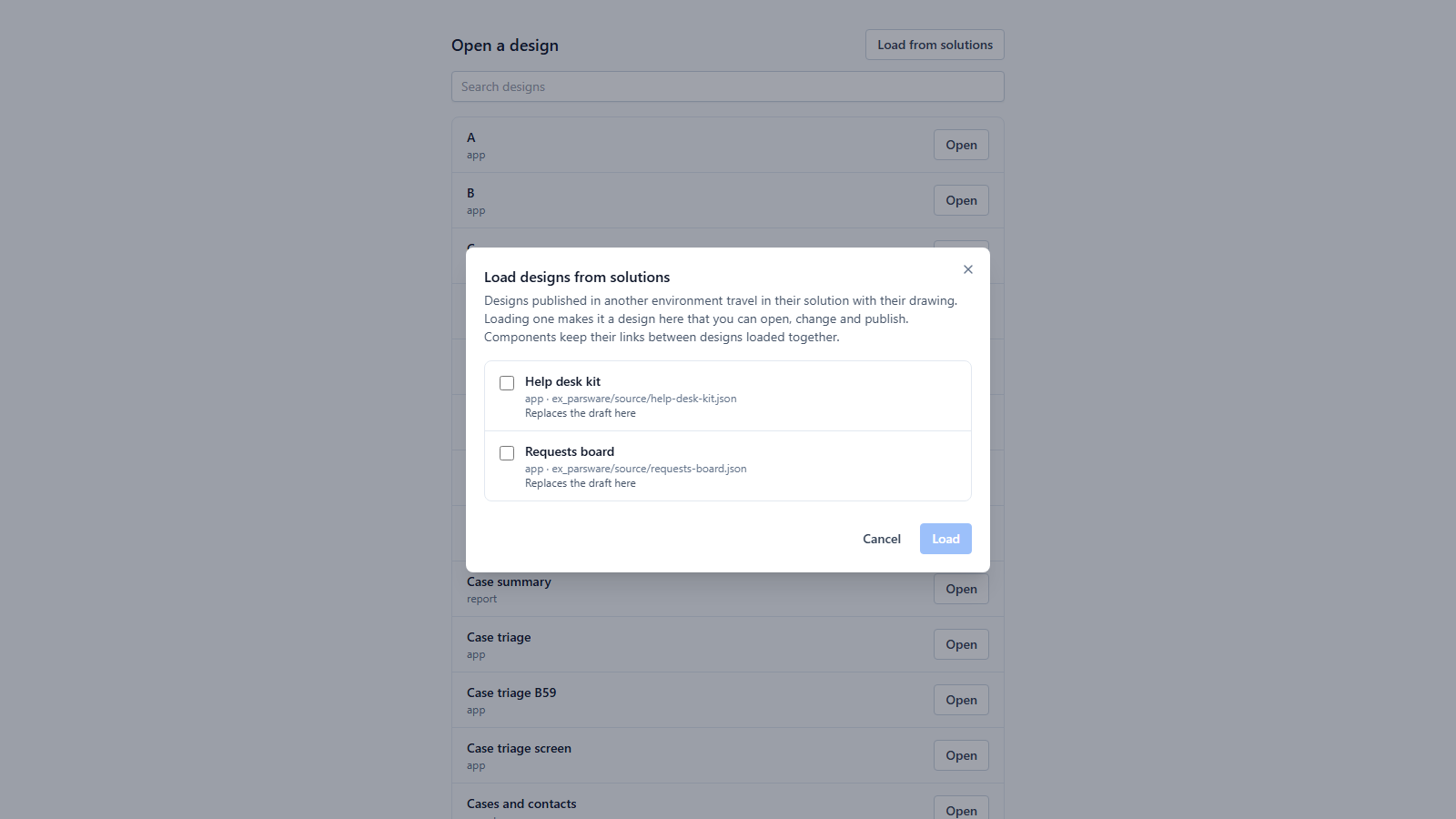
Export the solution and import it into the next environment as you would any other. The designs arrive as those files, not as designs you can open. Open the Designer page with no design chosen and press Load from solutions, at the top right of Open a design:
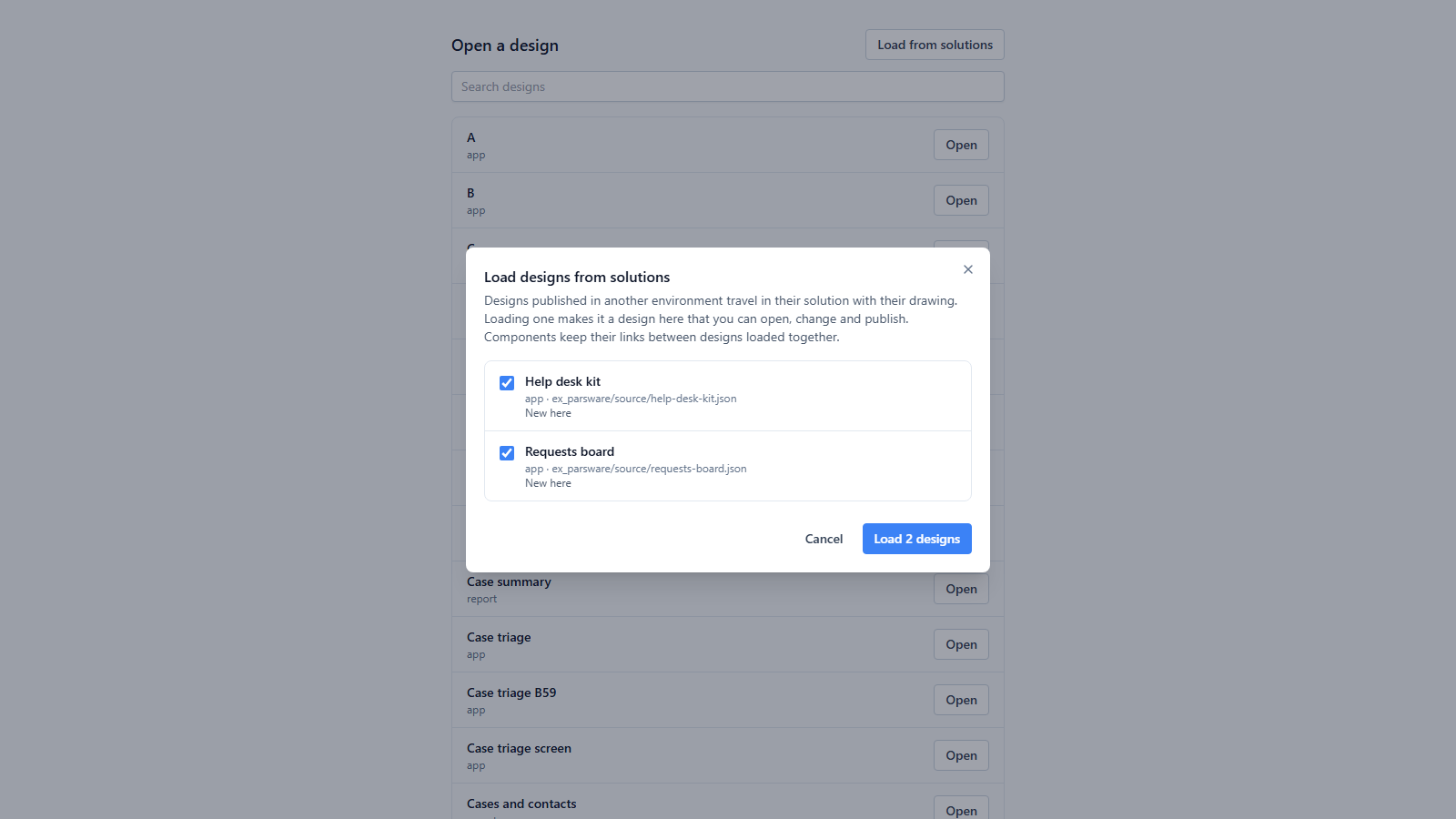
It lists every design source any solution brought into the environment, whoever published it, and says what loading each one would do. Press Load 2 designs:
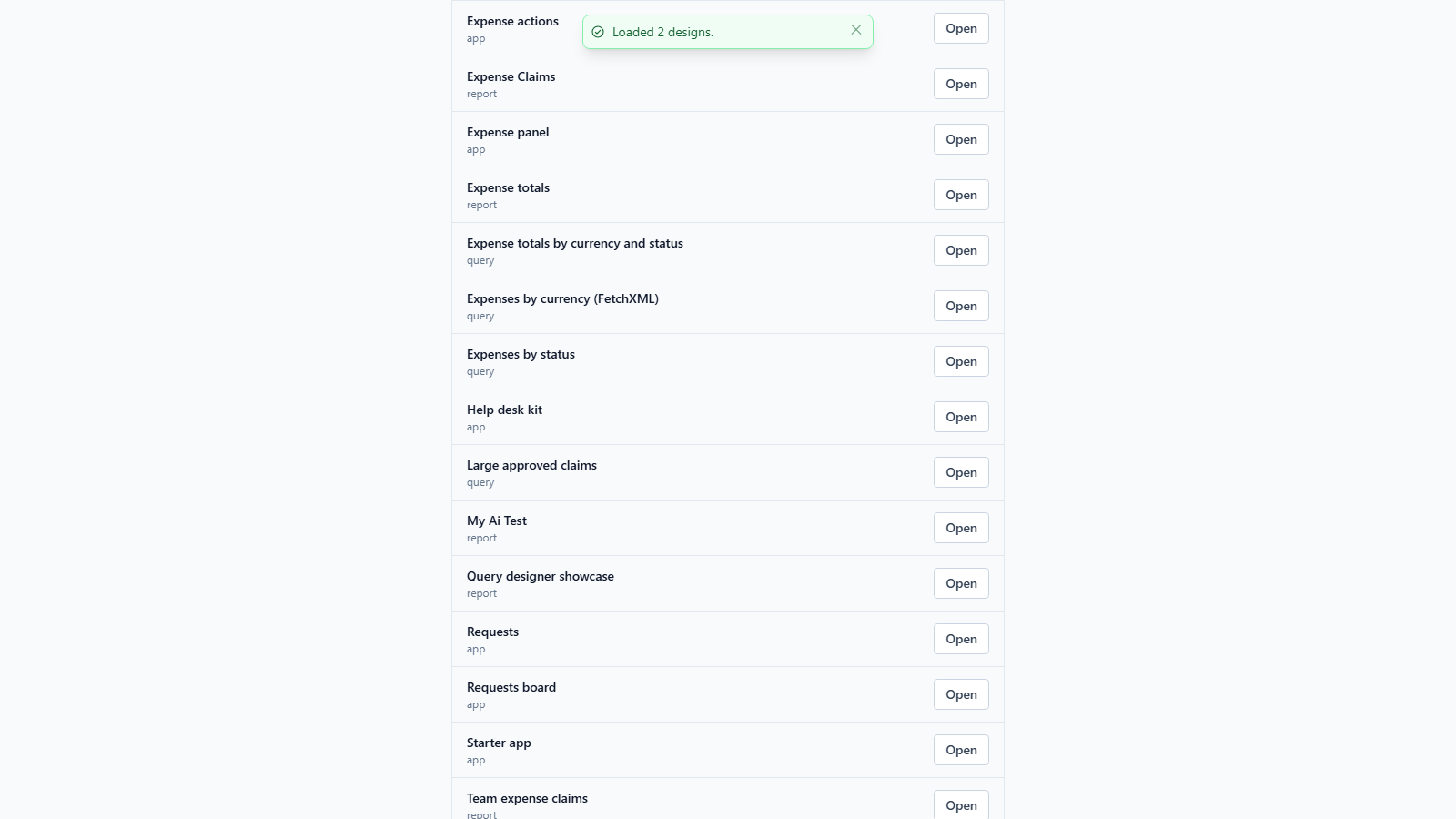
Each loaded design keeps the id it had where it was drawn, and that is what keeps the library working. A linked copy remembers its author by id, because a design's name can be edited, so a top bar placed from Help desk kit still knows where it came from after the move.
4. Change it once, again
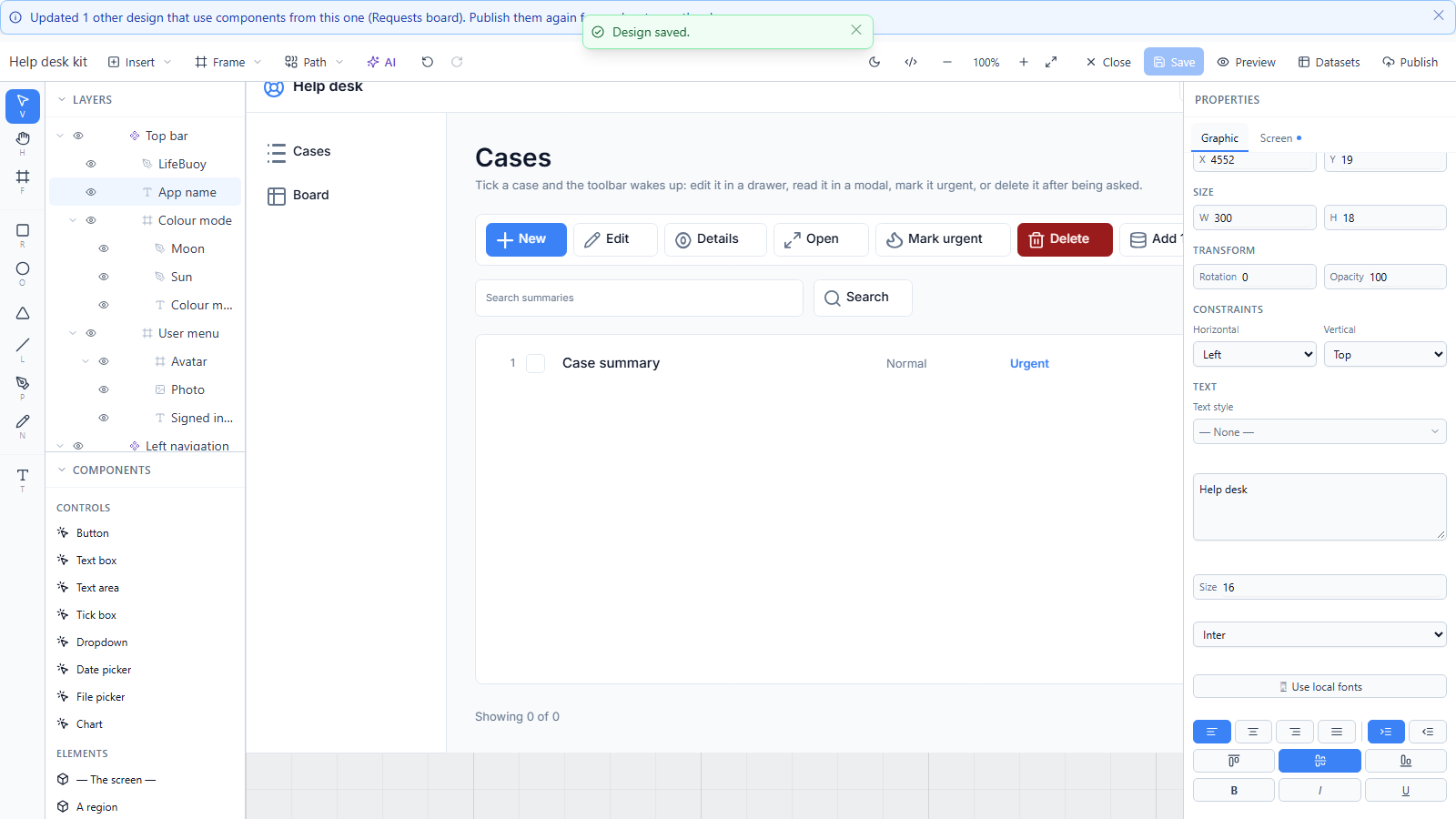
Open Help desk kit, select the App name text in its Top bar and type Help desk. Press Save. The designer updates every design that places that component, and says which:
Open Requests board, and its top bar already reads Help desk:
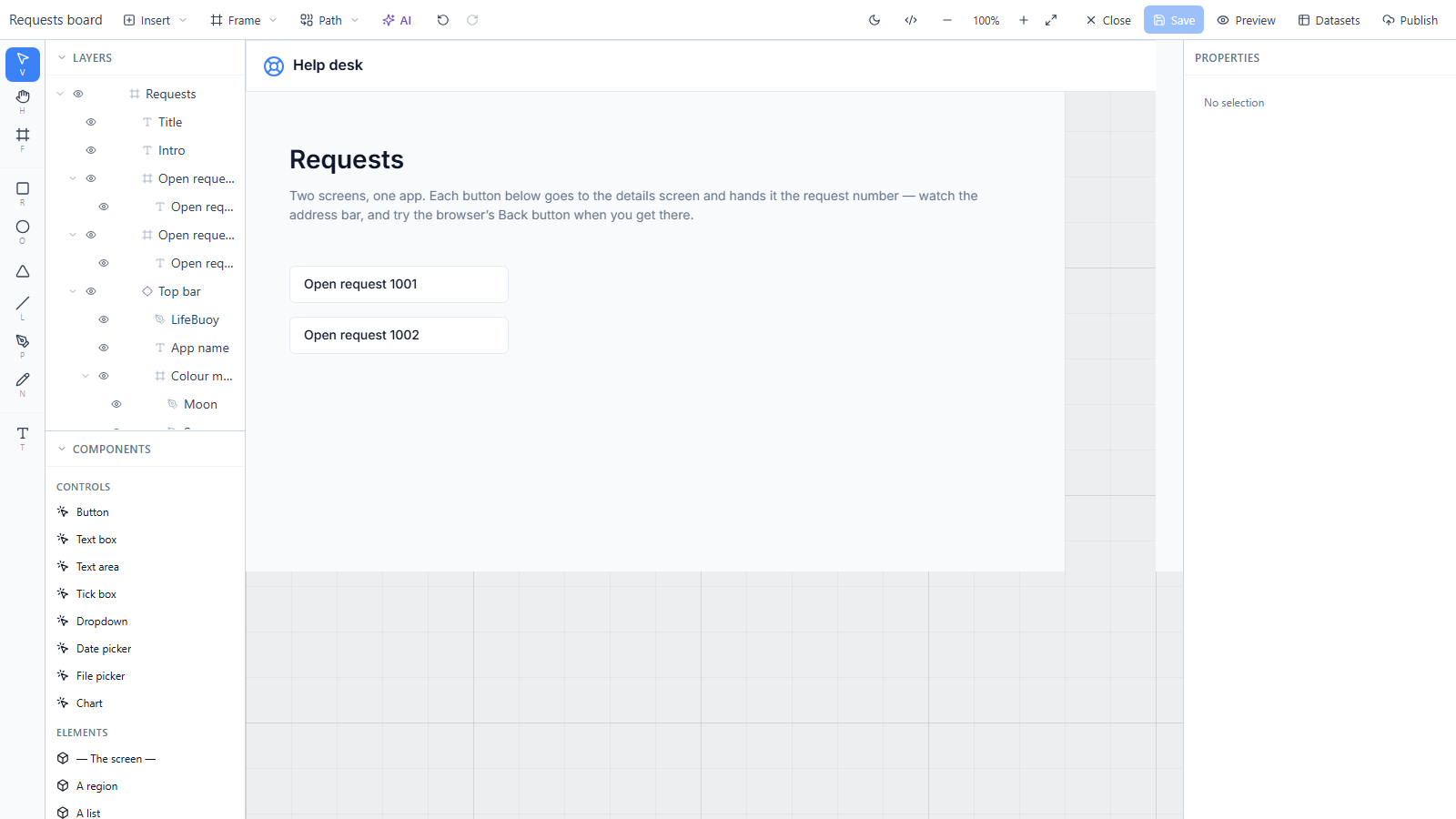
Only the drafts changed. Readers still see the old top bar until you publish Requests board again, which is what publishing is for.
5. Loading over a design you already have
Load from solutions never quietly overwrites your work. Each line says what loading it would do:
- New here: no design has its id or its name, so it is created. Ticked to start with.
- Replaces the draft here: the design is already here and differs, for example because a new version of the solution arrived. Loading it replaces your draft, so it starts unticked.
- Already up to date: nothing to do, so it can't be ticked.
- Another design here has this name: a different design already uses the name. Rename one of them first, because a name is how an app's navigation opens a design.
Good to know
- Publish once more before you export. A design published before this version has no source file in its solution, so it won't appear in Load from solutions until it has been published again.
- A loaded design isn't in a solution yet. Its first publish in the new environment asks where to, as it should: that environment's own solution.
- Pictured in one environment. The second Parsware environment we use for these articles has the
runtime only, so the designs were published in
Dev - Trial, their drafts deleted there, and loaded back from the solution's files. Importing a solution brings exactly those files, as Move designs from Dev to Prod shows.
What we fixed
This article is the reason for the feature: until this release, components could be shared between designs in one environment but a set of them could not travel. Load from solutions and the source file it reads are new in Studio 0.56.18. The message after a save also said "1 other design that use"; that is fixed for the next release.
Next
Move designs from Dev to Prod: a published design taken from one environment to another through your own solution. The whole series is in the reading list.