Parsware Platform
Sort and filter any admin list
Every list in the Admin Control Center has the same tools: a search box, a Sort button that orders by several columns, and a Filter that asks AND/OR questions. We used all three on the Solutions list, and fixed a list that sorted Unmanaged before Managed and asked for a number to filter by.
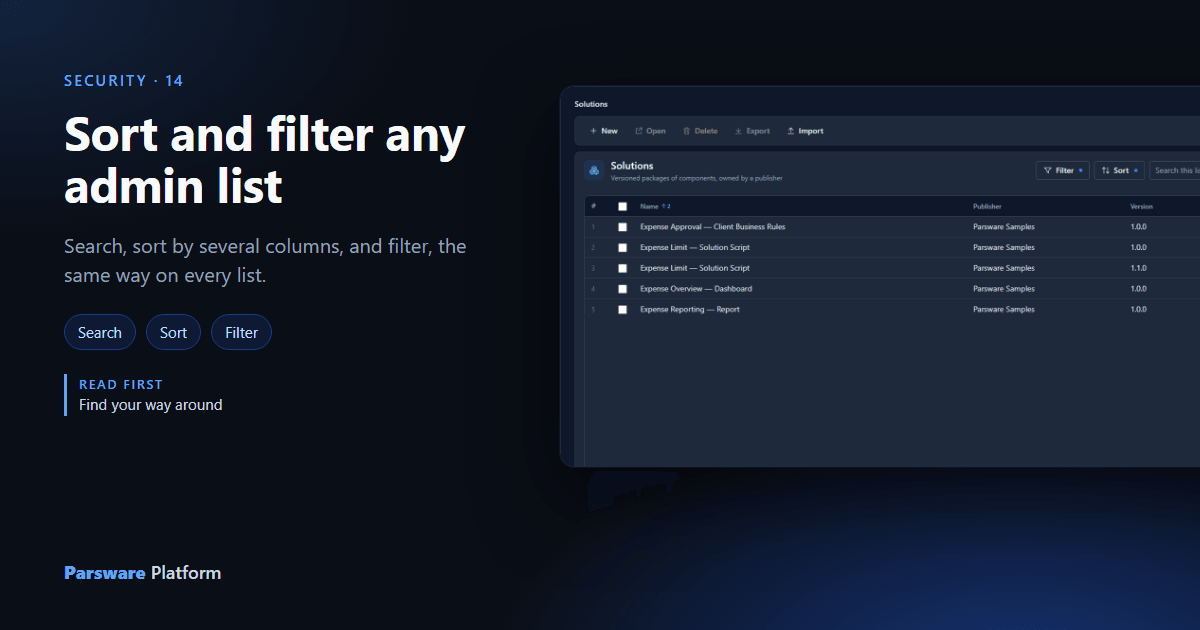
Every list in the Admin Control Center (solutions, users, tenants, storage, web resources and the rest) carries the same tools at the right of its header: Filter, Sort, a search box, and the column chooser last. Learn them once and they work everywhere. Here they are on Solutions.
Search
Type into the search box. The list keeps the rows where any visible column contains what you typed, ignoring capitals:
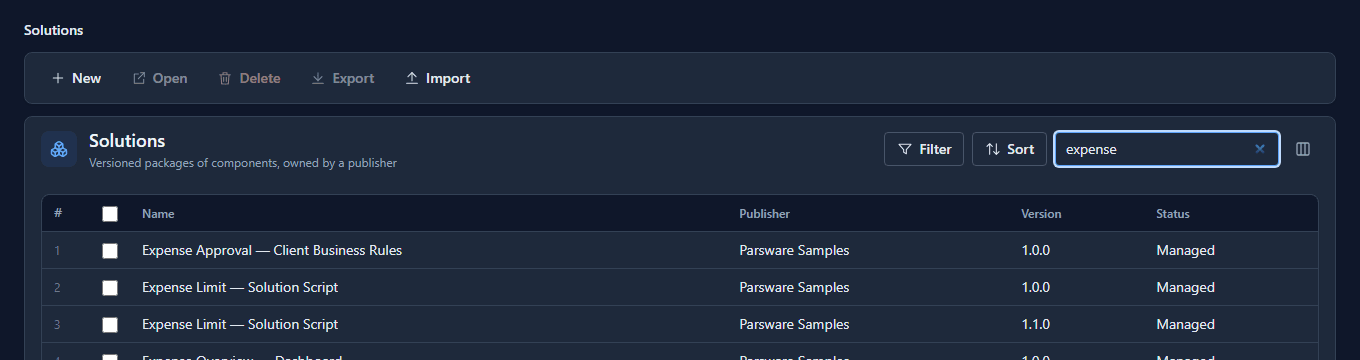
A column you've hidden with the column chooser isn't searched, so a row is never kept for a reason you can't see.
Sort by one column, then another
Select a column heading to sort by it; select it again to reverse. To sort within that order, hold Shift and select a second heading. Here: by Status, then by Name:
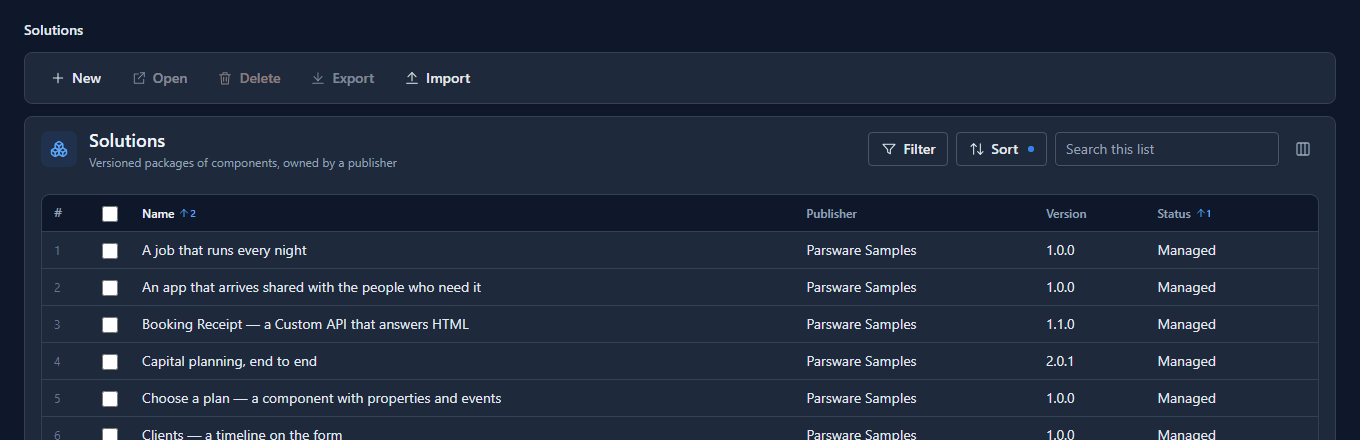
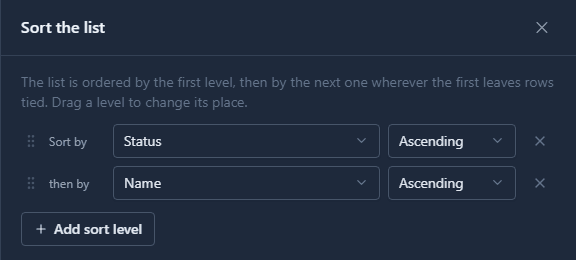
Each sorted heading shows an arrow and its place in the order. Sort shows the same levels in a panel, which also works without a mouse. Add a level, change a direction, drag a row to reorder, Apply:
Filter
Filter builds a question. Add condition, pick a column, a comparison and a value. A column with a fixed set of values offers them as a list rather than asking you to type:
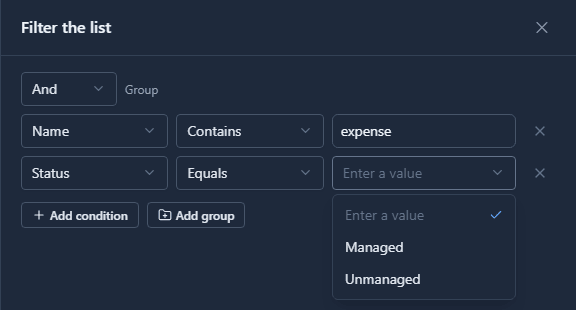
And at the top means every condition must hold; switch it to Or for any of them, and Add group nests a group for questions like (Draft or Failed) and name contains "sales". Apply:
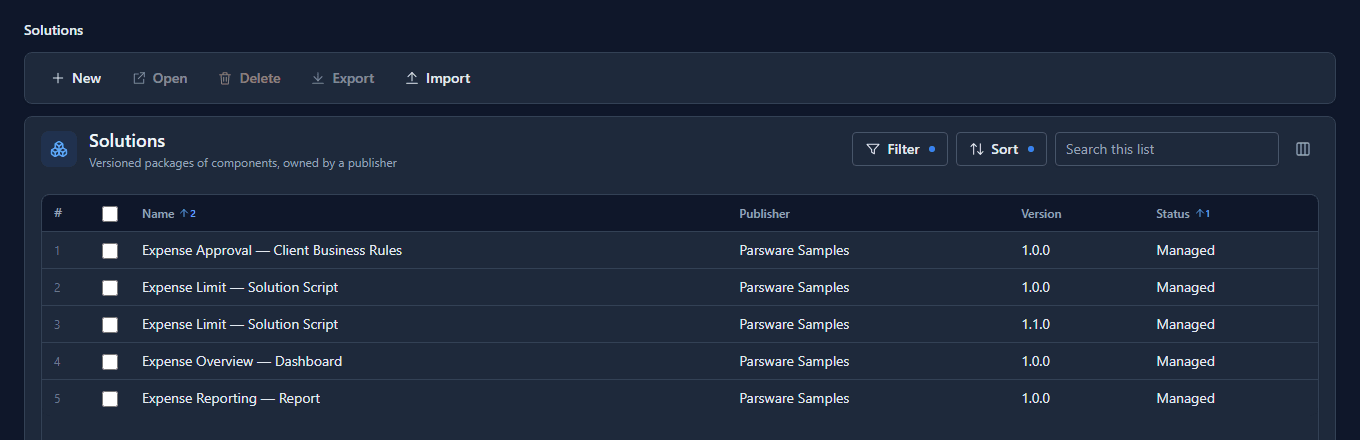
A dot on Filter or Sort means it's narrowing or reordering what you see. Clear in the Filter panel and Reset in the Sort panel put the list back.
Long lists
Most lists load every row, so all of this happens instantly in your browser. Users, Portal users and Tenants can run to thousands, so they show a page at a time and the server sorts and filters the whole list, then returns you to its first page. A column holding several values at once, like a person's roles, can't be sorted or filtered there, and its heading isn't selectable.
Sorting and filtering change only what you see, and last until you leave the page.
What we fixed
- Status sorted Unmanaged before Managed, and its filter asked for a number. A column that stores a number and shows a word (a solution's status, an environment's tier, a data policy's type) was sorted and filtered by the number behind the word. Ascending put Unmanaged first, because it's stored as 0, and the Filter panel asked you to type 0 or 1. Those columns now sort by the word on screen and offer their words as a list. The fix is in the one place every list gets its tools from, so it covers all of them.
Try it
On Solutions, Shift+select two headings, then filter by Status and check the list offers you its values.
Next: What happens when a trial ends.