Parsware Platform
What's in object storage
Apps and integrations keep their files in object storage: exports, uploads, documents too big for a record. Storage in the Admin Control Center shows every bucket, what is in it and how much room it takes, and clears out files nothing points at. We looked inside Northwind's finance bucket, uploaded an invoice into one of its folders, and previewed a sweep.
Object storage is where your apps and integrations keep files: a month's ledger exported by a
Custom API, a document uploaded through a script, an attachment too big to sit on its record. Files
live in buckets, and each file has a key, its full path inside the bucket, like
exports/2026/ledger-2026-09.csv.
Until now you could only reach any of that through an API. Admin → Storage shows it.
The buckets
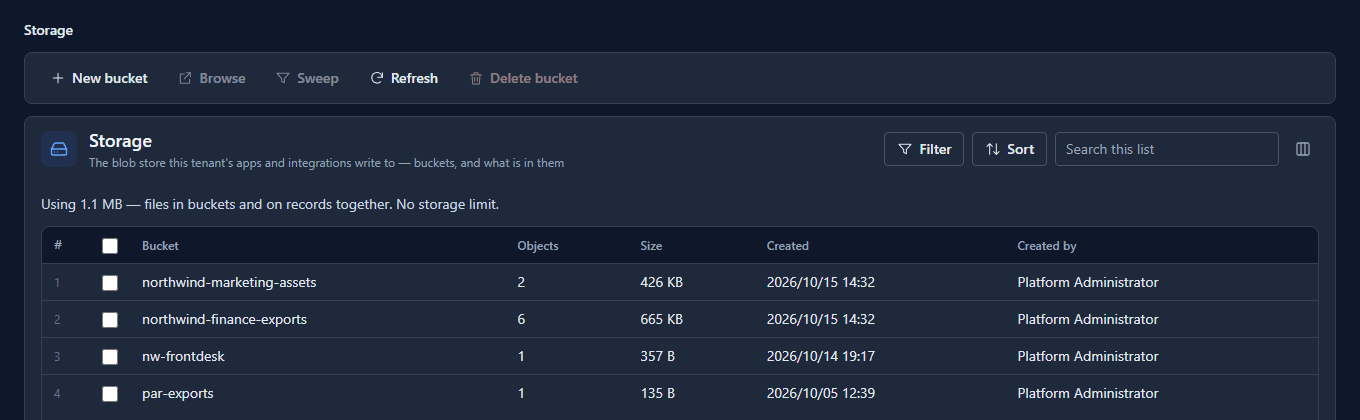
Each row is one bucket, with how many files it holds and how much room they take. The line above the list is your whole tenant's use, counting files on records too, because both come out of the same allowance. A trial may store 100 MB; a paid plan sets its own figure, or none.
This is the one admin screen that ignores the environment in the top bar. A bucket belongs to your organisation, not to Development or Production, and creating or deleting an environment never touches it.
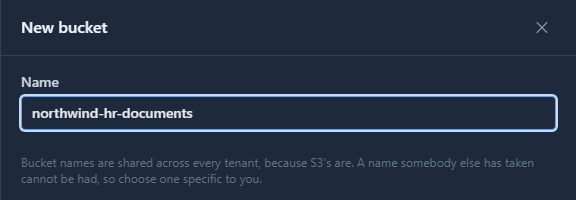
New bucket makes one. The name has to be unique across every customer, because that's how S3 storage works, so pick something specific to you:
Inside a bucket
Select a bucket's row to open it:
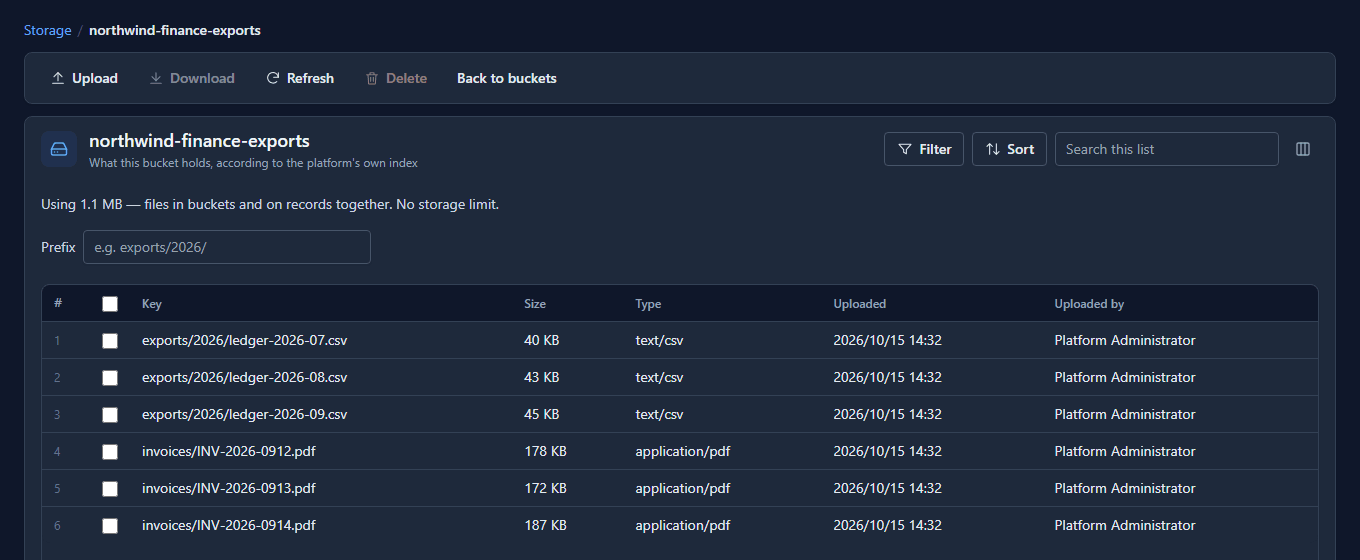
Keys with slashes behave like folders. Type into Prefix to see one of them, then Upload to
add files there. Each file keeps its own name, placed under the prefix in the box. Here we narrowed
to invoices/ and uploaded one more:
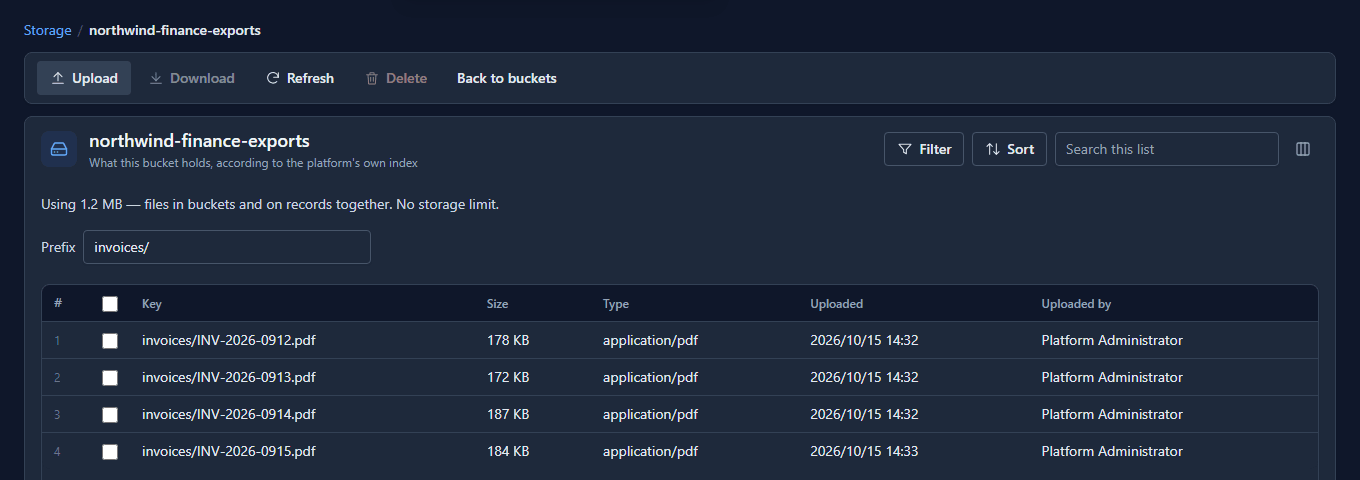
Select a file and Download gets a copy; Delete removes it after asking. You can pick several files at once in the upload dialog; they go up one after another.
Files nothing points at
A file uploaded straight to the store by a link that was never confirmed has no entry in the platform's index, so it isn't listed and isn't counted, but it still takes room. Sweep finds those. Select a bucket, choose Sweep, then Preview:
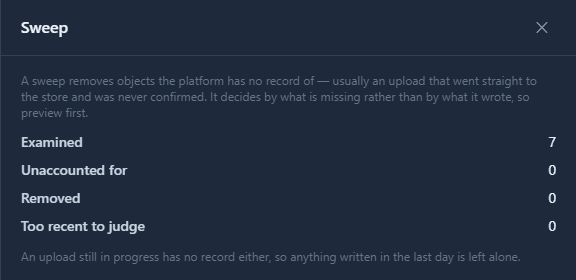
The preview removes nothing. Remove only becomes available once a preview has found something. That order matters: a sweep decides what to delete by what's missing from the index, and anything written in the last day is left alone because an upload in progress looks the same.
Good to know
- A record's own files aren't shown here. A photo or document on a record is served only to people allowed to read that record, so it's reached from the record, even when it was big enough to be kept in a bucket. The sweep refuses a bucket holding them.
- A file over the limit is refused with how much is used, how much is allowed and how big the file is. Nothing already stored is touched.
- The hash column (hidden by default; use the column chooser) is empty for a file uploaded straight to the store, because nothing in the platform read its bytes.
Try it
Open Storage, open a bucket, narrow it with a prefix and upload a file into that folder.
Next: Sort and filter any admin list.