Parsware Platform
Required, read-only and default controls in Parsware
Make a field required once and every form asks for it. Make it read-only on one form and it's shown but not edited there. Give it a default control and format, and every form and view shows it the same way.
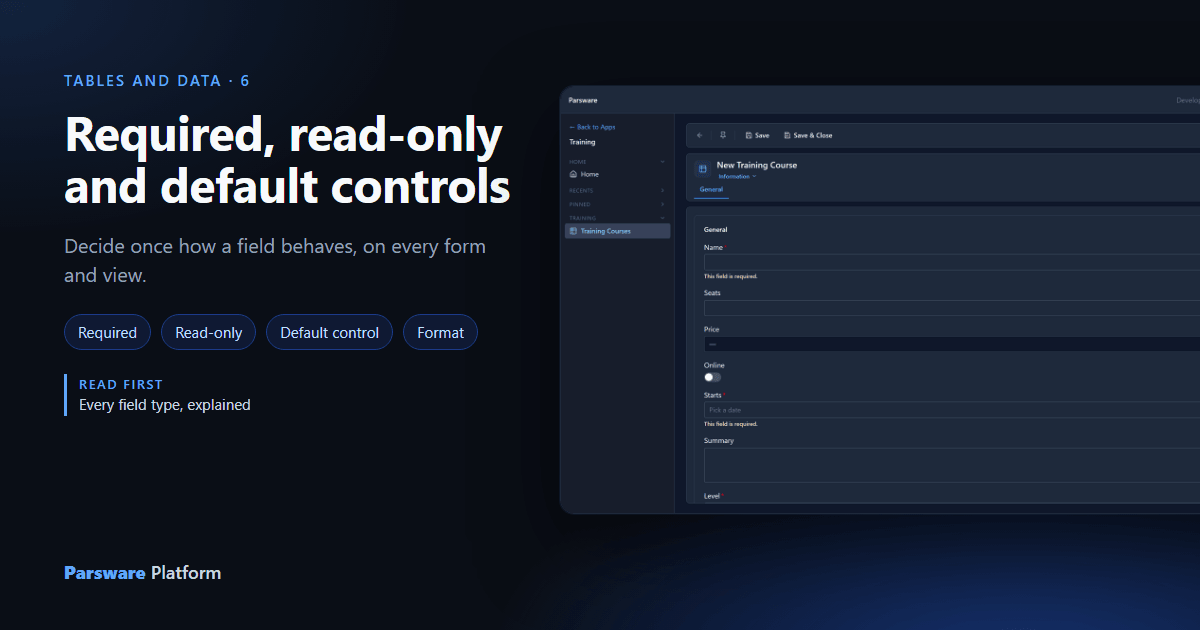
A field's type decides what it stores. Three more settings decide how people meet it: whether they have to fill it in, whether they can change it, and which control they use to do so. In Parsware you set the first and the last once, on the field, and every form and view follows. Read-only is set on the form, because it depends on who the form is for.
We carry on with the Training Course table from the previous article. By the end, a course can't be saved without a start date and a level, its price is shown but not edited, and its start date reads 30 September 2026 everywhere. Every picture is the real product.
Required, on the field
Open the table's Fields page, tick Starts, and choose Edit. Tick Required.
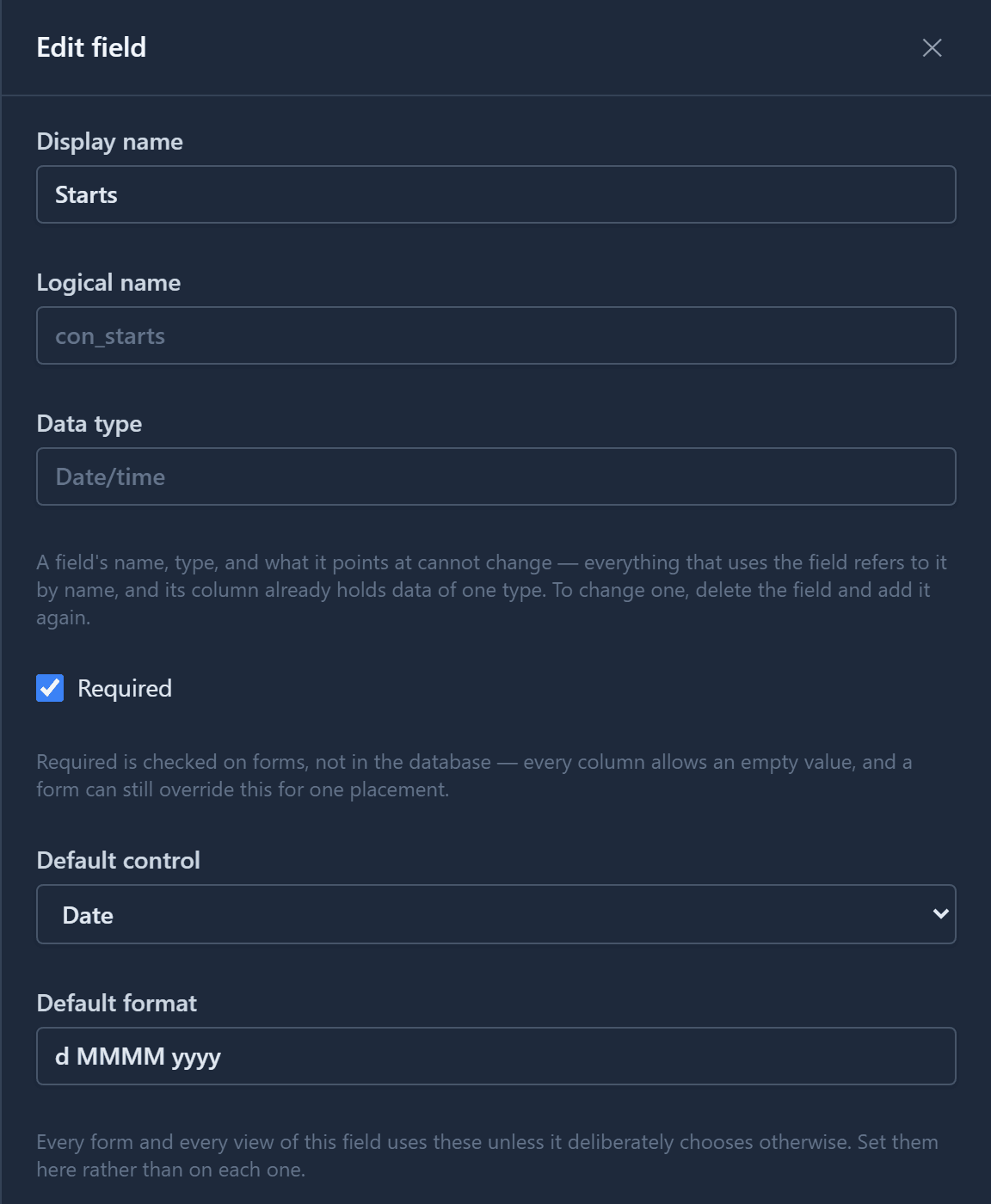
Required is checked on forms, not in the database. Every column still accepts an empty value, so turning it on never makes an existing record invalid, and an import or an API call isn't refused for leaving it blank. The one exception is the table's primary field (Name), which is always required, because every list and lookup shows a record by it.
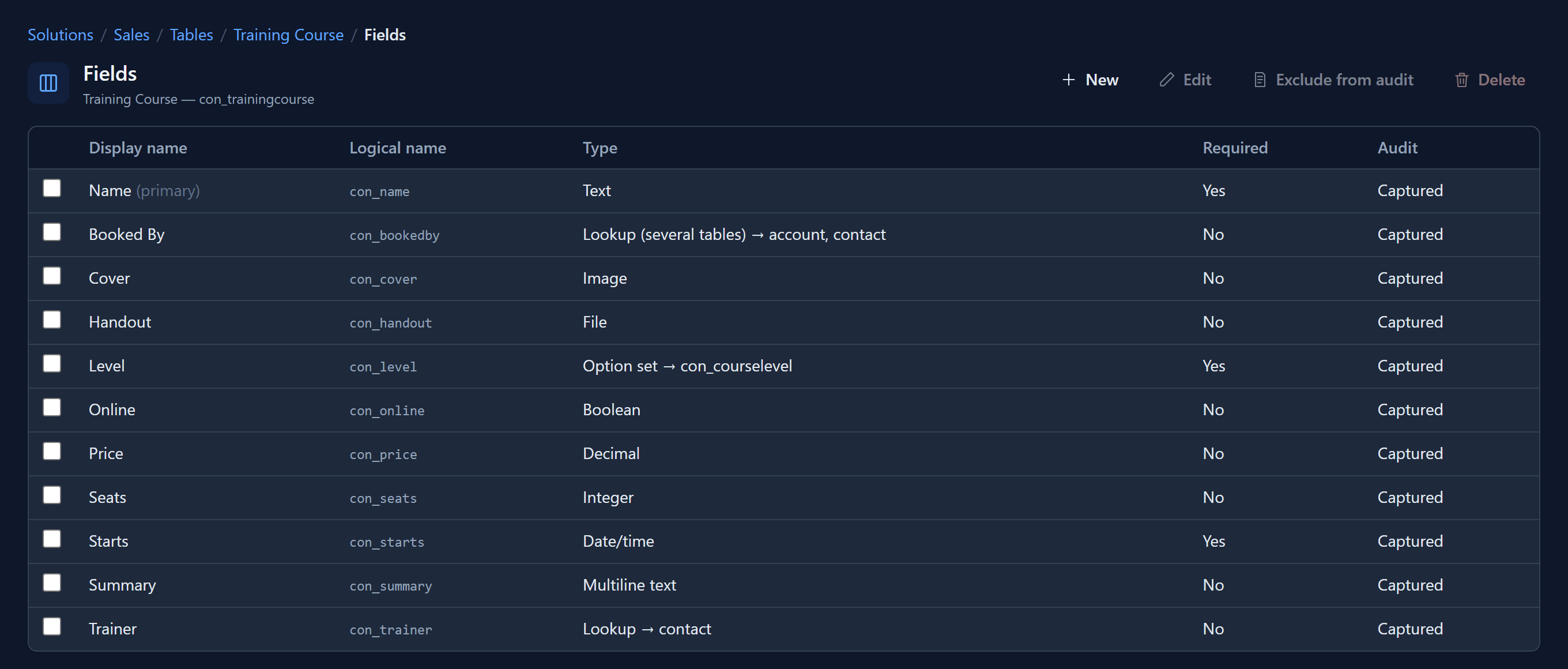
We did the same for Level. The Fields page now shows both in its Required column:
A default control, and a default format
The same drawer has a Default control. It decides how the field is shown on every form and in every view that doesn't choose otherwise. A course only needs a start date, not a time, so we chose Date instead of the usual Date and Time. A date field can also be pinned to the Persian calendar here.
Default format sets how the date is written. d MMMM yyyy gives 30 September 2026. dd is
the day, MM the month's number, MMMM its name, yyyy the year, and HH, mm and ss the
time. Leave it empty and the app's own date format applies (Settings → Calendar → Date formats).
This is the setting that saves you work. A table with four forms and three views would otherwise need the same answer seven times. Now you give it once, here.
On the form: it follows the field
Open the table's form and select Starts. Required is already ticked, and the Control says Default (Date), because the placement follows the field.
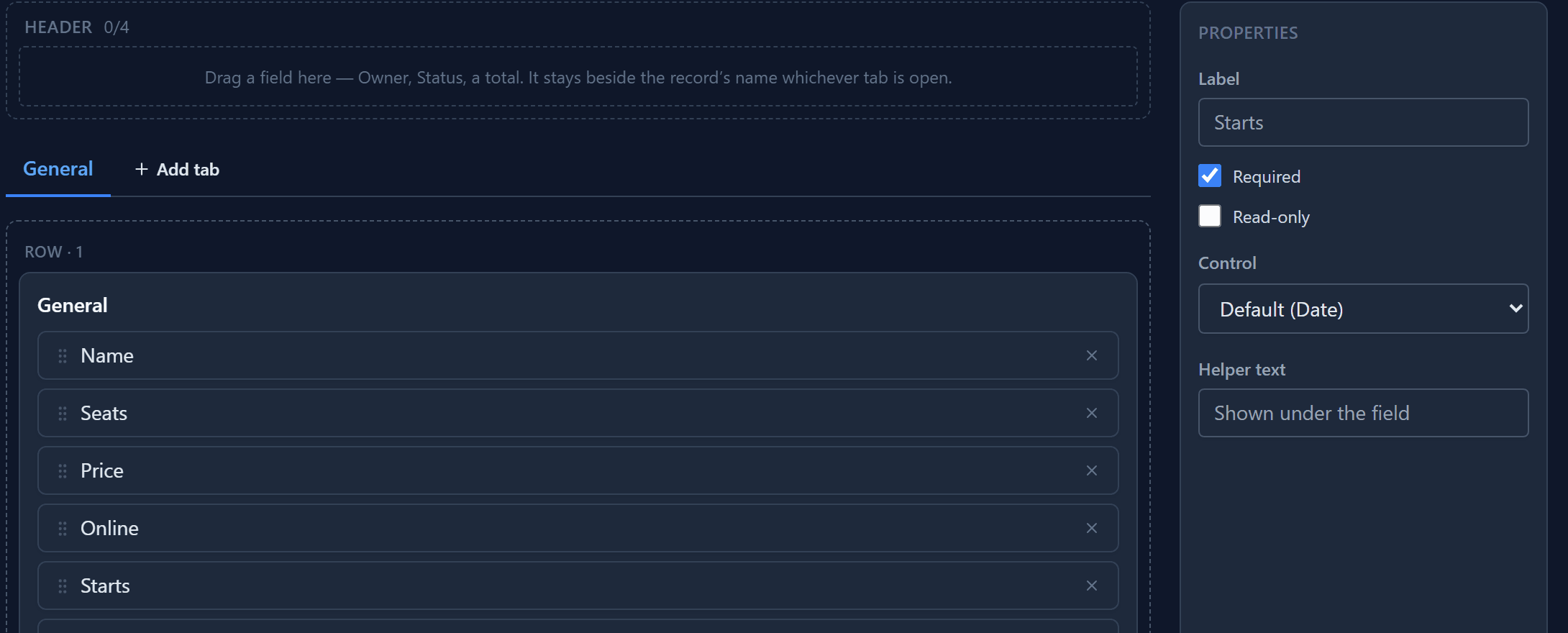
You can still change either one here, for this form only. Untick Required and this form treats Starts as optional, while every other form still asks for it. Leave it alone and the form keeps following the field, even if the field changes later.
Read-only, on the form
Select Price and tick Read-only. In our example finance sets the price, so on this form it's shown but not edited.
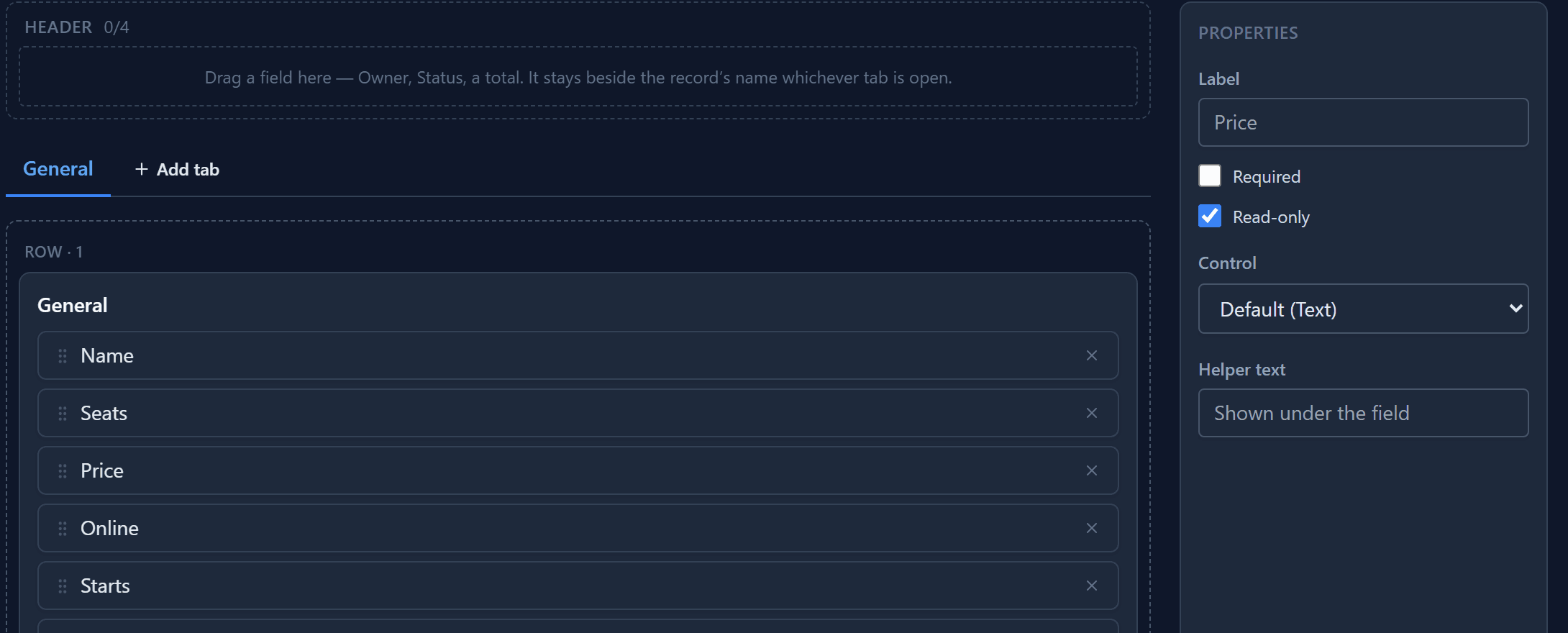
Read-only belongs to the form because it depends on who the form is for. A finance form of the same table can leave Price editable. The platform's own system fields, such as Created On and Modified By, are always read-only.
What people see
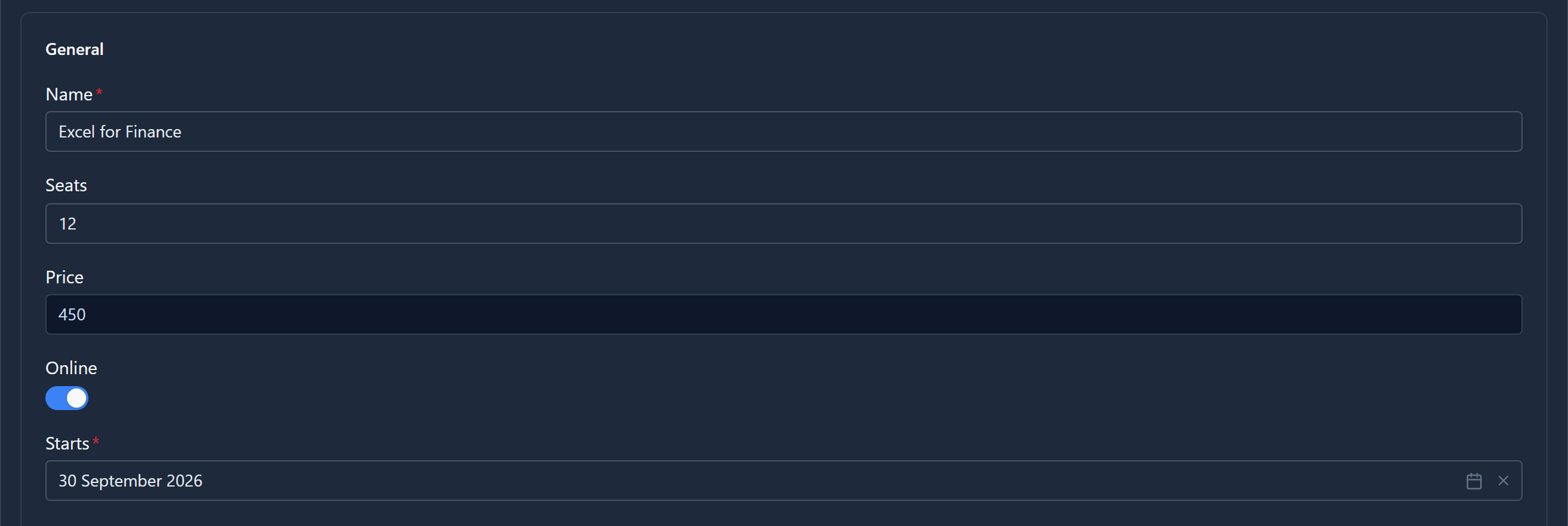
Open the course in the app. Price is shown in a shaded box, not a text box, and Starts shows just the date, in the format we set:
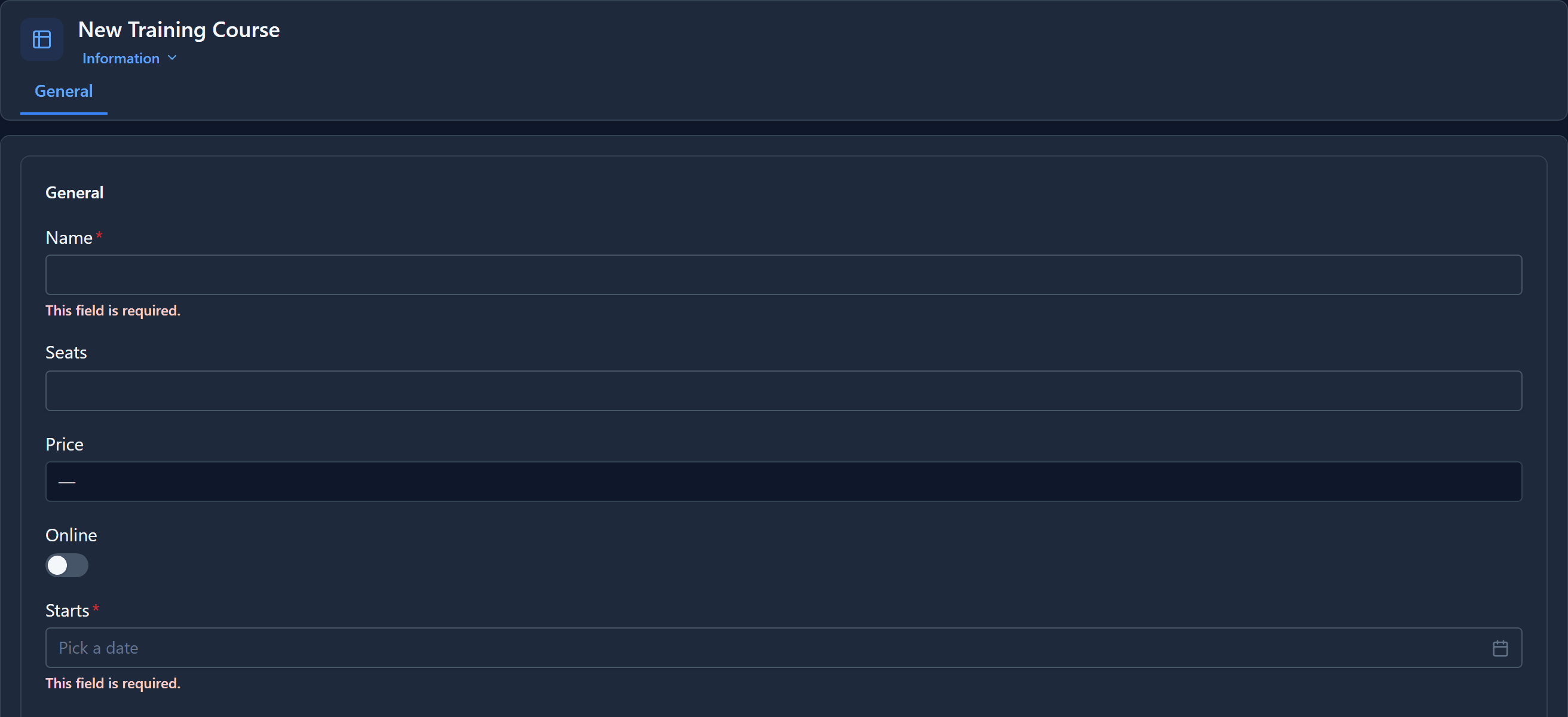
Add a new course and press Save with nothing filled in. The form doesn't save. Each required field has a red star beside its label, and the empty ones say This field is required.
Fill in a name, a start date and a level, and it saves. The date picker opens without a time, since the control is Date.
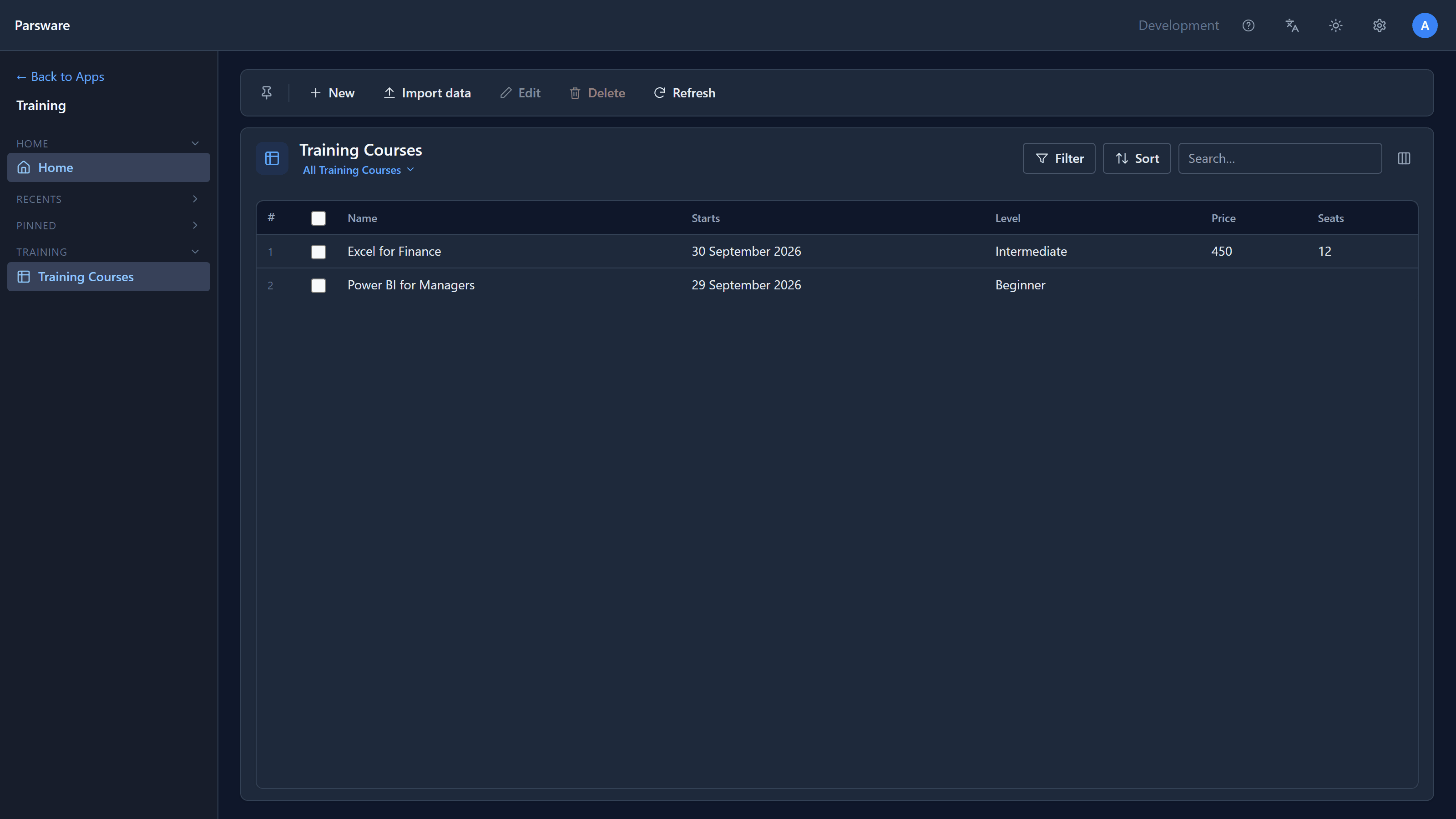
The list shows the default at work in a view too. We didn't set a format on the view's Starts column, so it uses the field's:
In short
| Setting | Set on | Applies to |
|---|---|---|
| Required | The field, or one form's placement | Every form, unless a form says otherwise |
| Read-only | One form's placement | That form |
| Default control | The field | Every form and view, unless one chooses another |
| Default format | The field (date/time only) | Every form and view, unless one sets its own |
Next: lookups, and how one record links to another.