For Power Apps
Upgrading to a new version
A new release of Parsware for Power Apps is the same managed solutions at a higher version, imported over the ones you have. Nothing is uninstalled, and your designs, your licence and your data stay where they are. Here is what to import, in which order, and how to check it landed.
هذا المقال متاح بالإنجليزية فقط.
A new release of Parsware for Power Apps is the same three managed solutions you installed, at a higher version. You import them over the old ones. Power Apps sees a higher version of a managed solution that's already there and upgrades it in place: there's nothing to uninstall first and nothing to reconfigure afterwards.
What stays
An upgrade replaces Parsware's own components: its pages, its code components and its plug-in. Everything that's yours stays as it was:
- Your designs. Drafts are rows in a table, and published designs are web resources in your own solutions. An upgrade of ours touches neither.
- Your licence key. It stays in its row and keeps working.
- Your forms and apps. A form that shows a Parsware report goes on showing it, now drawn by the new version.
- Your data, and the sample data if you installed the samples.
What to import, and in which order
Import every Parsware solution the environment has, all from the same release, in this order:
- Parsware Runtime (
runtime_managed.zip) - Parsware Studio (
designer_managed.zip), where you have it - Parsware Samples (
samples_managed.zip), where you have it
Runtime first, as at install, because the other two build on it. And all of them, because the three share some of the files their pages are built from. If you upgrade only one of them, the others are left loading a mix of old and new files, and the designer can open as a blank page. Production, which has only the runtime, upgrades the runtime alone.
Import over the old version
In the maker portal it's the same as installing: Solutions › Import solution, choose the zip, Next. Under Advanced settings, leave Enable Plugin steps and flows included in the solution ticked:
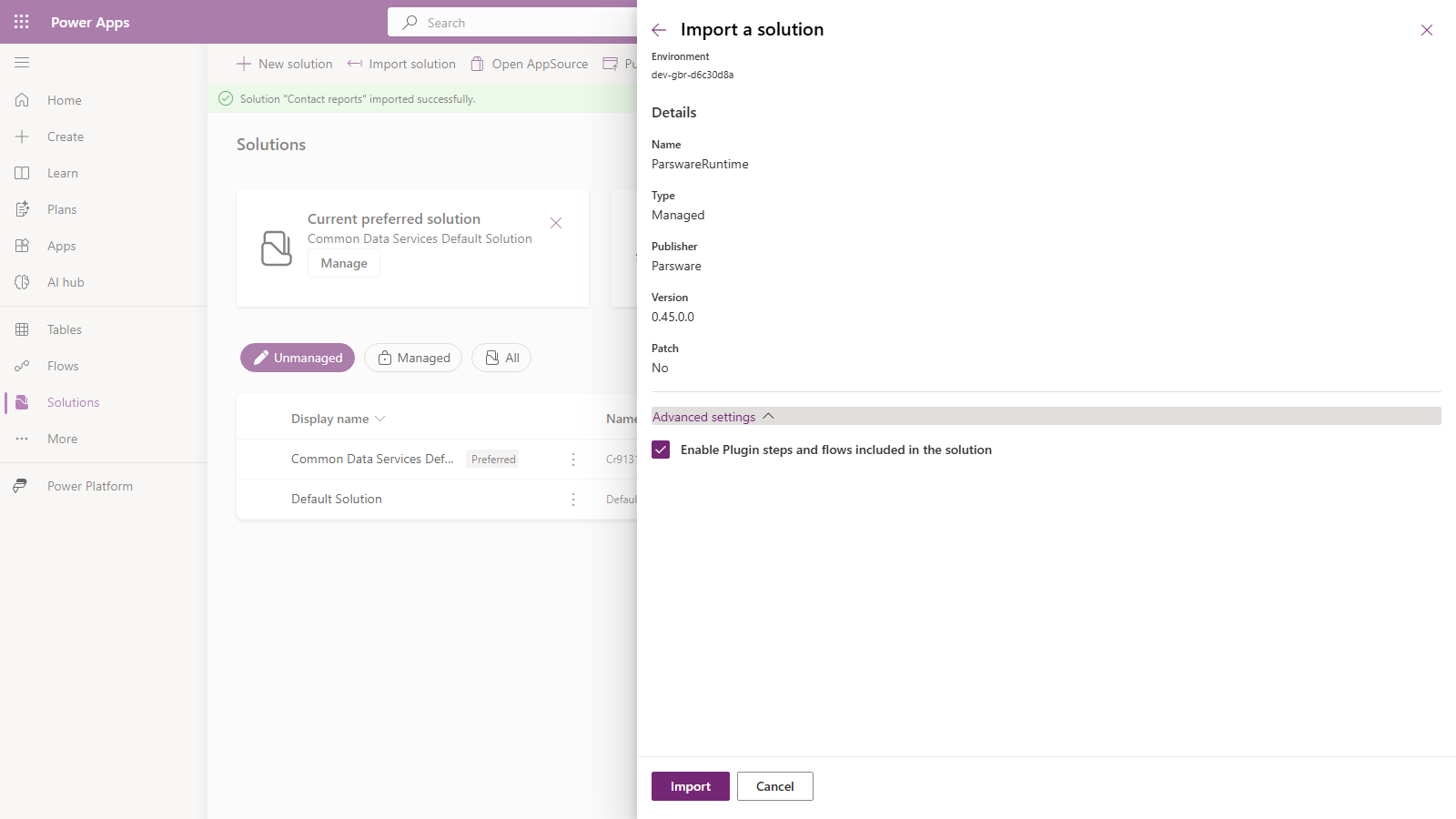
The licence check is a plug-in step in the runtime, and that box decides whether the import leaves its steps switched on. It's ticked unless somebody unticks it.
Or with the Power Platform CLI:
pac solution import --path runtime_managed.zip  --publish-changes
pac solution import --path designer_managed.zip --publish-changes   # development only
pac solution import --path samples_managed.zip  --publish-changes   # if you have it
Check it landed
Don't take the import's word for it: check the version. Solutions in the maker portal lists each
solution with its version, and so does pac solution list. Each Parsware solution should show the
version of the release you imported.
Solutions › See history keeps a record of every import. This is our own development environment over two days, filtered to Parsware:
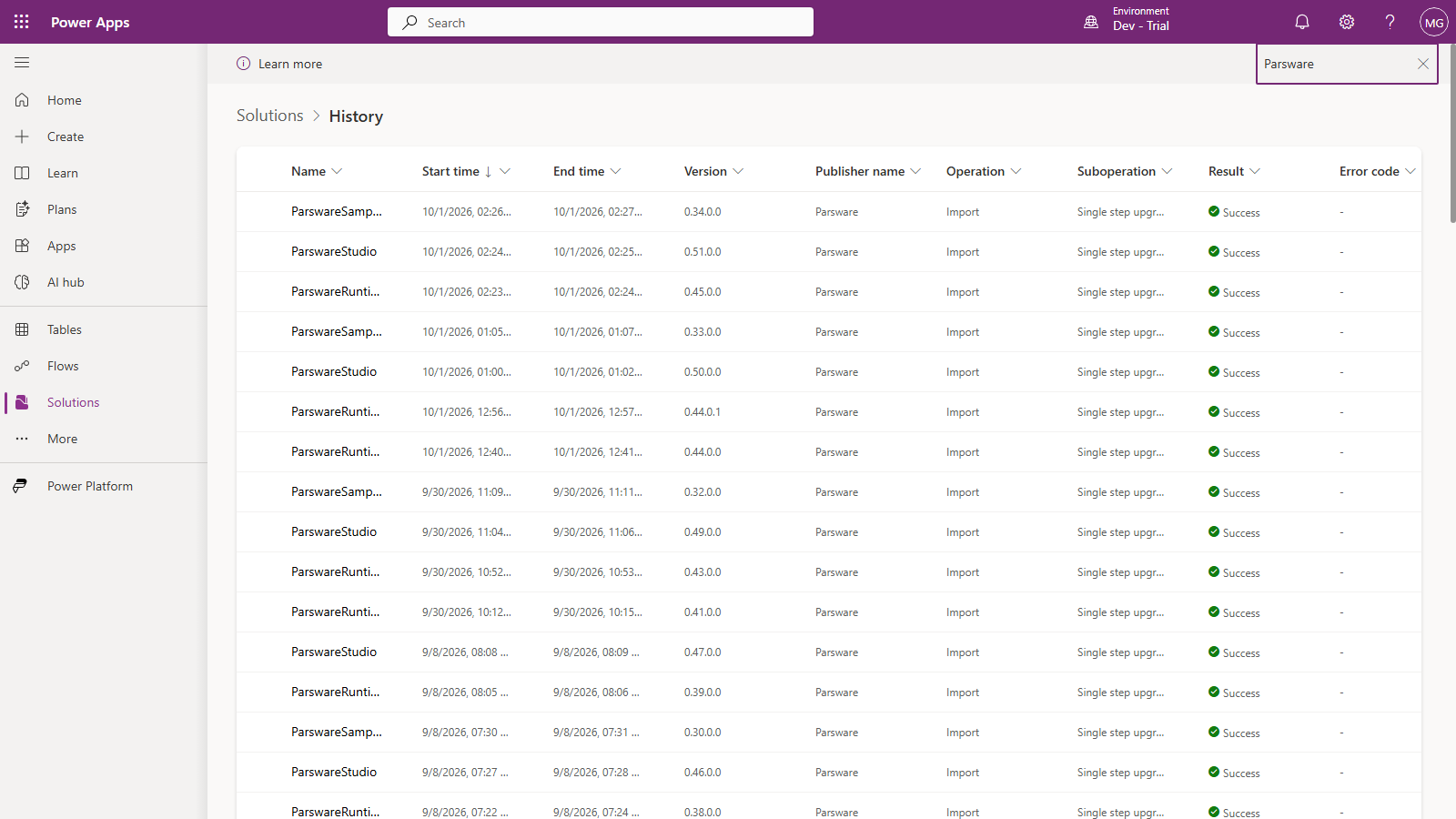
Every row says Import and Single step upgrade: a higher version installed over the one that was there, with nothing removed first. Read upwards and the runtime comes before Studio and the samples each time.
Your own solutions, after an upgrade
When you export one of your solutions from a development environment, it records the version of Parsware Runtime it was made with (you can see this in Move designs from Dev to Prod). So upgrade Parsware in test and production first, then import solutions exported from an upgraded development environment. The other way round, the import can stop on a missing dependency that names the runtime version it needs.
Good to know
- There's no going back by importing. Power Apps won't import an older version of a managed solution over a newer one. Try a release in development or test before production.
- A new release doesn't need a new licence key. Paste a new key only when the old one is renewed.
- New versions are what a licence renewal buys. A paid licence that lapses keeps everything you have working; see When a licence lapses.
Next
What stays on your tenant: what Parsware reads, where it runs, and the one request that ever leaves your environment. The whole series is in the reading list.