For Power Apps
Install Parsware for Power Apps
Parsware for Power Apps arrives as three managed solutions. The runtime goes into every environment and goes in first, the designer only into development, and the samples wherever you want to try things. This is the whole install, in the maker portal or with the Power Platform CLI.
هذا المقال متاح بالإنجليزية فقط.
Parsware for Power Apps installs the way any managed solution does: you import a zip. There are three of them, and the only two things to get right are the order and which environment gets which.
What you receive
| File | Installs as | What it is |
|---|---|---|
runtime_managed.zip |
Parsware Runtime | What shows reports and screens to users, the licence check, and the Parsware app |
designer_managed.zip |
Parsware Studio | The designer, and the Parsware Studio app makers work in |
samples_managed.zip |
Parsware Samples | Two sample tables, ten finished designs, and an app that opens them |
The file names and the solution names differ. You import runtime_managed.zip, and the solutions
list shows Parsware Runtime. That's worth knowing before you go looking for a solution called
"runtime".
You'll also get a licence key, one long line of text. That's the next article.
Which environment gets which
| Environment | Runtime | Studio | Samples |
|---|---|---|---|
| Development, where makers build | ✅ | ✅ | Optional |
| Test | ✅ | — | Optional |
| Production | ✅ | — | — |
The runtime goes everywhere, because it's what renders a report or a screen for a user. The designer stays in development, because designing is a development activity. Your published designs reach test and production inside your own solutions, not through the designer. The samples are a demonstration with made-up data, so keep them out of production.
Import them, runtime first
Always import the runtime first. The designer and the samples use components the runtime provides. Import them in the wrong order and the import fails with a message about a missing component, which doesn't say that the order was the problem.
In the maker portal
- Open make.powerapps.com and pick the environment in the top right.
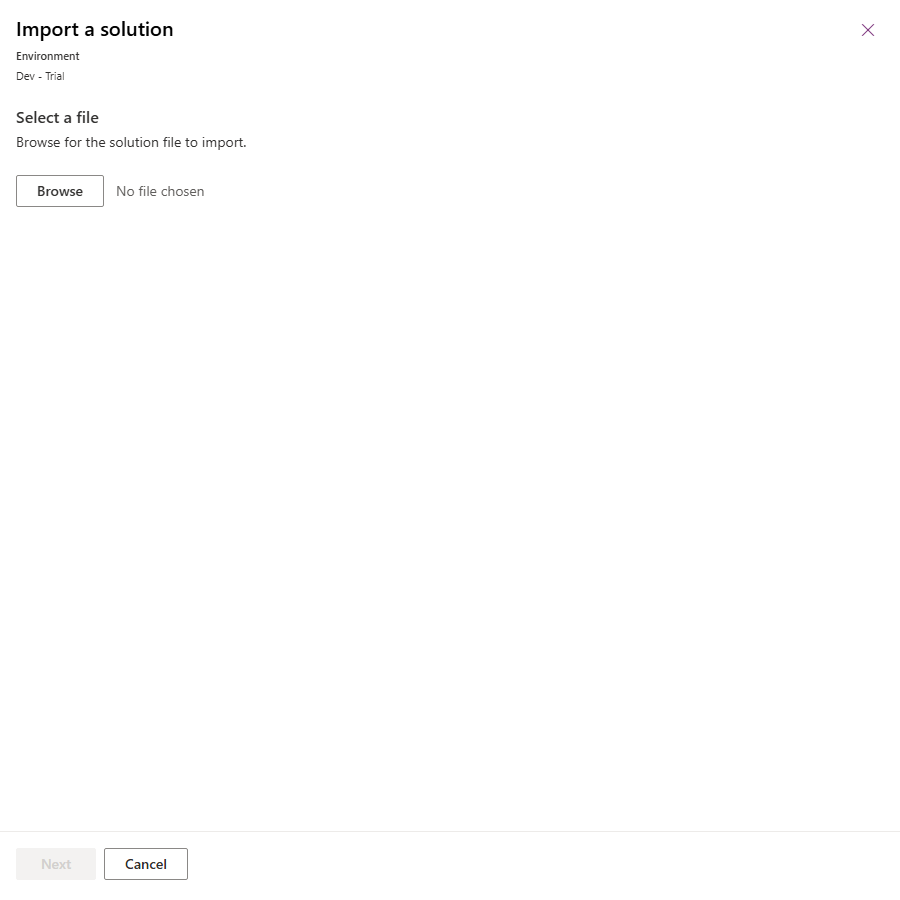
- Go to Solutions and press Import solution.
- Browse to
runtime_managed.zip, press Next, then Import. - Wait for the import to finish, then repeat for
designer_managed.zipand, if you want them,samples_managed.zip.
With the Power Platform CLI
If you script your deployments, the same three imports with the Power Platform CLI:
pac auth create --environment https://yourorg.crm.dynamics.com
pac solution import --path runtime_managed.zip  --publish-changes
pac solution import --path designer_managed.zip --publish-changes   # development only
pac solution import --path samples_managed.zip  --publish-changes   # optional
Check it landed
Don't just trust the import step: read the versions back. An import can report a problem and still exit as if it succeeded, so the only reliable check is what the environment now holds.
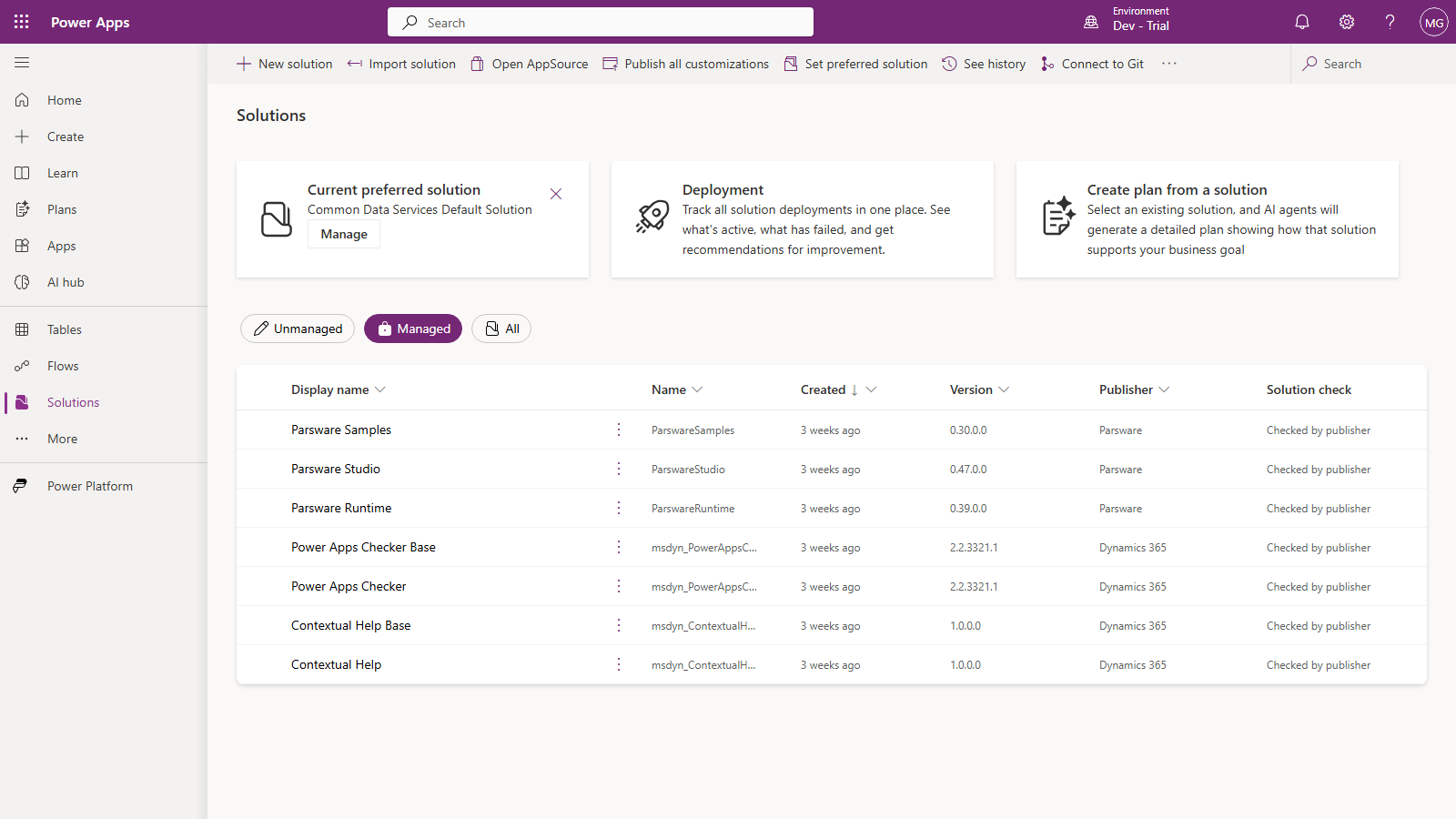
In the maker portal, go to Solutions and choose Managed. You should see the solutions you imported, from the publisher Parsware, at the versions you were sent:
Or from the CLI:
pac solution list
The three solutions also bring their apps. In development you'll now have Parsware Studio for makers, Parsware for users and, if you imported the samples, Parsware Samples. The two main apps are the subject of their own article later in this series.
Upgrading later
A new version is another import of the same three zips over the ones you have, runtime first again. There's nothing to uninstall first, and your designs aren't touched: they live in your own solutions, not in ours.
Next
Activate your licence: paste the key, and see what it covers before you save it.