Parsware Platform
States and reasons: where a record is in its life
Every table has a State and a Reason. Design the lifecycle your records move through, with a reason under each state, colours and icons that read at a glance, and numbers from your publisher's range.
Dit artikel is alleen in het Engels beschikbaar.
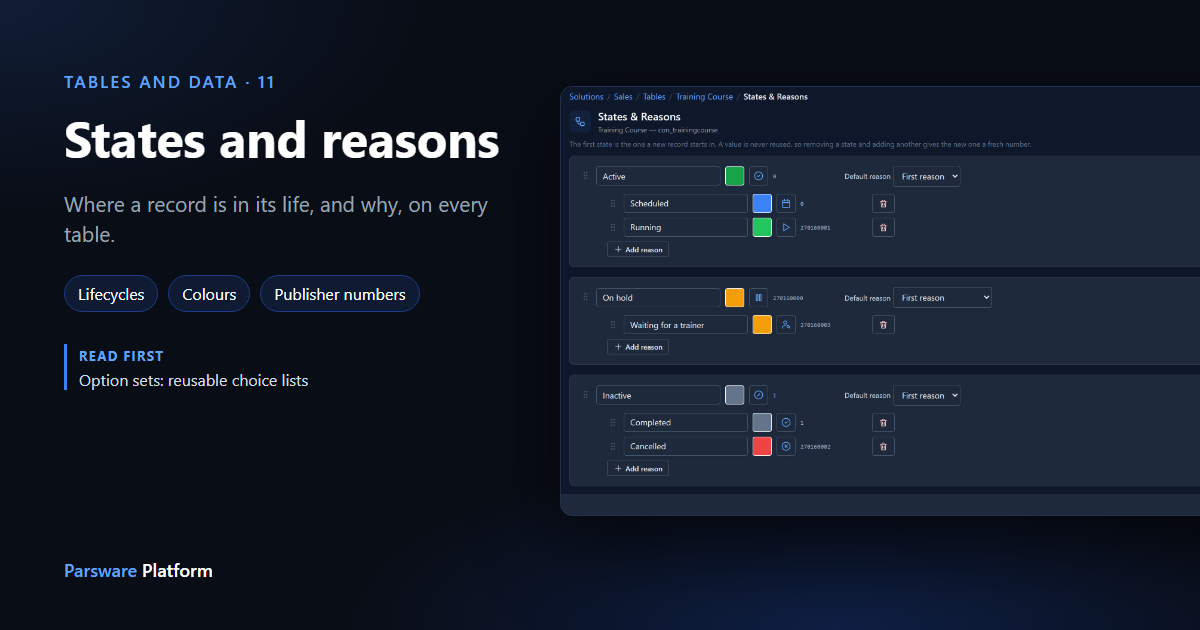
A course is scheduled, then running, then over. An invoice is open until it's paid or written off. Nearly every table needs to say where a record is in its life, and why. So every table in Parsware already has two fields for it: State and Reason.
A new table starts with two states, Active and Inactive, each with one reason of the same name. You can't delete the fields. You can design what's in them. Here we give Training Course a lifecycle of its own. Every picture is the real product.
Design the lifecycle
Open the table and choose States & Reasons in its rail. Each state is a card, and its reasons sit inside it:
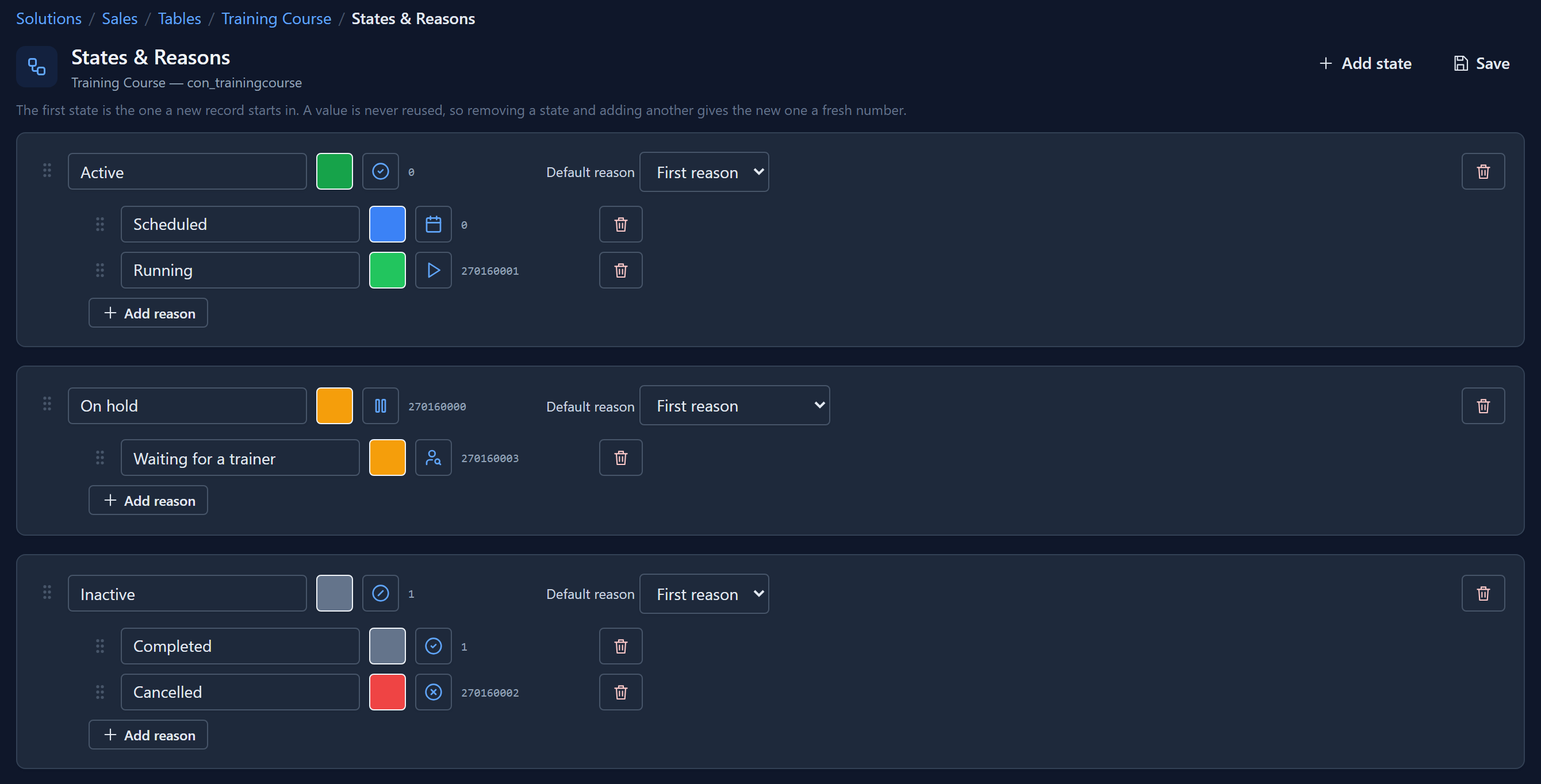
Here the course has three states:
- Active, because it's Scheduled or Running.
- On hold, because it's Waiting for a trainer. This is a new state, added with Add state.
- Inactive, because it was Completed or Cancelled.
Active and Inactive are yours to rename, and so are their first reasons. Here they became Scheduled and Completed.
Each state and each reason can have a colour and an icon, from the same pickers an option set uses. They're optional, but they're what lets someone see which courses are still running without reading every row.
Order matters for states. New records start in the first state, with its default reason. Leave the default on First reason and it's whichever reason is at the top. Drag a card by its grip to reorder the states, or a row to reorder a state's reasons. Here On hold was dragged up above Inactive.
A reason belongs to one state, so you can only drag it within that state. Moving Cancelled under Active would be a different lifecycle, not a reordering.
The numbers
What a record stores is a number, as with an option set:
- Active is 0 and Inactive is 1, on every table, so they mean the same everywhere.
- Anything you add is numbered from your publisher's range. Contoso's starts at 270160000, so On hold got 270160000 and Running 270160001. Two publishers extending the same table can't give the same number two meanings.
- A number is never reused. Remove On hold, add another state, and it gets a fresh number. A record somewhere may still hold the old one, and reusing it would quietly change what that record says.
You can remove a state or a reason while records still use it, because a business changes and waiting for every old record to be migrated would freeze the design. Those records show the bare number until someone sets them to a current state.
On the form
State and Reason are fields like any other, so you place them on the form in the form designer. The best place is the form's header, the strip beside the record's name that stays put whichever tab is open. Drag both in.
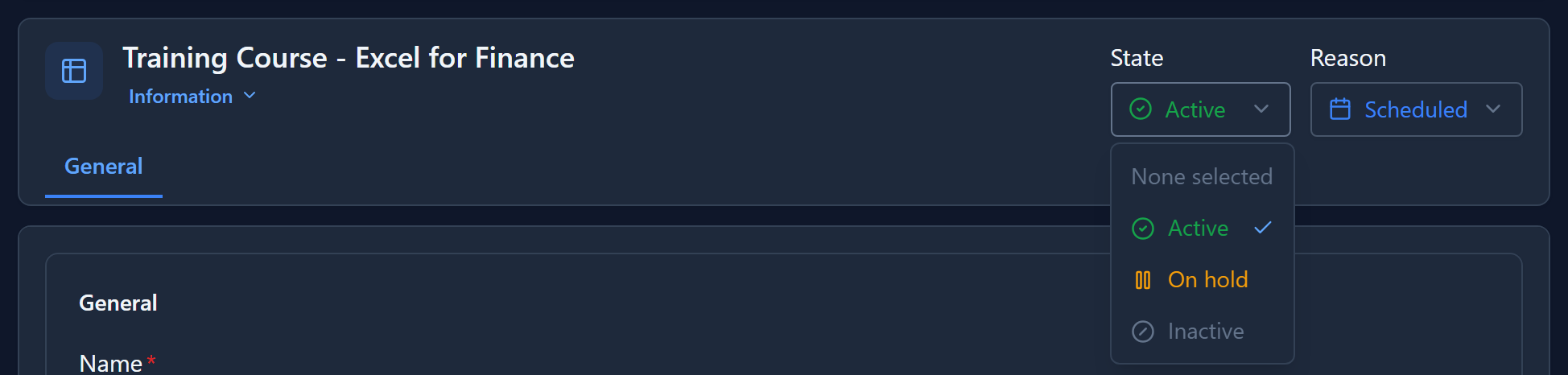
Header fields are read-only by default. That's usually what you want, since the header is for reading. To let people change the state right there, select each field in the header and untick Read-only in the Properties panel. Then the State is a dropdown in the record's colours:
The reason follows the state. Choose Inactive and the Reason moves to Inactive's default reason, and its list offers only Inactive's reasons:
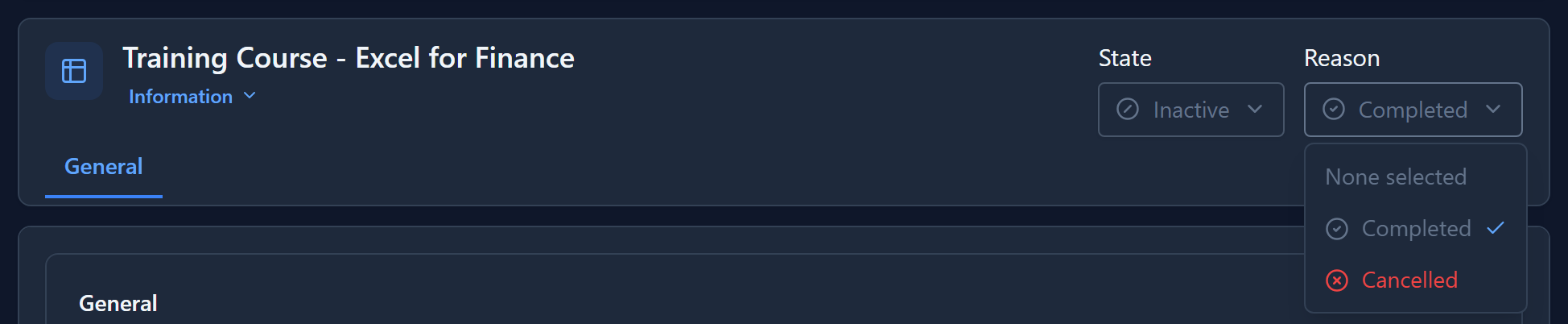
Offering Running on a course that's over would make no sense, so the form doesn't. Put the course on hold instead, save, and the header reads at a glance:

In a list
Add State and Reason as columns in the table's view, and the list shows every course's standing in its colours:
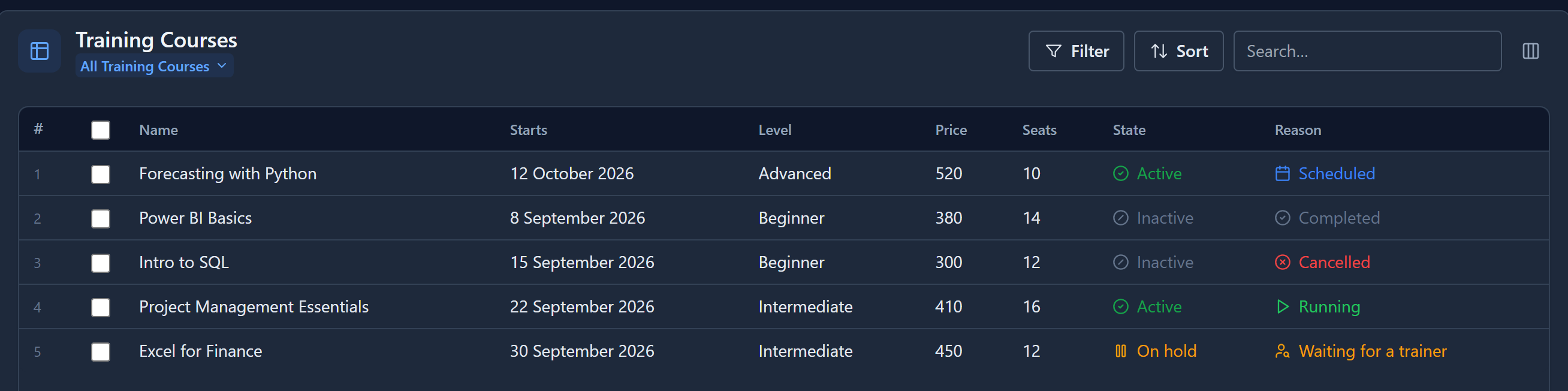
Because every table has its State in the same place, anything that needs to tell open records from closed ones, a list or a rule, looks in the same place whatever the table.
Why this isn't an option set
An option set is one list that many tables share. A lifecycle is the opposite. "Active" on a course and "Active" on an invoice aren't the same choice, and if they came from one shared list, changing the course's lifecycle would change every other table's too. So states and reasons belong to their table. You edit them with it, and they travel with it when the solution is exported.
Next: reference numbers that number themselves, the auto-number field.