Parsware Platform
Shapes, selection and transforms
Drawing a shape, selecting one or several, and moving, resizing, turning, copying and stacking them. Trying each, we fixed three things: a new shape is now selected, the arrow keys move it, and a typed angle turns it in place.
این مقاله فقط به انگلیسی در دسترس است.
Most of a screen is made of a handful of shapes: rectangles for boxes and buttons, circles for avatars and dots, lines for rules, and text. This article covers drawing them and the things you do to them afterwards. Text has an article of its own.
We drew a 640 by 400 frame on an empty part of the Starter app sample's canvas and worked in it, without saving.
Drawing
Pick a tool from the rail, or press its key, and drag on the canvas:
| Tool | Key | Hold Shift to… |
|---|---|---|
| Rectangle | R | draw a square |
| Ellipse | O | draw a circle |
| Triangle | keep it as wide as it is tall | |
| Line | L | keep it horizontal, vertical or at 45° |
| Pen | P | |
| Pencil | N |
A click without dragging gives you a shape of a standard size (a rectangle is 120 by 80), centred where you clicked. We drew a rectangle, a circle, a triangle and a line, and named them in Properties:
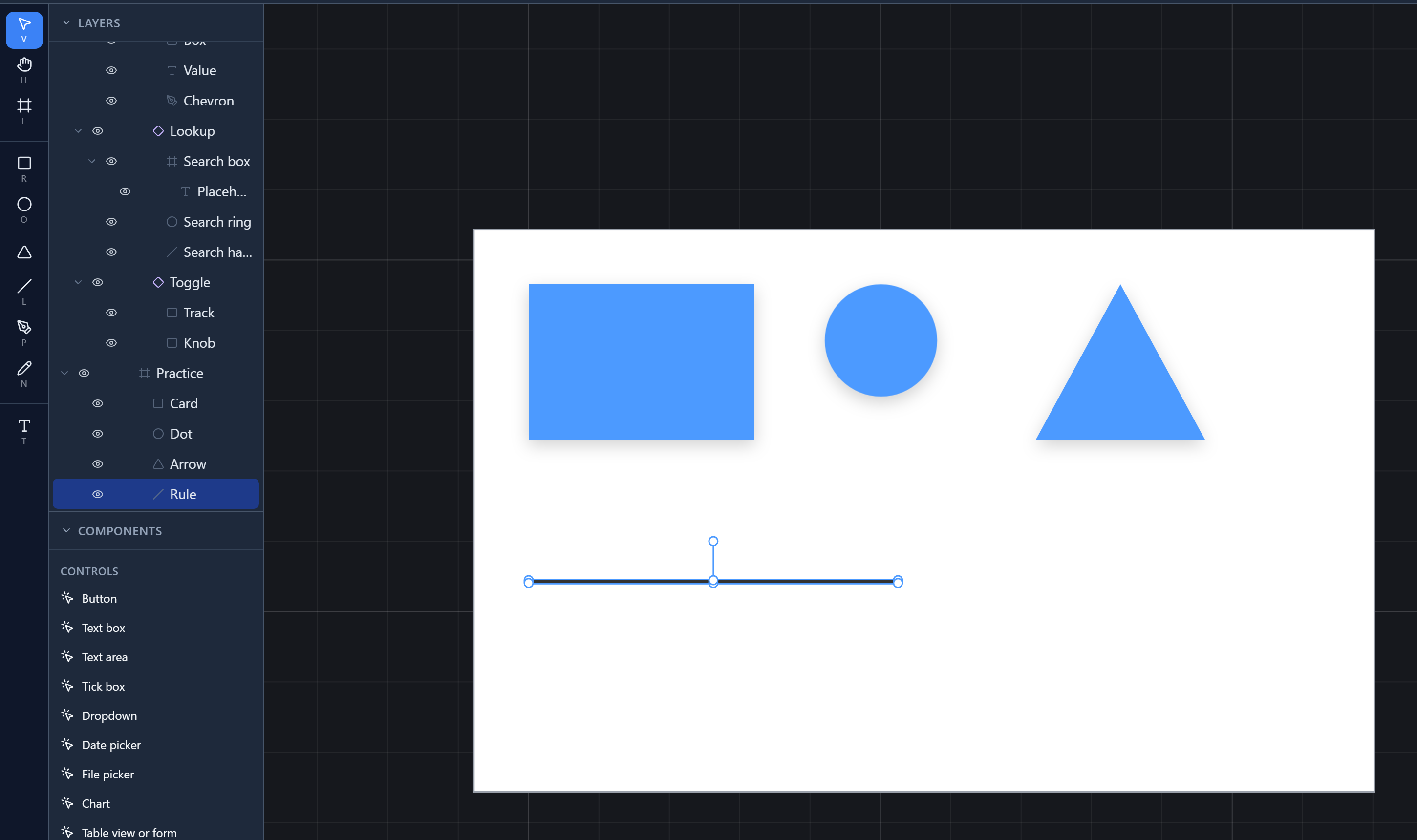
New: the shape you've just drawn is selected, and the Select tool is back. Before, the tool stayed on and nothing was selected, so to colour or name the shape you'd just drawn you had to press V and click it first. Now you can go straight to Properties. To draw several of the same shape, press the key again.
Selecting
- Click a shape to select it.
- Shift-click, Ctrl-click or ⌘-click adds a shape to the selection, or takes it out. All three work, so whichever your hands know is the right one.
- Drag a box around shapes. Starting inside a frame, the box selects what's inside it.
- Double-click reaches the top-most shape under the pointer, even inside a frame that's inside a frame.
- Right-click → Select layer lists everything under the pointer, for a shape buried under others.
We dragged a box across the whole frame:
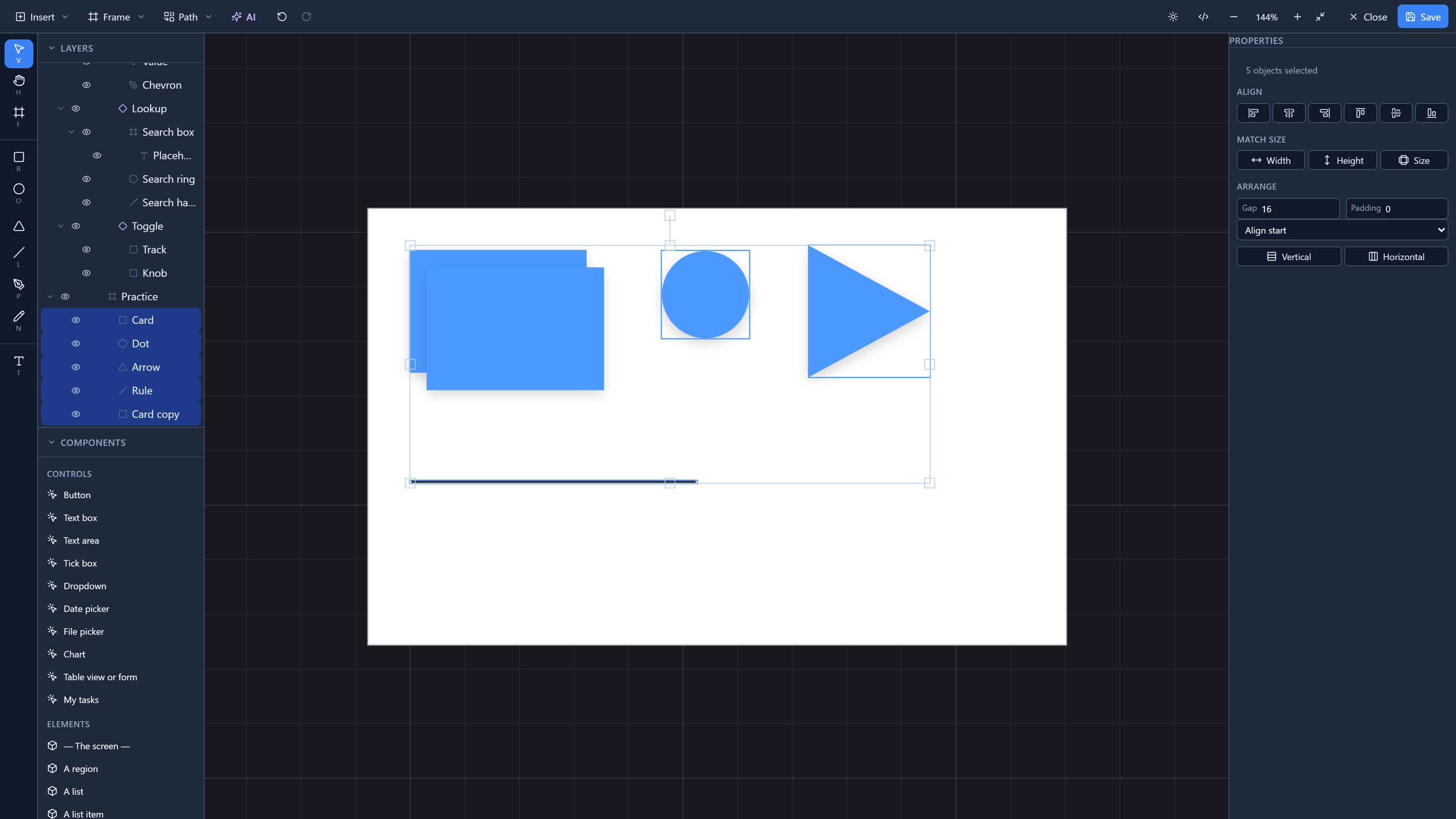
With several selected, Properties offers ways to line them up. That's the next article.
Moving
Drag the shape, or type its X and Y. Positions count from the top left of the canvas, not from the frame.
New: the arrow keys move the selection one pixel at a time, or ten with Shift. Each press is a single step of undo. Before this, the only way to move a shape a little was to drag it and hope, or to retype its X.
Resizing
Drag a handle, or type W and H. The corner handles resize freely; hold Shift to keep the proportions.
Turning
Drag the small circle above the selection, or type an angle in Rotation. We turned the triangle 90° so it points right:
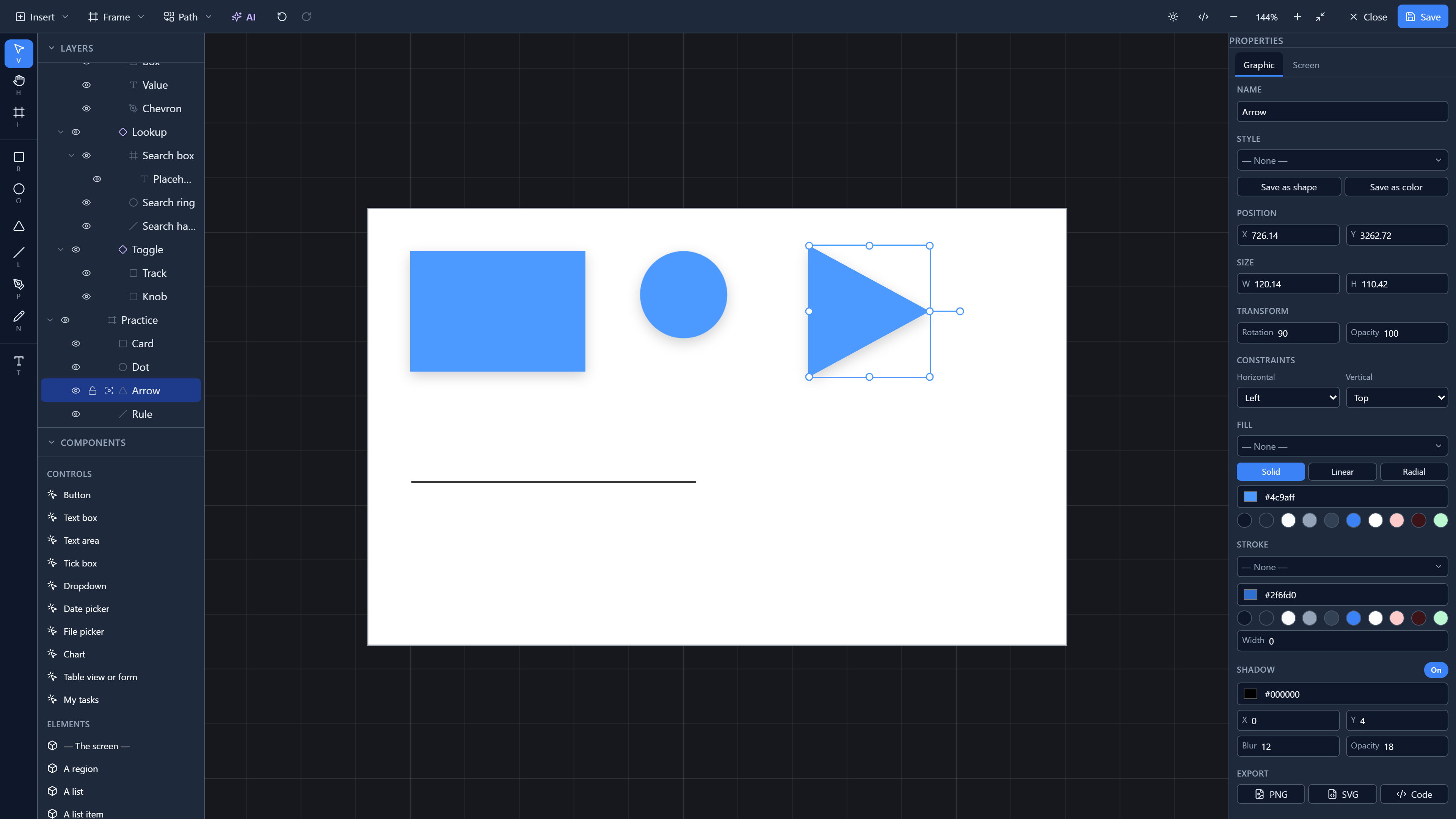
Fixed: a typed angle turns the shape about its centre. The handle always did. The Rotation field turned it about its top-left corner instead, so typing 90 swung our triangle to the left and on top of the circle. Both now agree, and the shape stays where you put it.
Frames don't turn. Right-click → Flip horizontal and Flip vertical mirror a shape.
Copying
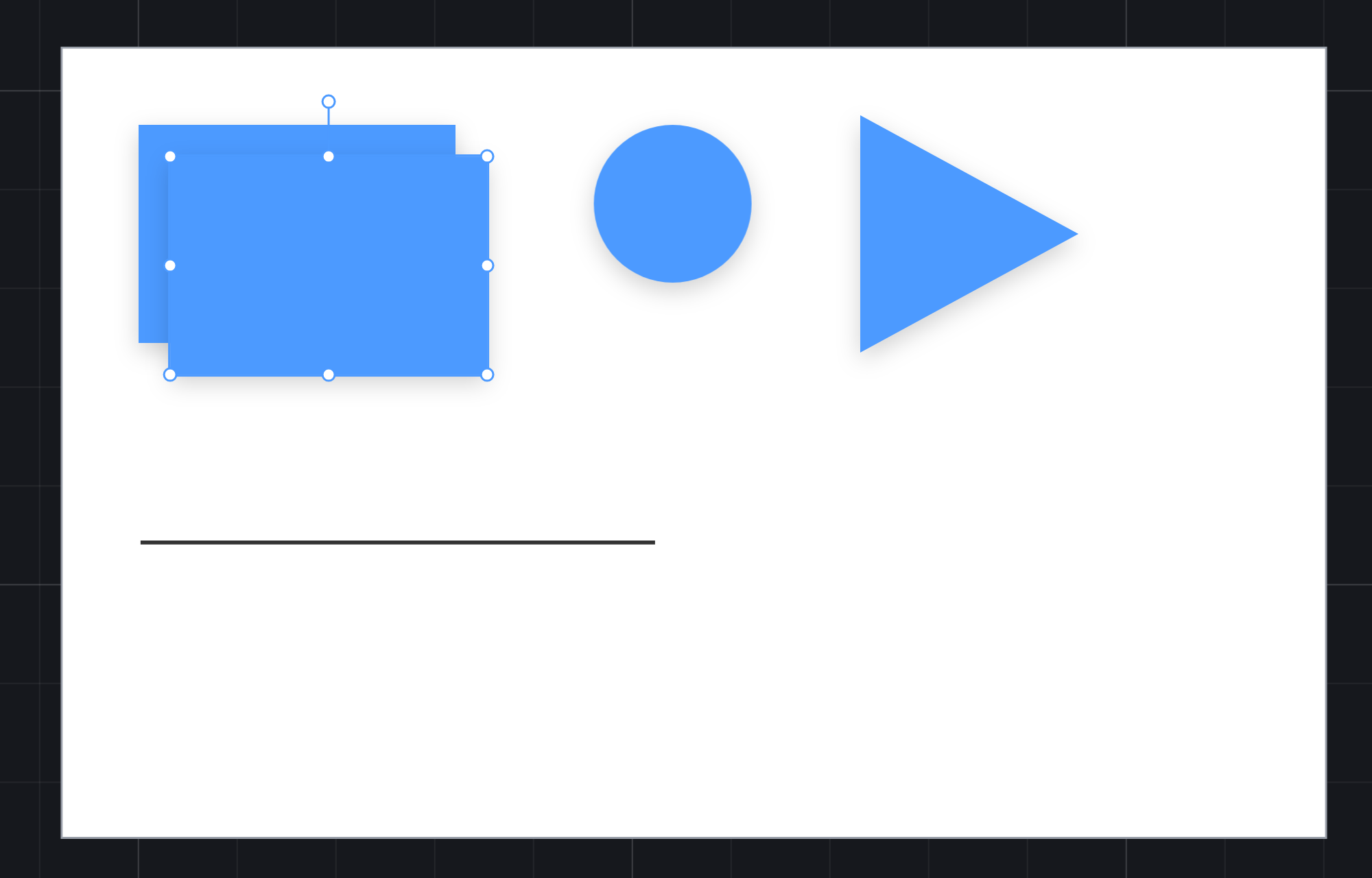
Ctrl+D (⌘D on a Mac) duplicates the selection. The copy lands 16 pixels down and to the right, so you can see it, and it's selected, so you can drag it straight to where it goes:
Delete or Backspace removes the selection.
Stacking
Shapes later in the list are drawn on top. To change the order, right-click:
| Command | Key |
|---|---|
| Bring to front | Ctrl+Shift+] |
| Bring forward | Ctrl+] |
| Send backward | Ctrl+[ |
| Send to back | Ctrl+Shift+[ |
The same menu is on a row in Layers, whose order is the order of the drawing.
Lock (the padlock in Layers, or right-click) stops a shape being picked or moved on the canvas by accident. You can still select it from its row in Layers, to unlock it, and the arrow keys leave it where it is.
Try it
Draw a rectangle, an ellipse with Shift, and a line. Select the rectangle and press Shift+→ three times, then Ctrl+Z once. Type 45 in its Rotation. Press Ctrl+D, and send the copy to the back.
Next: snapping and alignment.