Parsware Platform
Parsware Platform: an overview
What Parsware is and how its parts fit together, shown through one real application, from the tables underneath it to the phone screen, the approval process and the printed report.
این مقاله فقط به انگلیسی در دسترس است.
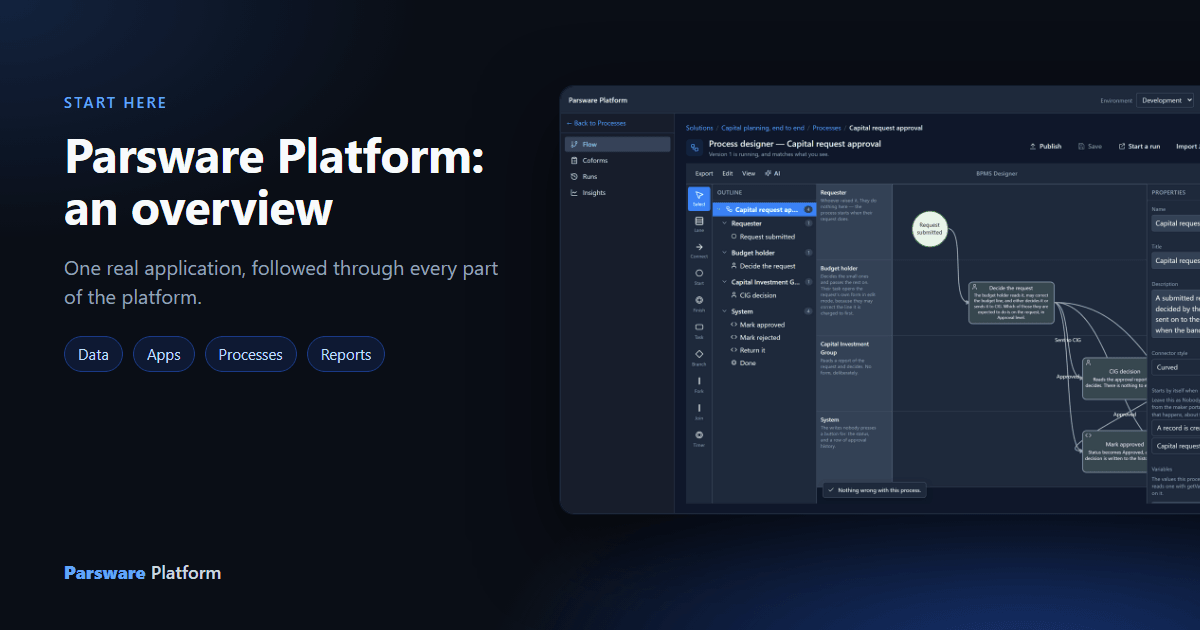
Parsware is an app platform for business applications. You describe the parts of an application: the data it keeps, the screens people use, the steps work goes through, and the reports it prints. The platform runs it as an app your people sign in to, on servers you choose.
This overview follows one real application through every part of the platform. Capital planning is a sample that ships with Parsware. Someone raises a funding request on a phone, the amount decides who approves it, the decision is recorded, and finance prints the budget position. Every picture below is that application, running.
This is the place to start. Every other article on this blog assumes you have read it.
Two places: where you build, and where you work
Parsware has two front doors. Makers build in the maker portal, the Admin Control Center. Everyone else opens the apps list and uses what was built.
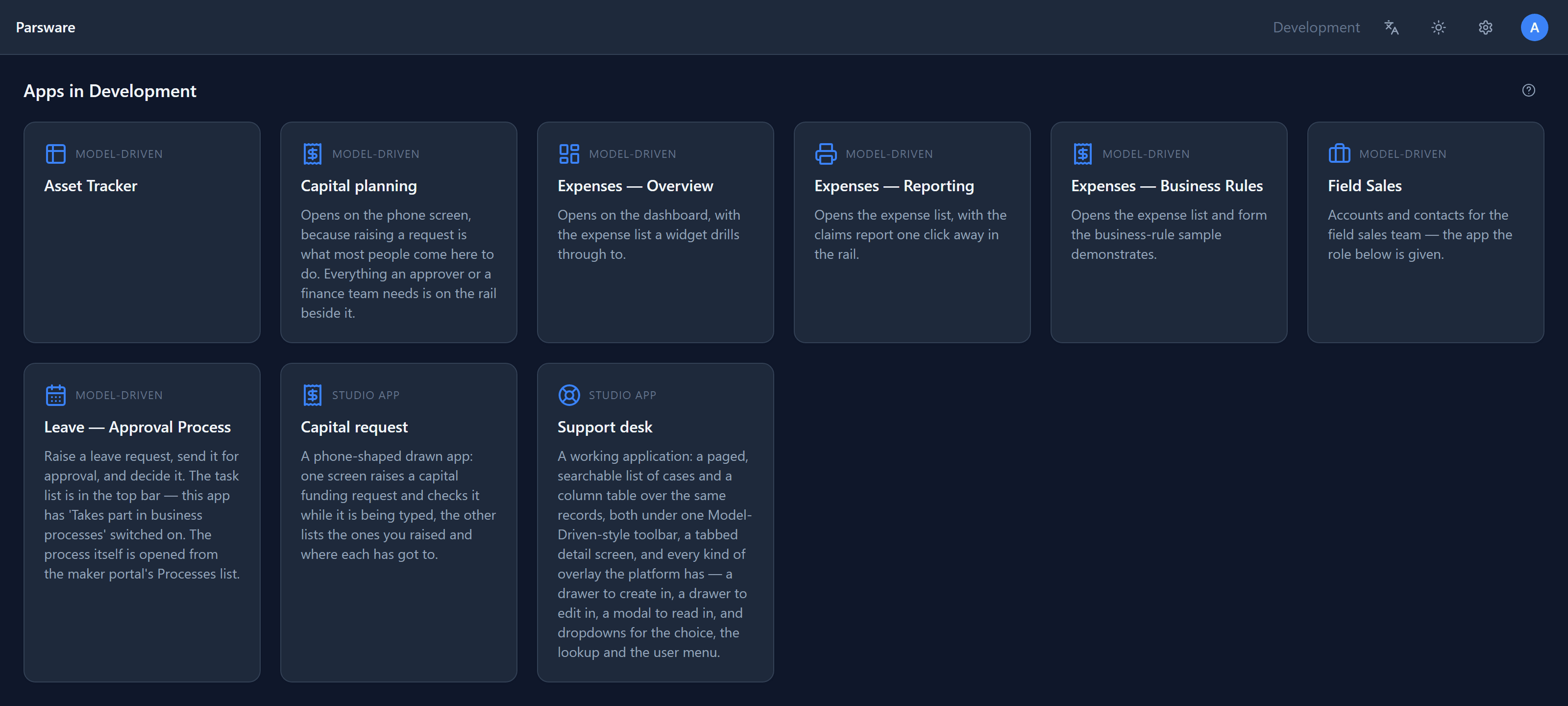
The apps list shows every app the signed-in person may use in this environment. There are two kinds: model-driven apps, built from tables, forms and views, and Studio apps, whose screens are drawn. Both run on the same data and the same security.
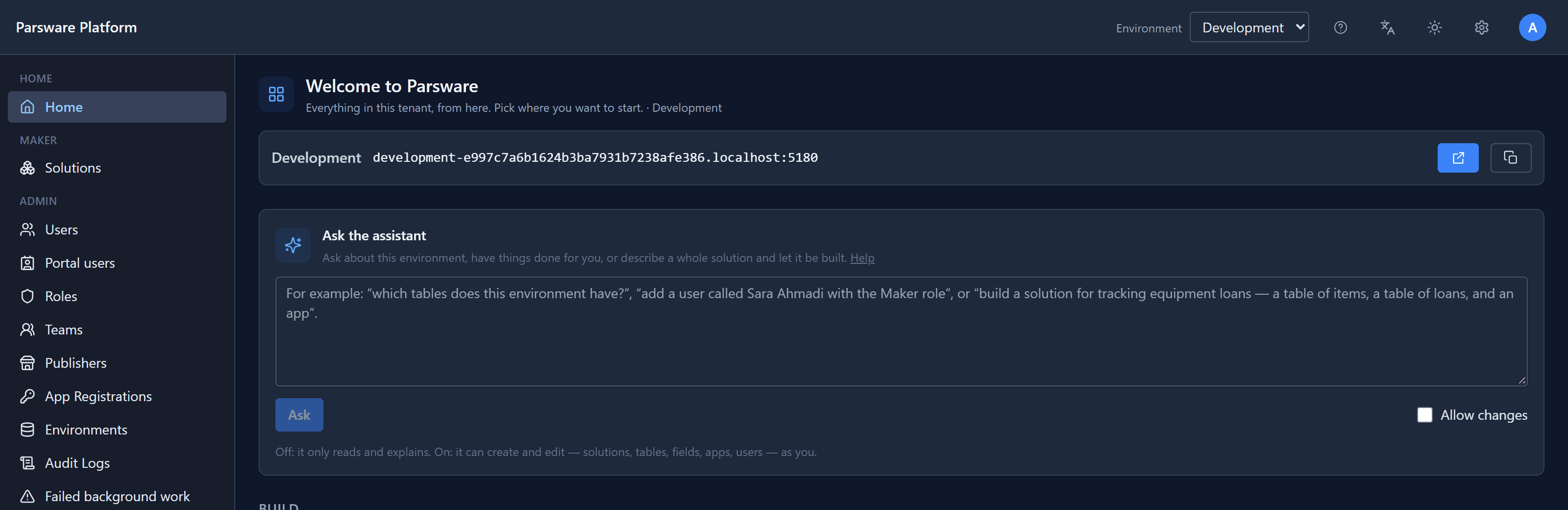
The maker portal's home page leads to everything else: solutions to build in, and users, roles, teams and environments to administer. It also has an assistant you can ask about the environment in plain language. With Allow changes off, it only reads and explains. With it on, it can create and edit solutions, tables, fields, apps and users, acting as you.
Environments that are actually separate
Work happens in environments, such as Development, Test and Production. Each environment gets its own database schema, so data from one can't leak into another even through a bug.
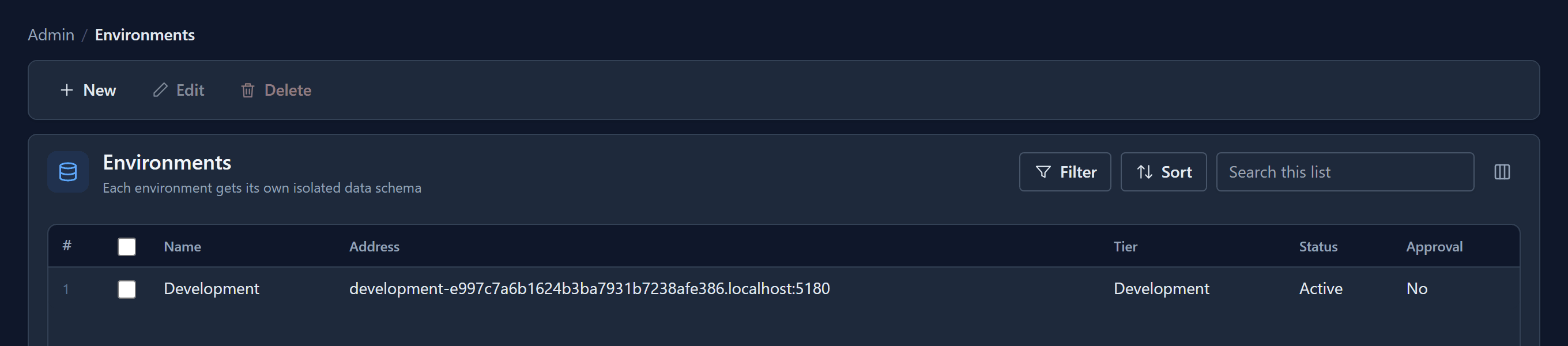
Each environment also has its own address, which is where its people open their apps.
Everything travels in a solution
Nothing is copied between environments by hand. An application lives in a solution, a versioned package that is exported from one environment and imported into the next. Capital planning arrived in this environment exactly that way:
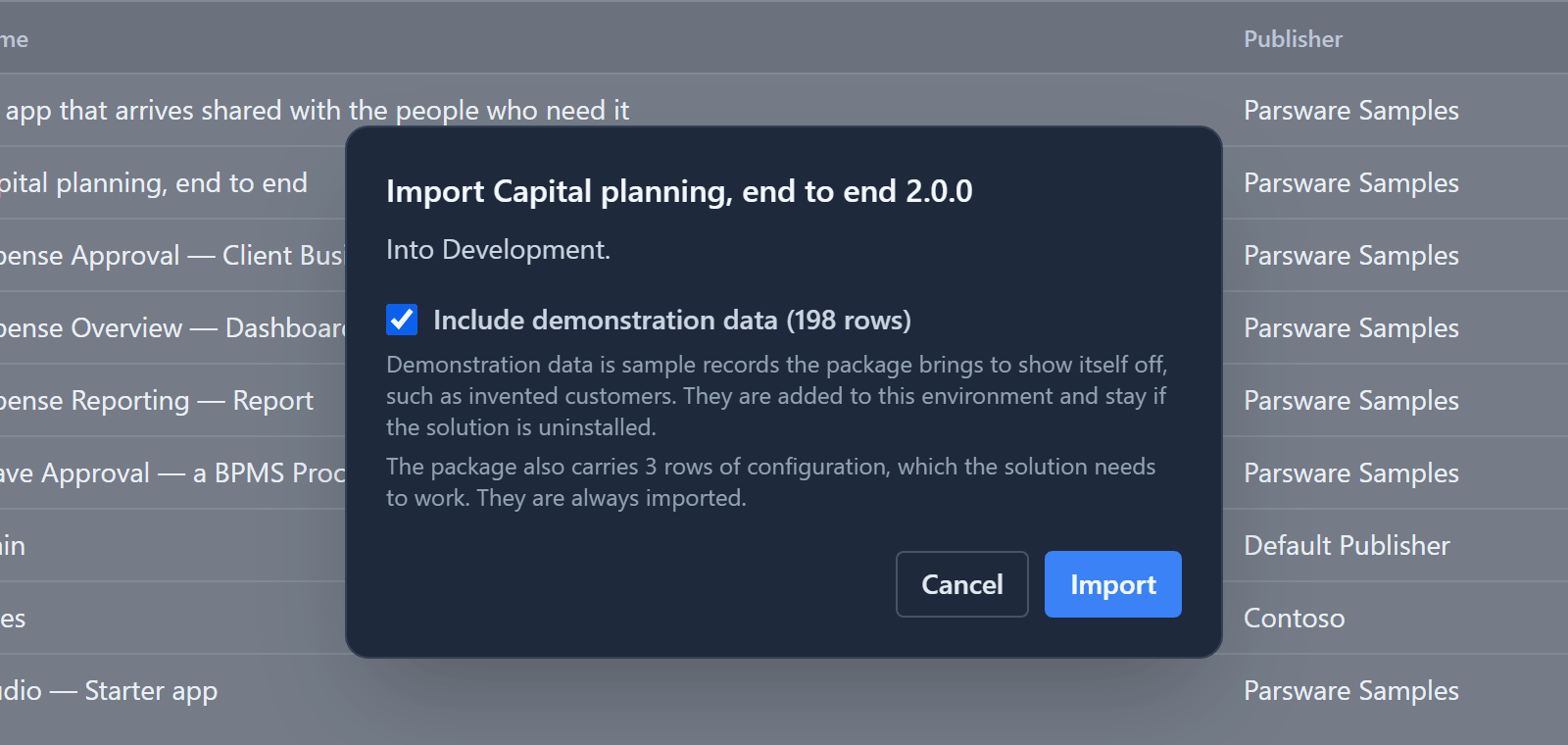
A package can carry rows as well as design. Here the solution brings three rows of configuration it needs to work, which always come with it. It also brings 198 rows of demonstration data, which you choose whether to import.
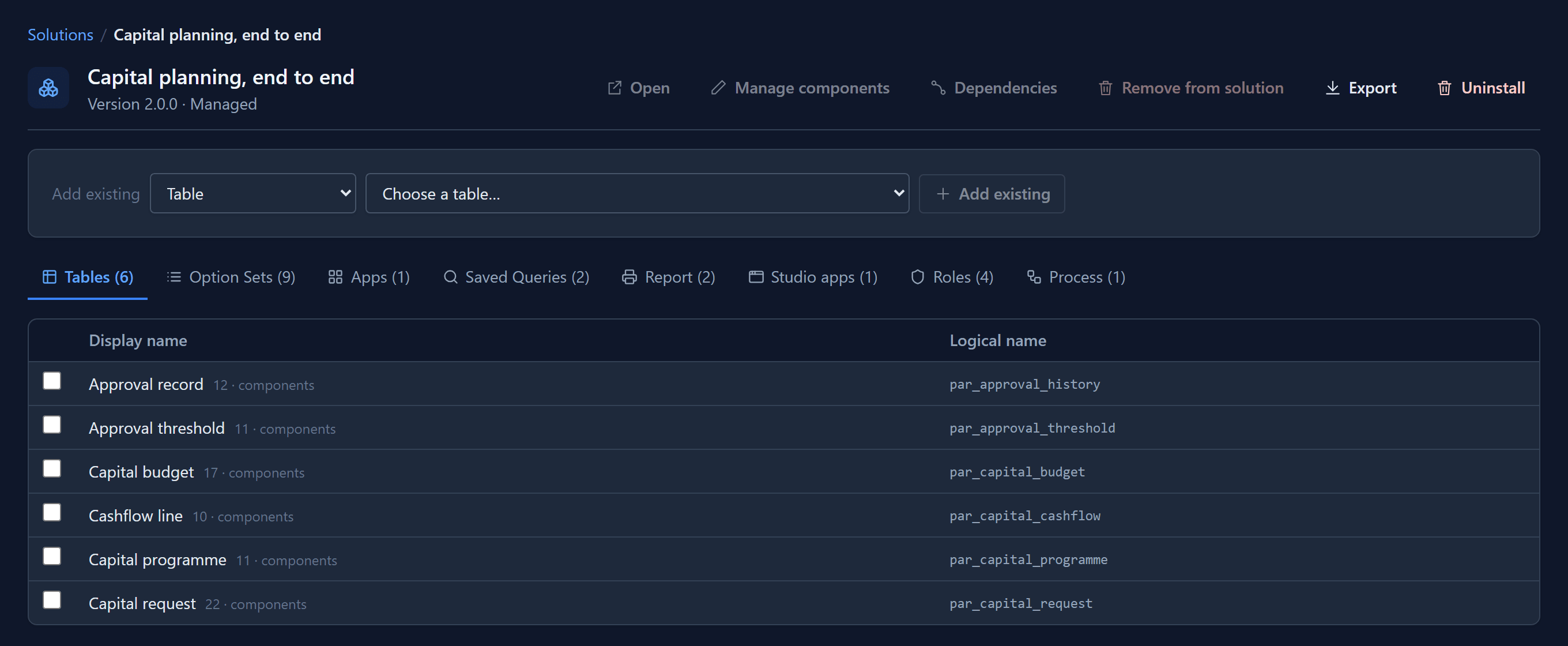
Opened in the maker portal, the solution lists what it contains: six tables, nine option sets,
an app, two saved queries, two reports, a Studio app, four security roles and one process.
Everything a maker builds is a named, versioned part of a solution. Every name starts with the
publisher's prefix, here par_, so two solutions never collide.
Tables, forms and views
Underneath every application are tables. A table is a list of fields, and each field has a type that decides how it is stored, shown and checked.
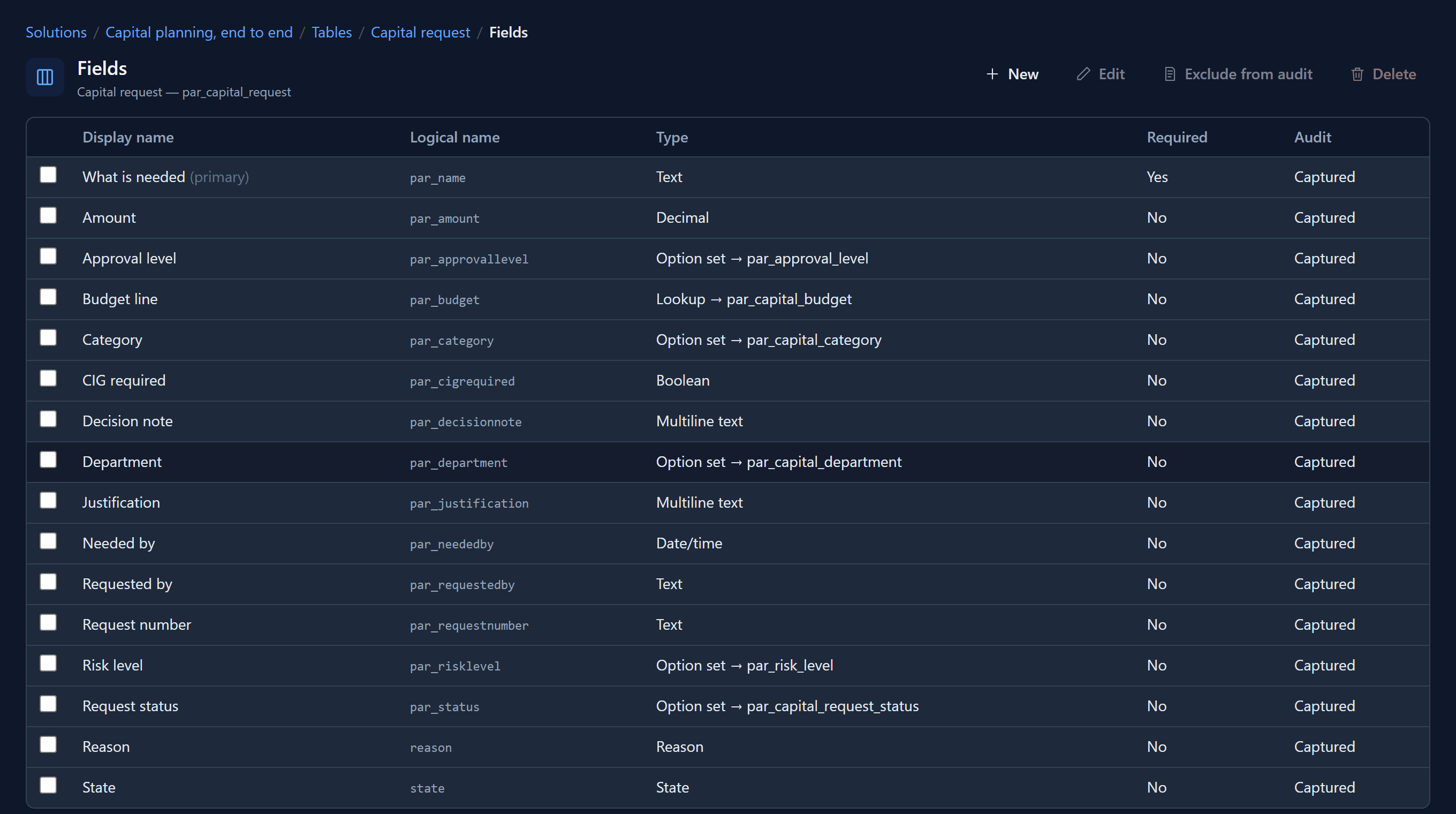
Capital request has text, numbers, dates and yes/no fields. It has option sets for fixed lists, such as the department or the risk level. And it has a lookup that links each request to its budget line. Every field records its changes in the audit log unless you choose otherwise.
Views decide which columns and rows a list shows, and forms decide how one record is edited. Together they make a model-driven app:
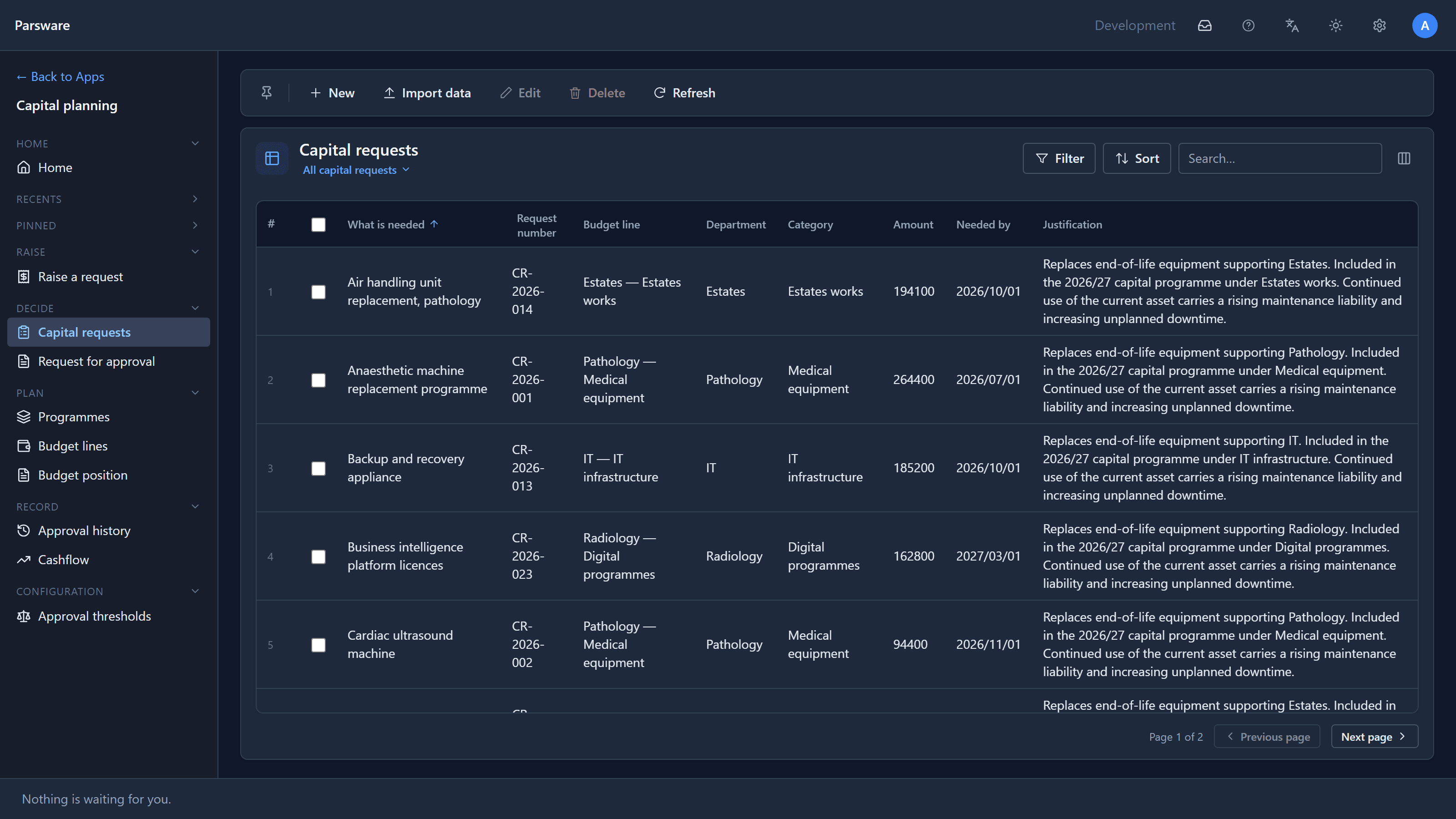
To build your own table, fields and view step by step, see Build your first table and view.
Screens you draw
Some screens need to look a particular way, such as a phone form or a front desk. For those, the Application Studio lets you draw the screen and say what each shape does.
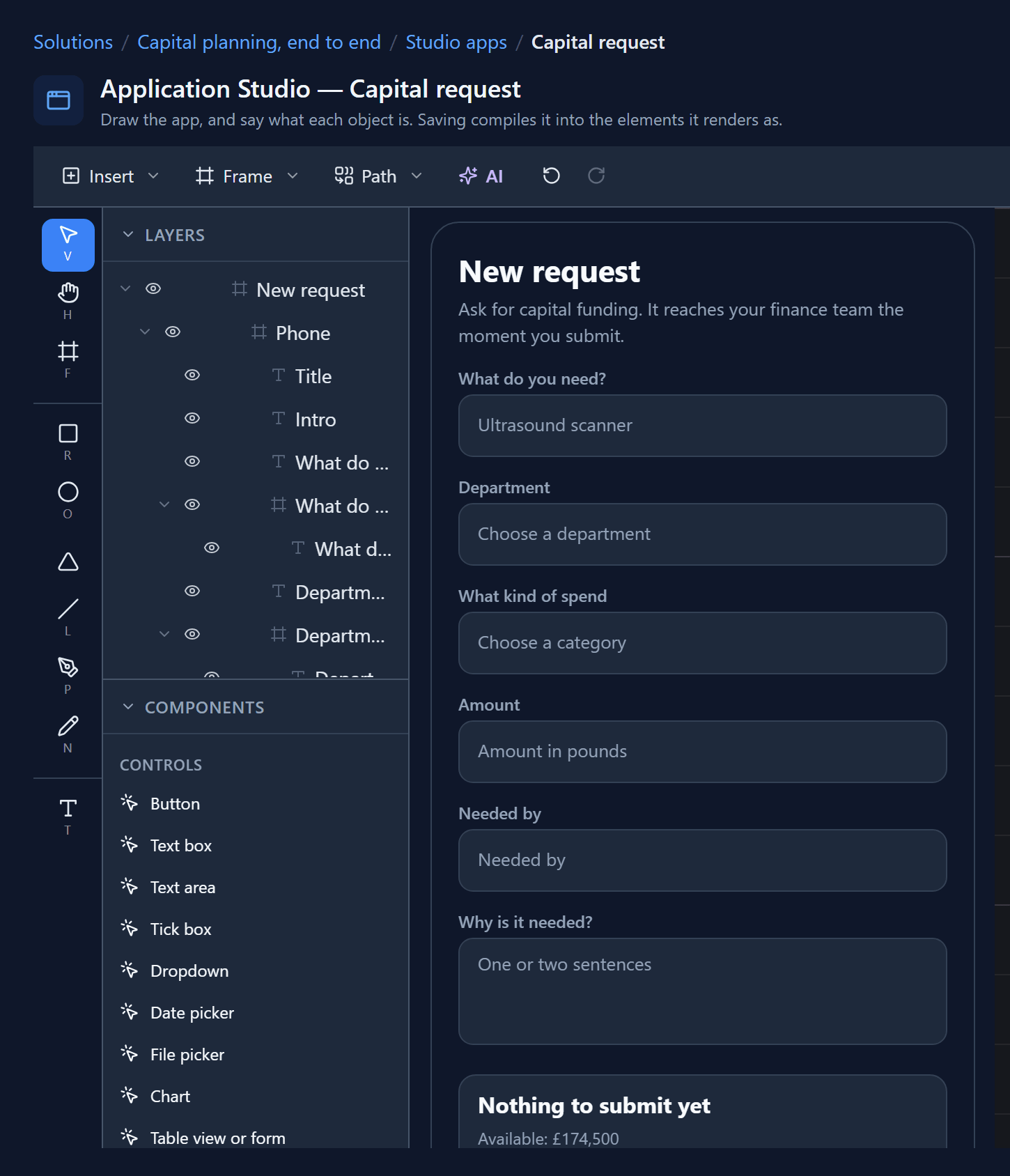
The drawing is the app. Here is the same screen running, part-way through a request:
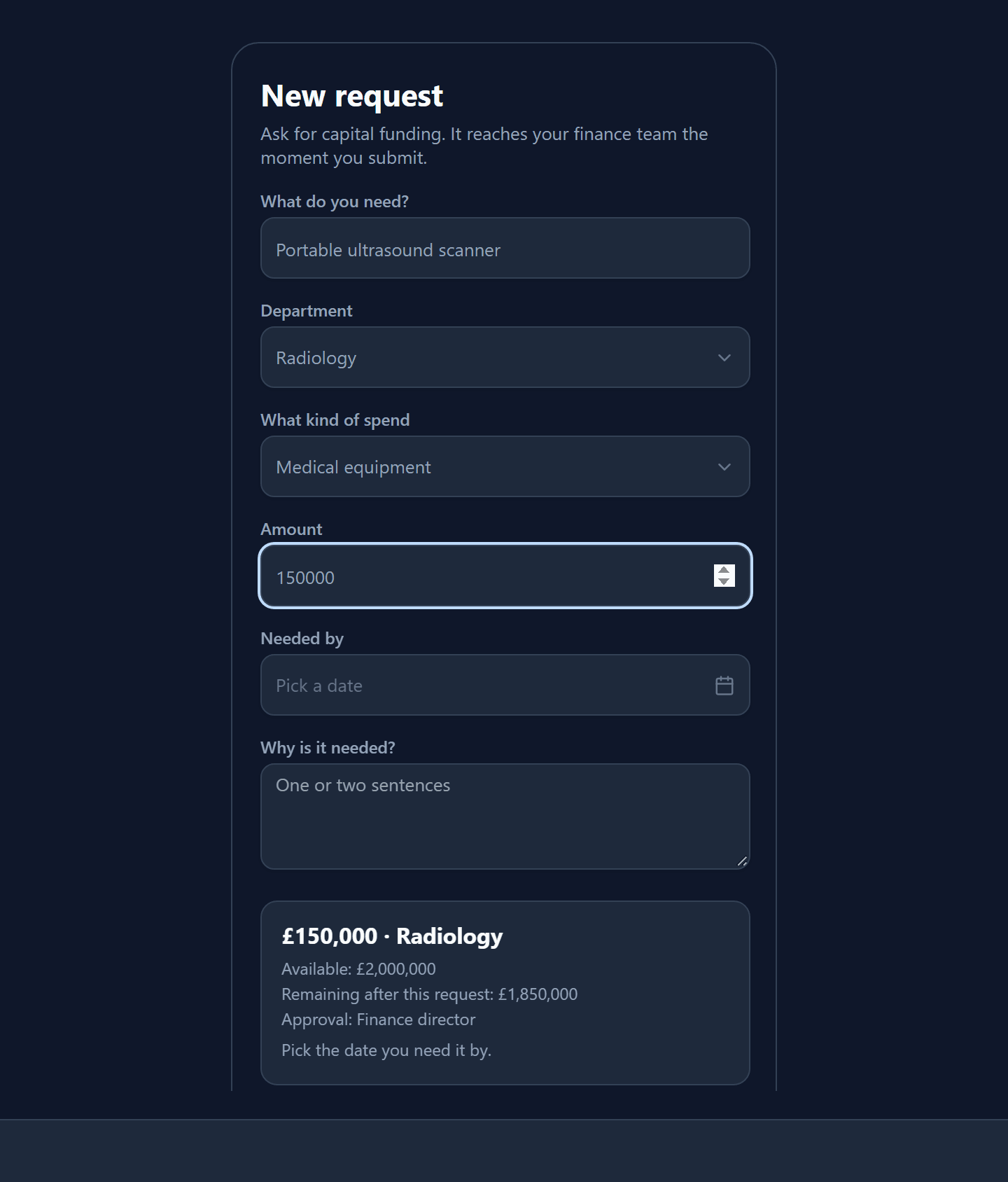
The panel above Submit answers while you type. Choose Radiology and Medical equipment, and it shows what that budget line has left. Type £150,000, and the approver becomes the Finance director, because the amount crossed a band in the approval thresholds table. Change the band in that table and every request after it routes differently, with nothing rebuilt.
Processes that run
Submitting the request starts a process, drawn in swimlanes, one lane per role.
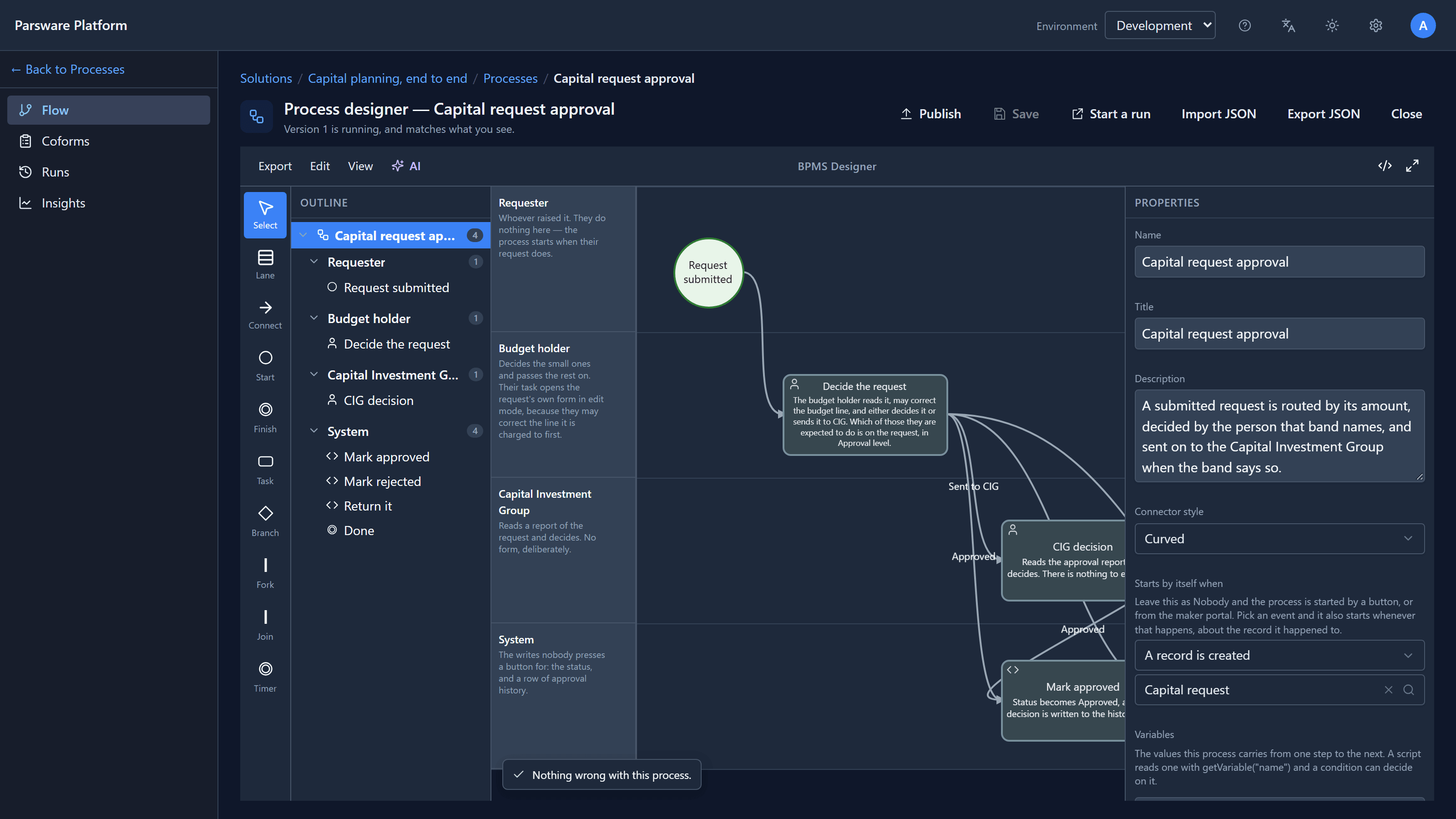
This one starts by itself whenever a capital request is created. The budget holder decides the request, or sends it on to the Capital Investment Group when its threshold band says so. Each outcome is written back onto the request and into its approval history. People find their steps in their own task list. The designer checks the process as you draw it, and says so when nothing is wrong.
Reports that print
Reports are designed on a canvas and print exactly as drawn.
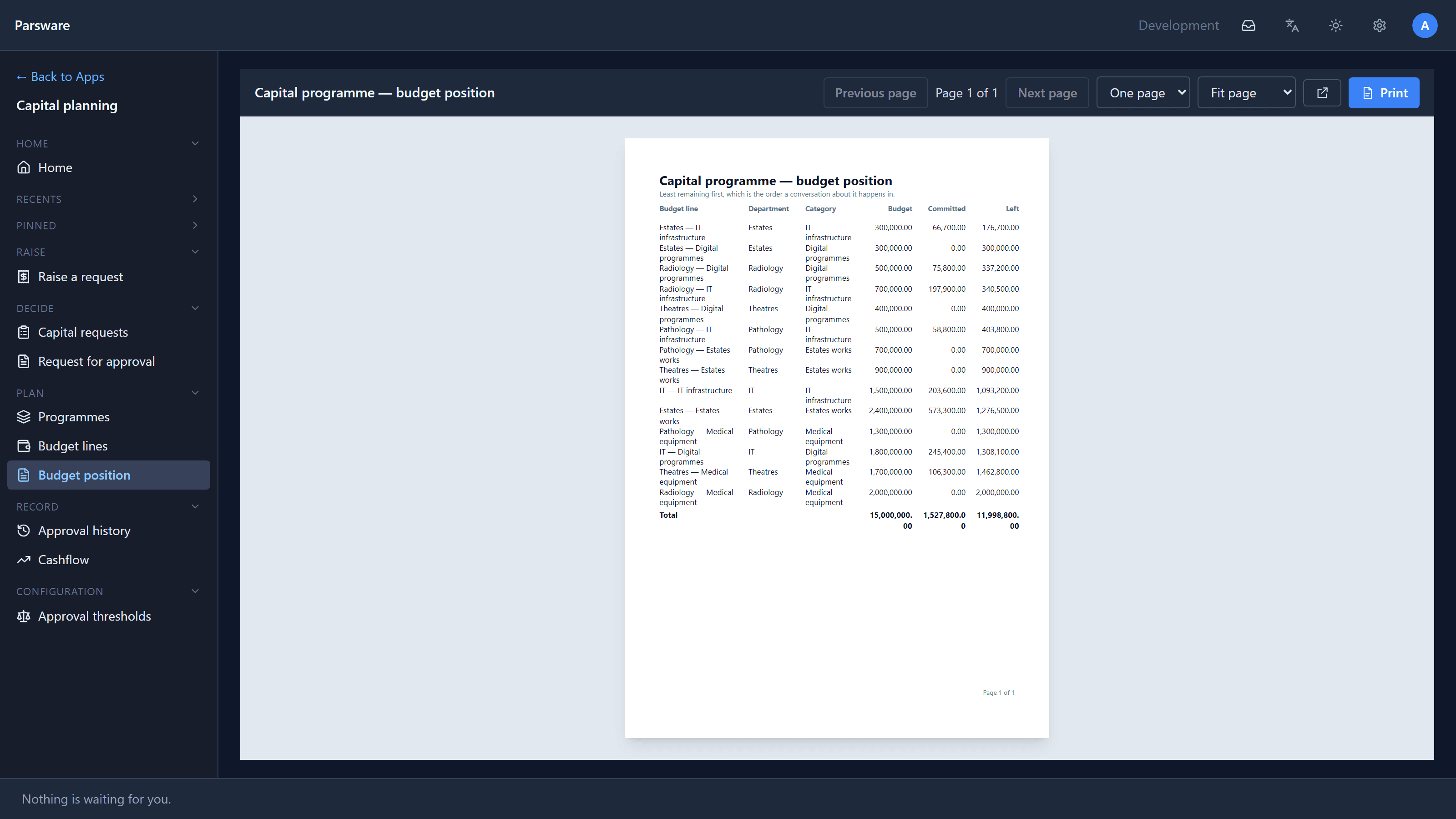
This one is the budget position a finance director asks for before a meeting: every budget line, what is committed, and what is left, least remaining first. It opens from the app's navigation, reads the live data, and prints from the Print button.
Logic in one language
When a rule needs more than a setting, you write it in BS Lang, Parsware's one scripting language. The same language, and the same editor with checking and completion, is used for form rules, rules that run on the server when a record is saved, process conditions and the logic behind custom APIs. A rule written once can be shared by several of them.
Security and audit
People get security roles, and a role says what they may create, read, update and delete in each table, and on which records. Roles travel in the solution, like everything else: Capital planning brings four. Changes to records are captured in the audit log, with who made them and when.
Your language, and your direction
The whole platform runs in English, Persian and Arabic, and Persian and Arabic run right to left:
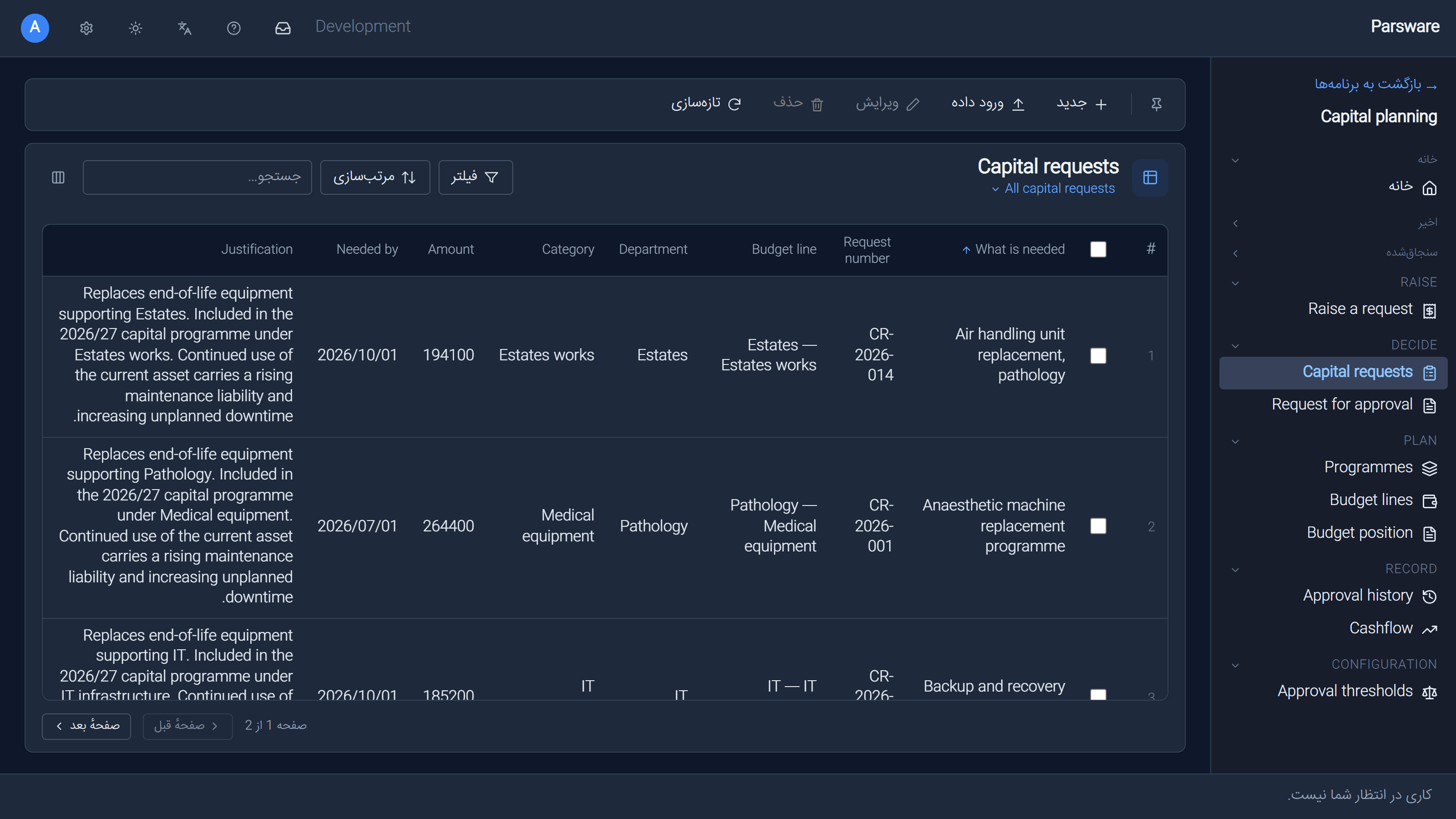
The interface, the navigation and the layout switch. The words a maker wrote, such as table and column names, stay as they were written. Dates can be shown in the Persian calendar too.
Where to go next
- Build something: Build your first table and view takes you from an empty solution to a working app in about ten minutes.
- Understand the foundations: Publishers and solutions in Parsware.
- See the rest of the sample: Capital planning comes with the platform's sample solutions. Import it into a development environment and follow a request from the phone to the report.