Parsware Platform
Leave approval from start to finish
An employee asks for a week off, their manager decides, and a branch sends the request one way or the other. We ran it as both people and read the run afterwards. The sample shipped with roles that only opened the app and a manager's step that said read-only; both are fixed.
این مقاله فقط به انگلیسی در دسترس است.
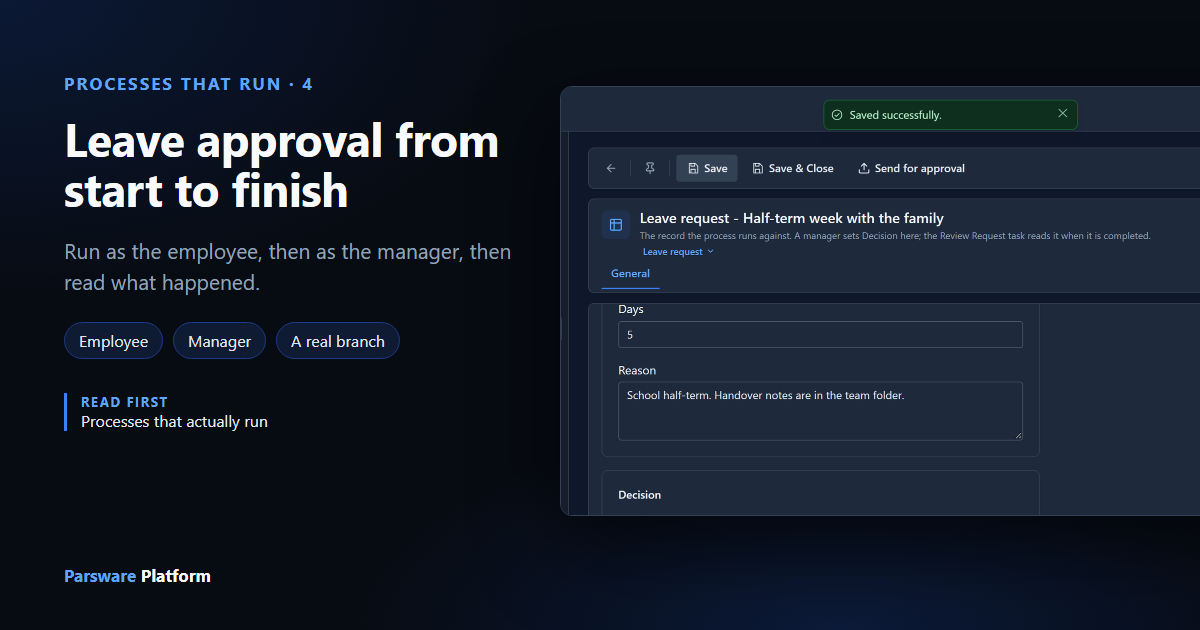
The process every HR system has: an employee asks for time off, their manager decides, and the request is booked or turned down. It's small, but it has the three things most processes have: work for more than one person, a decision, and a branch that goes one way or the other depending on that decision.
The designer articles took this process apart shape by
shape. This one runs it, as the employee and as the manager, and reads the result. We used the
Leave Approval sample from samples/solutions/bpms-leave-approval-process.
The process
Three lanes: Employee, Manager and HR.
- The employee confirms their request (Submit Request).
- The manager reviews it and sets a decision on it (Review Request).
- Approved? reads that decision and goes one of two ways.
- If approved, HR's step marks the request approved, and the employee is told. If not, the employee is told and the request is marked rejected.
Who does what
The sample brings two roles, Employee and Manager. We gave Employee to Robin Park and Manager to Sam Taylor, in the Admin Control Center under Users → Manage roles, as in the two-step approval. Each then signed in again, so their sign-in carried the new role.
The roles also decide what each person can see:
- An employee can raise a leave request, and read and change their own. Robin can't see anybody else's.
- A manager can read and change any.
That's new. Until we ran this as two people, the roles only opened the app, so a task opened by anyone but an administrator was refused with You are not permitted to Read records. If you imported the sample before October 2026, import it again.
The employee asks
Robin opens Leave — Approval Process, creates a request for the half-term week, saves it and selects Send for approval:
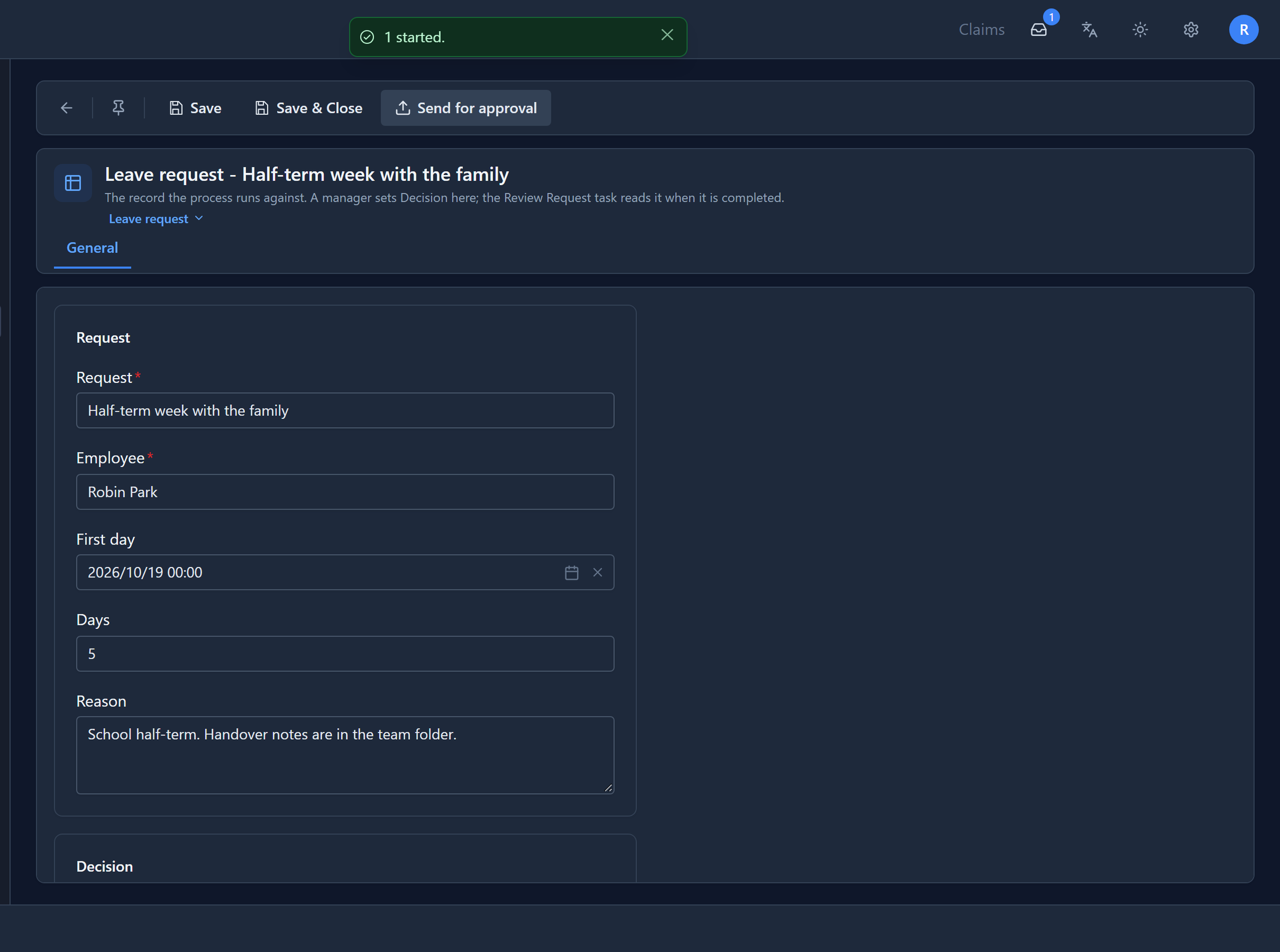
The count on the tray is his own task. The first step of the process is in the Employee lane, so it comes back to him: Submit Request, his request open for editing, to check before it goes. This step has no form of questions, so Decide offers a single Done:
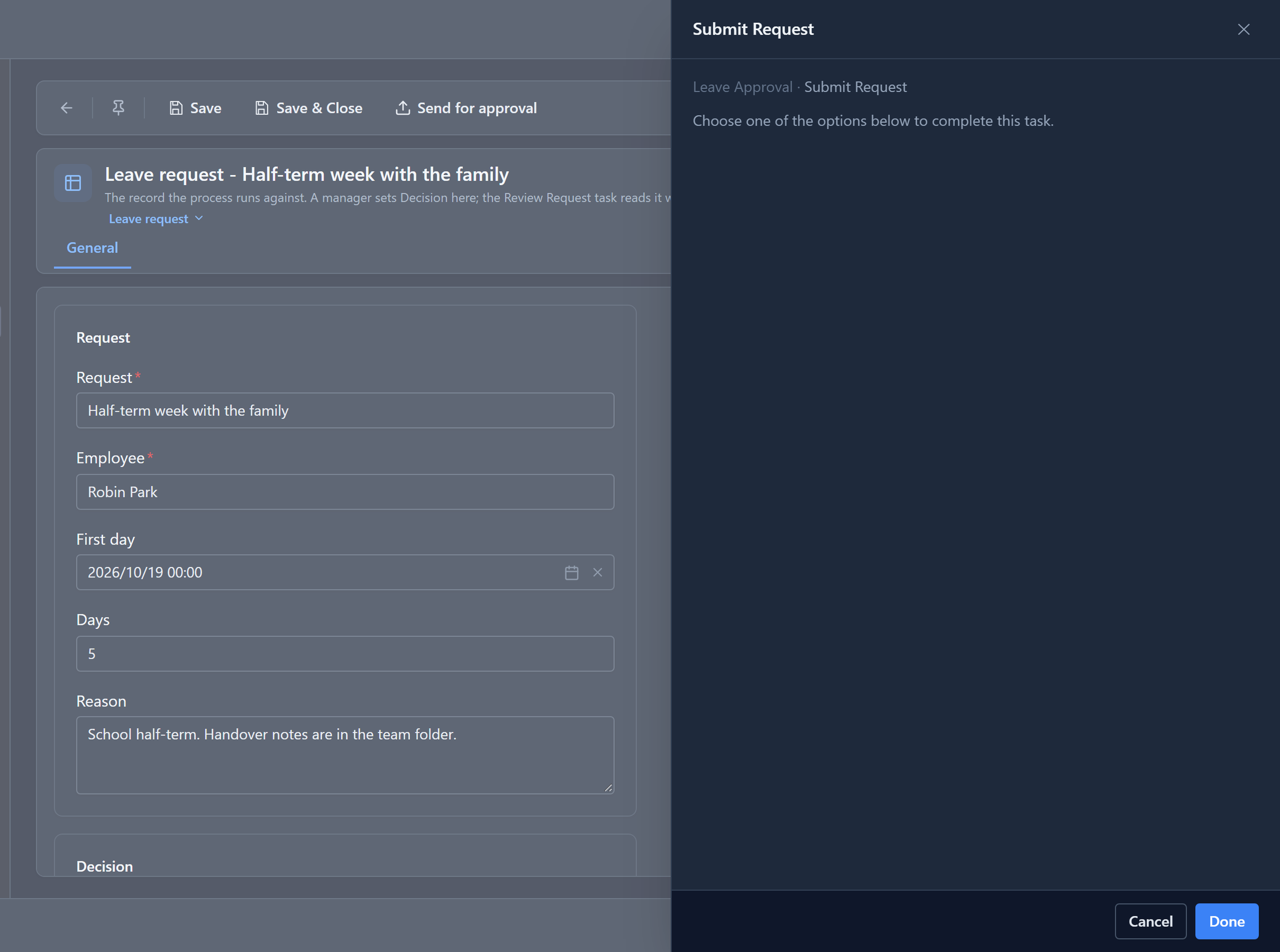
When he selects Done, the step's script sets the request's Status to Submitted, and the process moves to the manager's lane.
The manager decides
Sam has a task, Review Request, offered to the Manager role:
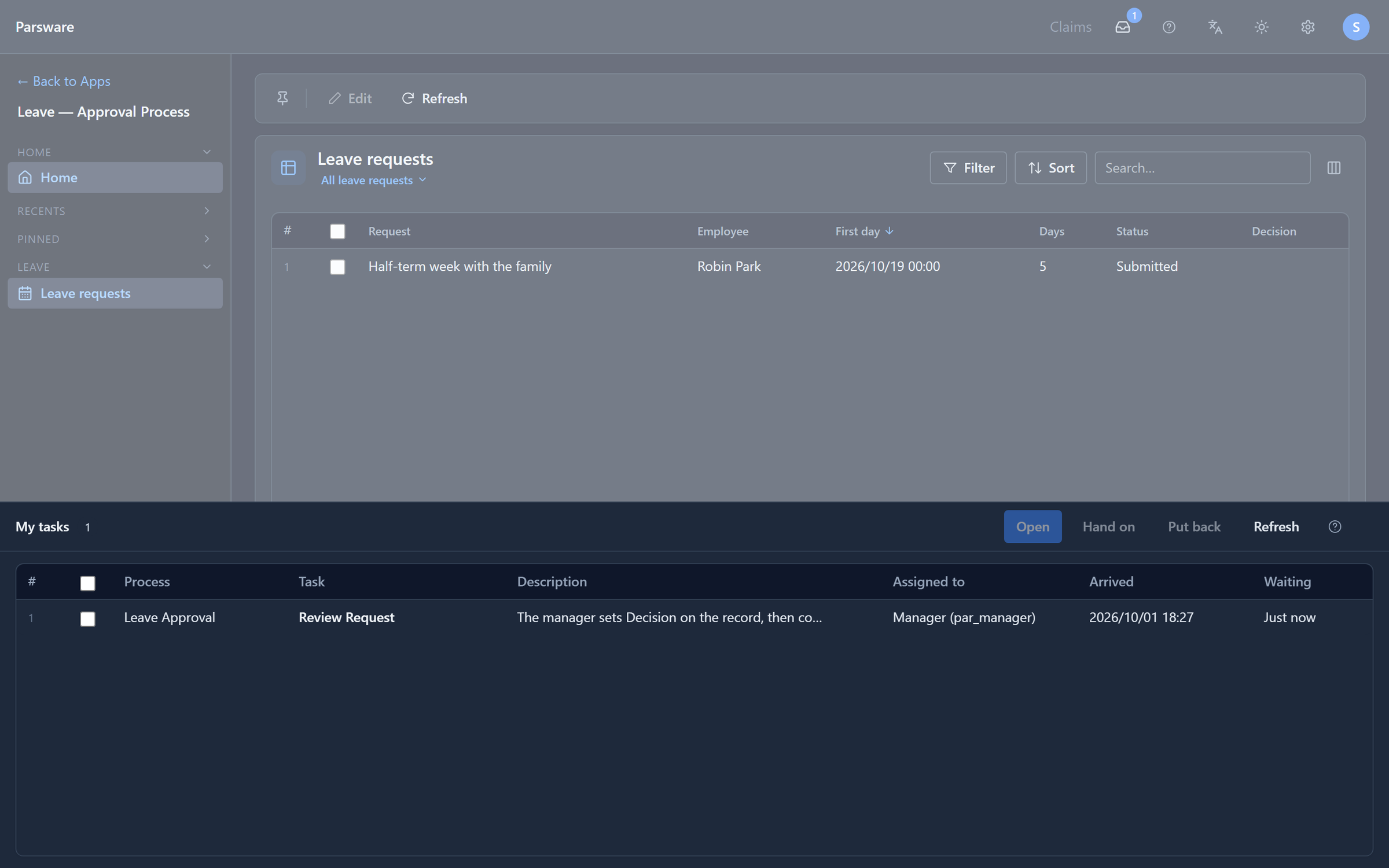
It opens Robin's request for editing. In this sample the manager's decision is a field on the request itself: Sam sets Decision to Approved, adds a Decision note, saves, and selects Decide → Done:
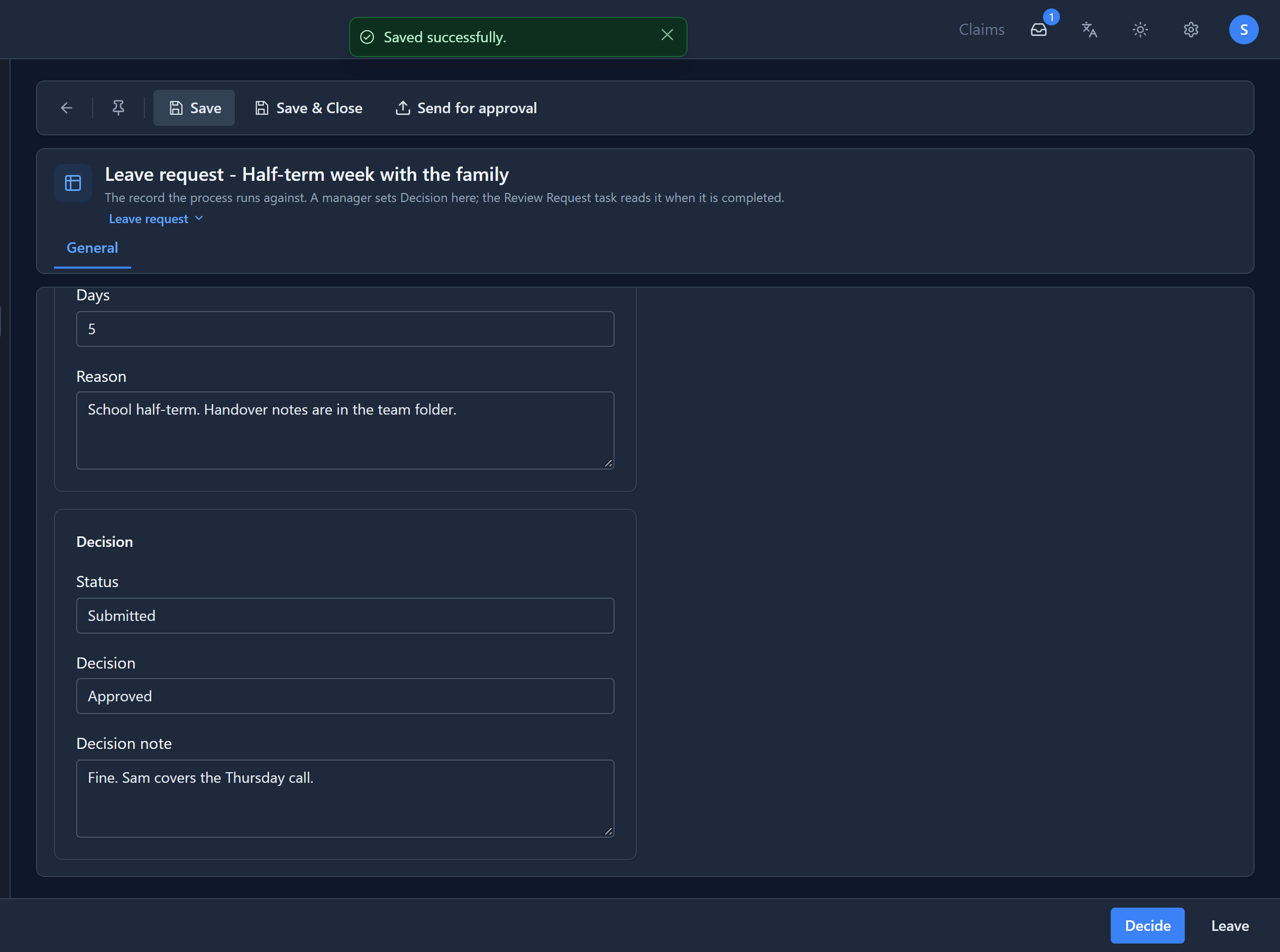
The sample's file said this step opened the request read-only, while its own description said the manager sets the decision there. It now says edit, which is what the step is for.
Two things about that Decision field, so you aren't caught by them:
- Save before you decide. The step's script reads the request as it is stored when the task is completed. A decision typed and not saved isn't there yet.
- It's plain text, and the check is exact. The step's script is
request.par_decision == "Approved". approved in lower case, or Yes, counts as not approved. The sample keeps it plain so the condition is easy to read; in your own process, make it a choice column, or put Approve and Reject buttons on a coform as the two-step approval does.
The branch
When Sam's task completes, its script reads the request and sets the process variable approved.
The Approved? branch reads only that variable: one way out is getVariable("approved"), the
other !getVariable("approved"). Branch conditions explains how
they're written.
This one was approved, so the process went through Deduct Balance, which marks the request approved, and finished. Robin's list now says so:
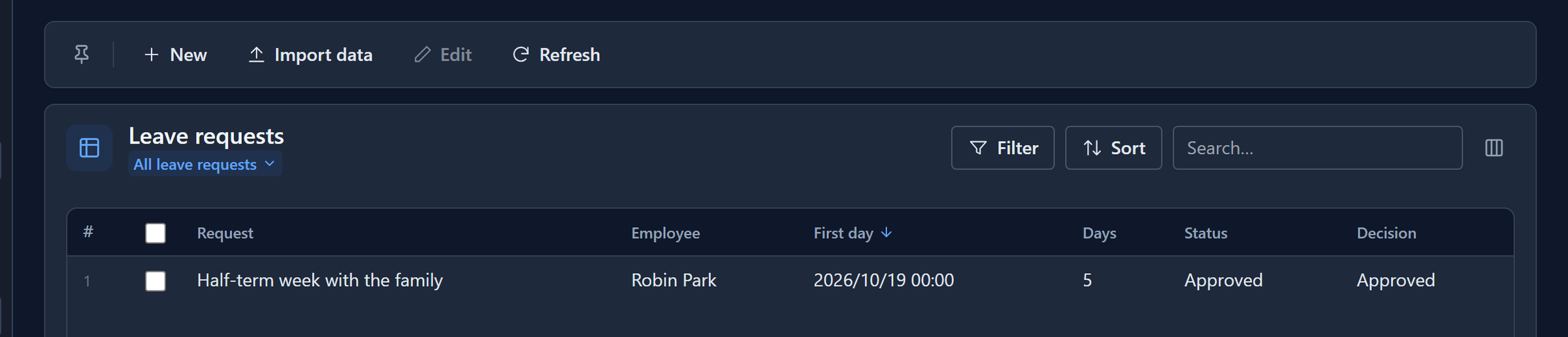
Two things the sample doesn't do, so you know what you're looking at:
- Deduct Balance doesn't deduct anything. There's no balance table in the sample; the step only sets the status. A real one would update the employee's allowance in the same script.
- The two Tell Employee steps don't send anything. They mark where a message goes. To send
one, give the step a script that calls
sendEmail, as in Send an email from a script.
What happened
The run's page in the maker portal draws the route it took, and lists everything in order:
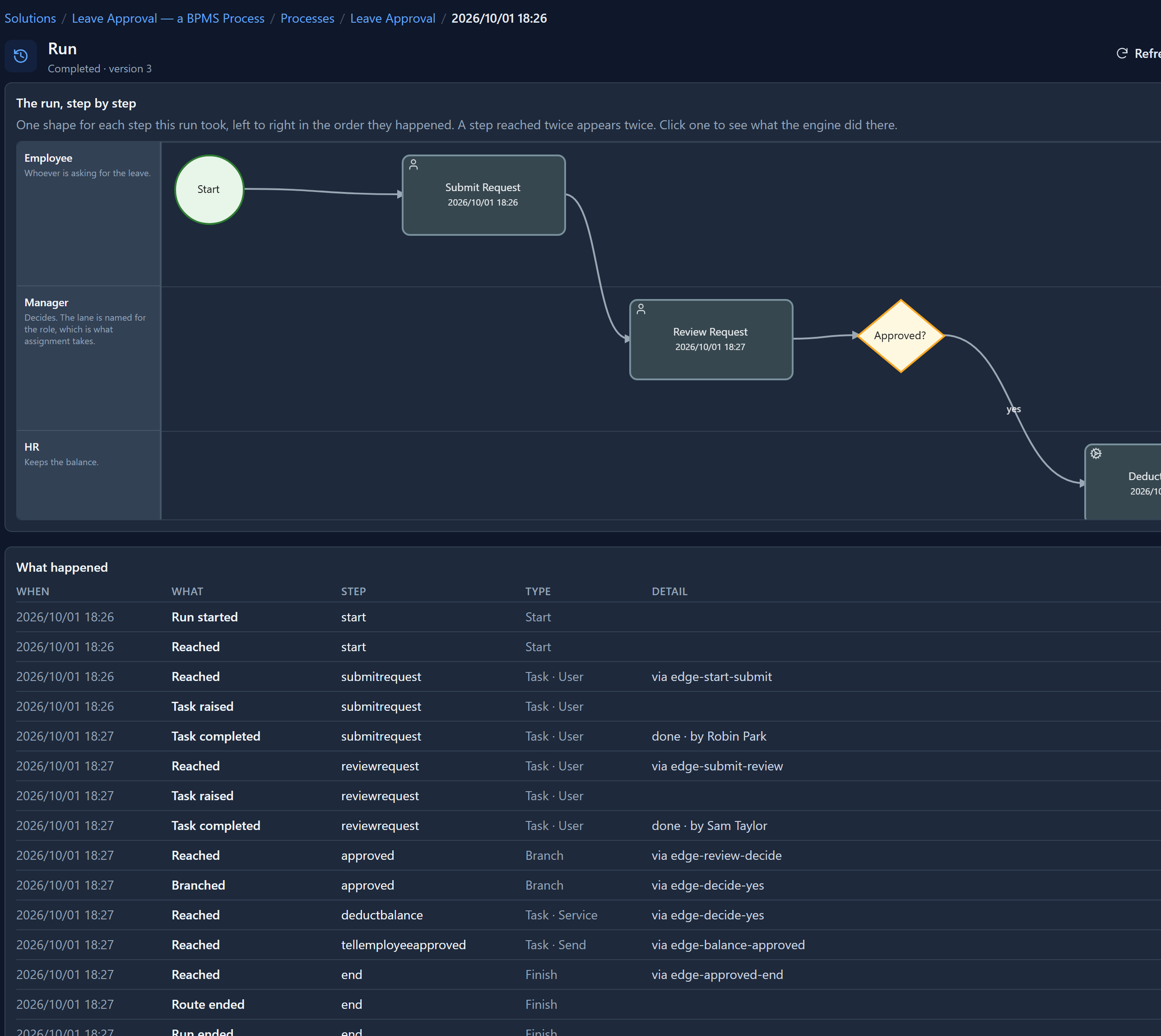
Each completed task names who completed it. Branched says which way the branch went. A request that was turned down would show the other connection and Tell Employee: Rejected instead. (done is the name of the single button a step without a form has.)
Try it
Run it twice with two different people: once approved, once with Decision set to Rejected. Then open the process's Runs page and compare the two histories at the Branched line.
Next: a purchase order that goes to Finance and Legal at the same time.