For Power Apps
Print it exactly
A report laid out to the pixel has to survive the printer. Parsware reports print one report page per sheet, with nothing split across two, no blank sheet at the end, and no browser furniture in the margins. Here's where Print is, what it does in each place a report appears, and what comes out.
هذا المقال متاح بالإنجليزية فقط.
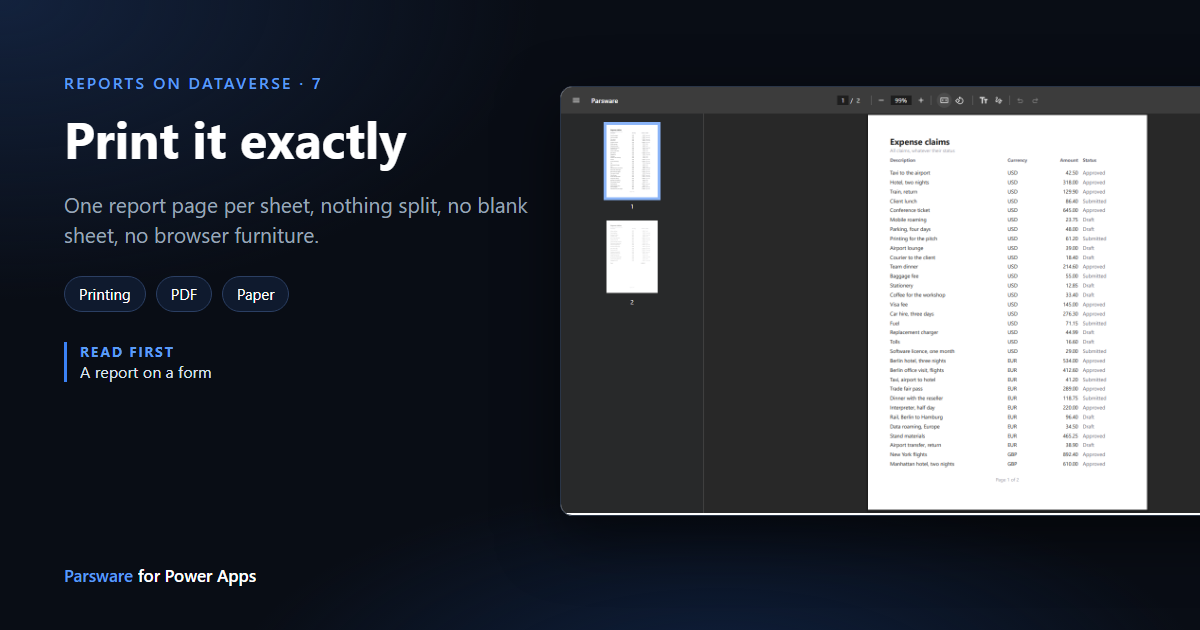
The point of a report laid out to the pixel is paper: an invoice, a claim form, a delivery note, a case sheet in a folder. And a browser is not a kind printer. Left to itself, it prints onto its own sheet with its own margins, writes the page's address, the date and a page number into them, and shrinks whatever doesn't fit.
A Parsware report prints as it was designed, page for page. This article shows where the Print button is, what it does in each place a report can appear, and what comes out.
Where Print is
Every Parsware report has a Print button in its viewer. Here it is on the samples' Expense Claims report, opened from the app's navigation:
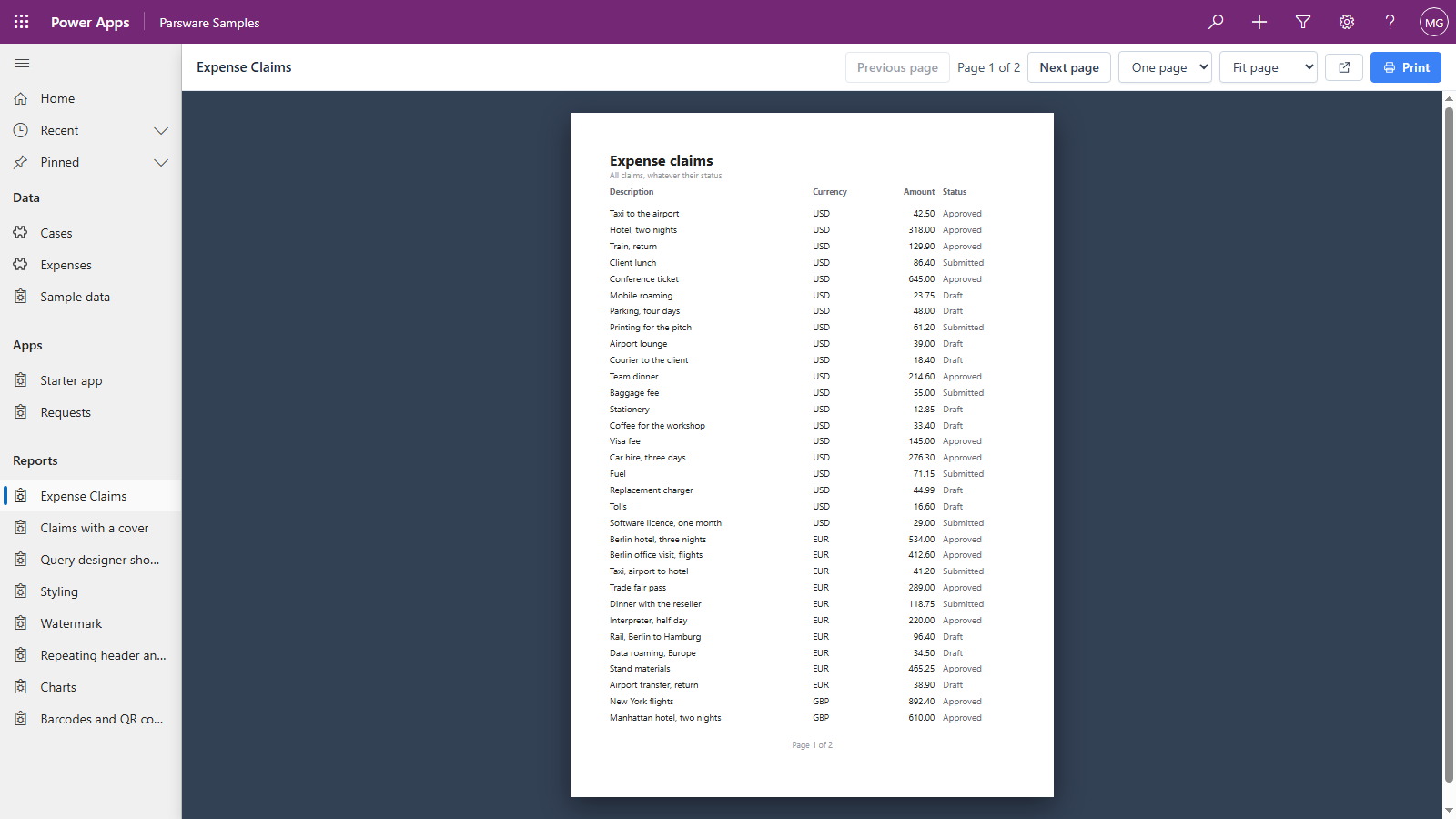
What it does depends on where the report is, because a report inside an app is never the whole page:
| Where the report is | What Print does |
|---|---|
| Opened from the app's navigation | Opens the report in a tab of its own, and prints it there |
| Already in a tab of its own | Prints it |
| On a form | Opens the report in a tab of its own, with the open record attached, and prints it there |
The new tab is the point. If you printed the app with Ctrl+P, you'd get the app: its navigation, its command bar, and the report cut off at the edge of the frame it sits in. From a form you'd get the whole form. In a tab of its own, the report is the page, so the report is what prints.
The record travelling with it matters on a form. Printing the case sheet for one case prints that case, not every case in the table.
The tab also waits for the report to finish laying out before it opens the print dialog. A long report is measured and paginated after its rows arrive, and printing any earlier would print a blank page.
What comes out
We printed Expense Claims to PDF with Chrome. The report has two pages, and the PDF has two sheets:
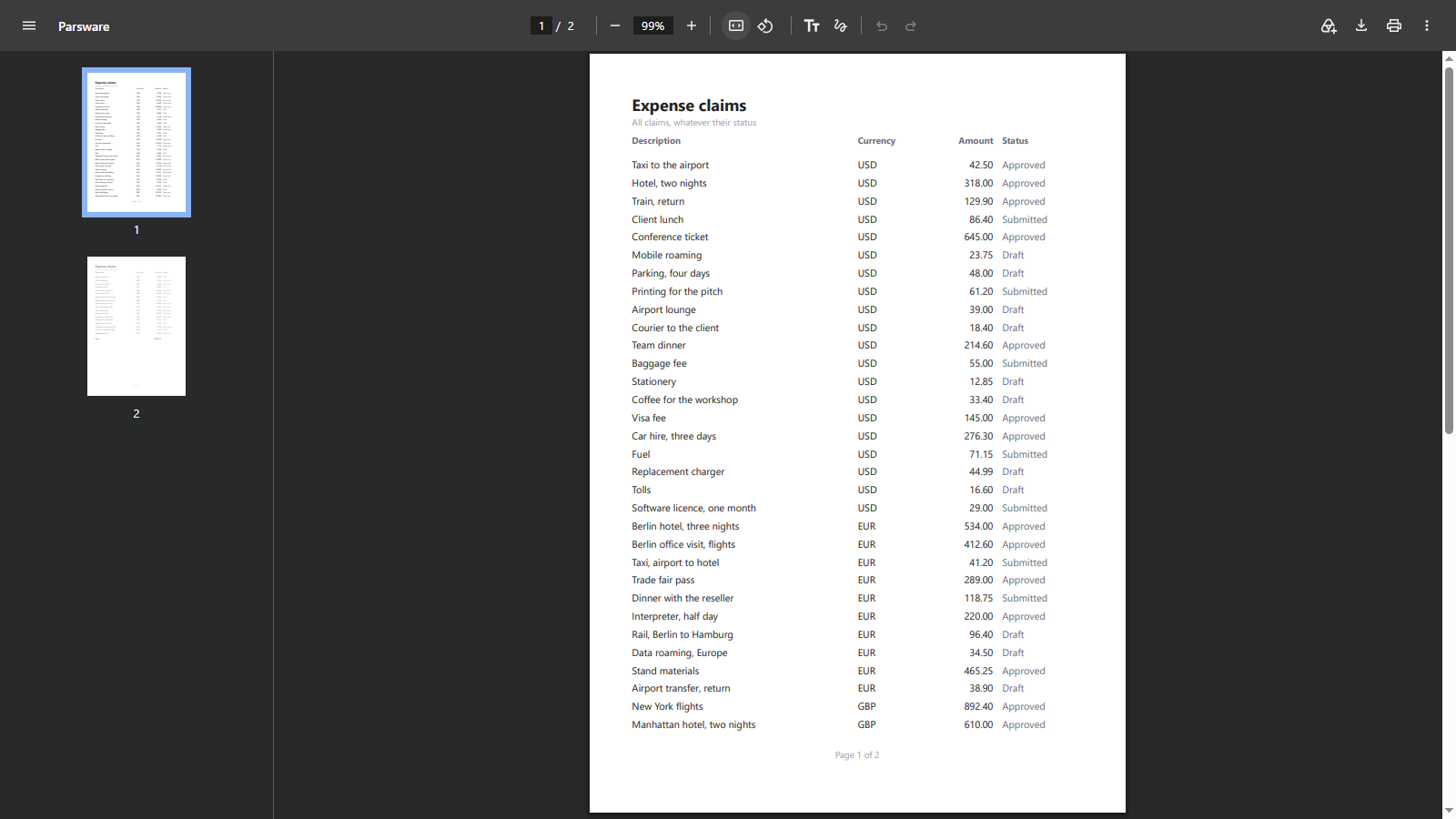
- One report page per sheet. Each page starts a new sheet, and no page is split across two.
- No blank sheet at the end. Two pages print as two sheets, not three.
- The sheet is the page. The report sets the paper to its own page size with no margins, so the browser has nowhere to write its address, date or page number. Chrome, Edge and Firefox leave them off. (If you switch headers and footers back on in the print dialog, you get them. That's your call.)
- Only the report prints. The dark background behind the pages, the shadows and the gaps between pages are for the screen, and they're left off the paper.
- Your zoom doesn't reach the printer. Fit page, Fit width and Actual size change how the report looks on screen. Paper always gets the page at its designed size.
Choosing Save as PDF in the print dialog is the easiest way to send a report to somebody outside your tenant.
Not yet: true A4
The designer's A4 page is 595 × 842, the size of A4 in points. Printing reads those numbers as screen pixels, so an A4 report comes out at 157 × 223 mm, about three-quarters of a real A4 sheet. The PDF above has that size. It's a known issue, and we're fixing it so that an A4 design prints on A4 paper.
Good to know
- The paper size is the report's. There's no paper setting at print time and no "fit to page". A report that should be A5 is drawn at A5 in the designer.
- Print opens a tab from your click. Browsers allow that without a pop-up warning, which is why printing is a button and never happens by itself.
- Printing reads the data again. The new tab loads the report fresh, as the signed-in user, so the paper shows the rows as they are when you print.
Next
Publish: drafts versus what users see: why a report you're still working on never reaches the people reading it. The whole series is in the reading list.