For Power Apps
Activate your Parsware licence
A Parsware for Power Apps licence is one line of text, signed for your tenant and the environments it covers. You paste it into a form in the Parsware app, and the form tells you what the key covers before you save it. Nothing is sent to us to check it.
هذا المقال متاح بالإنجليزية فقط.
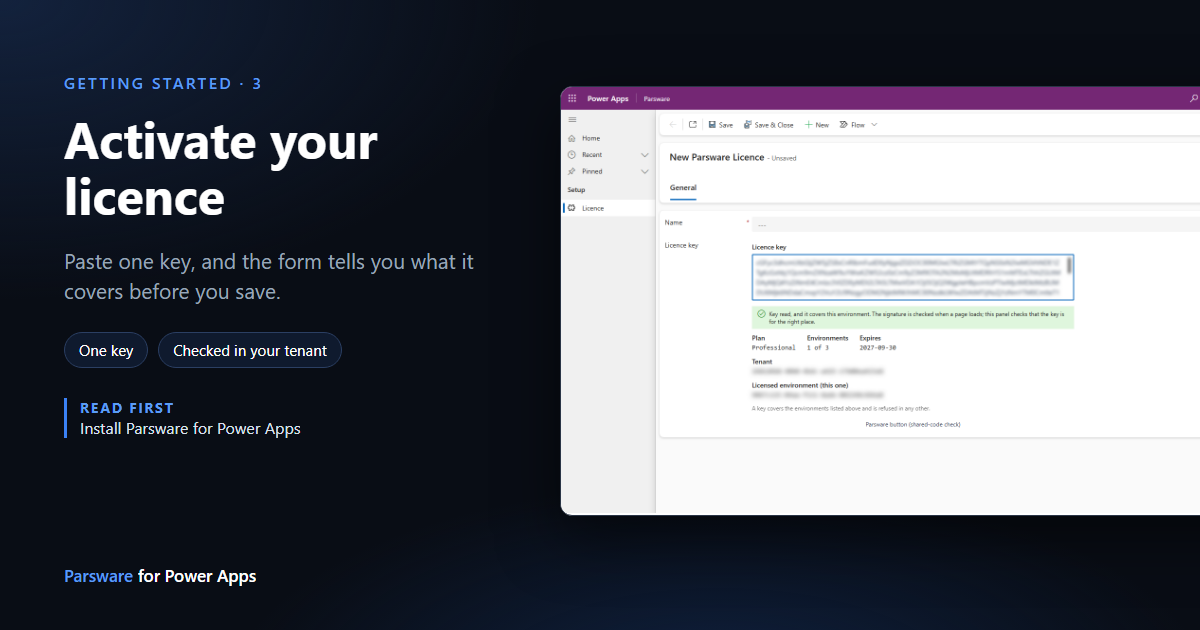
With the solutions installed, one thing is left: the licence key. It's a single line of text, and you paste it in once per environment.
What a key is
A licence key is signed for your tenant and for the environments it covers. Inside it are the plan, how many environments it's for, which ones, and when it expires. The signature means nobody can edit those, including us after the fact.
It's checked inside your tenant. A plug-in in the Parsware Runtime solution verifies the signature against a public key built into it, without calling us. Activation doesn't need a connector, a flow, or a route from your environment to the internet.
Getting a key
We issue keys for specific environments, so we need to know which ones. For each environment, send us its organization ID. In the maker portal, pick the environment, open Settings (the gear in the top right) and choose Session details. The organization ID is listed there, along with your tenant ID.
A trial key works exactly the same way. It covers the environments you name and stops on the date it shows. Contact us for one.
Paste it in
- Open the Parsware app.
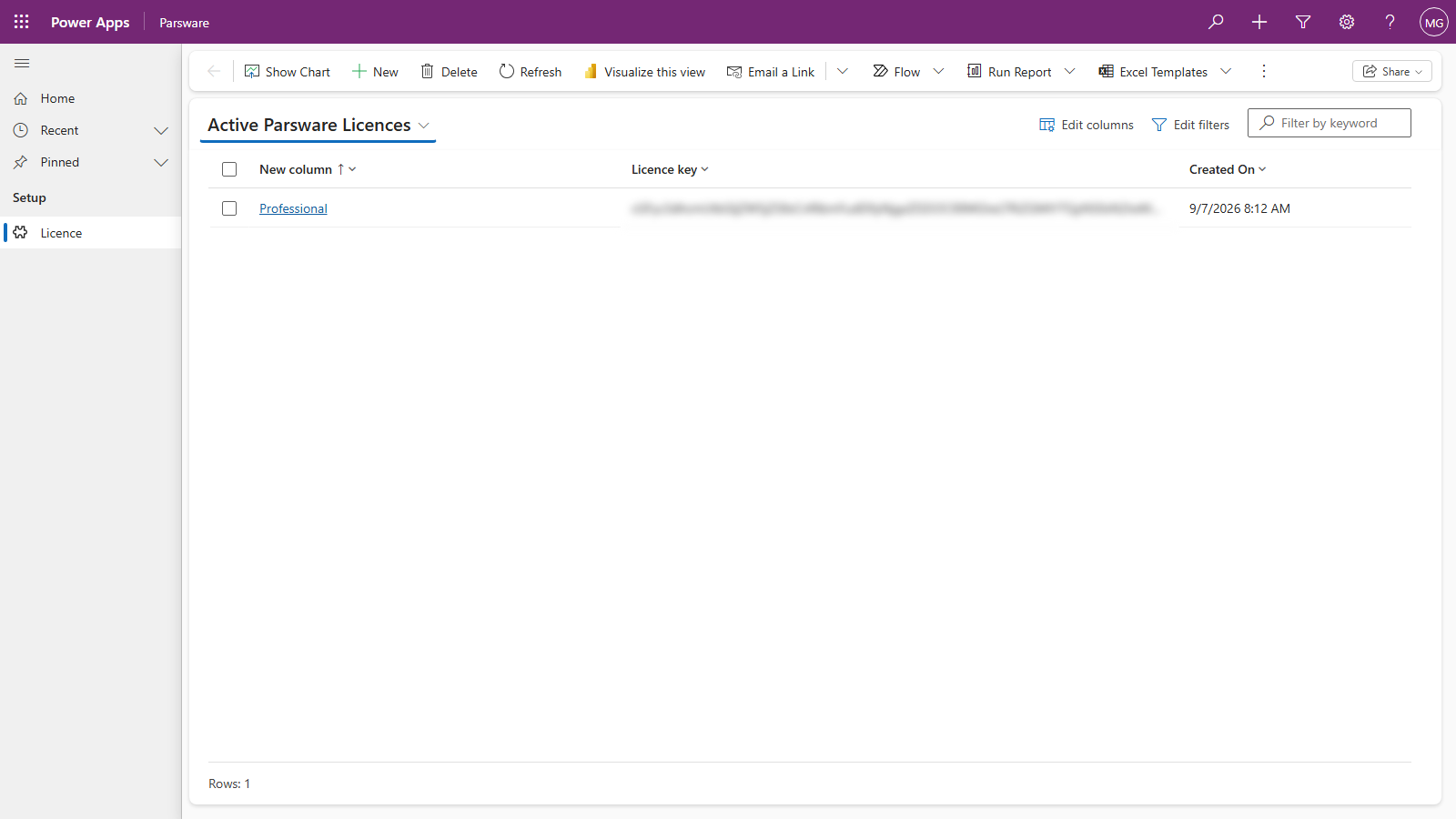
- Under Setup, open Licence, and press New.
- Give the row a Name. It's only for you: everything that matters is inside the key.
- Paste the key into Licence key.
The panel under the key reads it straight away, before you save:
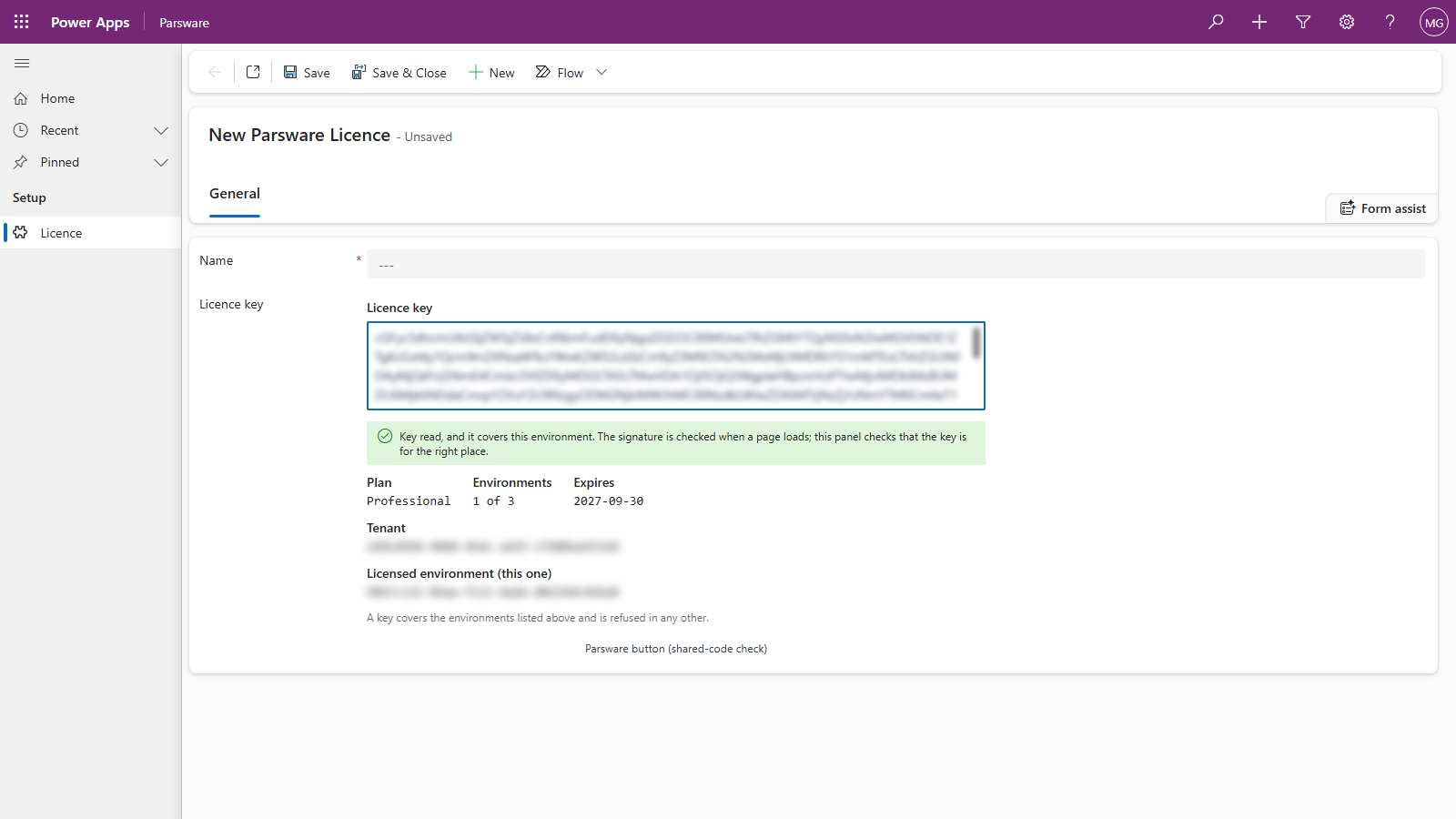
It tells you the plan, how many of your environments the key covers, and when it expires. It also checks the key against the environment you're in, so a key for the wrong environment is caught here, before anything else is affected.
- Press Save.
That's it. The designer in Parsware Studio opens, and reports and screens render for your users.
What the panel can tell you
| What it says | What it means |
|---|---|
| Key read, and it covers this environment. | Done. |
| This key is for a different environment, so Parsware will not run here. | The key was issued for another environment. The panel names both. Send us this one's organization ID and we'll issue a key that includes it. |
| This key expired on … | The key is past its date. What that means depends on the plan; see below. |
| This panel could not check which environment it is in | Harmless. The panel couldn't look up the environment, but the key is still checked properly when a Parsware page loads. |
When a key expires
A paid licence doesn't switch anything off when it lapses. Everything you built keeps working for your users, and the product tells makers that renewal is due. A trial is different: when a trial ends, Parsware stops until a paid key is in place.
To renew or upgrade, paste the new key over the old one, in the same row and the same field. There's nothing to reinstall.
Next
The two apps: Parsware Studio for makers and Parsware for users, and what each one is for. The whole series is in the reading list.