Parsware Platform
Lookup views and quick find
Two small views decide how people pick a record in a lookup. A lookup view chooses the columns of the Advanced lookup grid, and a quick find view chooses which columns typing searches, so "Berlin" finds the contacts in Berlin.
هذا المقال متاح بالإنجليزية فقط.
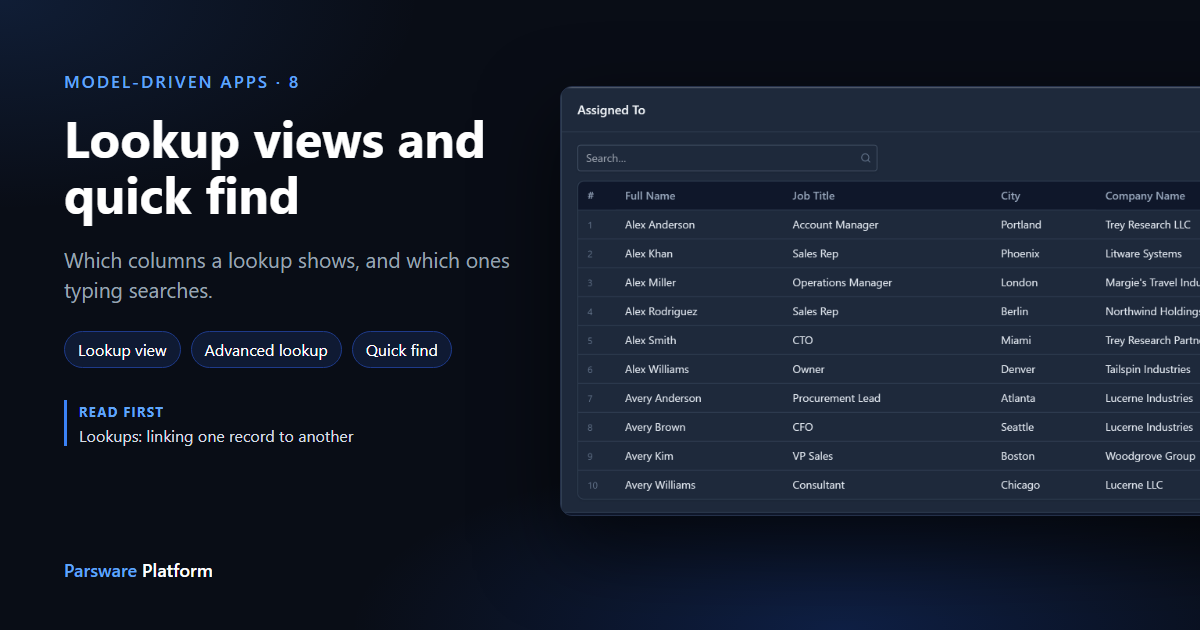
Our sample data has six contacts called Alex. When somebody assigns a laptop to "Alex", the lookup has to help them pick the right one, and they may only remember that it's the one in Berlin. Two kinds of view handle this:
- A lookup view chooses the columns people see when they pick a record.
- A quick find view chooses which columns typing searches.
Both are ordinary views with a different View type. You make them on the table being picked from: here that's Contact, the table the Asset's Assigned To field points at. Every picture is the real product.
A lookup view
Open the Contact table, go to Views, and select New. Name it Contact Lookup, set View type to Lookup, and tick Default view. Then drag in the columns that tell similar contacts apart: Full Name, Job Title, City and Company Name.
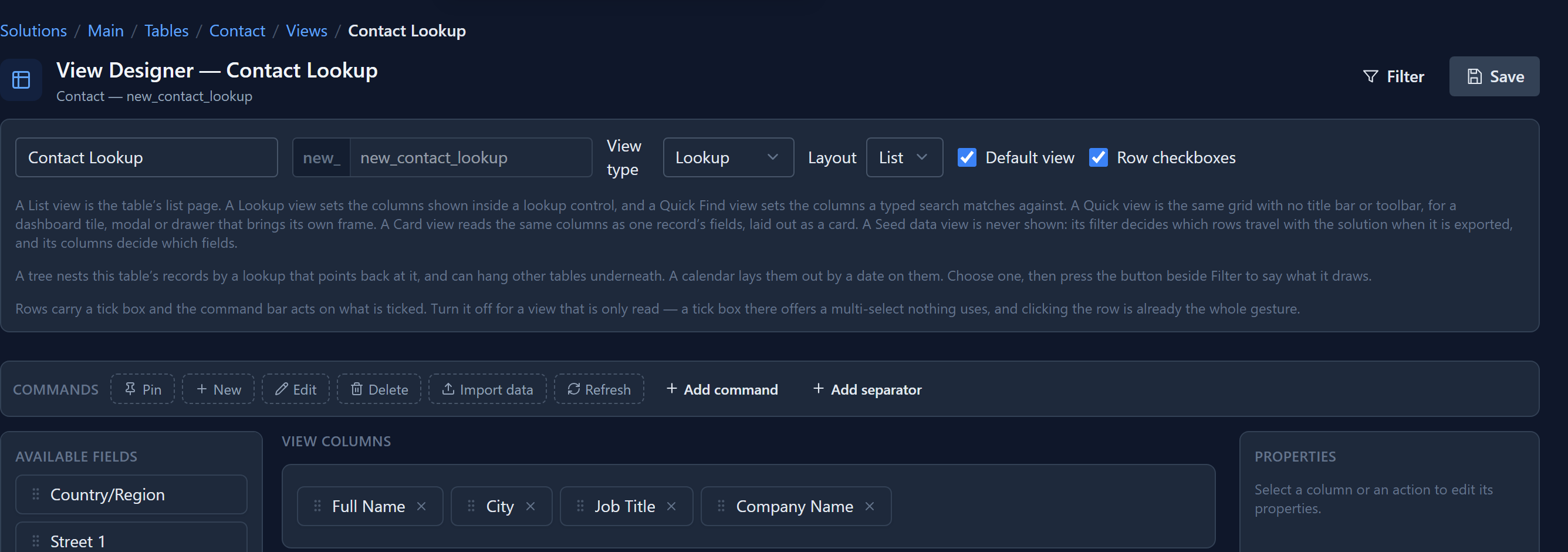
Keep it short. A lookup view is for picking a record, not for reading a report: the name and two or three columns that separate lookalikes are usually enough.
Save it. A table has one default view of each type, so this doesn't change the contact list's default view.
Where the columns appear
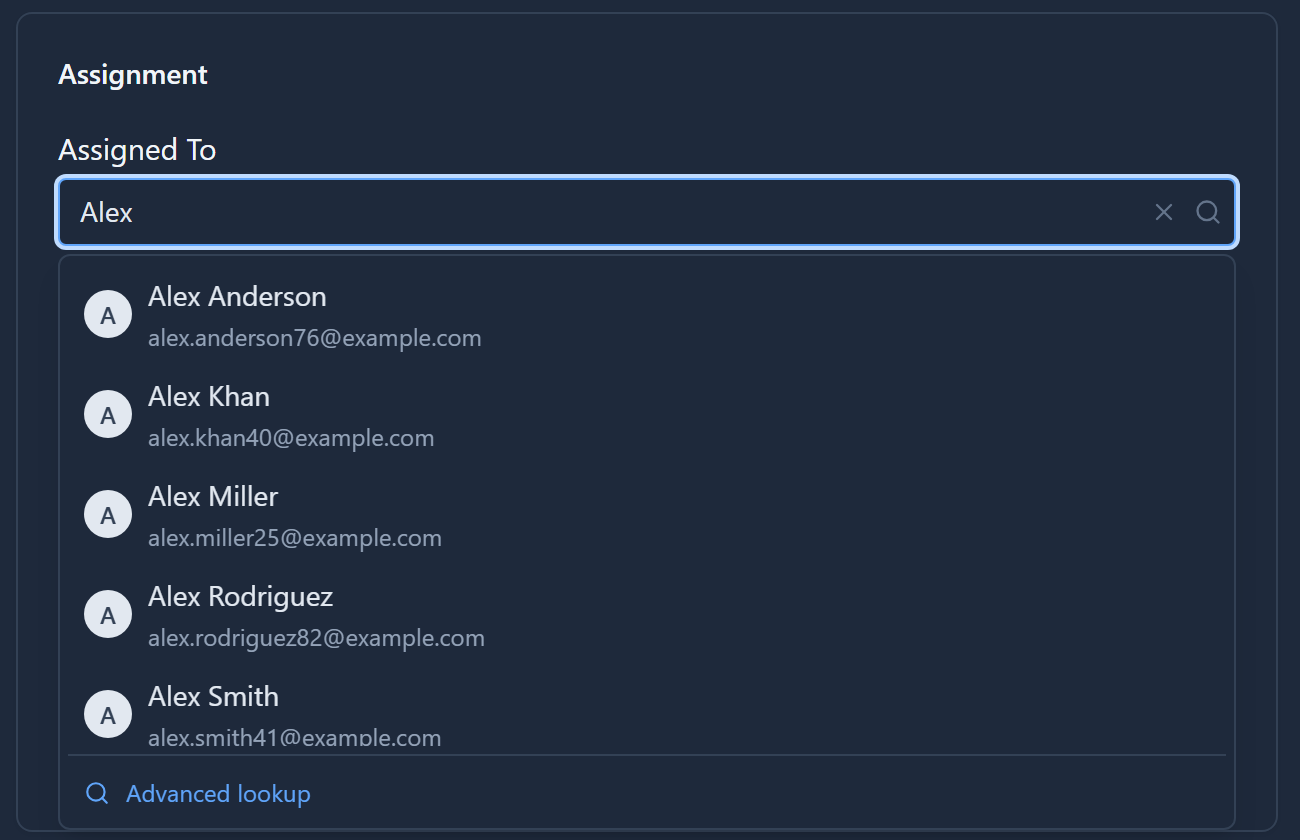
Open an asset and type "Alex" into Assigned To. The list under the box stays short: each contact's name with its second line underneath. What's new is Advanced lookup at the bottom:
Advanced lookup opens the lookup view as a grid, with room for every column and pages through the whole table:
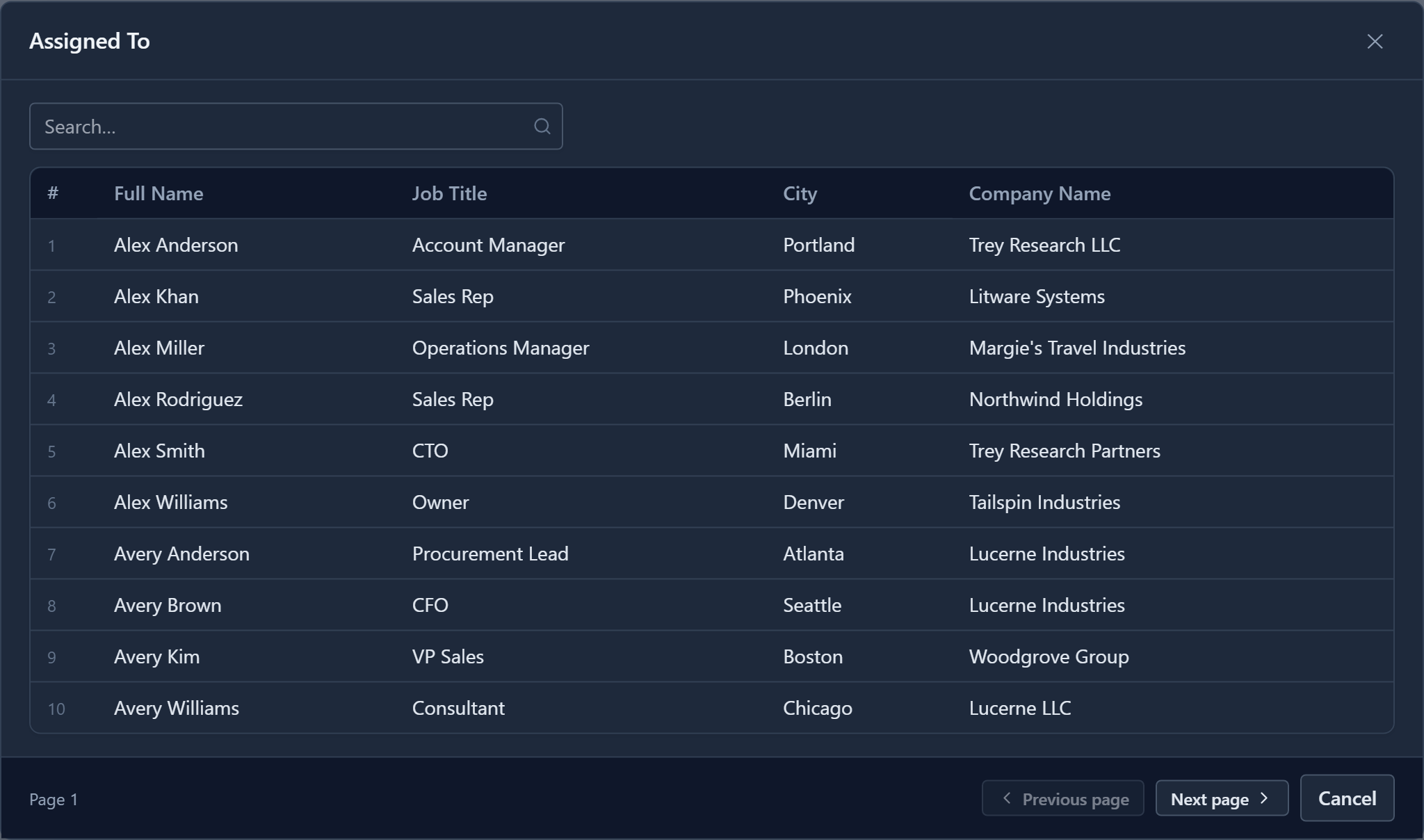
Now it's easy to see which Alex is the sales rep in Berlin. Select the row to pick them.
The link only appears when the table has a lookup view. Without one there are no chosen columns to show, so a lookup is just the short list.
While writing this we found that a lookup column in this grid showed the other record's id rather than its name: Company Name read as a long string of letters and numbers. It now shows the company's name.
To give one particular lookup field a different lookup view, select the field in the Form Designer and choose it under Lookup view. Left on Default, the field uses the one you just made.
A quick find view
Now type "Berlin" into the same box:
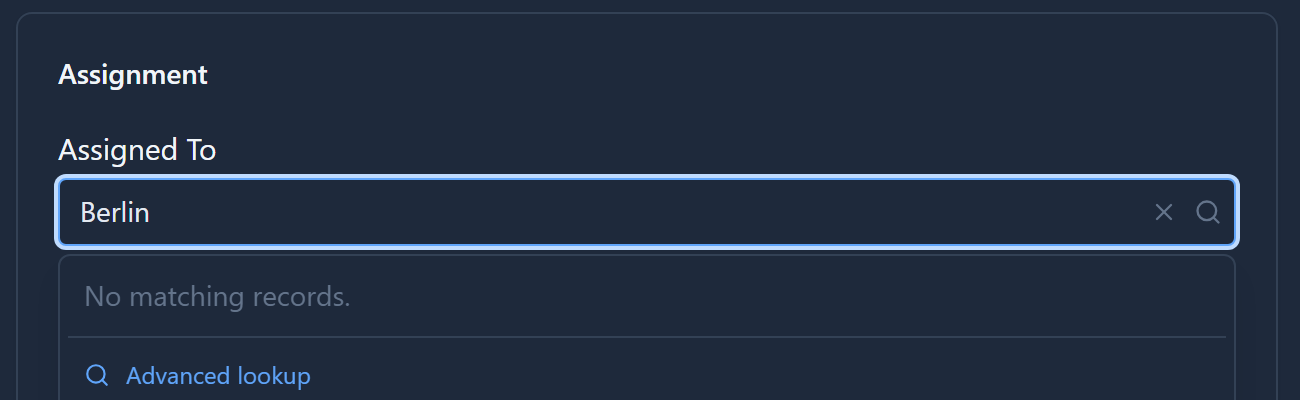
Nothing, because typing only searches the contact's name so far. Make a second view on Contact: Contact Quick Find, View type Quick Find, Default view ticked, with the columns typing should search: Full Name, Email, City and Job Title.
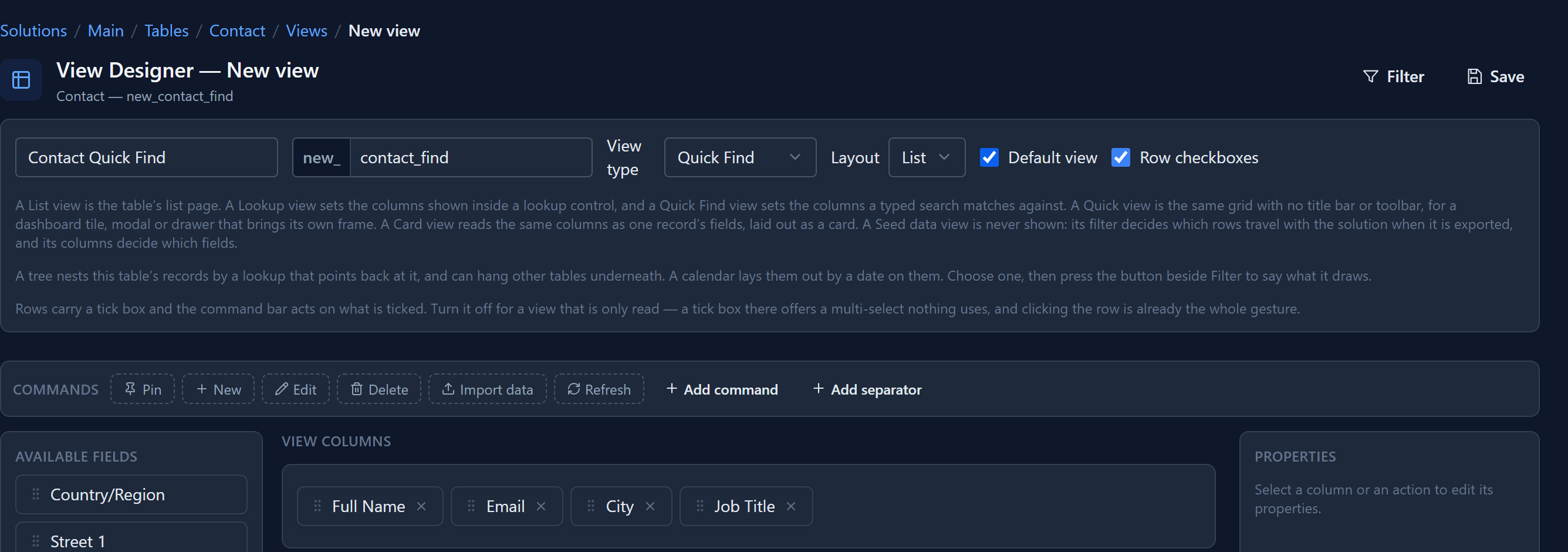
Save, and type "Berlin" again:
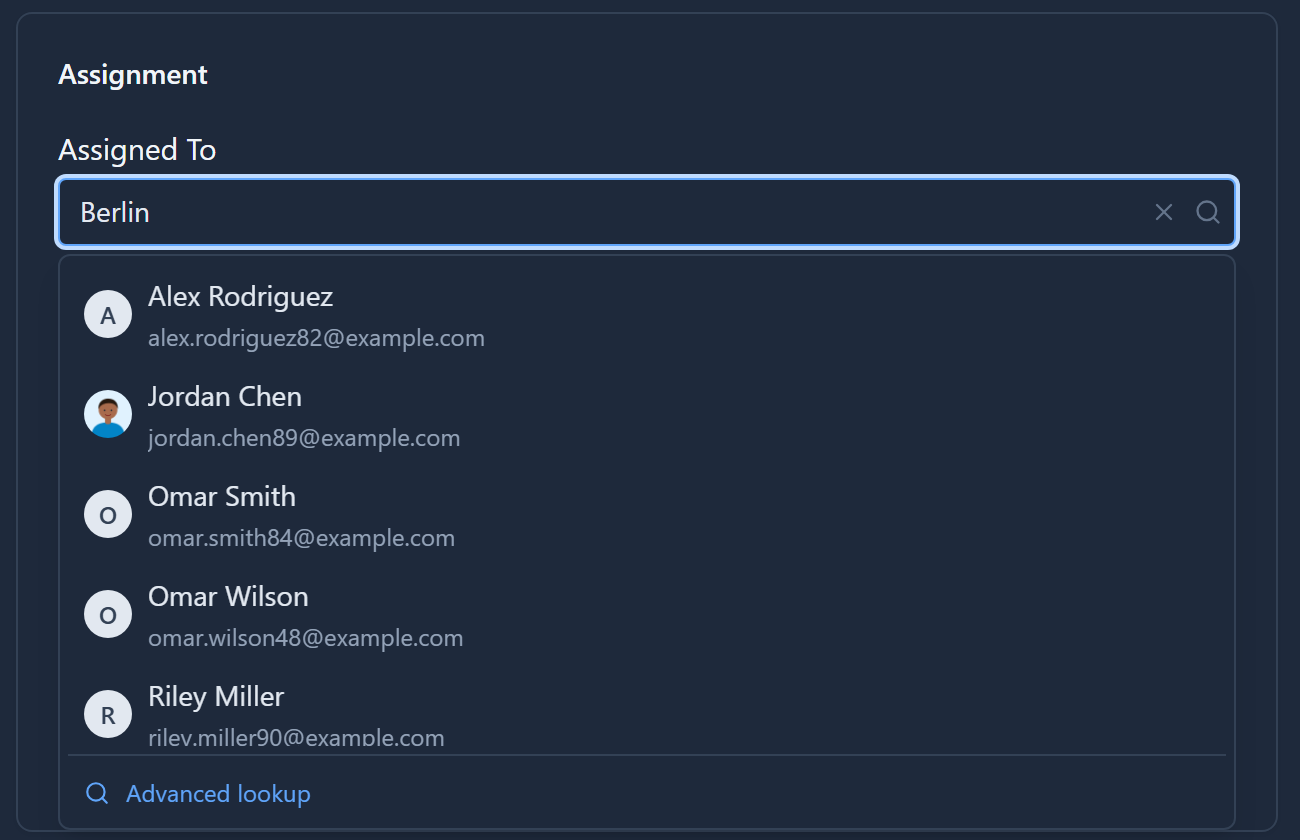
A record matches when any of the columns contains what you typed, in any letter case. So "Sales Rep" now finds the sales reps, and part of an email address finds its owner.
What a quick find view uses
Only its columns. Its filter and sort are ignored, because it answers "what does typing search?", not "what is listed?". What is listed is the lookup view's job.
Only text columns can be searched this way. A number, date or yes/no column in a quick find view is skipped rather than causing an error. Each extra column also widens what matches, so add the ones people really search by.
Both views are part of the table, so they move with your solution like any other view.
Next: a customer timeline.