For Power Apps
Choose a report from a column
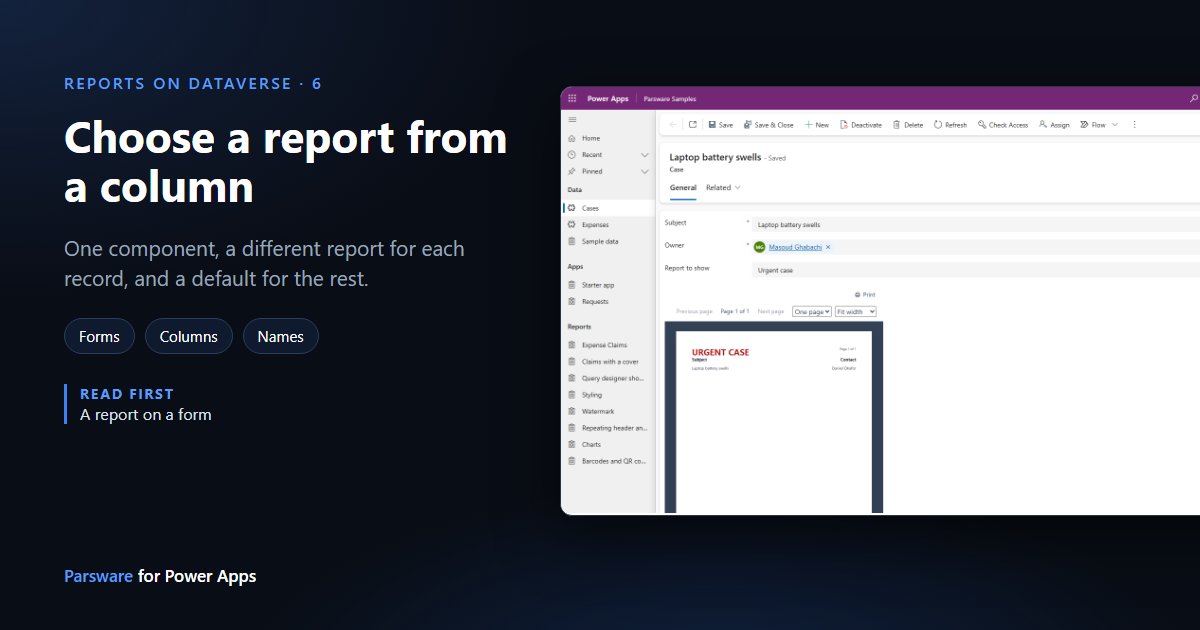
One Parsware component on a form can show a different report for each record. It reads the report's name from a column, and falls back to a default when the column is empty. Here the Case form shows an urgent-case notice for one case and the ordinary case sheet for the rest.
Dit artikel is alleen in het Engels beschikbaar.
In the last article the Case form showed one report, Case sheet, for every case. Often the right report depends on the record: a notice for an urgent case, a different letter per language, a form layout per product line.
You don't need a form per report for that. The Parsware Runtime component can read the report's name from a column of the record. Whatever the column says is the report it shows, and when the column is empty it falls back to the report you set on the form.
1. A second report
We made a second report, Urgent case, the same way as the first: a dataset case on the Case
table with par_caseid as its Record field, and a page with the case's subject and contact. To
make it easy to tell apart, its title is red.
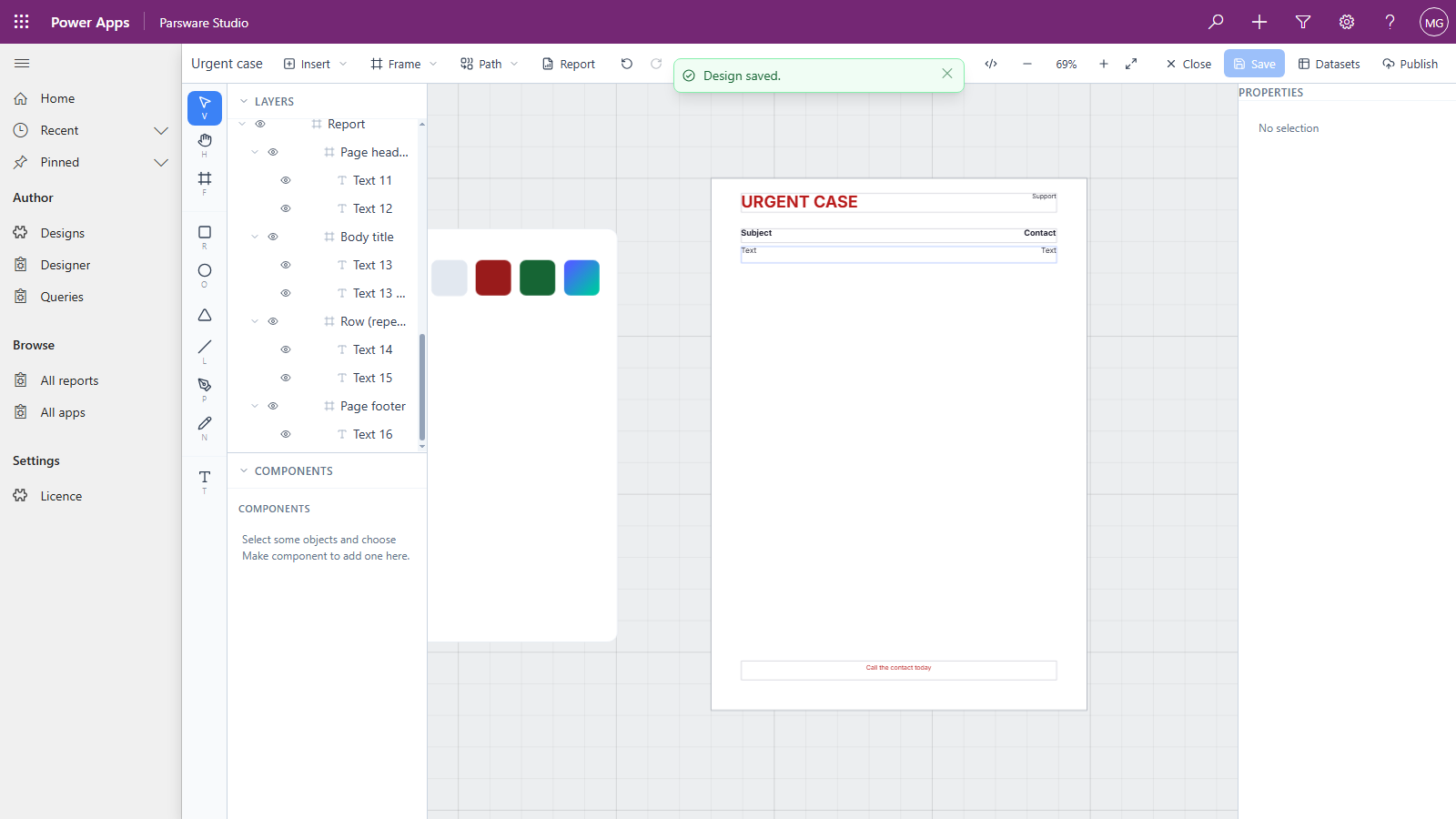
Publish it into the same solution as the first. A report only appears on a form once it's published.
2. Point the component at the column
The component is already on the form, sitting on the Report column. Open the form in the form designer, select that field, and under Components choose Parsware Runtime to edit it.
Set Design name column to Report. Leave Design as Case sheet: that's now the report for any case whose Report column is empty.
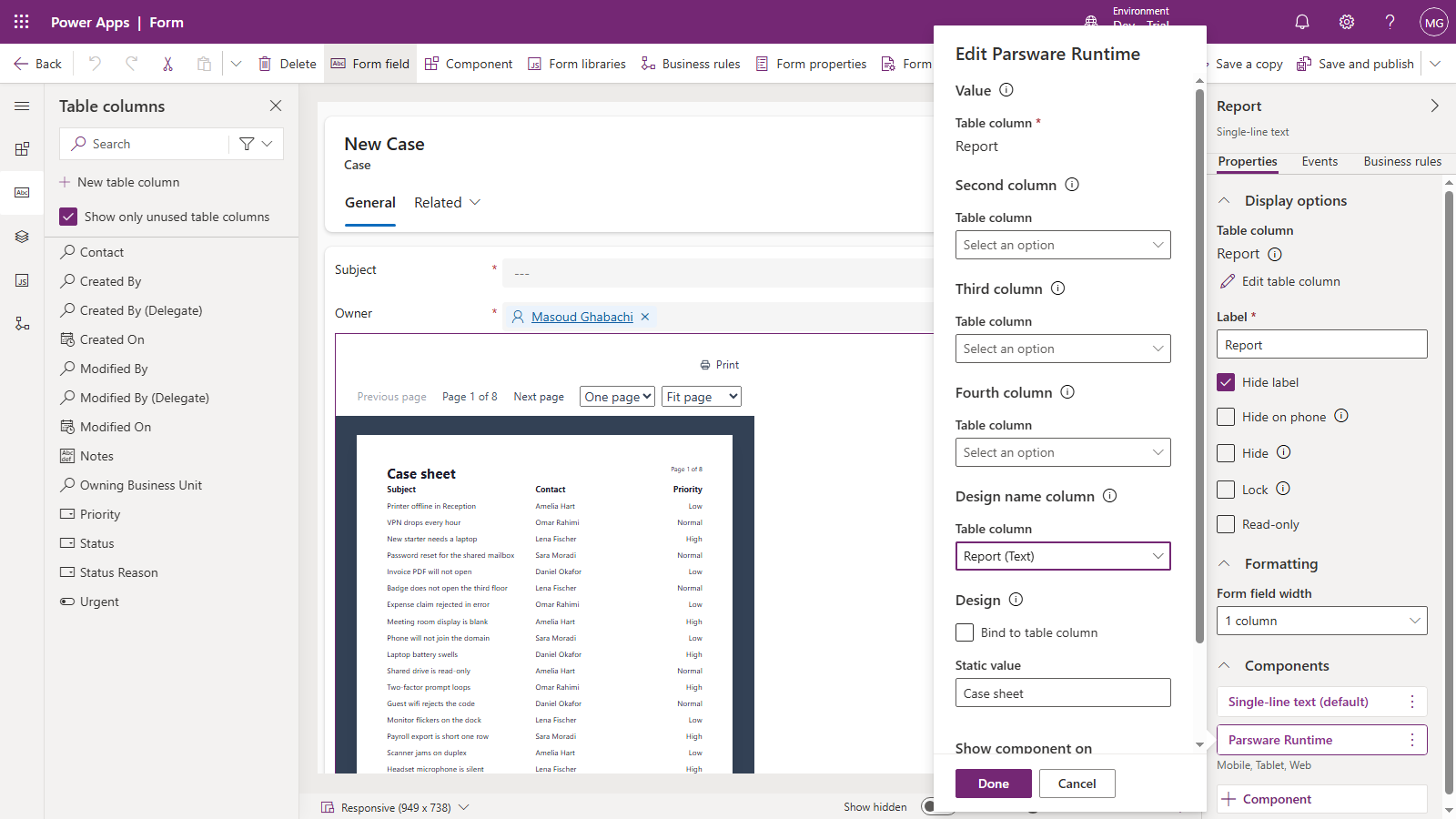
Design name column accepts a single line of text column. It can be the column the component sits on, as here, or another one.
3. Give people a way to fill it in
The column is an ordinary text column, so anything that can write a column can choose the report: a person typing, an import, a flow, a business rule. The component itself never writes to it.
We did the simplest thing. The component covers the Report field, so we added the Report column to the form a second time, this time as a plain text box, labelled Report to show. (Untick Show only unused table columns in the column list to add a column that's already on the form.) Then Save and publish.
4. See it switch
Open a case whose Report column is empty. It shows the default, Case sheet:
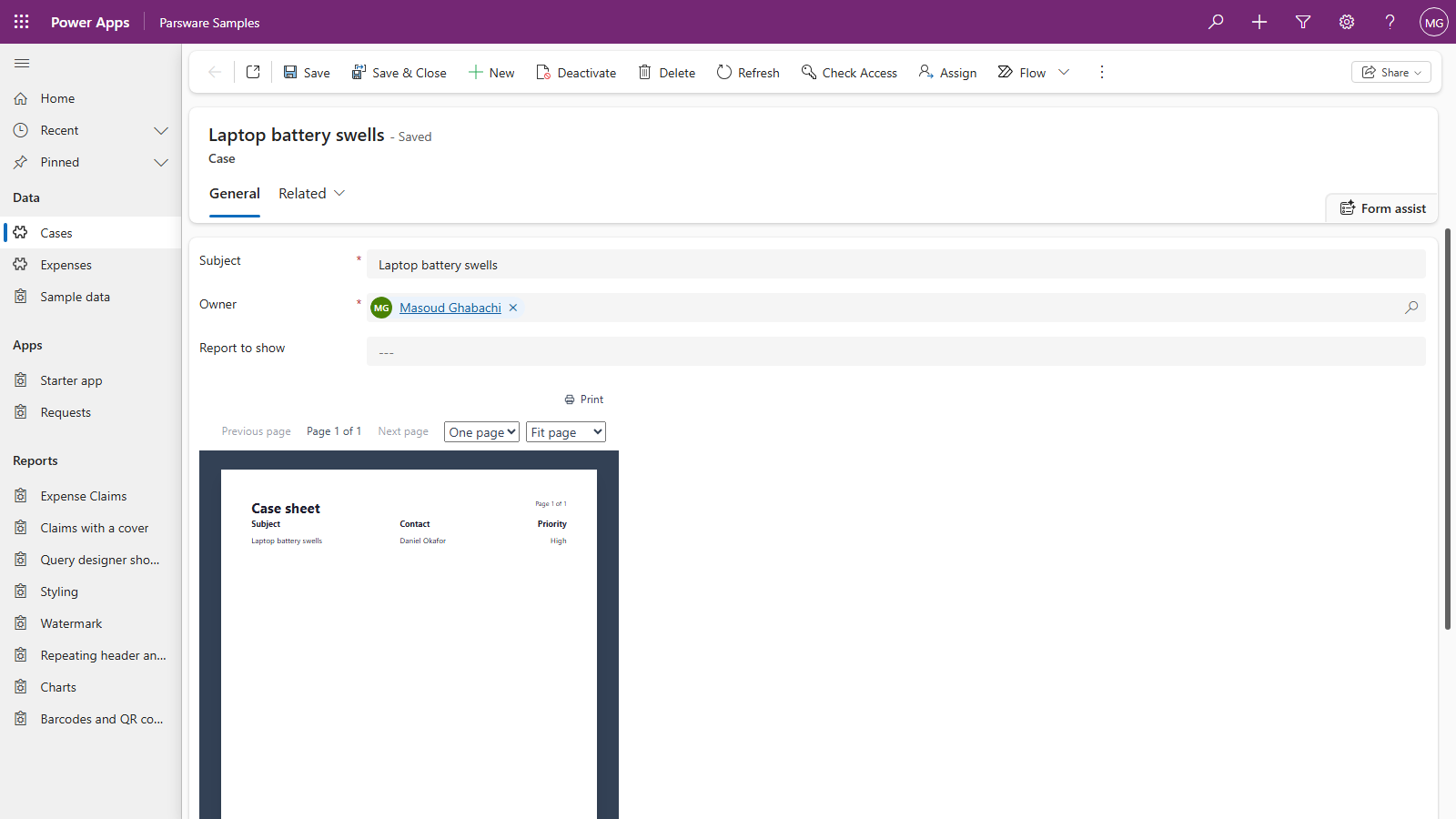
Type Urgent case into Report to show and move out of the field. The report changes straight away, before you save:
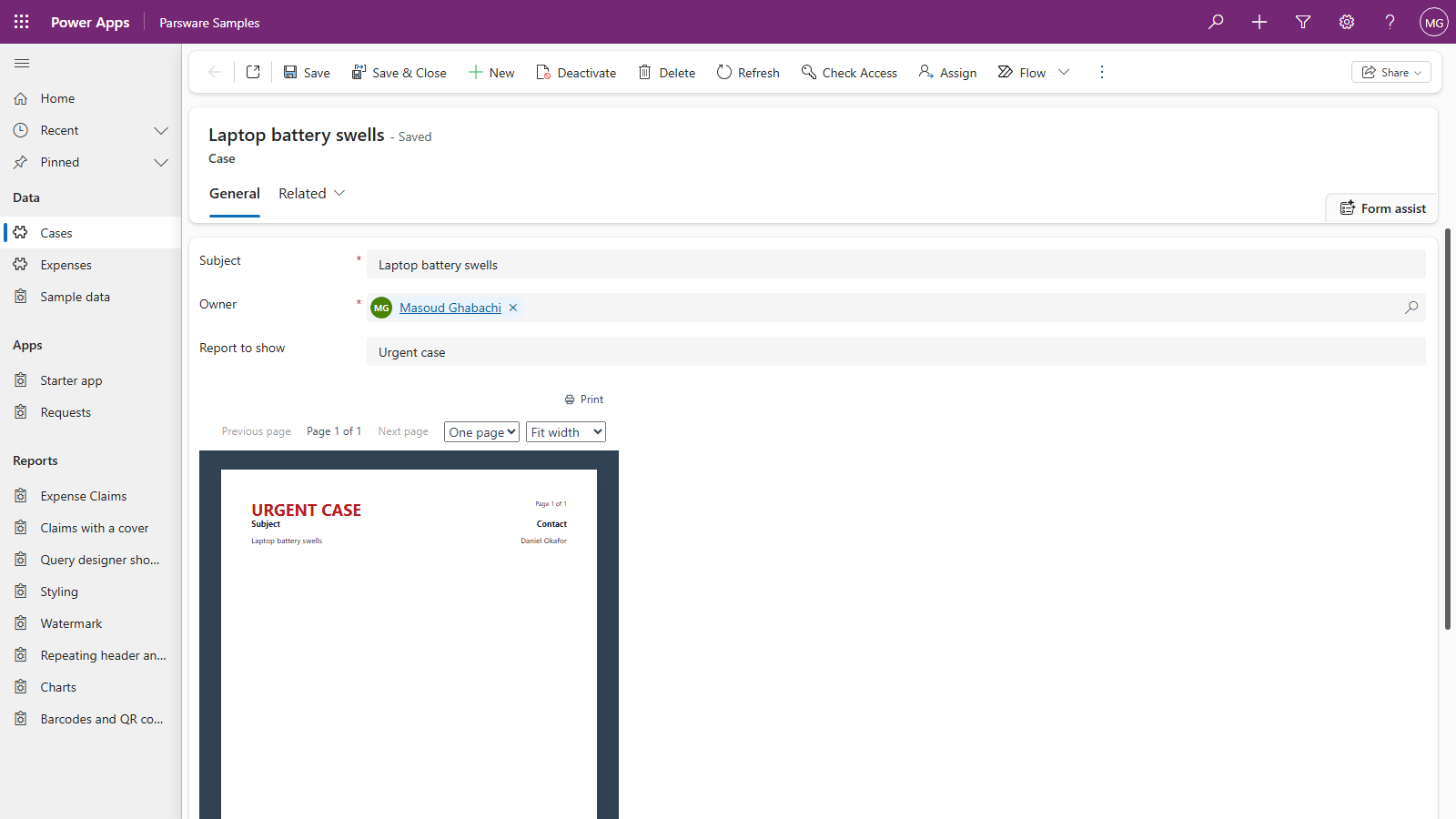
Save the case, and it opens with the urgent notice from now on. Every other case keeps the case sheet.
When the name doesn't match
The column has to hold the report's name exactly as it was published. Anything else shows a message in place of the report, not an empty page:
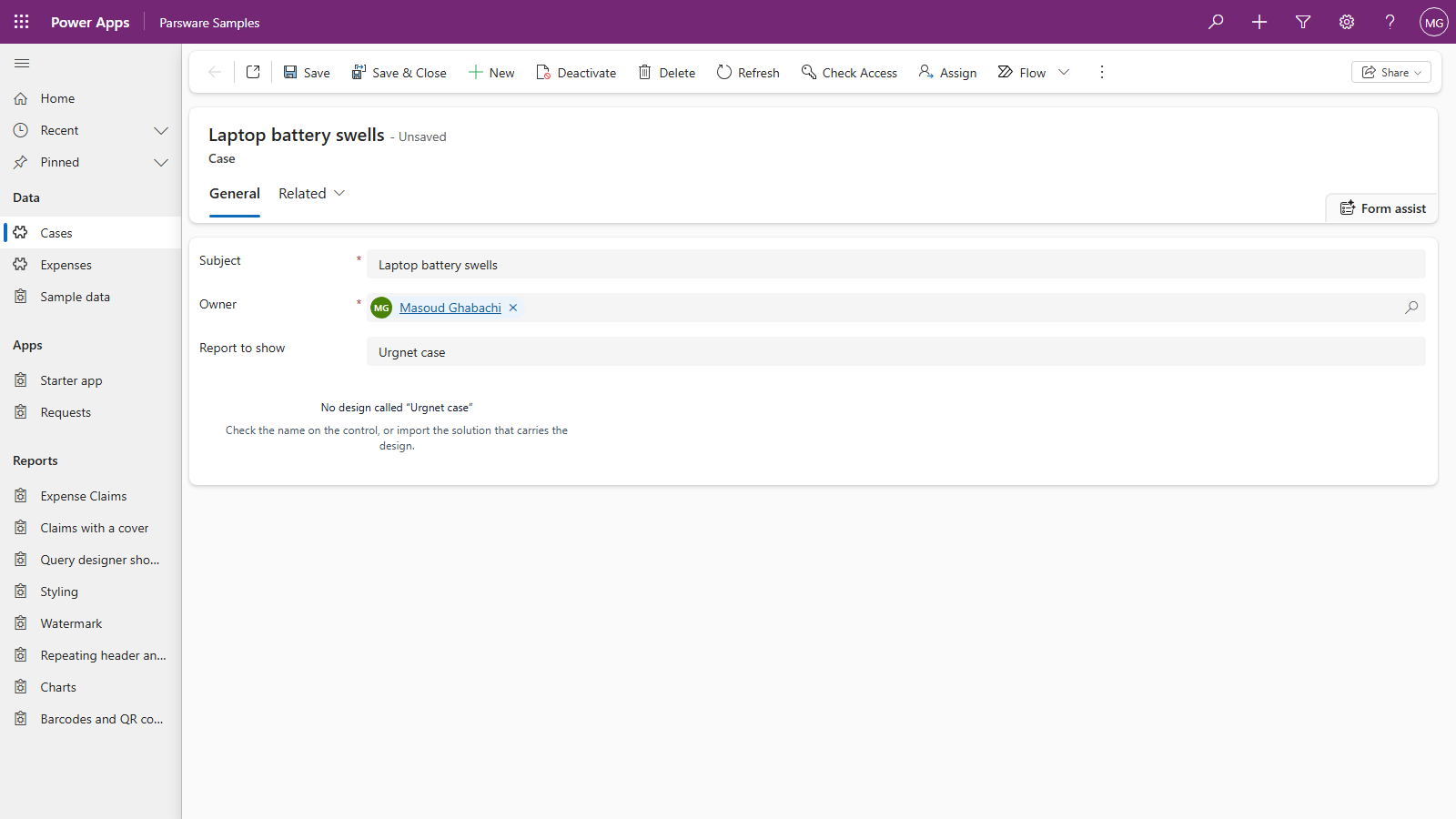
- No design called "…" means no report has that name: check the spelling, or import the solution that carries it.
- "…" has not been published means the report exists as a draft only. Open it in Parsware Studio and press Publish.
Why a name and not a pick list
A name travels. A report's id is different in every environment it's imported into, and its name is the same, so a record that says Urgent case in Test shows the urgent notice in Production too.
It also means the column can't offer a list of reports to choose from. If people will fill it in by hand, a flow or a business rule that sets it from something they already choose, such as the priority, is kinder than asking them to type a report's name.
Next
Print it exactly: what comes out when a reader presses Print. The whole series is in the reading list.