For Power Apps
A report on a form
A Parsware report can sit on a model-driven form, beside the record's own fields, and show only that record. One setting on the report's dataset does the narrowing, and one component on the form does the showing. Here's a case sheet on the Case form.
Dit artikel is alleen in het Engels beschikbaar.
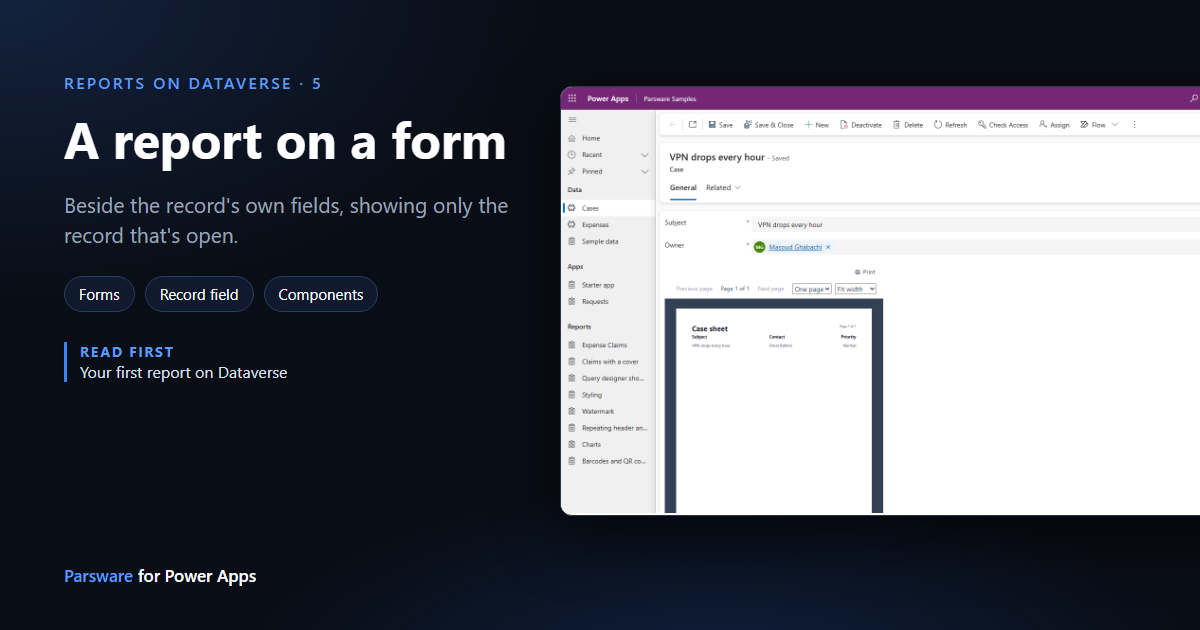
So far our reports have been pages of their own, opened from the app's navigation. Often the report people want belongs on a record: the sheet for the case that's open, the claim form for this claim, the order confirmation for this order.
A Parsware report can sit on a model-driven form, in the same place as the record's fields, and show only the record that's open. Two things make it work, and this article does both:
- the report is told which of its columns points at the record, and
- the form hosts the Parsware Runtime component, which draws the report.
We'll put a one-page case sheet on the samples' Case form.
1. Tell the dataset which column is the record
Create a report as in your first report, ours is Case
sheet, and open Datasets. Add a dataset named case on the Case table. This time, also
fill in the last box, Record field:
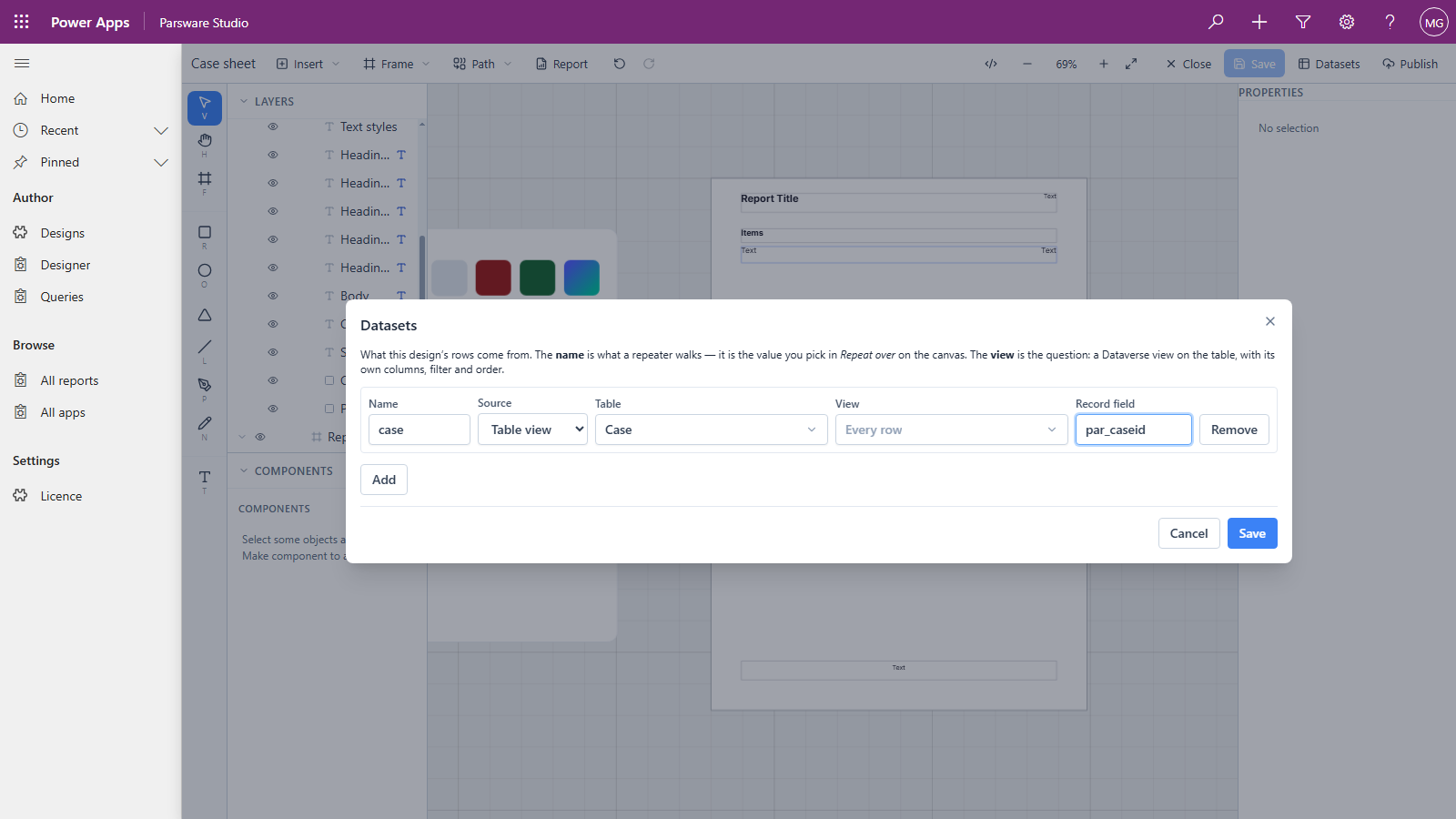
Record field names the column that has to equal the open record's id. The dataset is then narrowed to the rows where it does:
- On a dataset about the record itself, it's the table's own id column,
par_caseidhere. - On a dataset of child rows, it's the lookup back to the parent. A report on an order would have a second dataset of order lines, with the order lookup as its record field.
- A dataset with no record field isn't narrowed. That's right for a lookup table you want whole, such as a list of rates beside the record's own rows.
The narrowing is added on top of whatever the dataset already reads. A dataset on a view keeps the view's filters and is narrowed as well, so it can only return fewer rows, never more.
Then lay out the page. Ours has a repeater over case, with the Subject, Contact and Priority boxes
bound as in the last article. Save it.
2. Publish it
A form shows the published version of a report, never your draft. Press Publish, choose one of your own unmanaged solutions (ours is Case reports) and confirm. The report now travels with that solution. A later article in this series covers drafts and publishing in full.
3. Give the component a column to sit on
In a model-driven form, a code component always sits on a column. So the Case table needs a column for the report to occupy. We added a single line of text column named Report to the Case table, in the same Case reports solution. It holds nothing for now. The next article puts it to work.
Any text, number, date or yes/no column the form doesn't otherwise use would do. A dedicated column is clearer, because nobody will wonder why a field disappeared.
4. Put the component on the form
Open the table's main form in the form designer (Tables › Case › Forms › Information, from your solution), then:
- Add the Report column to the form, where the report should appear.
- With it selected, tick Hide label in the properties pane. The report is the whole field.
- Open Components, press + Component, then Get more components. Tick Parsware Runtime and press Add. You do this once per environment; after that it's in the list.
- Choose Parsware Runtime. In the panel that opens, type the report's name, Case sheet, under Design, as a static value. Leave the other properties empty.
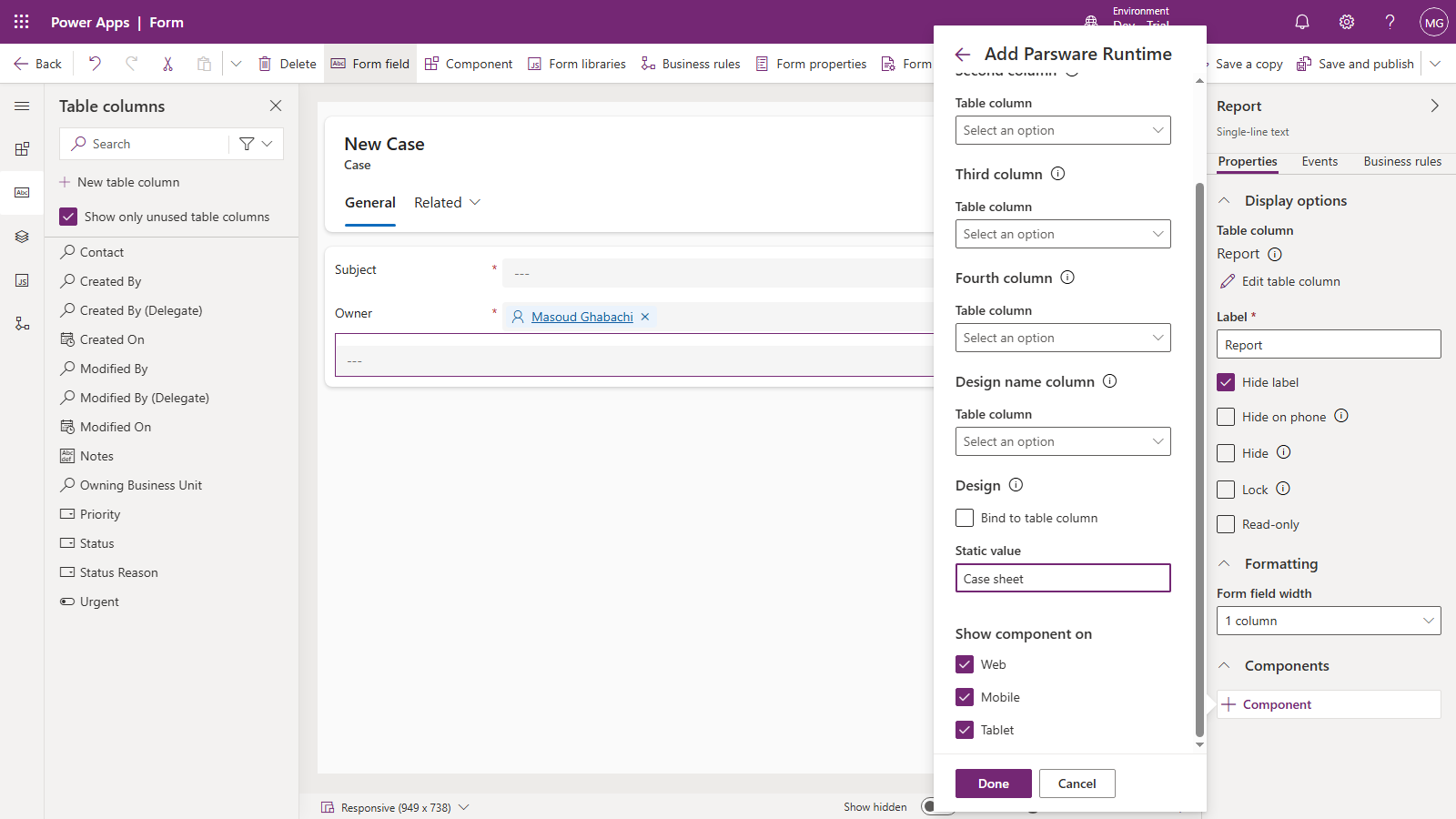
Press Done. The form designer draws the report straight away:
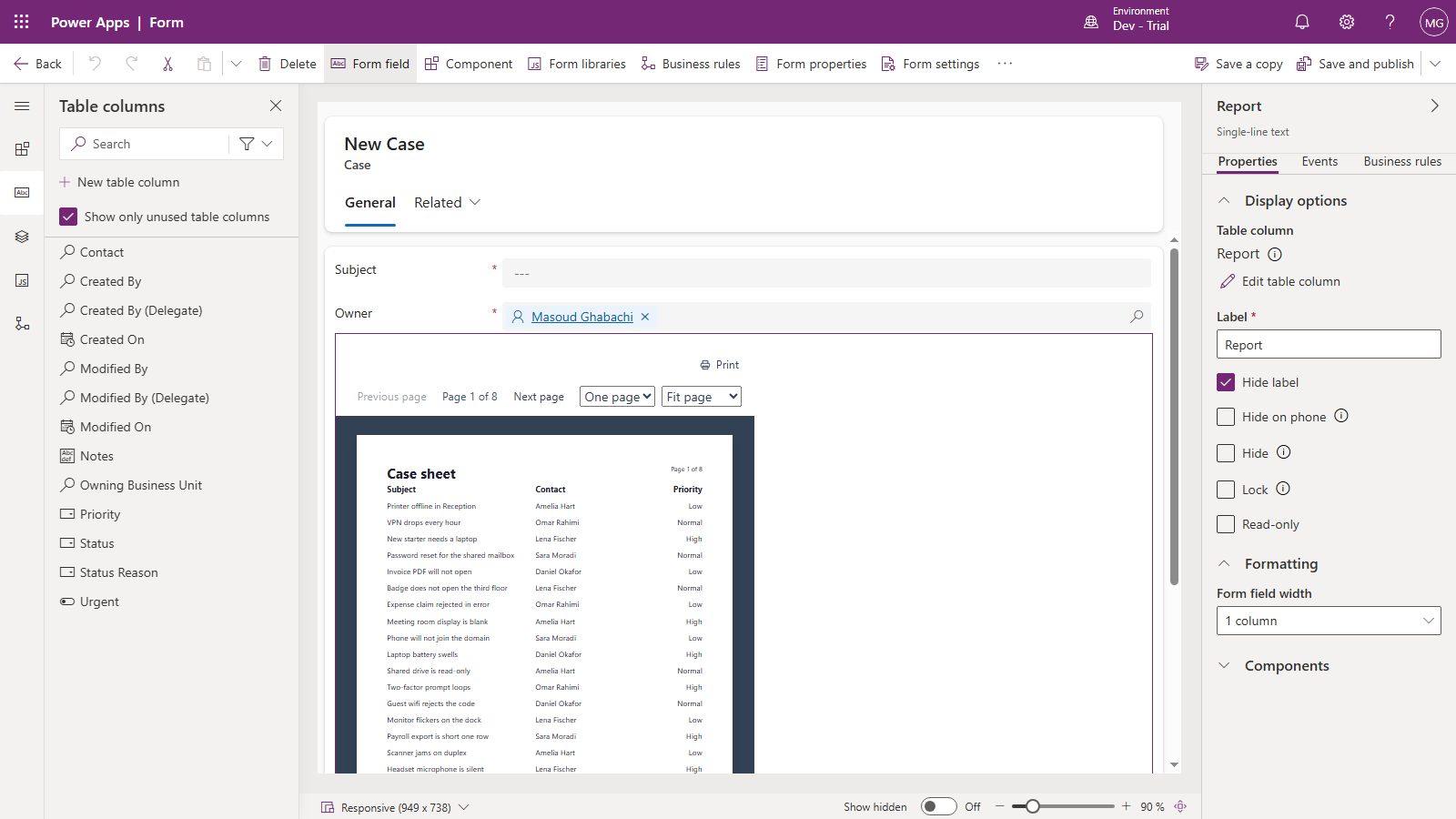
It shows every case, page 1 of 8. That's expected: the form designer shows a new, unsaved record, and a record with no id can't narrow anything, so the report reads its datasets whole. Press Save and publish.
The name is a name, not an id, on purpose. The design will have a different id in Test and in Production, and the same name.
5. Open a case
Open any case in an app that uses this form:
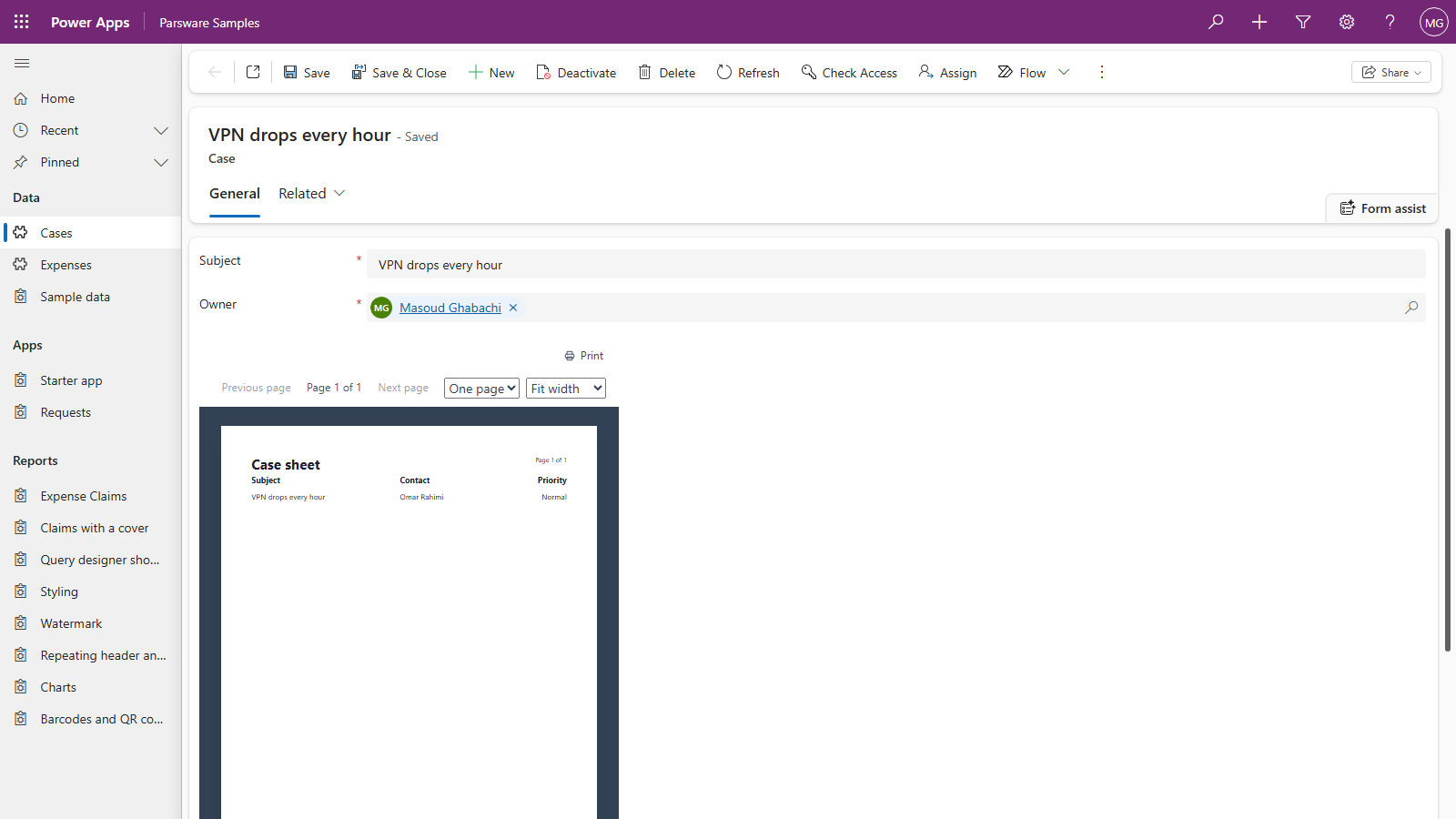
Page 1 of 1, and only this case. Open another case, and the report follows it.
The viewer has the same controls as a report opened from the navigation: previous and next page, one page or all pages, and a zoom. Fit width is the useful one in a form section. There's no full-screen button here, because the report is one part of someone else's page.
Print opens the report in a tab of its own with this case attached, so the paper shows the report and not the form around it. Print it exactly covers what comes out.
Good to know
- The reader sees only what they could already see. Every row is read as the signed-in user, so Dataverse security applies unchanged. Readers need no privilege on Parsware's own tables.
- A misspelled name, or a report that was never published, says so on the form, in place of the report, instead of showing an empty page.
- Readers need the licence to be valid, like every Parsware surface. If it isn't, the section says the report is unavailable, and the rest of the form works as usual.
- Not yet: the full width. The report takes only part of a wide form section, as in the picture above. It's a known issue we're fixing.
Next
Choose a report from a column: one component that shows a different report for different records. The whole series is in the reading list.