For Power Apps
Reports from a view
A Parsware report can read a Dataverse view instead of the whole table. The view decides which rows, in what order and with which columns, and it's something your makers already know how to build. Here's a report of urgent cases, filtered and sorted by a view.
Dit artikel is alleen in het Engels beschikbaar.
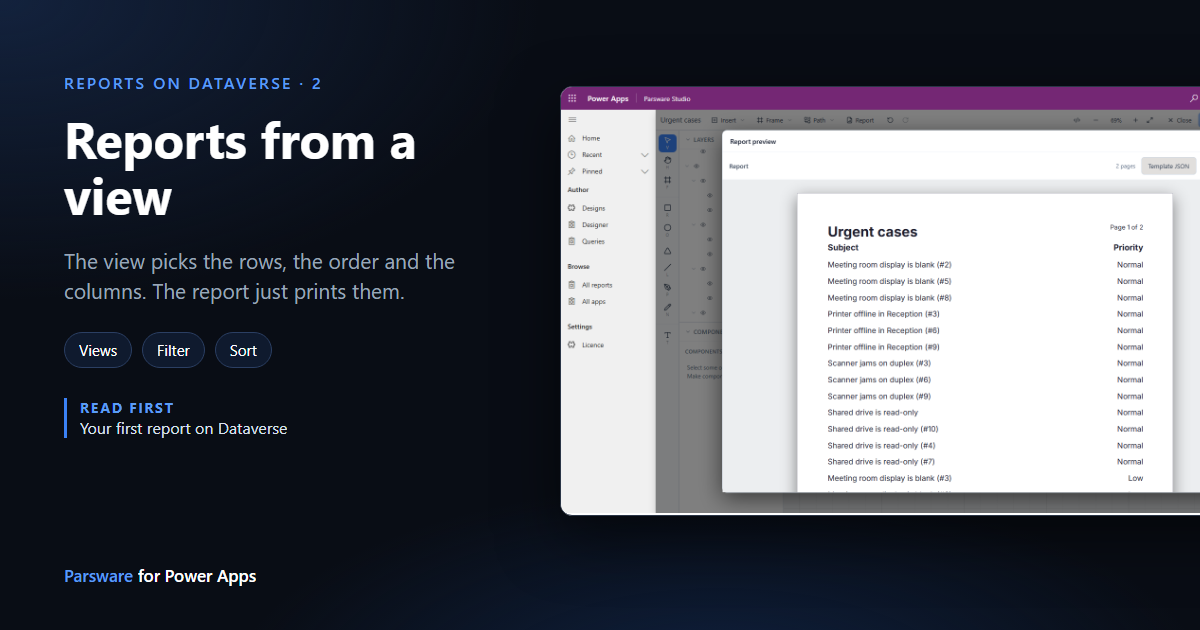
The report in the last article read every row of the Case table. Most reports don't want that. They want the open orders, this month's claims, the urgent cases, in a sensible order.
You could build that filter into the report. You don't need to: a Dataverse view already says it. A view has a filter, a sort order and a set of columns, it's a solution component, and anyone who builds model-driven apps already knows how to make one. So a Parsware dataset can simply name a view.
1. Make the view
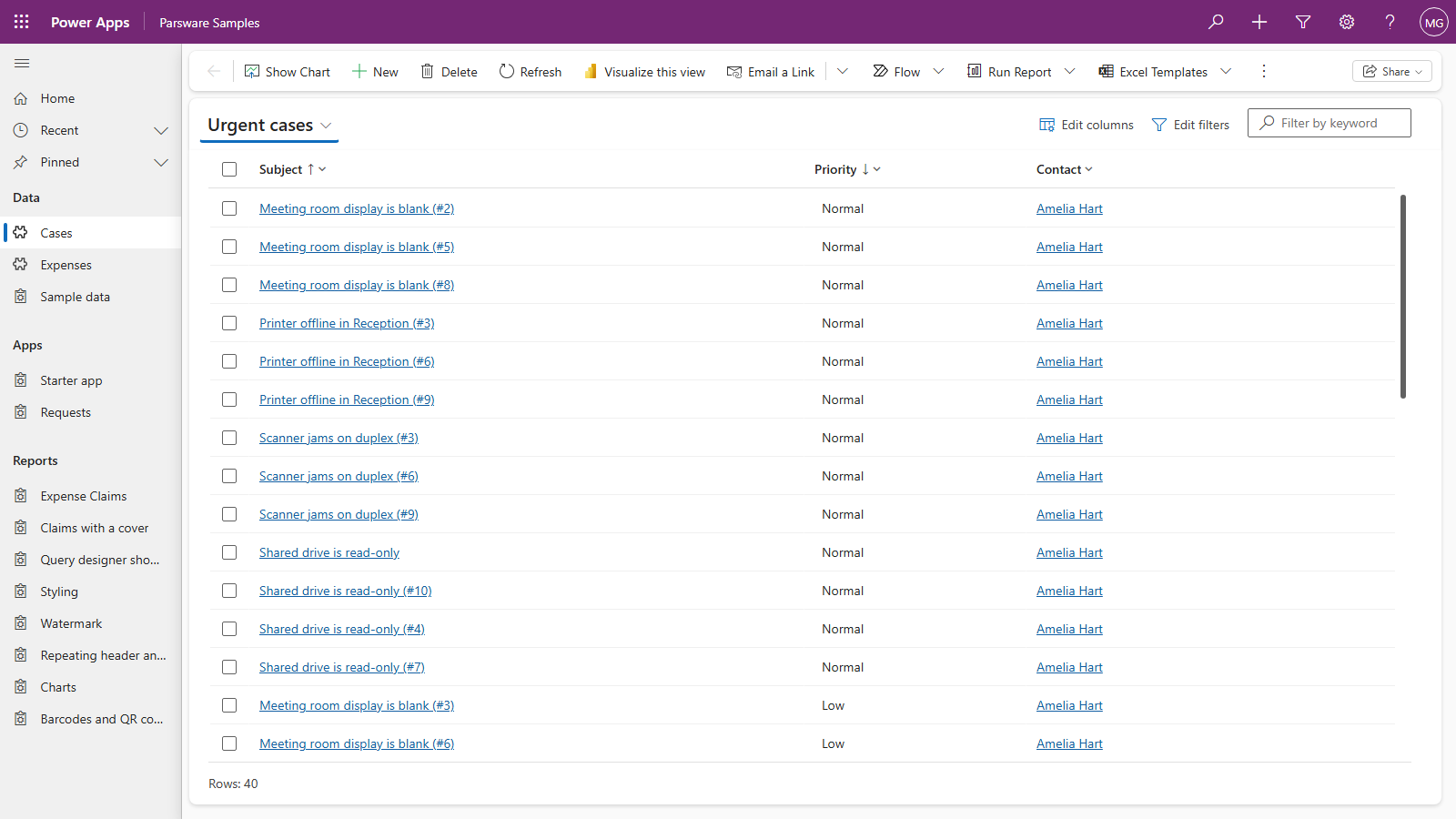
Make the view the way you would for any model-driven app, in the maker portal under Tables, your table, Views. Ours is on the samples' Case table:
| Name | Urgent cases |
| Filter | Status is Active, and Urgent equals Yes |
| Sort | Priority, descending, then Subject |
| Columns | Subject, Priority, Contact |
Save and publish it. Here it is in the Parsware Samples app, 40 cases out of 200:
2. Point a dataset at it
Start a report as before: a new design in Designs with Kind set to Report, then Insert › Report page in the designer. We called ours Urgent cases.
Press Datasets, name the dataset (urgent), choose the Case table, and this time open
View. The list is the table's own views, each with its type, and a search box above them.
Choose Urgent cases and press Save.
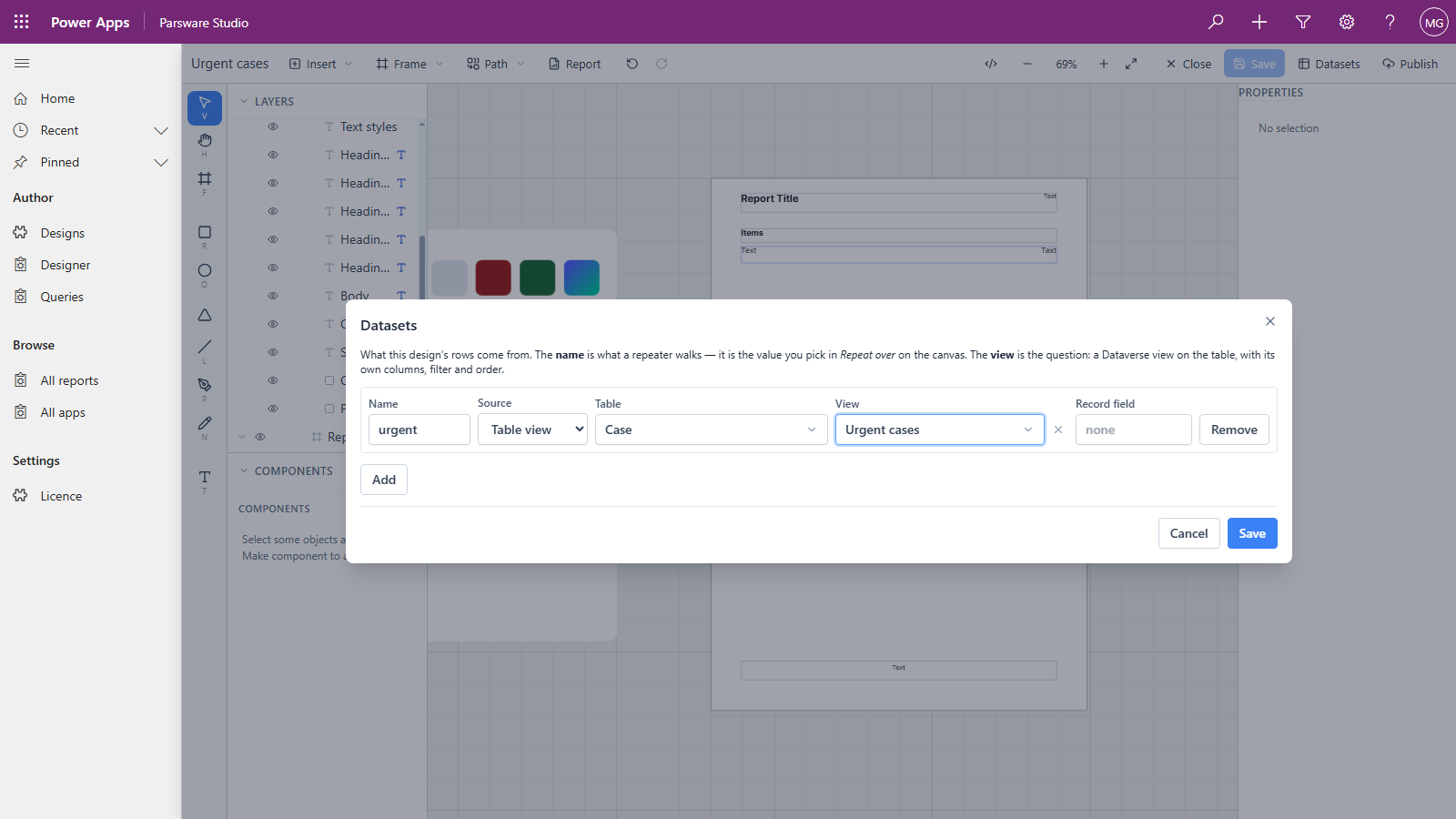
That's the whole change. The dataset now reads the view's query instead of the whole table.
3. Bind to the view's columns
Set the repeater's Repeat over to urgent, then bind the row's text boxes as in the last article.
Open a Binding list and you'll notice it's shorter. For a whole table it offered every column Case has. For a view it offers only the columns the view selects: Case, Subject, Priority and Contact. A report can only print what the query returns, so the designer doesn't offer a column that would come back empty.
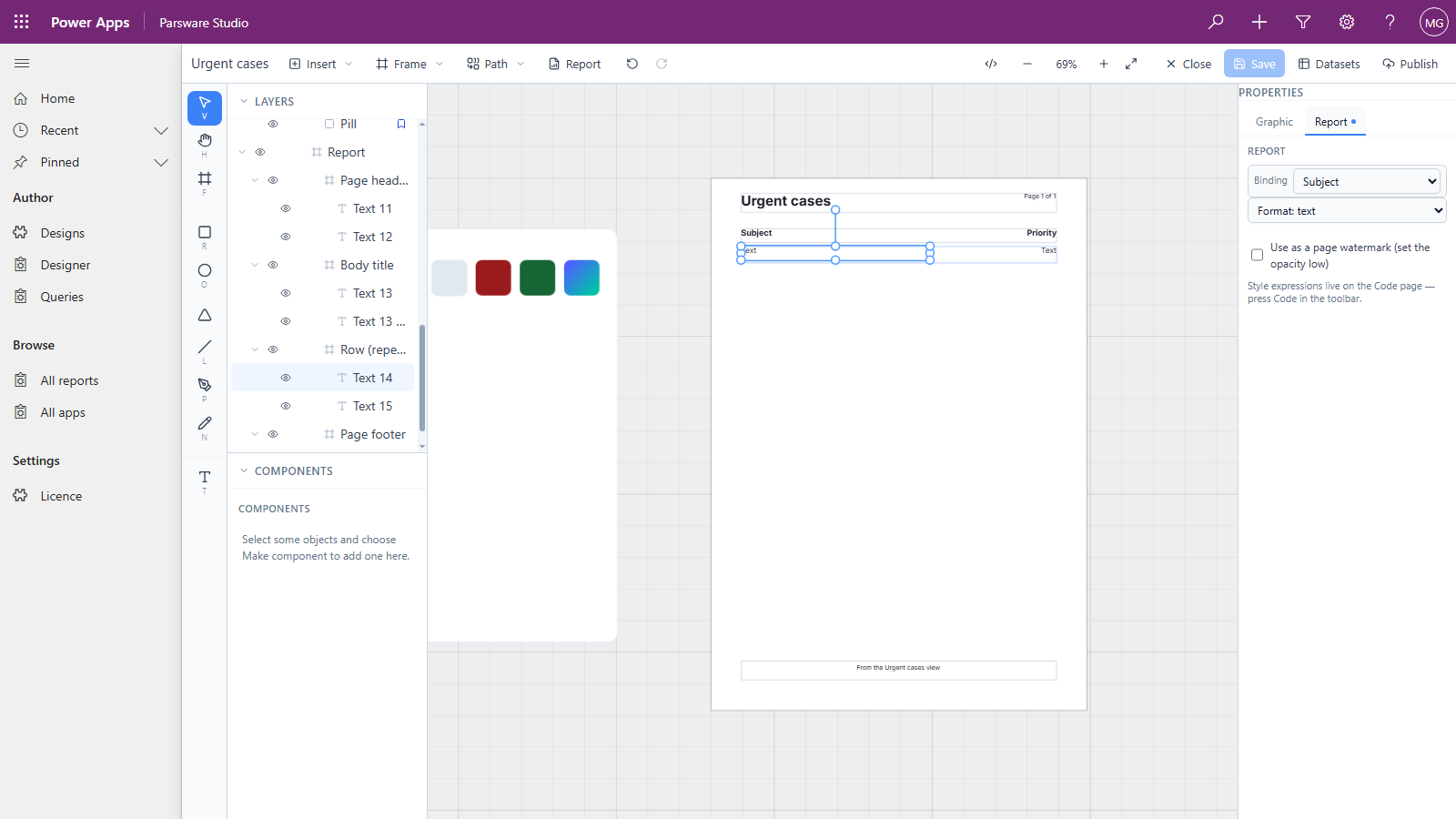
We bound Subject and Priority, set the priority's Format to text, and set the title and the column headings.
4. Preview
Press Report:
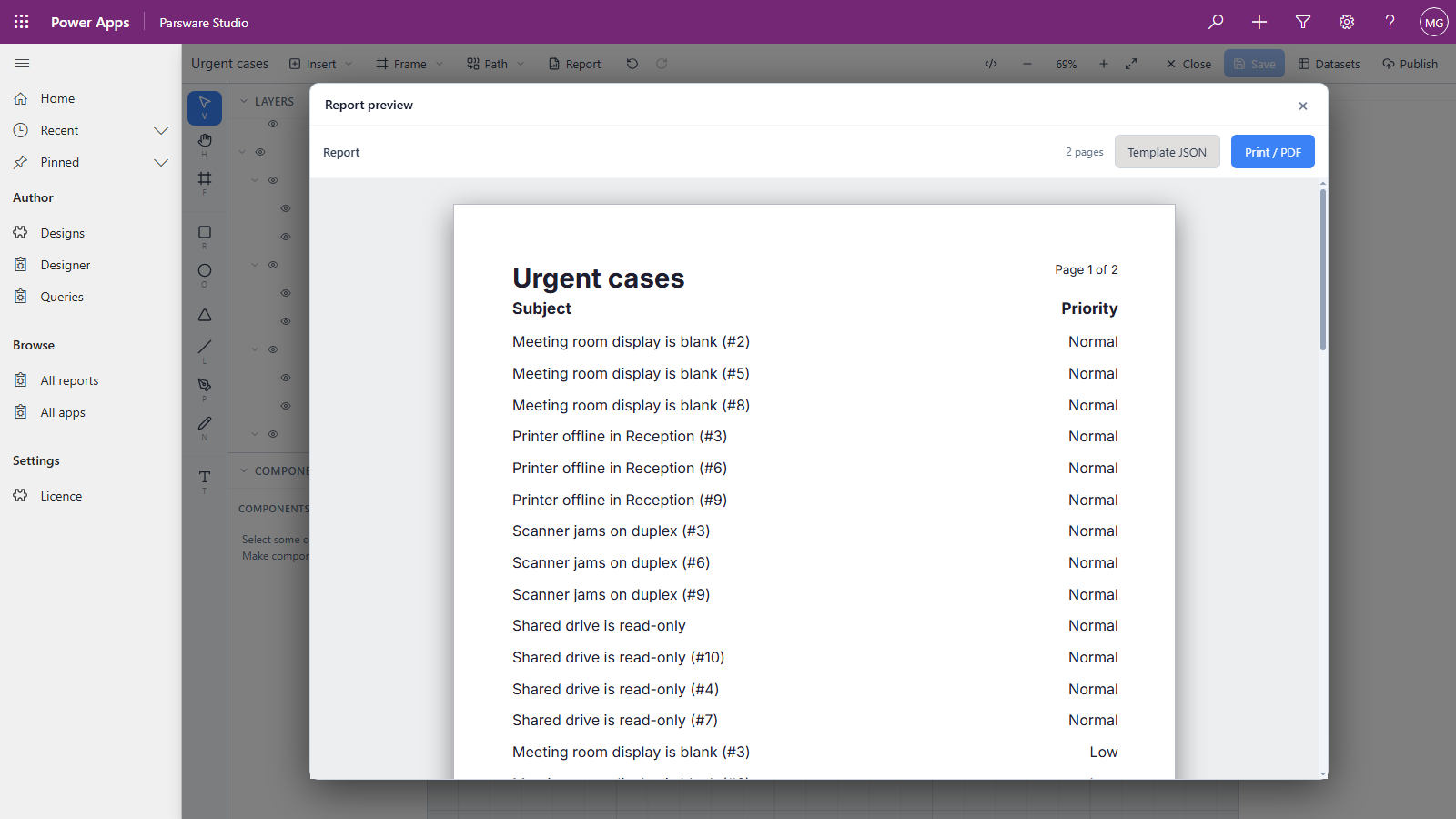
Three things came from the view, and none of them is in the report:
- Which rows. 40 urgent cases, so two pages instead of eight.
- What order. By priority, then by subject, exactly as the view sorts.
- Which columns the designer offered for binding.
Why a view is usually the right answer
- Change the view, and the report follows. Somebody adds a condition to Urgent cases and the report picks it up next time it runs, without opening the designer or publishing again.
- It travels. A view is a solution component, so it moves to test and production alongside the report.
- Security still applies. The report runs the view as the signed-in user, so it shows the rows that person could see in the view itself, and no others.
What a view can't do is add things up. A view returns rows. It has no total, count or average by group. For those, a report reads FetchXML, which is the next article.
Next
Totals with FetchXML: a grouped total computed by Dataverse and printed as a report. The whole series is in the reading list.