Parsware Platform
Coforms: a form for a task
When a process step reaches a person, they read what it opens and then decide. A coform is what they decide on: a few fields and the buttons that end the step. We built one in the parallel sign-off sample, put it on a task, and routed each button its own way. The field types now read as words.
Dit artikel is alleen in het Engels beschikbaar.
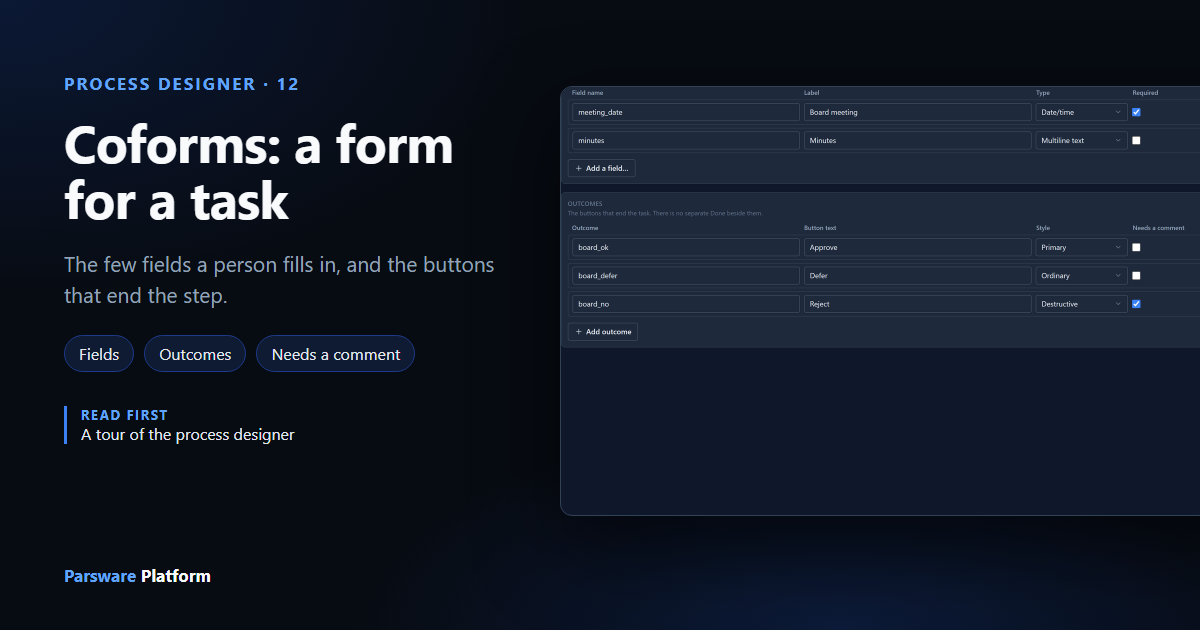
A process step that goes to a person ends with a decision. They read a record or a report, then choose: sign off, refuse, send it back. The coform is what they decide on. It's a short form that belongs to the process, with the few fields the decision needs and the buttons that end the step.
It isn't a form over a table. It has no table of its own, and it asks only what this step needs to know.
We used the Parallel Sign-Off sample from samples/solutions/bpms-parallel-sign-off: a purchase
order that Finance and Legal sign off at the same time.
Where coforms live
Open a process. The rail on the left has Flow, the canvas you draw on, and Coforms, this list. The sample has two, one for each side:
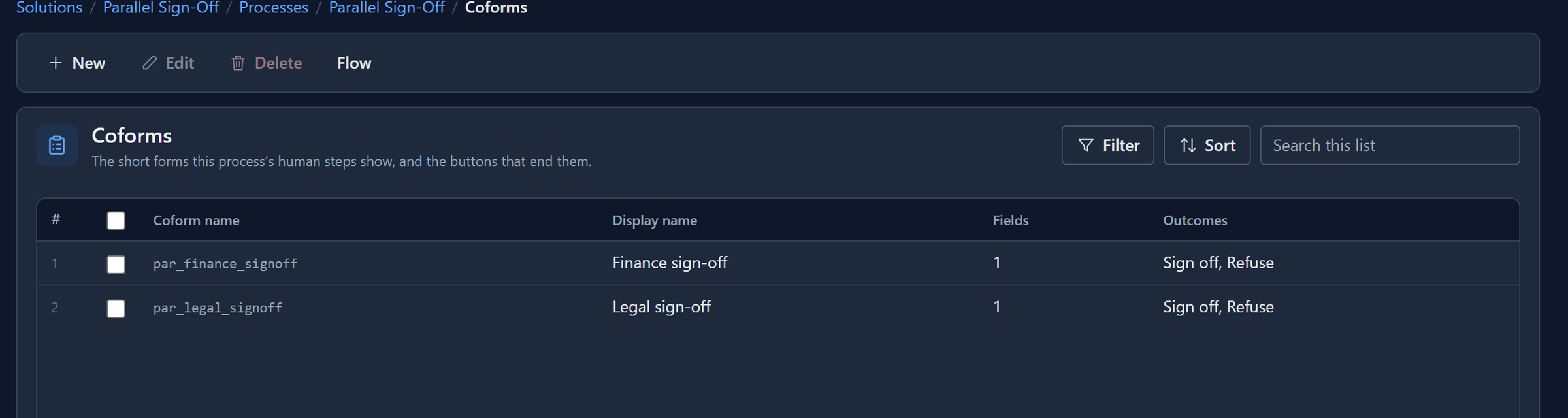
A coform is part of its process. It travels with the process into other environments, and you can't add one to a solution on its own.
What one holds
Select Finance sign-off. A coform opens as a page, the way a table's form does, because it is two lists of rows:
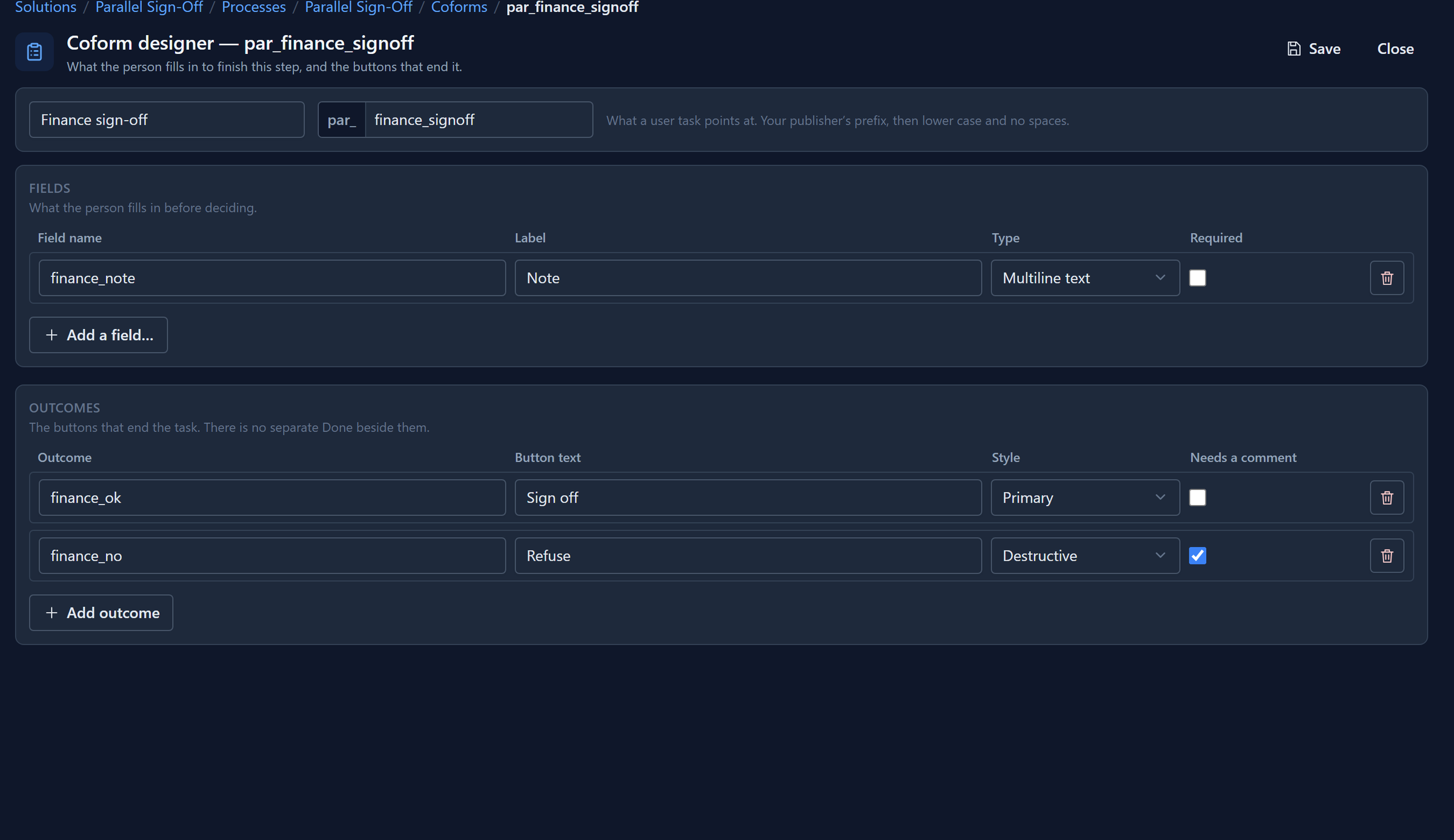
- The display name is what the person reads at the top of the panel. The coform name under your publisher's prefix is what a step points at.
- Fields are what the person fills in. Each has a name (the key the answer is kept under), a label and a type. Required means the field must be filled before any button works.
- Outcomes are the buttons. Each has an id, the text on the button and a style: ordinary, primary or destructive. Needs a comment applies to that one button only: a refusal needs a reason and a sign-off doesn't.
There's no separate Done beside the outcomes. The outcomes are the way to finish, so the run's history always records what was decided, not just that somebody pressed something.
The types are the platform's own
A coform field uses the same data types as a table column, so the person gets the same date pickers and choice lists a record form gives them:
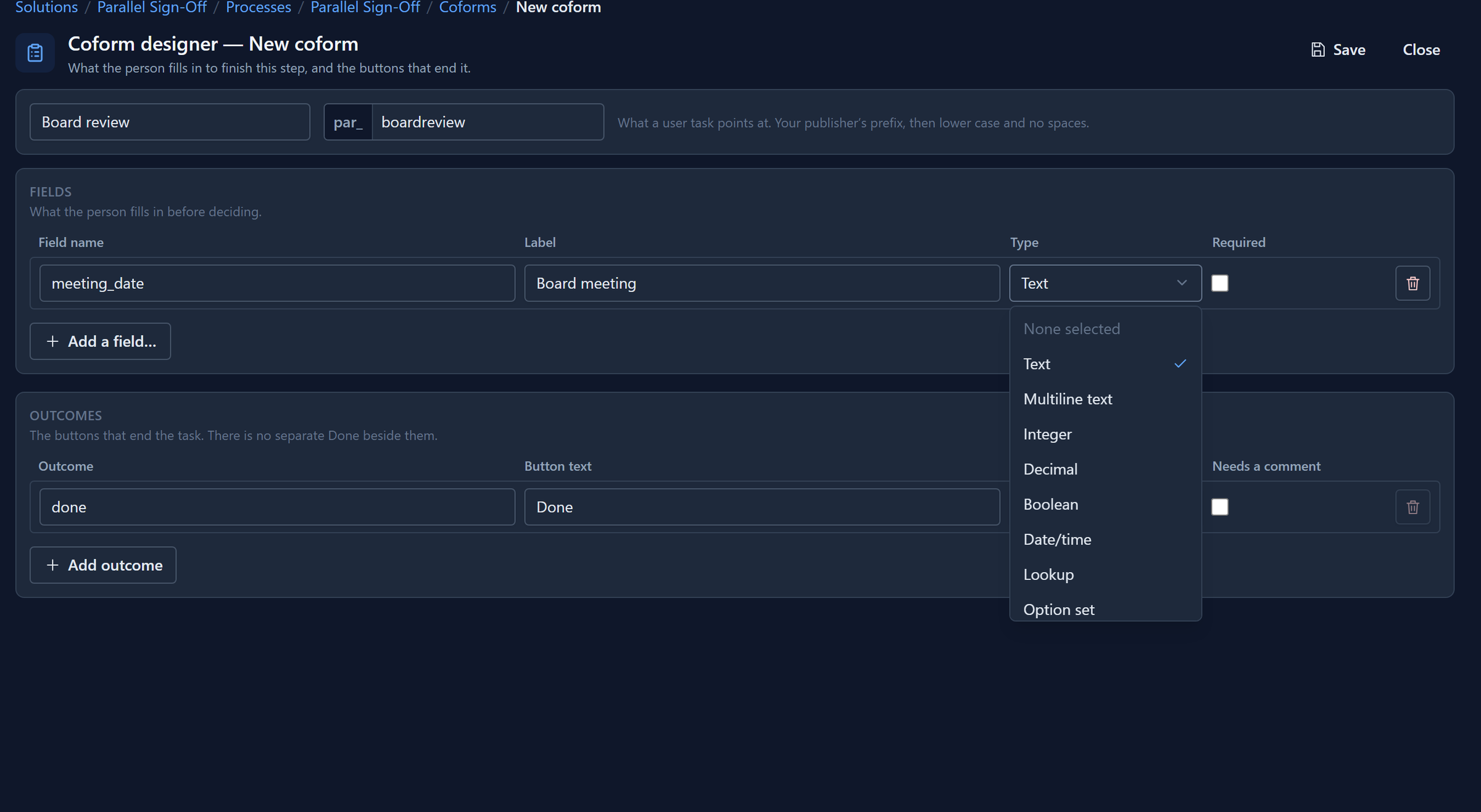
That list used to show the stored names, MultilineText and DateTime, in English whatever
language you worked in. It now uses the same words the table designer uses for the same types. We
fixed it while writing this.
Build one
Select New in the list. We made a coform for a board's review of a large order:
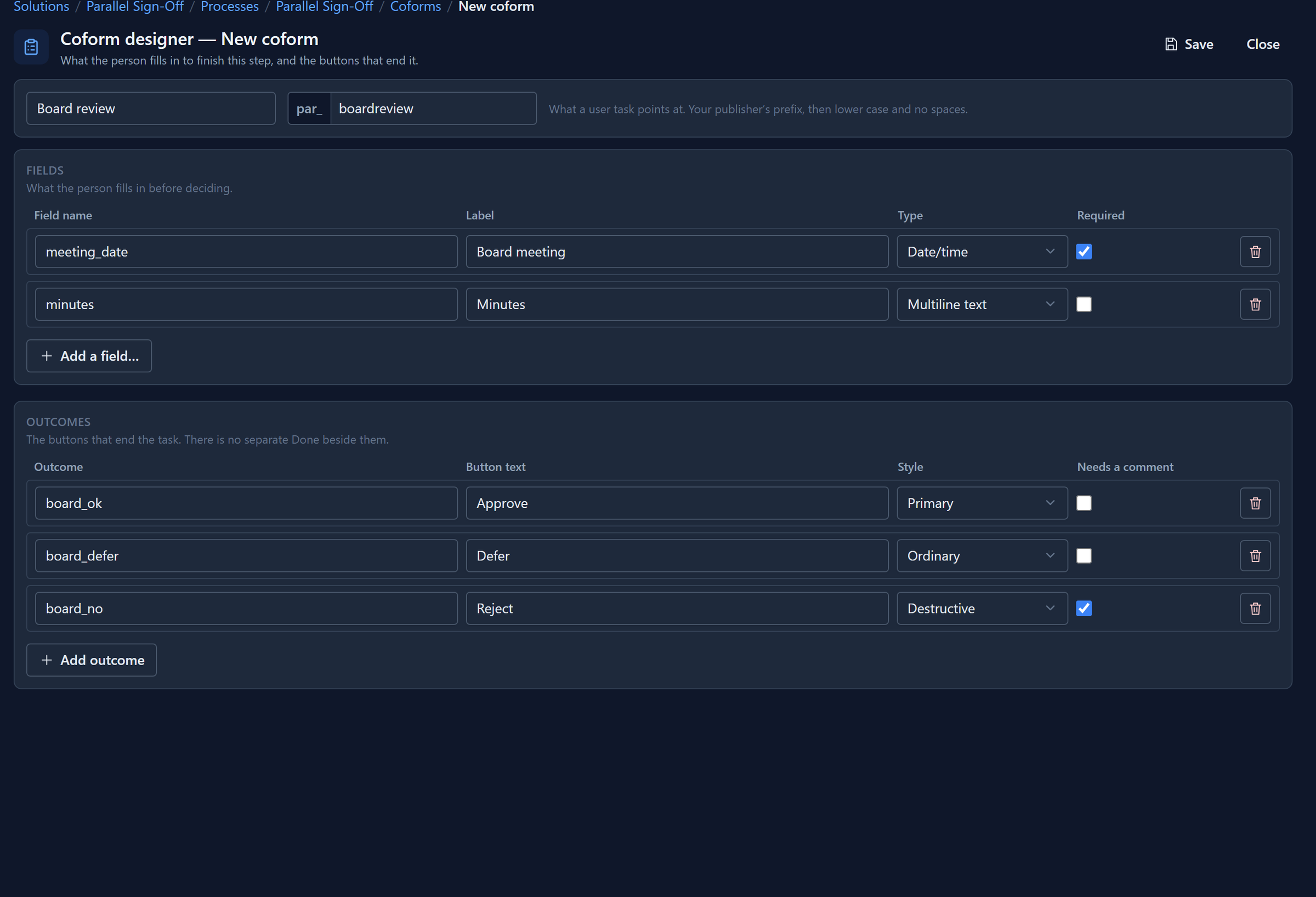
- Type the Display name. The coform name fills itself in from it.
- Add a field for each thing the board records. We made the meeting date required.
- Change the first outcome and Add outcome for the others. Reject needs a comment.
- Select Save.
A new coform starts with one outcome, Done. A coform with none could never be finished, so you can't remove the last one.
Put it on a task
Back on Flow, select a user task. Its properties have a Coform list, holding this process's coforms and nothing else:
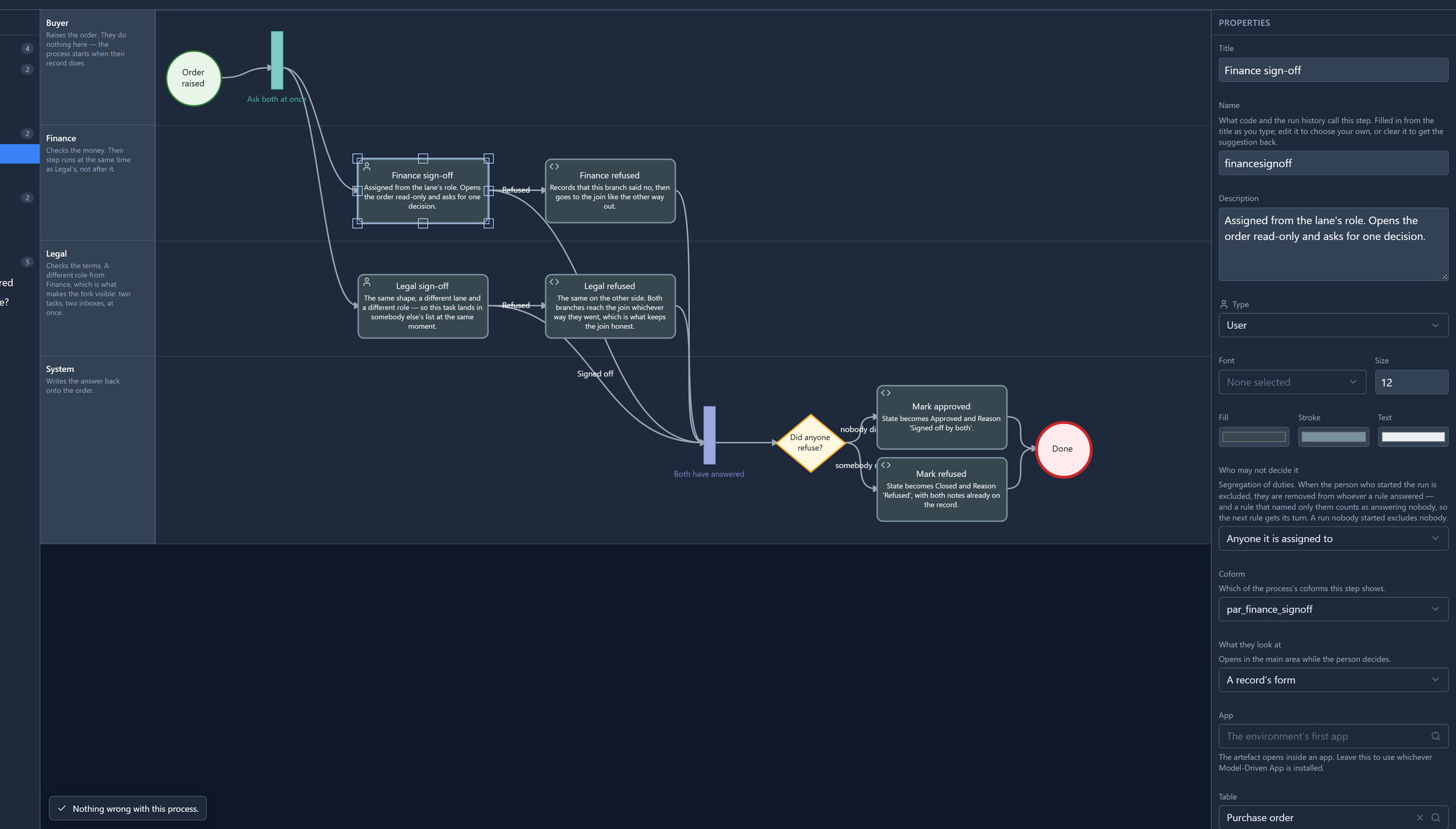
What they look at is the other half: the record, report, list or screen that opens while the person makes up their mind. Here it's the purchase order, read-only.
One connection per button
A coform with more than one outcome needs a connection for each. Select a connection leaving the task and set Taken when:
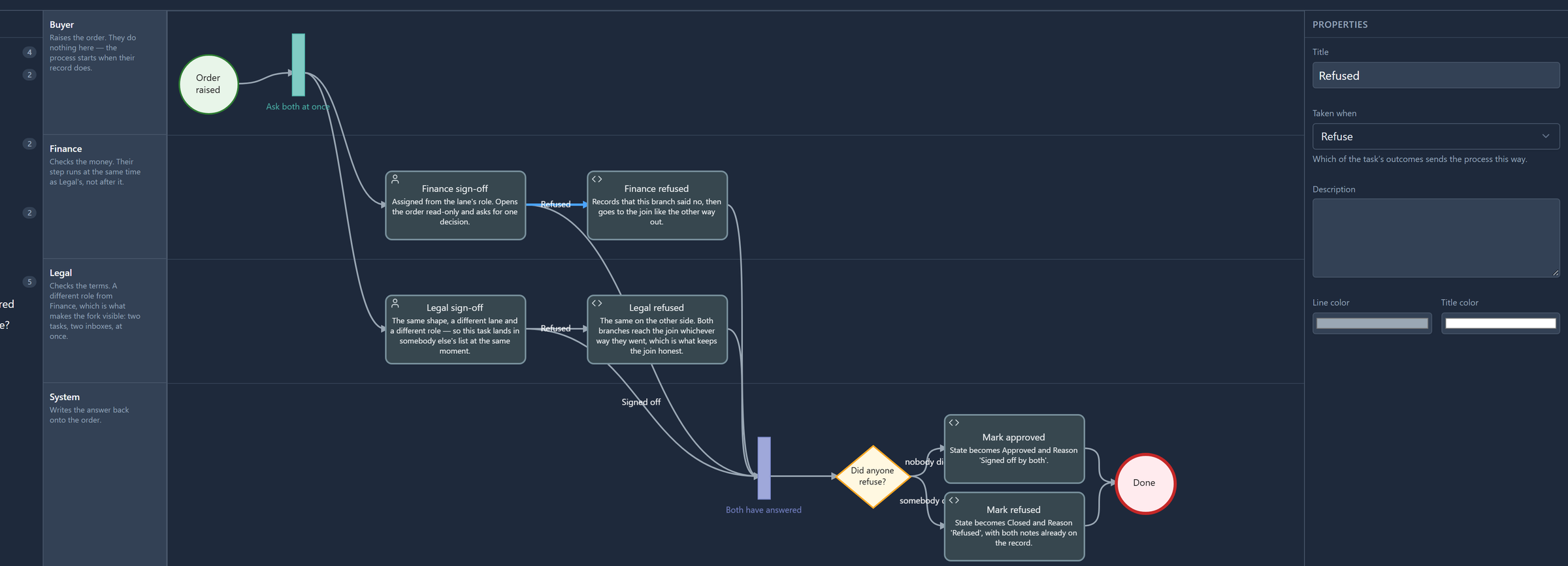
Sign off goes on to the join; Refuse goes to a step that records the refusal first. Miss one, and the problems panel says which outcome has nowhere to go, and Publish waits until it does.
Carrying an answer on
A field's answer is kept with the task. To use it later in the process, the sample's fields each
write a process variable (finance_note, legal_note), and a later step copies the notes onto
the order. That link is set in the process file: the coform designer doesn't show it yet, so a
field that needs one is written there, or read in the task's On complete script.
What the person sees
When the step reaches somebody, they open it from My tasks, read the order, and select Decide. The coform opens with one button per outcome. Your tasks shows that side, including what happens when a button needs a comment and the box is empty.
Renaming and deleting
A step points at a coform by its name. Rename or delete one, and any step that showed it now points at nothing. The problems panel reports it and you pick the coform again; nothing rewrites your diagram behind your back.
Next: exporting a process as a file or a picture, and importing one.