Parsware Platform
Your tasks
When a Parsware business process needs a person, it sends them a task. My tasks lists yours; opening one takes it and shows what it is about, and Decide finishes it with an outcome such as Approve or Reject, after which the process moves on by itself.
Dit artikel is alleen in het Engels beschikbaar.
A business process in Parsware runs by itself until it needs a person: somebody to check a request, approve a change, or sign something off. Then it sends that person a task, and waits.
This article is for the people who receive tasks. It shows where your tasks are, what opening one does, and how you finish it. We used the Two-Step Record Approval sample: a change to a record that two managers have to agree to, one after the other. Every picture is the real product.
Before you start
The sample ships two security roles, Change Reviewer and Change Approver, and each step of the process is offered to one of them. Somebody has to hold each role, and that is an administrator's decision: Admin Control Center, Users, Manage roles. We gave ourselves both, so one person can play both managers.
Then sign out and sign in again. Your task list is built from the roles your sign-in carries, so a role given to you while you are signed in doesn't reach your list until you sign in again.
A process starts
Open the Change Approvals app, create a change request and save it. The form's command bar has a Send for approval button, and that is what starts the process for this record:
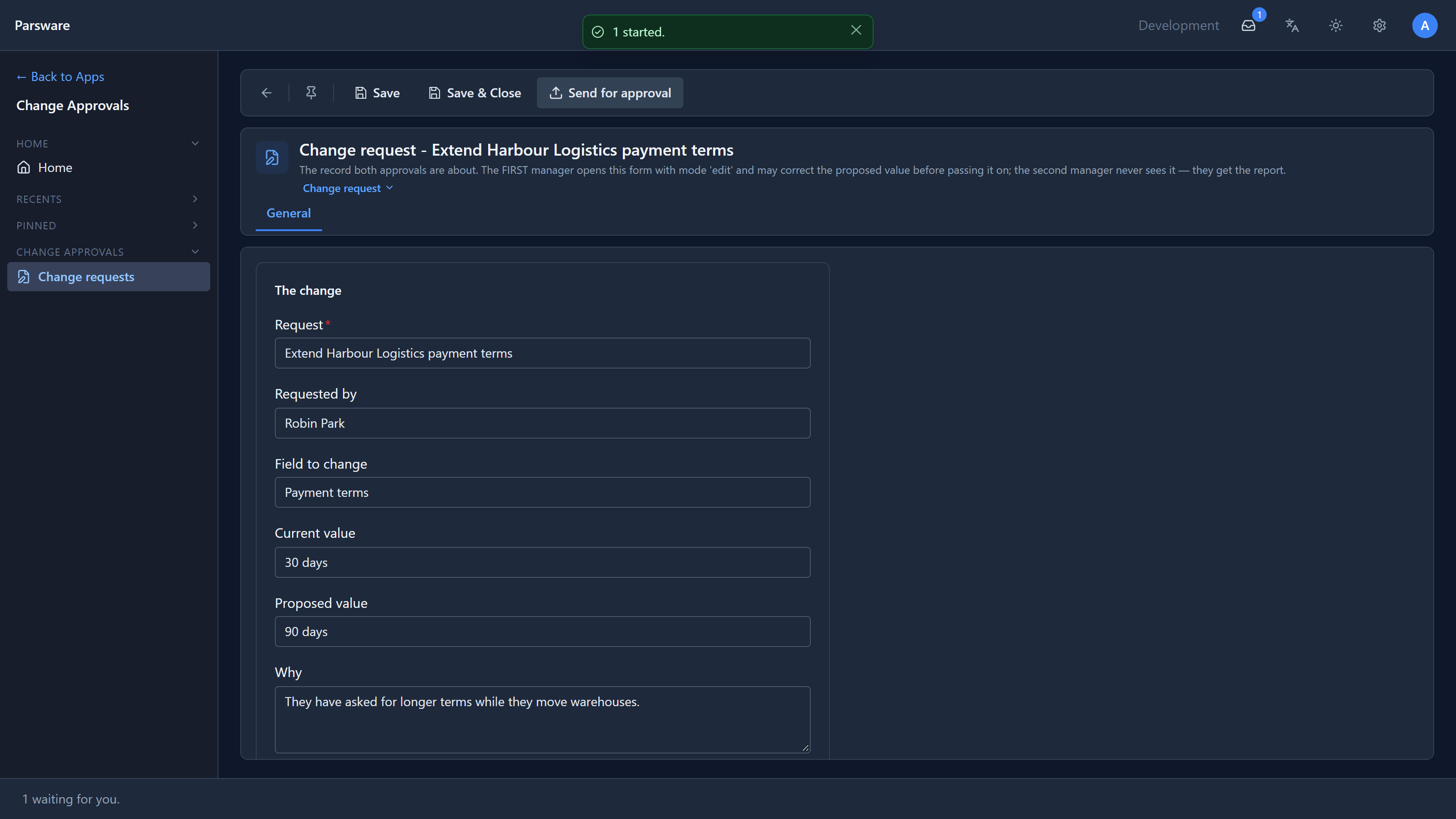
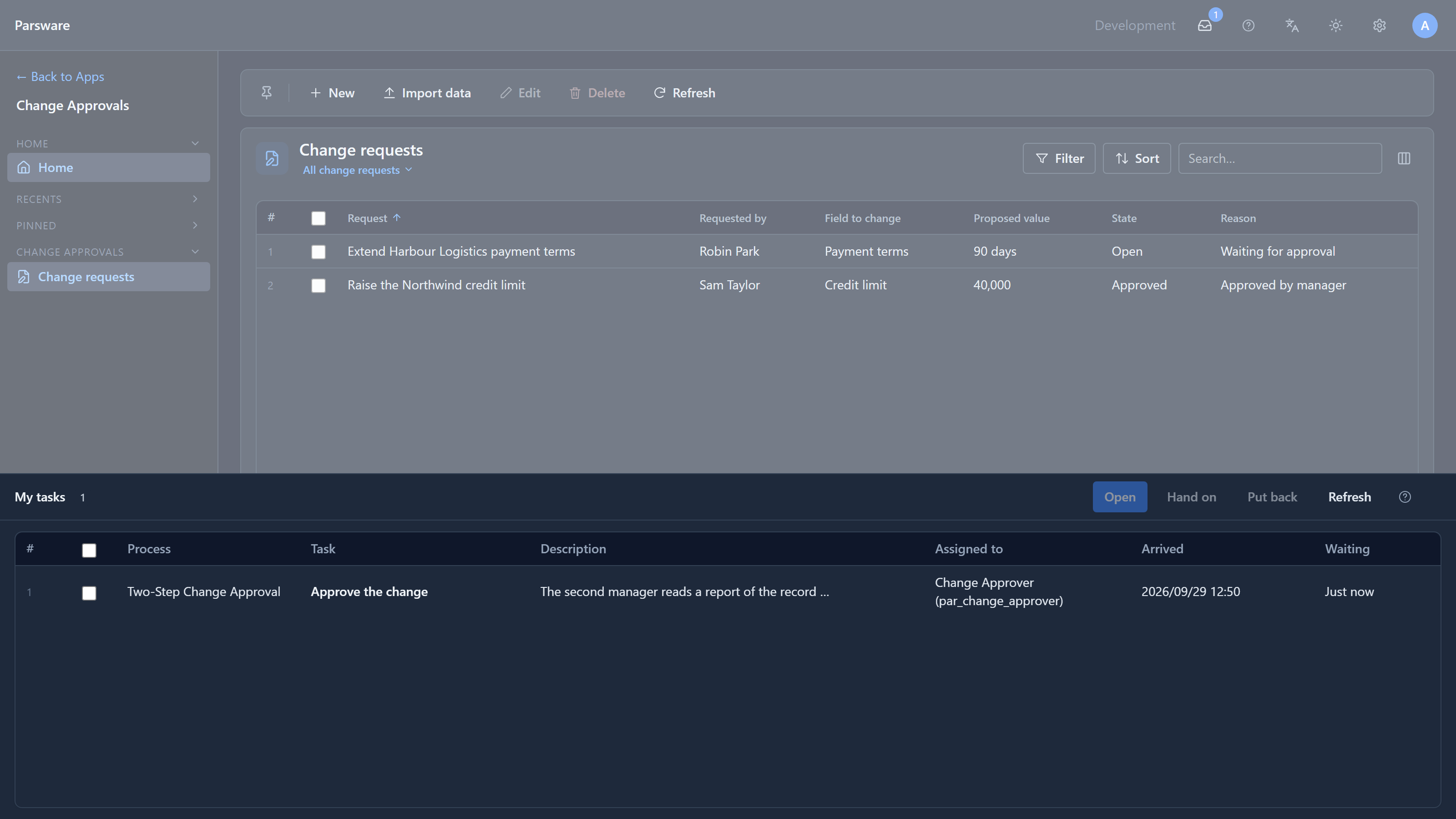
Two things changed. The tray button in the top bar has a count on it, and the bar along the bottom of the window says 1 waiting for you. Both are there in any app that takes part in processes.
My tasks
Select the tray button, or the bar at the bottom. My tasks comes up from the bottom of the window:
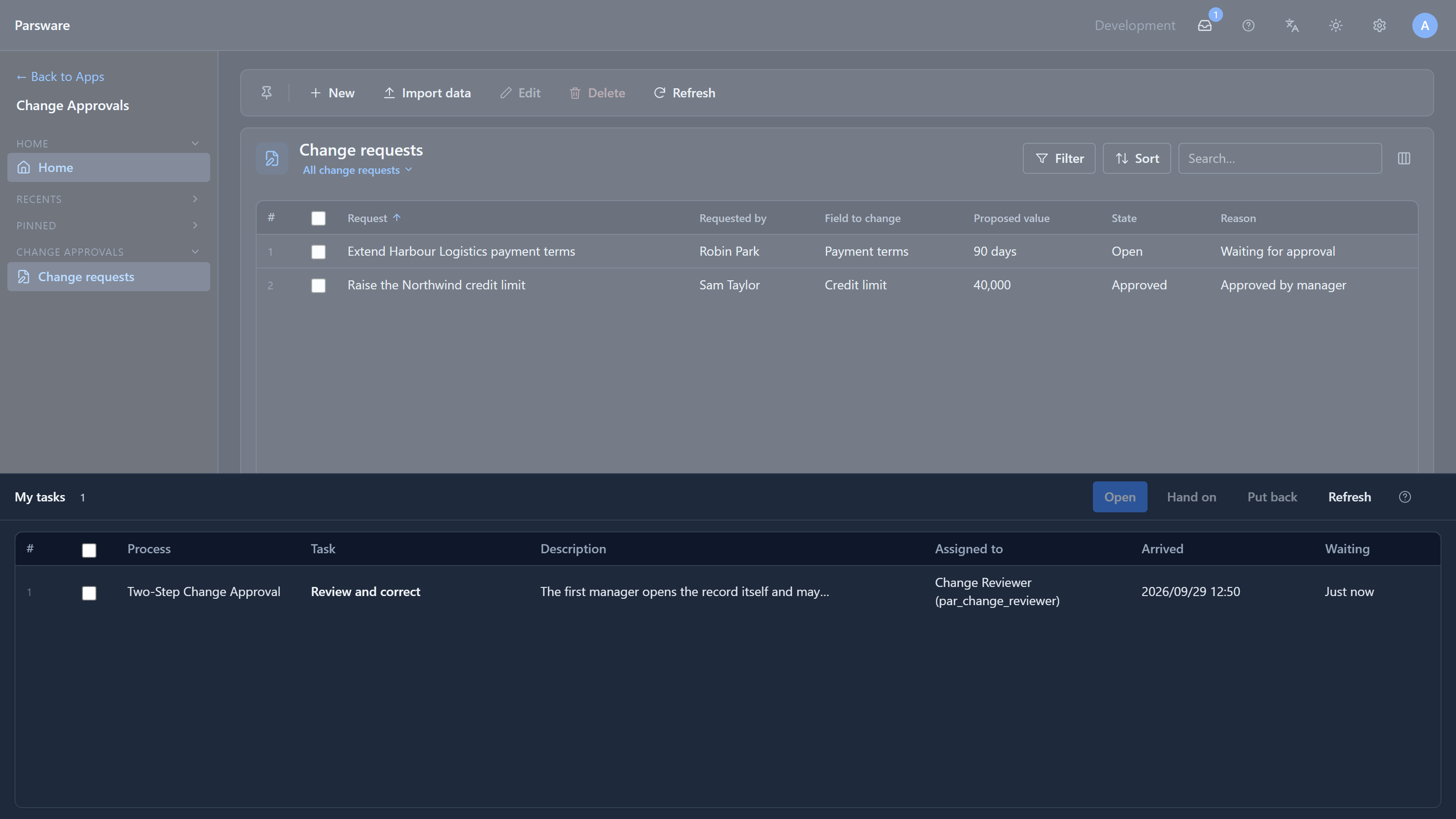
One row per task, newest first. It says which process the task came from, what the step is called and what it is for, who it's offered to, when it arrived and how long it has waited. This one is offered to a role, not to a person: everybody with the role sees it, and the first to open it takes it. Once you have, Assigned to reads Me instead of the role.
Open it
Select the task. The list goes away, and what the decision is about opens in the main part of the window. The first step opens the change request's own form, which the reviewer may correct. We changed 90 days to 60 and saved:
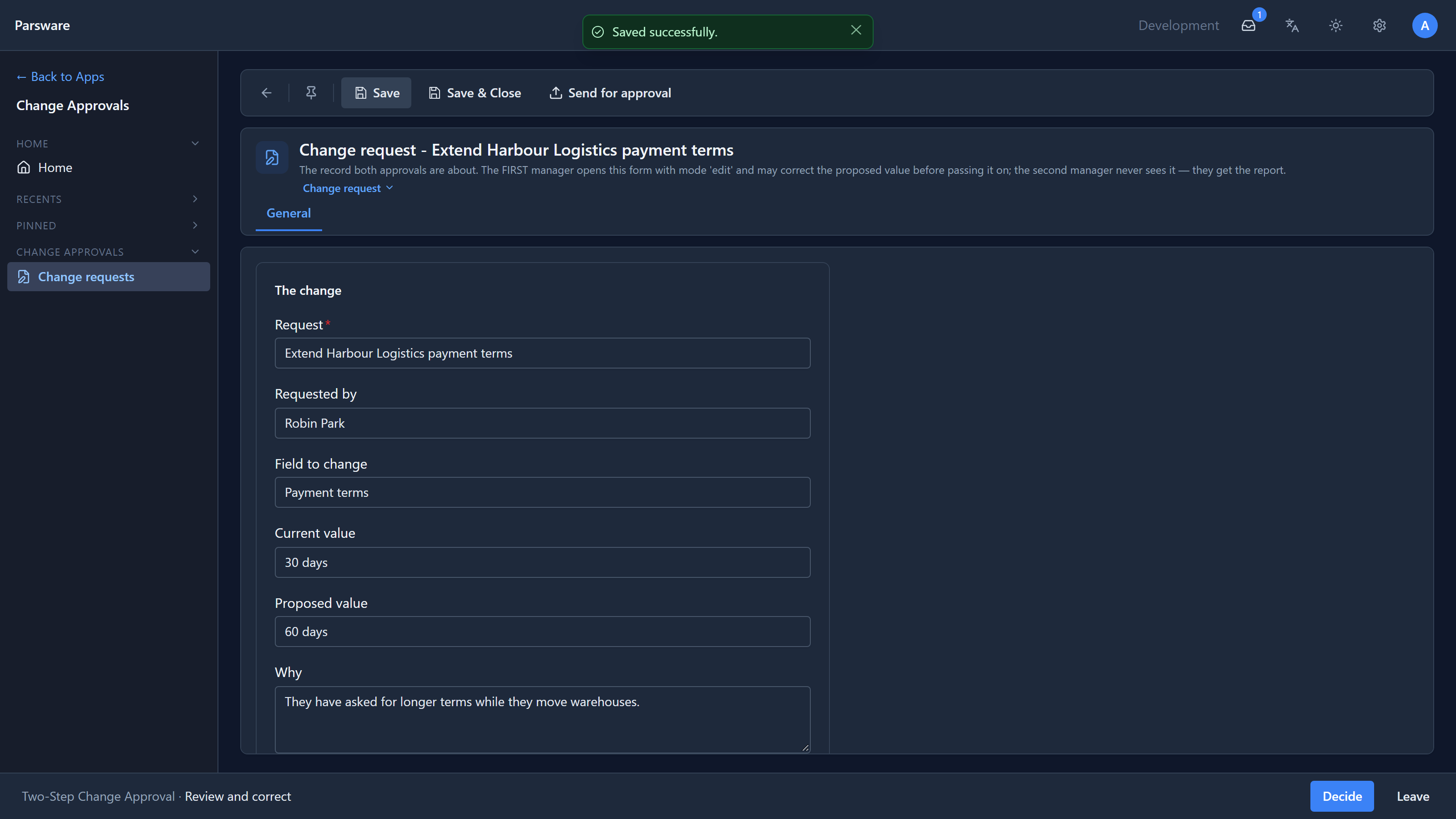
The bottom bar now names the task you are on, with Decide and Leave beside it. Take as long as you need: open other records, search, come back. The task stays on the bar, so you never have to find it again.
Save the form before you decide. Decide records your decision; it doesn't save the form for you.
Decide
Select Decide. A panel opens with whatever the process asks you to fill in, and one button per outcome:
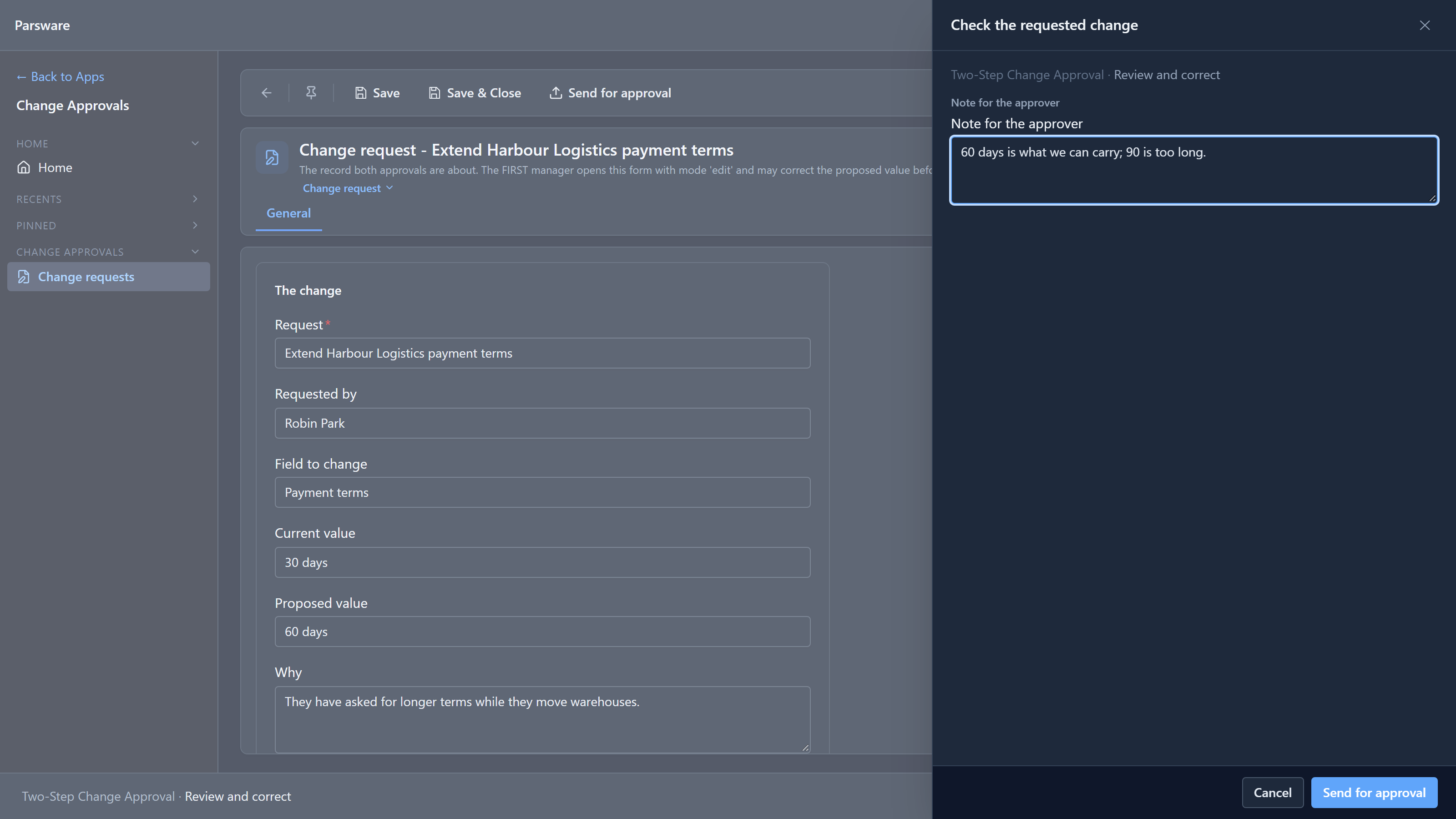
This step has one outcome, Send for approval. The words on the buttons are chosen by whoever designed the process. Choose one, and the task leaves your list and the process moves to its next step.
The next step
The second step goes to the Change Approver role, and it arrives in the same list:
Opening it shows a report this time, not the form. The approver reads; they don't edit:
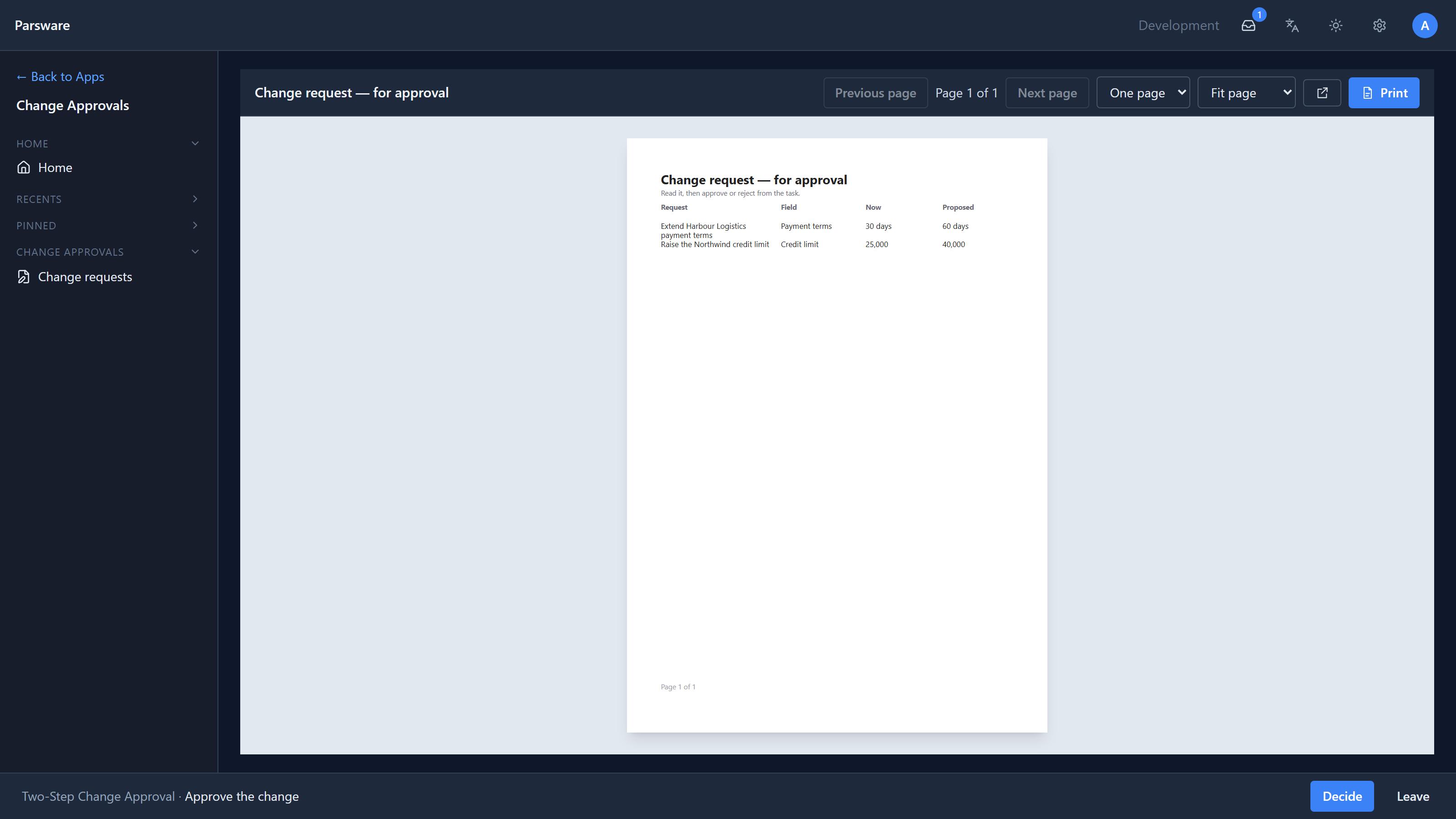
What a task opens is up to the process: a record's form, a report, a list, a screen, or nothing at all for a pure yes-or-no.
Some outcomes need a reason
Decide here offers Approve and Reject. The process requires a comment for a rejection, so choosing Reject with the comment empty doesn't do nothing silently. It says which field to fill in:
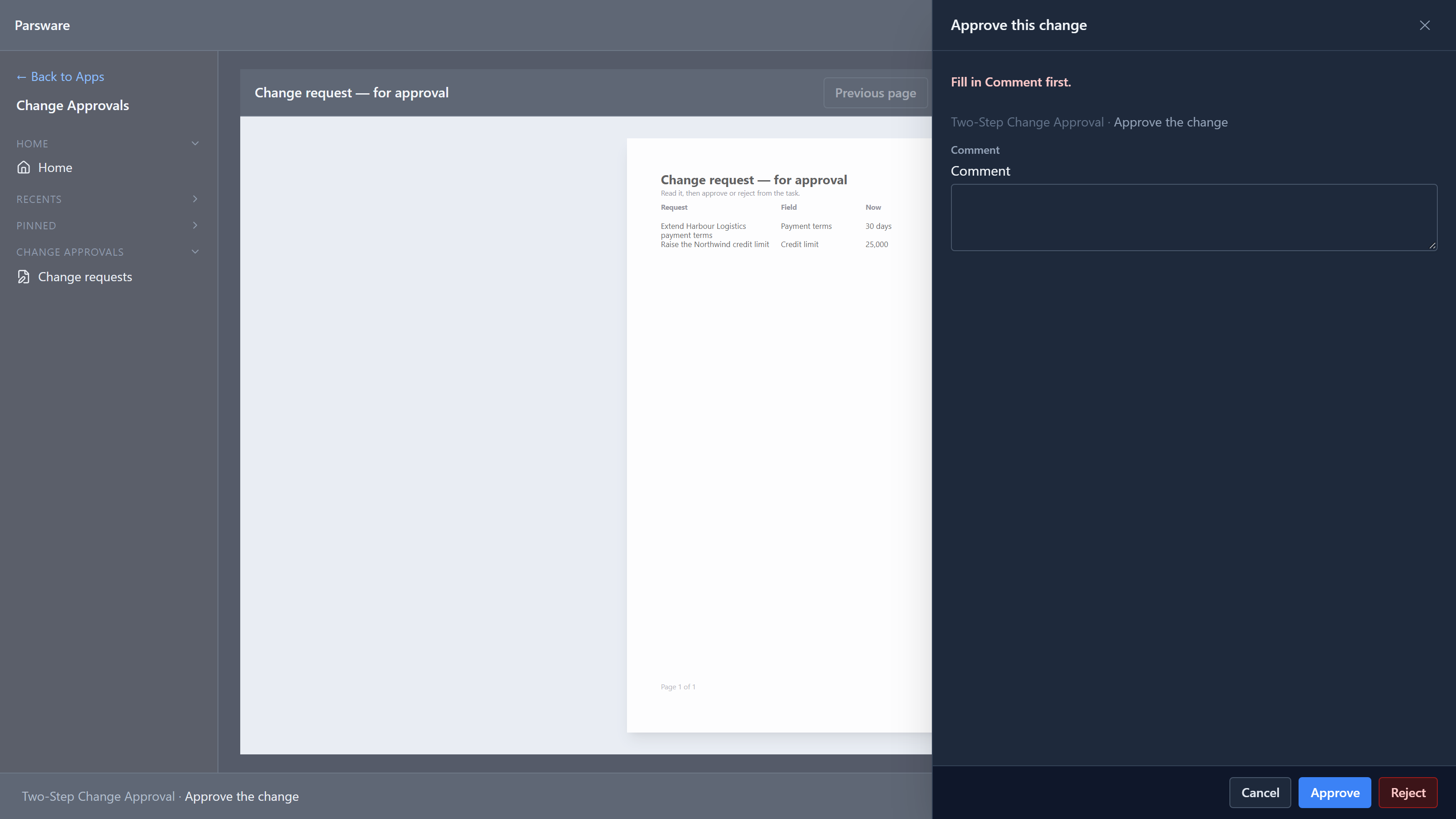
We wrote a comment and approved. The process's last step marked the record itself:
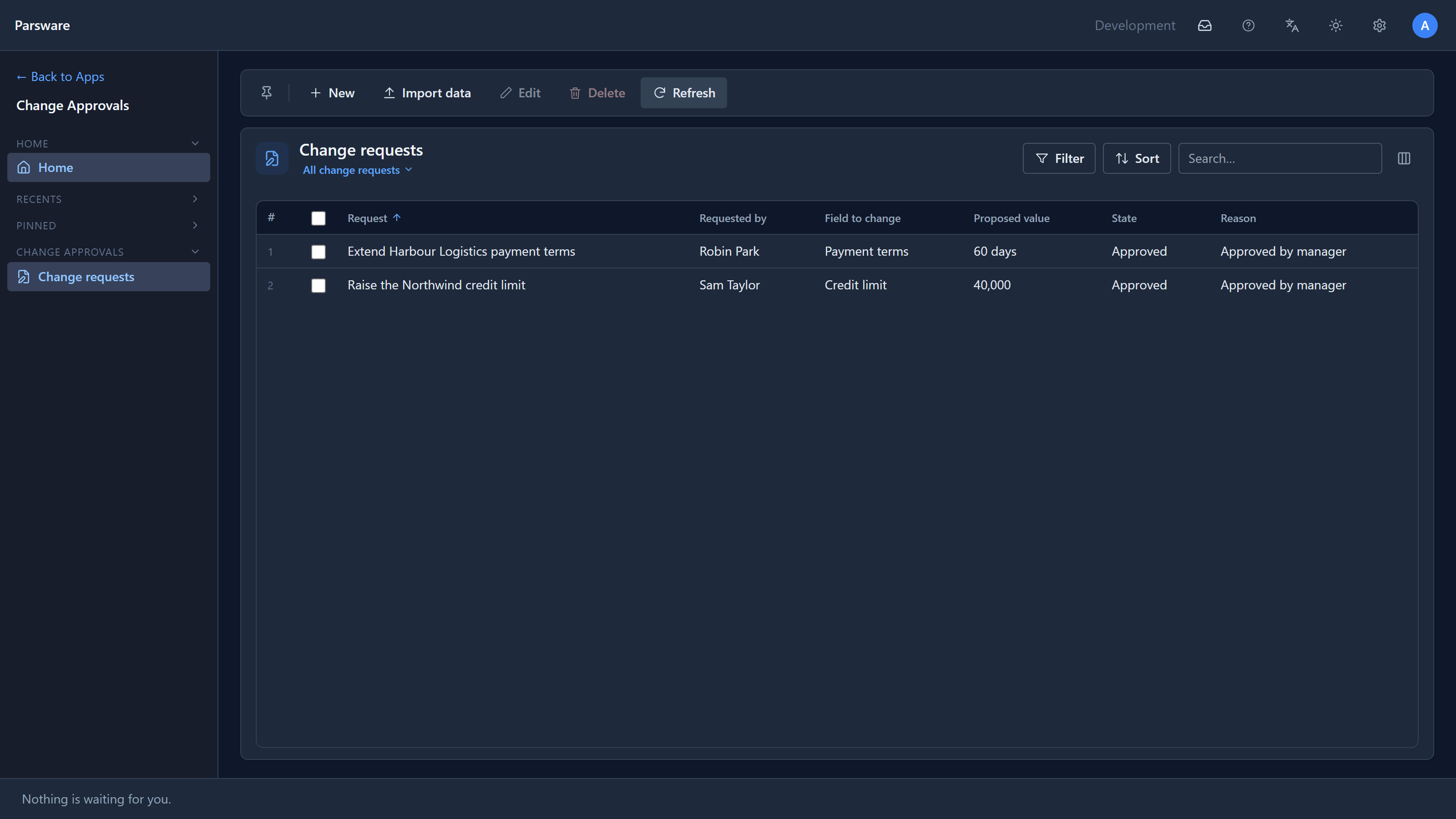
The record now says Approved and Approved by manager, and the corrected 60 days is what was approved.
Hand on, and put back
Two buttons on My tasks act on a task you've ticked:
- Put back returns a task you took to everybody it was offered to: Assigned to goes from Me back to the role. Use it when you took something that turns out to be somebody else's.
- Hand on asks who to, from a list of people you can search, and passes the task to them. It leaves your list with Task handed on. Use it when you're away, or it's plainly theirs to decide.
Next: reading the charts on a dashboard.