Parsware Platform
Your first app, shared with the people who need it
Building an app doesn't give it to anyone. Share it with a role, check who that actually reaches, and the app appears on their launcher and nobody else's. The sharing travels in the solution, so you don't redo it in every environment.
Dit artikel is alleen in het Engels beschikbaar.
You've built an app. Now the sales team needs it, and the finance team doesn't. A new app is visible to makers and administrators and to nobody else. That is the only safe default. This article covers the step that hands it over.
To follow along, import the An app that arrives shared with the people who need it sample from the platform's sample solutions. It brings a Field Sales app for accounts and contacts, and a Field Sales role that opens it. Every picture is the real product.
An app is a navigation over tables
Open the solution's Apps and select Field Sales. An app is a set of groups, each listing the tables, reports or screens its people work in, and a home page it opens on:
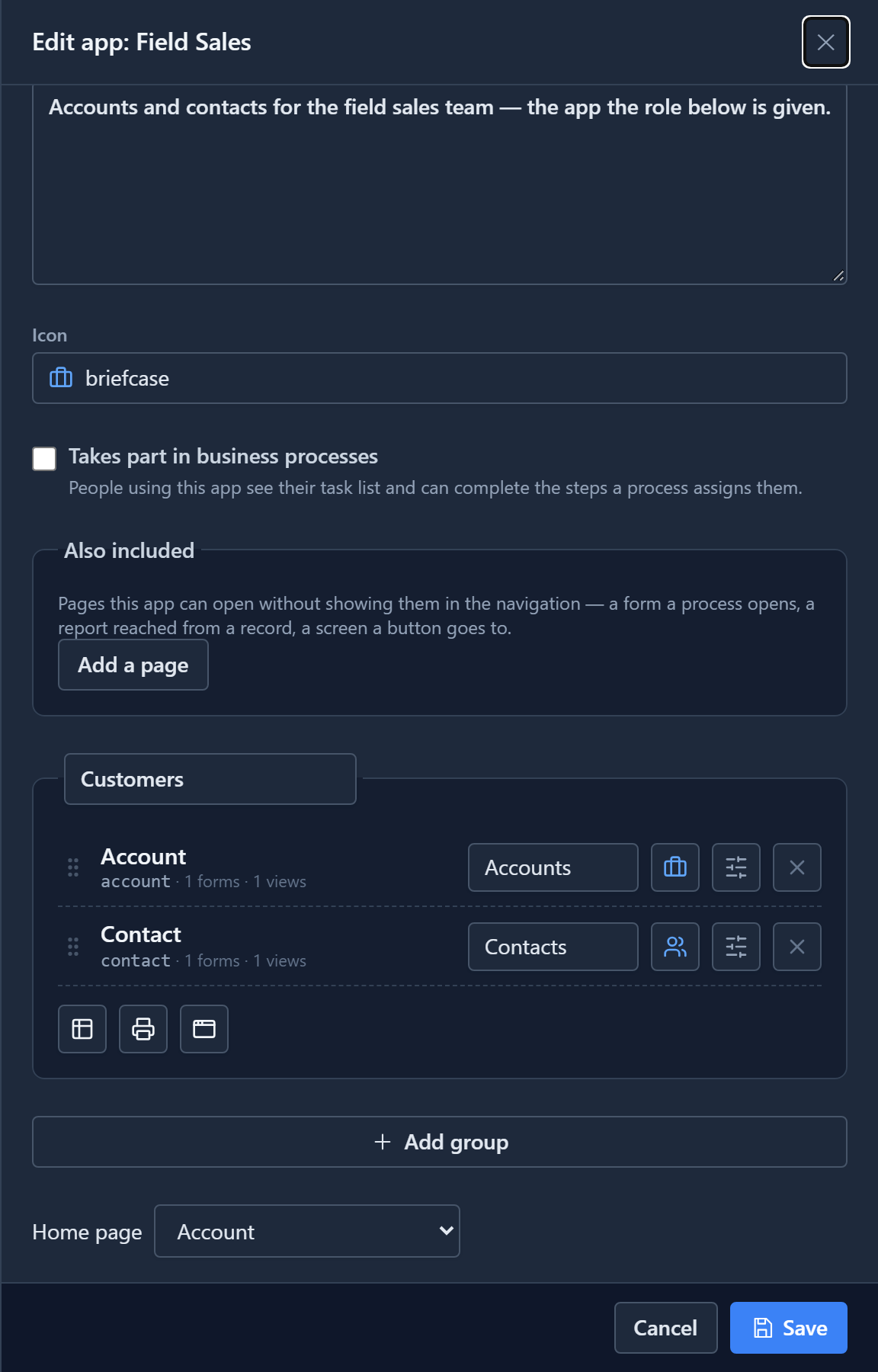
Each table's entry says how many of its forms and views the app offers. The next article is about those.
Share it with a role
Select the app's row and press Share. The panel asks which roles the app is for:
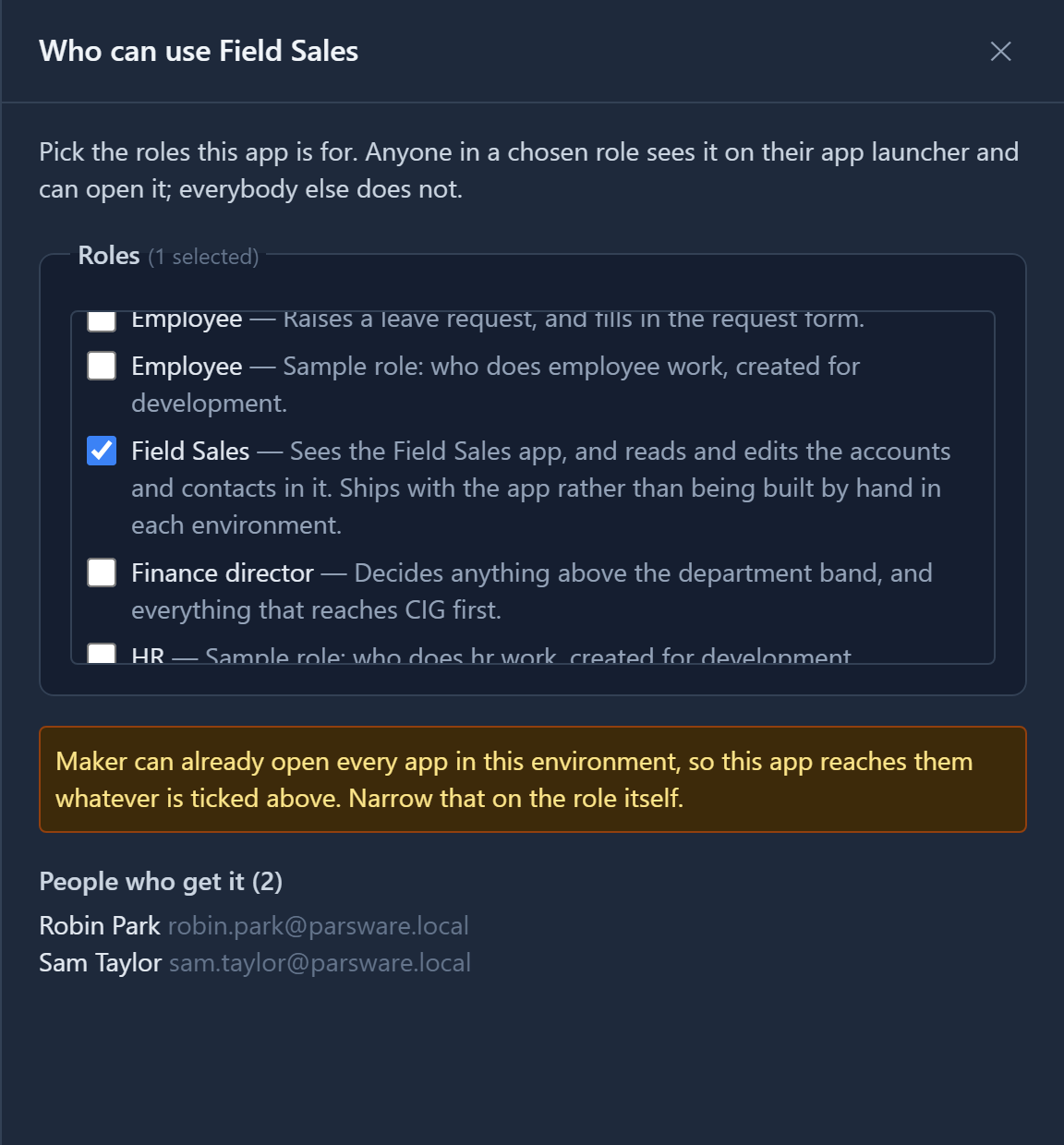
Field Sales is already ticked, because the sample brought the grant with it. Underneath, People who get it turns the roles into names: here Robin Park and Sam Taylor, who hold the role. That list is the check that matters. Straight after the import it said Nobody holds the roles you have chosen, so nobody gets the app yet, because nobody had been given the role. Without it, sharing with an empty role looks exactly like success.
The note about Maker is there because makers can open every app in the environment. A maker who couldn't open the app they had just built would think the environment was broken.
Give people the role
Roles are given to people under Users. Select a user, choose Manage roles, and tick the role:
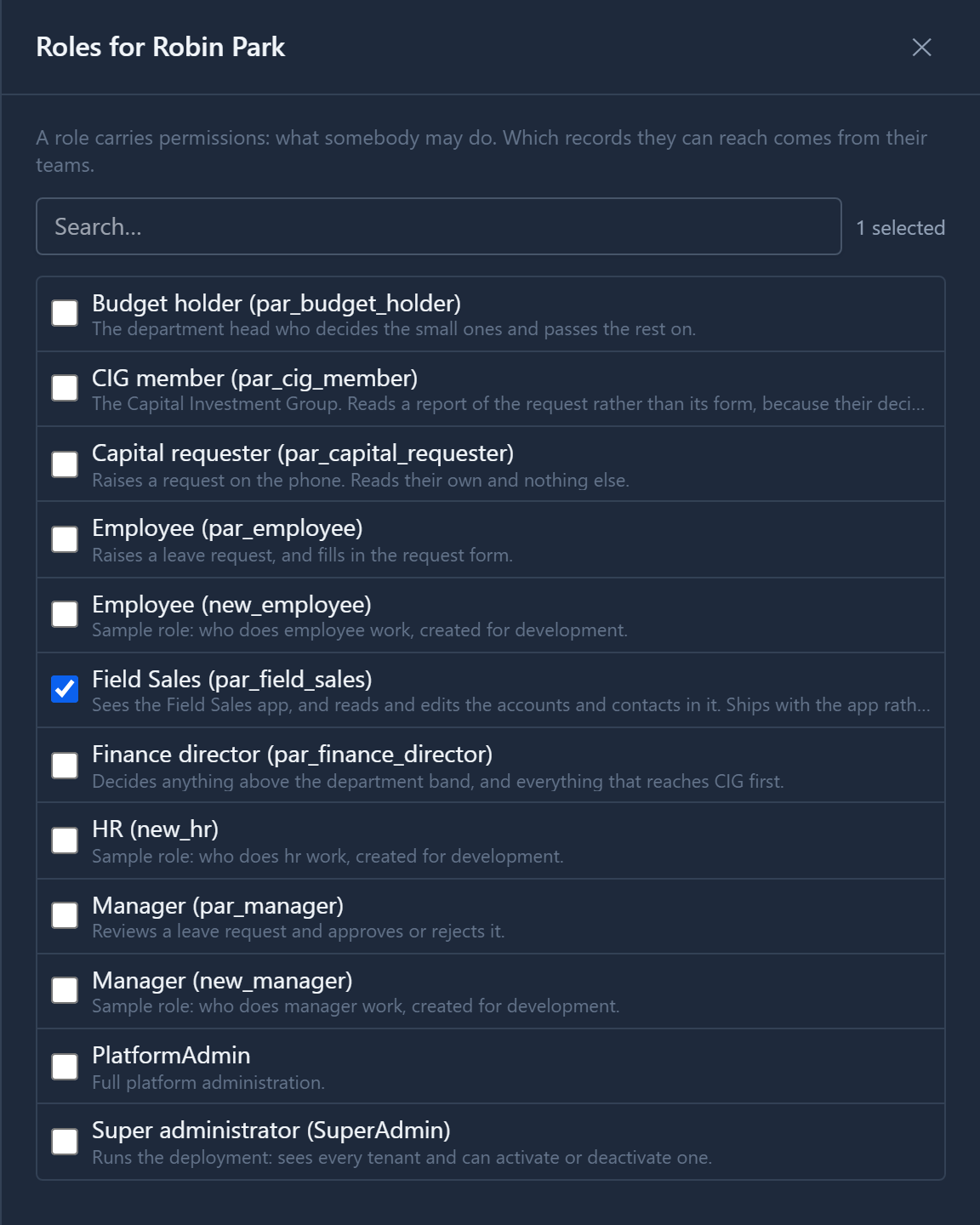
Save, and the person appears under People who get it in the Share panel.
What they see
Robin signs in to the Shell, and the launcher shows the one app that was shared with them:
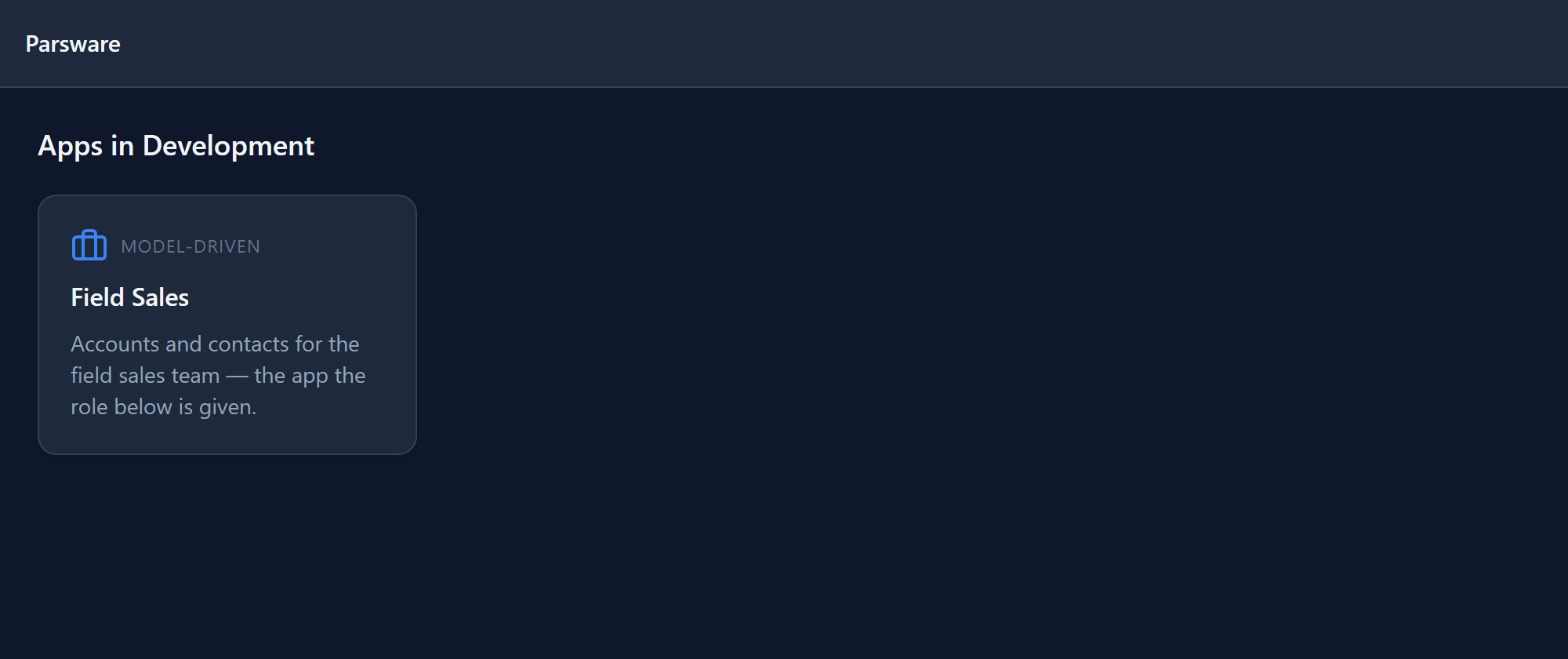
The environment has ten other apps, and Robin sees none of them. If a colleague sends Robin a link into one of them anyway, the Shell says so plainly rather than pretending the app doesn't exist:
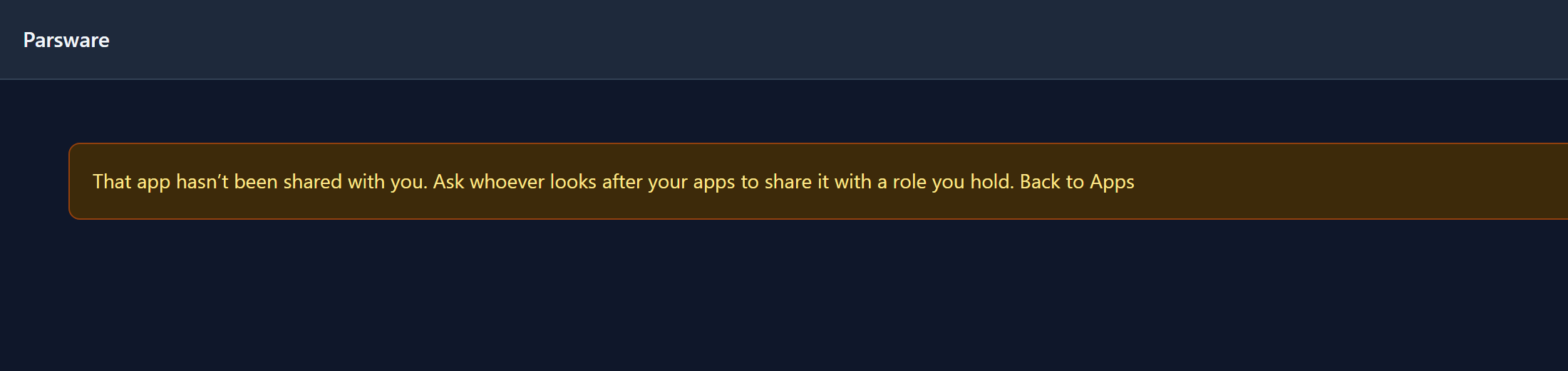
"Not shared with you" and "not here" are different facts, and each sends the person to a different place.
Studio apps are shared the same way, with a Share button on the Studio apps list and the same panel.
Why a role, and not a list of names
Sharing an app grants one permission, par_field_sales_app.Open, to each role you tick. It is an
ordinary permission, so:
- it appears on the Roles screen with everything else the role can do;
- it travels in the solution, which is why the sample arrived already shared. Promote the app from Development to Test and its sharing comes with it;
- uninstalling a managed solution takes back only what that solution granted. Anything an administrator ticked stays.
Sharing an app doesn't let people read its tables. That comes from the role's own permissions on those tables, which the sample's role also includes.
Next: forms that fit the job, with tabs, sections and columns, and more than one form for a table.