Parsware Platform
Publish a process
Save keeps your work; Publish changes what runs. Each publish is a numbered version, a run keeps the version it started on, and the line under the title says whether what you see is live. Writing this we found Publish stopping after it saved unsaved edits, and fixed it.
Cet article n’est disponible qu’en anglais.
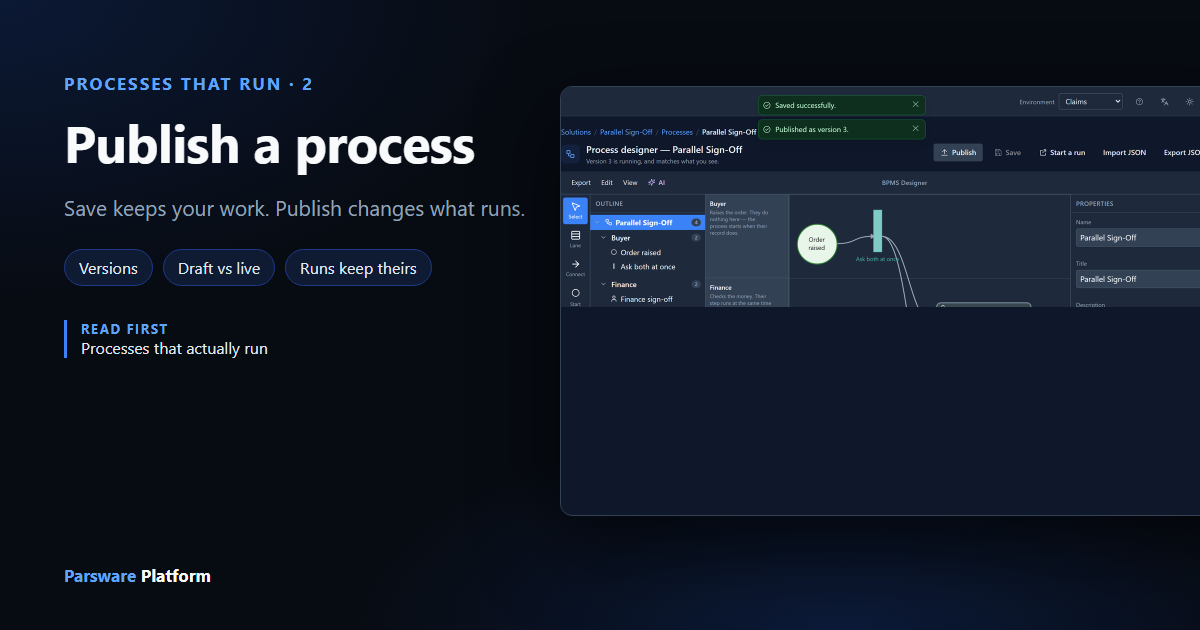
A process designer has two buttons that both sound like "keep this": Save and Publish. They do different things, on purpose.
- Save keeps your work. The drawing is stored, and nothing that runs changes.
- Publish changes what runs. The saved drawing becomes the next version, and the next run that starts uses it.
The reason for two is that a process may already be running. Somebody's leave request may be waiting for their manager right now. If correcting a typo at 4pm changed the process under that request, it could skip a step the request already passed, or wait at one it will never reach. So the engine only ever reads what you've published, and each publish is a frozen copy.
We used the Parallel Sign-Off sample from samples/solutions/bpms-parallel-sign-off.
Which state you are in
The line under the title says it. We opened the sample just after importing and publishing it:

It reads one of three things:
| It says | It means |
|---|---|
| Not published yet | Nothing can run this process. |
| Version 1 is running, and matches what you see | The canvas is what's live. |
| Version 1 is running. You have unpublished changes | Your saved edits aren't live yet. |
Nothing changed, nothing to publish
Select Publish on a process that matches what's running and it says so, rather than adding a version identical to the last:
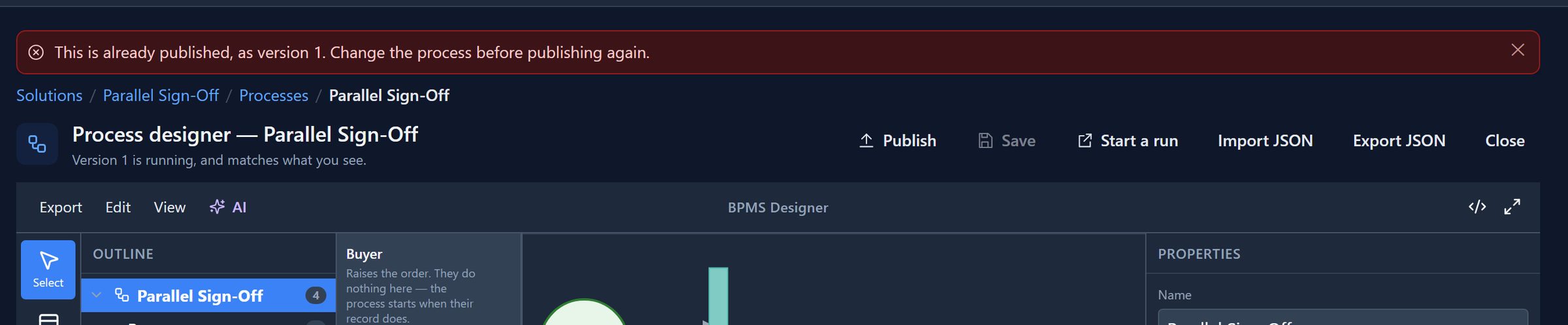
A history of identical versions is one nobody can read.
Save, then look at the line
We changed the process description and selected Save. The line changed:
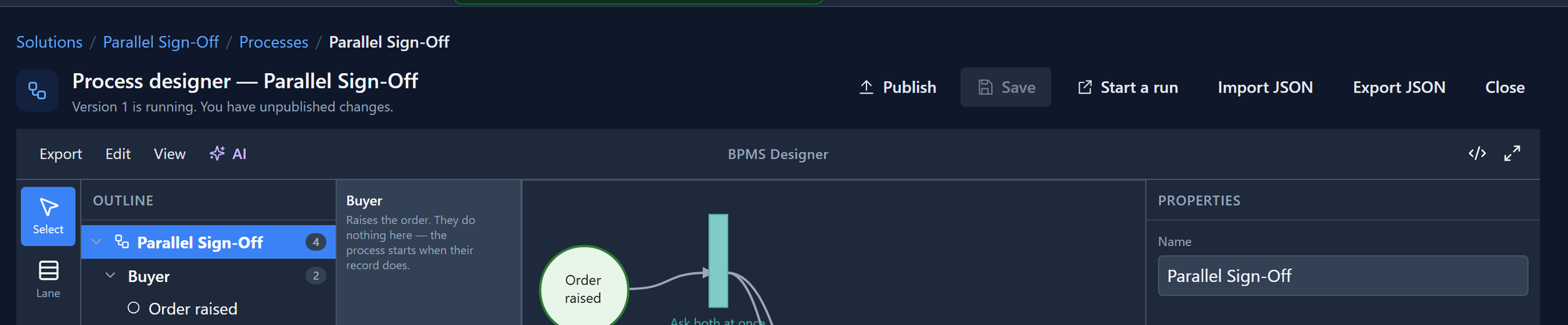
Saved, not live. Every run that starts now still uses version 1. You can save as often as you like while you work; nobody running the process sees it.
Publish
Select Publish. It becomes version 2 and the line says so. If you have unsaved edits, Publish saves them first, because publishing what is on the screen is what the word means:
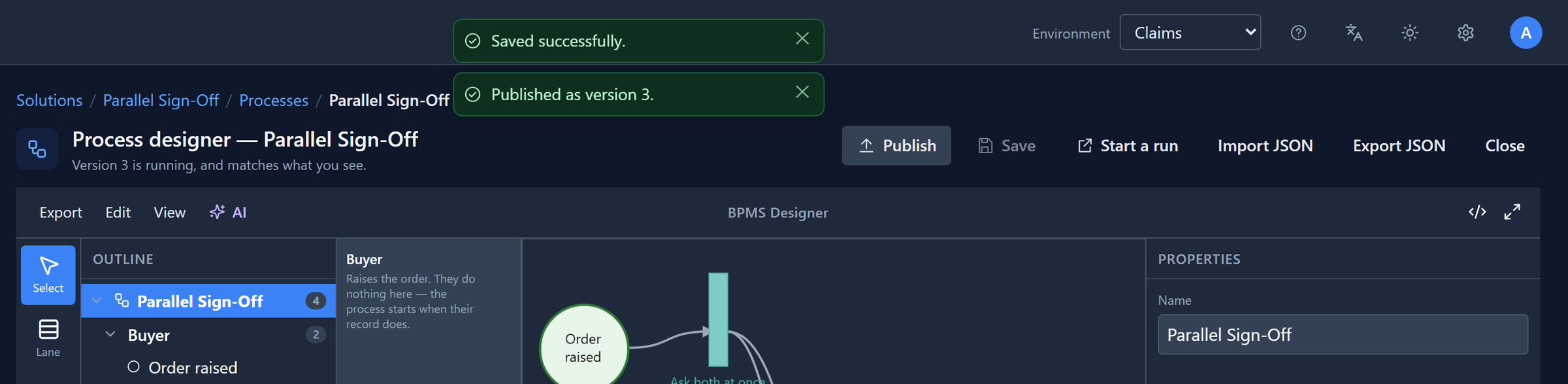
That second case didn't work until we tried it. Publish with unsaved edits saved them and then stopped, silently, so the line still said the changes weren't live. It checked whether the save had landed by reading a value from before the save, which always said "not saved yet". It now asks the save directly, and the picture above is one press of Publish. We fixed it while writing this.
Publish waits for the problems list to be empty. A process with problems wouldn't run, so the button is unavailable while the problems panel lists anything.
A run keeps its version
To see what happens to a run that is already going, we started one on version 2 with Start a run, then changed the process and published version 3. The Runs page lists every run, with the version it is on:
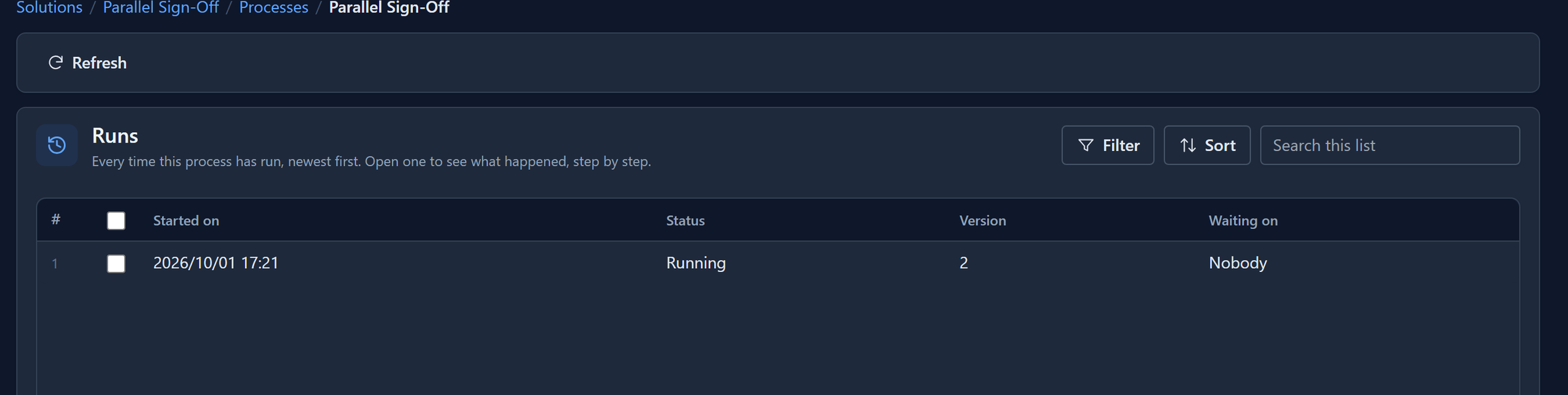
Version 3 is live, and that run is still on 2. A run finishes on the version it started on, whatever you publish meanwhile. New runs take the latest.
(We then stopped that run from its own page. Start a run starts a process about no record in particular, and this sample's scripts read the purchase order it was started from. Start it from an order's Send for sign-off button instead, as the next articles do.)
No unpublish
There's no button to withdraw a version: somebody may be running it. To go back, put the earlier drawing on the canvas and publish it as the next version. You can get the earlier drawing from an exported file, with Import JSON. The history stays whole, which is what makes it worth having.
In a solution
A process travels in its solution. Importing the solution into another environment brings the process and publishes it there, because an import is a deployment rather than a draft to work on. Each environment has its own published versions, because each has its own runs. A process travels in a solution follows one across.
Try it
Open any process and read the line under the title. Change a step's description, and select Publish without saving first. You get both messages, and the line says the new version is running.
Next: a two-step approval, run from start to finish.