For Power Apps
Studio screens and canvas apps
A canvas app and a Parsware Studio screen are both screens you design yourself, and both can sit on a model-driven form. They behave very differently once they're there. Here is what each one is good at, and how to choose.
این مقاله فقط به انگلیسی در دسترس است.
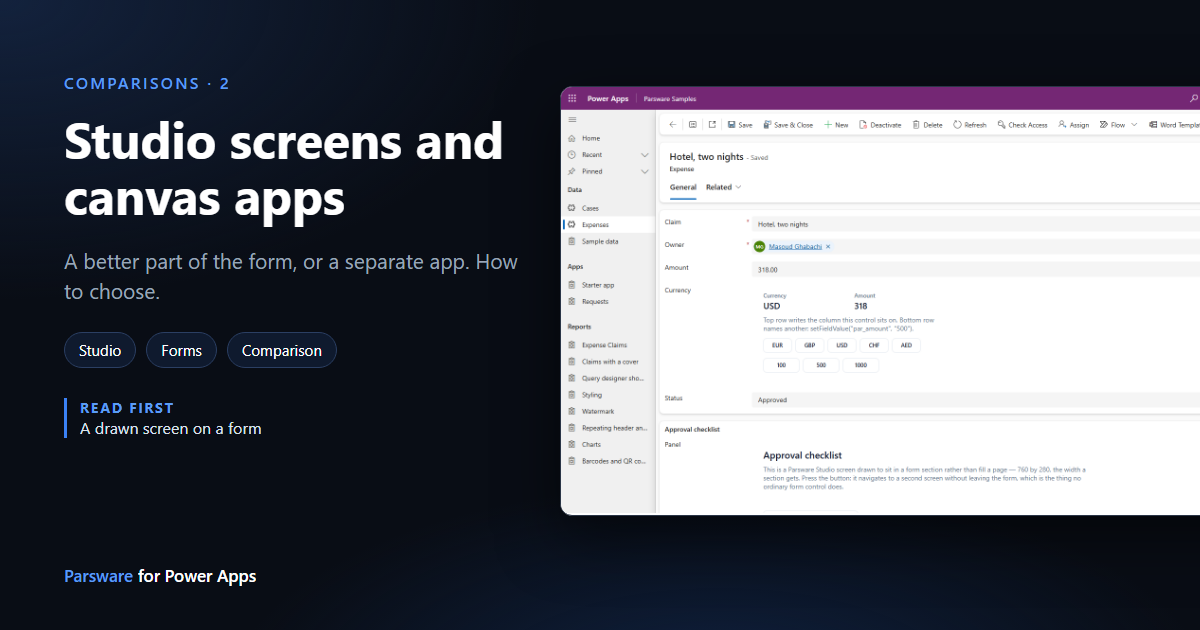
Power Apps already has a way to design a screen yourself: the canvas app. So when somebody first sees a Parsware Studio screen on a model-driven form, the question is fair: why not a canvas app?
The short answer: a canvas app is an app. A Studio screen is a part of a form. A canvas app is best when the screen is the whole job, on a phone, against many data sources. A Studio screen is best when it's one piece of a record that the form still owns. This article explains the difference, and how to choose.
What each one is
A canvas app is built in Power Apps Studio, with logic written in Power Fx. It can stand alone, run on a phone, and connect to hundreds of data sources through connectors. In a model-driven app, it can appear as a custom page in the navigation, or as an embedded canvas app on a form.
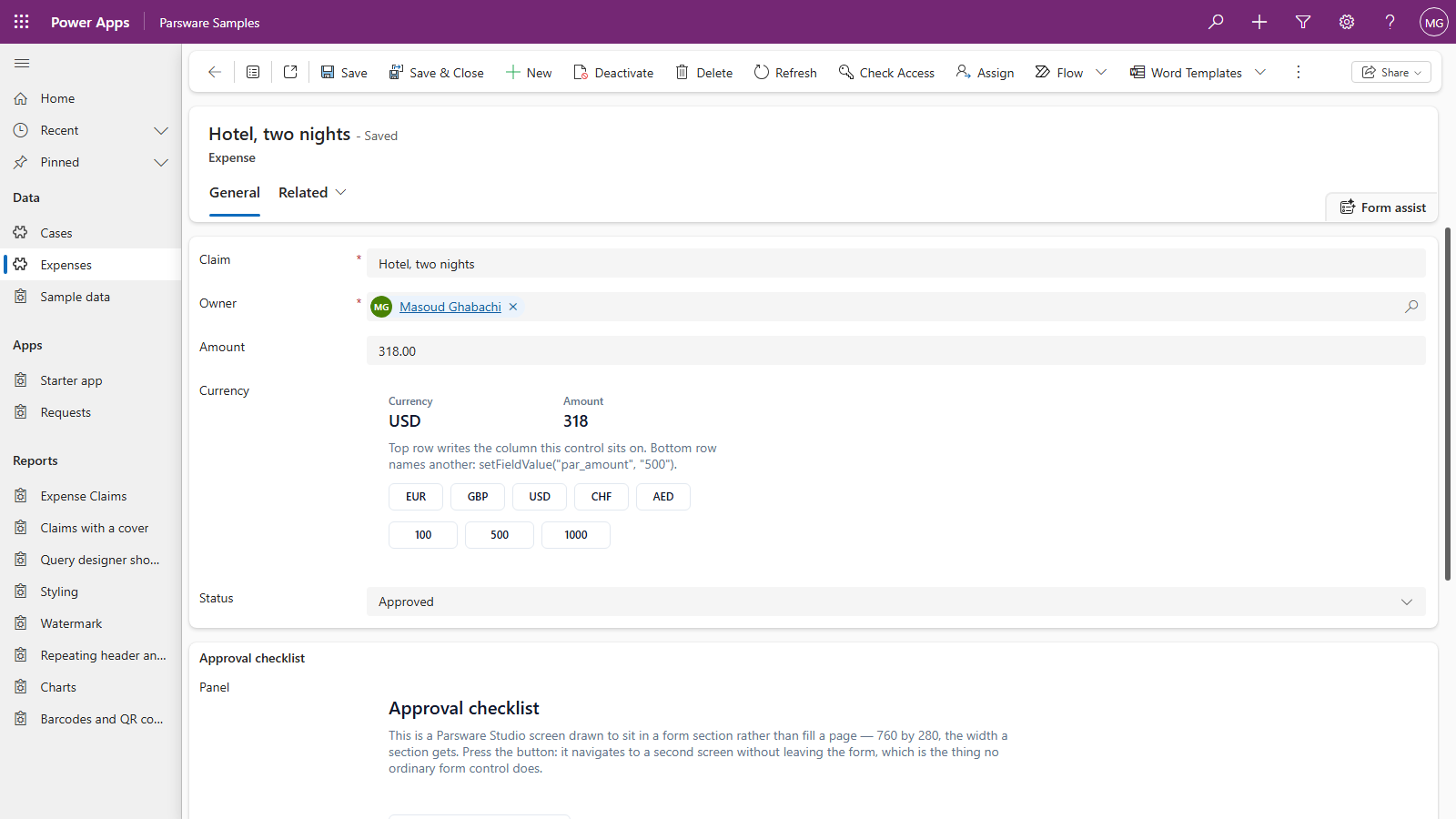
A Studio screen is drawn in the Parsware designer, with logic written in BS, Parsware's scripting language. It's shown by the Parsware Runtime control, so it goes wherever a code component goes on a model-driven form: in a section, or on a column, where it can read and write the record's values. It can also be a page in an app's navigation.
On a form, the difference is who saves
This is the part that matters most, and it's easy to miss.
An embedded canvas app gets the open record through ModelDrivenFormIntegration.Item, which is
read-only. To change the record, the canvas app writes to Dataverse itself, through the Dataverse
connector. Microsoft's guidance spells out what follows:
- The form's Save button doesn't save changes made in the canvas app.
- If the app writes a value the form is showing, the form shows the old value until it's refreshed
(
RefreshForm). - The app isn't shown on a new record, because there's no record to pass it yet.
A Studio screen writes into the form, not into Dataverse. When a button calls
setFieldValue, the column changes on the form, the record becomes Unsaved, and Save stores it,
together with everything else the user typed. Closing without saving throws it away, like any other
edit. One screen can read and write up to four columns of the record
(One control, several columns).
So if what you need is a better way to fill in the record, such as picking a value from buttons, a checklist that sets three columns, or a total worked out as people type, a Studio screen behaves like the field it replaces. A canvas app behaves like a second app saving next to the form.
Side by side
| Canvas apps | Studio screens | |
|---|---|---|
| Built in | Power Apps Studio, with Power Fx | The Parsware designer, with BS |
| Data | Hundreds of connectors, Dataverse included | Dataverse only |
| On a form | Embedded canvas app on a column, or a custom page | A section, or a column it draws and writes |
| Writing the record | Writes to Dataverse itself; the form refreshes to see it | Writes into the form; Save stores it |
| On a new record | Not shown | Shown |
| Publishing | Published separately from the form, and shared separately | Published into your solution; placed with the form designer |
| Layout | Responsive containers, or scaled to fit | Drawn at a fixed size, exactly as drawn |
| Standalone, on phones | Yes, with offline support and device features such as the camera | No: it runs inside your model-driven app |
Where canvas apps fit better
The screen is the whole app. A field inspection on a phone, a stock count in a warehouse, a kiosk: a canvas app is built for those. Parsware screens run inside a model-driven app.
Data from outside Dataverse. SharePoint, SQL Server, Outlook, a hundred other services: canvas apps reach them through connectors. A Studio screen works with Dataverse only.
Offline and device features. Canvas apps can work offline and use the camera and other device features in the Power Apps mobile app. (Microsoft notes that embedded canvas apps on a form don't support those.)
You already know Power Fx. Your makers, your patterns and your components carry straight over.
Where Studio screens fit better
It belongs to the record. Values written by a Studio screen go through the form, so required columns, business rules, unsaved-changes warnings and the audit trail treat them like typed values. There's nothing to refresh and no second save.
It moves with the form. A published Studio screen is a component of your own solution, and it's placed on the form with the form designer. Export the solution, import it, and the form arrives with its screen. There's no separate app to publish, share or point at the right environment.
It looks exactly as drawn. You place every shape where you want it, as you would in a drawing tool: a row of buttons, an icon, a coloured status. That's what makes a drawn field possible, one that looks like a control rather than a small app in a box.
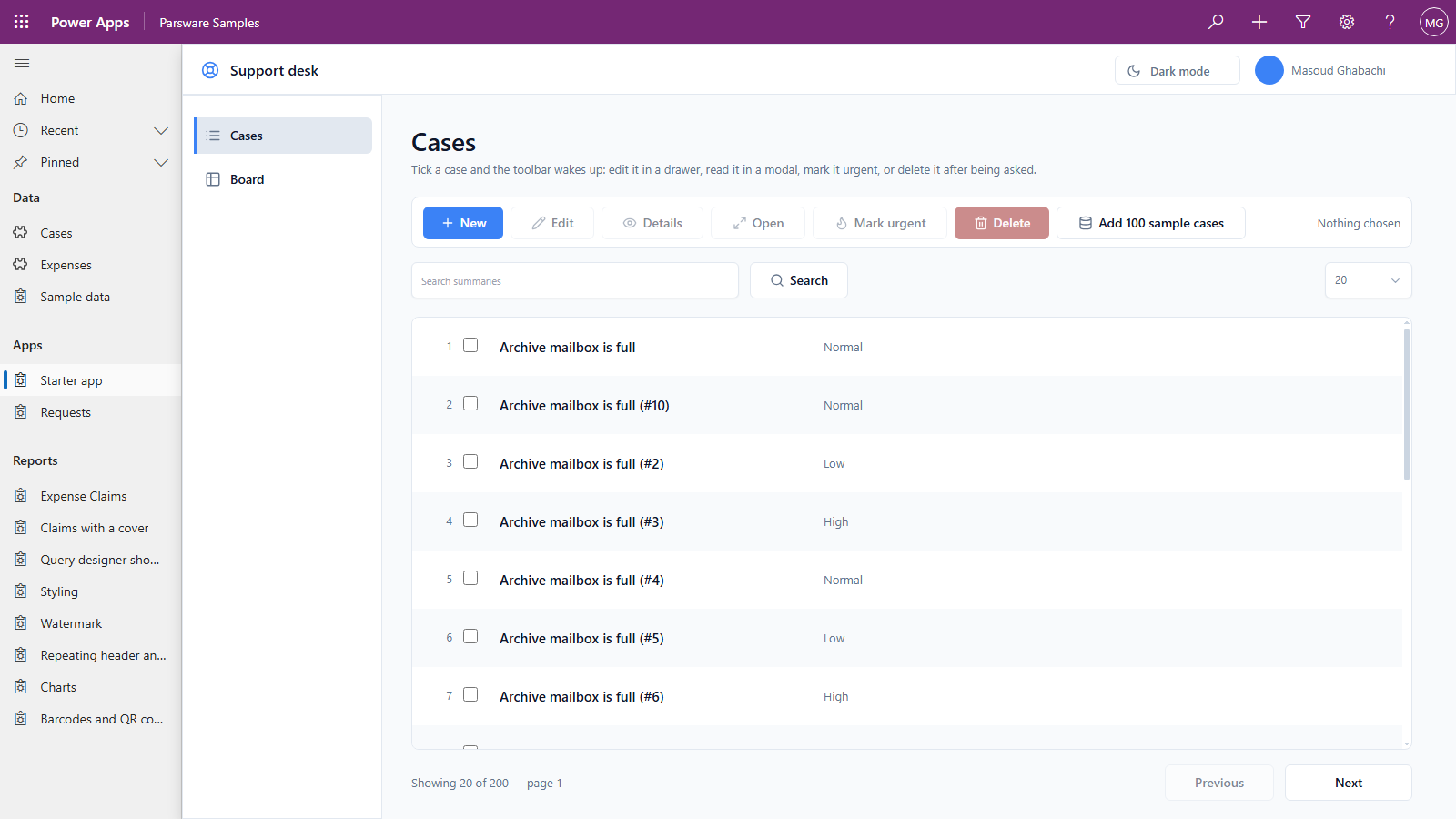
A page in the app, too. A Studio screen can be a whole page in the navigation, reading and writing rows as the signed-in user. Here's the samples' Starter app: a list with search and paging, a toolbar that wakes up when you tick a case, and drawers and dialogs:
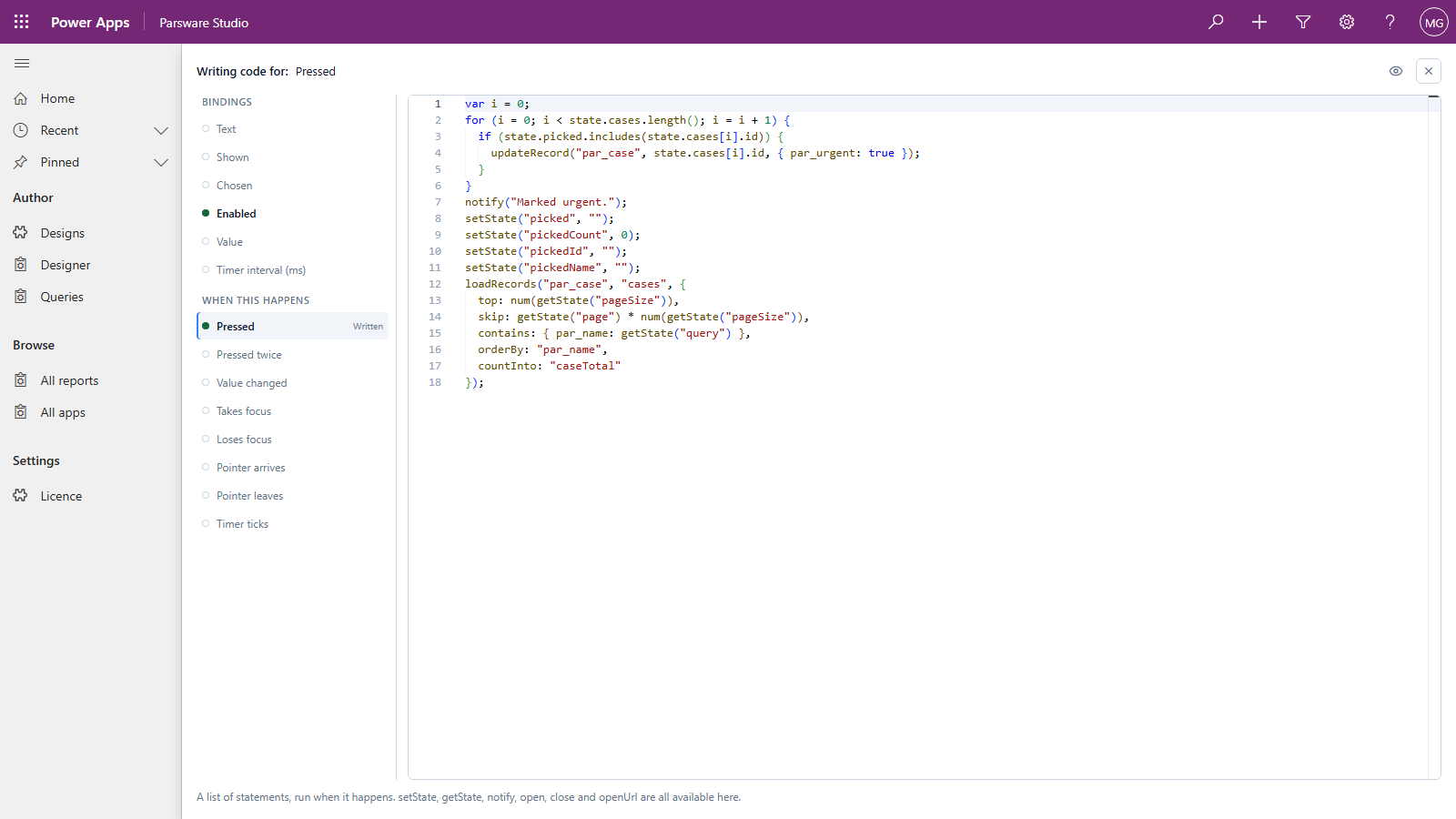
Behind its buttons is BS, written in the designer's code page with completion for your tables and columns. This is Mark urgent:
Your data stays where it is. A Studio screen reads and writes Dataverse from the browser, as the signed-in user, with no connector in between (What stays on your tenant).
Limits to know
- Lookups and choices can't yet be bound to a drawn field. Text, numbers, currency, dates and yes/no columns can.
- A screen is drawn at one size. Draw it for the narrowest screen your users have.
- Studio screens are in the Professional plan. The Standard plan has reports only (pricing).
Choosing
Ask one question: is this a better part of the form, or a separate job?
- A better part of the form, such as a field, a checklist or a panel of actions on this record: a Studio screen.
- A separate job, especially on a phone, offline, or across systems: a canvas app.
Many apps end up with both, and that's fine. They don't get in each other's way.
Next
Parsware Platform and Power Apps: an honest comparison, for teams choosing a platform rather than adding to one. The whole series is in the reading list.