For Power Apps
Scripts on a screen
Everything a drawn screen does is written in BS, in a code editor inside Parsware Studio. The editor knows your Dataverse environment, so it offers your tables, then their columns, as you type, and it underlines a mistake before you save. Here is how to use it.
این مقاله فقط به انگلیسی در دسترس است.
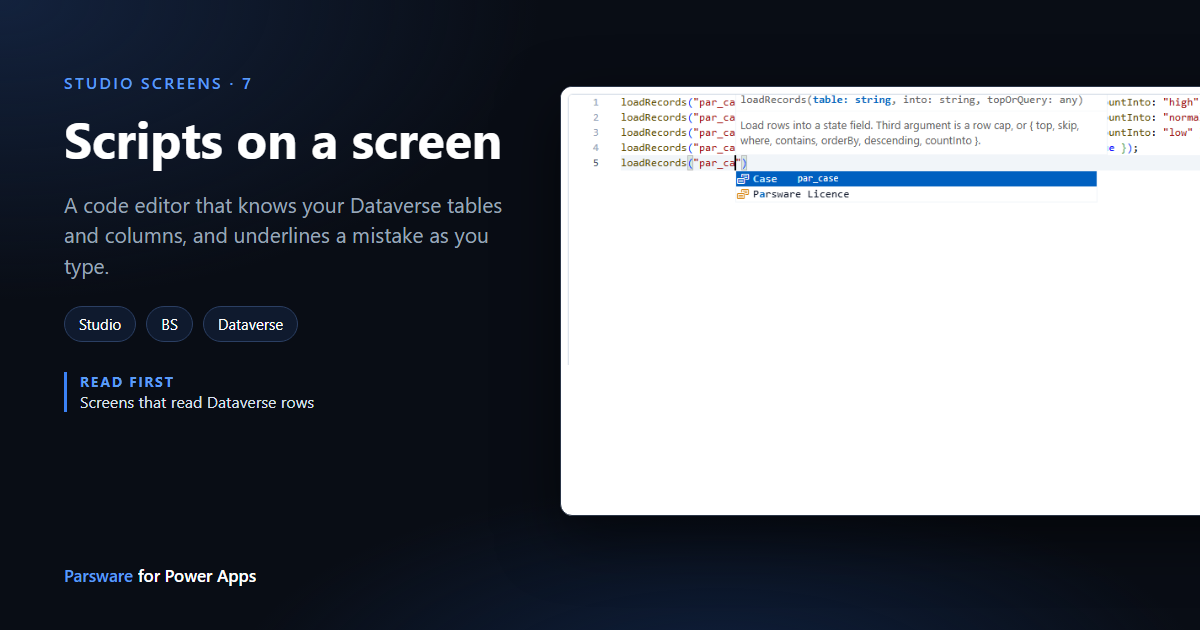
Every screen in this series does its work in a few lines of script: a list that loads when the screen opens, a chart's numbers, a button that writes a column. Those lines are BS, Parsware's scripting language, and you write them in a code editor inside Parsware Studio.
The editor knows your environment. When a line needs a table, it lists your tables. When it needs a column, it lists that table's columns. And it underlines a mistake while you type, rather than leaving you to find it on a form.
We'll use the Case overview design from Screens that read Dataverse rows.
1. Open the code page
In the designer, select the object the code belongs to and press </> on the toolbar. For a
screen, that's its frame: select Overview, press </>, and choose Screen opens.
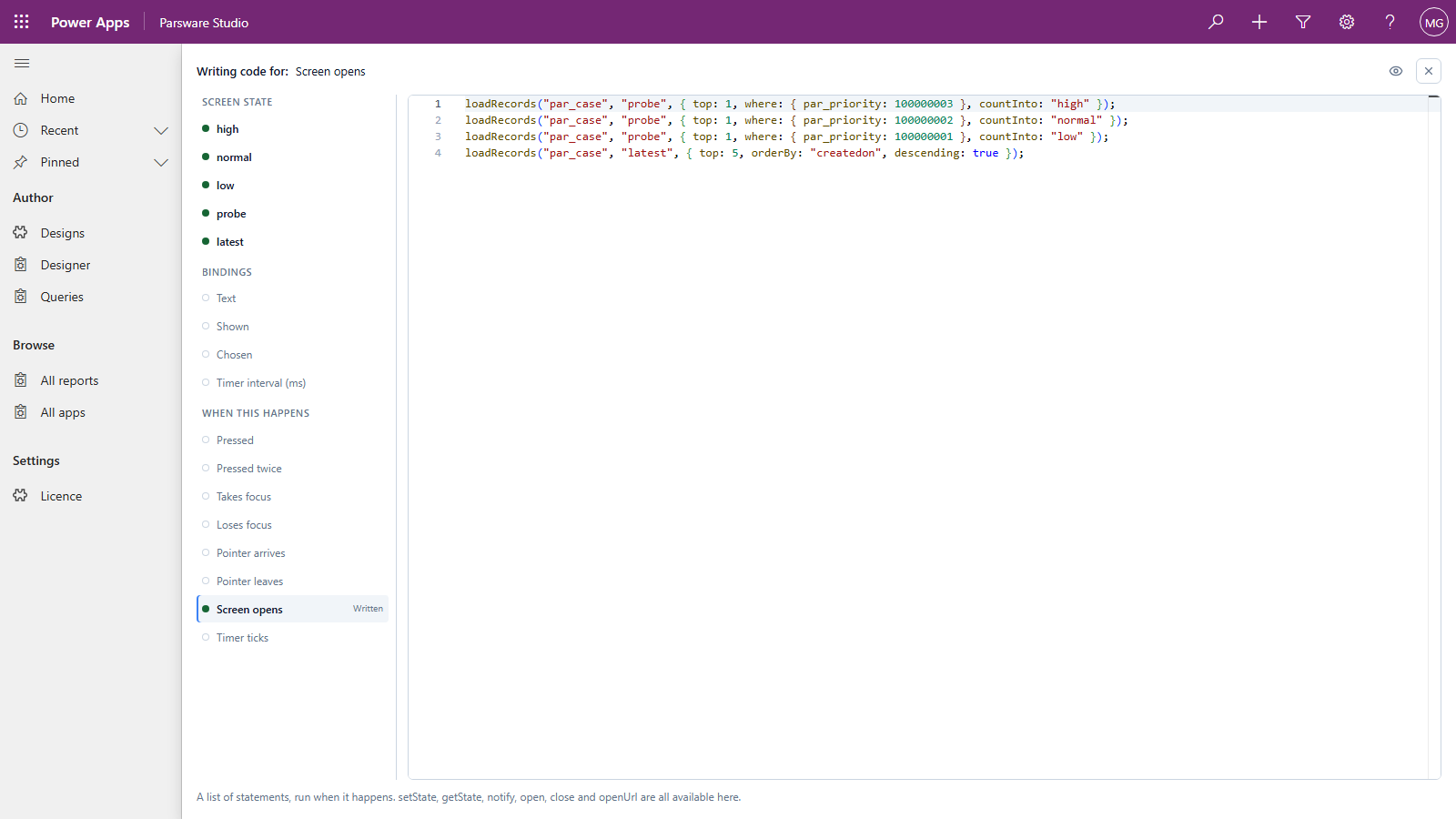
The left side lists everything you can write code for on the selected object:
- Screen state: the fields the screen keeps its values in.
- Bindings: values the object shows, such as its Text, or whether it's Shown.
- When this happens: events, such as Pressed for a button or Screen opens for a screen.
A dot marks what's written. It turns red when the code has a mistake, so you can see which part of an object is broken without opening each one.
2. Bindings and handlers are different
A binding is one expression that works out a value: state.high > 0, or
row.par_name. It runs again whenever what it reads changes, so it can only read. It can't change
anything.
A handler, under When this happens, is a list of statements that runs once each time the event happens. That's where you load rows, change state, write a column or open something.
The line at the bottom of the page reminds you which kind you're writing.
3. Ask for help with Ctrl+Space
Put the cursor on an empty line and press Ctrl+Space. The editor lists everything you can call, with its arguments:
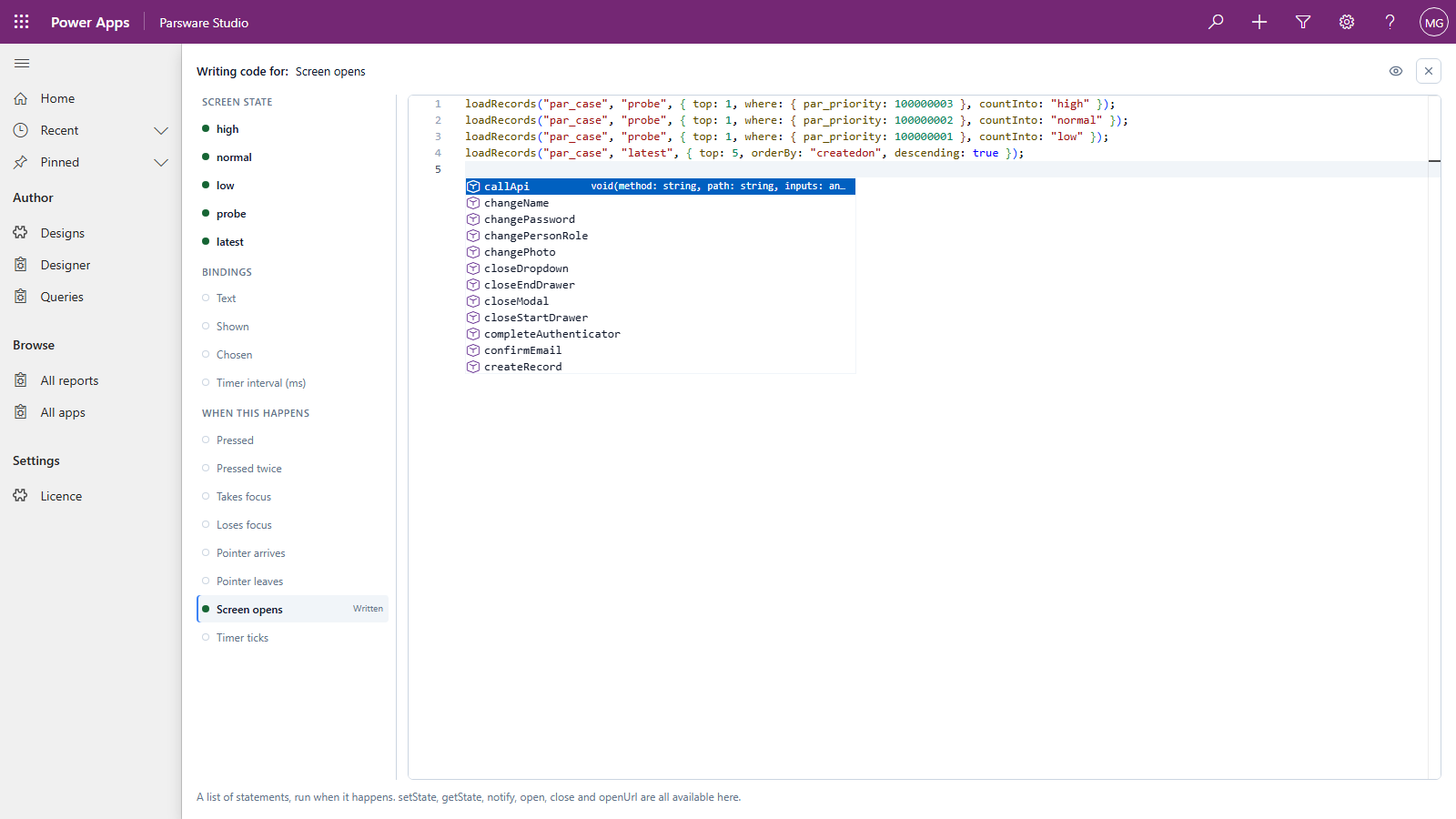
Type the first letters to narrow the list, and press Tab or Enter to take one. Once you open the bracket, a card above the line shows what each argument is for, and which one you're on.
4. Pick a table instead of typing it
loadRecords needs a table's logical name, and a misspelt one looks exactly like a table with no
rows: the screen is just empty. So don't type it. Open the quotes and press Ctrl+Space:
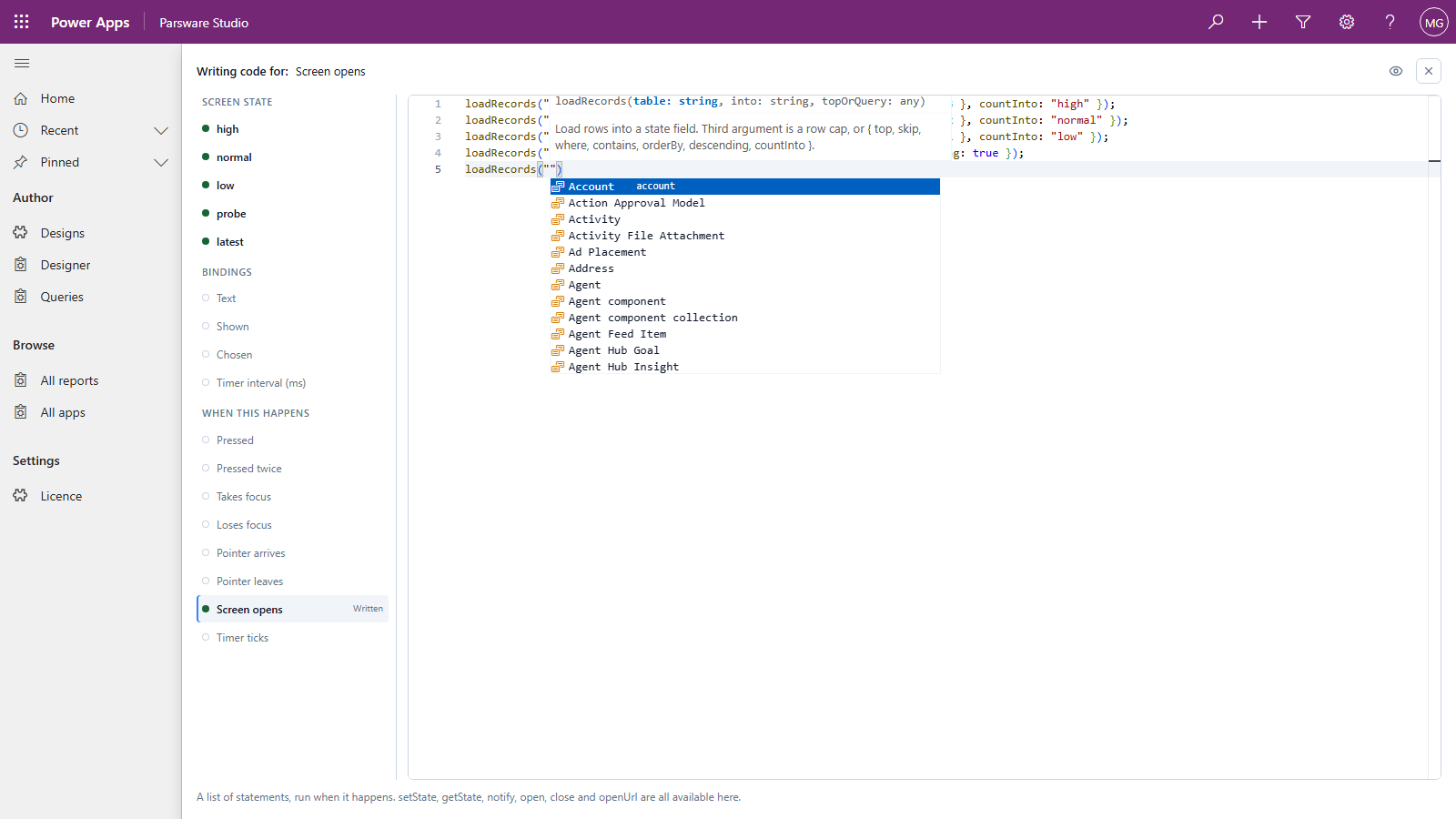
These are your environment's tables, shown by the name you know them by. Type part of either name
to narrow the list. Here par_ca finds Case:
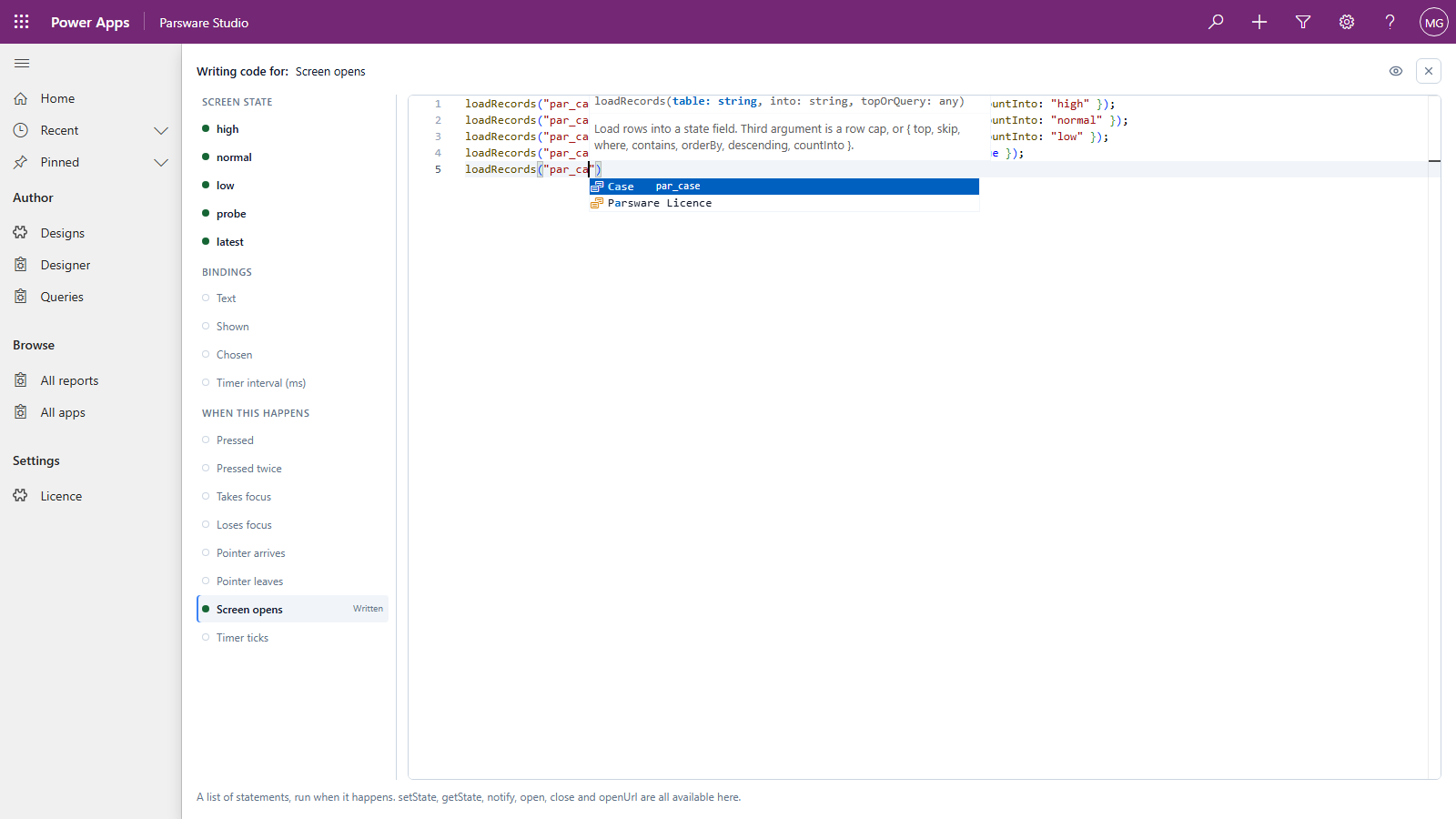
Take it, and the editor writes the logical name, par_case, which is what the script needs.
5. Pick a column too
The same works one level in. In a where, the editor knows which table the line is about, so it
lists that table's columns, with each one's type:
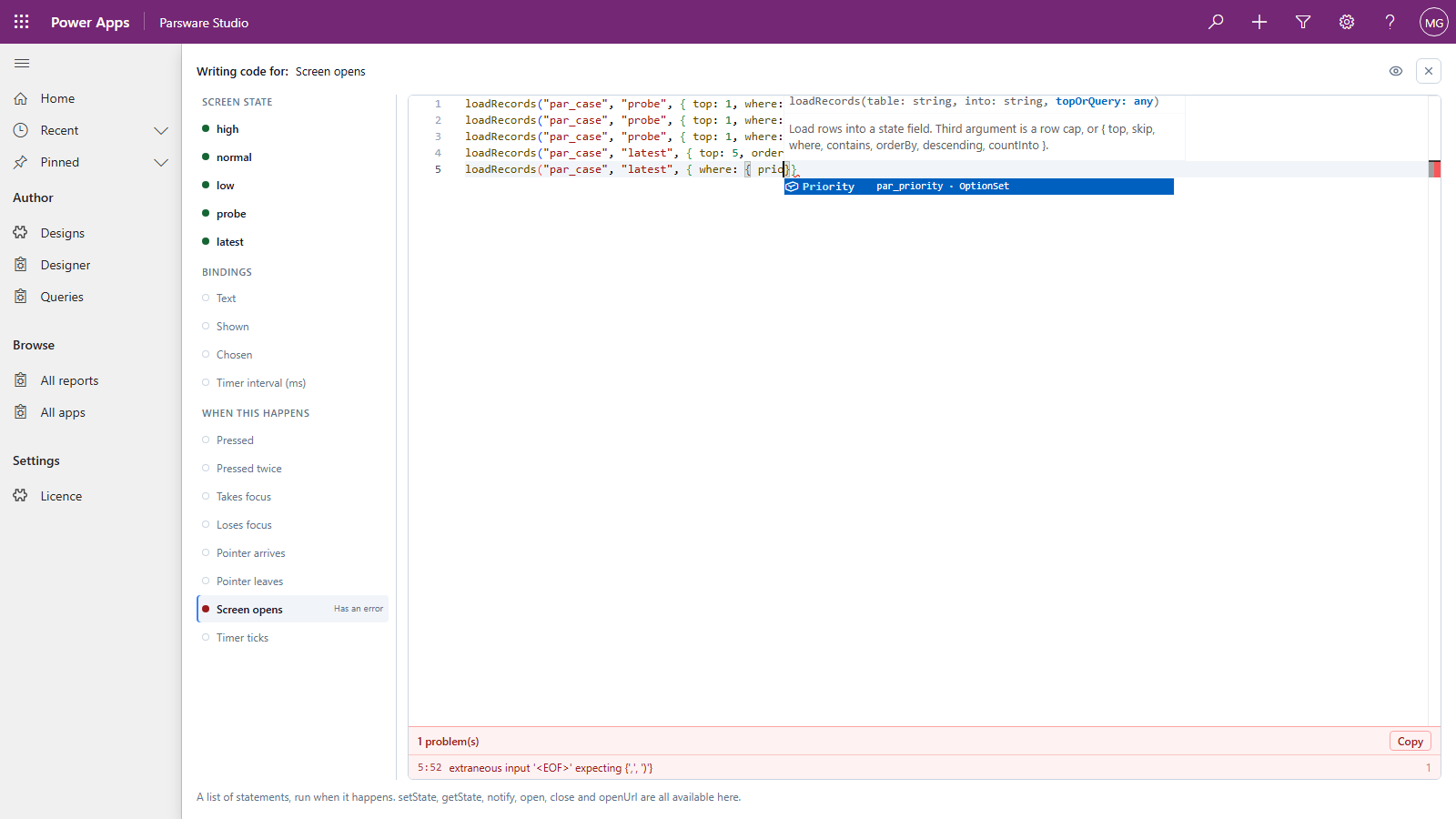
It does the same for orderBy, and for the values you pass to createRecord and updateRecord.
The list comes from your environment, so a column you added this morning is in it.
6. Your screen's own names
After state., the editor lists the screen's state fields:
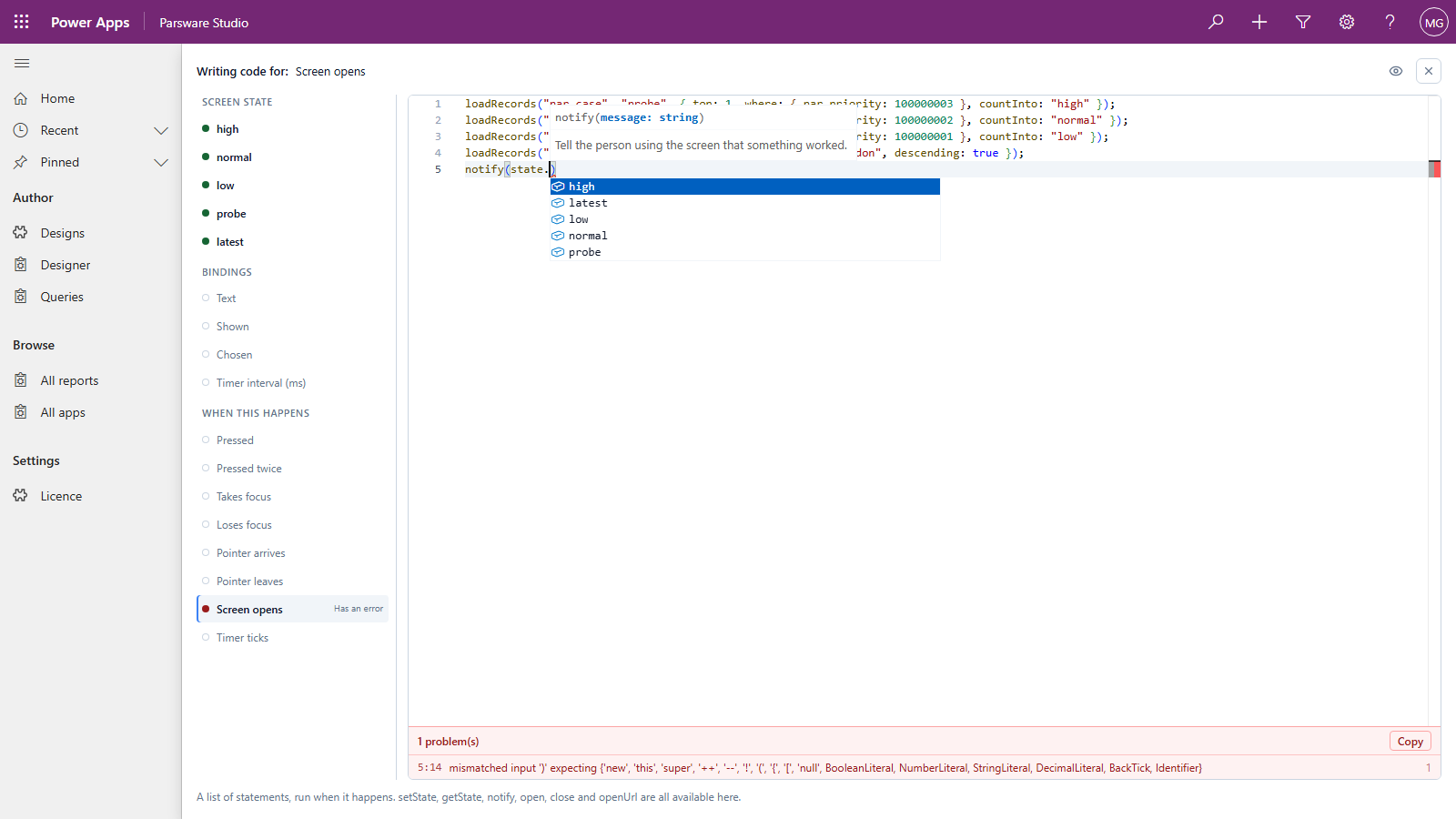
When you write code in a component's own drawing, props. does the same for the component's
properties.
7. Mistakes are underlined as you type
Write something the editor can't make sense of and it's underlined in red, the dot beside the slot turns red, and the panel under the editor says what's wrong and where:
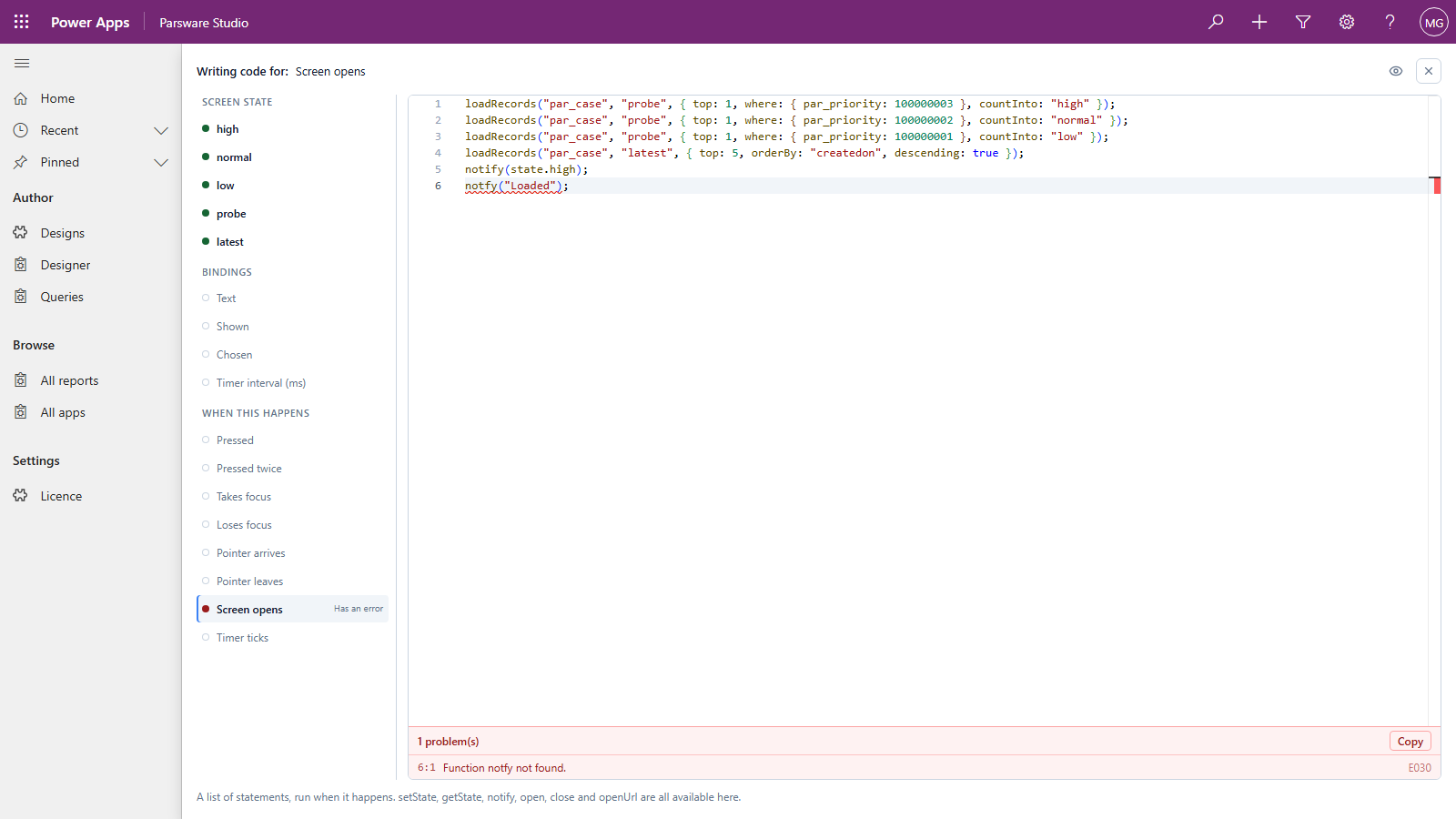
Here notify was spelt notfy. Click the problem to jump to it, or press Copy to copy the list.
Half-typed code always shows a problem for a moment, until you finish the line.
The editor also knows which kind of code you're writing. In a binding, a function that changes something isn't there at all:
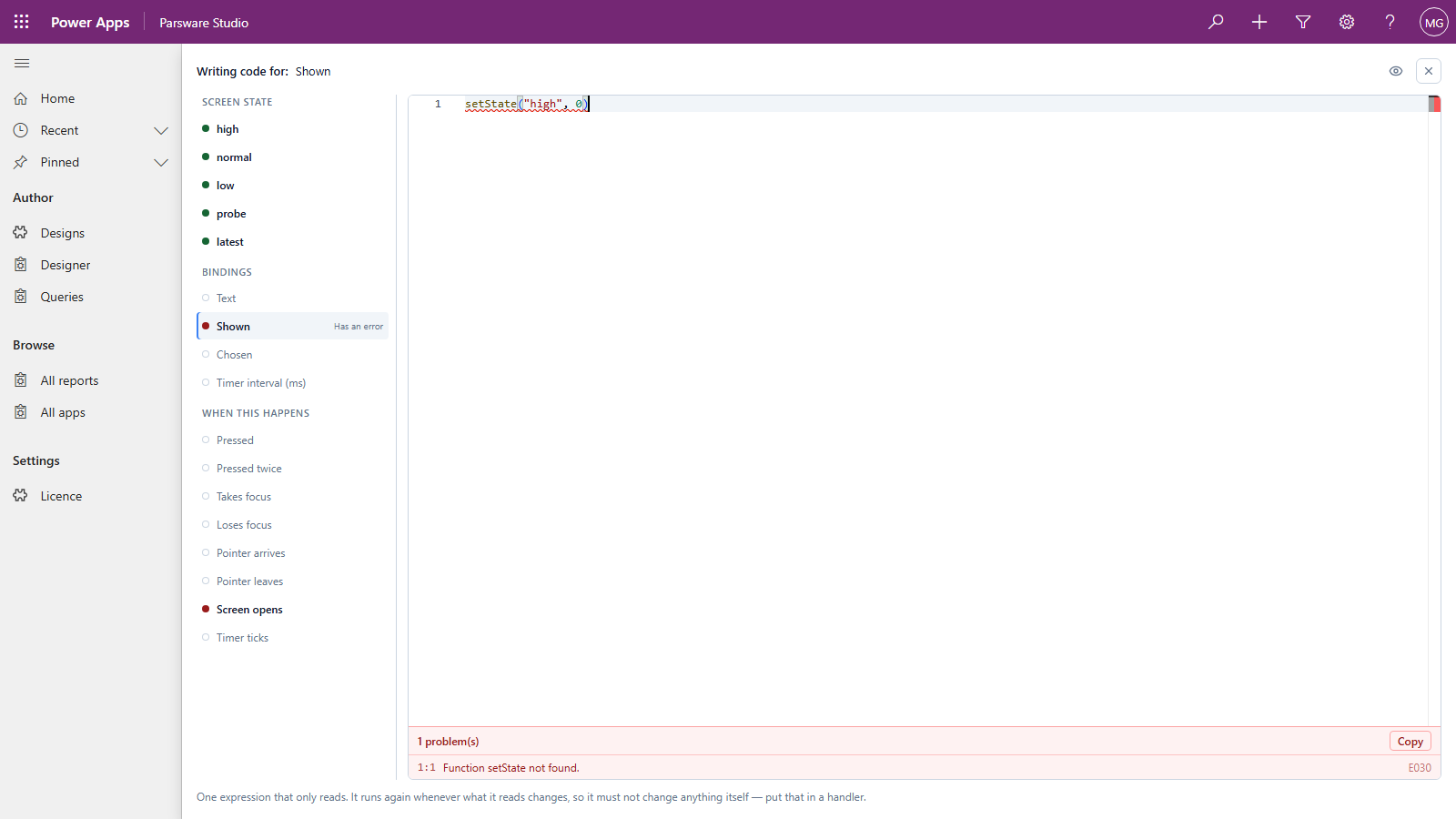
Move it into a handler, such as Pressed on a button.
Good to know
- Nothing runs until you publish. The code page writes into your draft. Save keeps it, and Publish is what reaches your users (see Publish: drafts versus what users see).
- Close without saving to throw a change away. Trying something out in the editor costs nothing.
- It reads as the person using the screen. A script that loads rows asks Dataverse as the signed-in user, so it sees what their security roles let them see.
- A table named by a variable isn't looked up.
loadRecords(state.table, …)names a table that only exists when the screen runs, so the editor can't offer that table's columns.
Next
When a control can't load: the messages the Parsware control shows on a form when something is wrong, and what each one means. The whole series is in the reading list.