Parsware Platform
Start a process from a record
A process can start by itself when a record is created, changed or deleted, or from a button on the record's form and list. Either way the run knows which record it's about. Running the sample as two people found a status that never changed and people named by their email address; both are fixed.
این مقاله فقط به انگلیسی در دسترس است.
Most processes are about a record: this expense claim, that leave request, this order. Nobody should have to start one by hand and then tell it which record it's for. Two things start a process from a record:
- A record event. The process starts by itself when a record of a table is created, changed or deleted.
- A button. A Start a process button on a form or a list starts it about the record you're looking at, or the rows you've ticked.
Either way the run knows which record it's about.
We used the A Record Starts a Process sample from
samples/solutions/bpms-record-starts-a-process: an expense claim reviewed by a manager. We gave
its Claimant role to Robin Park and Manager to Sam Taylor, in the Admin Control Center under
Users → Manage roles, and each signed in again.
The process
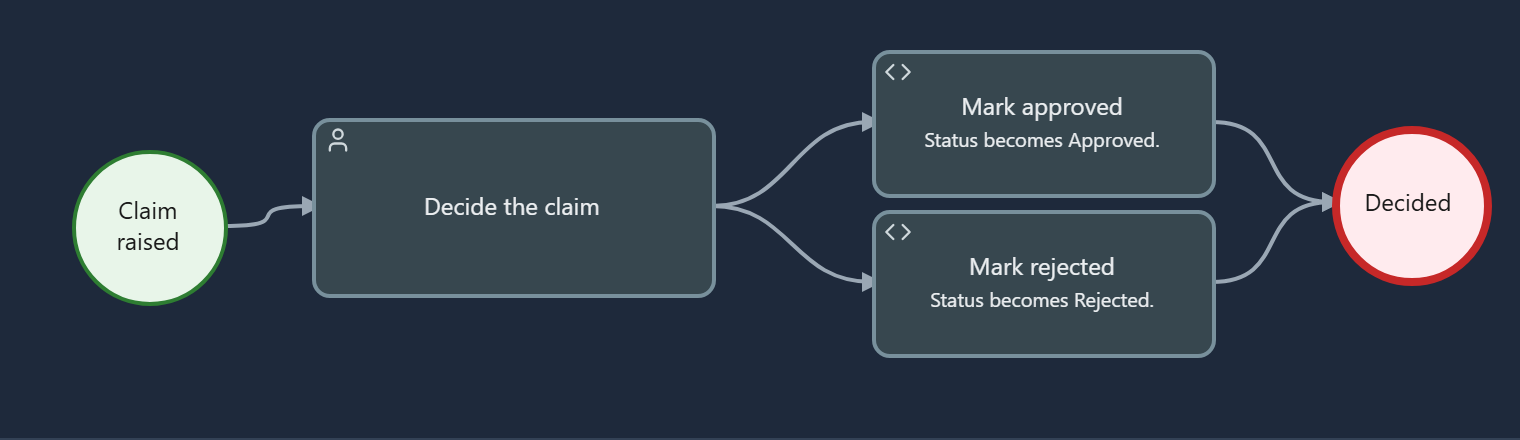
The manager decides the claim. Mark approved or Mark rejected sets the claim's status, and the process finishes.
Starts by itself when
Select the process itself (its name at the top of the outline) and find Starts by itself when:
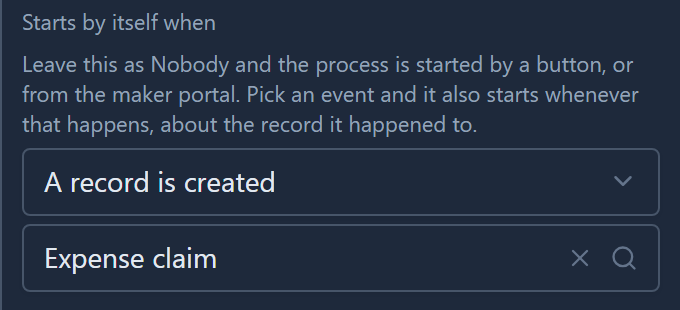
Two choices: the event (A record is created, changed or deleted) and the table. Leave the first at Nobody and the process only starts when somebody presses a button.
The trigger takes effect when the process is published. The sample's import publishes it for you.
There's no condition on the trigger, such as only claims over 500. A process that should only sometimes go ahead puts a Branch straight after its start and finishes early. That way the decision is in the drawing, where people look.
The record raises it
Robin opened the Expenses app, created a claim for a train ticket, and saved it. That was all. When the form reloaded, the claim's Status said Reviewing:
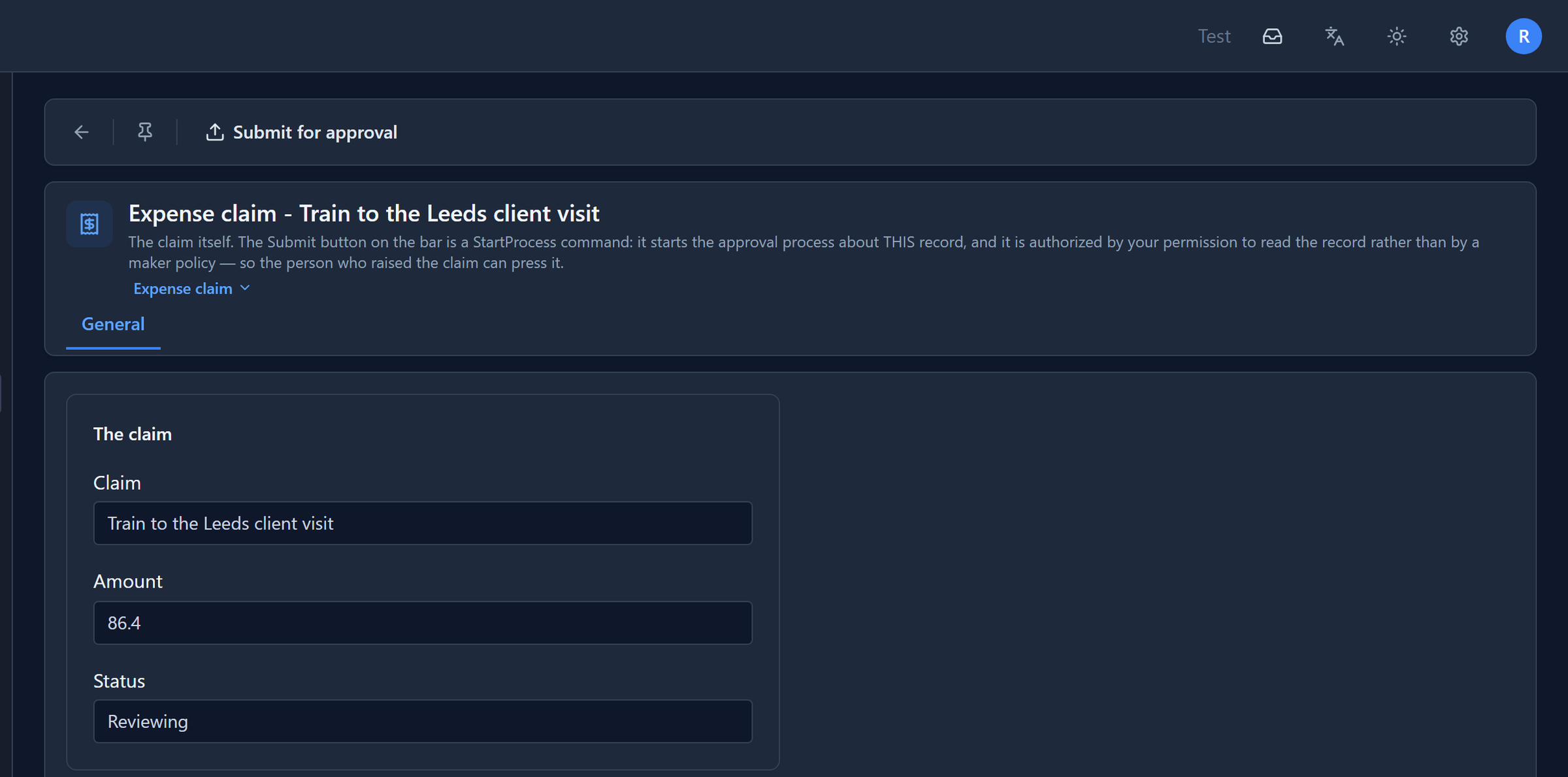
The process started as the claim was saved, and its On start script set the status:
var claim = getRecordRef("record");
setVariable("claim_id", claim);
updateRecord("par_expenseclaim", claim, { "par_status": "Reviewing" });
getRecordRef("record") is the record the run is about: the claim that was just created. Every
script in the process reads it the same way, and so does the manager's task, which opens that claim.
The manager decides
Sam had a task waiting, offered to the Manager role:

It opened Robin's claim, read-only, with Decide at the bottom. Sam approved it with a note:
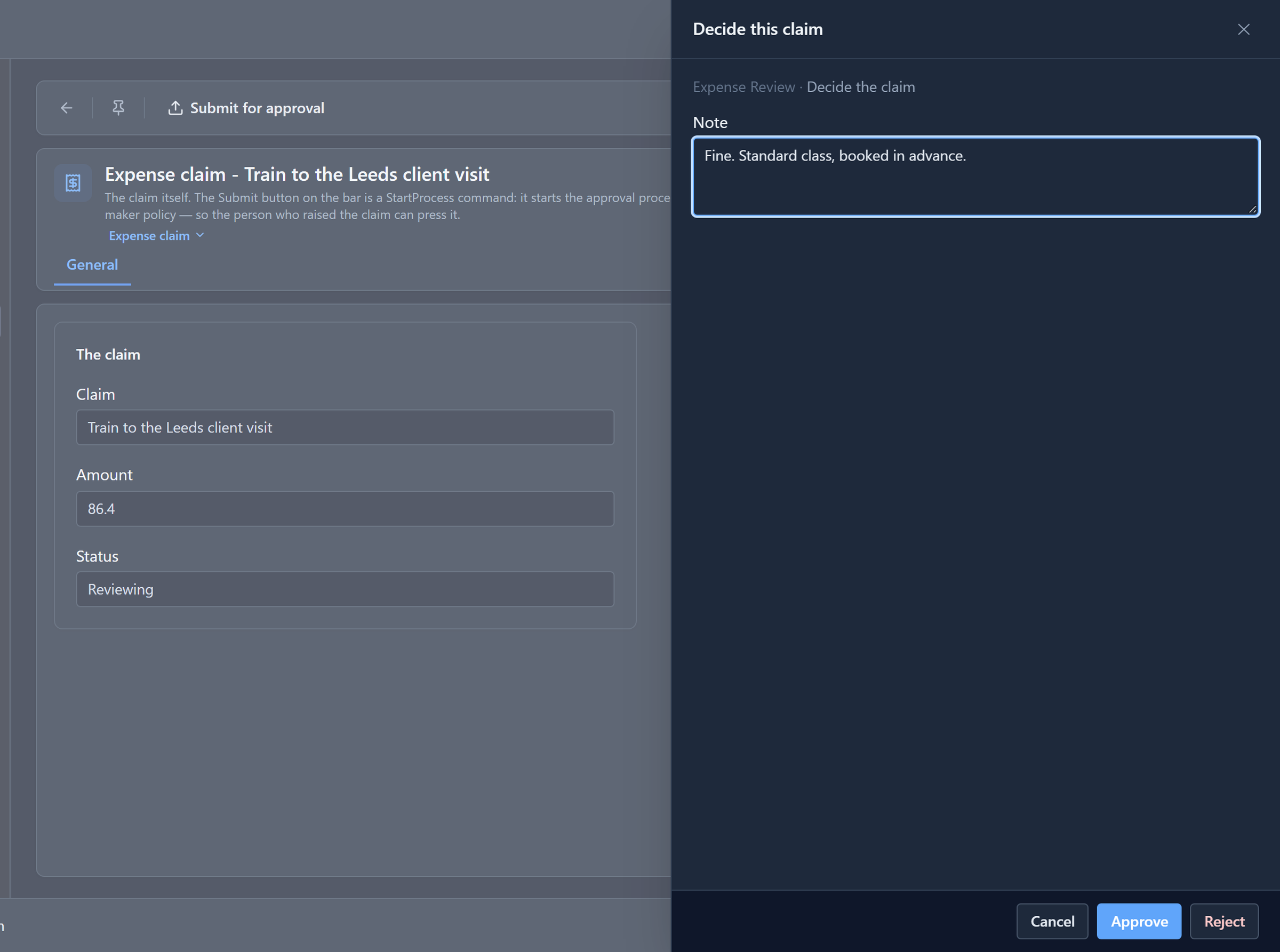
Reject asks for a reason first. Back in Robin's list, the claim was approved:
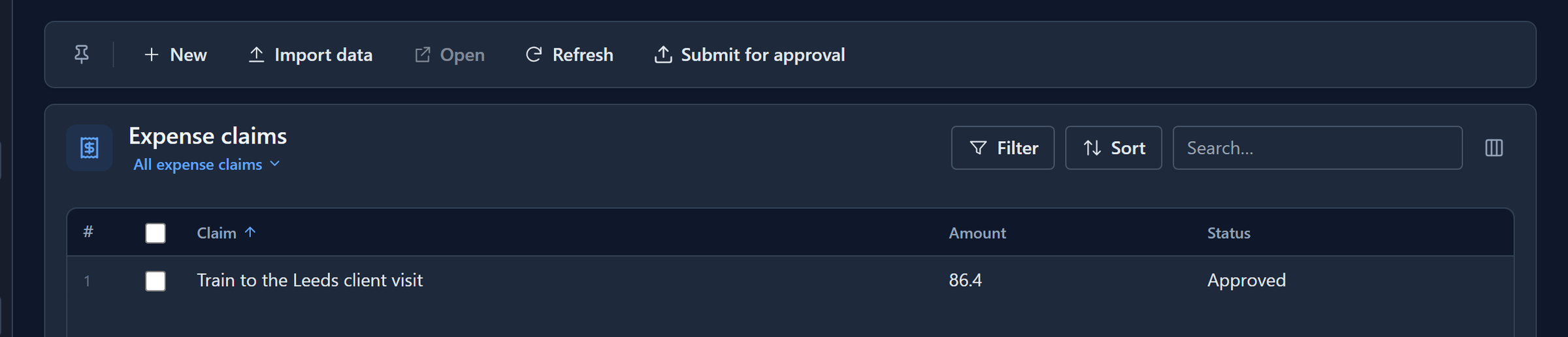
The other way in: a button
The form and the list both have Submit for approval on their command bar. It's a command whose action is Start a process, set where the form's or view's commands are, and it starts the same process about the record on the screen.
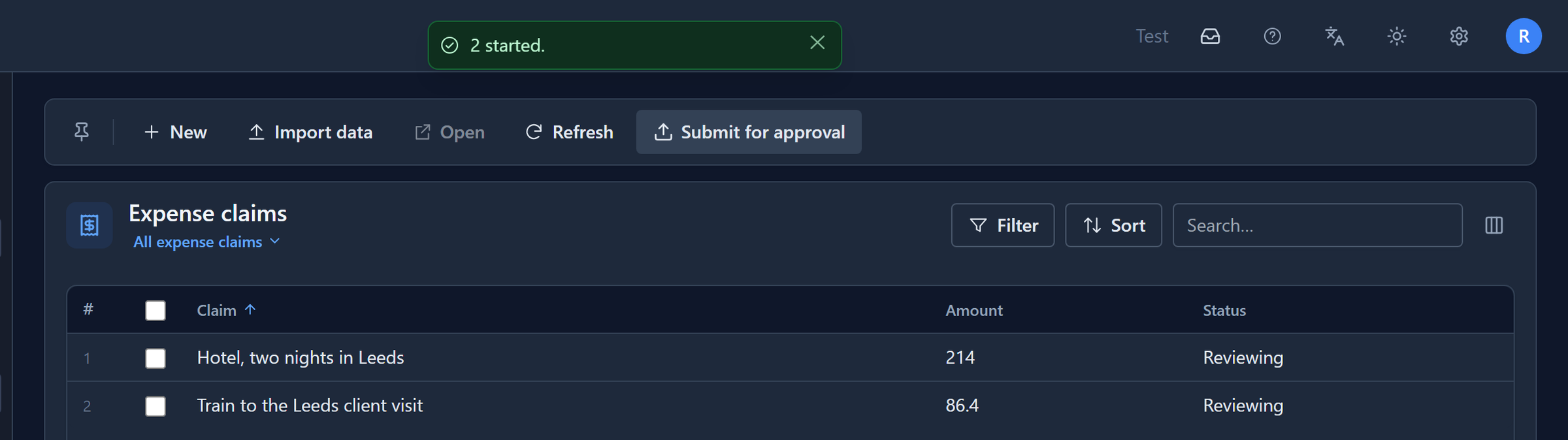
On the list it starts one run for each row you've ticked. Robin ticked both his claims and pressed it:
Robin can press it although he's no maker and has no rights over processes. A start about a record is allowed if you can read that record. If you can open the claim, you can start its approval. The maker portal's own Start a run button names no record, so it stays with makers.
Nothing stops a second run of the same claim. Robin pressed the button on his train claim's form and then again from the list, so that claim now has two runs going. If that matters in your own process, hide the button once the status says it's under review.
The runs
Every run is listed on the process's Runs page in the maker portal:
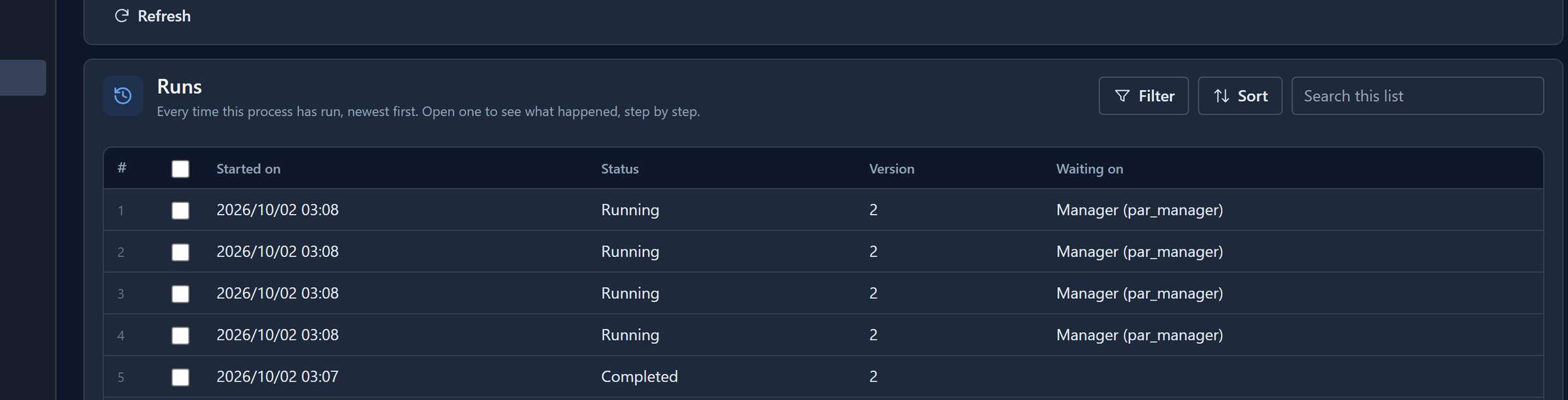
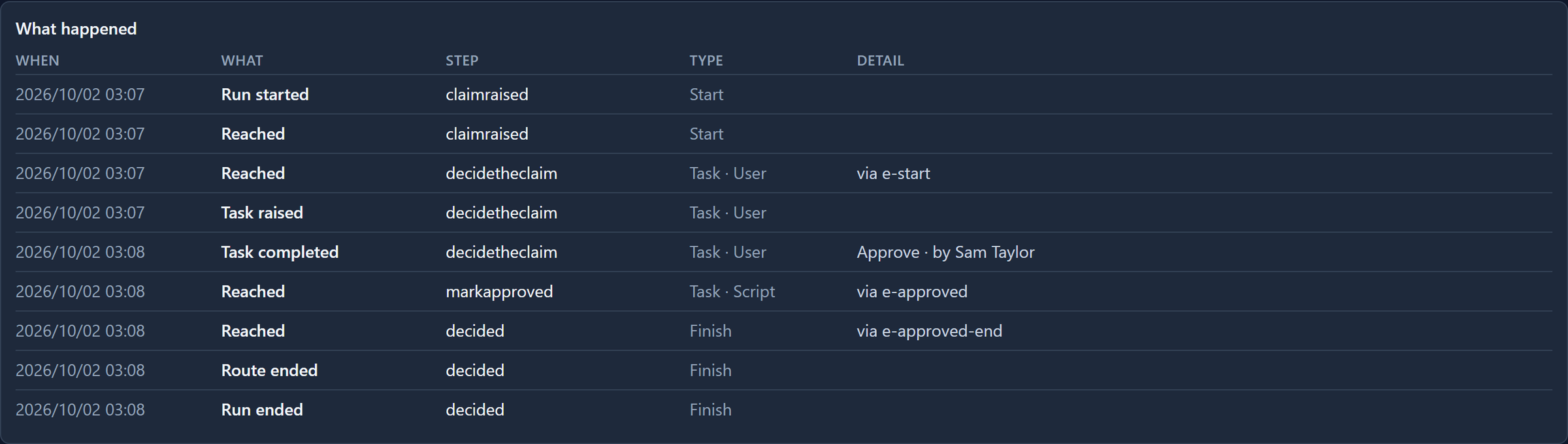
The list doesn't say which record each run is about yet, only when it started and where it's waiting. Open one to see what happened:
What we fixed
- A decided claim stayed Reviewing. The sample set the status in its two Finish shapes. A Finish only ends the route: the designer offers it no code and the engine runs none, so the status never changed. The sample now has a script step before one Finish: Mark approved or Mark rejected. A second sample made the same mistake and is fixed the same way.
- People were named by their email address. The first time somebody writes a record in an environment, the platform adds them to that environment's list of users, under the name their sign-in carries. That was their email, so the run history read by robin.park@parsware.local. It's their display name now.
- Nobody but an administrator could raise a claim. The sample's only role was Manager. It now also has Claimant, which can open the app, create a claim and read its own.
If you imported the sample before October 2026, import it again.
Try it
Import the sample, give yourself Claimant and Manager, sign in again, and create two claims. Approve one and reject the other, then open the process's Runs page and compare the two histories: one goes through Mark approved, the other through Mark rejected.
Next: routing a request by its amount, from a table finance can edit.