Parsware Platform
The helpers panel and the script reference
Completion helps once you know roughly what to type. The eye button answers the question before that, what can this script call at all, with every function the script can use, its arguments and a line on what it does, in a list you can search. Here is where it is, what it lists, and the one-line version on a Studio binding that inserts what you pick.
این مقاله فقط به انگلیسی در دسترس است.
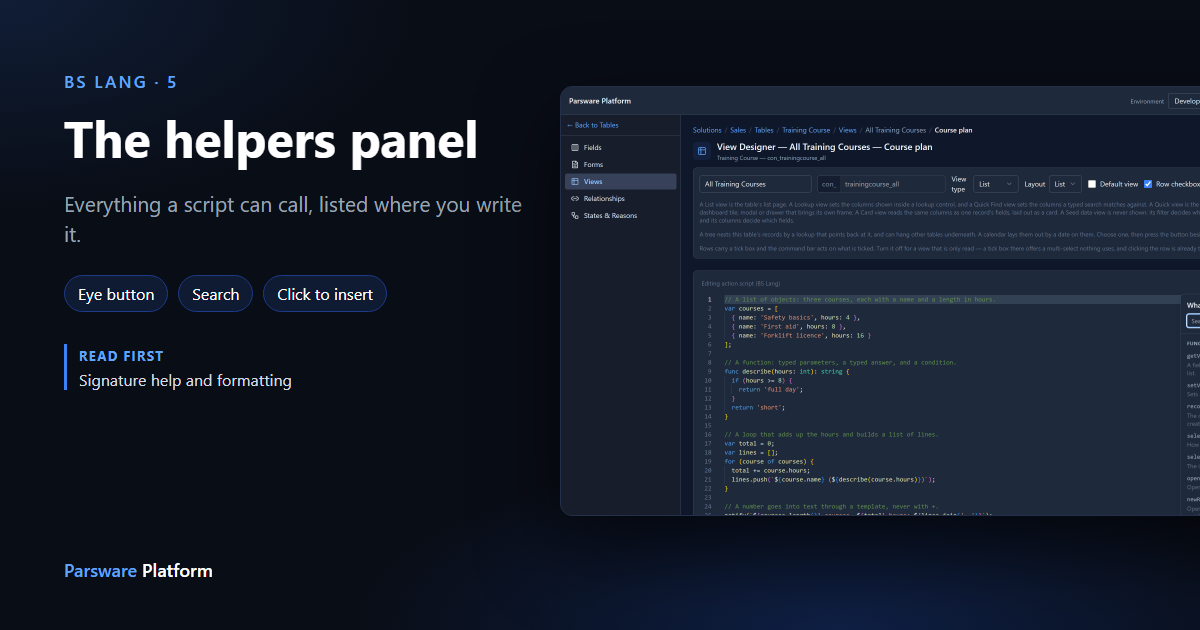
Completion offers names as you type, which works when you already know roughly what you're looking for. It can't answer the question you have before that: what can this script call at all?
That's what the eye button is for. It opens a list of every function the script can use, with its arguments and a line about what it does. You don't have to leave the editor or open the help site.
We used the Course plan command button from BS Lang in ten minutes again.
The eye button
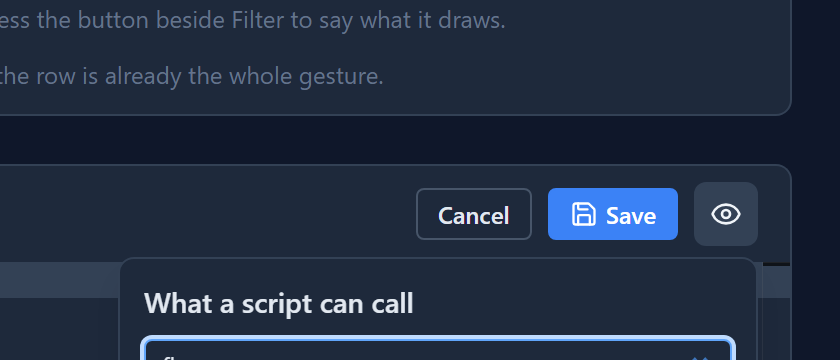
Open a script and look at the end of the editor's toolbar, after Save. The eye button is there. Its tooltip is What a script can call:
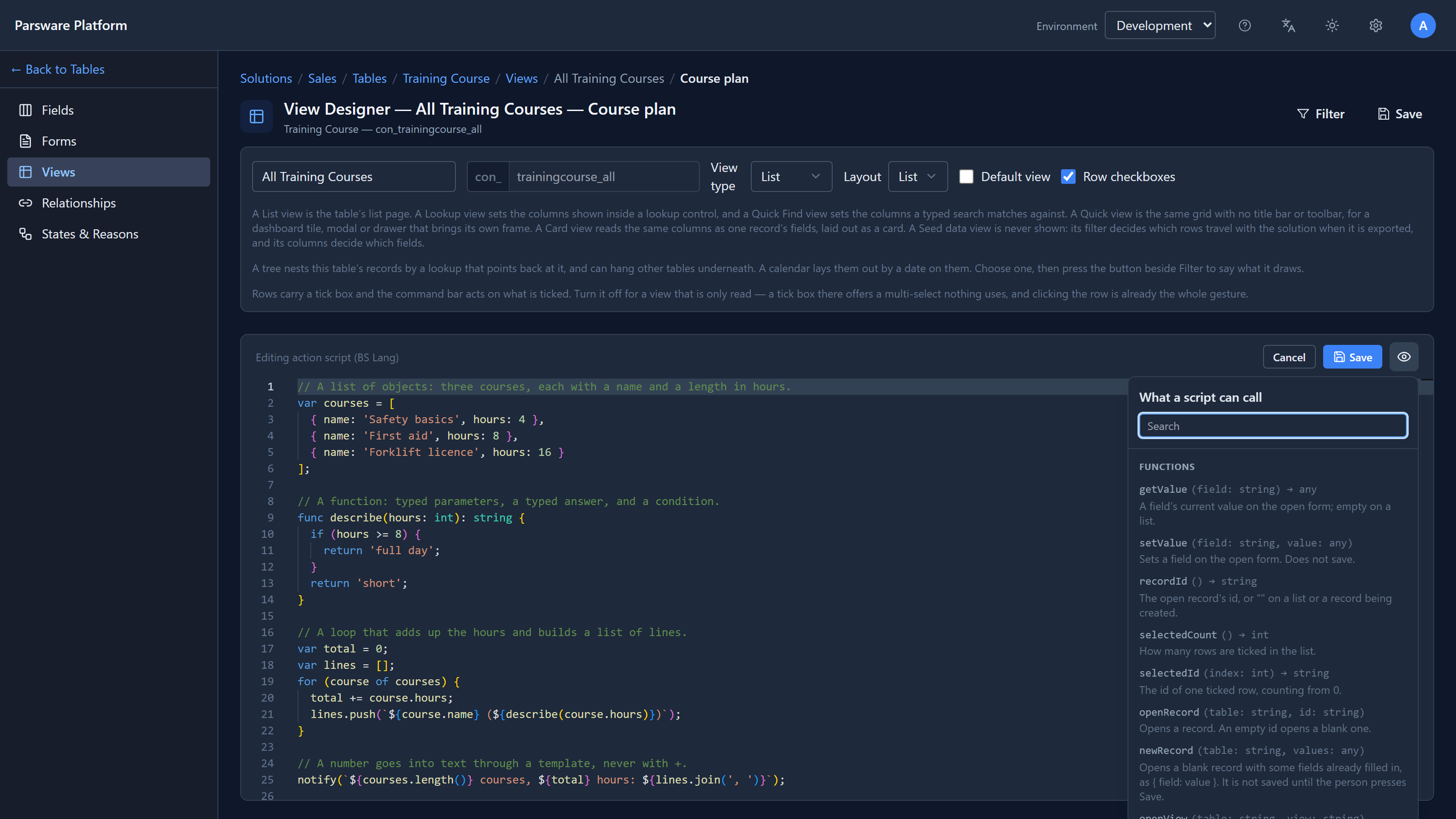
Each entry shows:
- the name, in code type;
- the arguments with their types, and what the function gives back after the arrow, like
→ anyor→ string; - one line saying what it does, and anything easy to get wrong.
setValuesays Does not save, andsavesays it runs the form's own checks.
The list isn't typed up by hand for each screen. It's built from the same declaration the editor uses to check the script and offer completion. So if the panel lists a function, the editor accepts it, and if the editor would underline it, it isn't in the panel.
Every full-size script editor has the button: form rules, command buttons, plugin steps, Custom APIs, solution scripts, the steps of a process and the Graphic Designer's code panel.
Search it
A command button can call seventeen functions, and a plugin step twenty-four. Type in the search box to narrow the list:
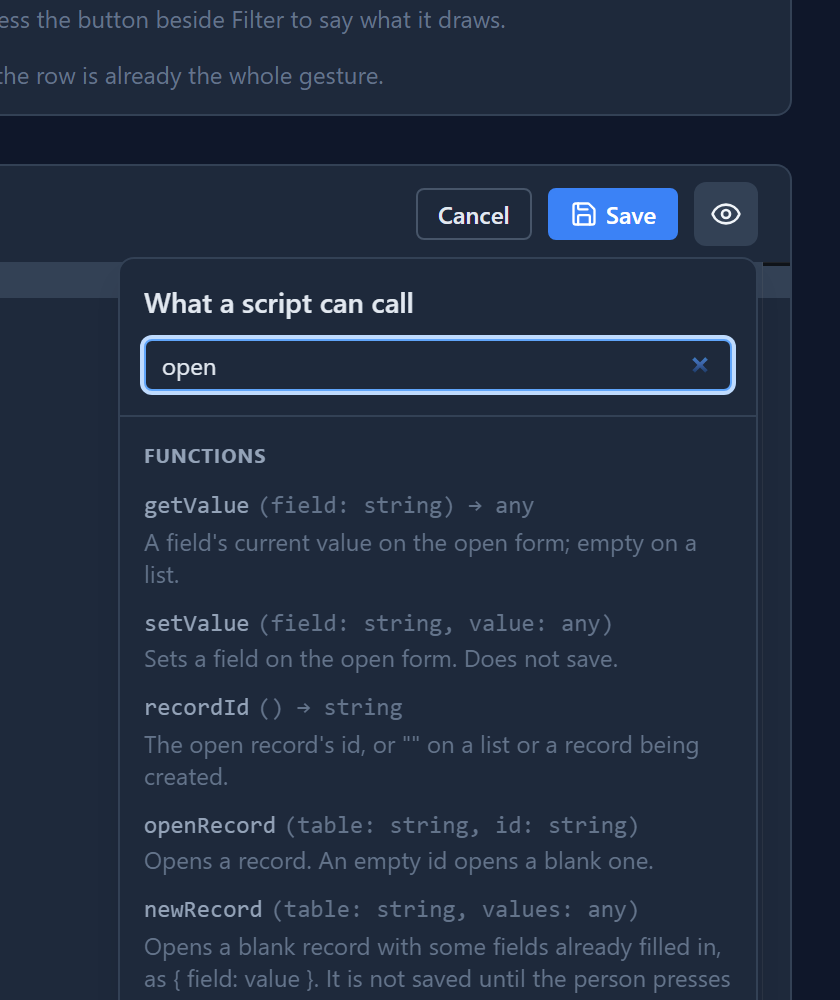
The search looks at names and descriptions. Searching open finds openView and
openScreen, and also getValue, because its description says the open form. That's useful
when you know what you want to do but not what the function is called.
If nothing matches, the panel says so:
Here that's an answer too. getRecord reads another record, and a command button can't do that.
It's one of the functions only server-side scripts have. The next article,
what a script can see, is about which script gets which
functions.
The language's own modules
At the bottom of the list are the language's own modules, common and math. They aren't
loaded unless the script asks for them, so each one says what to write first:
Put import 'math'; at the top of the script, then call floor or ceil like any other
function.
The panel on a full-size editor doesn't insert what you pick. It hangs from the toolbar, at the other end of the screen from where you're typing, so text dropped "at the caret" would land somewhere you aren't looking. Read the name, then type it; completion will finish it for you.
The one-line version: Studio bindings
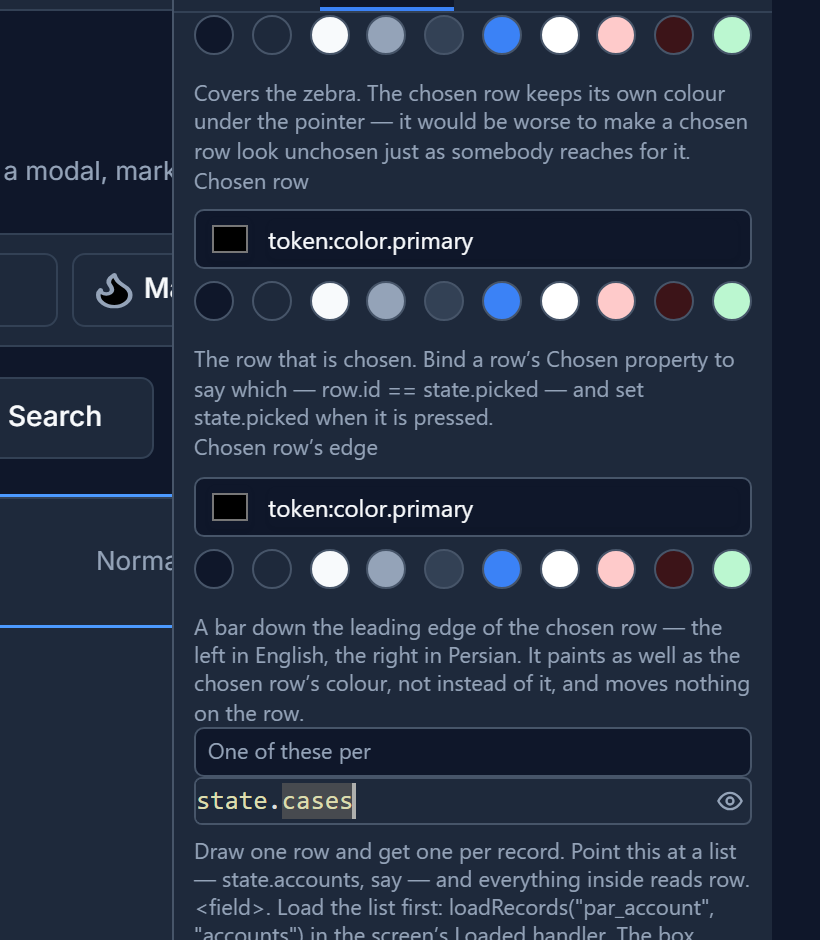
On a Studio screen, some properties take a one-line expression: which list a row repeats over, whether something is shown, what a label says. Those fields are small, and they have their own eye button, inside the field at its end. Here it is on One of these per, the list that the Support desk sample's case row repeats over:
Press it and the helpers panel opens, with the search box ready for typing:
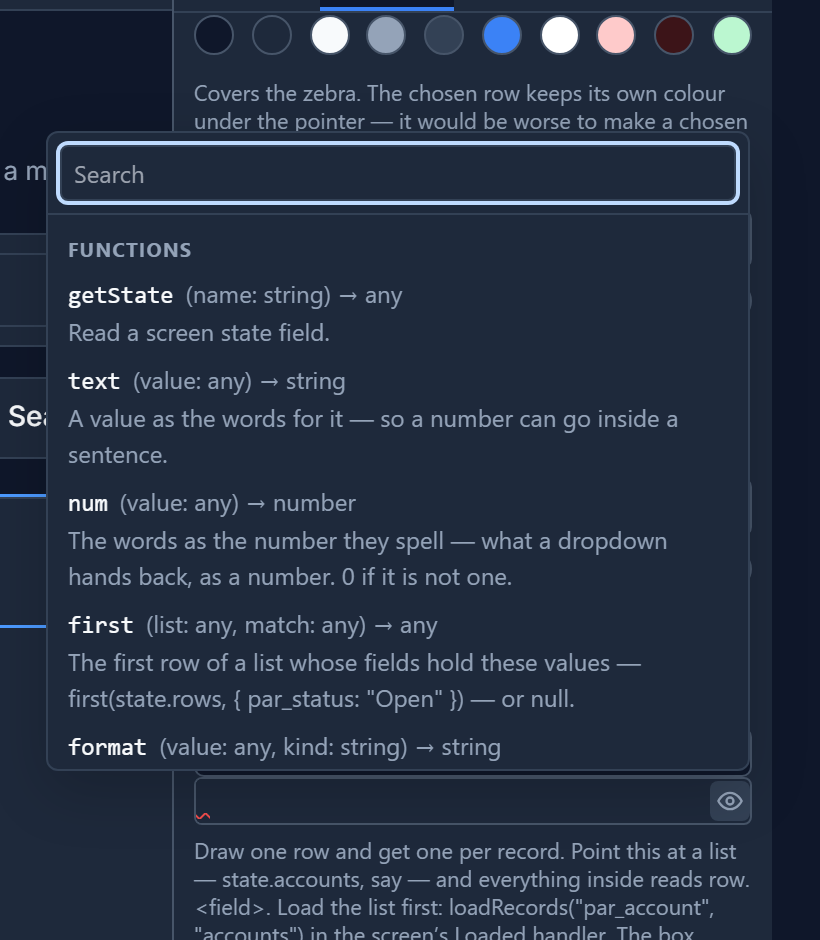
The list is different, because a binding is a different kind of script. It has getState,
first, format and translate, and none of the command button's functions.
This panel does insert. It belongs to one field with a caret in it, so there's no doubt about where the text goes. Search, then click the entry:
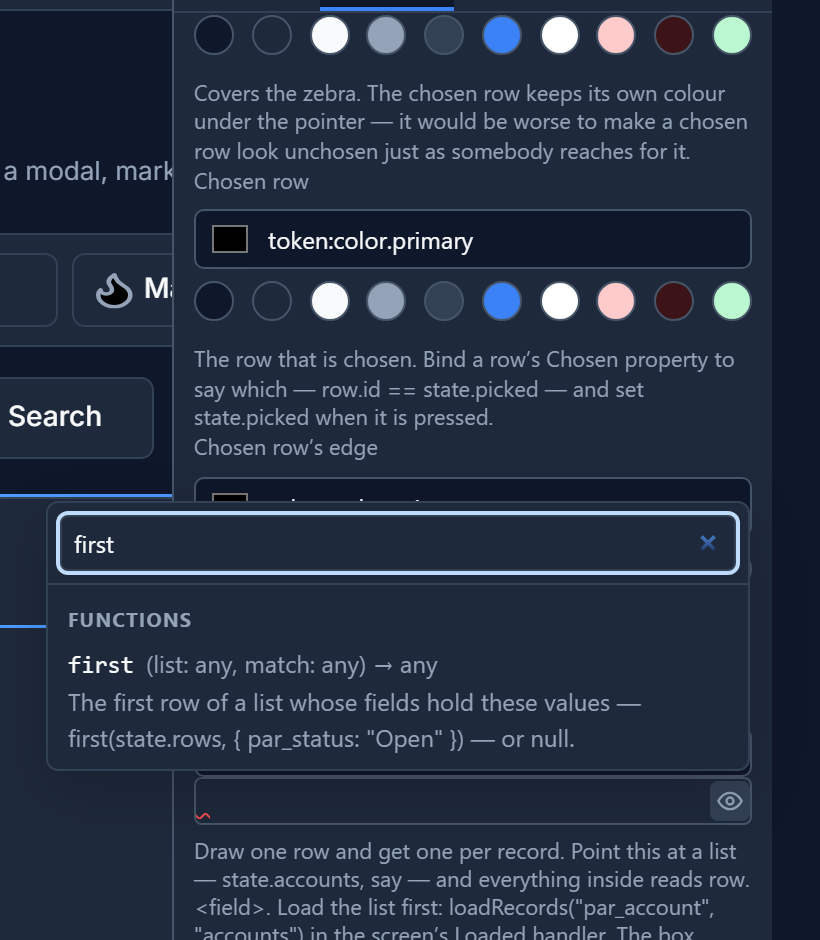
The function goes in at the caret, with the caret between the brackets, ready for the arguments:
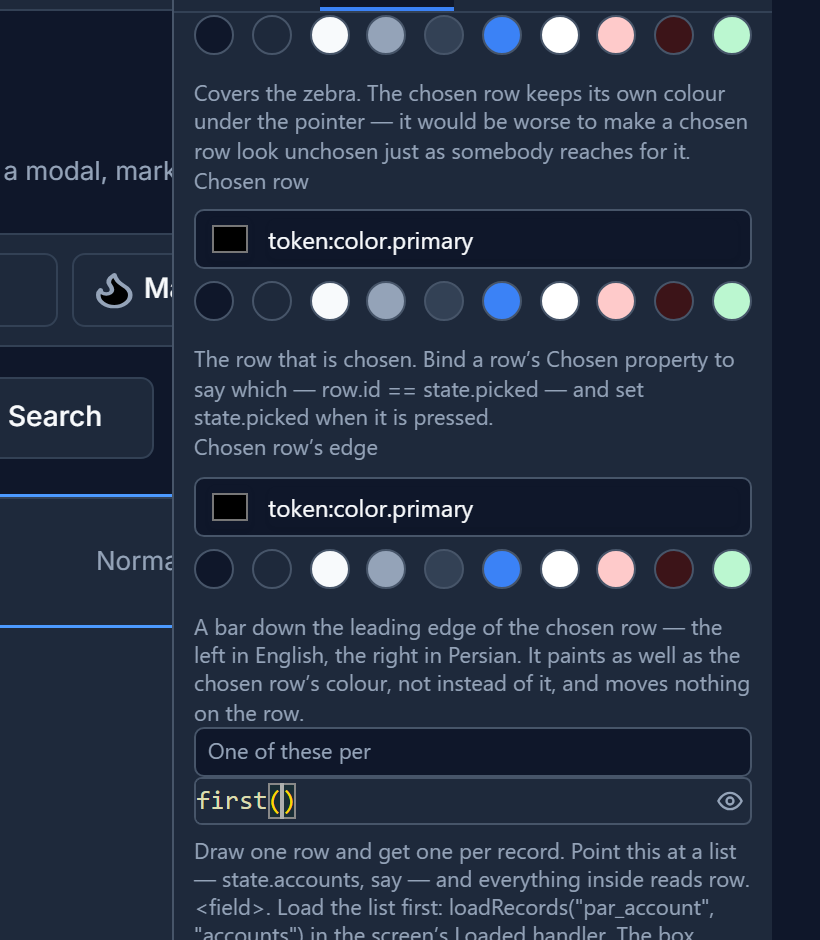
Press Escape, or click anywhere else, to close the panel without choosing anything.
A bug we found and fixed
Writing this article, the Studio eye button opened nothing we could see. The panel was on the page, but it was drawn inside the field, and the inspector keeps each field inside a box that hides whatever spills out of it. So the panel was cut down to nothing.
It's fixed. The panel is now drawn on top of the whole page, next to the field it belongs to. It opens below the field, or above it when there's more room there, as in the pictures above, and it never goes off the edge of the window. A test checks that it can't end up inside the field again.
Try it
Open any script in a development environment and press the eye button. Search for a word that
describes what you want, like record or open, and see what the script can do. Then open a
Studio screen, select something with a one-line expression and try the small eye inside the field.
Next: what a script can see, and why the list is different in every kind of script.