Parsware Platform
Buttons that do something
Add your own buttons to a list's or a form's command bar. Most need no code, because they open a view, start a record or open an address. When the button depends on what the user ticked or typed, it runs a short script.
این مقاله فقط به انگلیسی در دسترس است.
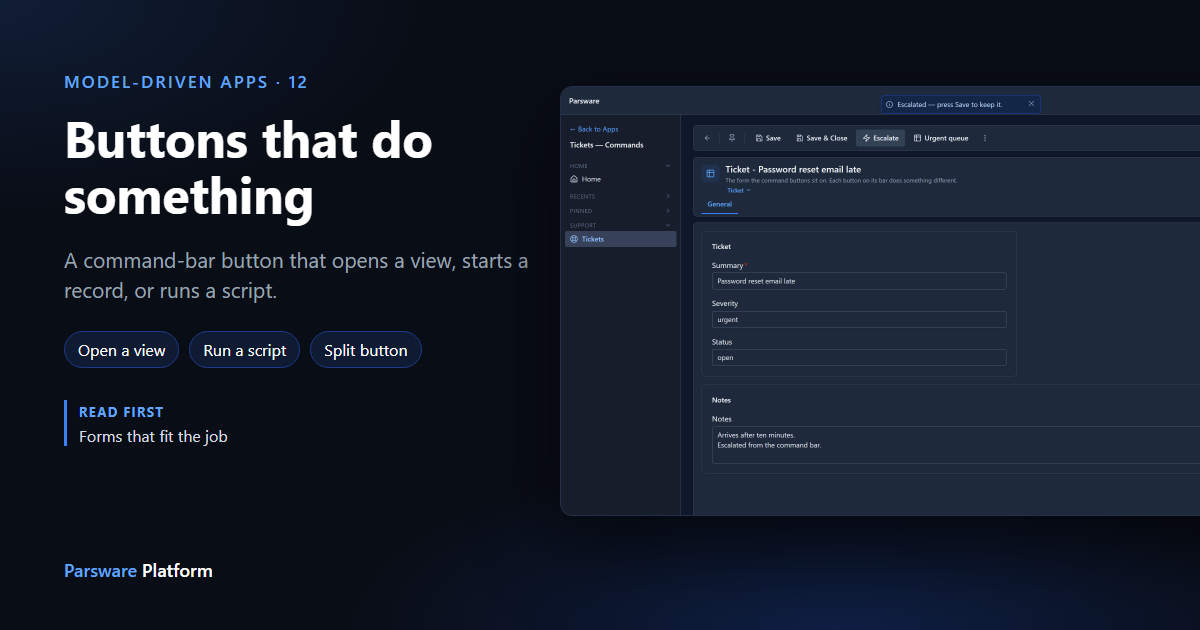
The platform puts its own commands on every bar: New, Edit, Delete and Refresh on a list, and Save on a form. Your own commands sit beside them. This article is about what those commands do when someone presses them.
It uses the mda-support-ticket-commands sample. Import it into a development environment and open the Tickets — Commands app. The sample has no records, so we typed in five tickets. Every picture is the real product.
The list's own buttons
A ticket has a Summary, a Severity, a Status and Notes. The list's bar carries two buttons of the sample's own, Urgent only and Log another, after the platform's:
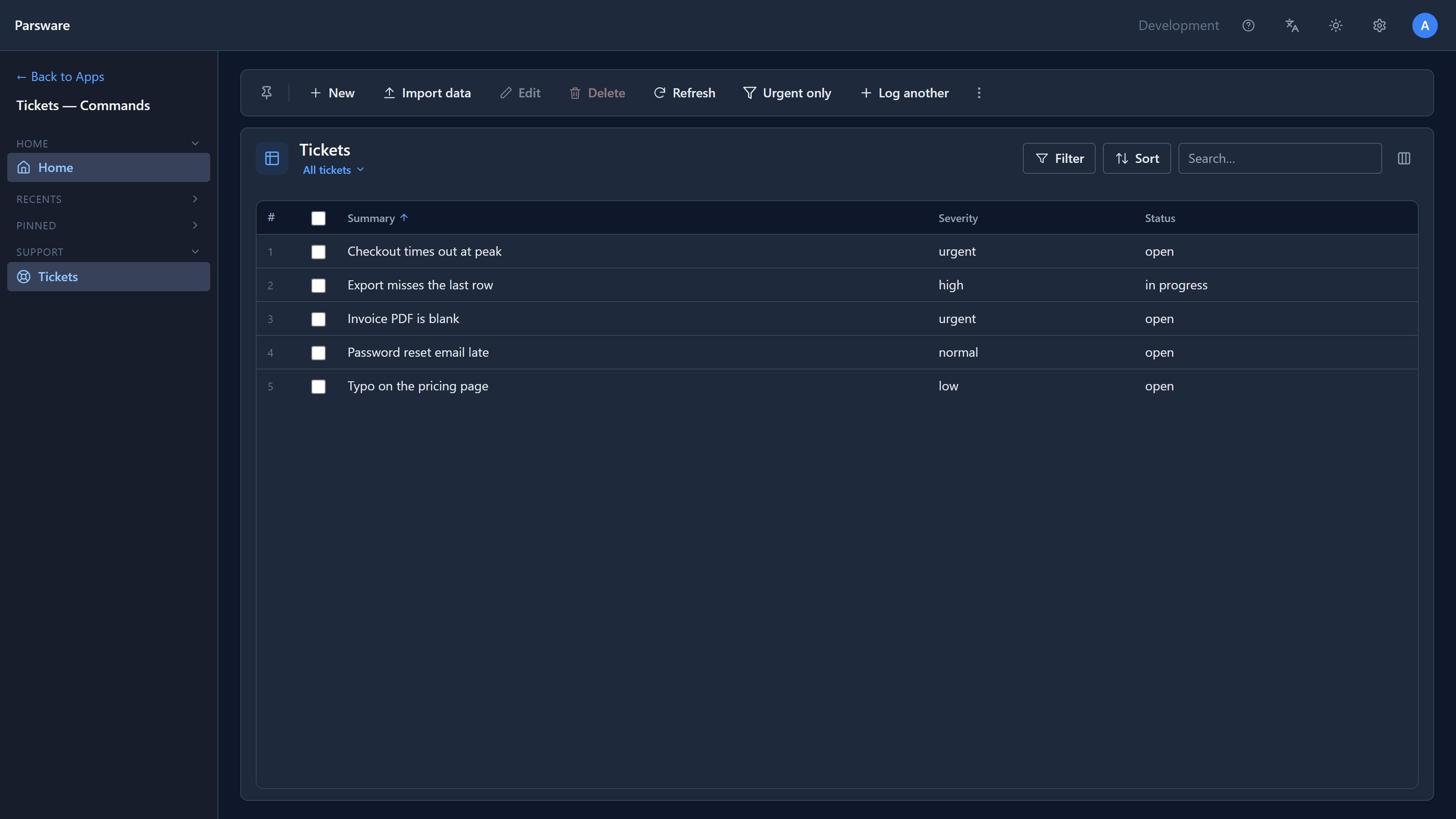
Neither needs any code.
-
Urgent only opens another view of the table, Urgent tickets:
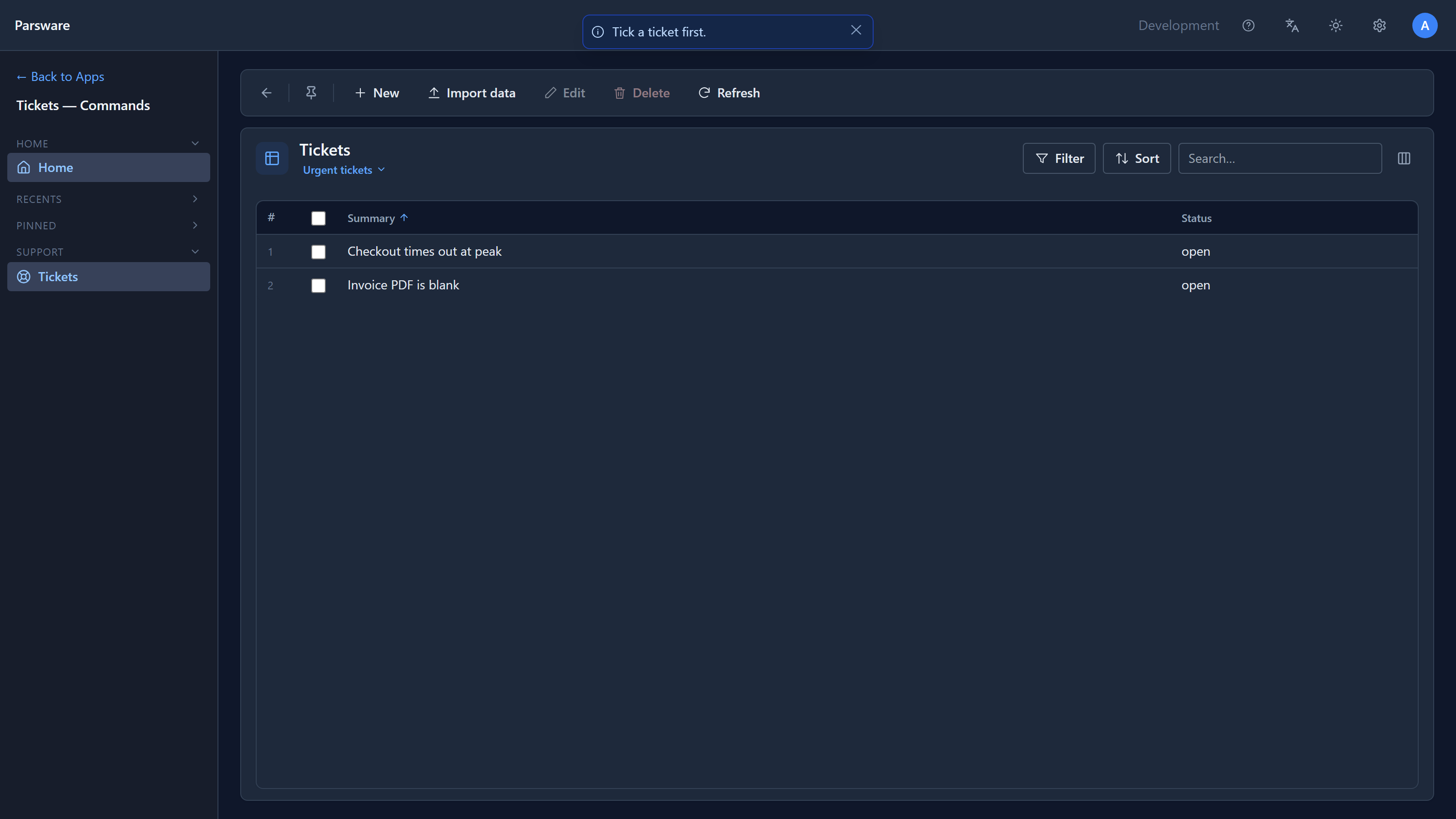
The address changes too, so the result can be bookmarked or sent to someone. While writing this we found that this button changed the address and nothing else: the list kept showing every ticket. A list only read its view from the address when it first opened. It now follows the address, so a button can open another view of the table you're already on.
-
Log another opens a blank ticket. It names no table, which means "this table", so the same button can be copied onto another table's list and still work there.
When the button needs to know something
Open the first ticked is in the ⋯ menu. What it does depends on which rows the user ticked, and no list of choices can say that. So it runs a script:
if (selectedCount() == 0) {
  notify('Tick a ticket first.');
} else {
  openRecord('par_ticket', selectedId(0));
}
Press it with nothing ticked and it says so, rather than doing nothing:

A button on the form
Open Password reset email late. The form's bar carries Escalate and Urgent queue. Press Escalate:
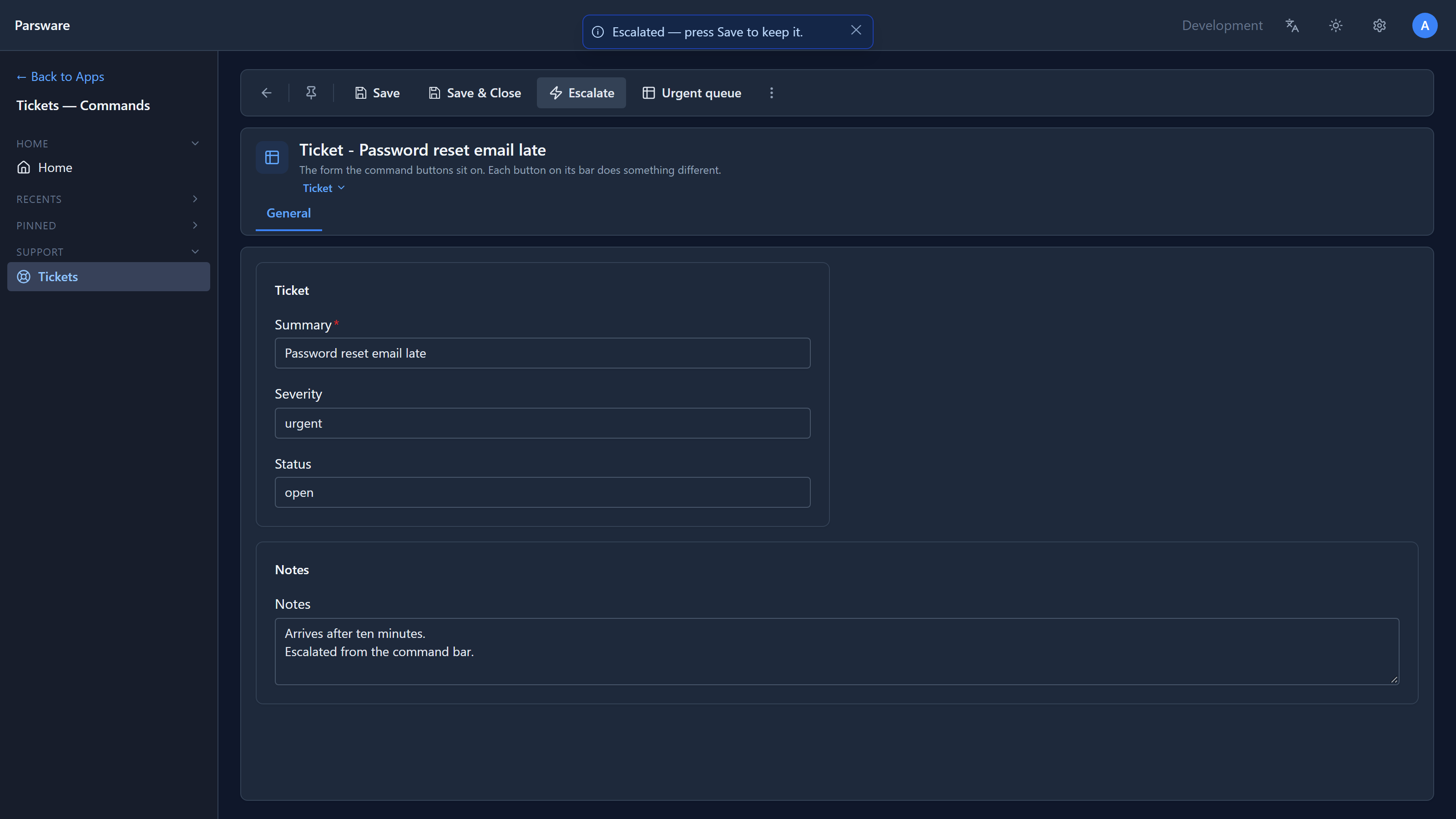
The severity changes to urgent and a line is added to the notes, but nothing is saved. Press Save to keep it, or leave and throw it away. A command changes the form in front of you. What may be stored is still decided by the server, with the same checks as any other save.
Split buttons
A split button has a menu of entries, and each entry can do something different. The ticket form's Reference sits in the ⋯ menu, where it's a heading with its entries under it:
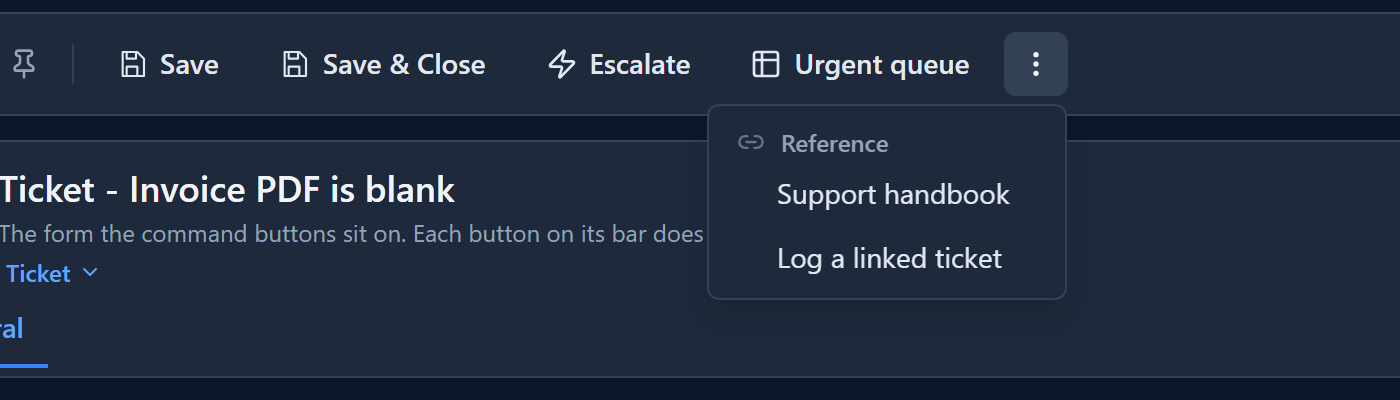
Support handbook opens a web address in a new tab. Log a linked ticket starts a new ticket.
While writing this we found that a split button in the ⋯ menu showed as one entry that ran only the button itself, so its entries could not be reached. Here the button itself does nothing, so pressing it only reported that. The menu now lists the entries under the button's name.
Setting it up
Open Tables → Ticket → Views → All tickets in the View Designer. The Commands strip shows the whole bar: the platform's commands with a dashed outline, yours with a solid one. Select Urgent only:
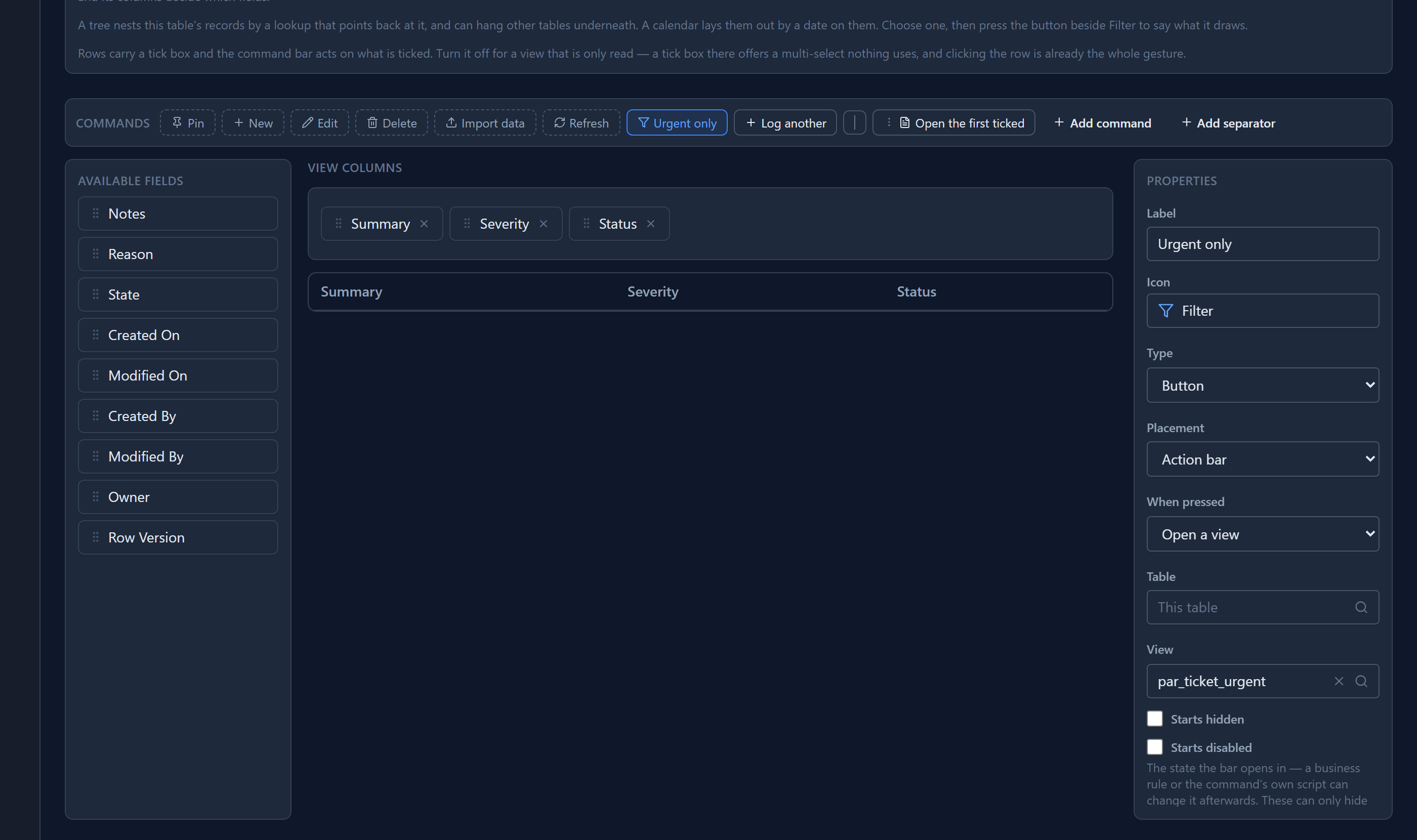
- Label and Icon are what the button looks like.
- Placement is the bar itself, or the ⋯ menu for commands people use less often.
- When pressed is what it does: open a view, start a new record, open a dashboard, a screen or a report, start a process, open a web address, or run a script.
- Table and View say where it goes. Leave the table empty to mean "this table".
A web address can include the record's fields, such as {telephone1}, and each value is encoded
for you. The address must start with http:// or https://: a javascript: address is refused
by the designer, by the import and by the app.
Choose Run a script and Edit code opens the BS Lang editor. This is Escalate's script, in the Form Designer:
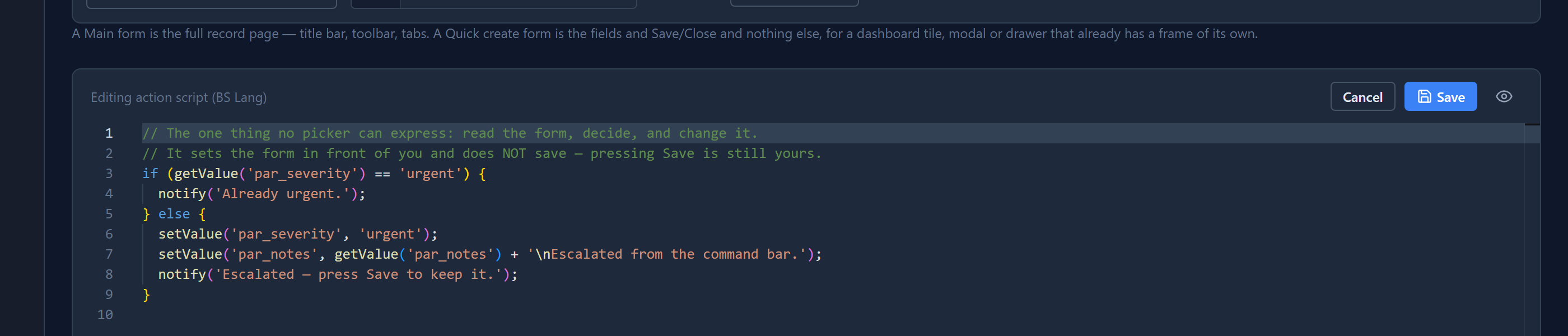
A script can read and set fields on the open form, read the ticked rows, open records, views and addresses, show a message, refresh, and press Save. The editor checks it and suggests functions as you type. The full list is on the help page for commands.
What a button can't do
A button runs in the browser, so it can't be the thing that enforces a rule. Anyone can decide not to press it. A rule that must always hold, whoever saves the record and however they do it, belongs in a server plugin step. A button can take people to the right place, fill in a form for them, and press Save for them, with the same checks as if they had pressed it.
Next: tidy command bars.