Parsware Platform
Find your way around the Parsware maker portal
A tour of the maker portal, where Parsware applications are built and run from. Home, the rail, the environment picker, help, languages, appearance, and the list and drawer controls every screen shares.
این مقاله فقط به انگلیسی در دسترس است.
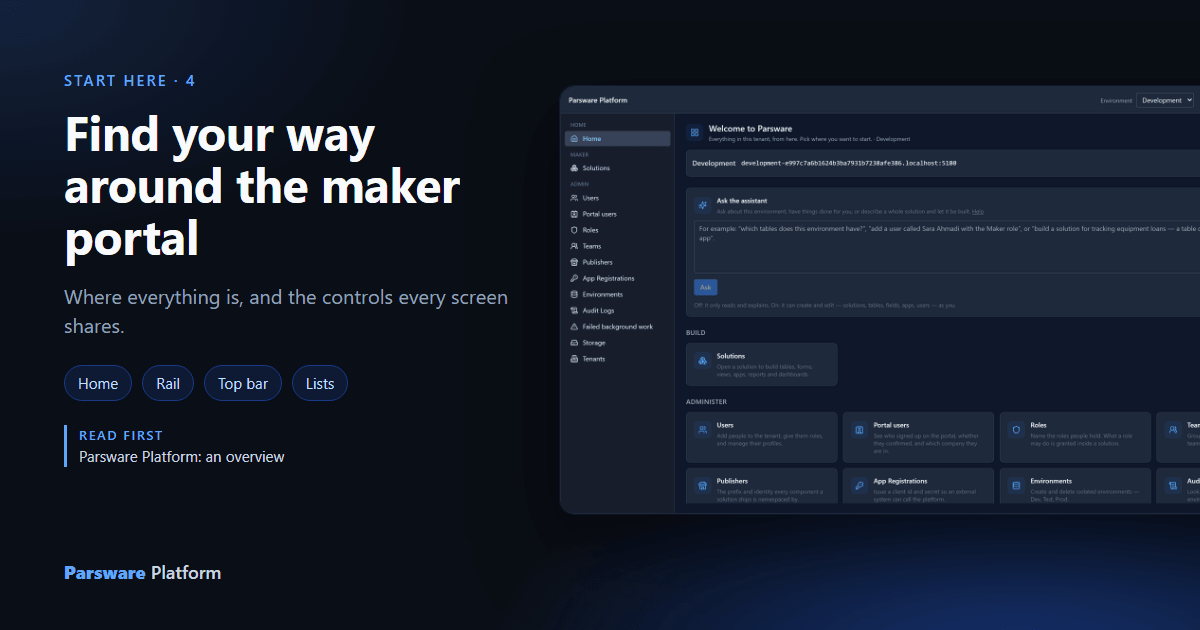
The maker portal is where Parsware applications are built and run from. Tables, apps, processes and reports are all made here, and so are users, roles and environments. People who only use the apps never see it: they open them from the apps list.
This is a short tour of where everything is, and of the controls every screen shares. Learn them once and every screen in the rest of this series works the same way. Every picture is the real product.
Home
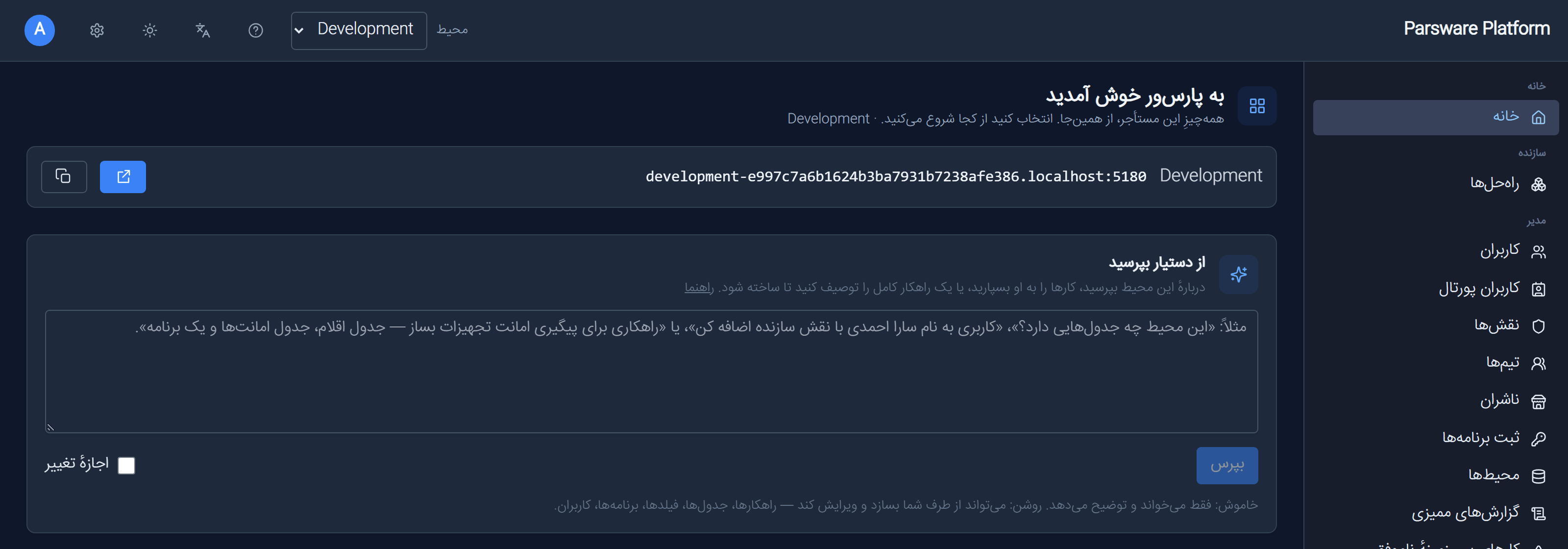
The portal opens on Home.
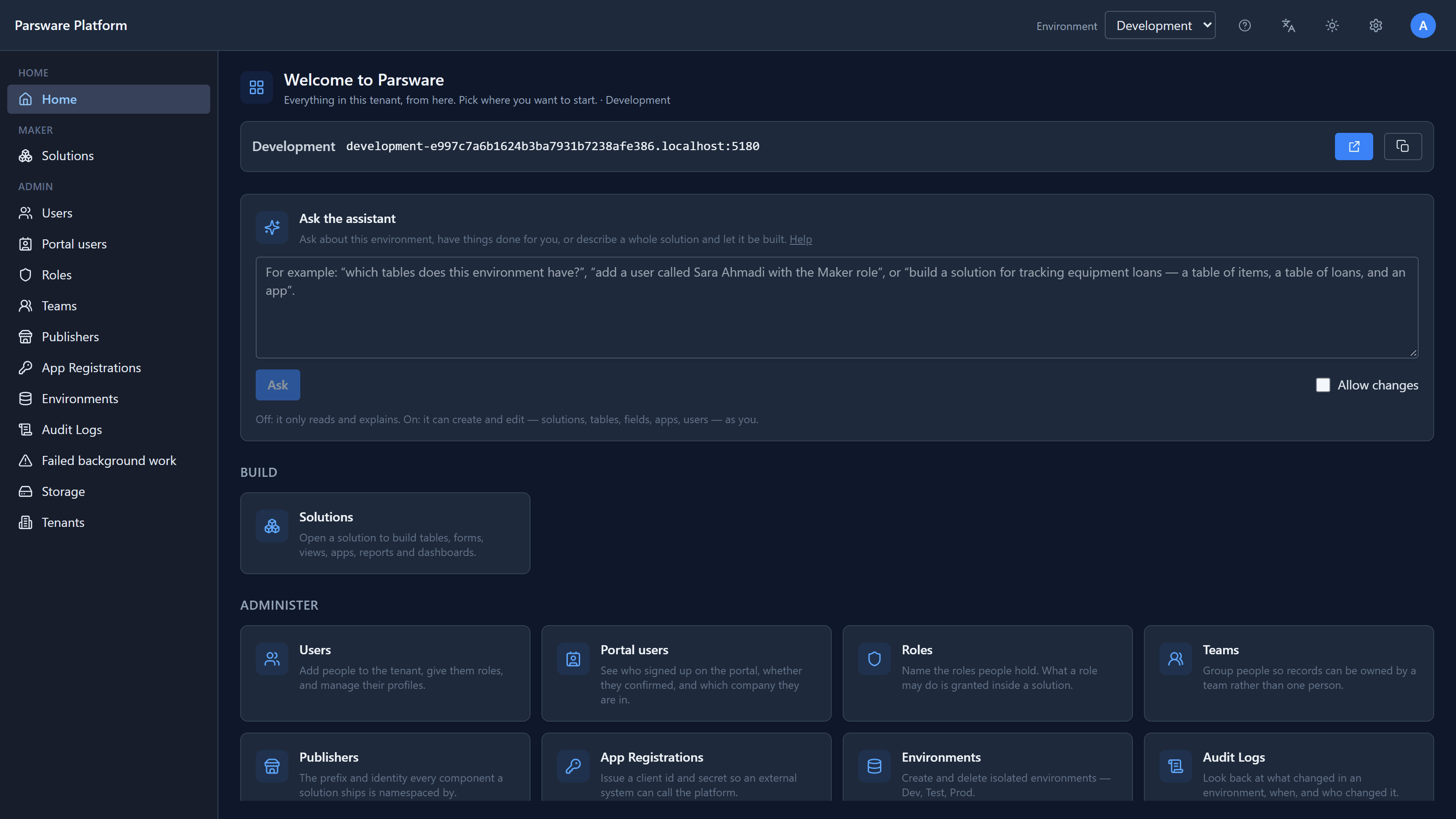
- At the top is the environment you're working in, with the address its apps open at. The two buttons open that address and copy it.
- Below it is the assistant, which answers questions about the environment. It has its own article later in the series.
- Then a card for every area, grouped under Build and Administer.
The rail
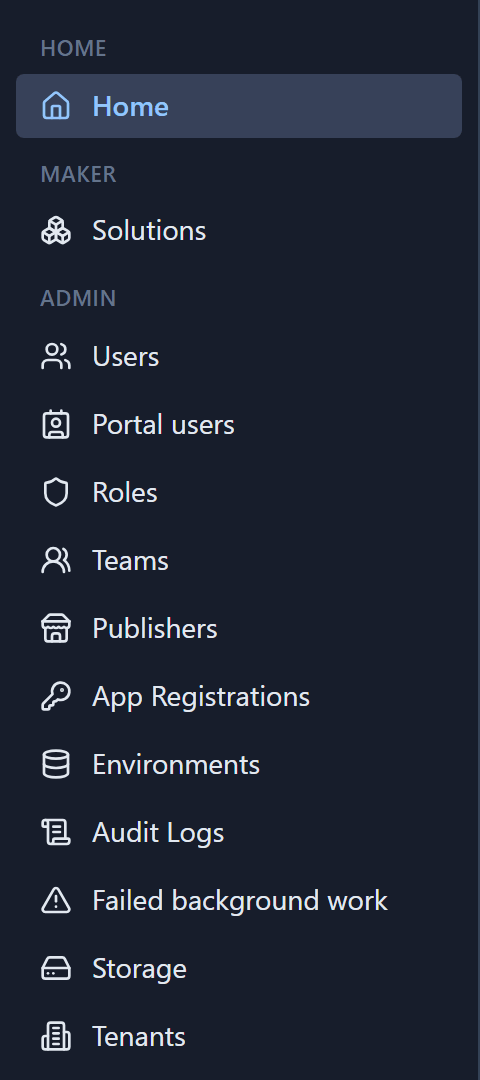
The same areas are in the rail on the left, always in the same place.
- Maker › Solutions is where you build. Every table, app, process and report lives in a solution.
- Admin holds everything about who can do what and where:
- Users, Portal users, Roles and Teams
- Publishers, whose prefix names what you build
- App Registrations, for outside systems that call the platform
- Environments
- Audit Logs, Failed background work and Storage
Each has its own article in this series.
The top bar

From left to right:
| Control | What it does |
|---|---|
| Environment | Everything you see belongs to one environment. Switch it here and every screen follows. |
| Help (?) | Opens the help page for the screen you're on, in a new tab, in your language. Every screen has one. |
| Language | English, فارسی or العربية. The whole portal switches, and Persian and Arabic run right to left. |
| Sun / moon | Switches between dark and light. |
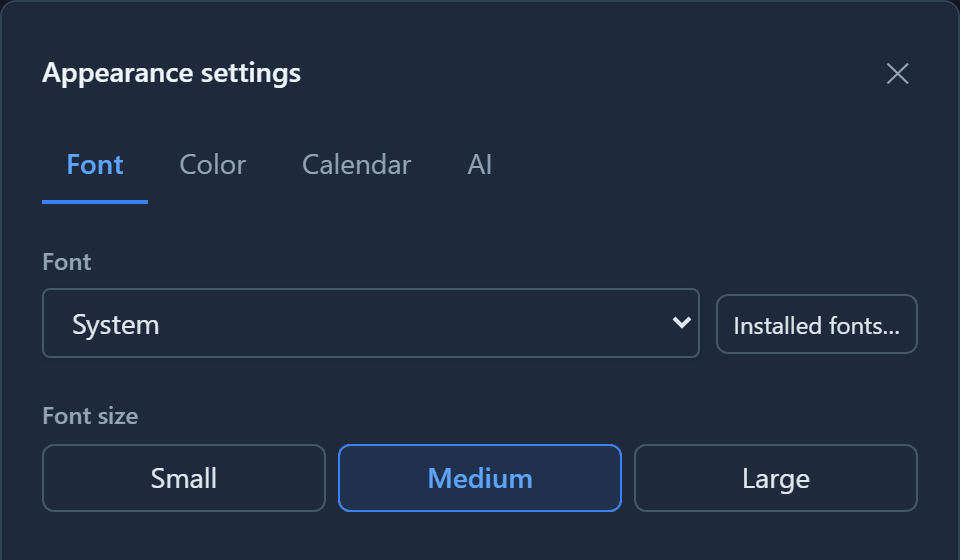
| Appearance settings (gear) | Font and size, colour theme, calendar and date formats, and the AI connection. |
| Your initial | Your account and Sign out. |
Here is Home in Persian. The rail moves to the right and everything reads right to left:
Every list works the same way
Solutions, users, roles, tables and the rest are all lists, and they all work the same way:
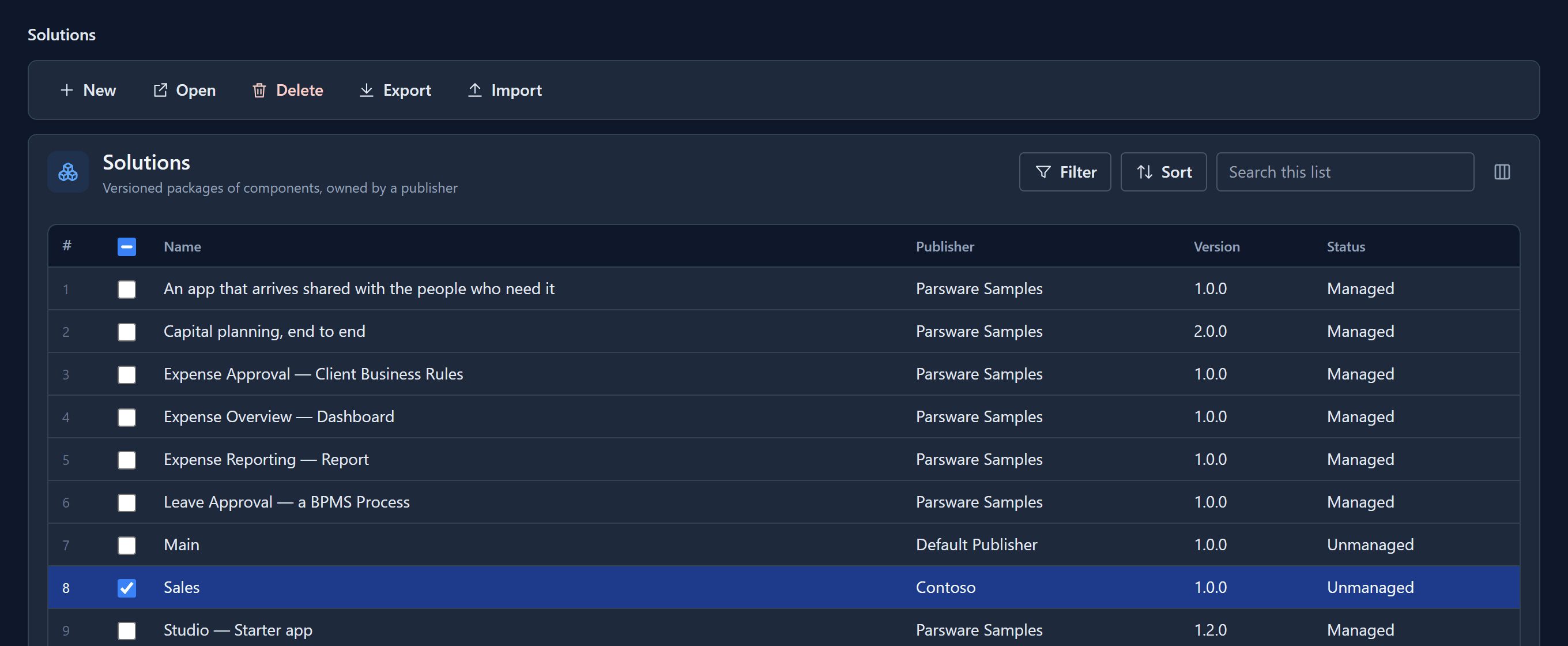
- The command bar is at the top, with New first. Commands that need a row, like Open, Delete and Export, light up when you select one. Double-clicking a row opens it.
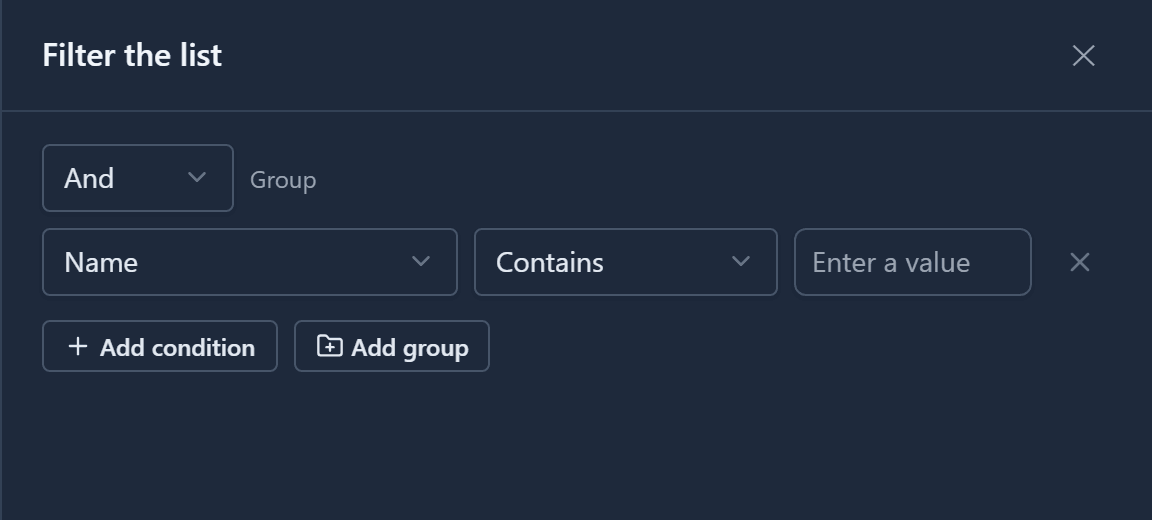
- Filter opens the filter builder. Add conditions, and group them with And and Or.
- Sort orders the list by any column.
- Search this list filters as you type.
- The column chooser (the icon on the far right) picks which columns show.
Drawers
New and Edit open a drawer on the right, like the filter above. The list stays where it was behind it, so you never lose your place. Cancel or the ✕ closes it without saving.
Inside a solution
Open a solution, and the rail changes to what the solution can hold:
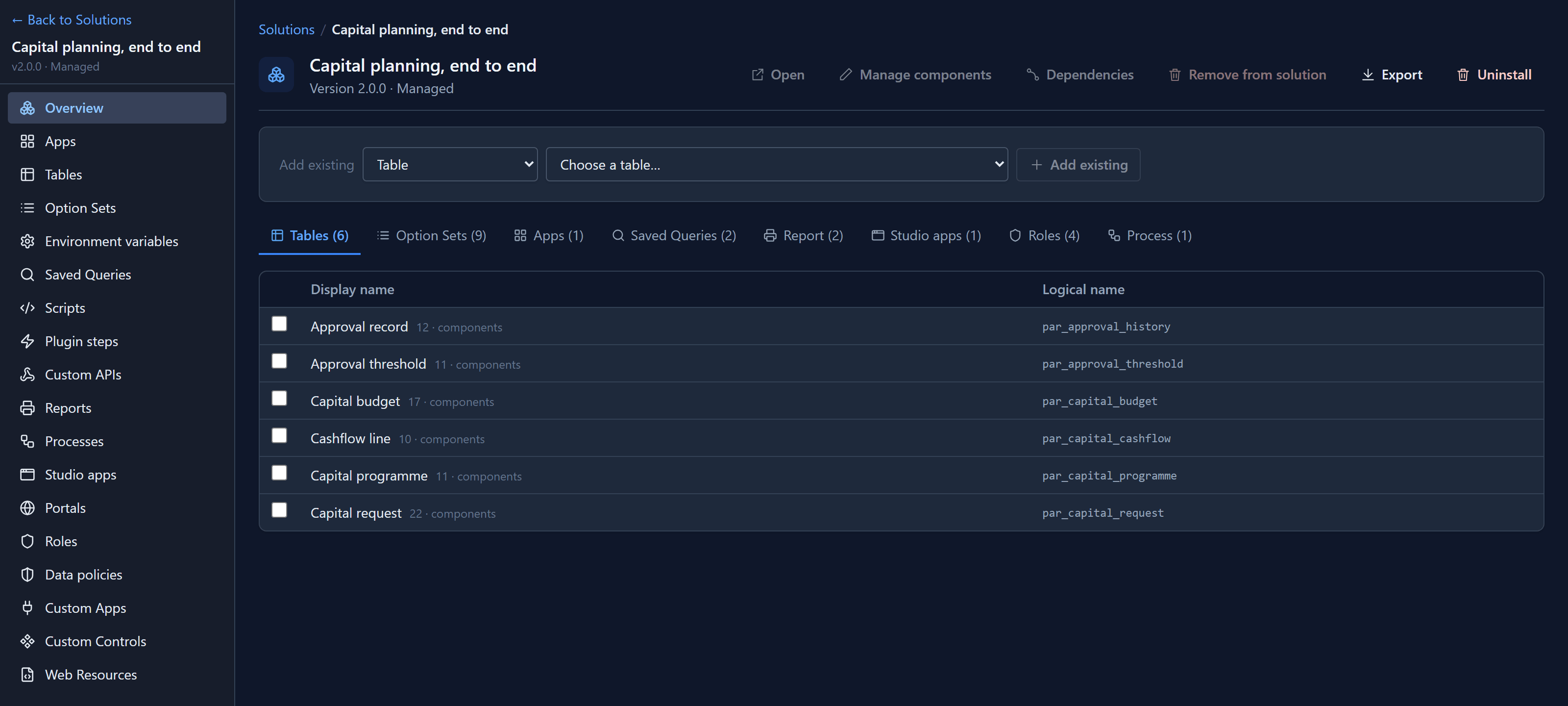
Apps, tables, option sets, environment variables, saved queries, scripts, plugin steps, Custom APIs, reports, processes, Studio apps, portals, roles, data policies, custom apps, custom controls and web resources. Each gets its own articles in this series.
The breadcrumb at the top (Solutions / Capital planning) always shows where you are. Select any part of it to go back. ← Back to Solutions at the top of the rail does the same.
What's next
That's the whole portal: Home, the rail, the top bar, lists and drawers, and a solution's own rail. Next is the Tables and data series, starting with every field type a table can have.