For Power Apps
Move designs from Dev to Prod
A published Parsware design is an ordinary component of your own solution, so it moves from development to production the way everything else in Power Apps does. Export the solution as managed and import it. Production needs the Parsware runtime and nothing else. Here is a report taken from one environment to another, every step pictured.
Este artículo solo está disponible en inglés.
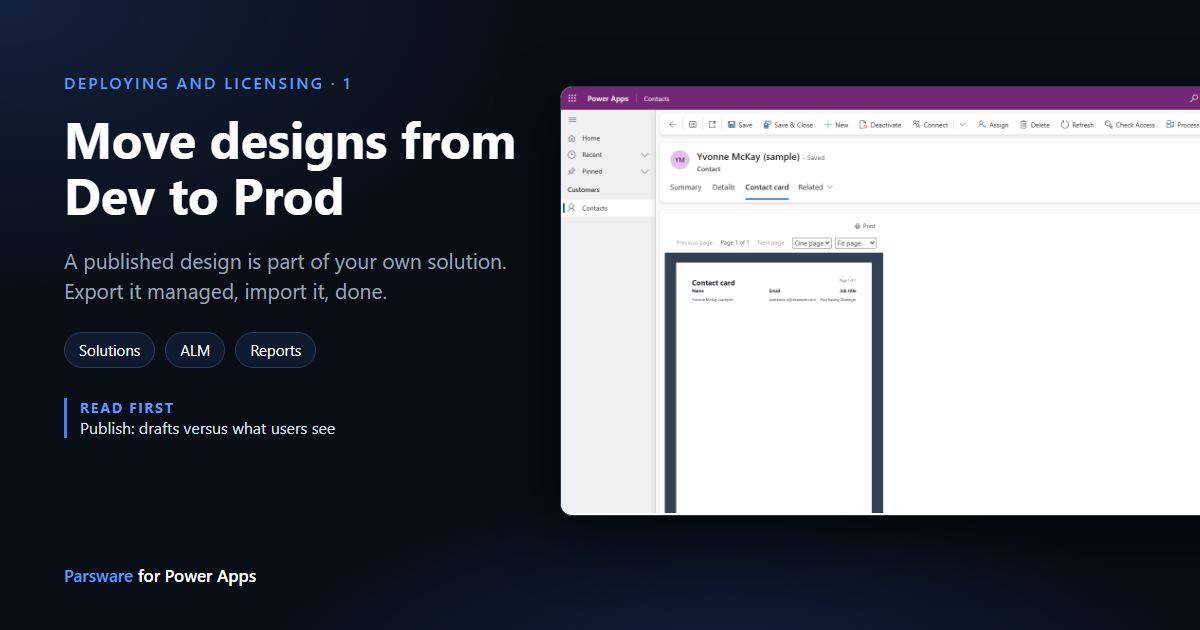
You build in a development environment and your users work in production. Parsware doesn't add a deployment step of its own to that. A published design is a component of a solution you own, so it travels the way your tables, forms and apps already do: export the solution from Dev, import it into Prod.
We'll move a small report, a Contact card on the Contact form, from our development environment into a second, empty one. Contact is a standard table, so it exists in both.
1. Publish into your own solution
We made a new solution, Contact reports, and a report called Contact card that shows the open contact's name, email and job title (the way Your first report on Dataverse shows). Then Publish, and choose that solution:
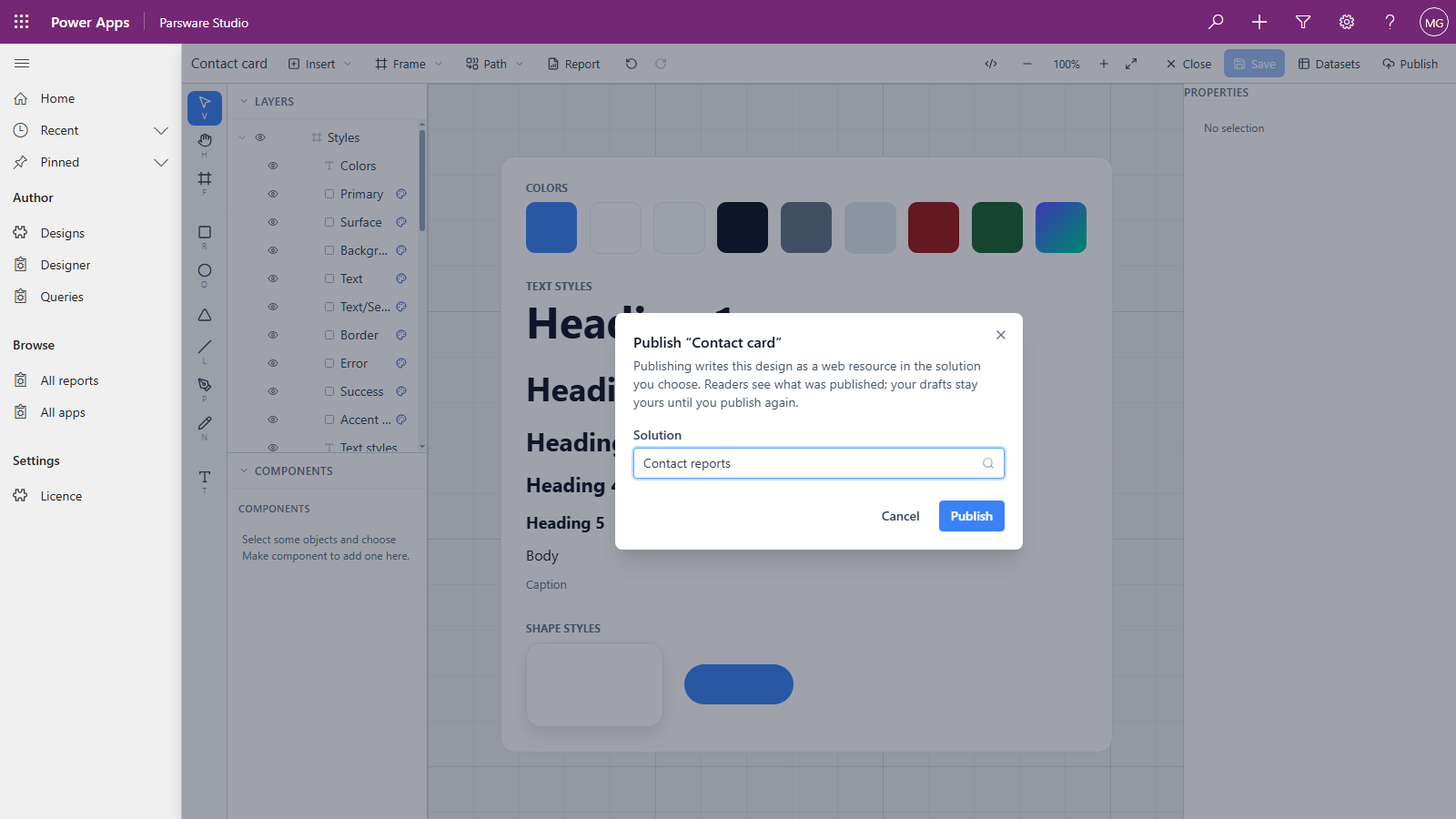
The design is written into Contact reports as a web resource, ex_parsware/contact-card.json.
See Publish: drafts versus what users see for
what publishing does.
2. Put everything users need in the same solution
A report on its own isn't something users can open. The solution also needs whatever shows it. Ours has a Contact card tab on the Contact form with the Parsware Runtime component on it (see A report on a form), and a small Contacts app to open the form in:
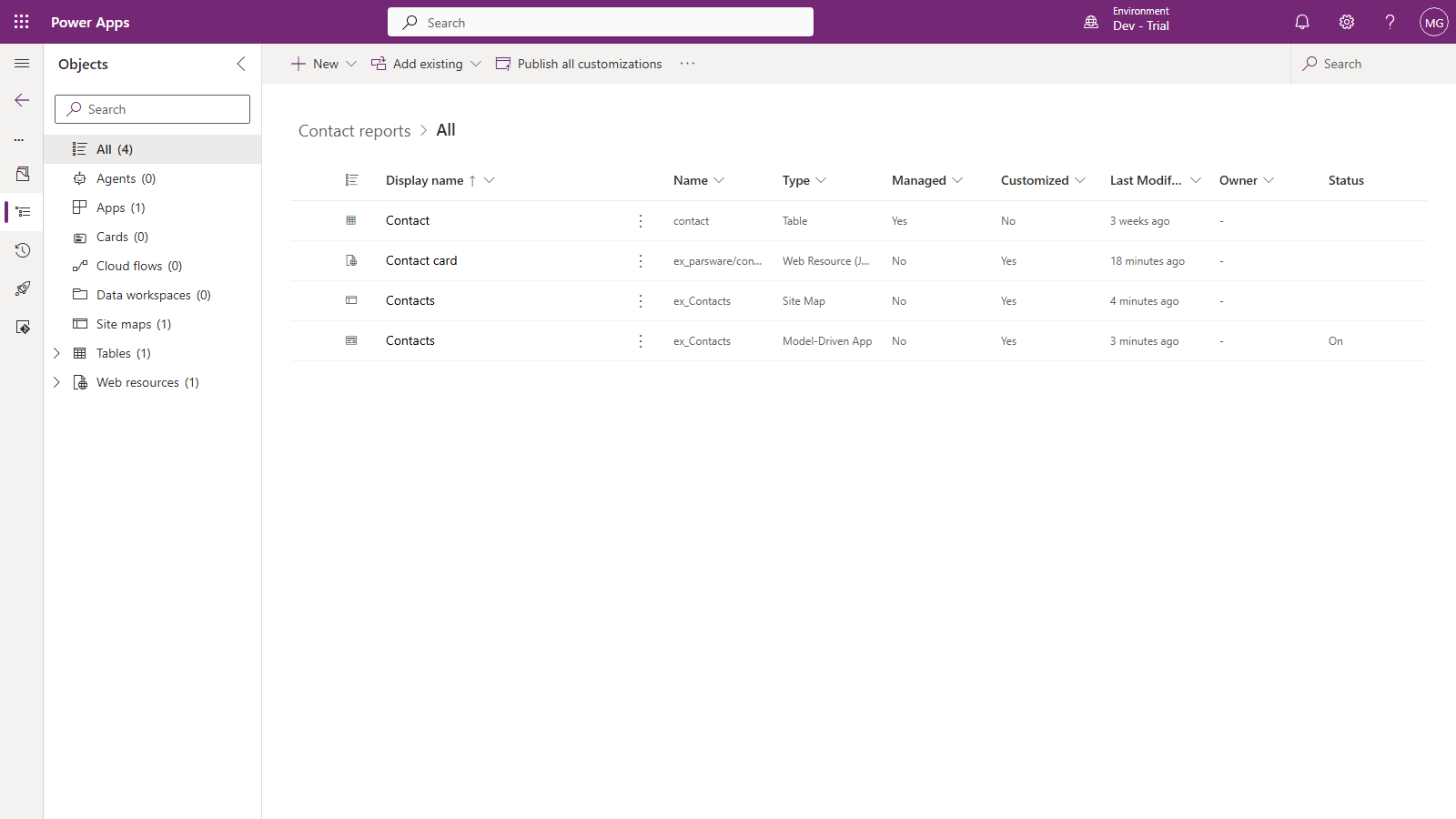
The Contact form sits under Tables › Contact › Forms. We added the table with only that form, not all of its columns and views. The solution owns the report and the place it appears, and nothing else.
The draft doesn't travel, and doesn't need to. The row in Parsware Studio's Designs list is where you keep working on the report in Dev. Production gets the published copy and nothing else.
3. Export it as managed
Select the solution and press Export. Before it lets you continue, the maker portal lists the managed solutions yours depends on:
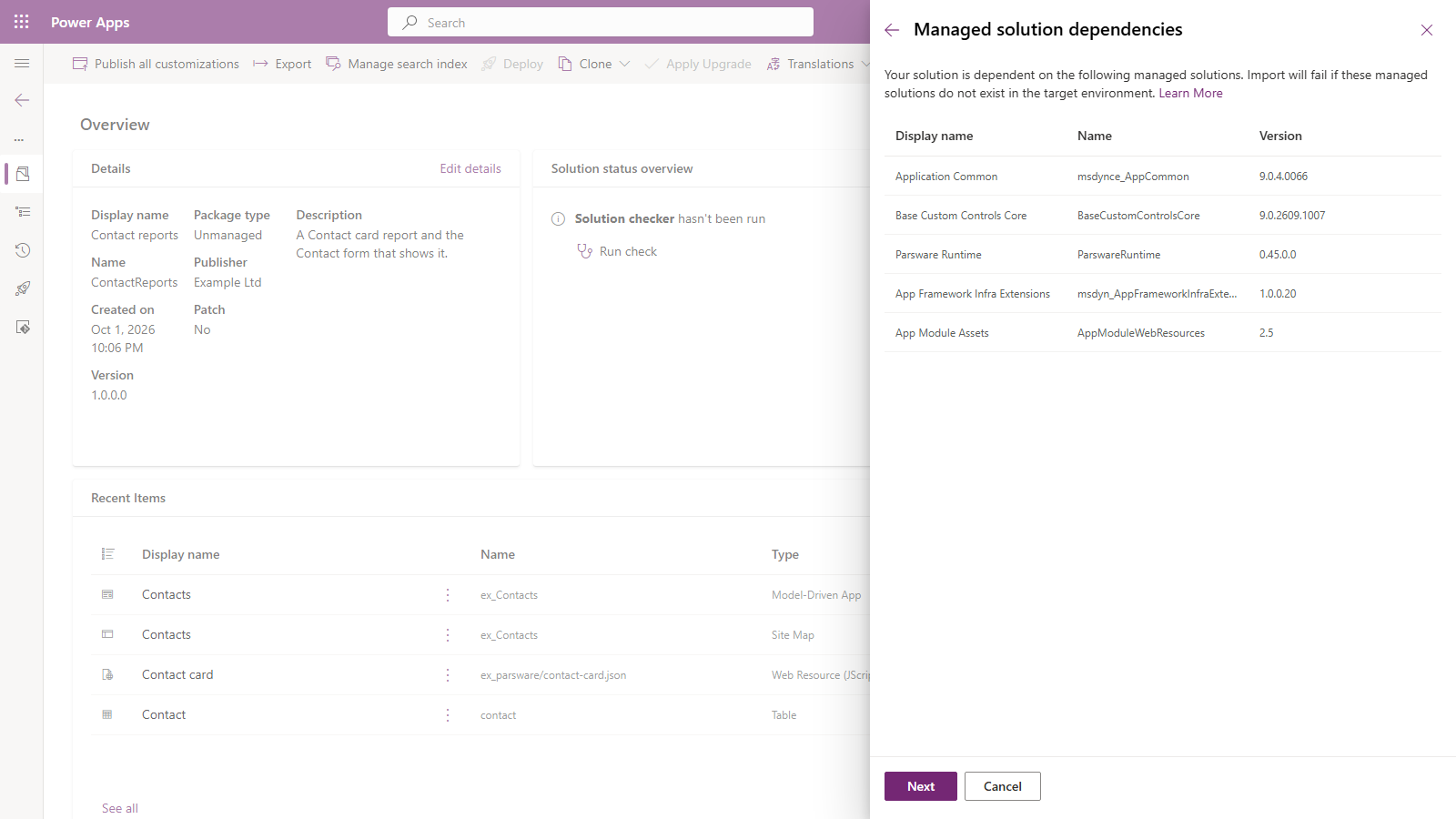
Parsware Runtime is there, at the version installed in Dev. Your solution uses its form component, so production needs the runtime too. The rest are Microsoft's own and are in every environment.
Press Next, then choose Managed, which is what a test or production environment should get:
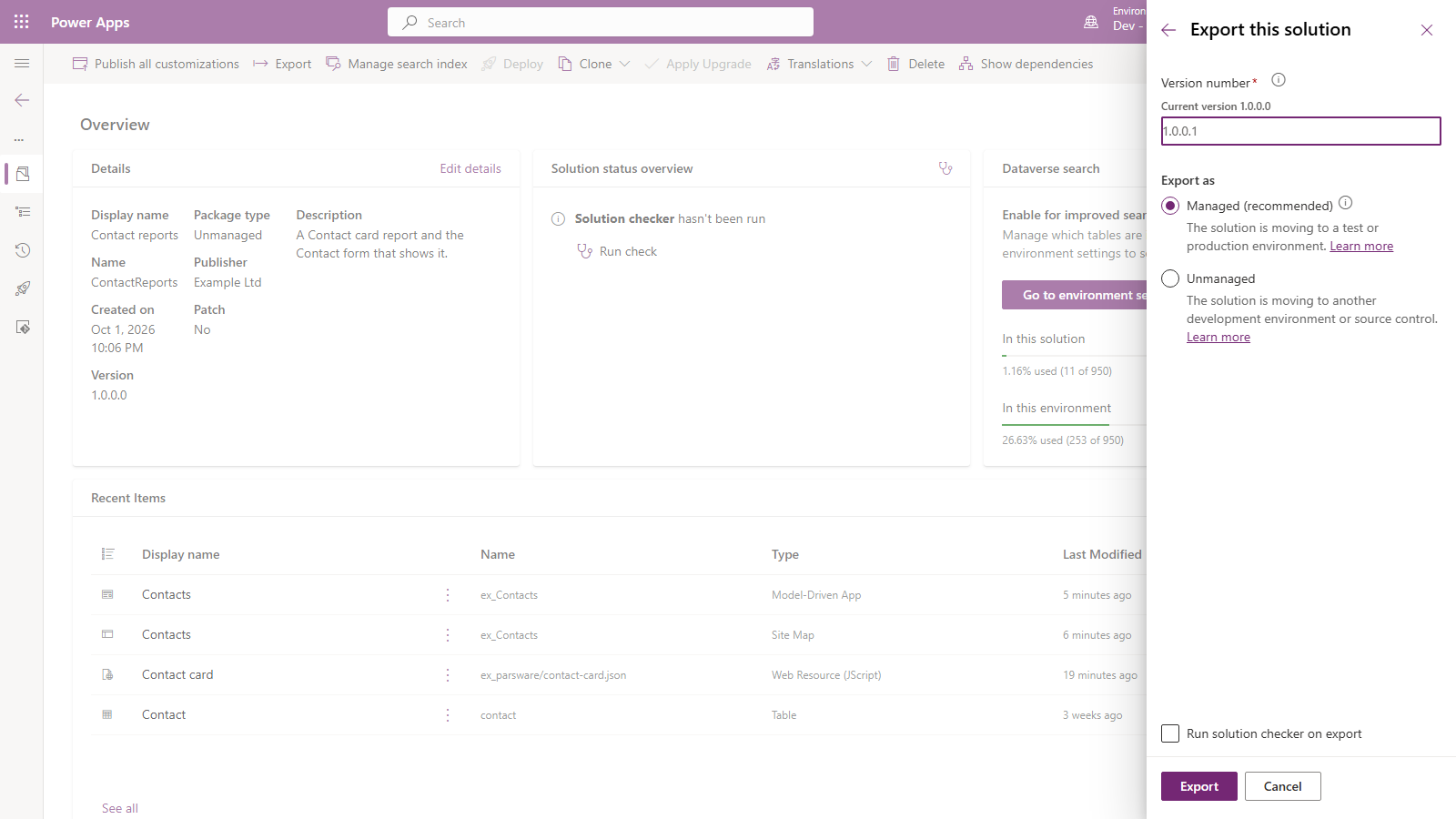
Press Export, and download the zip when it's ready.
4. Production needs the runtime first
We tried the import into the empty environment first, before anything Parsware was in it:
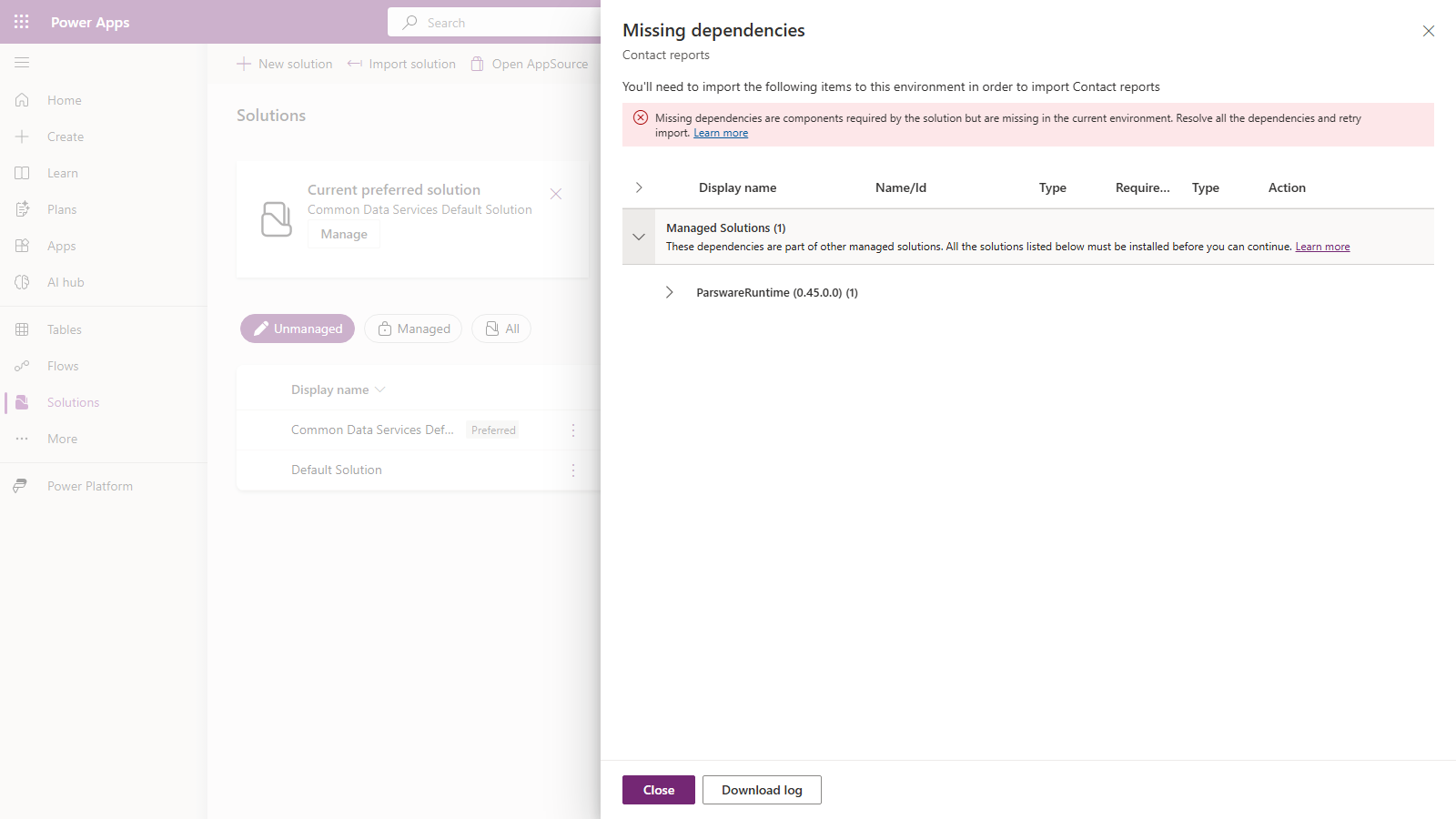
It names what's missing, so there's nothing to guess. Install Parsware Runtime, at that version or later, and add a licence key that covers the environment (see Install it and Activate your licence). Production needs only the runtime. Parsware Studio, the designer, stays in development.
5. Import your solution
Solutions › Import solution, choose the zip, and Next. This time there's no warning:
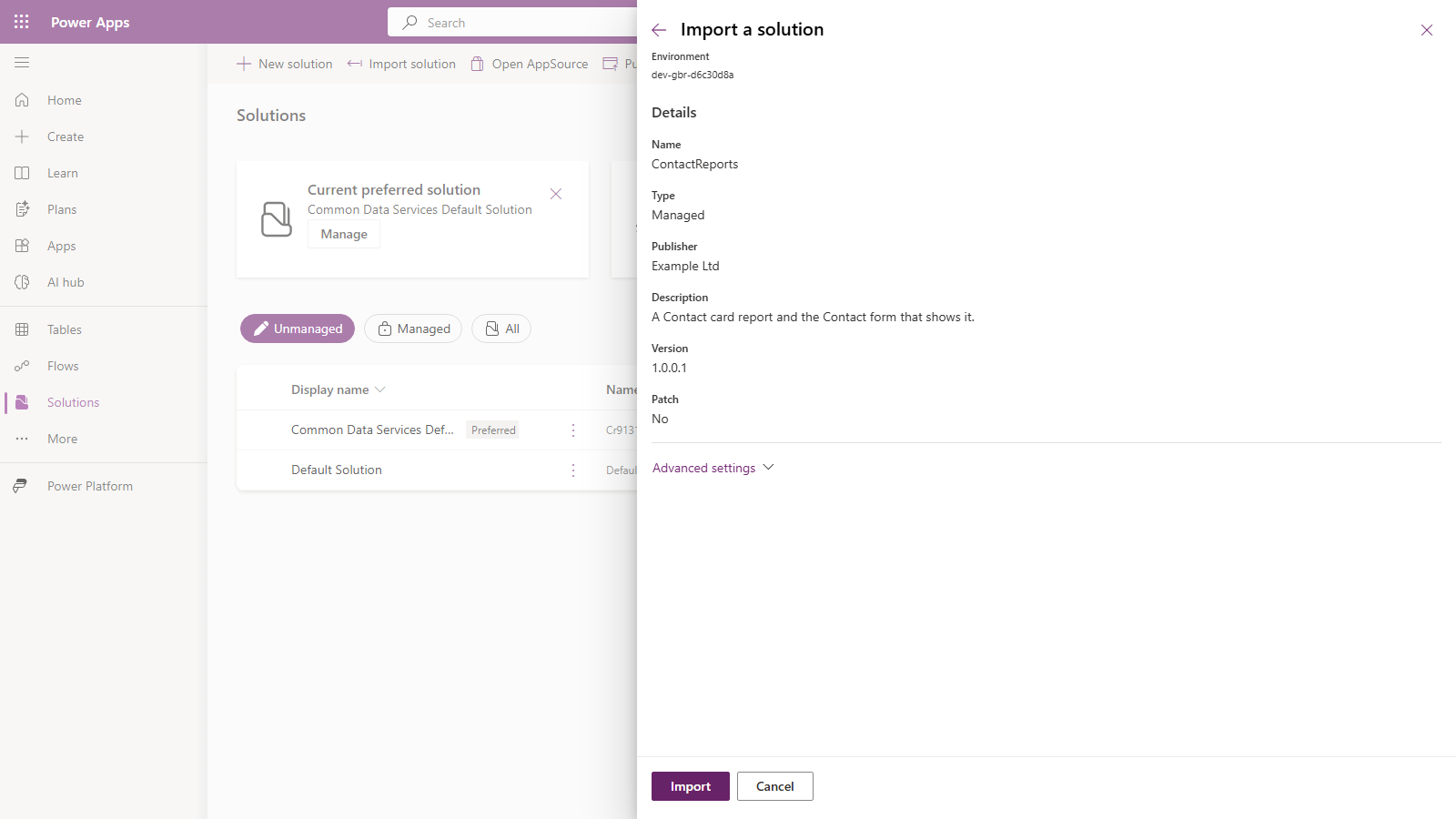
Press Import. A few seconds later the maker portal says Solution "Contact reports" imported successfully.
6. Open it in production
Open the Contacts app, open a contact, and choose the Contact card tab:
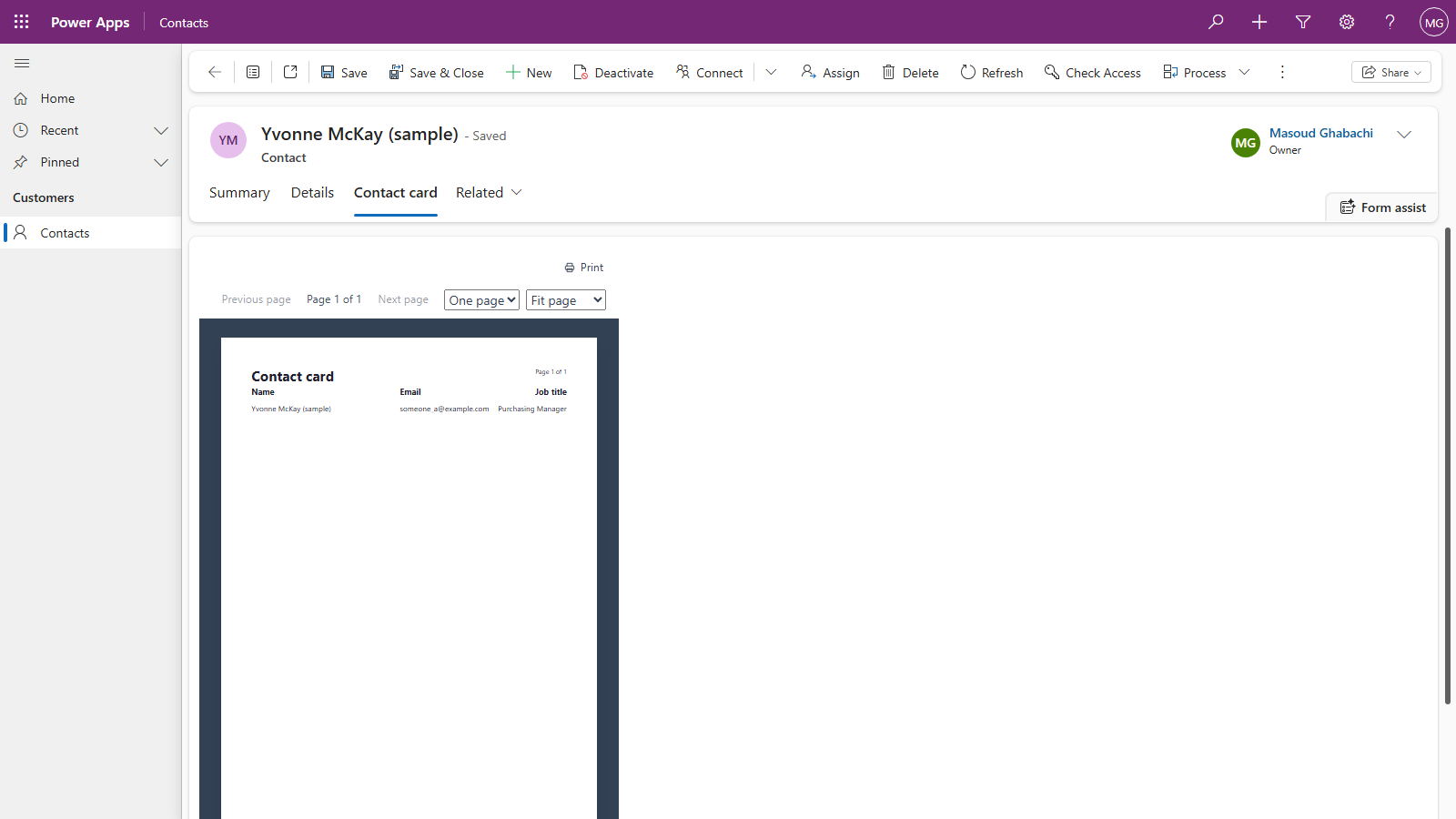
That's the report from Dev, reading production's own contacts. This environment has no designer and not a single design row; it has the runtime and the solution that carried the report.
Changing it later
Change the report in Dev, Publish into the same solution, export a higher version, and import it over the old one, as you would for any other change to the solution. Production then shows the new layout everywhere it appears. Make changes in Dev and move them: production has no designer to edit the report with, and that's deliberate.
Good to know
- Use the same report name everywhere. A form, a column or a link finds a report by name, and the name is the same in every environment, while ids aren't.
- Saved queries travel the same way. Publish a saved query into the same solution as the report that uses it; see Saved queries that travel.
- The CLI works too. A published design is an ordinary web resource, so whatever moves your
solutions moves it. The zip we imported above came from
pac solution export --name ContactReports --managed. We pictured the maker portal because it's what everyone has. - The tables your report reads have to be there. Contact exists everywhere. A report over your own tables needs those tables in production too, normally in the same solution or one installed before it.
Next
Upgrading to a new version: importing a new release of Parsware over the one you have. The whole series is in the reading list.