For Power Apps
Publish: drafts versus what users see
In Parsware for Power Apps, Save keeps your work and Publish releases it. Readers only ever see what was published, so you can work on a live report without anyone watching it change. Here's a change to the case sheet, saved, checked on the form, then published.
Este artículo solo está disponible en inglés.
The last few articles each ended with Publish and a promise to explain it. This is that article.
A Parsware design has two copies, and they live in different places:
- The draft is a row in the Designs list in Parsware Studio. It's what the designer opens and what Save writes. Nobody but makers ever sees it.
- The published design is a web resource in one of your solutions. It's what the report on a form, the report in an app's navigation and Print all read. Publish writes it.
So you can take a report people use every day, change it over an afternoon, and nobody sees a half-finished page. We'll show that with the Case sheet report from A report on a form.
1. Change the draft, and save it
Open Case sheet in the designer, select the title and change it. Ours now reads Case summary. Save turns blue as soon as there's something to save:
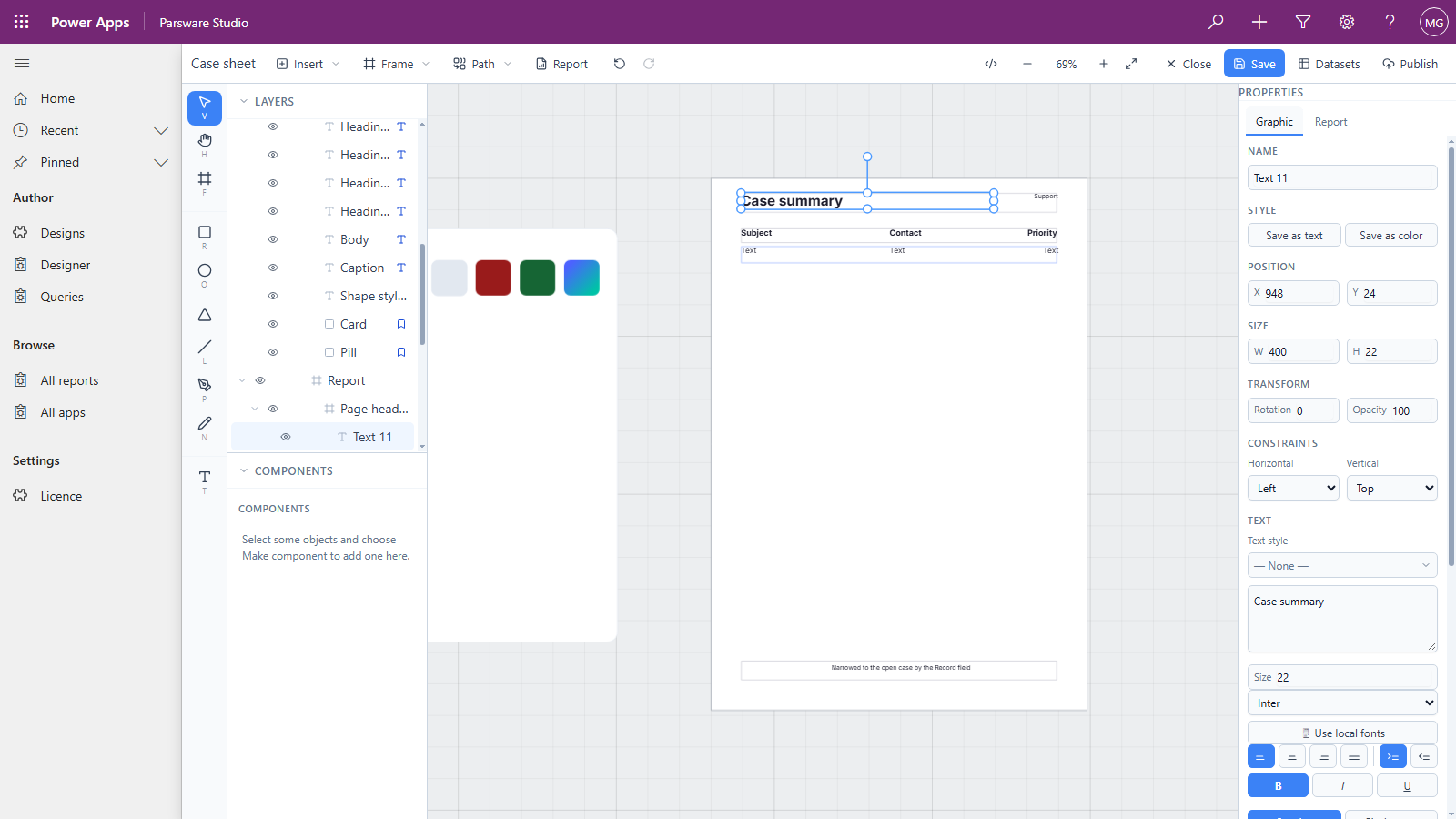
Press Save. The draft now says Case summary.
2. Look at the form
Open a case in the app:
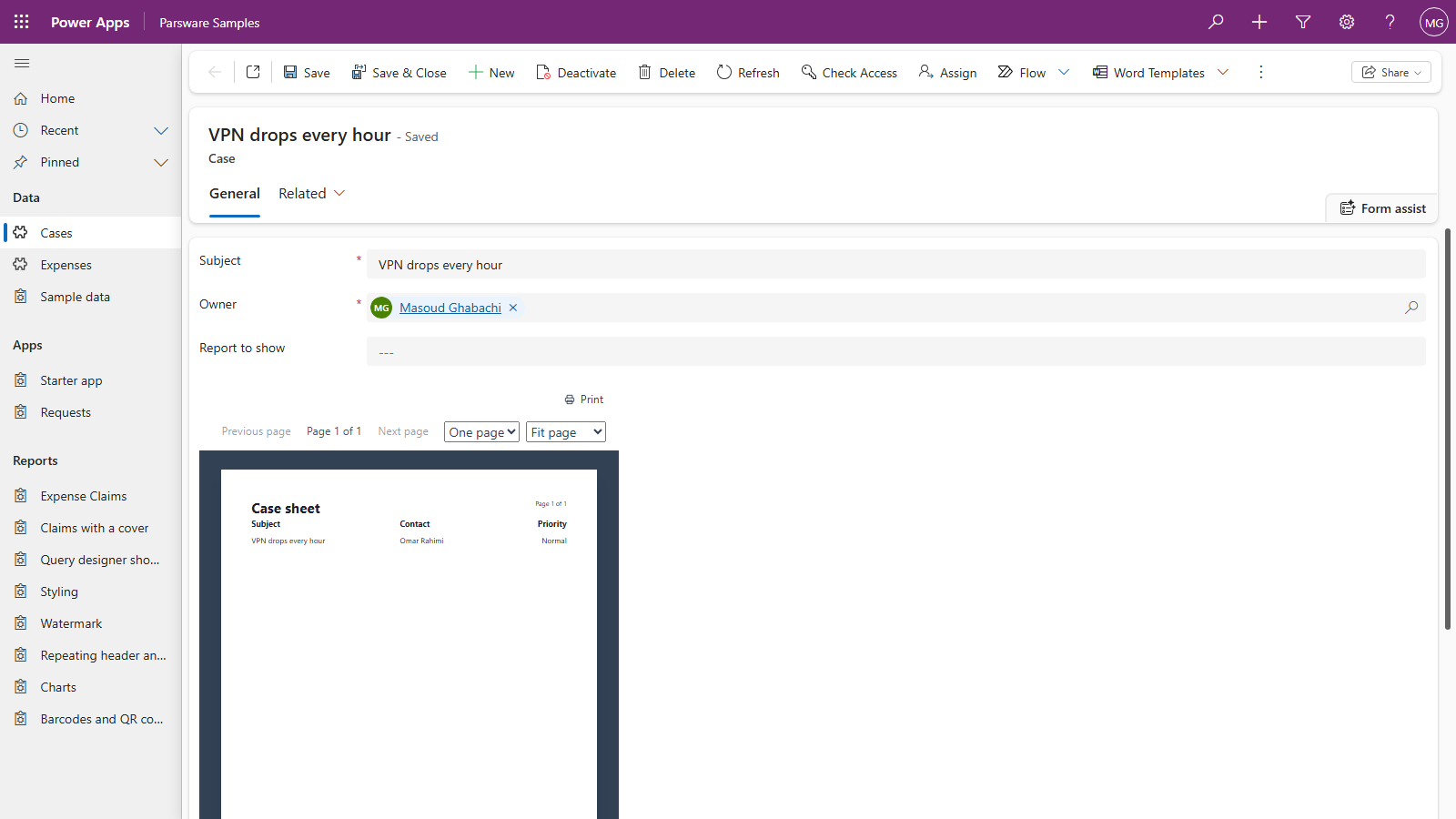
Still Case sheet. That's the point: the form reads the published copy, and you haven't published yet. Keep saving as often as you like; readers won't see any of it.
To see your draft as a report while you work, use Report in the designer's toolbar. The preview reads the draft, through the same compiler Publish uses, so what you preview is what you'll publish.
3. Publish
Press Publish. It saves first, then asks where:
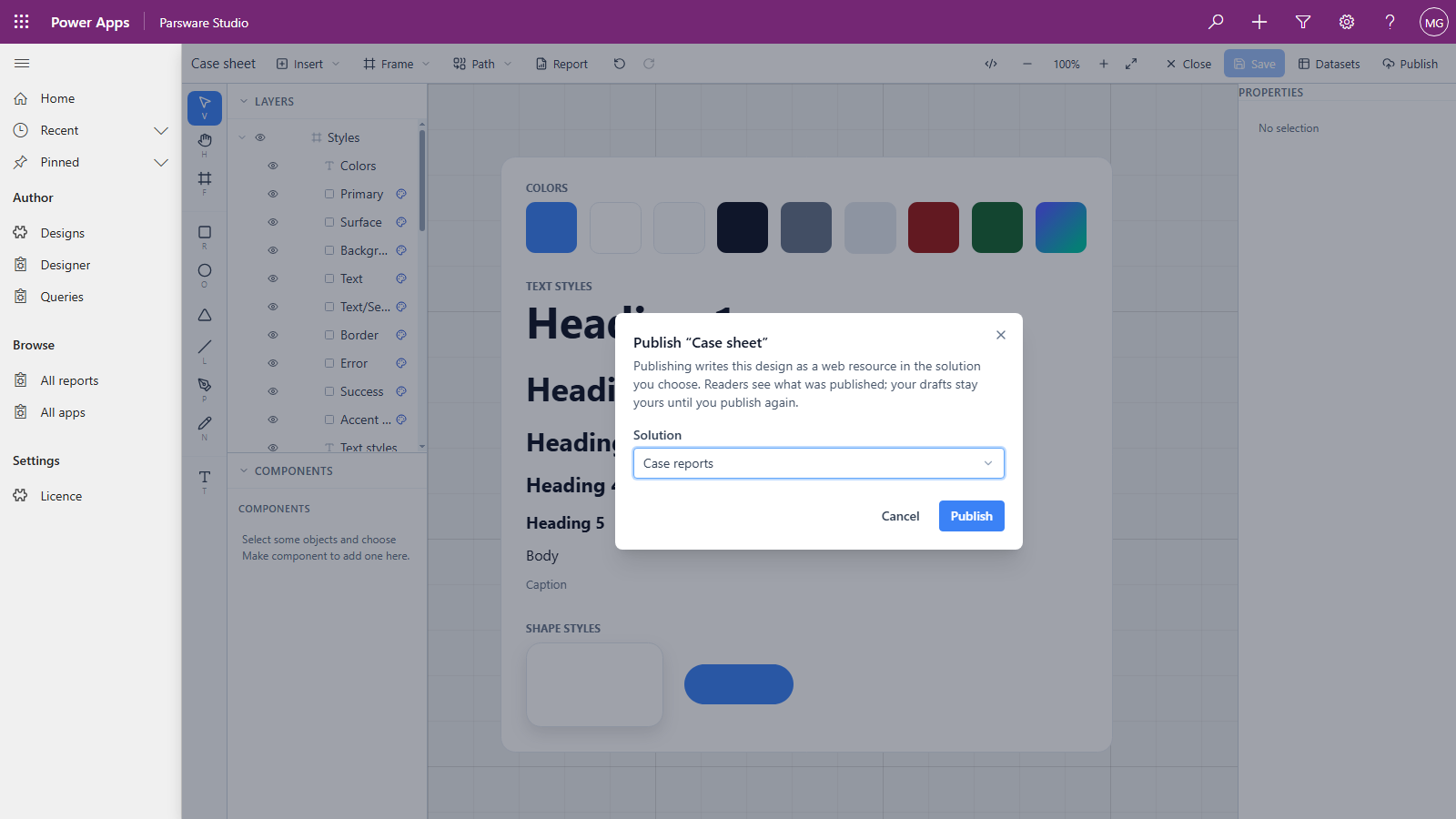
The list offers your unmanaged solutions, each with its unique name and publisher prefix. A managed solution can't take new components, so it's never offered. The first time, choose one; after that, the one you chose is selected already. It asks every time anyway, because publishing is the step that changes what people see, and it should always say where it's going.
Press Publish. After a few seconds the designer says Published as
ex_parsware/case-sheet.json. That's the web resource's name: your publisher's prefix, a
parsware folder, and the design's name as a file name.
4. Look at the form again
Reload the case:
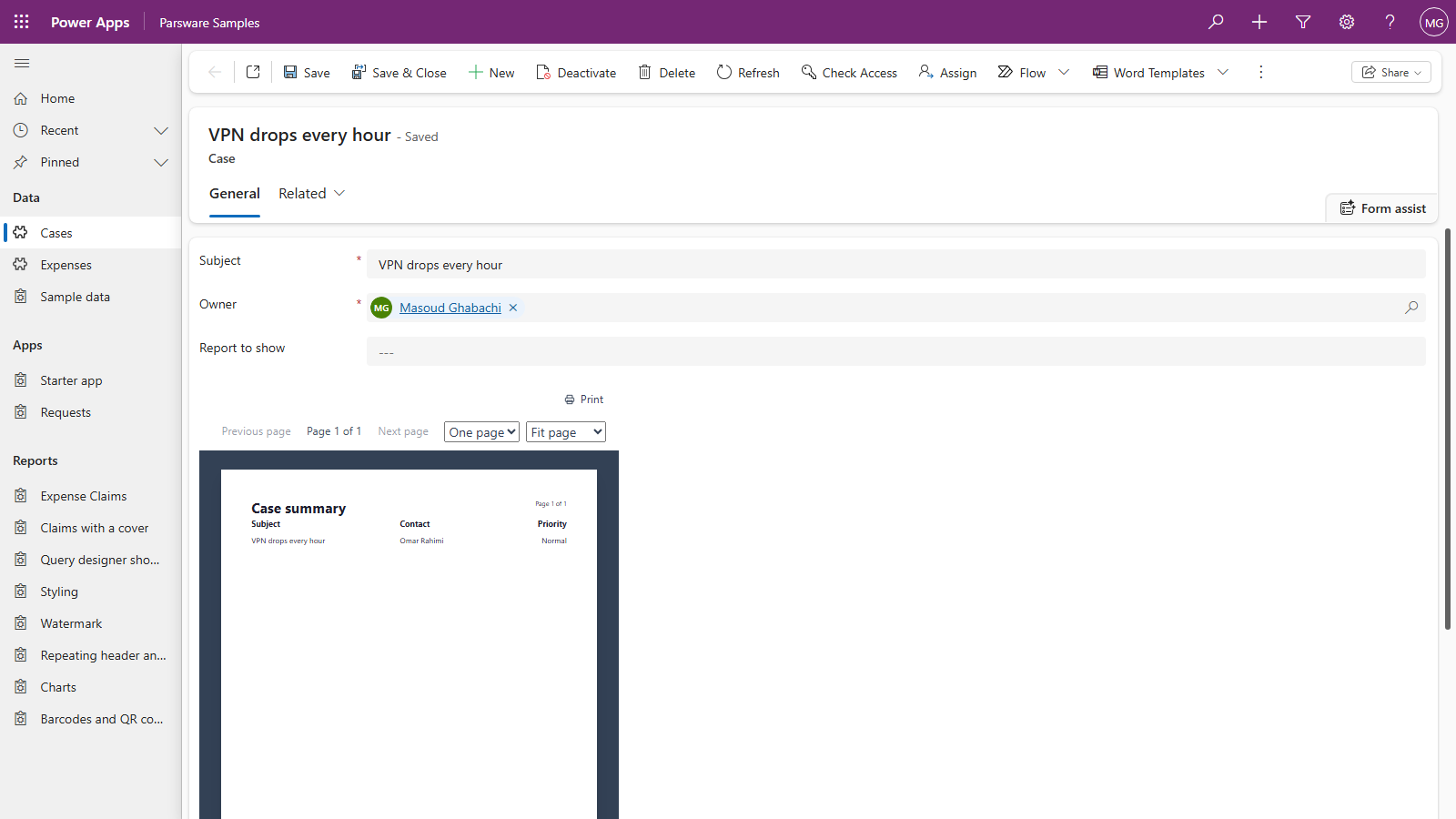
Case summary. Every form, page and print that shows this report changed at once.
Where it went
The design's row in Designs records both answers, Publish to solution and Published file, so "where did this go, and has it gone yet?" has an answer in one place:
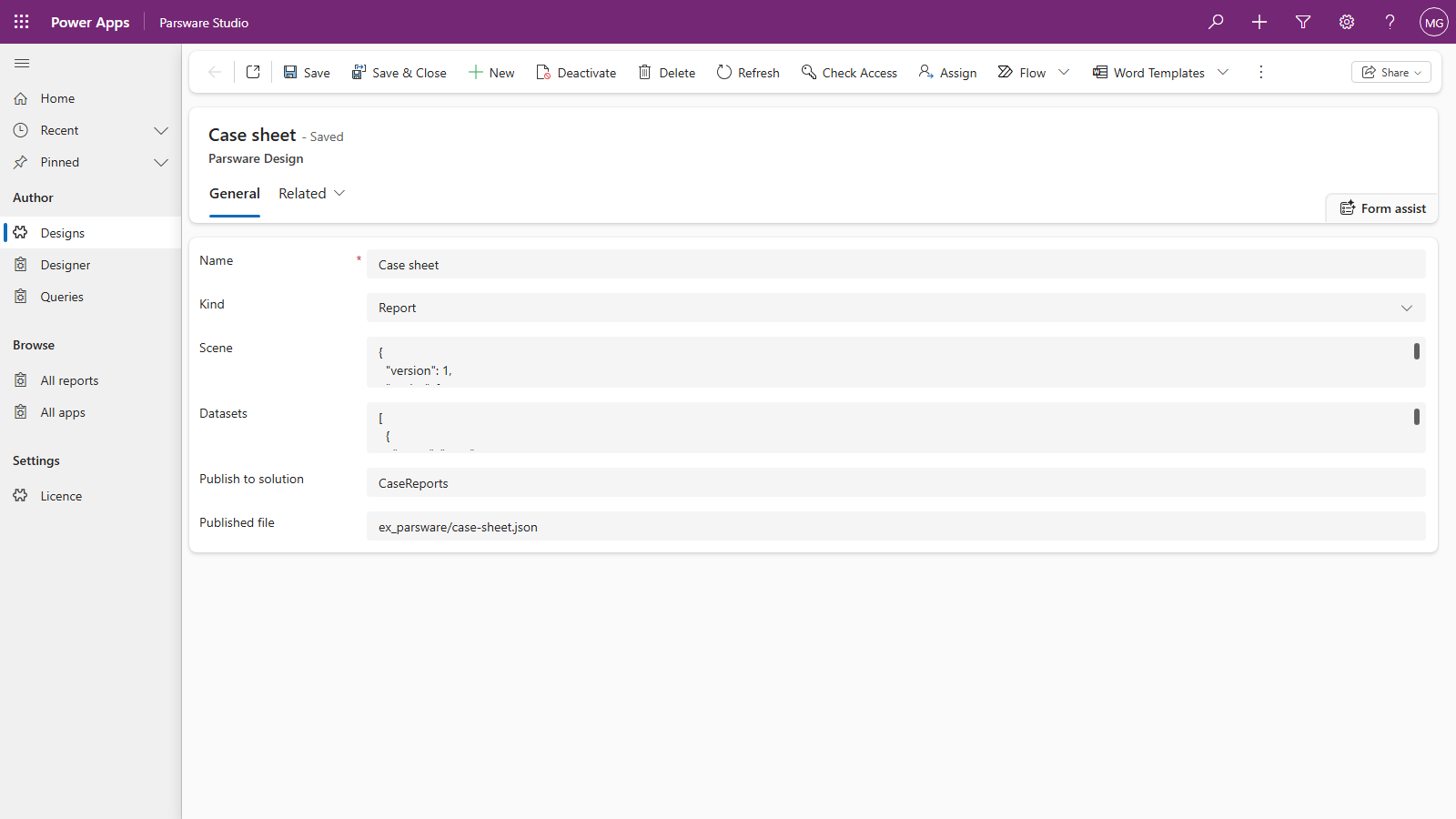
Because the published file is a solution component, it moves with that solution. Export Case reports from Dev and import it into Test, and the report is there. The draft row doesn't travel. That's deliberate: a solution carries components, not rows, and your drafts belong in the environment you design in.
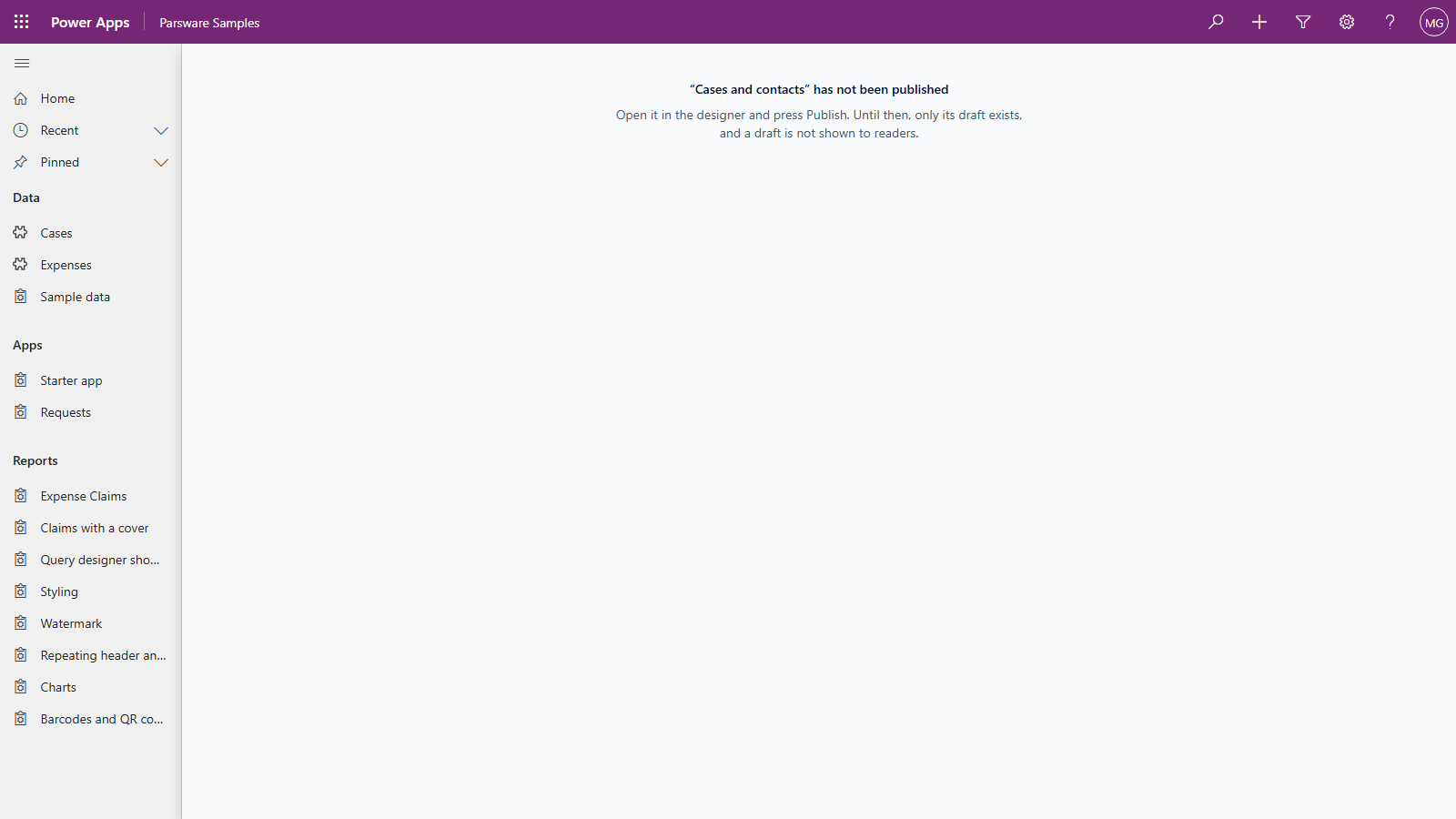
A design that was never published
Point a form or a navigation entry at a design that only has a draft, and the reader gets a message where the report would be, not an empty page:
Good to know
- Publishing what you last saved is allowed. Publish isn't greyed out when there's nothing new to save, so you can publish the same drawing again whenever you like.
- Parsware Studio's own lists show drafts. All reports and All apps in Parsware Studio are for makers, so they show what you're working on. Readers use the model-driven apps you build, which read only what's published.
- Queries are the exception, in the environment you write them in. A report that names a saved query reads the query's own row where there is one, so a saved change to a query reaches reports there straight away. Elsewhere it reads the published copy. The next article covers that.
- Not yet: unpublishing, history, and a "changed since publishing" flag. To withdraw a published design, delete its web resource from the solution. Publishing overwrites the previous copy, so rolling back means republishing an older drawing. And the designer can't yet tell you that the draft has moved on since the last publish.
Next
Saved queries that travel: publishing a query, so a report that names it works in every environment its solution reaches. The whole series is in the reading list.