For Power Apps
The two apps: Parsware Studio and Parsware
Parsware for Power Apps installs two model-driven apps. Parsware Studio is where makers draw reports and screens, and it only exists in development. Parsware is what every environment gets, and it starts almost empty on purpose, because the reports and screens your users open belong in your own apps.
Este artículo solo está disponible en inglés.
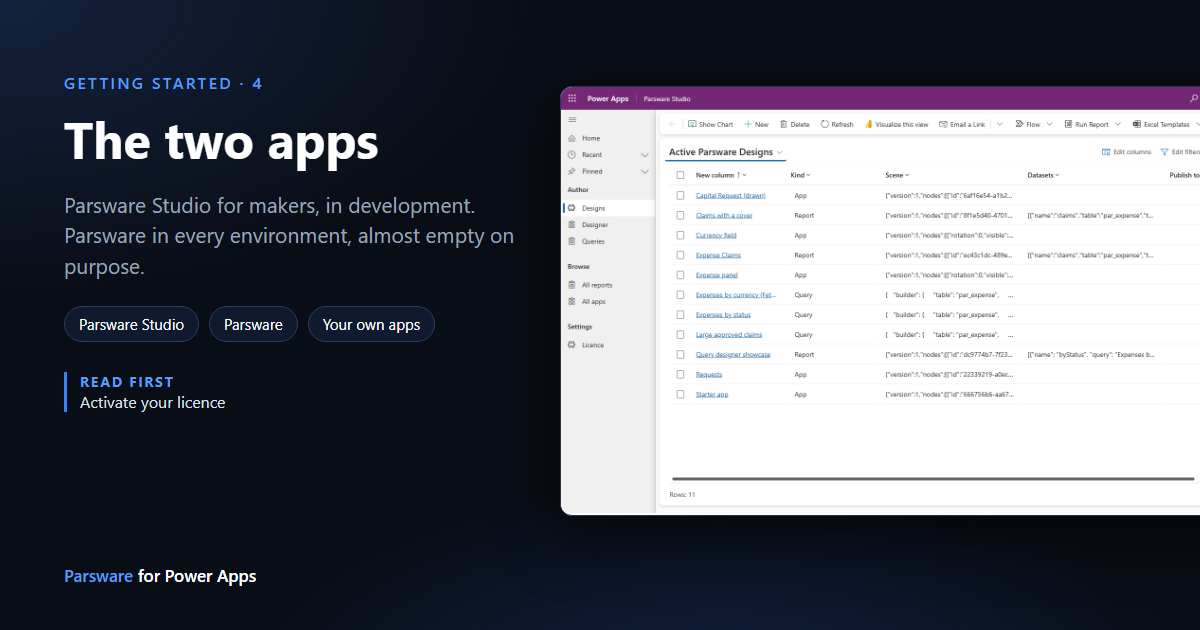
With the solutions installed and the licence in place, open the apps list in the maker portal. You'll find two new model-driven apps, one for each kind of person:
| App | Comes with | For | Where it exists |
|---|---|---|---|
| Parsware Studio | Parsware Studio (the designer solution) | Makers, who draw reports and screens | Development only |
| Parsware | Parsware Runtime | Whoever manages the licence | Every environment |
If you imported the samples, there's a third, Parsware Samples. It's the subject of the next article.
The split is deliberate. Designing is a development activity, so the tool for it stays in development. What reaches test and production is what you published, inside your own solutions, and the runtime that shows it.
Parsware Studio, for makers
Parsware Studio opens on Designs: every report, Studio app and saved query in the environment, one row each.
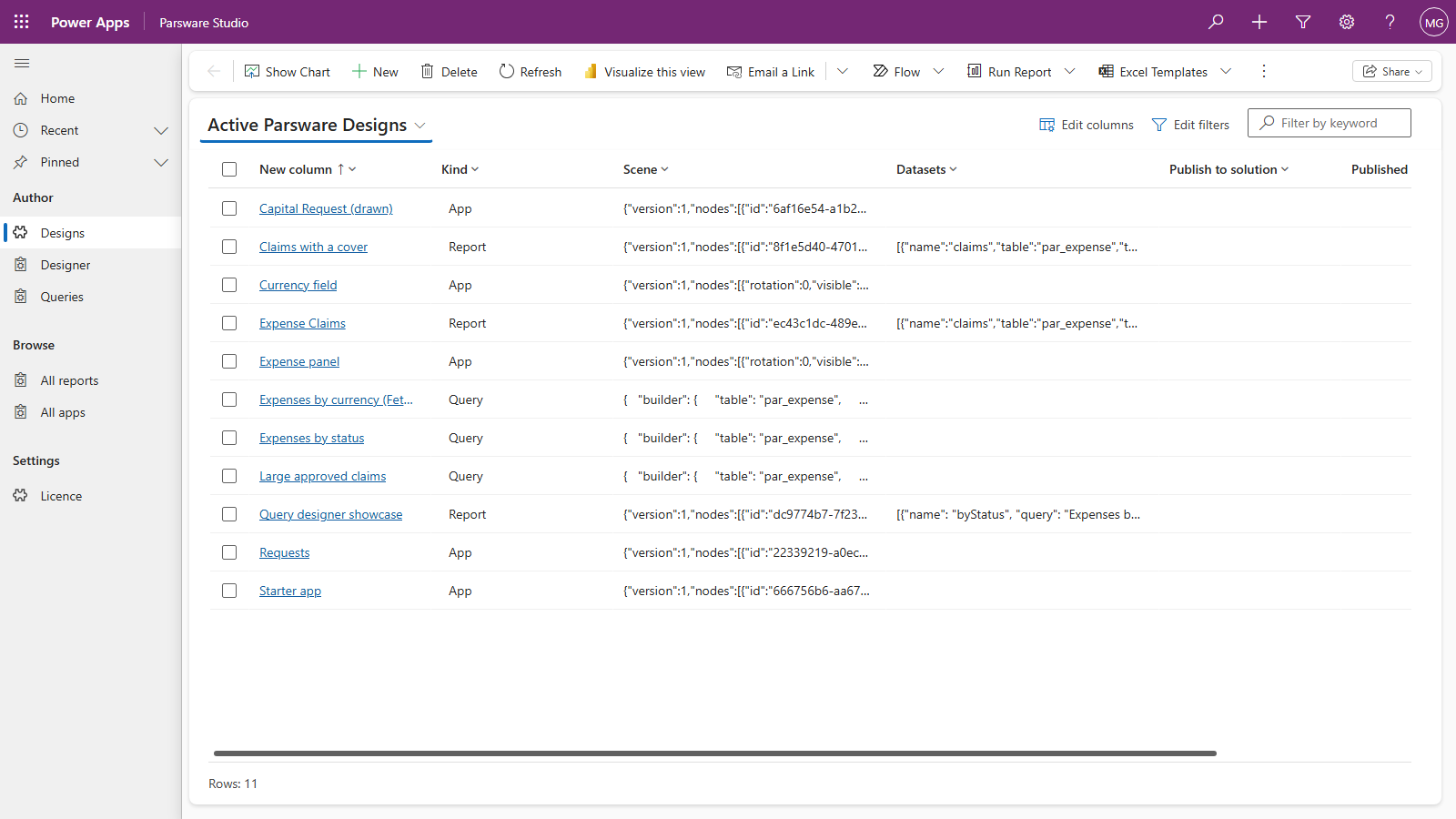
Its navigation has three groups:
| Group | Page | What it's for |
|---|---|---|
| Author | Designs | The list of designs. New here is how a design starts: give it a name and a kind |
| Designer | The canvas, where you draw a report or a screen | |
| Queries | Saved queries, for the totals and groupings a view can't express. Build one, or write FetchXML, and see its rows before you save it | |
| Browse | All reports | Every report in the environment, running beside the list |
| All apps | The same, for Studio apps | |
| Settings | Licence | The licence row from the previous article |
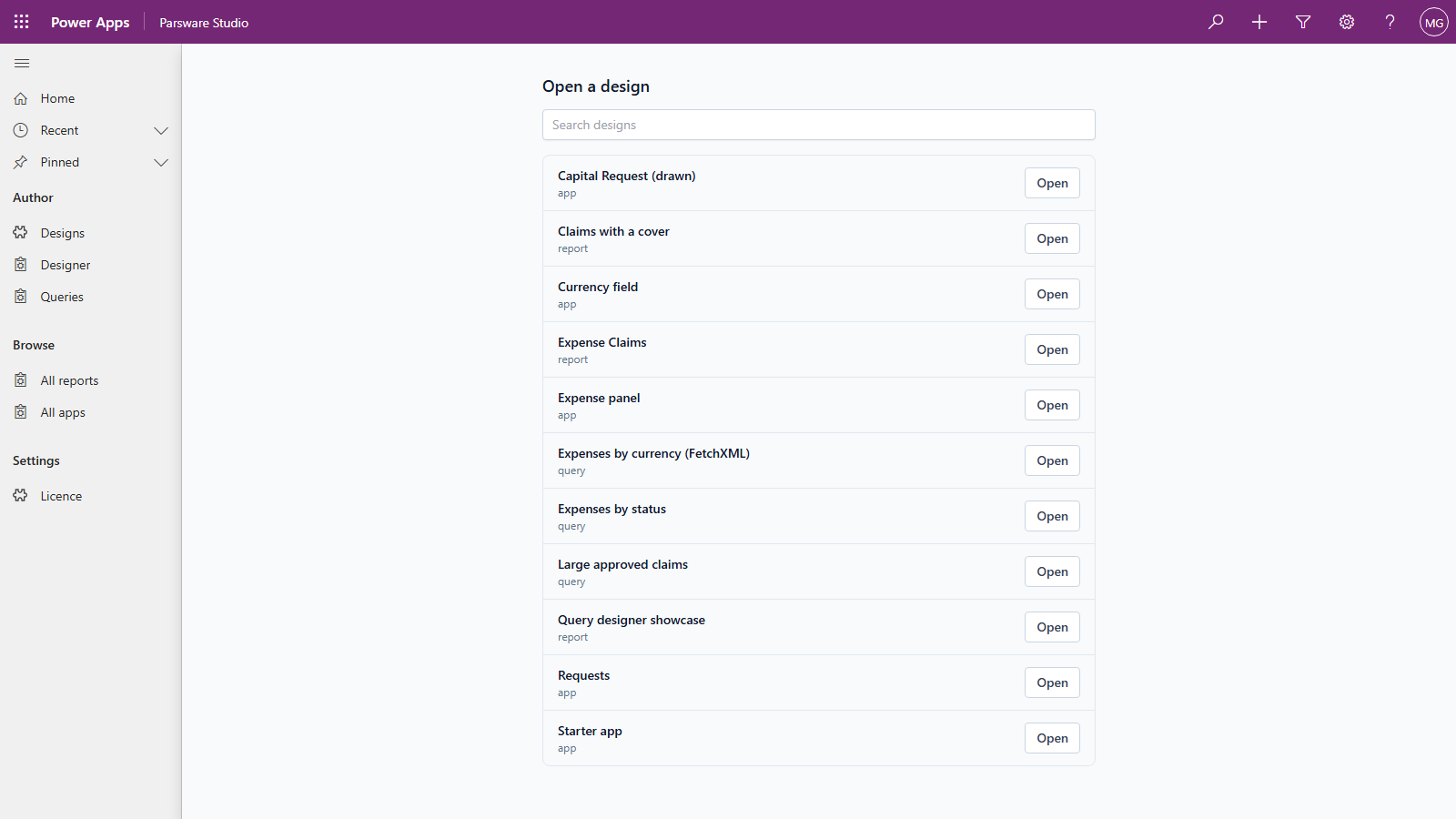
Designer opens on a list of the designs you can open, with a search box above it. Choose one, press Open, and the canvas takes the whole page.
All reports is the quickest way to see what a report looks like with real rows, without opening the designer at all:
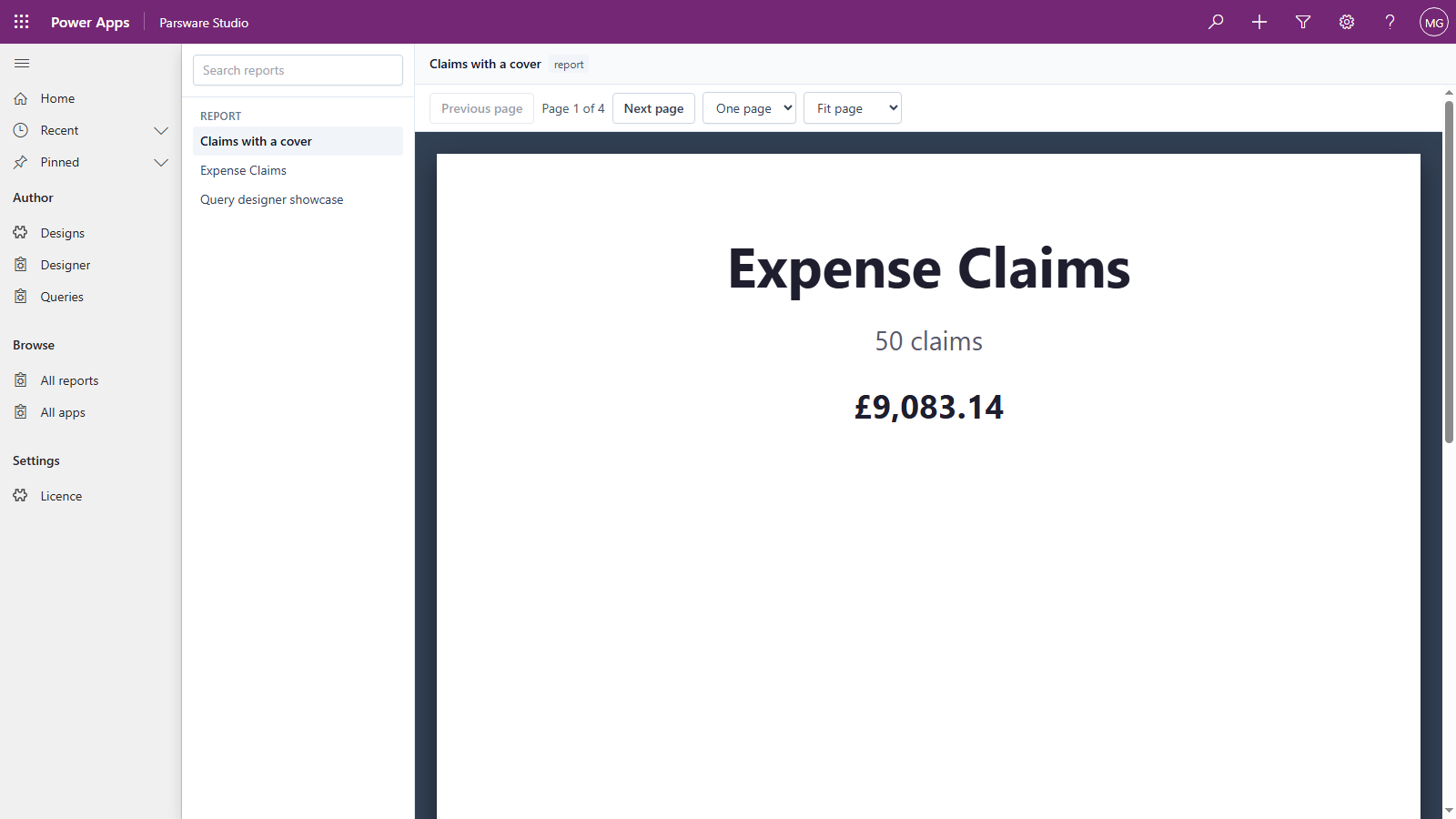
One thing to know about both browsers: they show drafts. They read the design rows and compile what's been saved, published or not. That's right for a maker checking their work, and it's why Parsware Studio doesn't go to your users.
Parsware, for everybody else
Open Parsware and you'll find very little: one group, Setup, with one page, Licence.
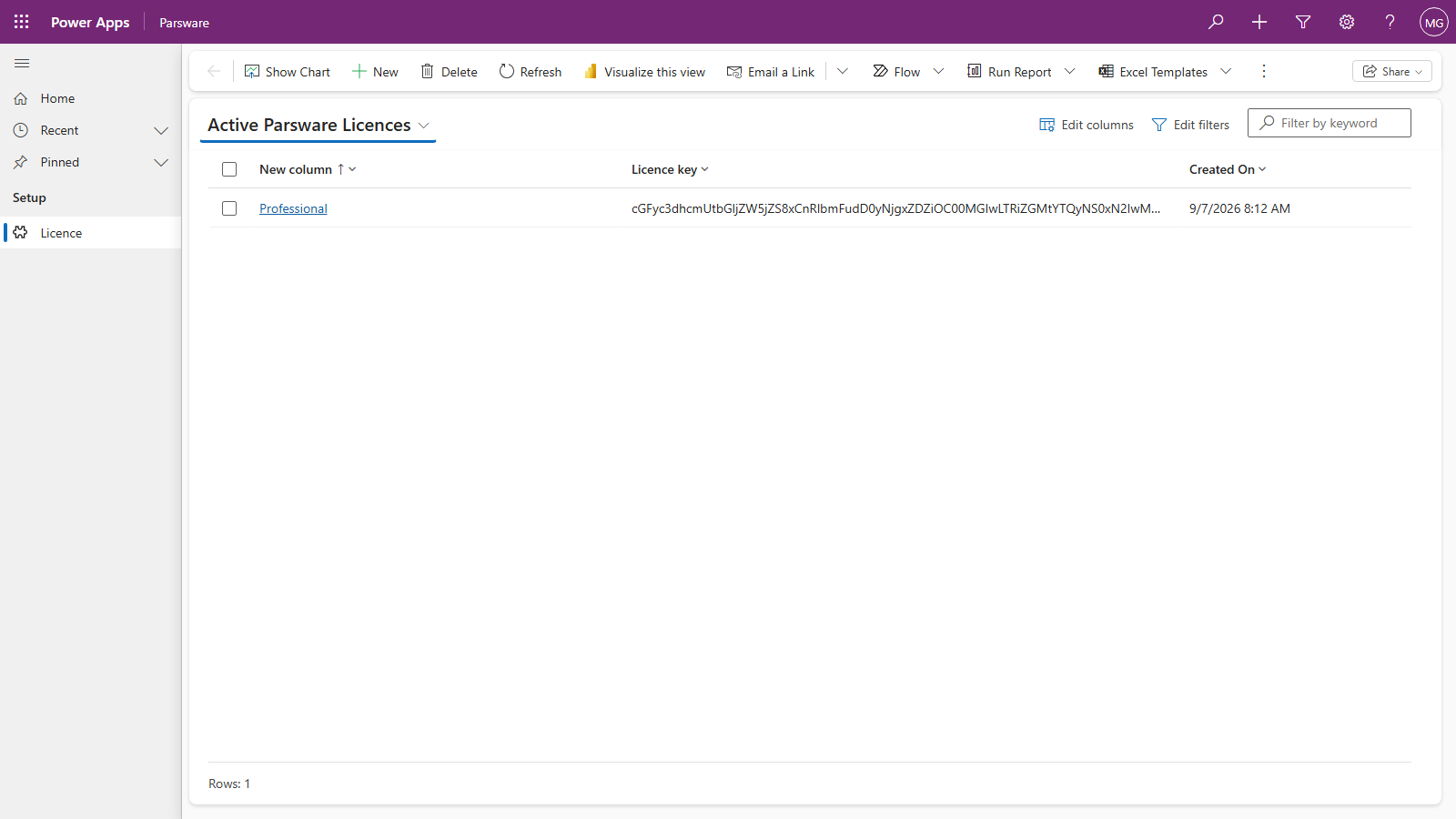
That isn't unfinished. Parsware for Power Apps is a capability, not a set of reports: it renders whichever design an app names. We don't know which reports your users need or what order they'd want them in, so the app we ship has none of ours in it.
Where your users open reports and screens
In your own model-driven apps, alongside everything else those users already work with. There are three ways in:
- A page in the app's navigation. A navigation item pointing at
/WebResources/par_designer/run.html?data=<design name>opens that one published design as a whole page. The Parsware Samples app is built exactly this way, one item per report. - A section on a form, showing a report for the record that's open, or a drawn Studio screen.
- A control on a column, where a drawn screen reads and writes that column.
The last two have their own articles later in this series.
A design is named by its name, not by an id, so the same navigation item works in development, test and production once the design has moved with your solution. And only published designs open this way. A draft that has only been saved says so, rather than appearing to your users.
Who gets which app
Share the apps the way you share any model-driven app, through security roles:
- Parsware Studio to your makers, in development.
- Parsware to whoever looks after the licence in each environment.
- Your own apps to your users, as you do now. They open the reports and screens you placed in them, and they never need either of ours.
Next
The samples, and sample data: a finished set of reports and apps, and the one button that fills their tables. The whole series is in the reading list.