Parsware Platform
What happens when you save a table
In Parsware, saving a table is applying it. The database table and its columns exist before the screen comes back, a form and a view come with it, and a change that would cut stored data short is refused.
Este artículo solo está disponible en inglés.
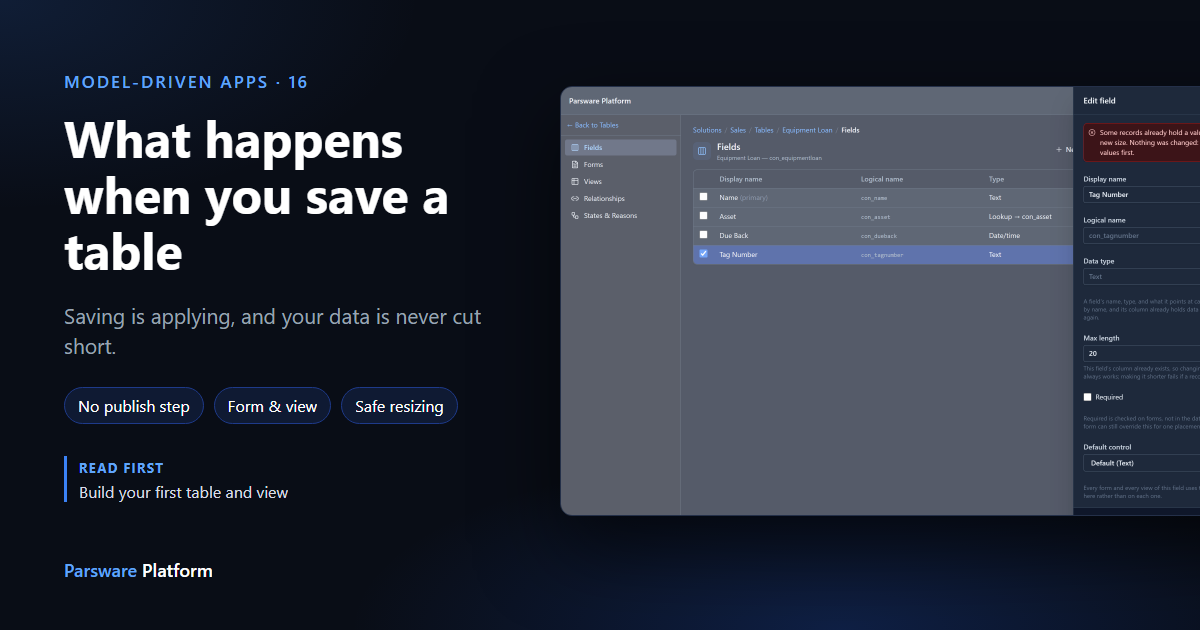
There is no Publish button in Parsware's table designer. Saving is applying. Create a table and its database table exists before the screen comes back. Add a field and its column exists. Nothing is staged and nothing is waiting: what you see under Tables is what's in the database.
This article follows one new table from its first save, and shows the one change the platform refuses. We used our own unmanaged solution in a development environment. Every picture is the real product.
Create the table
In your solution, open Tables and press New. We're tracking kit lent out for a day, so the table is Equipment Loan:
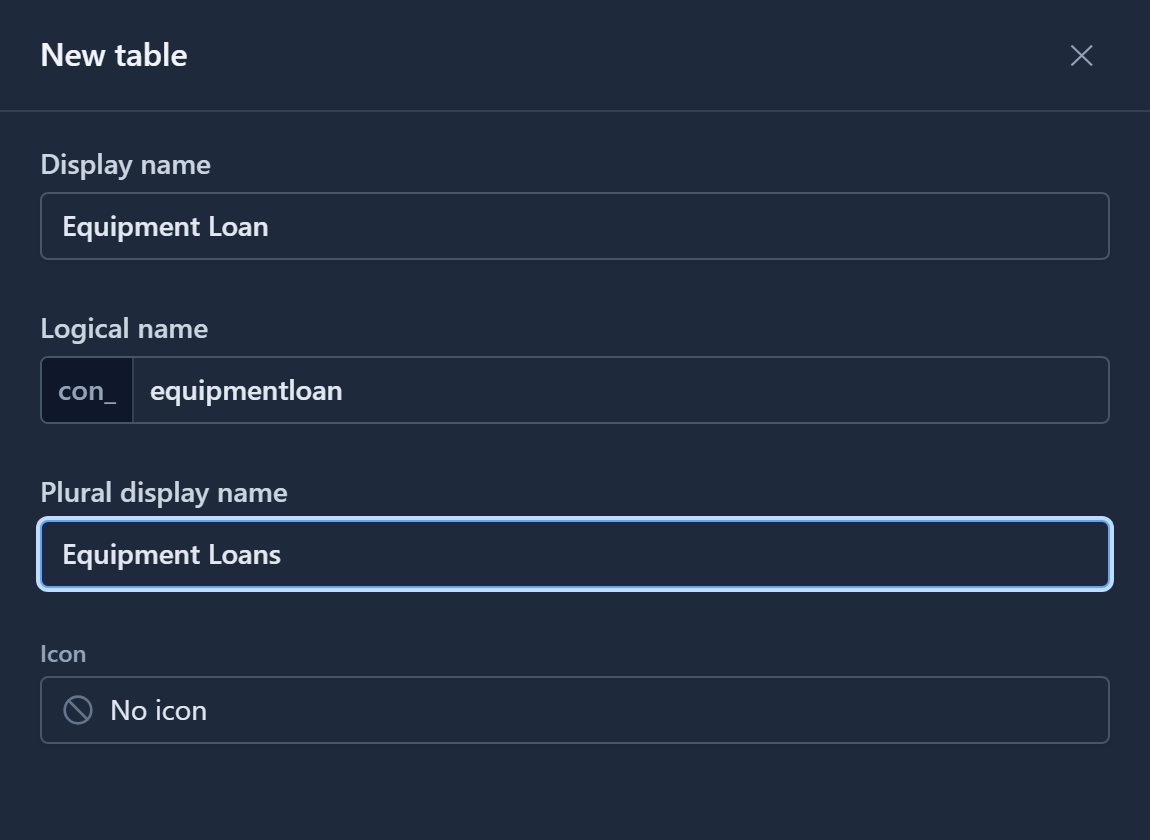
The logical name starts with your publisher's prefix, con_ here, and it is what everything else
uses to refer to the table.
Press Save. Three things happen before the designer opens:
- The definition is checked against the platform's table schema. It is the same check whether the definition came from this drawer, an imported solution or the AI assistant.
- The database table is created in this environment's own schema, with the platform's system columns (id, the created and modified stamps, owner, state) and a column for the primary field.
- A form and a view are created: an Information form and an All Equipment Loans view, each holding the primary field, so the table can go into an app straight away.
Only this environment is touched. Test and production get the table when you import the solution there, never on their own.
Add fields
We added a Tag Number (text, up to 40 characters), a Due Back date and an Asset lookup to the Asset table. Each Save in the field drawer adds the column there and then. The lookup also gets a real foreign key, so a loan can't point at an asset that doesn't exist.
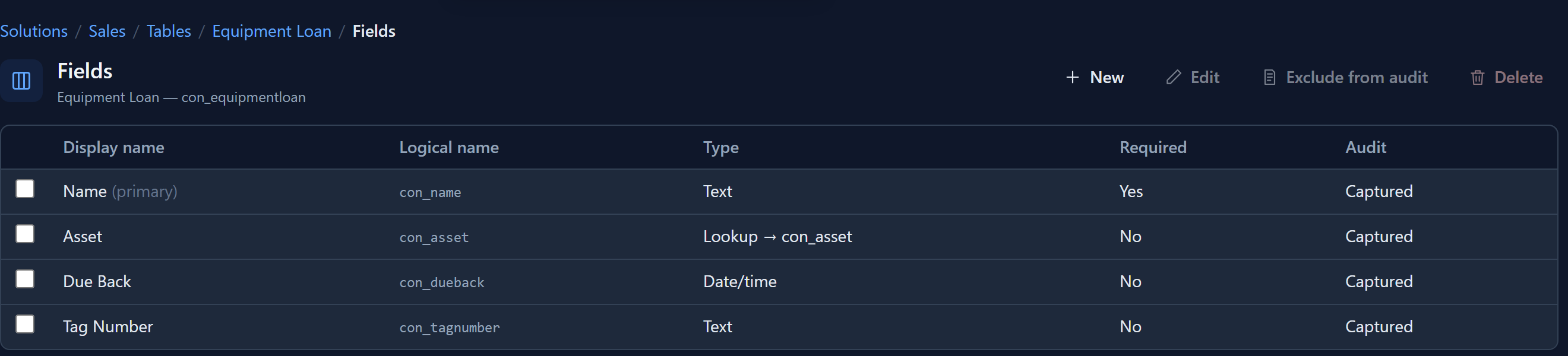
The form and view don't grow on their own
Open the Information form now and it still holds only Name:
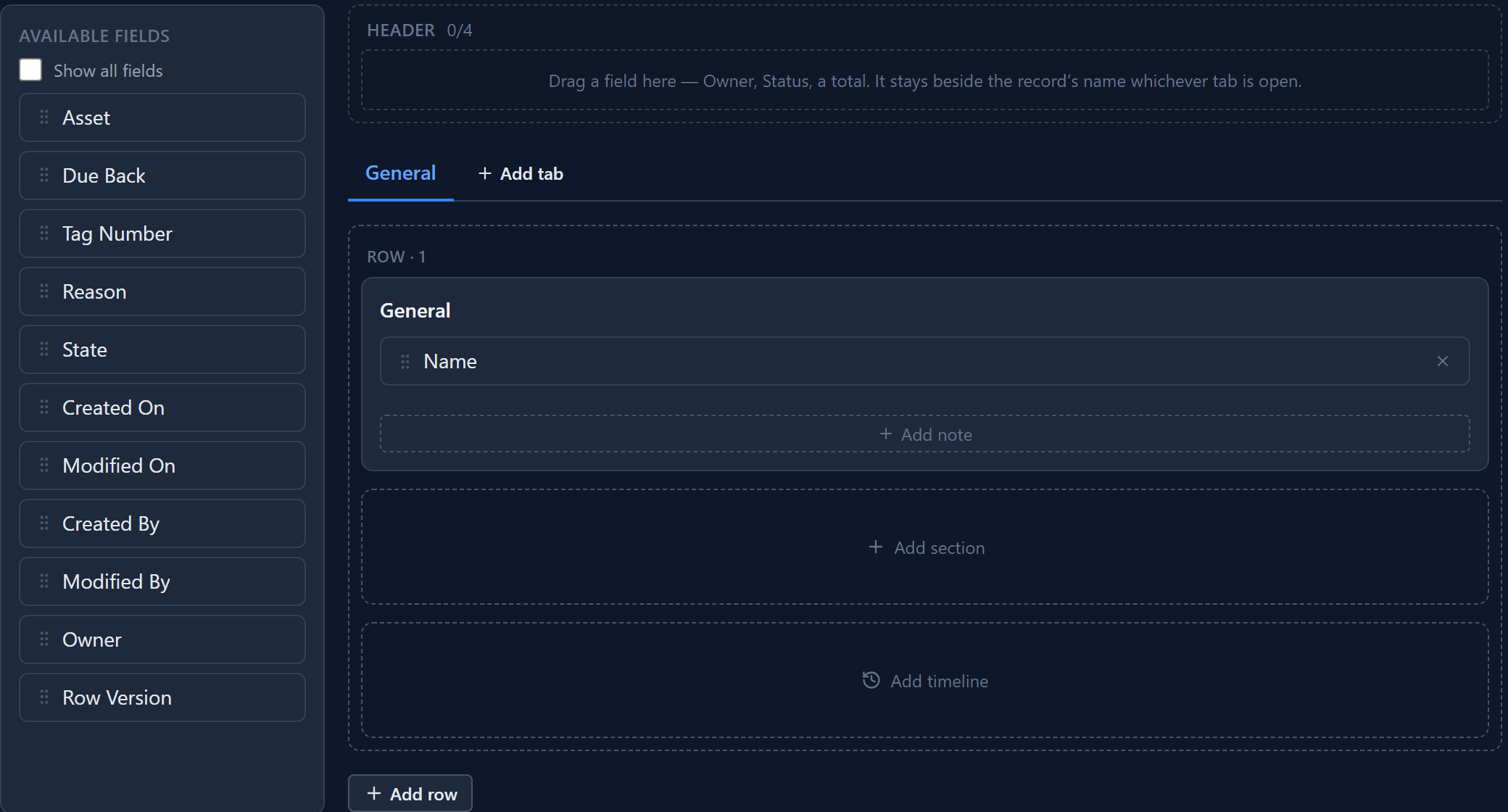
The form and the view are made once, when the table is created. A field added later exists, and its column exists, but nobody sees it until you drag it onto the form and into the view. That is on purpose: a form somebody has laid out shouldn't change under them every time a field is added. We dragged the three new fields under Name and saved.
What you can't change later
Open a field you've already saved:
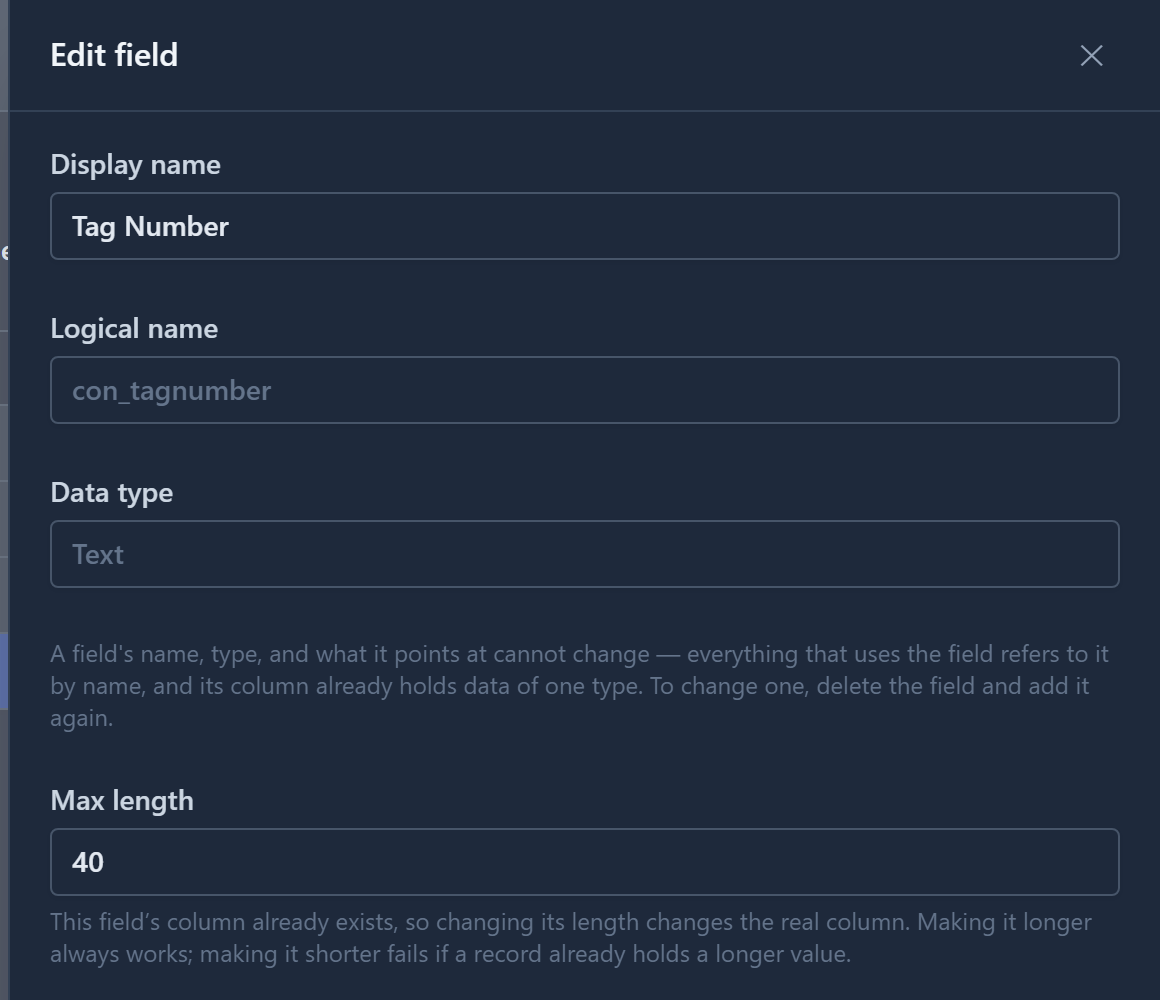
The logical name, the data type and, for a lookup, what it points at are fixed. Forms, views, scripts and other solutions refer to the field by name, and its column already holds data of one type. To change one, delete the field and add a new one.
The display name, required, the default control and the size can all still change.
Resizing changes a real column
Because the column exists, a text field's Max length is the column's length. We added
Equipment Loans to the Asset Tracker app and lent out a laptop with the tag
LOAN-2026-0001-LEEDS-HQ-3F, which is 26 characters:
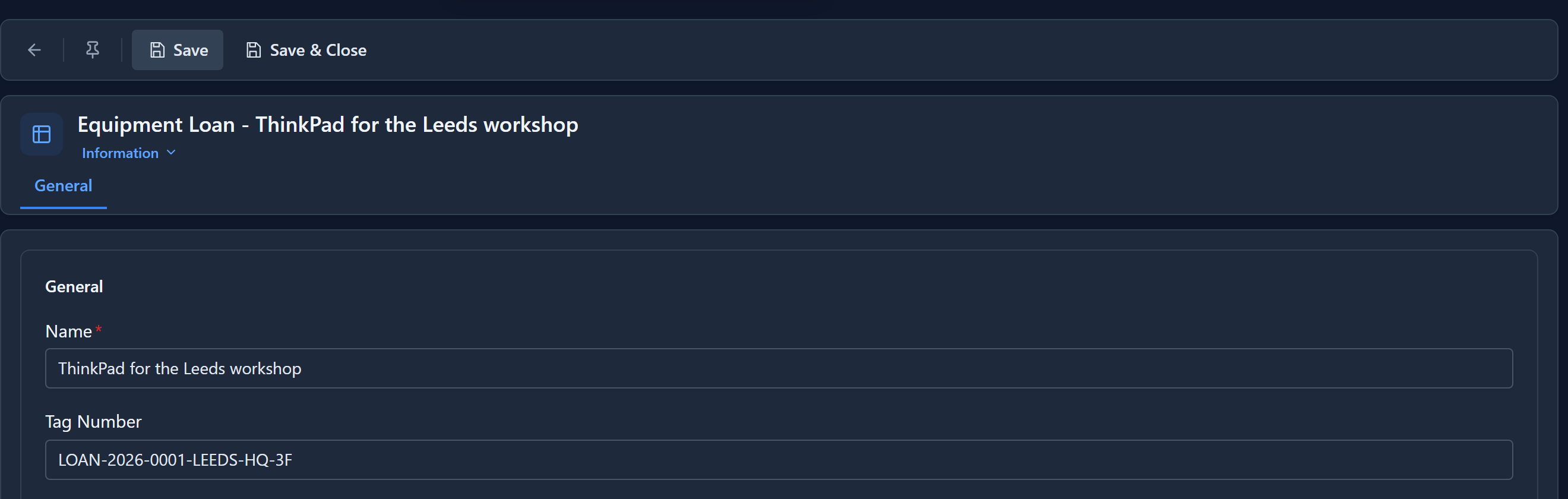
Making Tag Number longer always works. Making it shorter than something already stored is refused, and the field keeps its size:
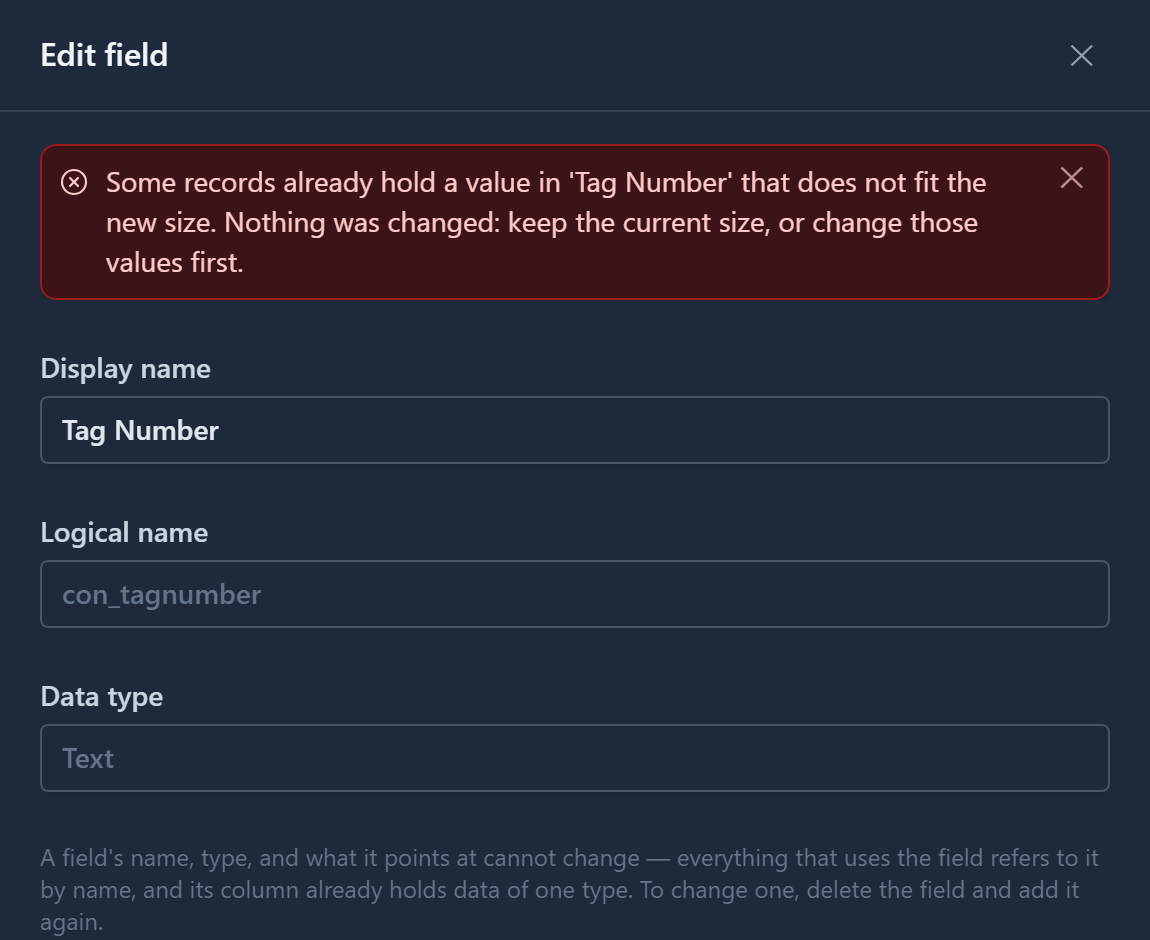
To shorten it, first edit the records with the longer values, then save the new size.
This is a fix we made while writing this article. The drawer and the help page already promised the refusal, but the platform shortened the column anyway, cut our tag to its first 20 characters and said Saved successfully. The database was asked to convert each value explicitly, and an explicit conversion to a shorter text quietly truncates. It now converts the normal way, which refuses, and the message names the field and says nothing changed, in every language the product speaks.
If a save is refused
A save is never left half done. If a field's column can't be created, the field is taken out again, so a field you can see in the Fields list always has a column behind it. Whatever the message says, you can fix the problem and save again.
Next: the Organisation app.