Parsware Platform
View column properties
Each column of a view can have its own header, date format, alignment and control, without changing the field. Turn "Purchase Date" into "Bought", write dates out in full, line up the amounts, and show a yes-or-no column as switches.
Este artículo solo está disponible en inglés.
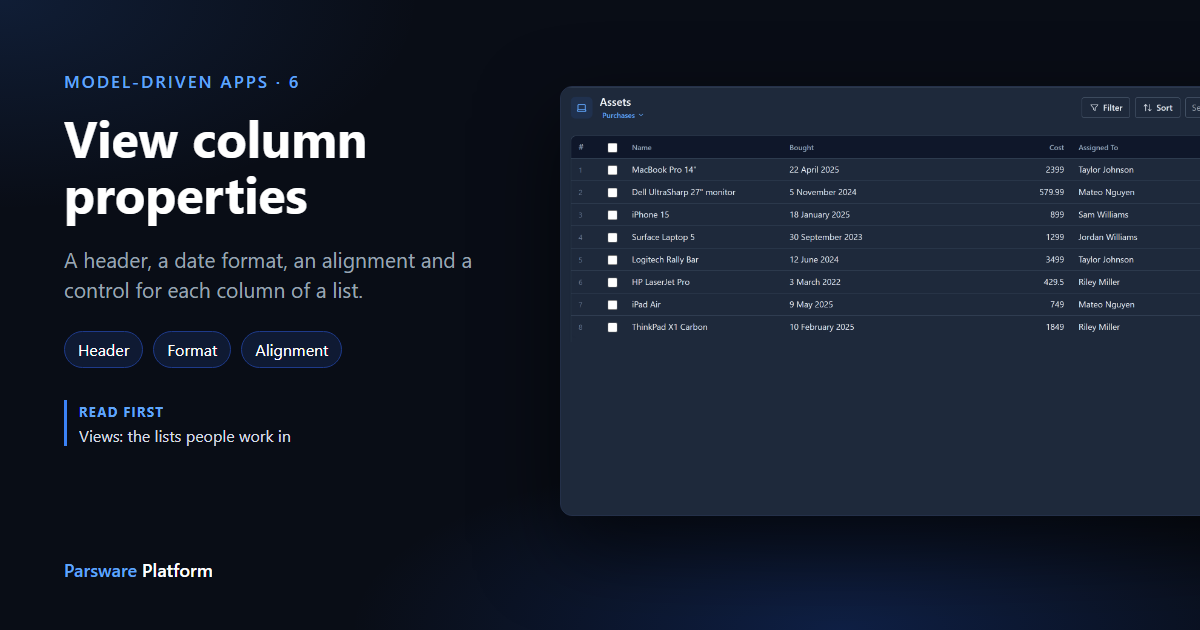
A field's name and format are chosen for the whole table. A column in one view often wants something else: a shorter header, a date people can read at a glance, numbers lined up so they're easy to compare. You can set all of that on the column, and the field doesn't change.
We carry on with the Purchases view from Views: the lists people work in. Every picture is the real product.
Select a column
Open the view in the View Designer and select a chip on the View columns row. The Properties panel shows that column's settings:
- Header: the column's title in this view. Empty uses the field's name.
- Width (px): a fixed width. Auto lets the column size itself.
- Date format: only for a date column.
- Control: how the value is shown, from the controls that suit the field.
- Alignment: Start, Center or End.
A header and an alignment
Select Purchase Cost, set Header to Cost and Alignment to End. Numbers that end at the same edge are easier to compare down a column.
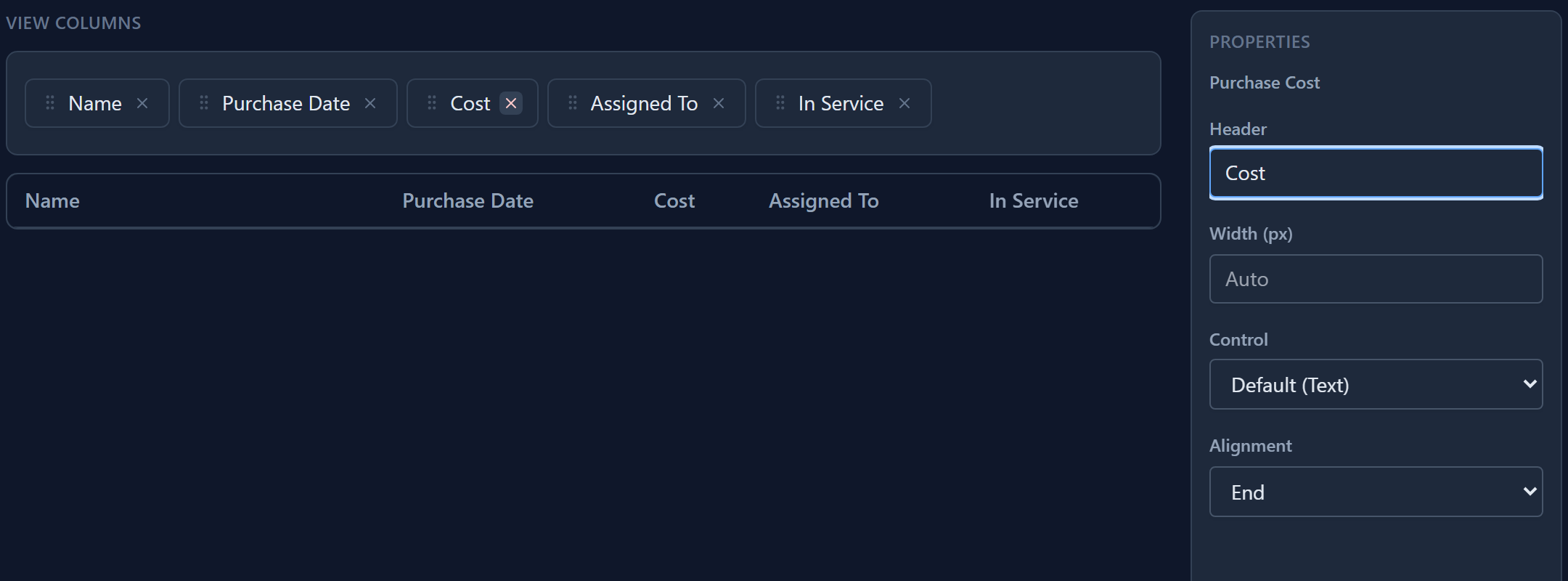
Start and End follow the reading direction, so End is the right edge in English and the left edge in Persian or Arabic. You don't need a second view for right-to-left readers.
A date written in full
Select Purchase Date. Set its Header to Bought and its Date format to d MMMM yyyy.
d is the day, MMMM the month's name and yyyy the year; MM would be the month's number, and
HH, mm and ss the time. Anything else is shown as you type it.
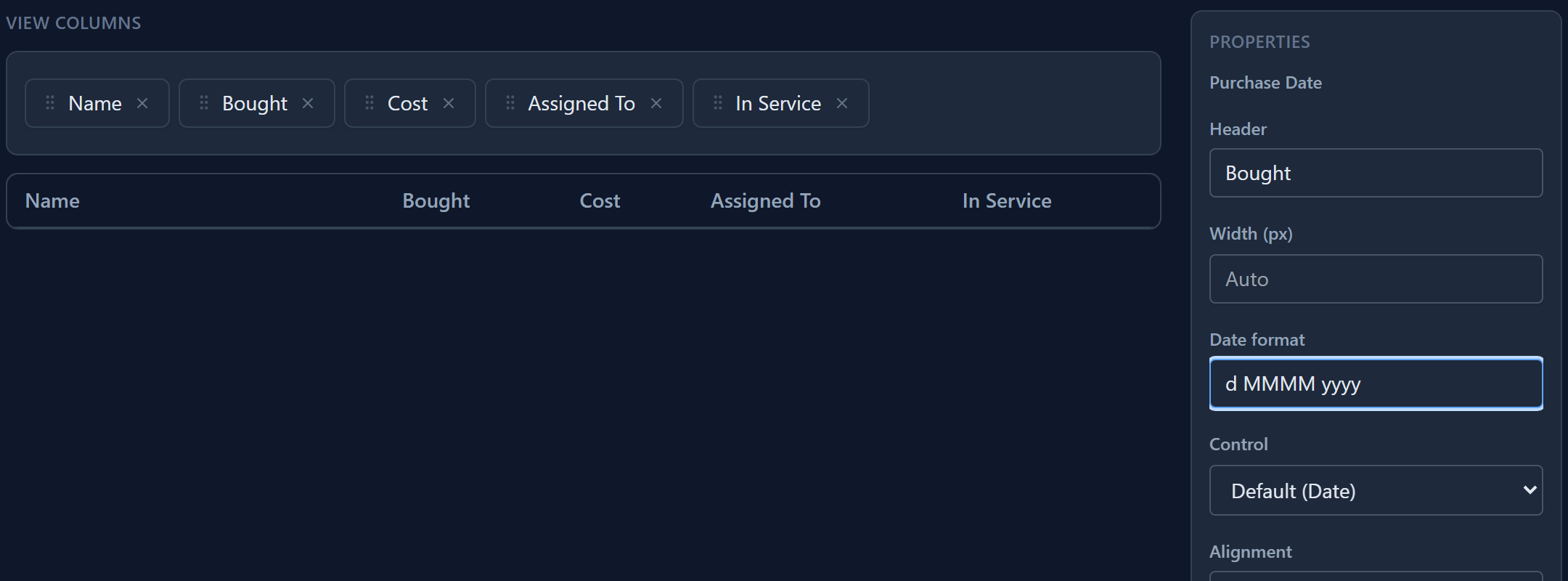
Leave the format empty and the column uses the field's own format, and failing that the app's (Settings → Calendar → Date formats).
A column of switches
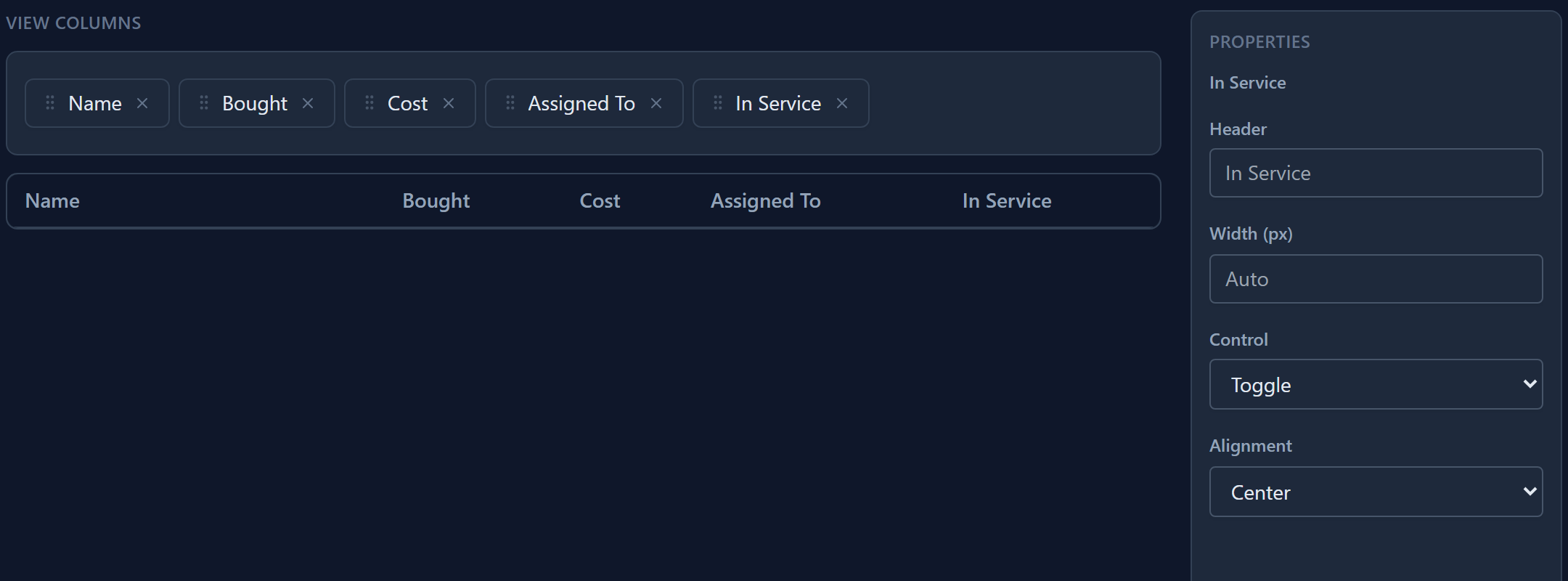
Select In Service and set Control to Toggle, with Alignment Center. The column shows a switch in each row instead of Yes or No. It only shows the value: a list has no editing in place, so clicking the switch doesn't change the record.
The result
Save, and open the list in the app:
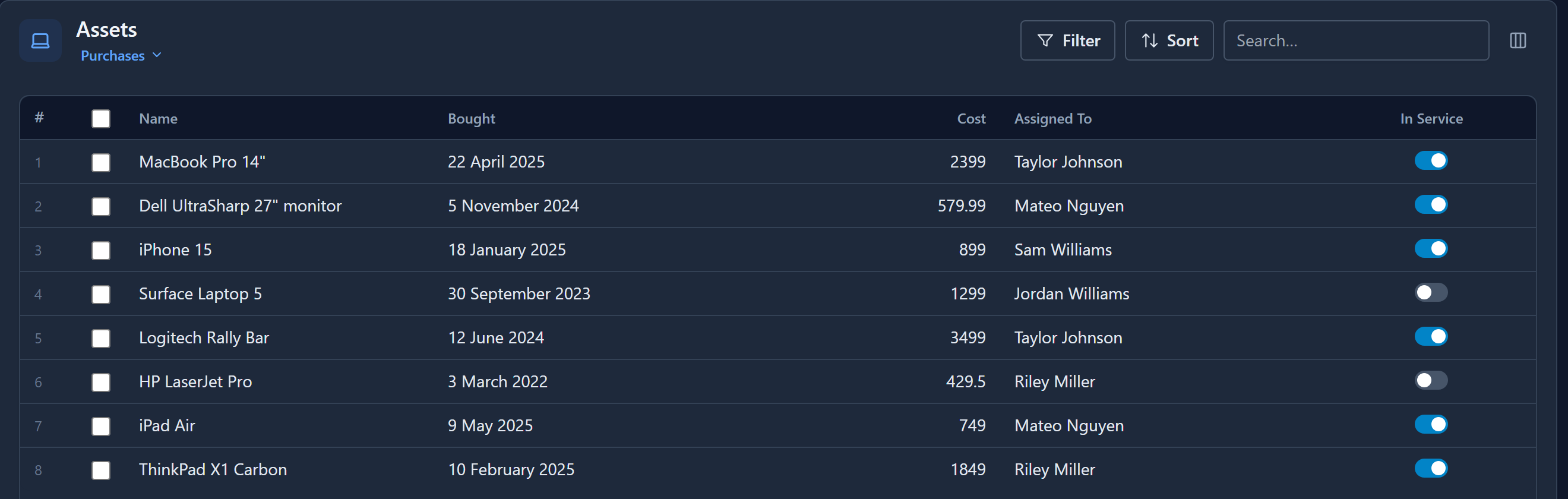
The two assets that are out of service stand out, which Yes and No in a column of text don't do.
A Persian date in one column
The control is also how one column can use the Persian calendar while the rest of the app uses the Gregorian one. Set Bought's Control to Persian Date and clear its format:
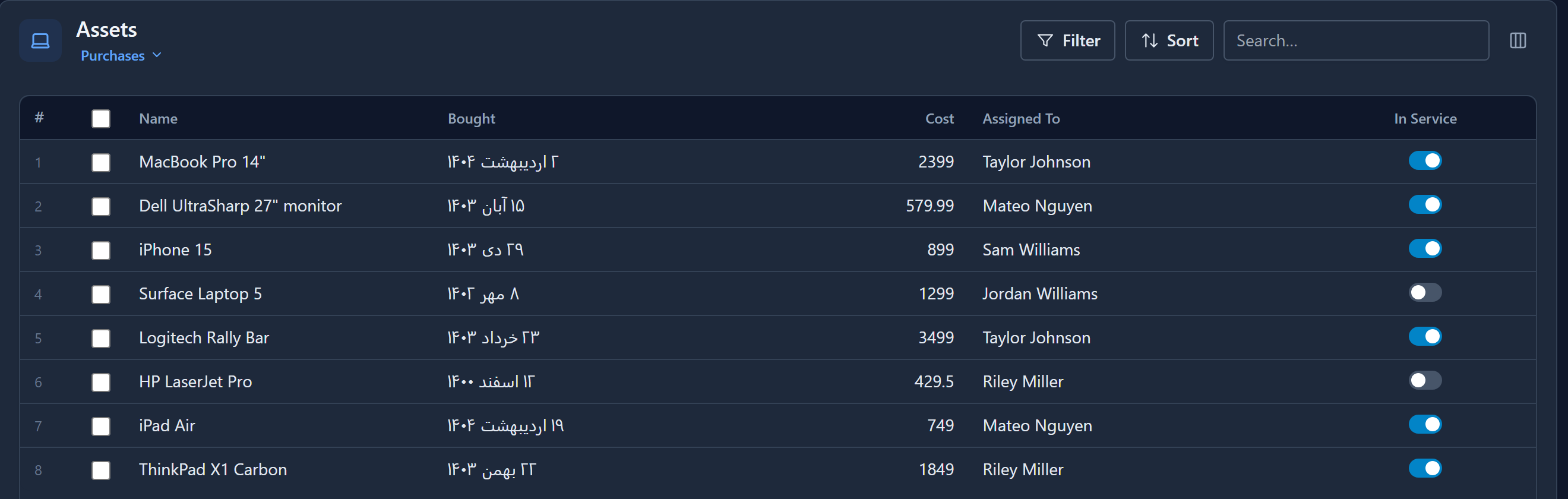
While writing this we found that a Persian date on an English page was shown with its year before its month. That's fixed, in lists, on forms and in the date picker.
What's saved
A view keeps its columns as one list and their properties as another, holding only the columns you changed. A column you never touched stores nothing and looks exactly like the field. Both lists are part of the view, so they move with your solution. Take a column out of the view and its properties go with it.
Totals under a column aren't built yet. When they are, they'll get their own article.
Next: filters with And and Or.