Parsware Platform
Branch conditions
A branch doesn't decide anything by itself. Each connection leaving it carries a condition, one line of BS that is true or false, and the run takes the one that's true. We read the conditions on the Leave Approval sample, tried to break them three ways, and fixed two things on the way.
هذا المقال متاح بالإنجليزية فقط.
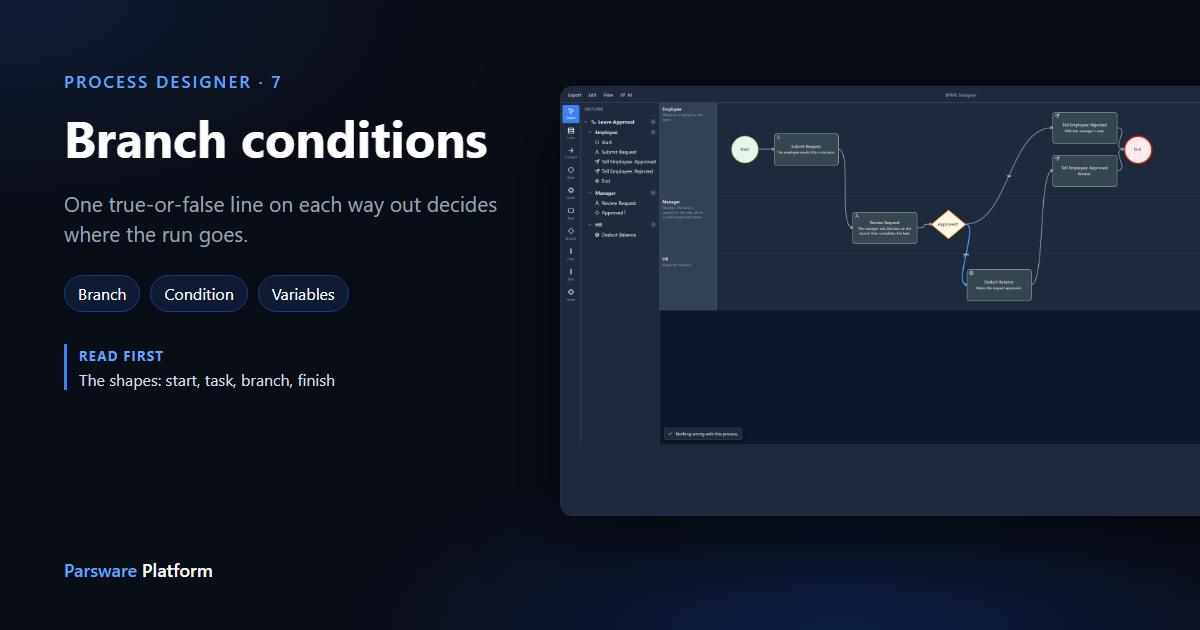
A Branch is the diamond in a process: one way in, several ways out. The branch itself doesn't decide which way. Each connection leaving it has a condition, one expression in BS that answers true or false, and the run takes the connection whose condition is true.
We used the Leave Approval sample from samples/solutions/bpms-leave-approval-process. Open its
process, Leave Approval.
The branch
Click Approved?:
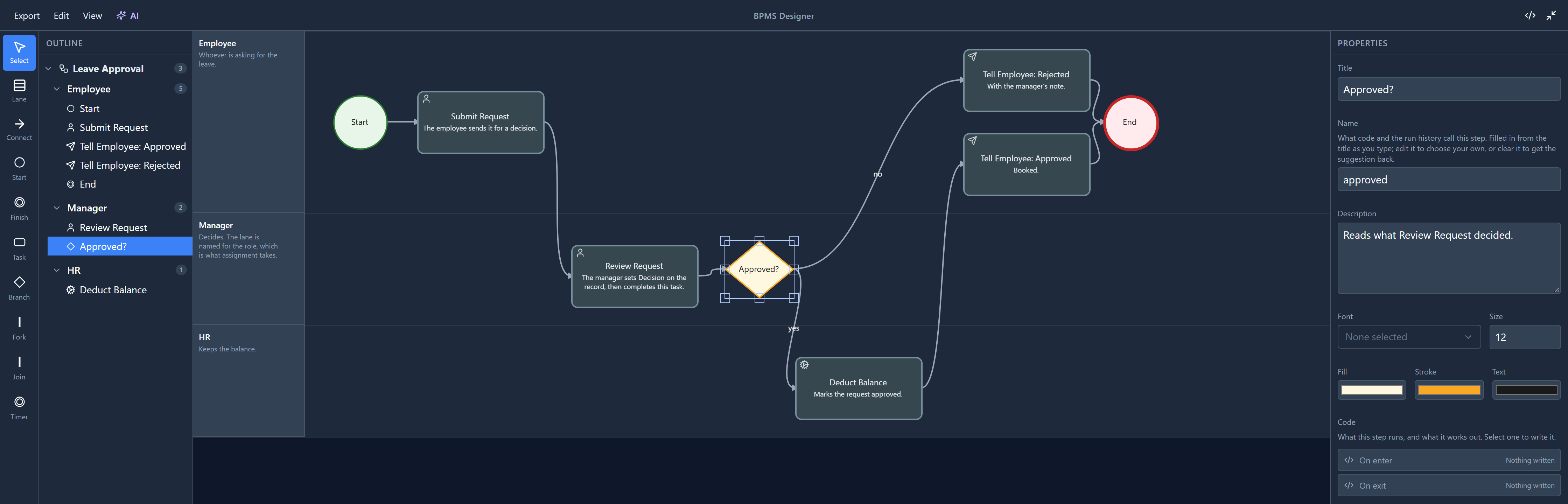
Two connections leave it: yes to Deduct Balance, and no to Tell Employee: Rejected. Its Code list has only On enter and On exit, and neither has anything in it. Nothing on the branch picks a way out. That's deliberate: the decision is on the connections, where the diagram shows it. A branch decided by code you can't see would be a diagram that doesn't say what the process does.
The condition on a connection
Click the yes label to select that connection:
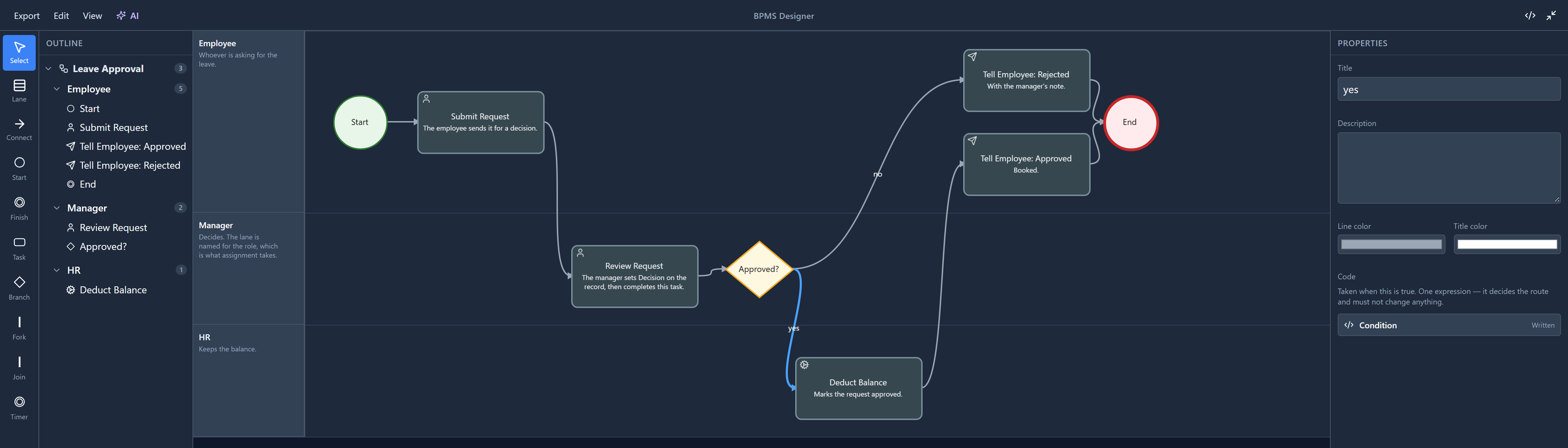
Its Code list has one row, Condition, with the line Taken when this is true. One expression — it decides the route and must not change anything. Select it and the condition opens in the full-width code page:
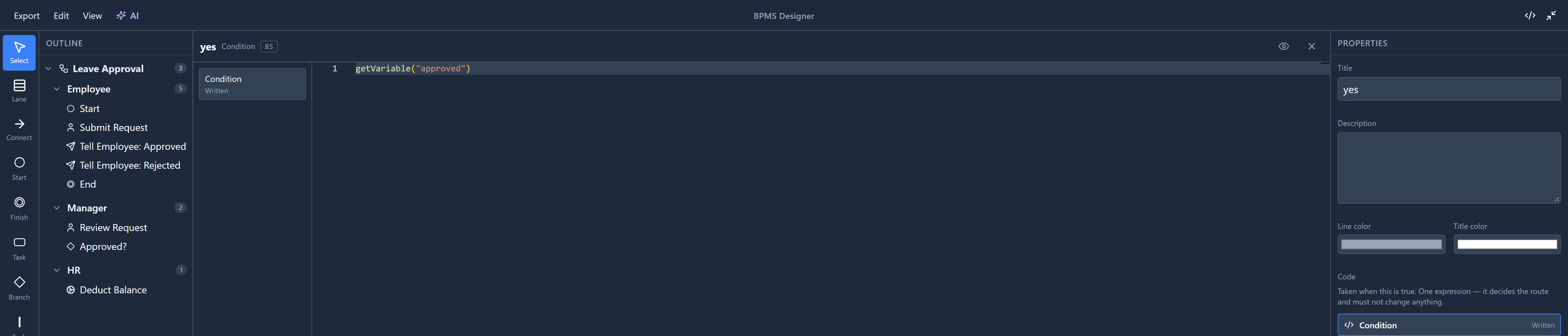
The condition on yes is
getVariable("approved")
and the condition on no is its opposite:
!getVariable("approved")
approved is a variable of the process, a yes/no value the run carries from step to step. The
manager's step, Review Request, sets it when they finish. The branch only reads it. (How a step sets
a variable is in the next article.)
The properties panel now stays on the connection while its condition is open. Until we tried this, opening the condition switched the panel to the whole process, and closing the code page left you there instead of on the connection you were writing.
Conditions only appear on connections that leave a branch. A task has one way out, so a condition there would be a question with only one answer. (A user task with several outcomes, like Approve and Reject, sends each one down its own connection with Taken when. That's covered in a later article.)
What a condition can call
The eye at the top of the code page lists what this code can call:
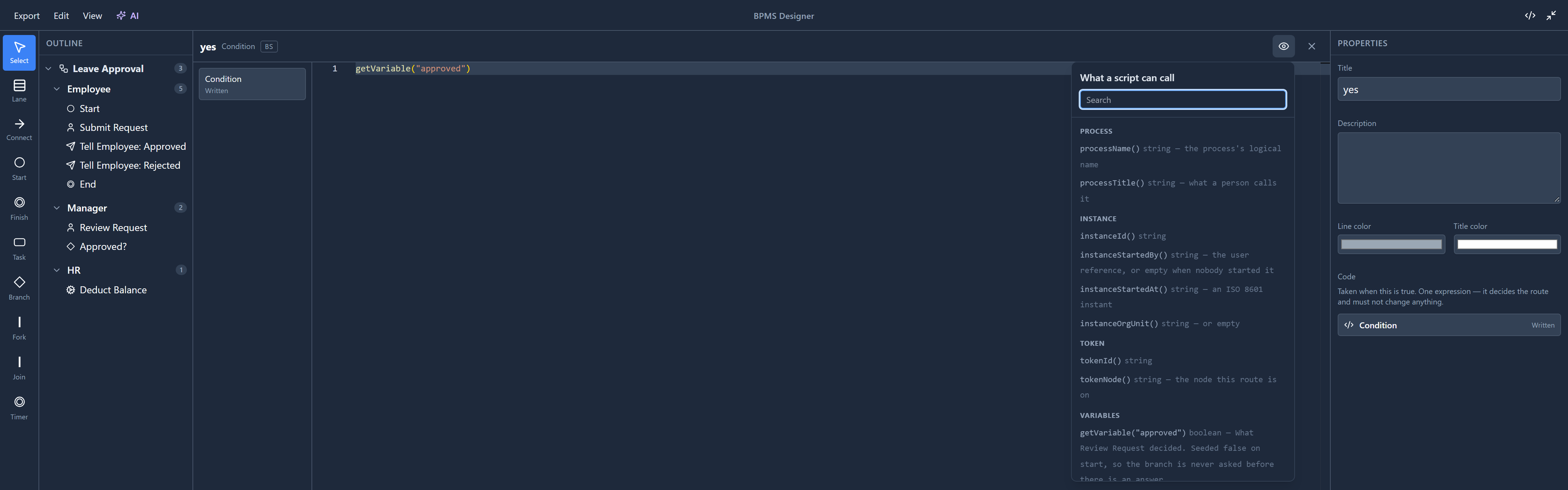
It lists things to read: about the process, about this run, and the variables. There's nothing that changes anything.
A condition can only read
The engine may ask a condition more than once, so a condition that changed something would make the process depend on how often it happened to be asked. So the editor doesn't let a condition change anything. Here's what happens if you try to set a variable in one:
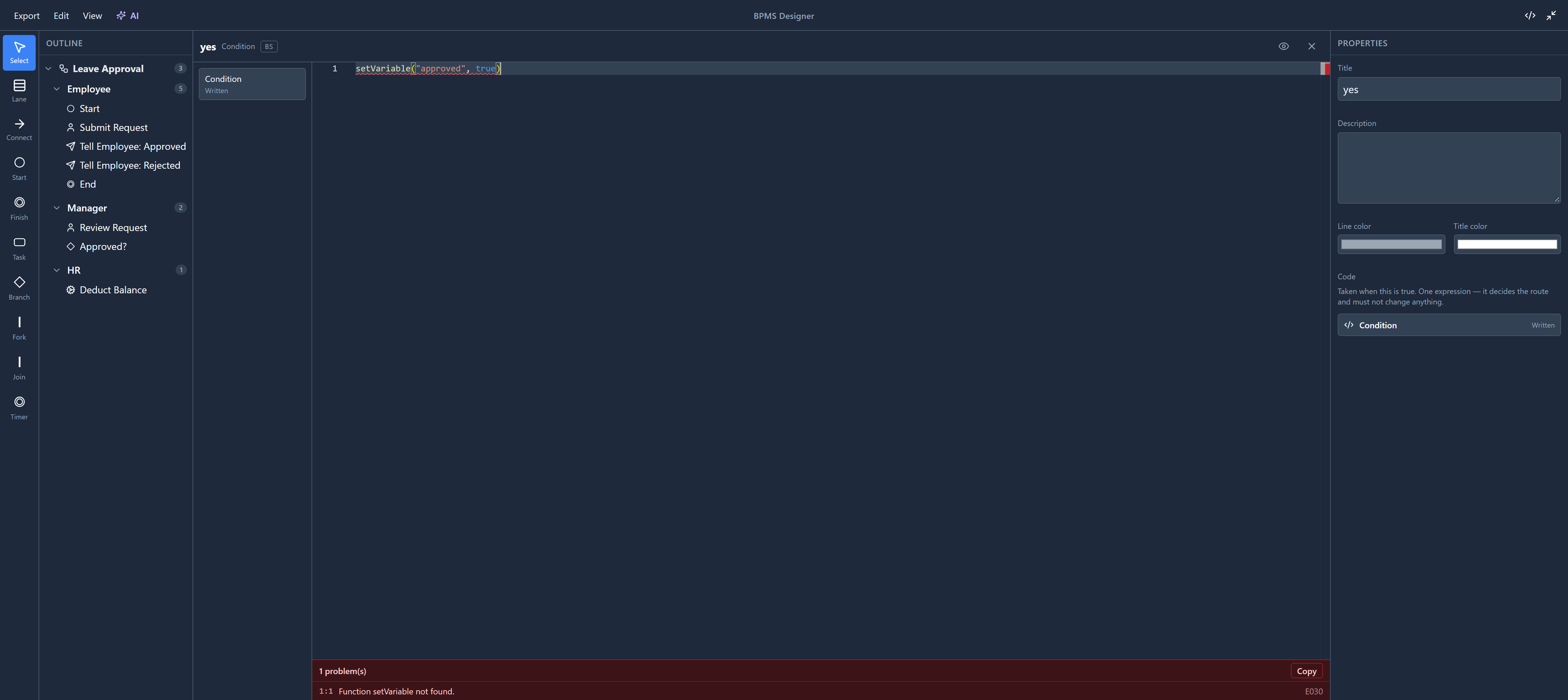
setVariable doesn't exist here, and the editor says so as you type. Write to a variable in a step's
code instead.
Mistakes the problems panel finds
We tried two more mistakes. First, a misspelt variable, getVariable("aproved"). The editor can't
know which variables you meant, but the problems panel at the bottom of the canvas checks every
name against the process's variables:
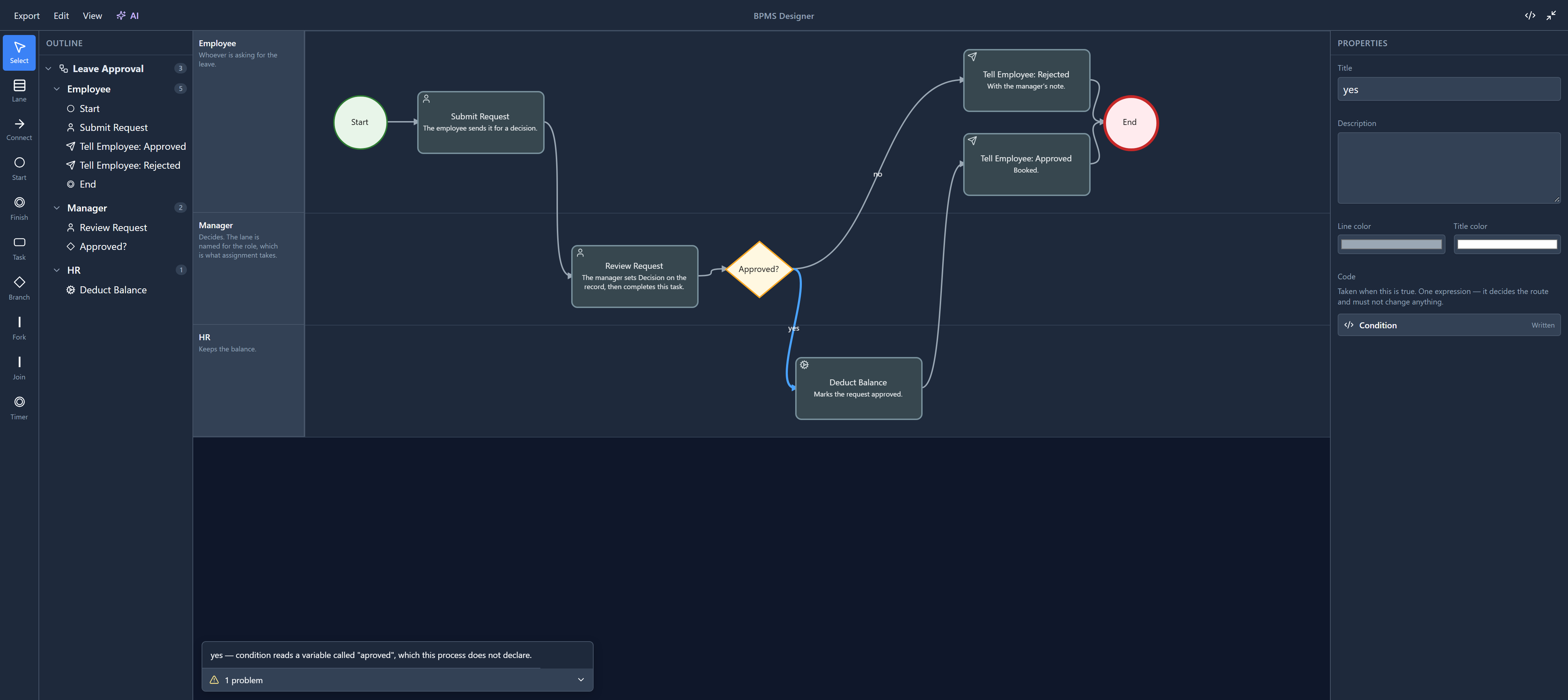
That message used to start yes reads a variable…, the connection's bare label opening the sentence. A step's code was already named as step — which code, so a condition is now yes — condition.
Second, we emptied the condition. The panel said:
The connection "yes" leaves a Branch with no condition, so nothing decides whether the flow takes it.
Every connection leaving a branch needs a condition, and a branch needs at least two ways out.
Doing the sums once
A branch with many ways out, say six bands of an amount, would need the same arithmetic in six conditions. Put it in the branch's On enter instead. It runs as the run arrives, before any condition is asked, so it can work the answer out once and put it in a variable. Then each condition only compares. On exit runs after a way out has been chosen.
The sample, redrawn
While writing this we noticed the sample's own drawing was misleading. Tell Employee: Rejected sat just to the left of Tell Employee: Approved, and the line from Rejected to the end passed straight through Approved. It looked like "rejected, then told it was approved". We moved the two steps apart in the sample, so each now has its own line to the end. The previous article explains why a curved line can do that.
We didn't save any of the experiments above. Closing the designer without saving leaves the sample as it was.
Try it
Swap the two conditions, so yes reads !getVariable("approved"). The problems panel stays quiet:
both connections still have a condition. It can tell you a condition is missing or names a variable
that doesn't exist, but not that it's the wrong way round. Read the conditions next to the labels on
the diagram. Then close without saving.
Next: code on a task, and the moments a step can react to.