Parsware Platform
Tidy command bars
A command bar can use your organisation's words and follow the order people work in. Rename the platform's own commands, hide the ones a list doesn't need, drag everything into place, and divide it into groups.
هذا المقال متاح بالإنجليزية فقط.
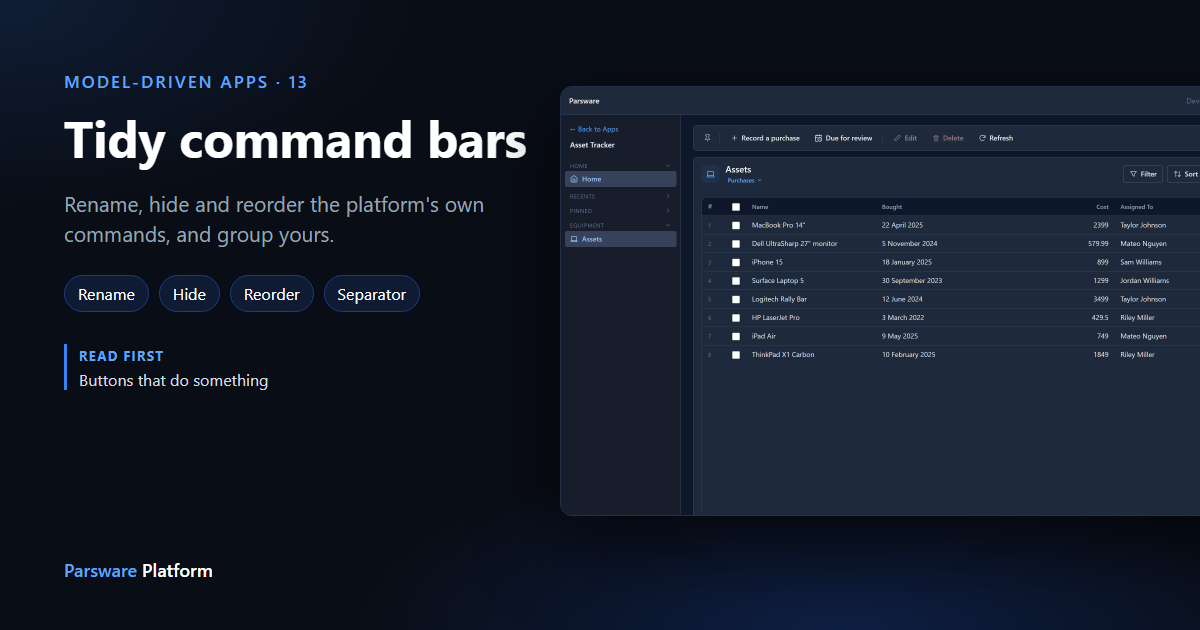
Every list starts with the same bar. That's a good default, but it's not always what people call things, and it's not always the order they work in. Here is the Purchases view of an Asset table, as the platform draws it:

The people using this list record new purchases and check which assets are due for review. They never import a spreadsheet here. So we'll:
- rename New to Record a purchase,
- hide Import data,
- add a Due for review button beside it,
- and put a divider between those two and the commands that act on ticked rows.
The Asset table is in our own unmanaged solution, and you can do the same on any table of yours. Every picture is the real product.
The strip holds every command
Open the view in the View Designer. The Commands strip shows the whole bar: the platform's commands with a dashed outline, and your own with a solid one. You can select any of them.
Rename one
Select New and type into Label:
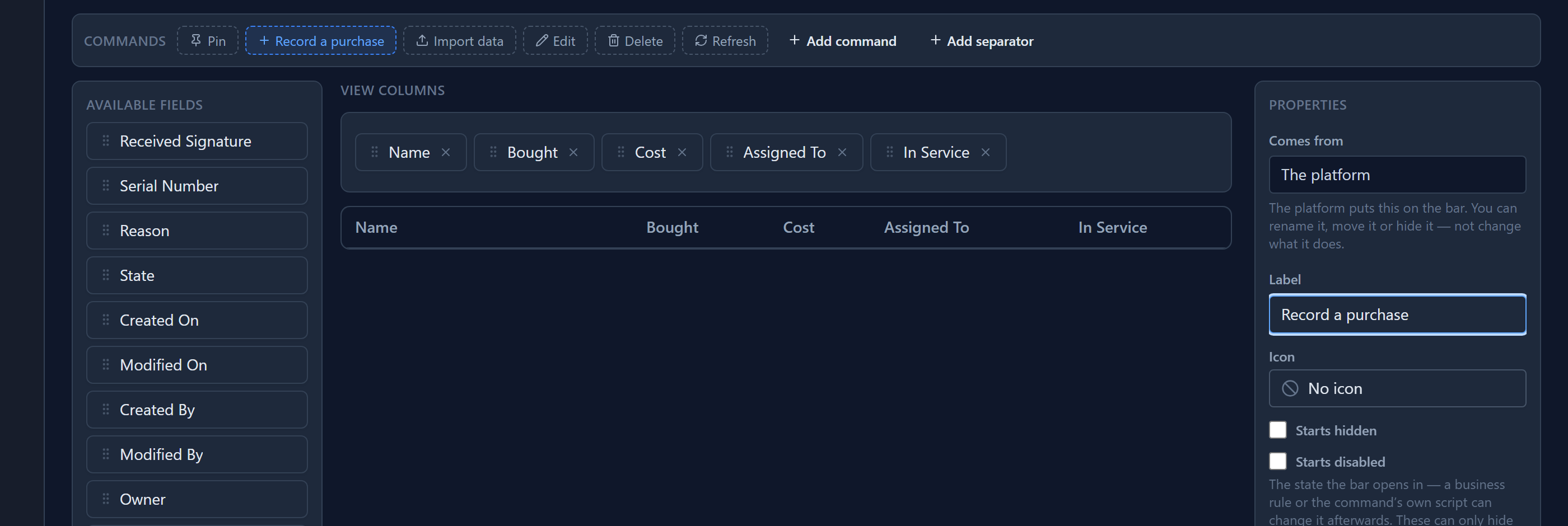
Comes from: The platform says what you can change on a built-in command: its words, its icon, where it sits and how it starts. What it does stays the platform's.
Leave Label empty to use the platform's own word. That word is translated, so an empty label reads New in English, جدید in Persian and جديد in Arabic, with nothing for you to maintain. Once you type a word, that word is shown in every language.
Hide one
Select Import data and tick Starts hidden:
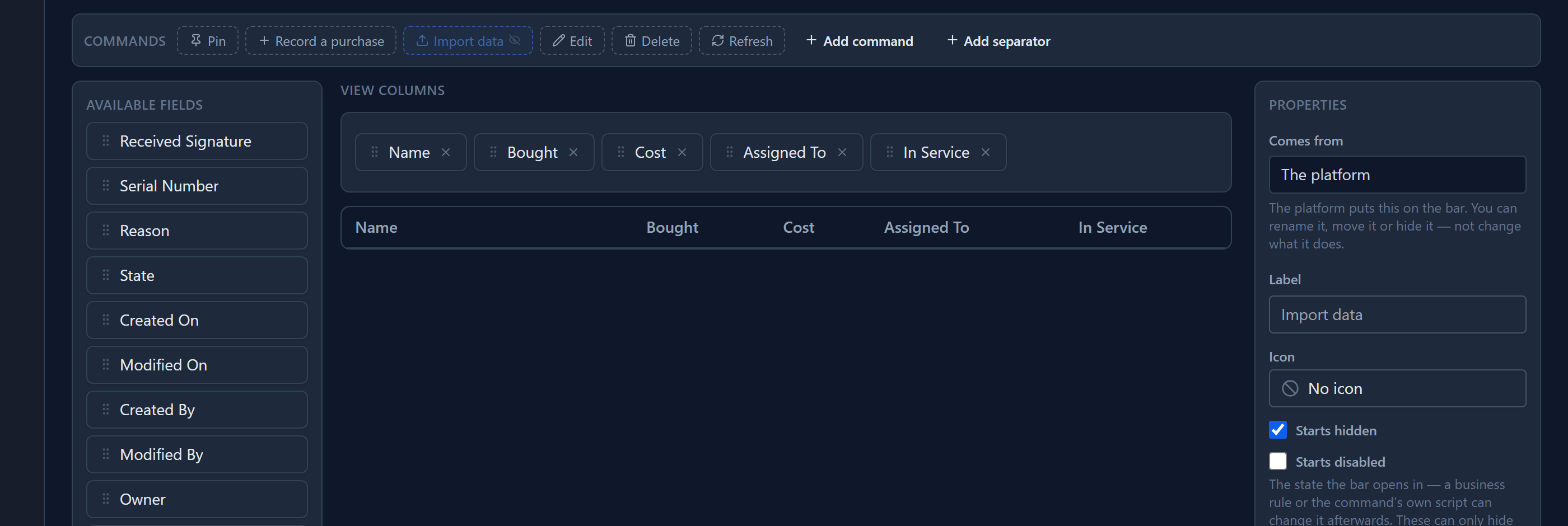
The chip fades and picks up an eye-slash glyph. It stays in the strip, because that's where you'd turn it back on. Starts disabled greys a command out instead.
"Starts" matters. This is the state the bar opens in, and a business rule or a command's own script can show it again later. It is not a permission. A command someone must never use is taken away on their security role, where the server enforces it. Hiding it on the bar only tidies the screen.
Your settings add to what the platform already does. The bar hides New from someone who may not create records and greys out Delete until a row is ticked, and unticking Starts disabled can't undo that.
Add yours, and drag it into place
Add command puts a new chip at the end of the strip. We called it Due for review, gave it an icon, and set When pressed to Open a view on the table's Due for Review view:
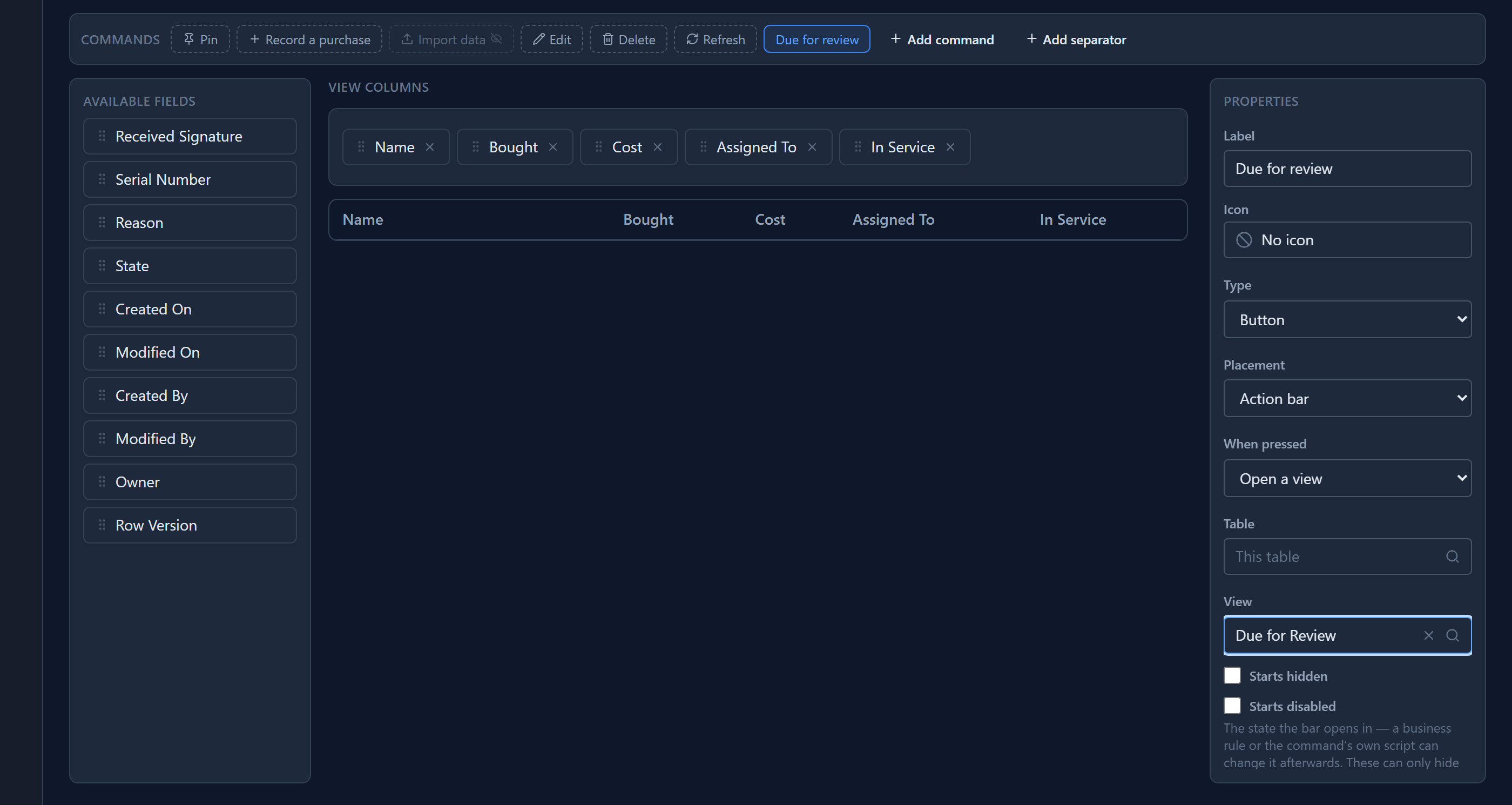
Now drag it. The platform's commands and yours are one list, so you can put your button between any two of them. Drop it onto Edit and it goes before Edit. With the keyboard: Tab to a chip, Space to pick it up, the arrow keys to move it, and Space again to drop it.
Add separator adds a divider chip. Drag it onto Edit as well:

A separator is only a line. It has no label and no action, and it only goes in the bar, never in the ⋯ menu. The bar drops a separator that would divide nothing: one at the start, one at the end, or the second of two in a row. So a divider you placed next to Delete simply disappears for someone who can't delete, instead of hanging off the end of their bar.
The result
Save the view and open the app:

While writing this we found that the designer and the app disagreed about where Import data sits. The designer showed it after Delete; the app drew it right after New. A command dragged next to it in the designer could land somewhere else in the app. Both now read the order from the same list, with Import data beside New.
What's stored
Only what you changed. A bar you never rearranged stores no order, so when the platform adds a command later, it appears in its natural place. A bar you did arrange keeps your order, and a new command goes at the end, where you can drag it.
The same strip is on a form, in the Form Designer, with Save and Save & Close as the platform's commands.
Next: a dashboard in an app.