Parsware Platform
Forms that fit the job
A form is tabs, rows and sections, with a header that stays put whichever tab is open. Lay one out in the Form Designer, give a table a second form for a different team, and let people switch between them on the record.
هذا المقال متاح بالإنجليزية فقط.
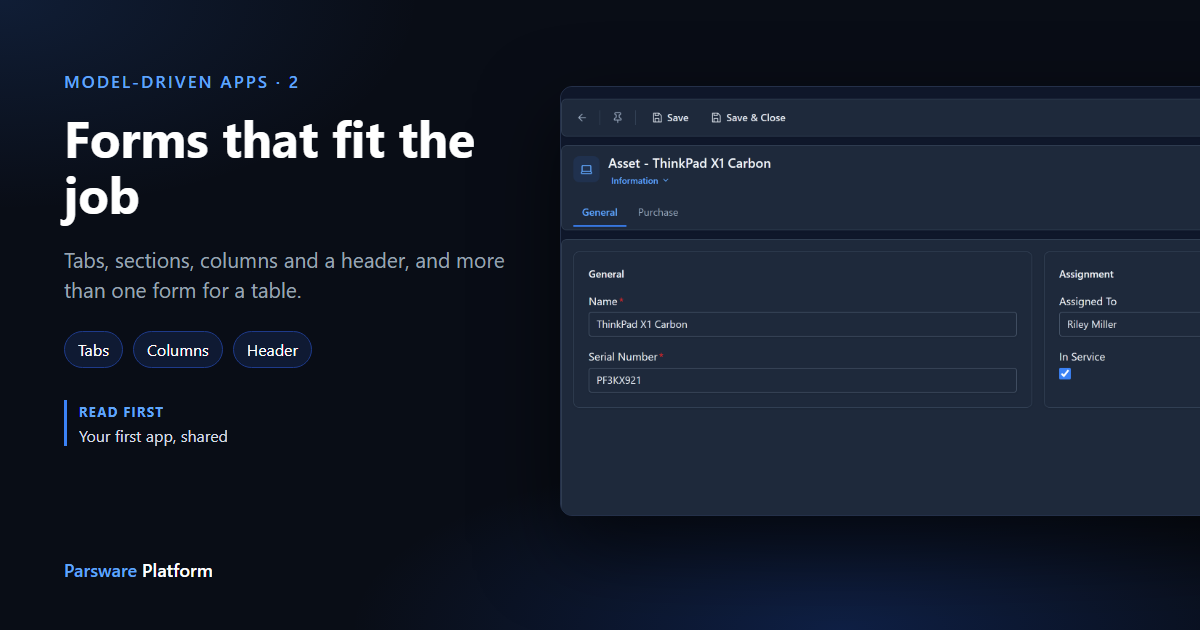
A new table comes with one form, and it's a long single column. That's fine for five fields. Past that, people scroll past what they don't need to find what they do, and two teams using the same records want to see different things.
We'll lay out the form of the Asset table from Build your first table and view, then give it a second form for the people who buy the equipment. Every picture is the real product.
Tabs, rows and sections
Open the table, choose Forms, and select the form to open the Form Designer. A form is built from three things:
- Tabs across the top. Each tab is a page of the form.
- Rows in a tab. A row has one to four columns: select it and set Columns.
- Sections in a row, each holding fields. Add section puts another one beside the first.
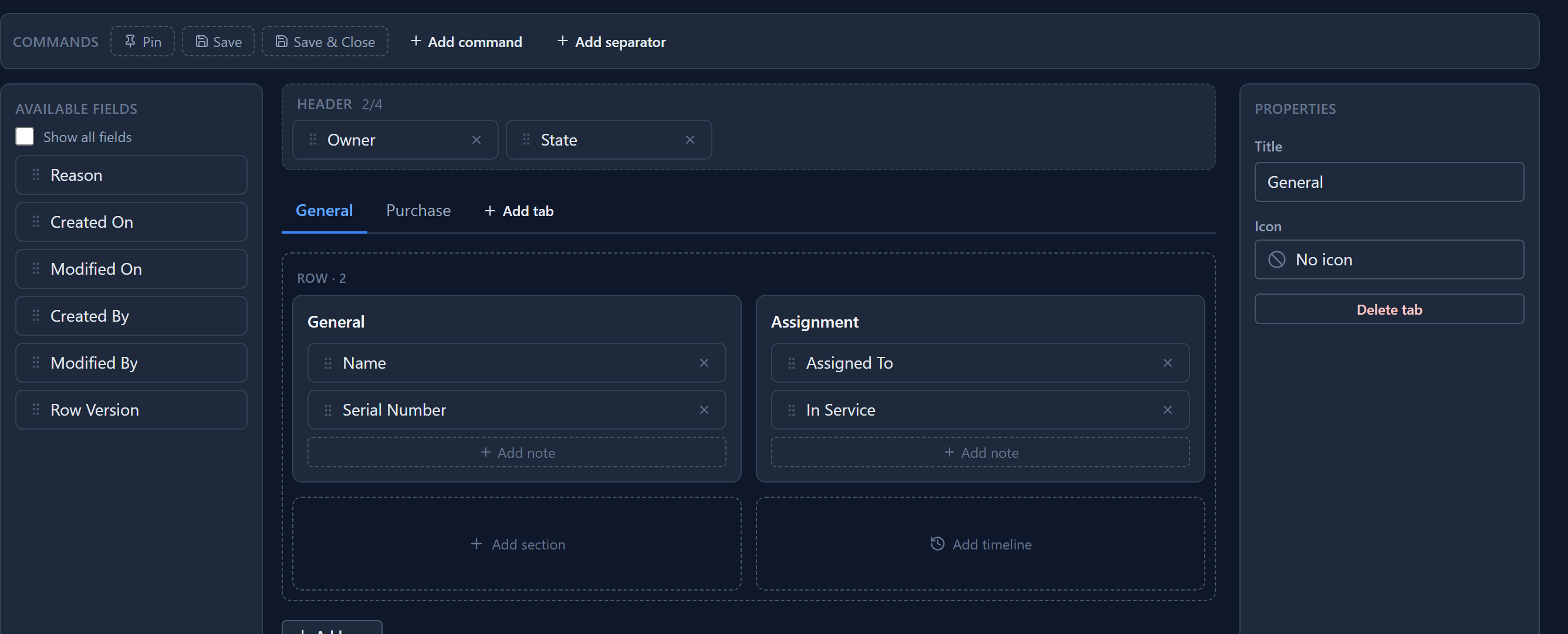
Drag fields from Available fields on the left into a section, and drag them again to reorder them. Here the General tab has a two-column row: General on the left with the name and serial number, Assignment on the right with who has the asset and whether it's in service.
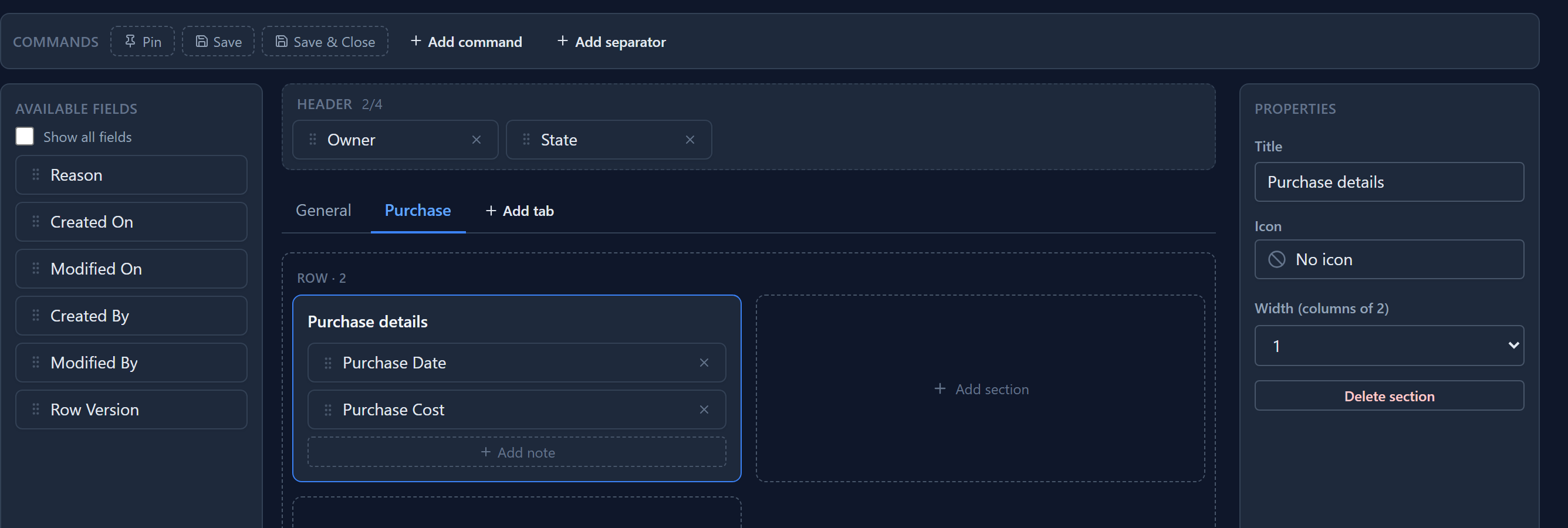
Add tab adds a Purchase tab, with a Purchase details section for the date and the cost. A section can also be wider than its neighbours: set its Width to the number of the row's columns it should take.
A header that stays put
Above the tabs is the Header. Drop up to four fields there: the facts somebody needs before choosing a tab, such as who owns the record, what state it is in, or what it adds up to. Header fields are read-only unless you say otherwise, because the same field is usually on a tab as well.
Save, and open an asset in the app:
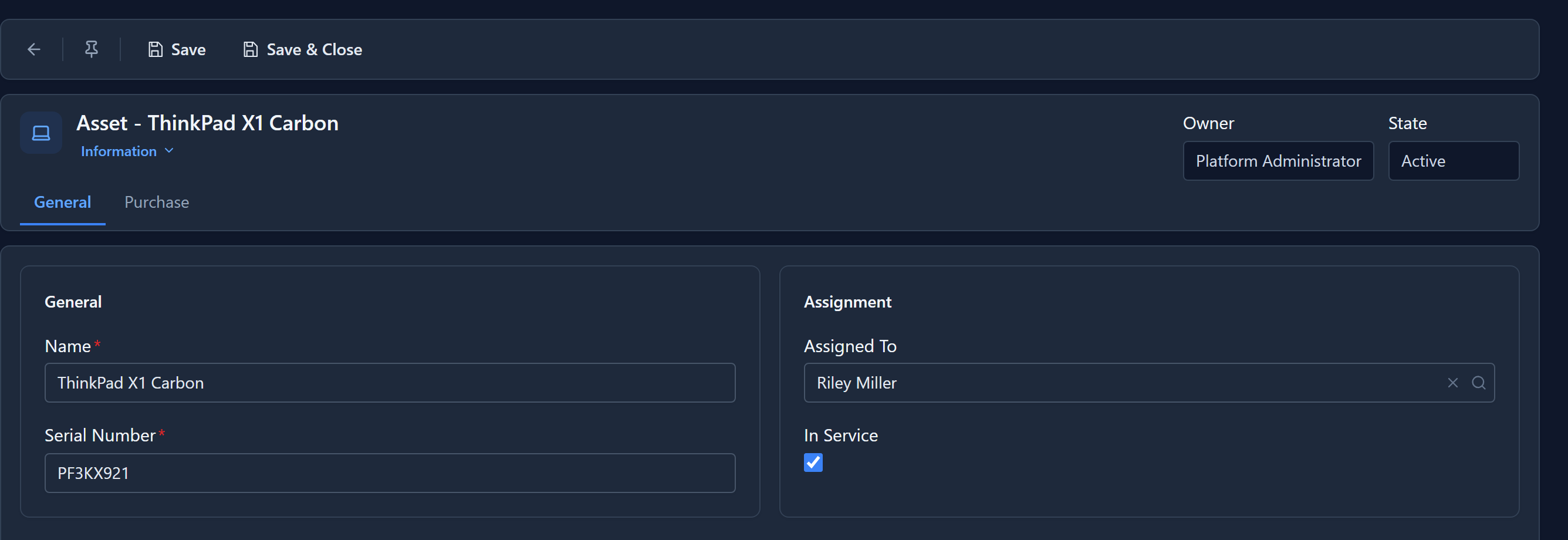
The owner and the state stay beside the name whichever tab is open.
A second form for a different job
The people who buy equipment don't care who has a laptop. They care what it cost. Rather than adding everything to one form, give them their own: on the table's Forms, press New and build a Purchasing form with the name, the serial number and the cost fields.
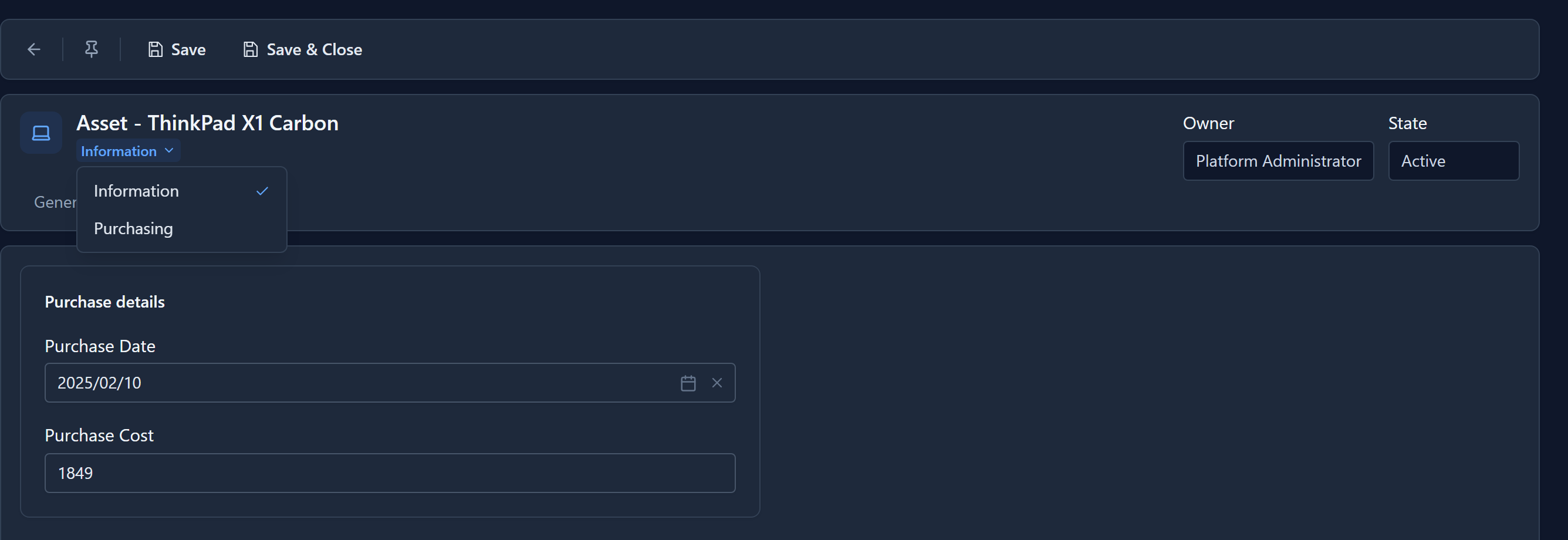
A table can have as many forms as it has jobs. One of them is the default, the one a record opens on. On the record, the form's name under the title switches between them:
Which forms an app offers
An app decides which of a table's forms its people get. In the app, the table's Forms and views button opens this:
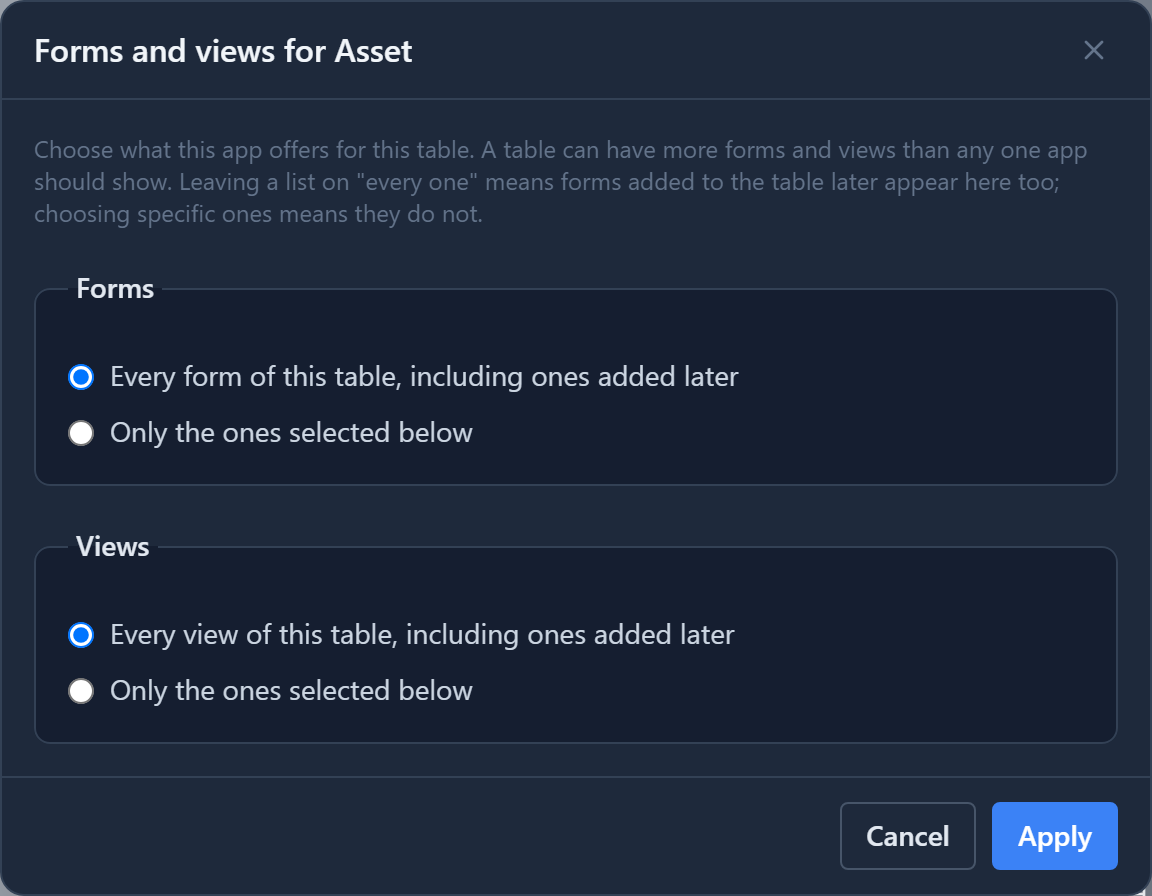
Leave it on every form and a form added later appears in the app too. Choose specific ones and the app keeps offering exactly those. So the finance team's app can offer Purchasing and the IT team's app Information, over the same records.
What's saved
A form is saved as a document and checked against the form schema, so every field it places has to exist on the table. It belongs to your solution and moves with it to Test and Production.
Next: notes and labels, which are text on a form that explains it.