For Power Apps
Right-to-left designs
A Parsware report can be written in Persian or Arabic. Type the words and each text box turns right to left on its own; lay the page out from the right, and the preview prints it the way a Persian or Arabic reader expects. Here is a report turned into Persian in a few minutes, and what follows the reader's language on a screen.
Dit artikel is alleen in het Engels beschikbaar.
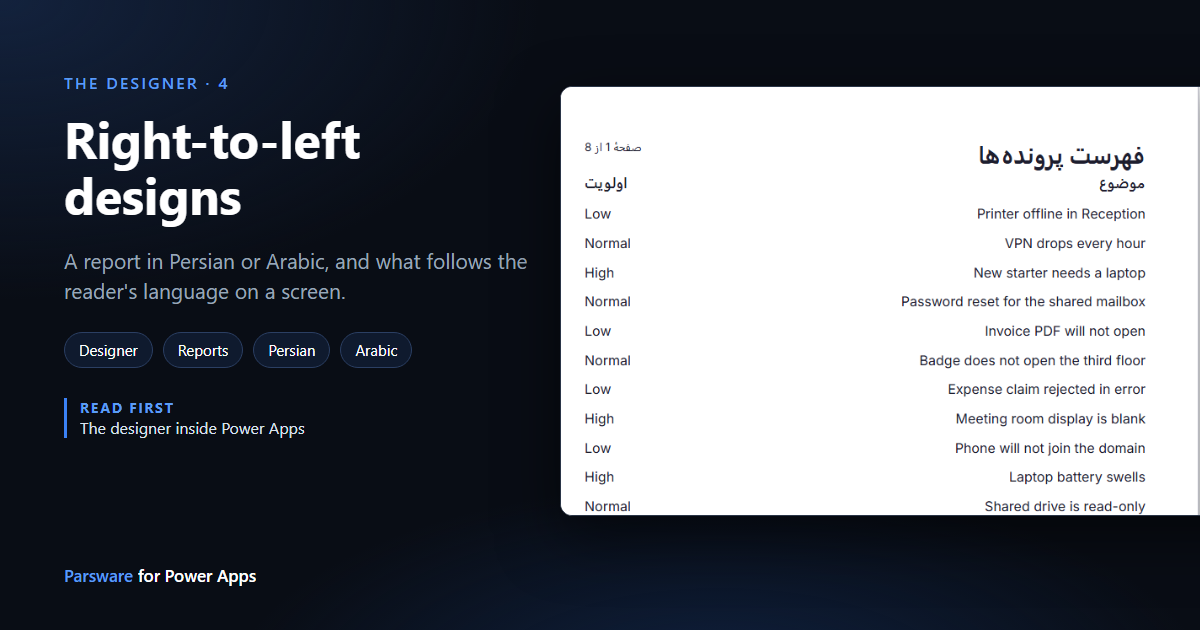
Persian and Arabic are written from right to left, and a report in either has to be laid out that way too: the title on the right, the first column on the right, and the page number on the left.
The Parsware designer handles the writing for you and leaves the layout to you, which is the right split for paper. We'll turn the Case list report from Your first report on Dataverse into Persian. Nothing here was saved, so the report is still in English.
1. Type the words
Select the title and type over it. As soon as the text is mostly Persian or Arabic, the box turns right to left and aligns to the right on its own:
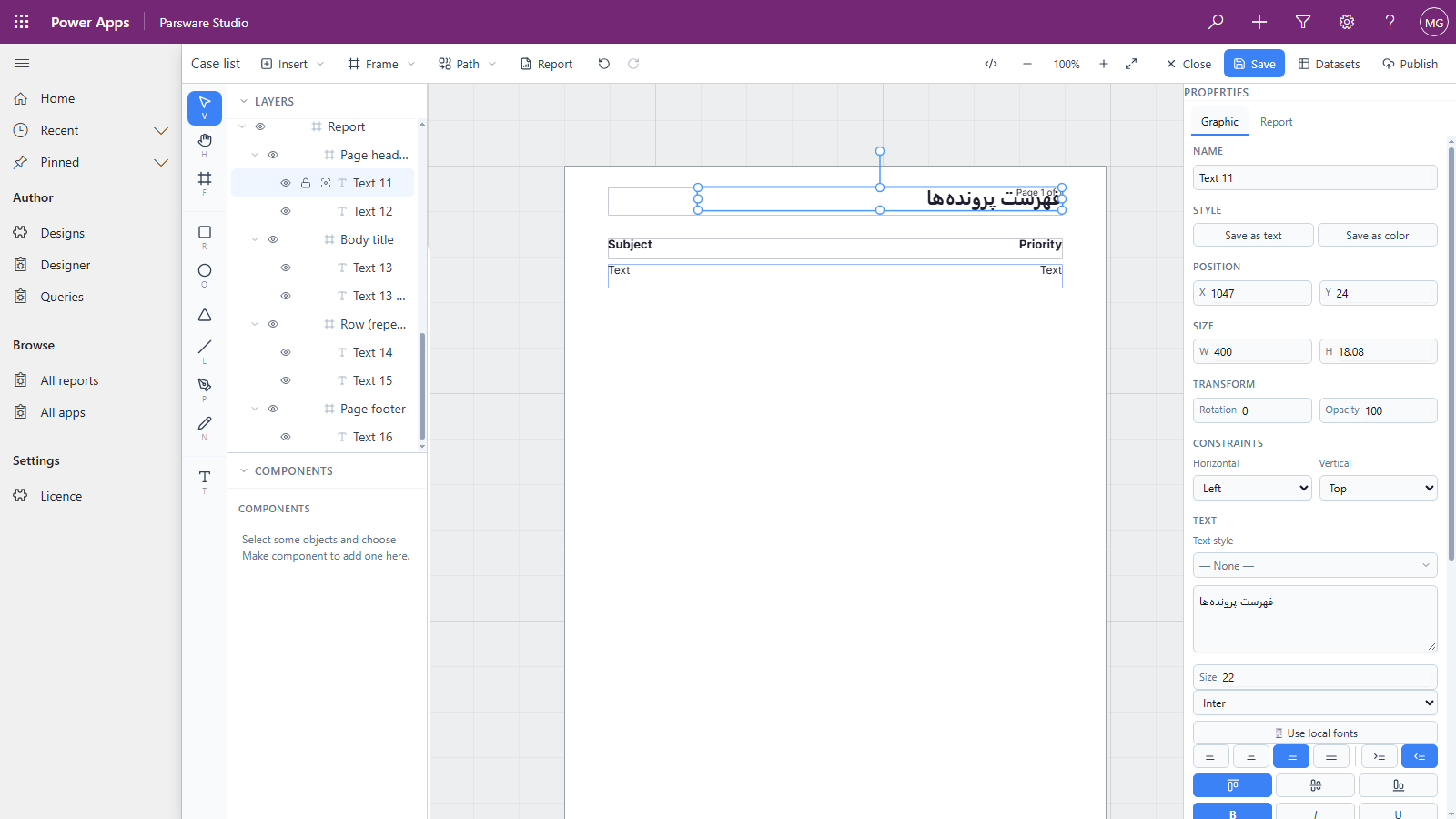
The two buttons at the end of the alignment row are Left to right and Right to left. You'll rarely need them for a heading, since the direction follows what you type. Set them yourself for a box that prints data, as below, because its text on the canvas is only a placeholder.
We did the same for the two column headings, typing موضوع (subject) and اولویت (priority).
2. Lay the page out from the right
A report page is paper, and paper doesn't mirror itself. So move things:
- The title to the right edge, and the page number to the left.
- The first column, the subject, to the right; the priority to the left.
- In the repeating row, the subject's text box to the right, set to Right to left and Align right, and the priority's to the left, Align left.
Change each box's X in the properties panel to move it exactly. Our page runs from 948 to 1,447, so the subject column, 299 wide, went to 1,148.
3. Words inside an expression
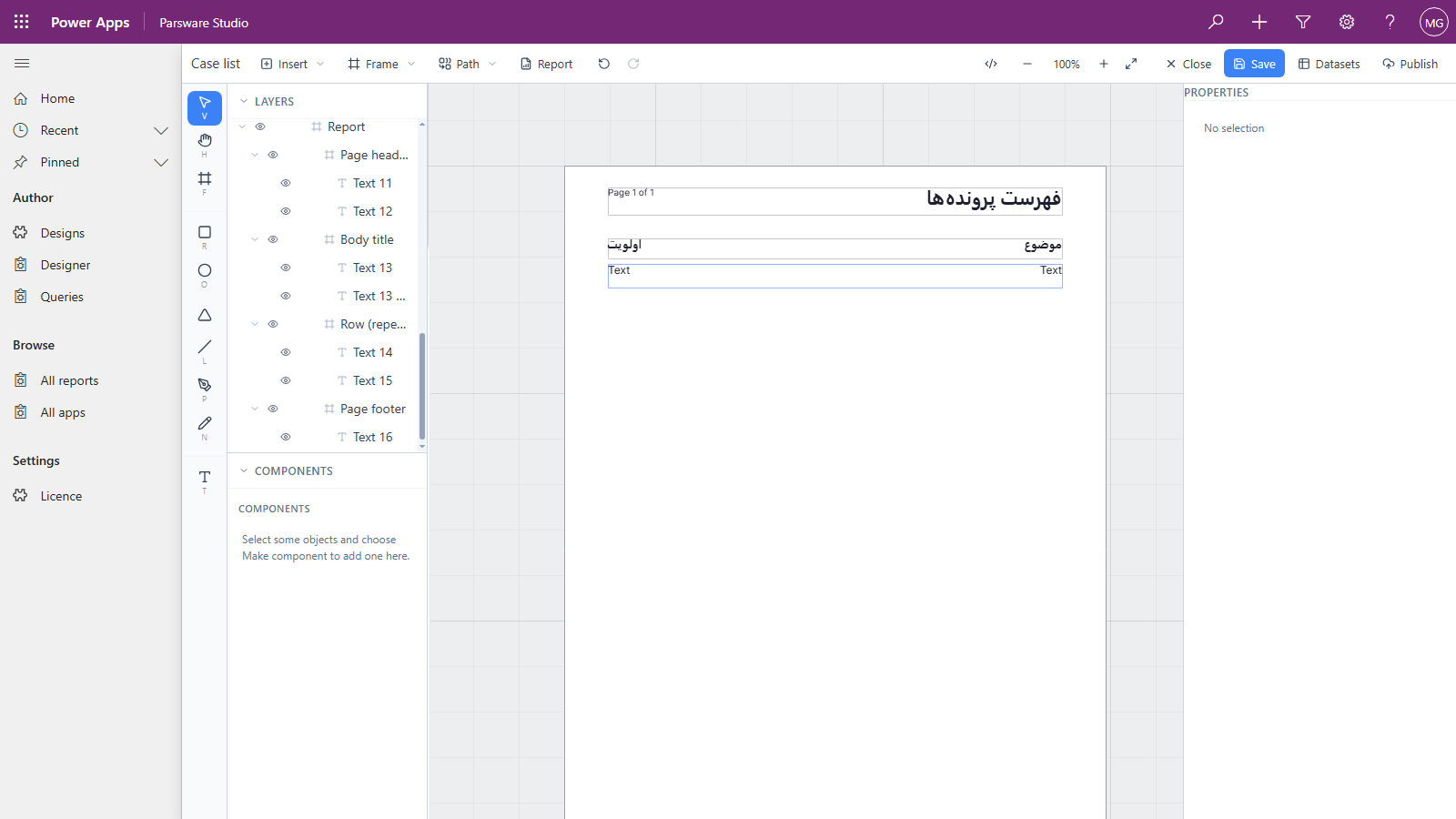
The page number isn't typed text. It's an expression, so the canvas shows the placeholder Page 1 of
1 while the preview shows the real count. Select it, press </>, and change the words inside
the quotes:
concat('صفحهٔ ', pageNumber, ' از ', pageCount)
The code editor shows Persian and Arabic letters unjoined, one by one. That's the editor's font: the report prints them joined.
4. Preview it
Press Report on the toolbar:
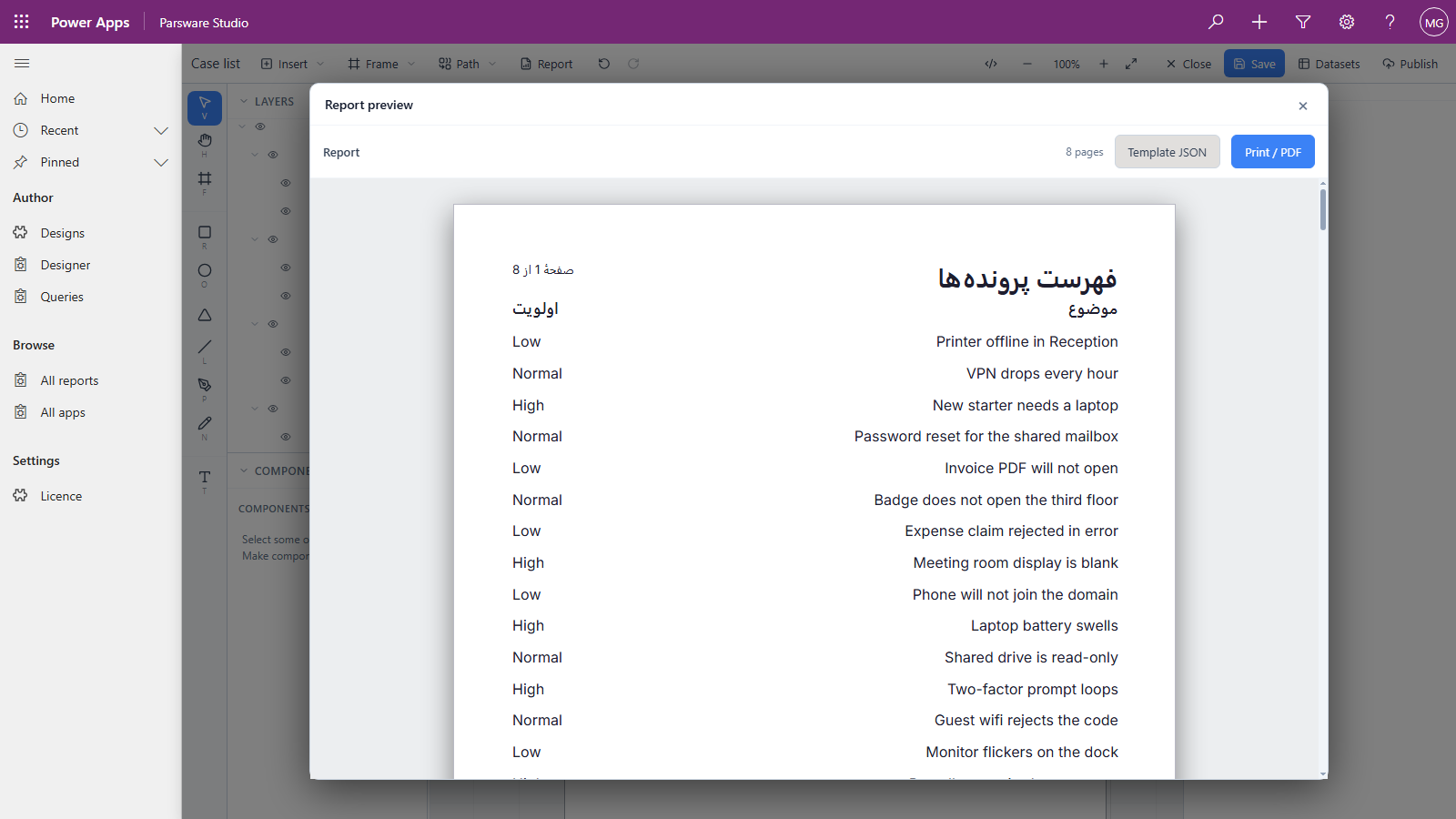
Everything reads from the right: the title, the subject column, and the page number, which comes out as صفحهٔ 1 از 8, page 1 of 8, in the order a Persian reader says it. The preview runs what's on the canvas, saved or not.
The rows print in whatever language your data is in. Our sample cases are English, so their subjects are English words in a right-to-left column. A Dataverse table with Persian or Arabic values prints those.
On a Studio screen
Text works the same way: type Persian or Arabic into a text box and it turns right to left.
The layout is different, because a screen, unlike paper, mirrors itself. Everything on a screen is placed from the start edge rather than from the left, so for a right-to-left reader the whole screen flips: the menu moves to the right, a start drawer slides in from the right, and a chosen row's edge bar moves to the right. You draw one screen, left to right, and it serves both.
Which way a screen runs is the reader's, not the maker's, and in Power Apps:
- On a form, a screen follows the form. Power Apps lays a form out right to left when the user's language is a right-to-left one, such as Arabic or Hebrew, and a Parsware screen on that form mirrors with it. Our trial environment has English only, so we can't show it here.
- Opened as a whole page from your app's navigation, a screen doesn't yet follow the user's Power Apps language. It's laid out left to right.
A screen's script can ask: ui.dir is "rtl" or "ltr".
Good to know
- The designer itself is in English inside Power Apps. What you draw can be in any language.
- Numbers print as Western digits, 1, 2, 3, as in the page count above.
- Mixed text is fine. A Persian heading with an English product name in it, or the reverse, keeps each run of words in its own direction.
- Save, then publish, as for any report. A Persian report is an ordinary design; it travels in your solution like the rest (see Publish: drafts versus what users see).
Next
The next series is Deploying and licensing, starting with moving designs from development to production through your own solutions. The whole series is in the reading list.