Parsware Platform
The BS editor: signature help and formatting
Open a bracket after a function name and the BS editor shows what the call takes, with the argument you're on in bold and, for a function with several forms, each one to page through. Shift+Alt+F tidies the whole script, keeping your comments and your line breaks. Here is what each one does, and when formatting leaves a script alone.
Dit artikel is alleen in het Engels beschikbaar.
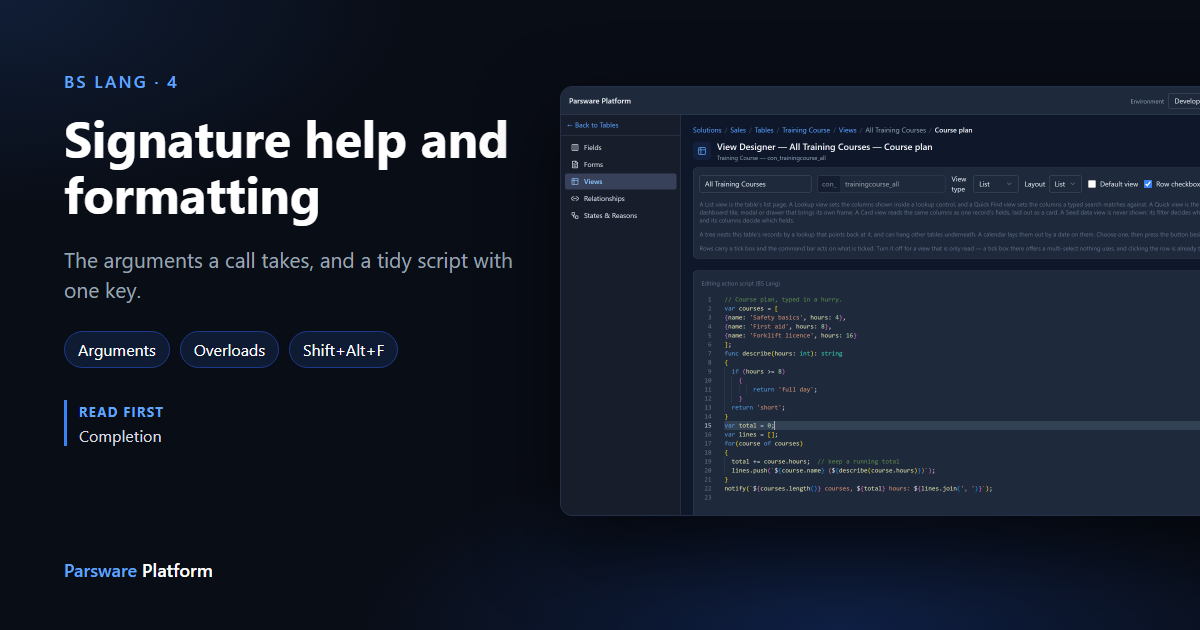
Two more things the BS editor does while you write a Parsware script. Signature help shows the arguments a function takes as soon as you open its bracket, so you don't have to remember their order. Formatting tidies a whole script with one key.
We used the Course plan command button from BS Lang in ten minutes again: a button on the Training Course list, whose script runs when somebody presses it.
Signature help: what a call takes
A command button can open a view with openView. Type the name and an opening bracket:
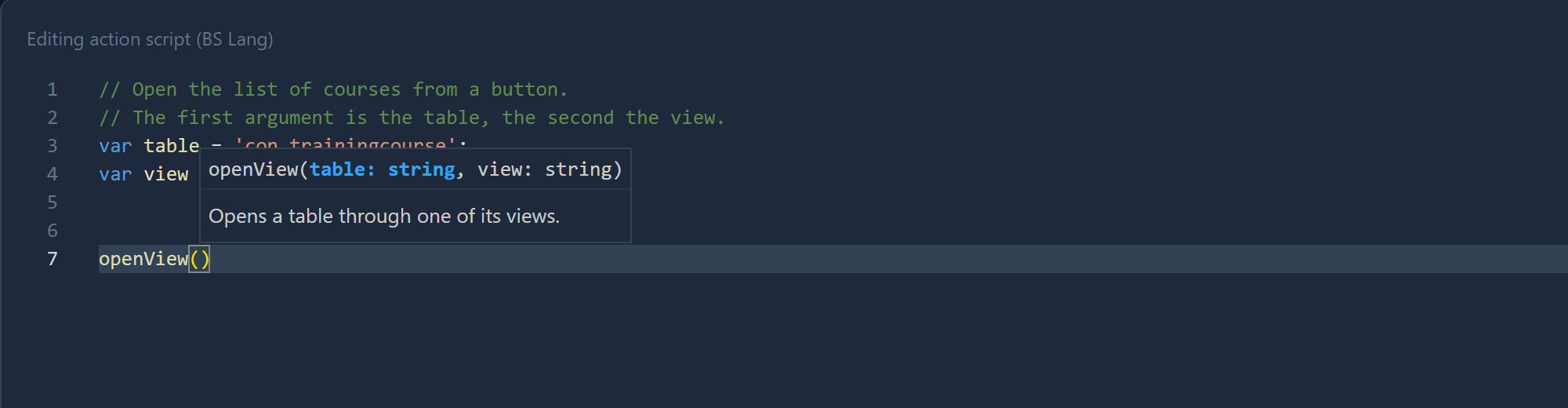
The hint shows:
- the parameters:
openViewtakes atableand aview, both text; - the one you're typing now, in bold;
- a line saying what the function does.
Type the first argument and a comma, and the bold moves to the next parameter:
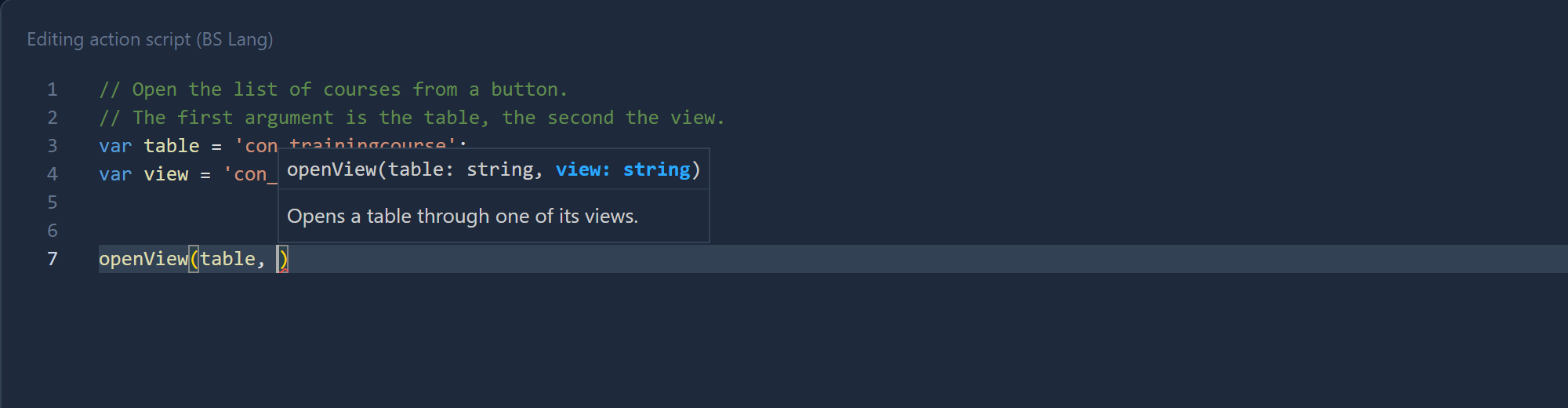
The hint stays open while you type an argument, so it's still there when you need to know what comes next. Press Escape to close it. To bring it back inside a call, press Ctrl+Shift+Space.
It works for the host's functions, like openView here, for the methods of a value, such as
lines.join(, and for your own functions.
A function with several forms
In BS Lang, two functions can share a name if they take different arguments. The language picks
the one that matches the call. Here describe has one form that takes hours, and one that takes
hours and a unit:
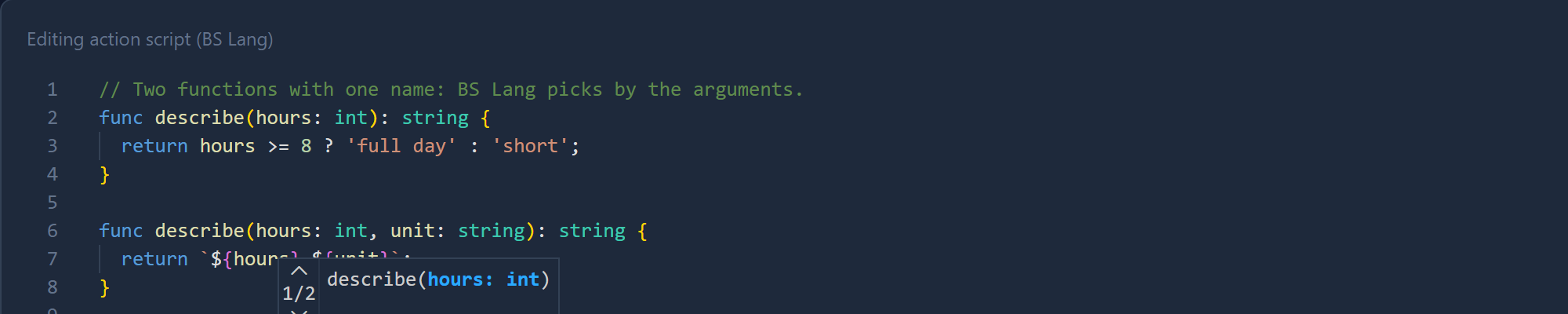
1/2 means this is the first of two forms. Press the Down arrow, or click the arrows, to see
the other one, describe(hours: int, unit: string). The hint remembers which form you picked while
you type the arguments.
Formatting: a tidy script in one key
Scripts get untidy: pasted from somewhere else, written in a hurry, edited by three people. Here is the Course plan script with the spacing and indenting gone:
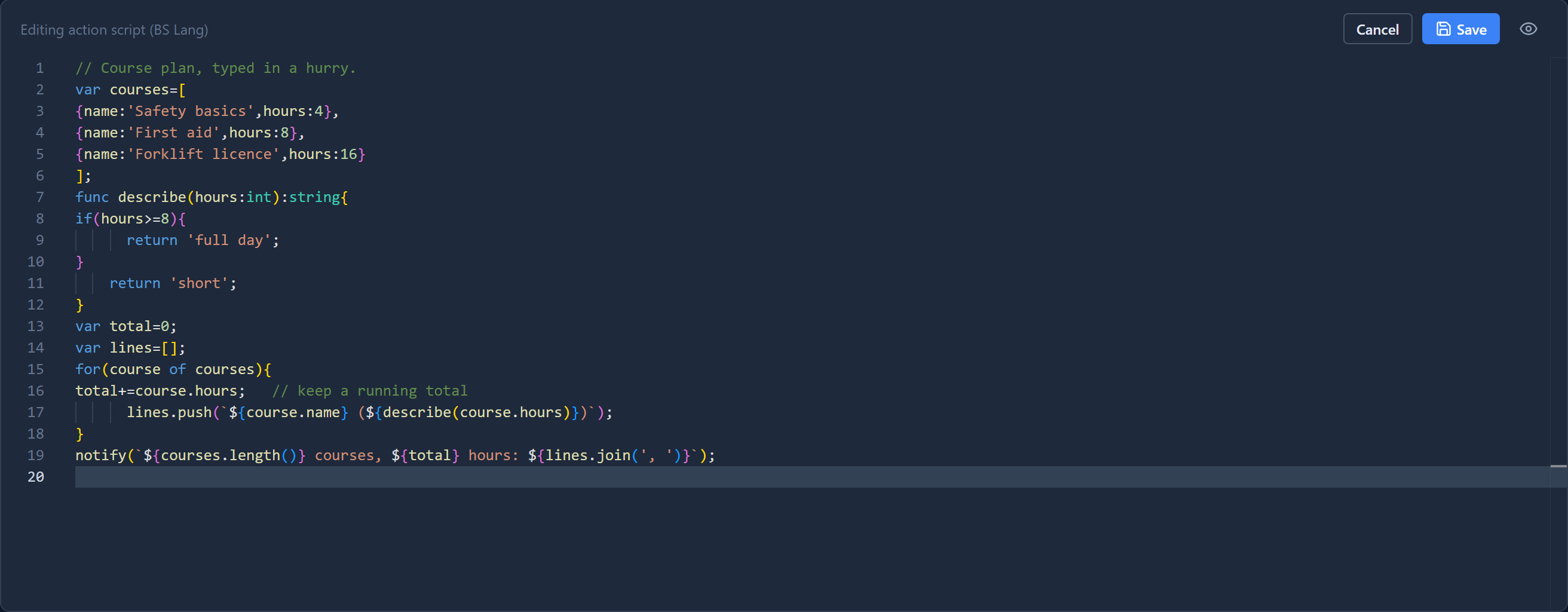
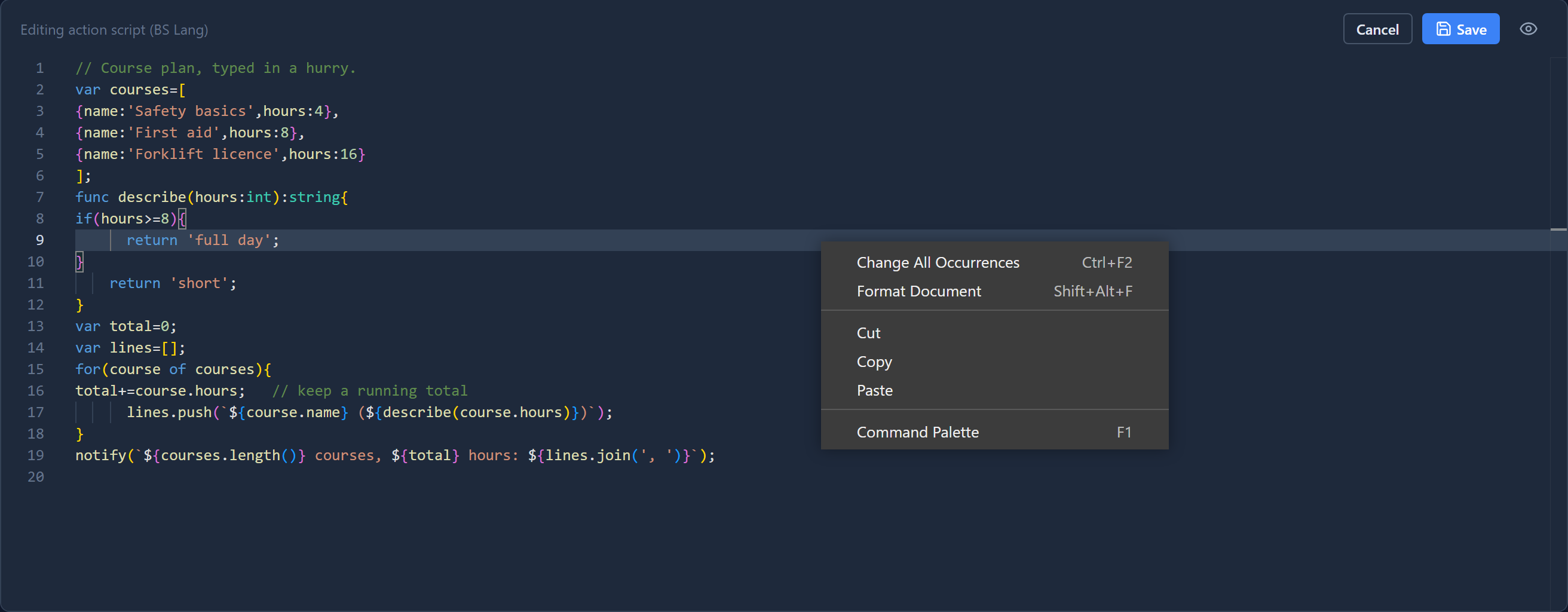
Press Shift+Alt+F, or right-click in the script and choose Format Document:
The same script, formatted:
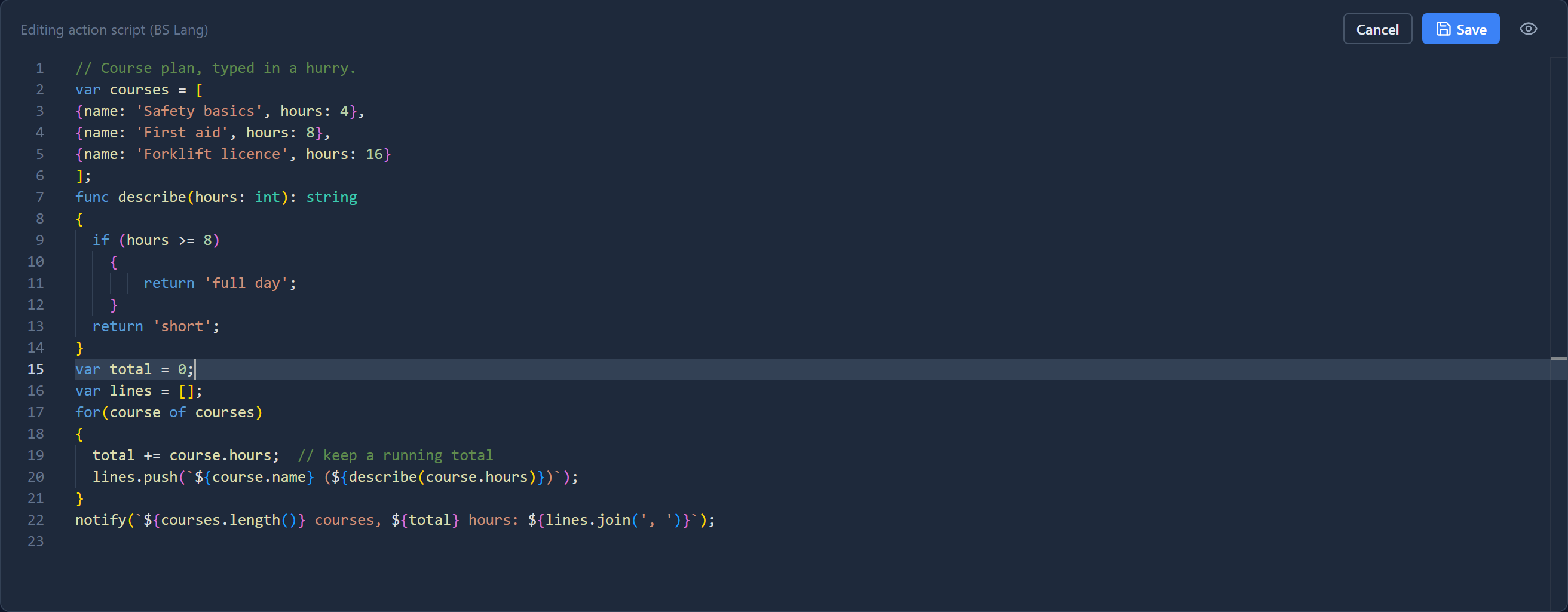
What changed:
- Spacing. One space around
=,>=and+=, after:in a type or an object, and after each comma. - Indenting. Everything inside a function, an
ifor a loop is indented one step, and each level inside that one more. - Braces. An opening brace goes on its own line, under the line that opens the block.
What didn't:
- Comments stay. The comment at the top and the one at the end of the
totalline are exactly where they were. - Your line breaks stay. Formatting doesn't join lines or split long ones. The three courses are still on three lines because they were written that way. If you write two statements on one line, they stay on one line, so give each statement its own.
- What the script does. Formatting only changes spaces and line breaks, never the code itself.
Press Ctrl+Z to undo a format, like any other edit.
A broken script is left alone
Formatting needs to read the script, so it only works on a script without syntax errors. Here the
if on line 8 has lost its closing bracket. We pressed Shift+Alt+F and nothing changed:
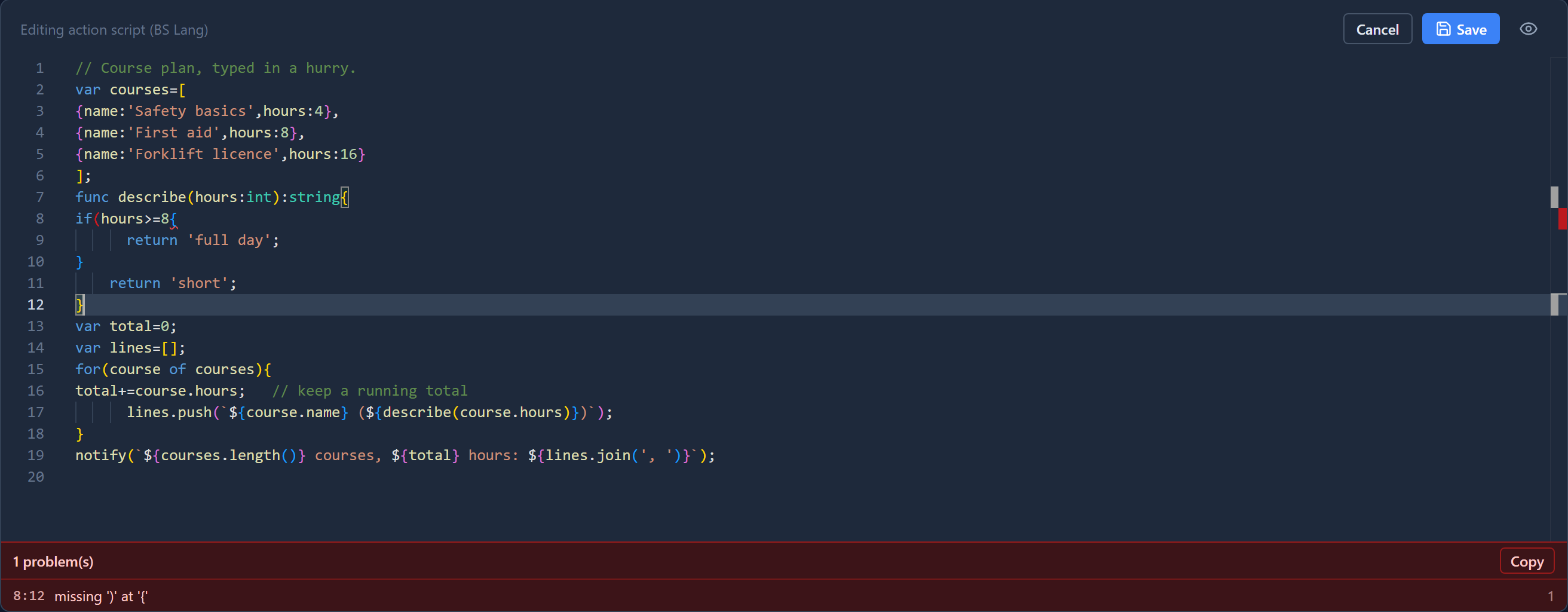
Fix the error in the problems list first (errors as you type), then format.
This is the behaviour now. When we started this article, the formatter did reformat a broken script. The parser works around a syntax error to keep going, and the formatter then rewrote the whole script from that guess, which can move the error and the lines around it. The editor now checks for syntax errors first and leaves the script exactly as you typed it.
Try it
Open any script in a development environment. Type a host function and ( and watch the hint
follow your arguments. Then remove a few spaces and indents and press Shift+Alt+F.
Next: the helpers panel, and finding a function without leaving the editor.