Parsware Platform
A picture and a second line beside every record
Choose one field as a table's record image and one as its secondary text, and every list and lookup shows a picture and a second line beside each record's name. Two contacts with the same name stop looking the same.
Dit artikel is alleen in het Engels beschikbaar.
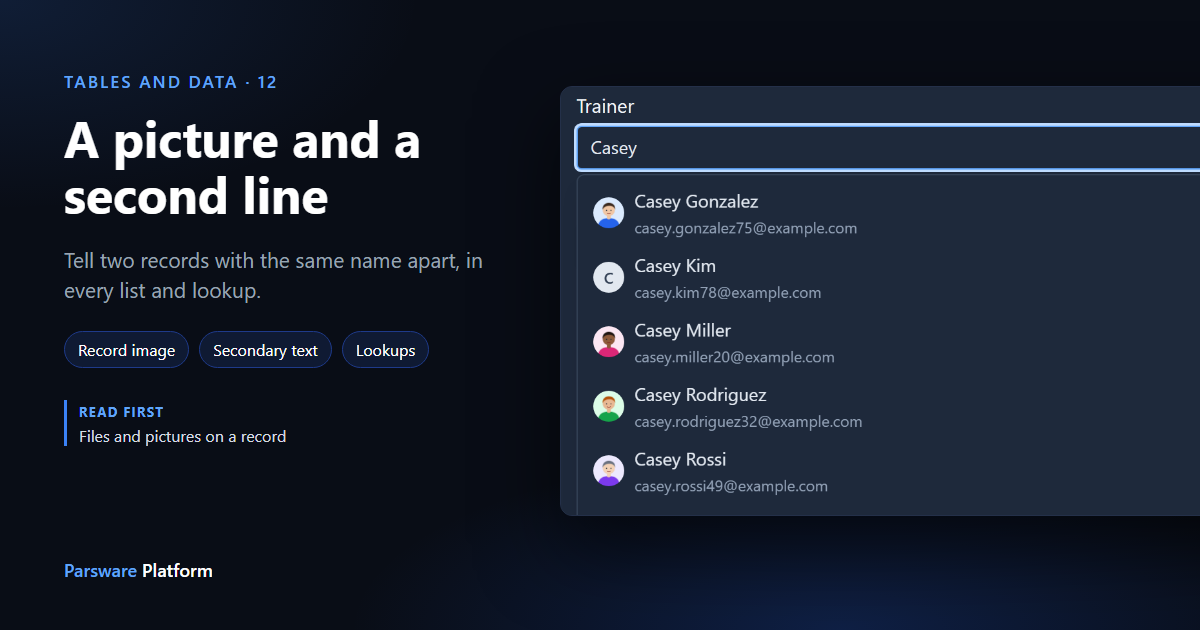
There are two contacts called Casey Rossi. In a list of names they look identical, and whoever picks one as a course's trainer has a one-in-two chance of choosing the wrong one.
A table can fix that once, for every screen: pick one field as its picture and one field as its second line. Here we do it for Contact. Every picture is the real product.
Choose the two fields
Open the table's Fields. Contact has no picture field yet, so first add one: New, name it Photo, set Data type to Image, and save (see Files and pictures on a record).
Then:
- Select the Photo row and choose Use as record image in the command bar.
- Select the Email row and choose Use as secondary text.
Each field's row now says what it's used for:
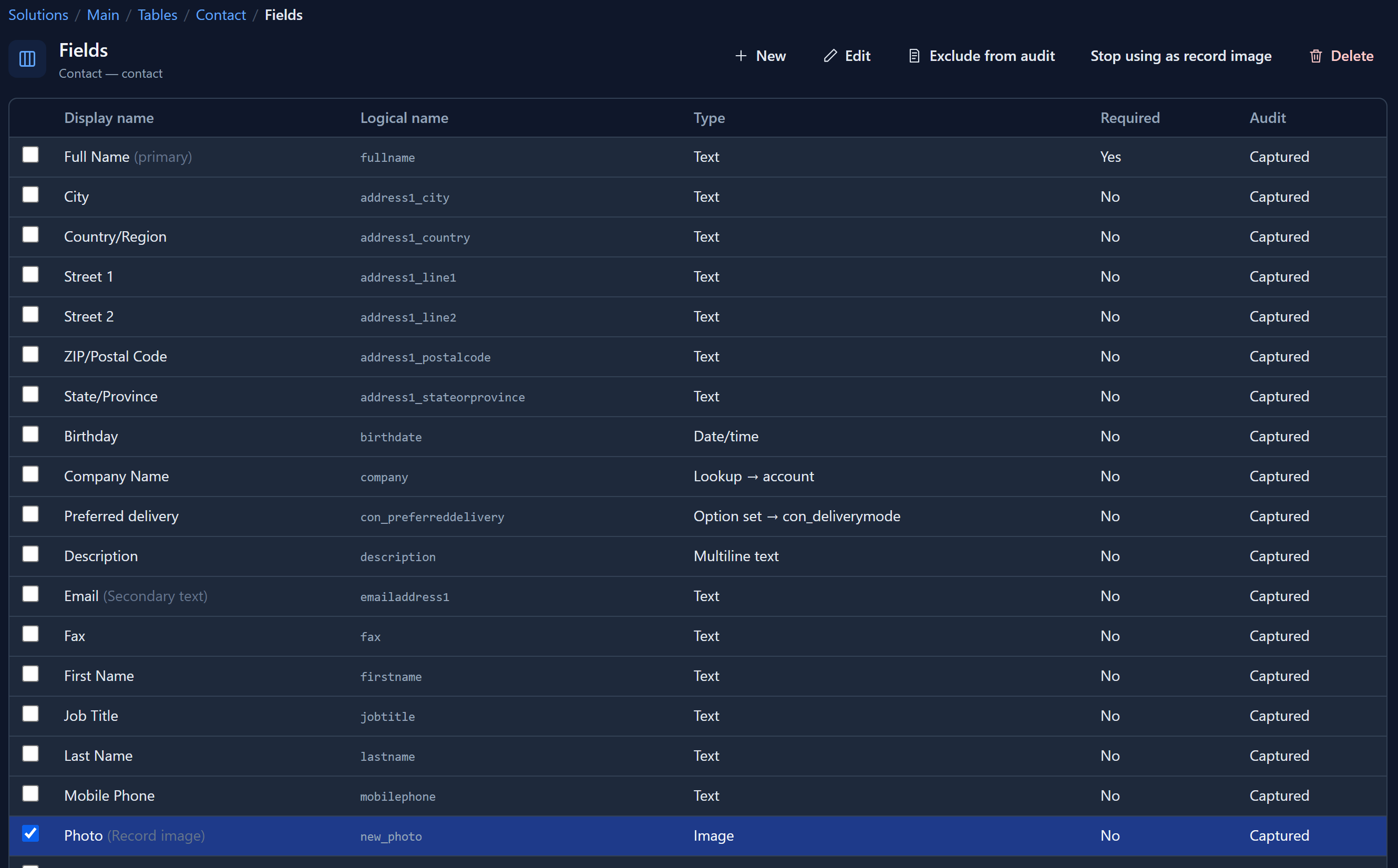
A table has at most one of each. Nominating another field moves the job to it. Stop using as record image (or as secondary text) takes the job away and leaves the field and its values alone.
Only an Image field can be the record image. The secondary text can be any field people read, such as an email, a city or a reference. It can't be the primary field, which is already the first line, or a File or Image field.
In a list
Every list of the table now puts the picture beside the name:
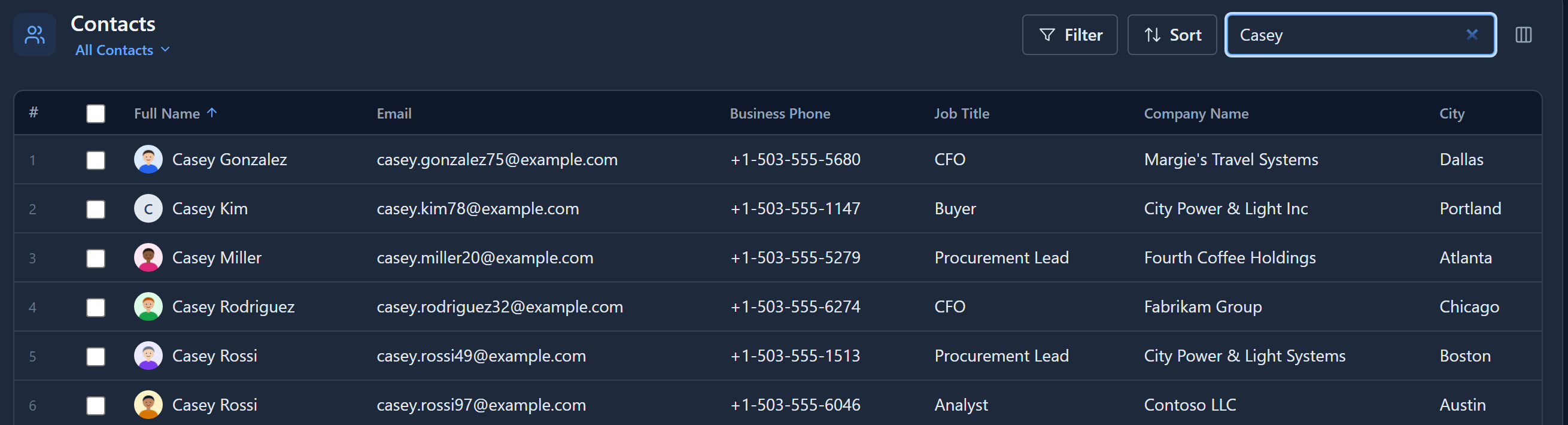
A contact without a photo shows the first letter of their name, like Casey Kim here, so the list stays even and an empty photo doesn't look like a broken page. People add photos on the contact's form, once the Photo field is placed on it.
In a lookup
The place it matters most is a lookup. Here a course's Trainer is being chosen, and the search says Casey:
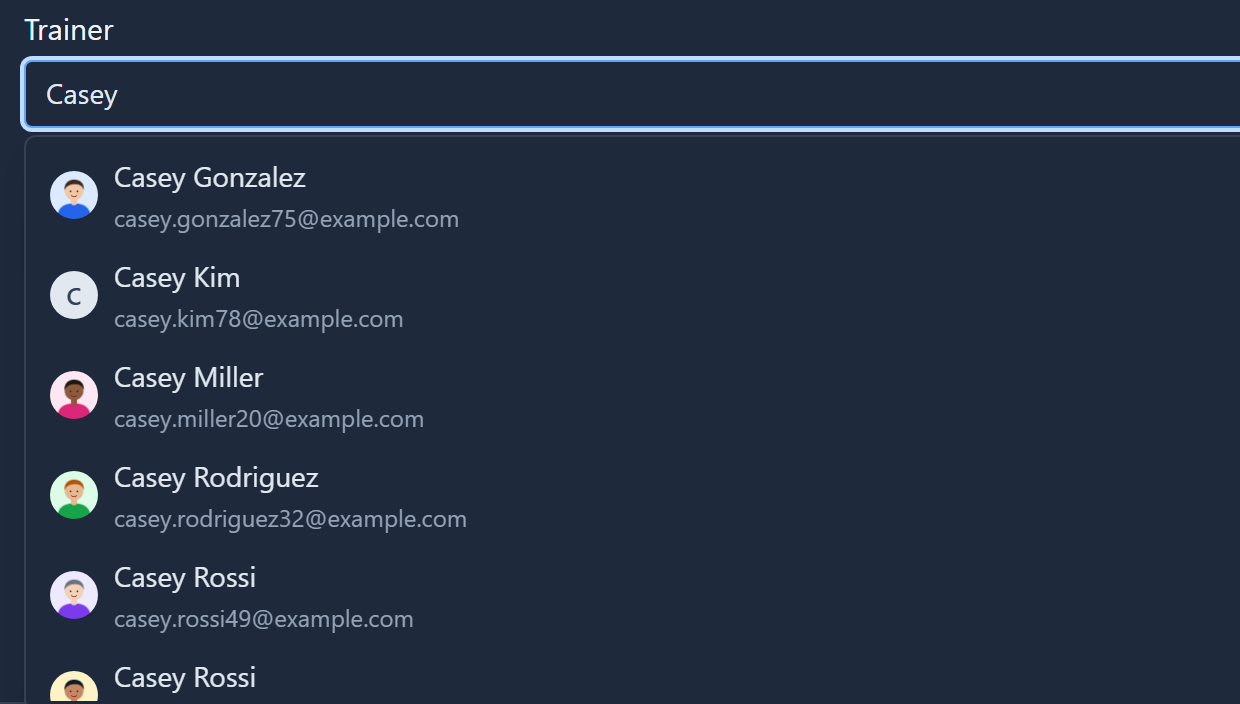
Each candidate shows its picture, its name and its email underneath. The two Casey Rossis are now casey.rossi49 and casey.rossi97, and a face you recognise is faster still.
Nobody set this up for the Trainer field, or for any other lookup that points at contacts. Because the choice was made on the table, every lookup to Contact, in every app, shows the same picture and the same second line.
Why it's on the table
You could imagine choosing a second line for each view or each lookup. But which field tells a table's records apart is one judgement, and it doesn't change from screen to screen. Making it once on the table means a new lookup to Contact already shows the email, and it goes with the table when the solution is exported. In the next environment the same pictures and lines appear in the same places, with nothing to set up again.
A record whose second-line field is empty doesn't get a blank line: a lookup falls back to the columns of the table's lookup view, the same line it shows when a table has no secondary text.
Next: category trees, a table whose records nest inside each other.