Parsware Platform
Every field type in Parsware, explained
Text, numbers, yes/no, dates, option sets, lookups to one table or several, files and images. What each field type stores, the settings it takes, and the control a form shows for it, built on one table.
Dit artikel is alleen in het Engels beschikbaar.
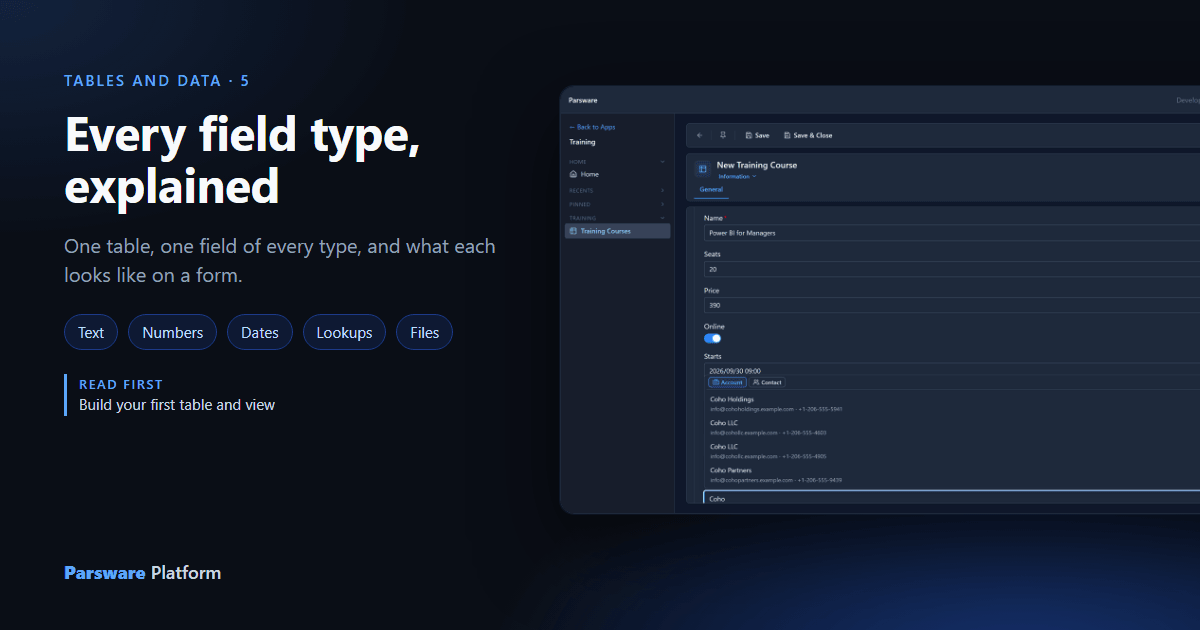
A table is only as useful as its fields. Pick the right type and a form knows which control to show, a view knows how to sort and filter, and a report knows how to format the value. Pick the wrong one and every one of those works against you.
Parsware has eleven field types. In this article we build one table, Training Course, with one field of each type, then fill in a course so you can see what each one looks like to the person using it. Every picture is the real product.
The table
In a solution (ours is Sales, with the prefix con_), create a table called Training
Course. It starts with one field, Name, which is text. The rest we add with New on the
Fields page, choosing a Data type for each.
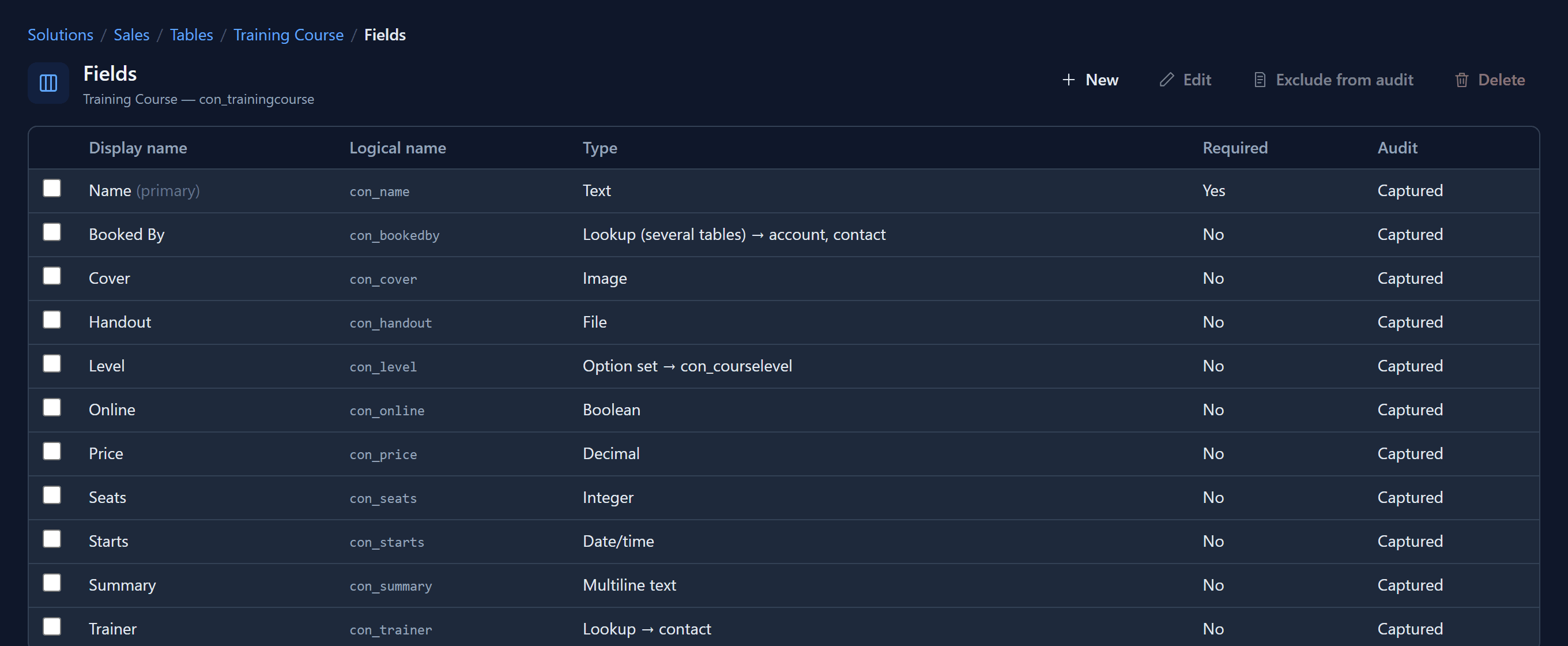
All eleven at a glance
| Type | Stores | Settings worth knowing | On a form |
|---|---|---|---|
| Text | One line of text | Max length | A text box, or a dropdown |
| Multiline text | Longer writing | — | A larger text area |
| Integer | A whole number | — | A number box |
| Decimal | A number with a fractional part | Precision, scale | A number box |
| Boolean | Yes or no | Check box or toggle | A check box or a switch |
| Date/time | A date, a time, or both | Which part to show, Gregorian or Persian, and the format | A calendar with a time picker |
| Option set | One value from a fixed list | Which option set | A dropdown, with the option's colour |
| Lookup | A link to one record in one other table | The related table | A search box that finds records as you type |
| Lookup (several tables) | A link to a record in one of several tables | Two or more related tables | The same search, with a tab per table |
| File | A document | — | Choose, replace or remove a file |
| Image | A picture | — | A picture you can choose or replace |
Every type also has Required and a Default control. Required is checked on forms, and the default control is set once, here, for every form and view that shows the field. The next article covers both.
Text and numbers
Text holds a single line, up to its Max length. Multiline text is for anything longer, like our course's Summary, and gets a larger box on the form.
Integer is a whole number, like Seats. Decimal has a fractional part, like Price. Its Precision is how many digits it holds in total, and its Scale is how many of them come after the decimal point.
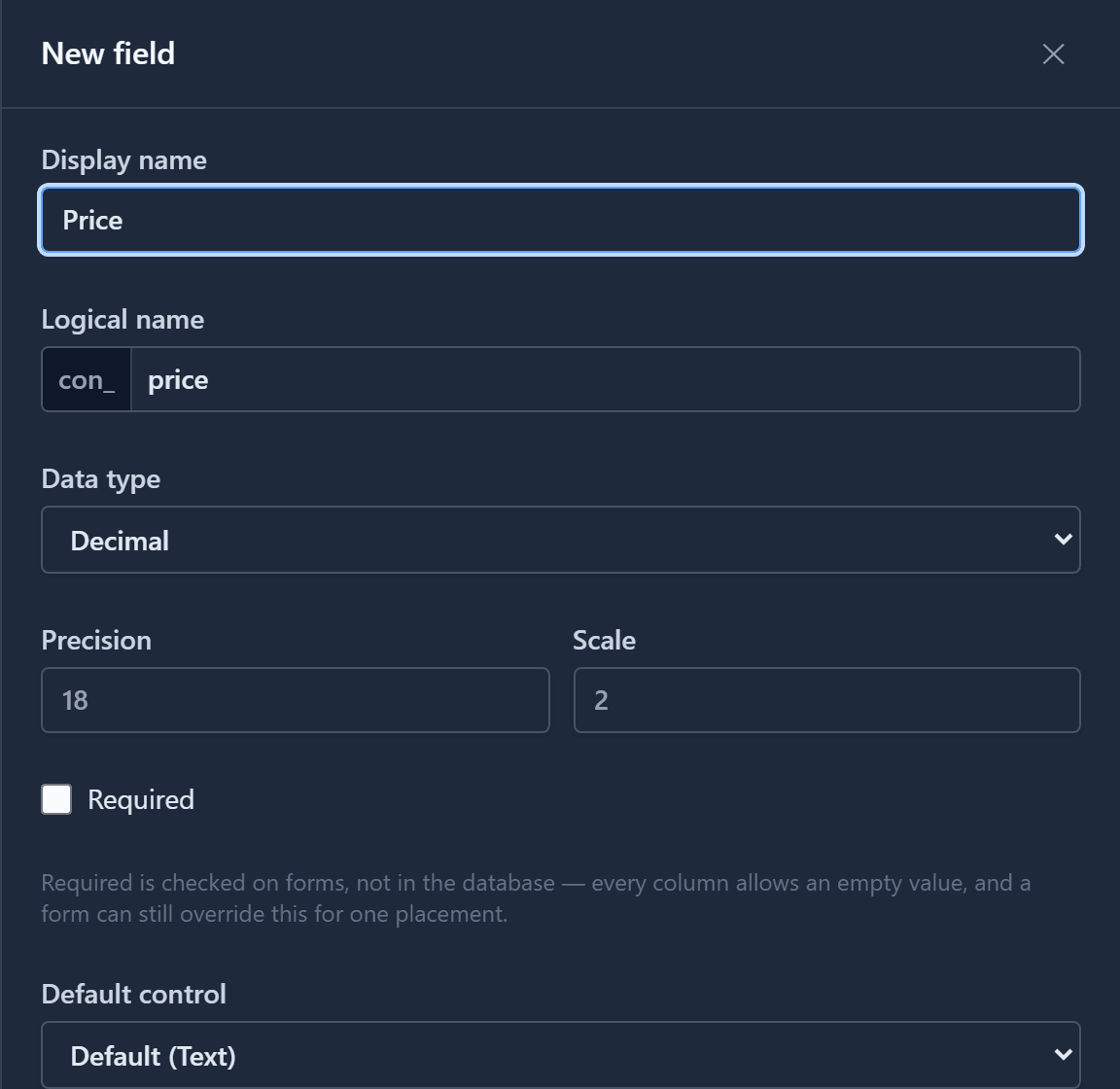
Yes or no
Boolean is yes or no. Its Default control decides how it looks: a check box, or a toggle like our Online field.
Dates and times
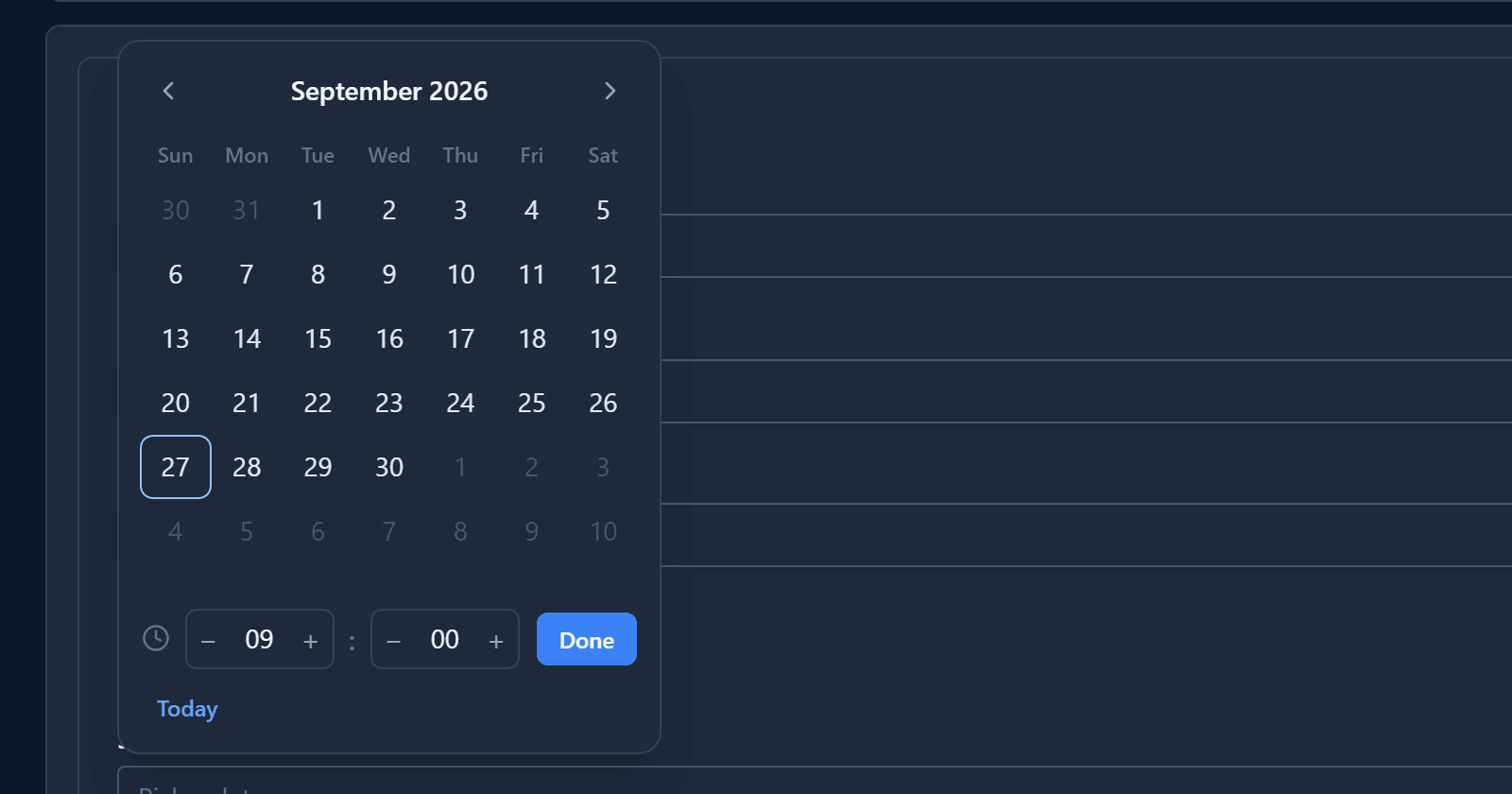
Date/time is one type with several faces. Its Default control chooses what a form shows: the date and time, just the date, or just the time. Each comes in a Persian version too, which shows the Jalali calendar. The Default format sets how the value is written in forms and views.
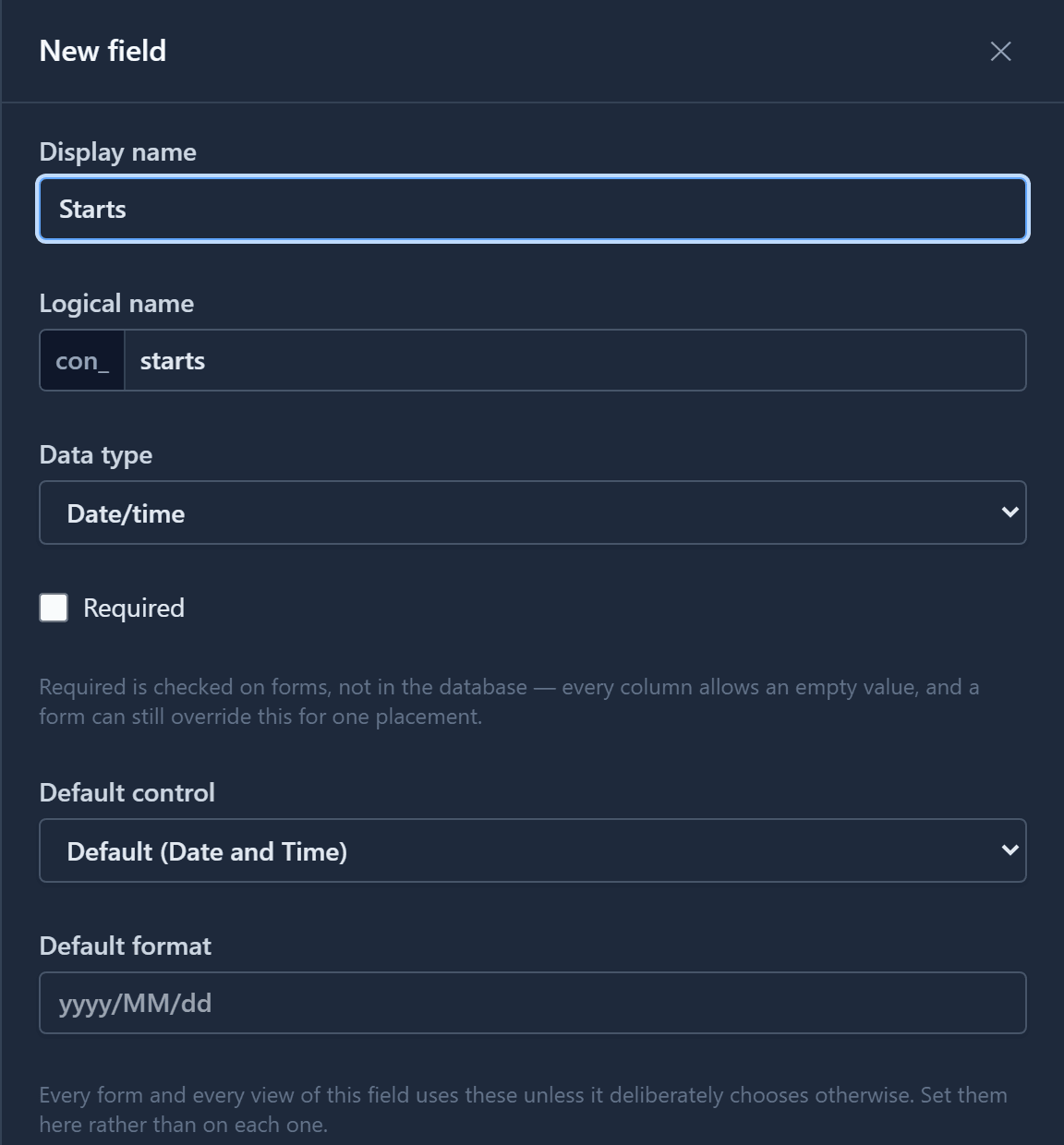
On the form, it opens a calendar with the time underneath:
Option sets: a fixed list
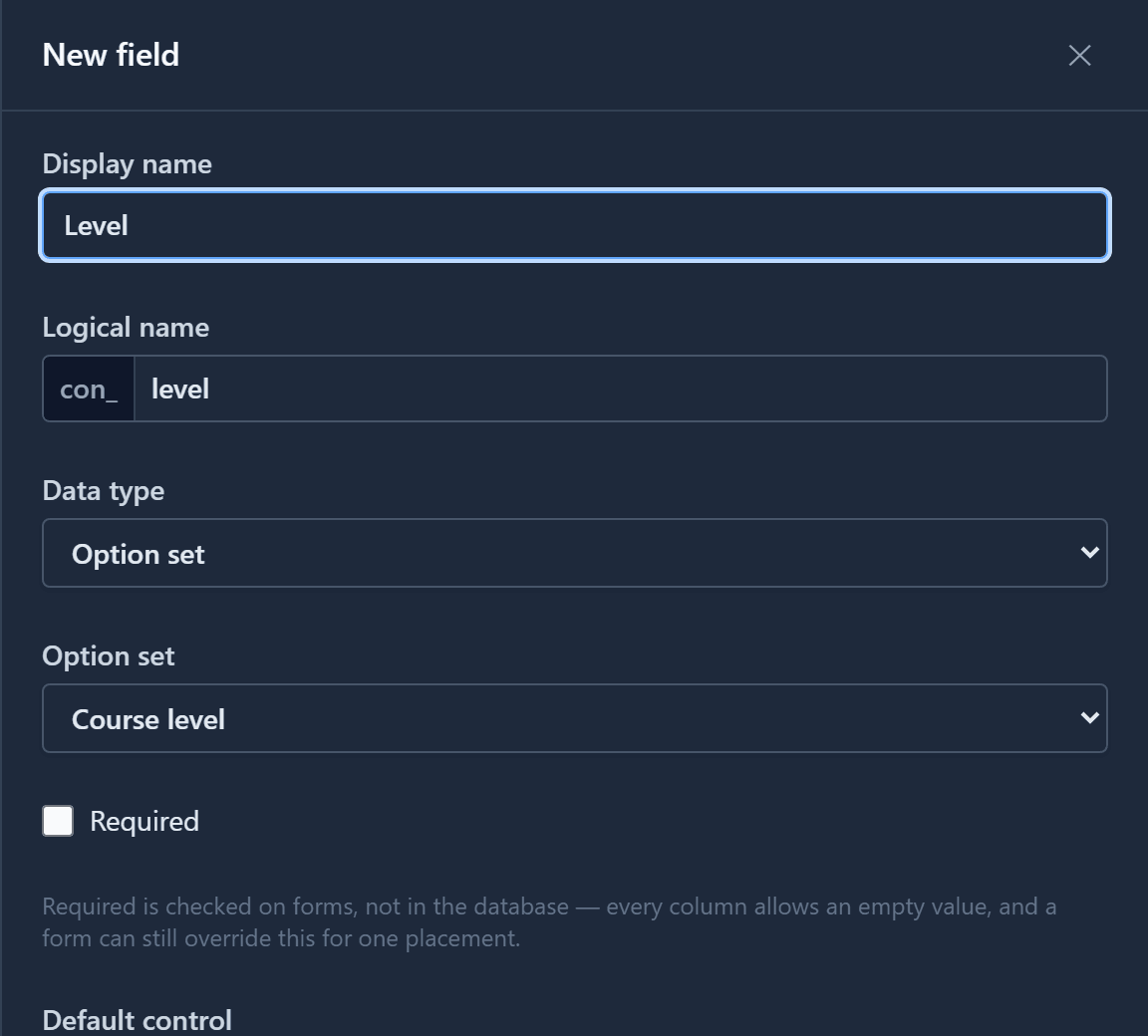
An option set field takes one value from a list you define once and reuse on any table, with a colour for each option. Our Level field uses a Course level option set: Beginner, Intermediate and Advanced.
On the form it's a dropdown:
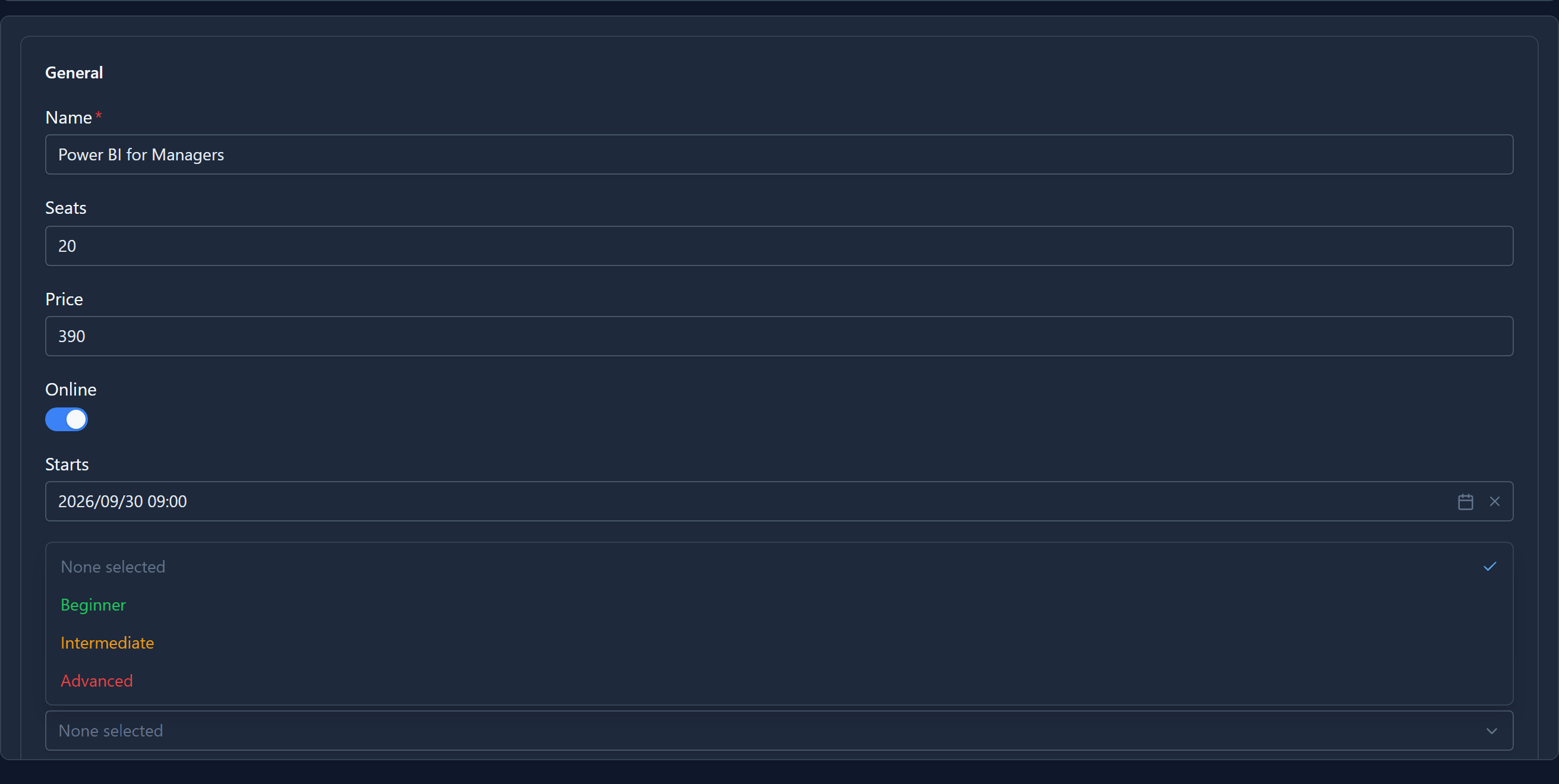
Use an option set when the values are part of your application's design and change only when you change the application. When people add values as they work, such as product categories or office locations, make those a table and use a lookup instead.
Lookups: a link to another record
A Lookup points at one record in another table. Our Trainer is a Contact.
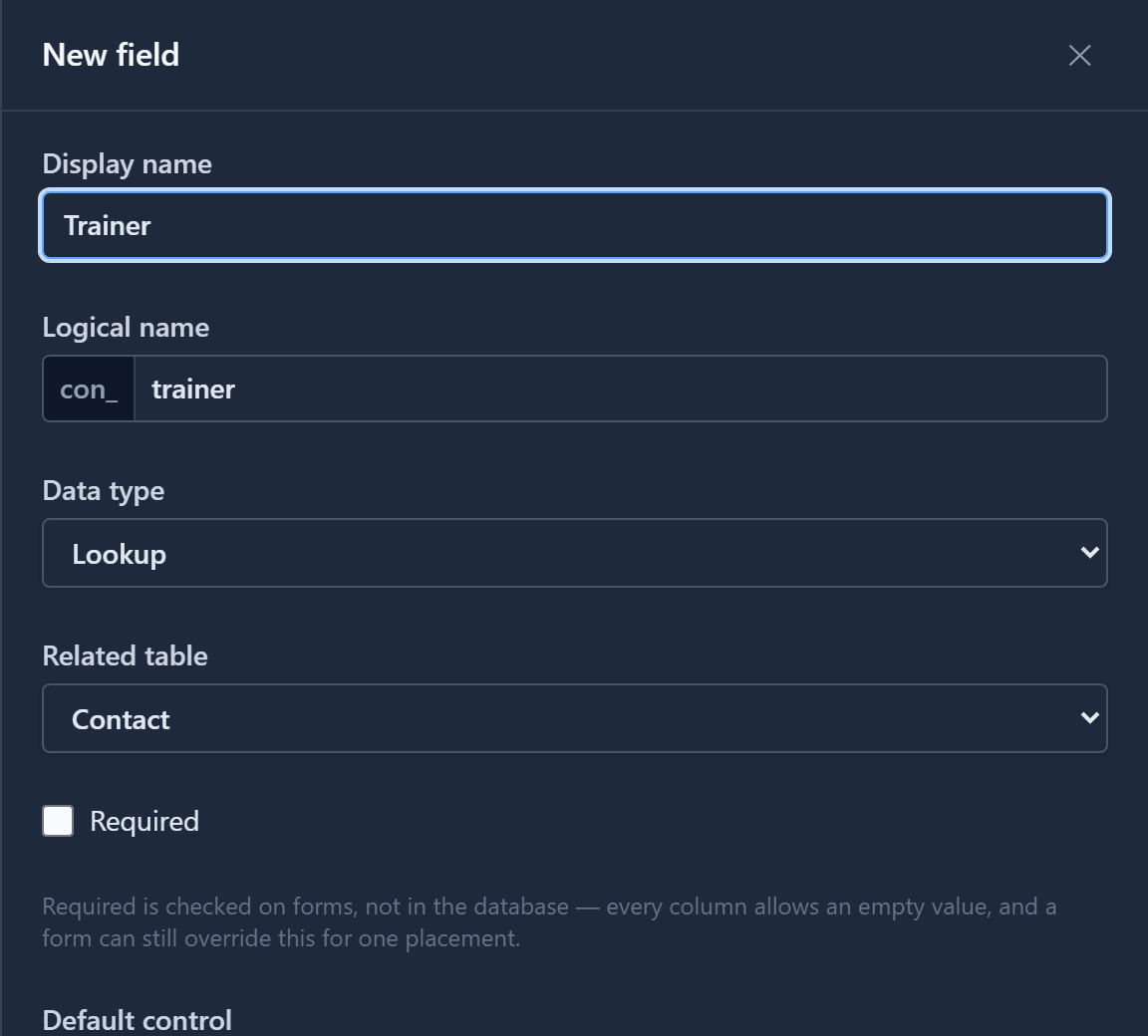
It stores the record itself, not a name typed by hand, so the link survives the contact changing their name, and the form offers a search that finds contacts as you type. Creating the lookup also creates the relationship between the two tables.
A lookup to several tables
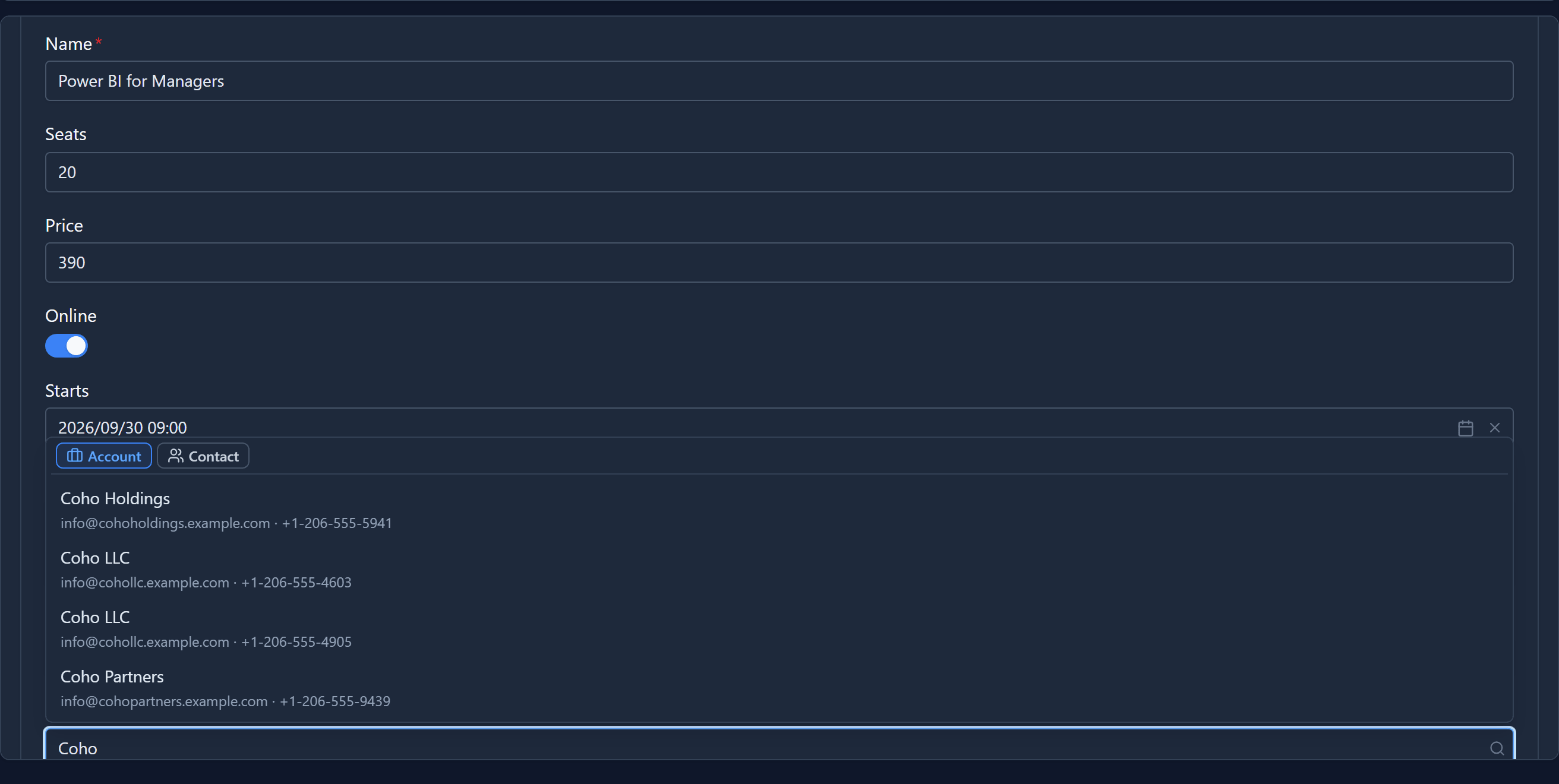
Sometimes a value can be a record from one of several tables. A course can be booked by a company or by a person, so Booked By is a Lookup (several tables) pointing at Account and Contact.
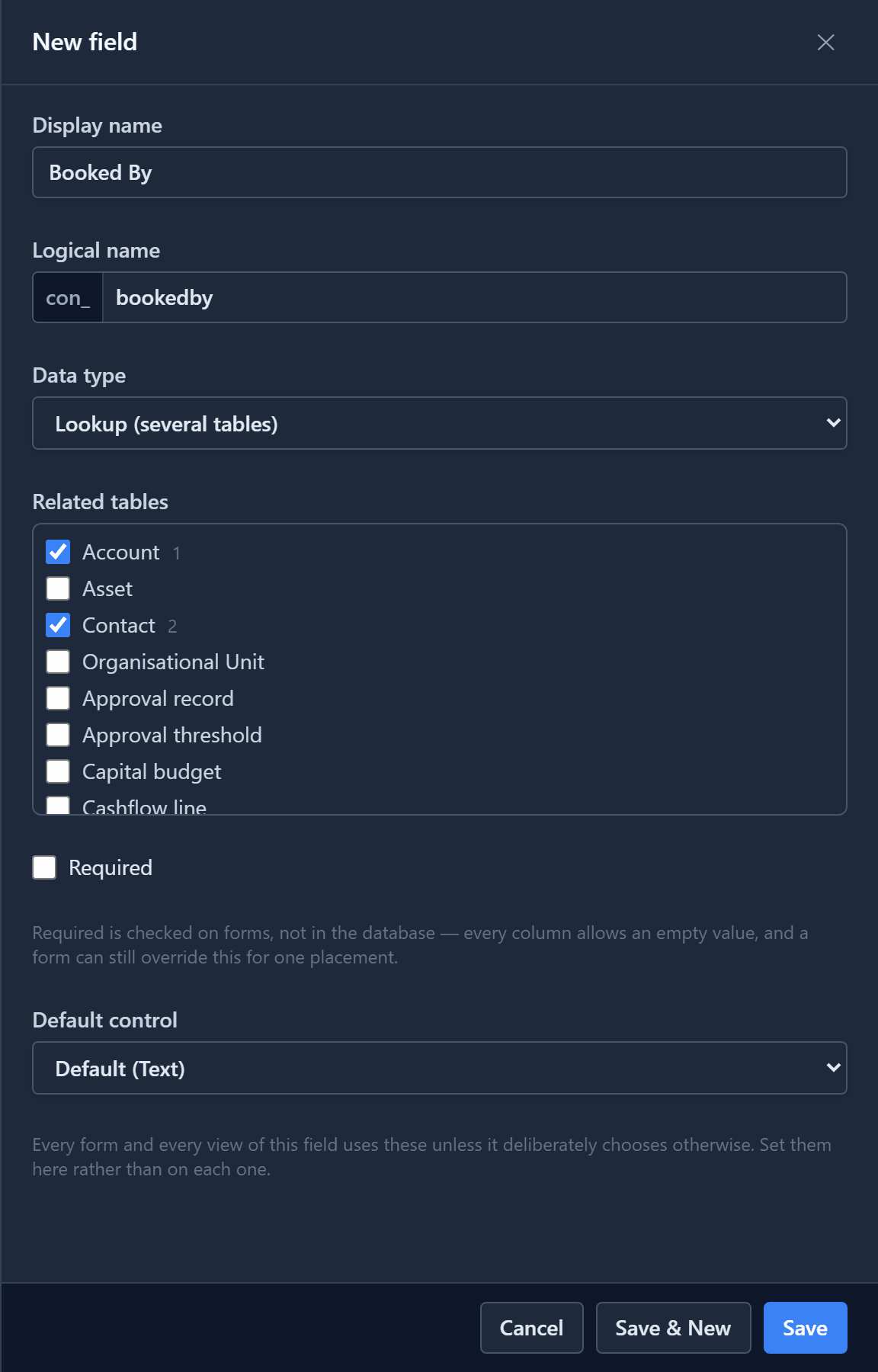
Tick at least two tables. For one, use a plain Lookup, which gets a real foreign key in the database. On the form, the search has a tab for each table:
Files and images
File holds a document, like the course Handout. Image holds a picture, like its Cover. On a form you choose, replace or remove them. On a new record they are uploaded when you save it. Both are meant for a record's own small files, and each is capped in size. Larger files go to object storage, which has an article of its own later in this series.
The result
With the fields placed on the table's form and the table in an app, adding a course fills in every type at once: typed text and numbers, a switch, a calendar, a dropdown, two searches, a file and a picture. Saved, each value goes into a column of its own type in the environment's database, so views can sort and filter it, reports can format it, and scripts can read it.
Next: required and read-only fields, and the default controls a field brings to every form.