Parsware Platform
Groups and boolean shapes
Keeping shapes together as a group, combining them into one shape, and using one shape to frame another. Trying each, we fixed three things: double-click now reaches a shape inside a group, and a combined shape stays in its frame with its rounded corners.
Cet article n’est disponible qu’en anglais.
A card is several shapes: a background, a picture, a couple of lines of text. You want to move it as one thing, and sometimes you want a shape no tool draws, such as a rounded button with a circle joined onto its end. This article covers the three ways to put shapes together: groups, boolean operations and masks.
We worked in a 760 by 420 frame on an empty part of the Starter app sample's canvas, without saving.
Groups
We drew a card: a pale rounded rectangle, a circle for the picture and two bars for the text. Then we selected all four by dragging a box round them and pressed Ctrl+G. Layers now shows a group with the four shapes inside it. We renamed it Contact card by double-clicking its name.
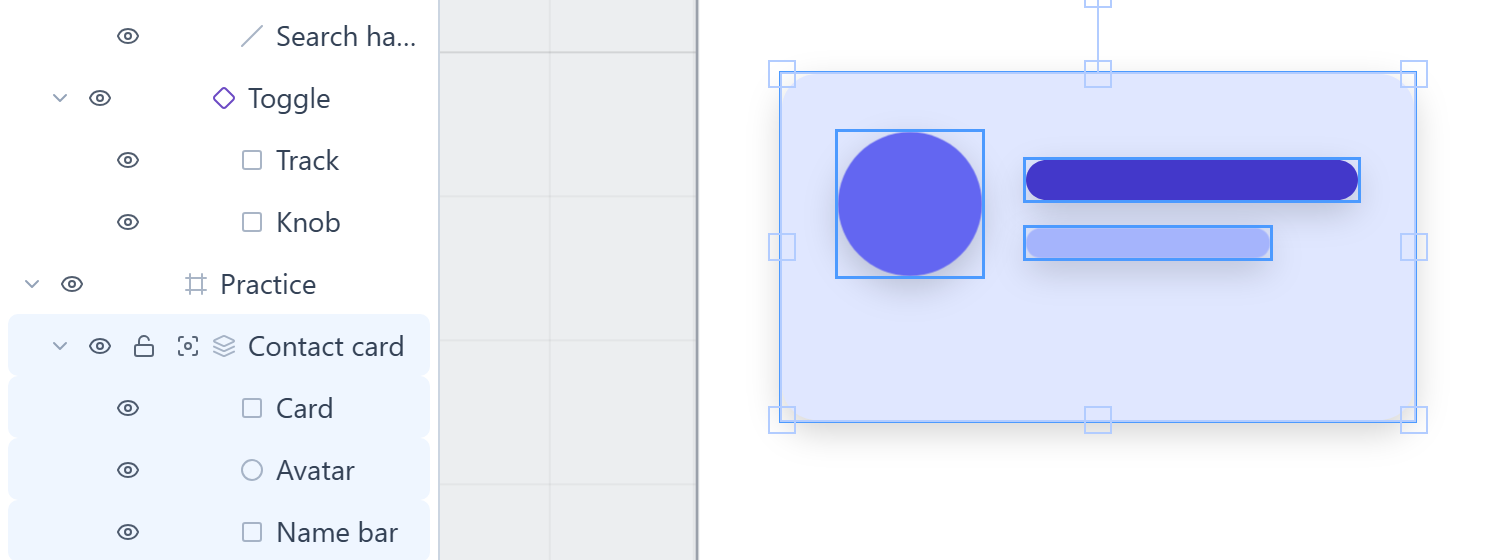
A group is for moving and arranging things together. It has no fill or size of its own. It is just the box around what is in it.
- One click on any shape in the group selects the whole group. Drag it, nudge it with the arrow keys or press Ctrl+D, and all of it goes.
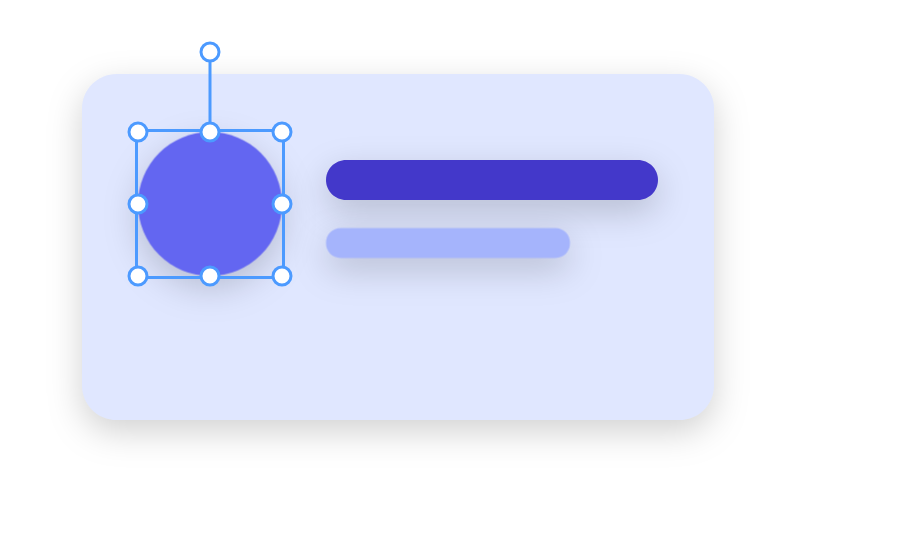
- Double-click a shape to select just that shape, say to recolour the picture:
- Ctrl+Shift+G ungroups, leaving the shapes where they are.
- Grouping a group puts one group inside another.
Everything here is also on the right-click menu, along with the commands further down:
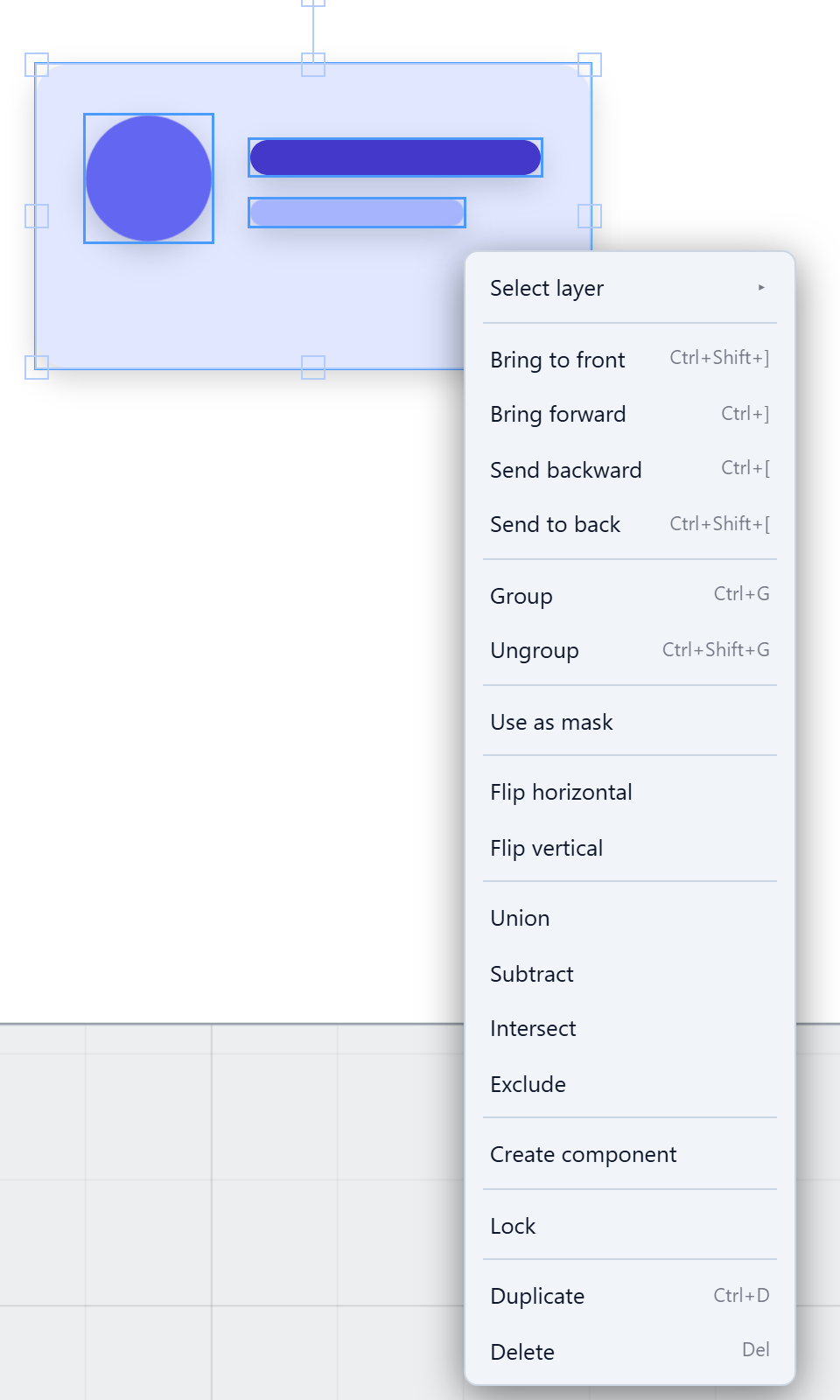
New: double-click reaches inside. The double-click used to select the shape and then widen straight back to the whole group, so a shape in a group could only be reached from Layers. It stays selected now. Pressing anywhere afterwards goes back to selecting groups whole.
Boolean operations
Select two or more shapes and the Path menu in the toolbar offers four ways to combine them into one. The same four are on the right-click menu.
| Operation | What you get |
|---|---|
| Union | Both shapes as one outline |
| Subtract | The bottom shape with the ones above it cut out |
| Intersect | Only the part where they overlap |
| Exclude | Everything except the part where they overlap |
The result replaces the shapes you started with. It is a path, and it takes its colour, outline, shadow and name from the bottom shape.
Here is a rounded Pill with a circle overlapping its end, before and after Union:
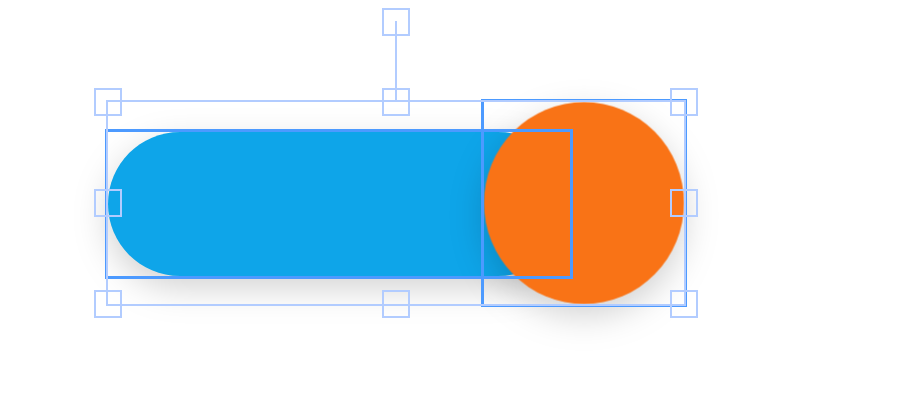
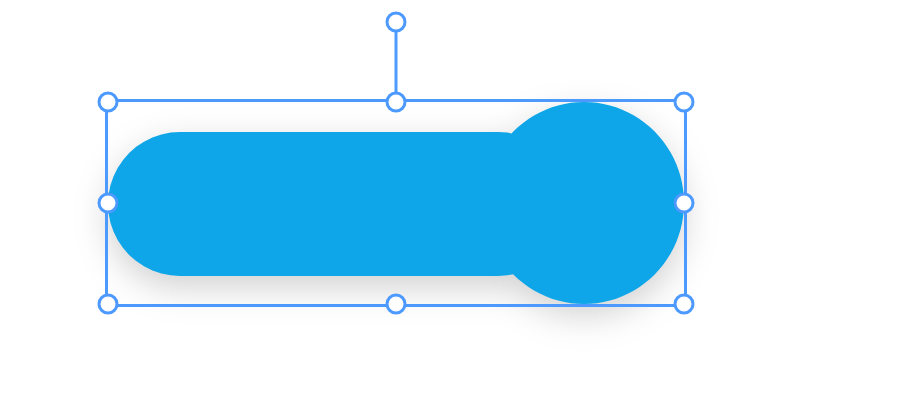
Subtract cuts the upper shapes out of the bottom one. A red circle over the corner of a green tile takes a bite out of it:
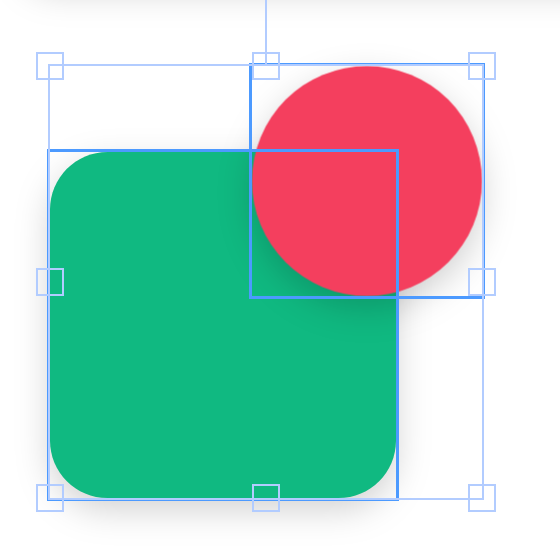
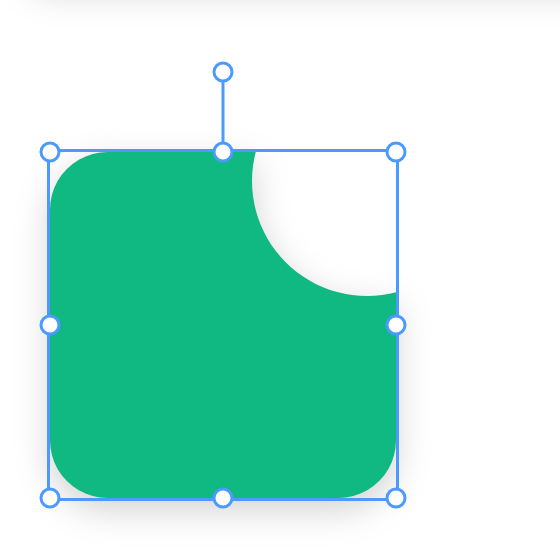
Two overlapping circles, combined two ways. Intersect leaves the lens in the middle, and Exclude leaves the two crescents:
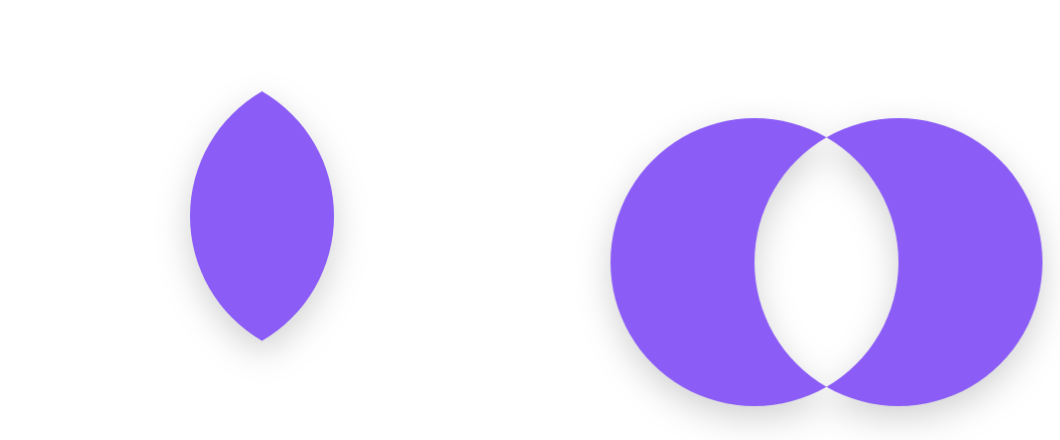
Booleans work on rectangles, ellipses, triangles and paths, including the result of an earlier one. Text, frames and images can't be combined. The menu says Select 2 or more shapes until the selection is right.
Curves come out as many short straight lines. You can't see them at screen size, but you can't reshape the result by its curves afterwards. Keep the original shapes if you may want to change them. Ctrl+D them first, or undo with Ctrl+Z.
New: three fixes found trying it.
- A rounded rectangle came out of a boolean with square corners, because its outline was taken as its box. The Pill above kept its round ends only because of this fix.
- The result left the frame the shapes were drawn in and landed at the top level of the drawing. It stays in the same frame now.
- It was named Path 1 and lost its shadow. It takes the bottom shape's name and shadow now.
Masks
A mask shows another shape only inside its own outline. It's how you put a photo in a circle. We drew three coloured stripes and a dark circle over them:
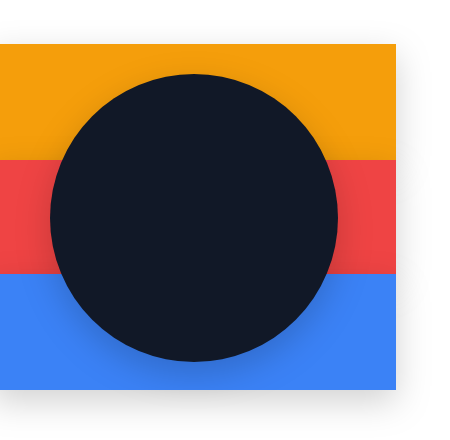
Then we selected all four, right-clicked and chose Use as mask. The top shape becomes the mask and everything below it is clipped to it:
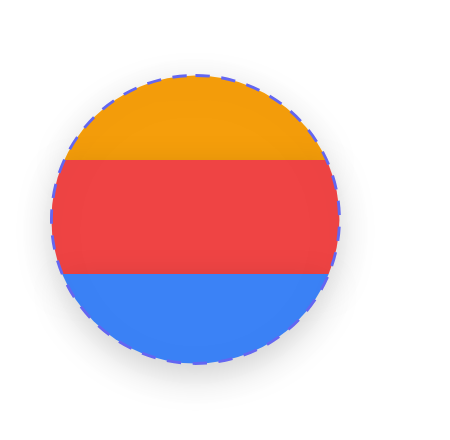
The mask and the shapes it clips are put in a group so they move together. Unlike a boolean, nothing is lost. Release mask on the right-click menu gives you the stripes back, whole.
Which one to use
- To move things together, group them.
- To make a new outline that no tool draws, use a boolean. It is one shape afterwards.
- To show part of something, such as a picture cut to a circle, use a mask.
Try it
Draw a card from a rectangle, a circle and two bars, group it with Ctrl+G and double-click the circle to recolour it. Draw a rounded rectangle and a circle overlapping its end, select both and choose Path → Union. Then draw a square and a circle over its corner and try Subtract.
Next: text and rich text.