Parsware Platform
Task types
A task's Type puts a small badge on the step: user, service, script, manual, send, receive, business rule. Only one of them changes what a run does. We went through the list on the two-step approval sample, and say plainly what each type does and what it only describes.
Cet article n’est disponible qu’en anglais.
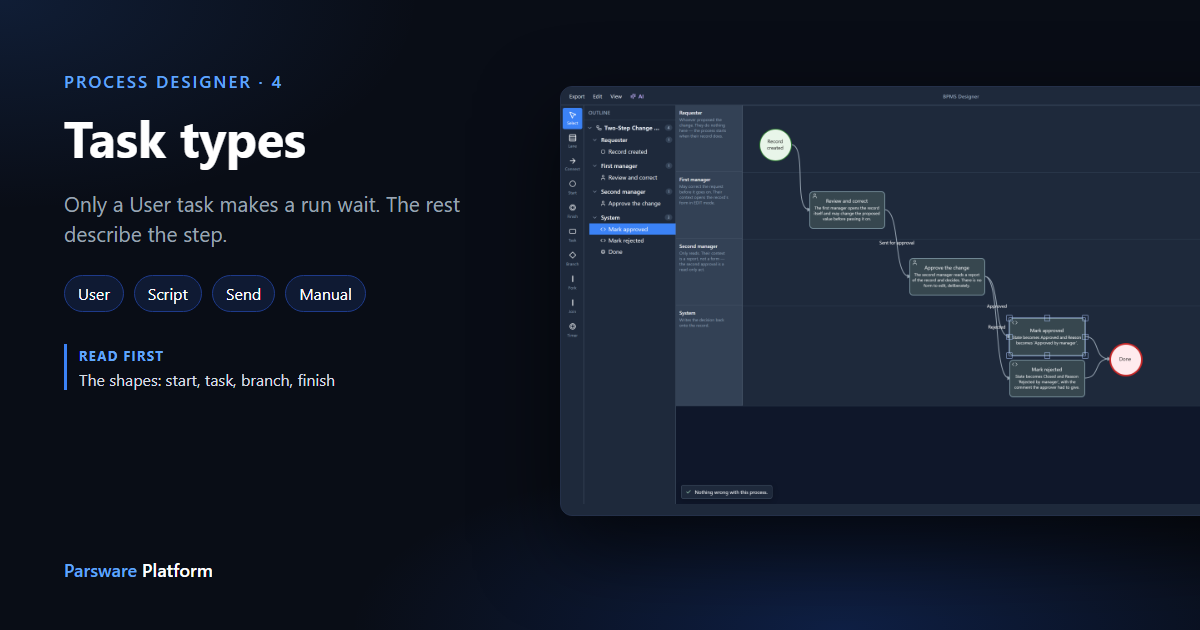
Every task in a process has a Type. It draws a small badge in the corner of the step, so a reader can tell at a glance whether a person does it or the platform does. This article goes through the list and says what each type actually changes.
The short version: only a User task makes a run wait. Every other type runs its code and carries straight on. The type also decides which code a step offers, and it tells whoever reads the drawing what the step is for.
We used the Two-Step Record Approval sample again, from
samples/solutions/bpms-two-step-record-approval.
The list
Select Mark approved and open Type:
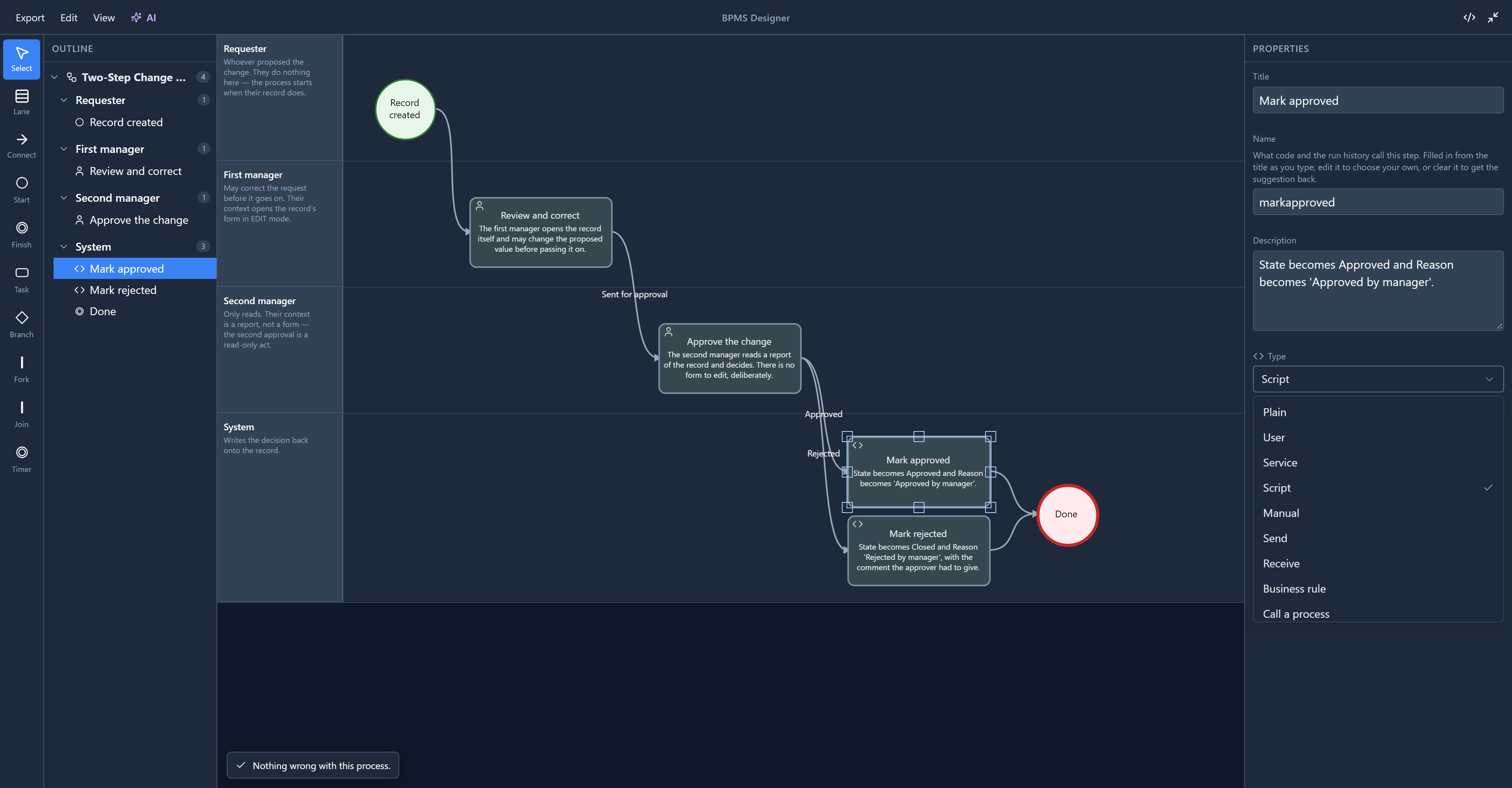
There's no blank "None selected" row at the top. There was one until we opened this list for the article, and choosing it stored no type at all. A task always has a type, so the list now starts at Plain. The same fix removed the blank row from the other choices in the panel that always have a value, such as Connector style.
User: a person does it
Review and correct is a User task. When a run reaches it, it stops. A task appears in somebody's list, and the run waits until they finish it. That's the only type that waits, and the only one with this much to set: who gets it, the short form they fill in, what they look at while they decide, and when it's due.
Its code has six entries:
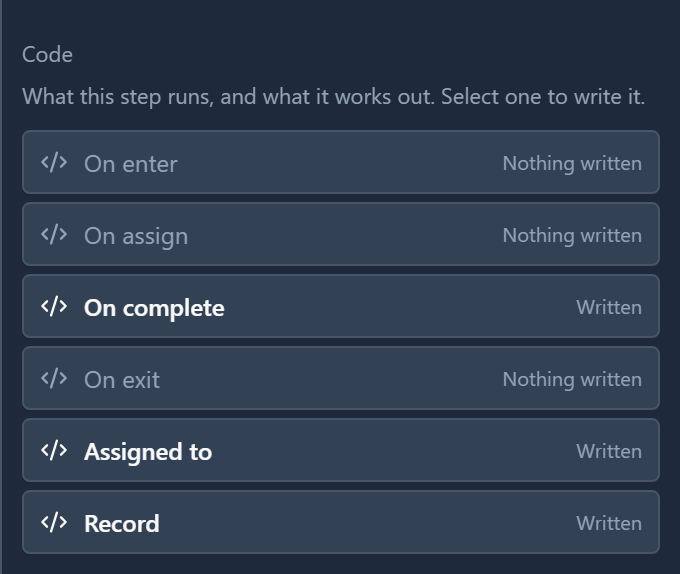
On assign and On complete only exist when a person is involved: when the task is given to someone, and when they finish it. Assigned to and Record are not scripts that run but answers the platform asks for: who should do it, and which record they look at.
Every other type: the platform does it
Select Mark approved again. It's a Script task, and its code has two entries:
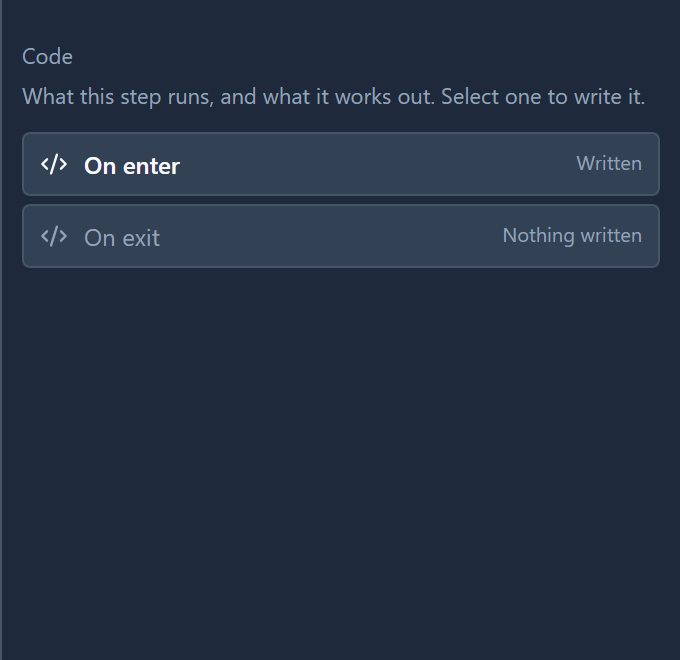
When a run arrives, On enter runs, then On exit, and the run moves on. Nobody is given it and nothing waits. That's true of every type except User:
| Type | Use it for | What the run does |
|---|---|---|
| Plain | A step you haven't decided on yet | Runs its code and carries on |
| Service | Work a system does: update a record, call another table | Runs its code and carries on |
| Script | A few lines of code, like setting a variable | Runs its code and carries on |
| Manual | Something a person does outside the platform, like signing a paper | Runs its code and carries on. It does not wait for anyone to say it's done |
| Send | Telling someone something | Runs its code and carries on. It sends nothing by itself |
| Receive | Hearing back from someone | Runs its code and carries on. It does not wait for a message |
| Business rule | Applying a rule | Runs its code and carries on. It does not run a business rule by itself |
The last four matter most, because their names promise more than they do. A Send task sends only what its On enter writes. The Leave Approval sample from the tour shows why that matters: its Tell Employee: Approved step is a Send task with no code at all, so it tells nobody anything. The employee finds out from the request's status.
If a step really needs a person to confirm something, even something done on paper, make it a User task with a one-button form. That's the one type a run waits for.
Call a process
The last type runs another process. You pick which one under Process to run:
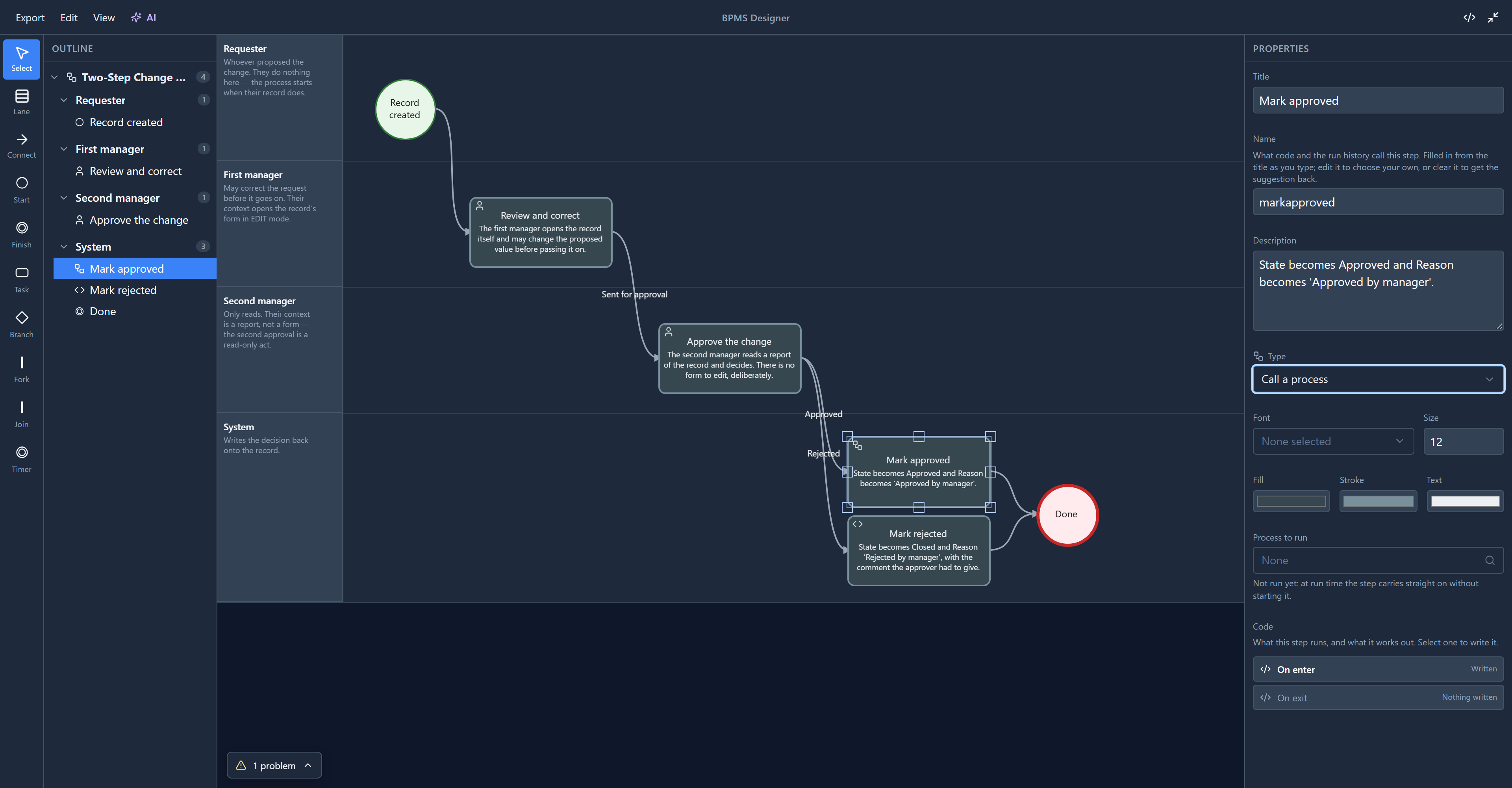
This one isn't finished, and the screen now says so. The designer keeps the choice and the problems panel checks a process is picked, but the engine has no code for it yet: a run carries straight past the step without starting the other process. Until we checked, the note under the picker said the step "waits for it, then carries on", and so did the help page. Both now say it isn't run yet, and building it is on our plan.
We didn't save any of this. Closing the designer without saving leaves the sample as it was.
Try it
Switch Mark approved between types and watch two things: the badge in the step's top-left corner, and the Code list. Only User adds On assign, On complete, Assigned to and the rest. Then set it back to Script, or close without saving.
Next: fork and join, and running two steps at the same time.