For Power Apps
A drawn field
Some values are easier to pick than to type. A drawn field is a Studio screen placed on one column of a model-driven form. It shows the column's value and writes it, and the form saves it like any other change. Here's a contact-channel field with three buttons in place of a text box.
این مقاله فقط به انگلیسی در دسترس است.
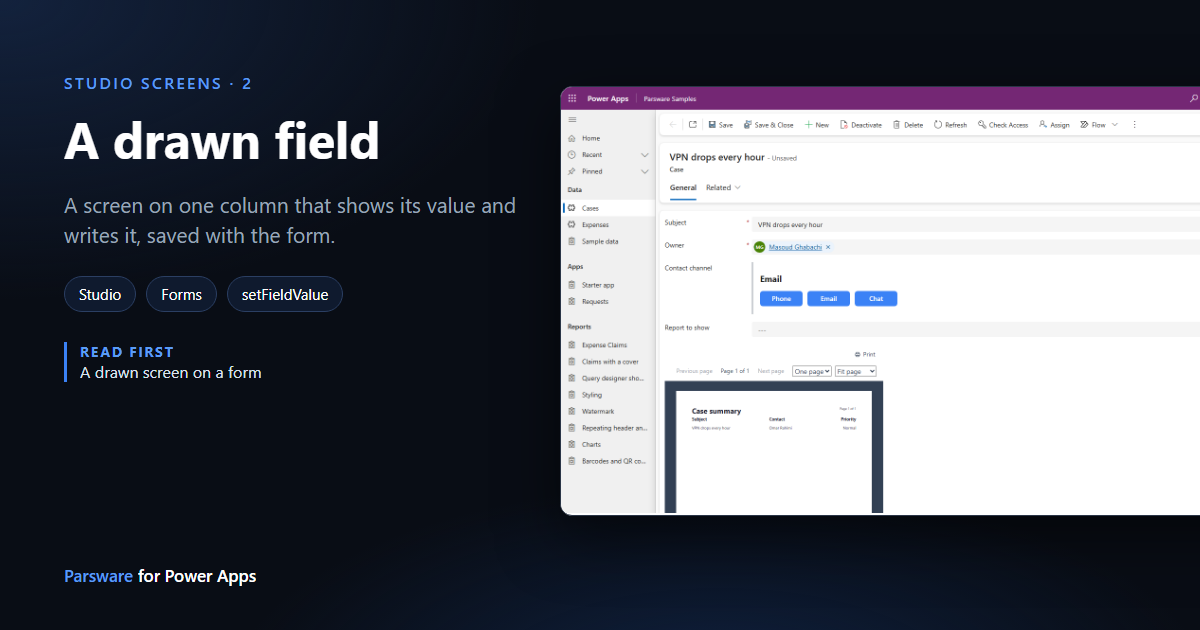
In the last article a Studio screen sat on the Case form as a panel of its own. It sat on a column only because a form needs one, and it never touched that column.
This time the column is the point. A drawn field is a screen placed on one column that reads its value and writes it. The form treats the write like somebody typing: the record becomes Unsaved, Save stores it, and closing without saving throws it away.
We'll replace the text box of a Contact channel column on the Case form with three buttons, Phone, Email and Chat, and a large display of the current value.
1. Add the column
In your solution, add a single line of text column to the Case table. Ours is Contact
channel, ex_channel. It's an ordinary column: views, filters and reports use it as they would
any other.
2. Draw the field
Create a design named Channel field with Kind App, and draw one screen, sized like a field rather than a page. Ours is 460 × 110. As before, set the frame's This object is to The screen on the Screen tab.
Inside it:
- A text box for the value. Draw it with the Text tool, and on the Screen tab mark it A paragraph. A drawing with no meaning can't have code, so this step comes first.
- Three buttons, dragged from Components, captioned Phone, Email and Chat.
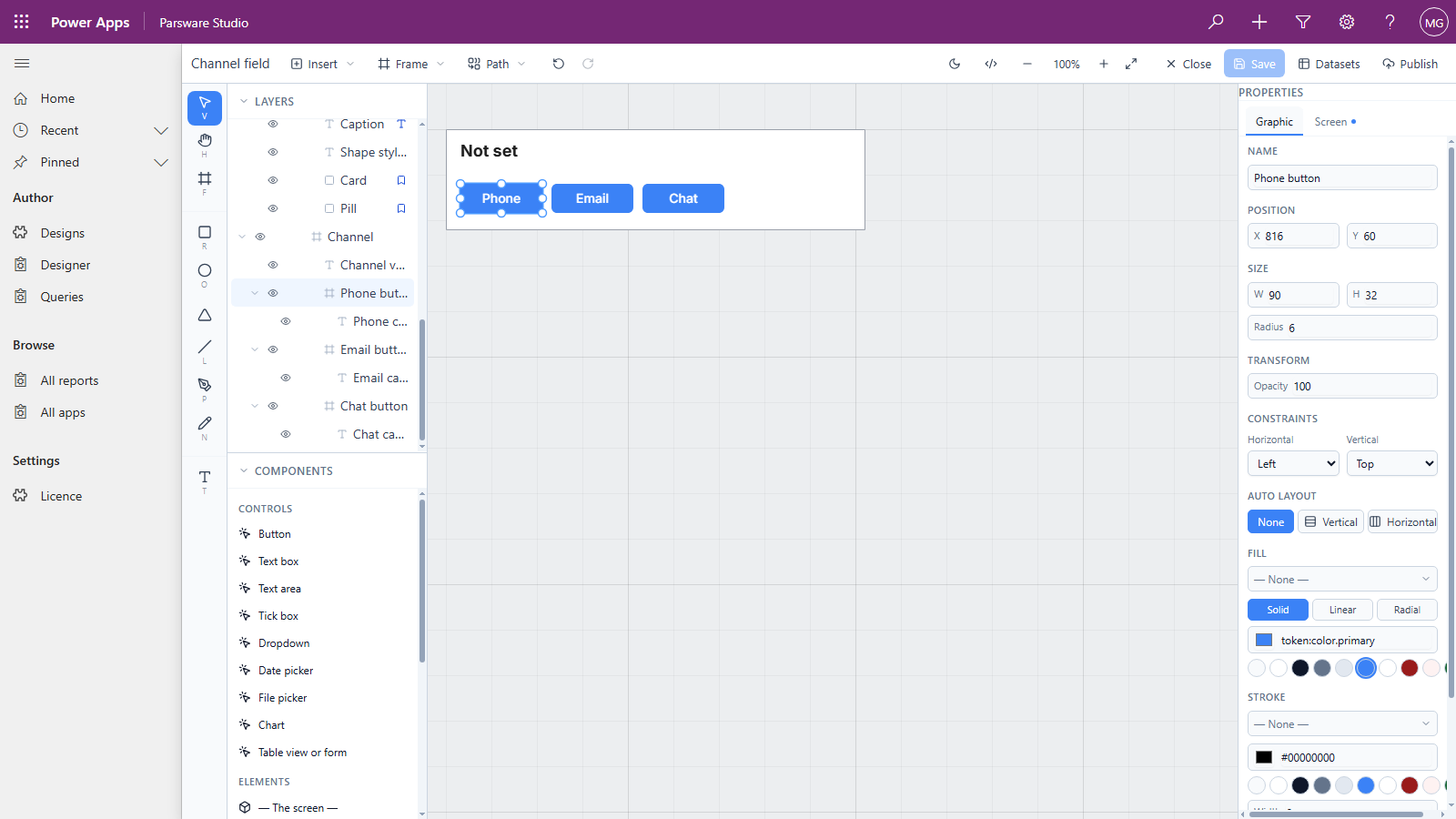
3. Read the column
Select the value text, press </>, and under Bindings choose Text. A binding is one
expression that says what the text shows:
field.value == "" ? "Not set" : field.value
field.value is the value of the column the screen sits on, as text. The binding runs again
whenever the value changes, so the display always matches the column.
4. Write it
Select the Phone button, press </> and choose Pressed:
setFieldValue("Phone");
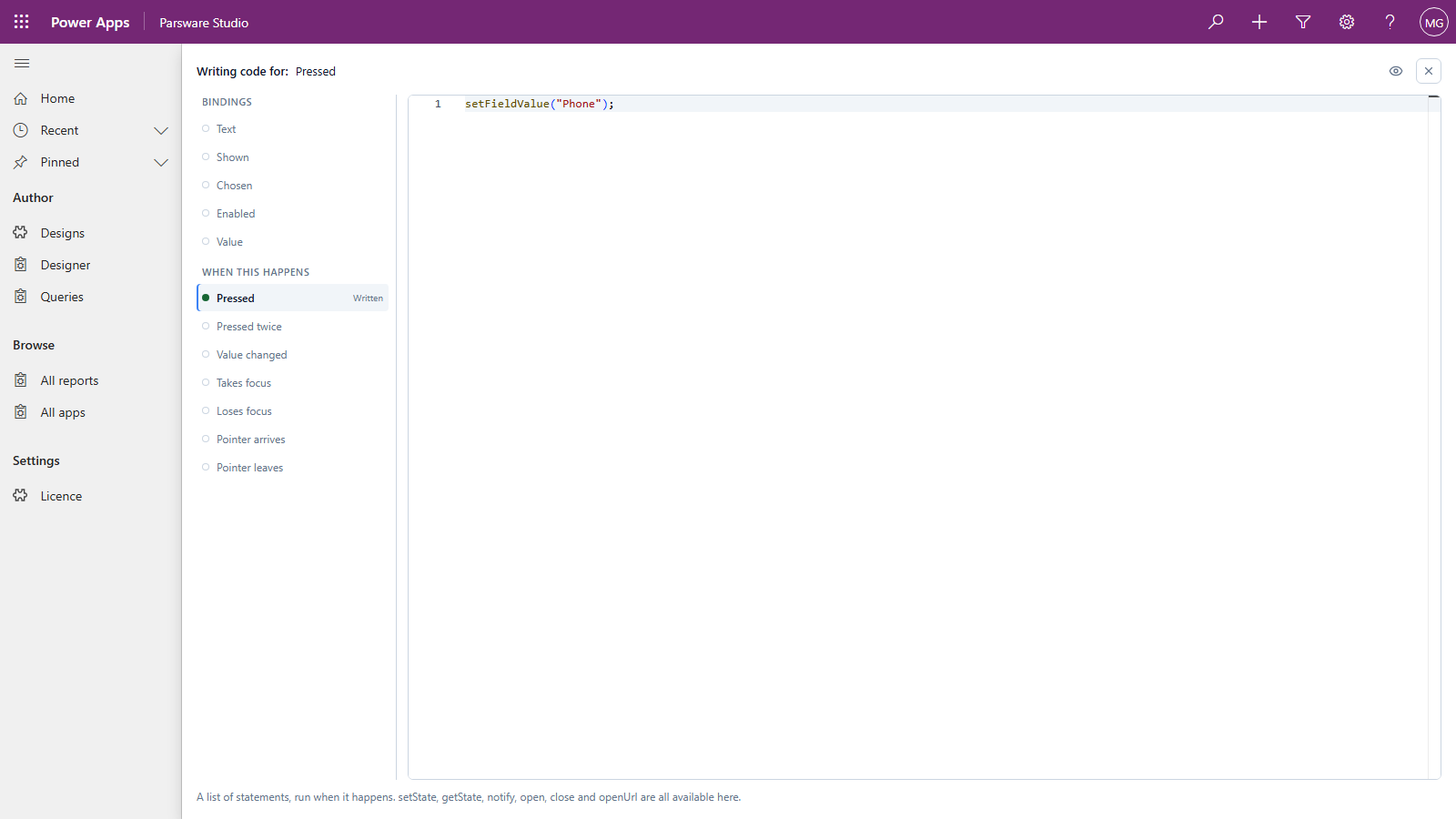
Do the same for Email and Chat with their own words. Save the design and Publish it into your solution.
setFieldValue with one argument writes the column the screen sits on. It gives the value to the
form, not to Dataverse, so it's saved when the record is saved and never before.
5. Put it on the column
In the form designer, add Contact channel to the form and select it. Leave its label showing: this is a field, and the label says which one. Under Components, add Parsware Runtime and set Design to Channel field. The Value is already the column you selected.
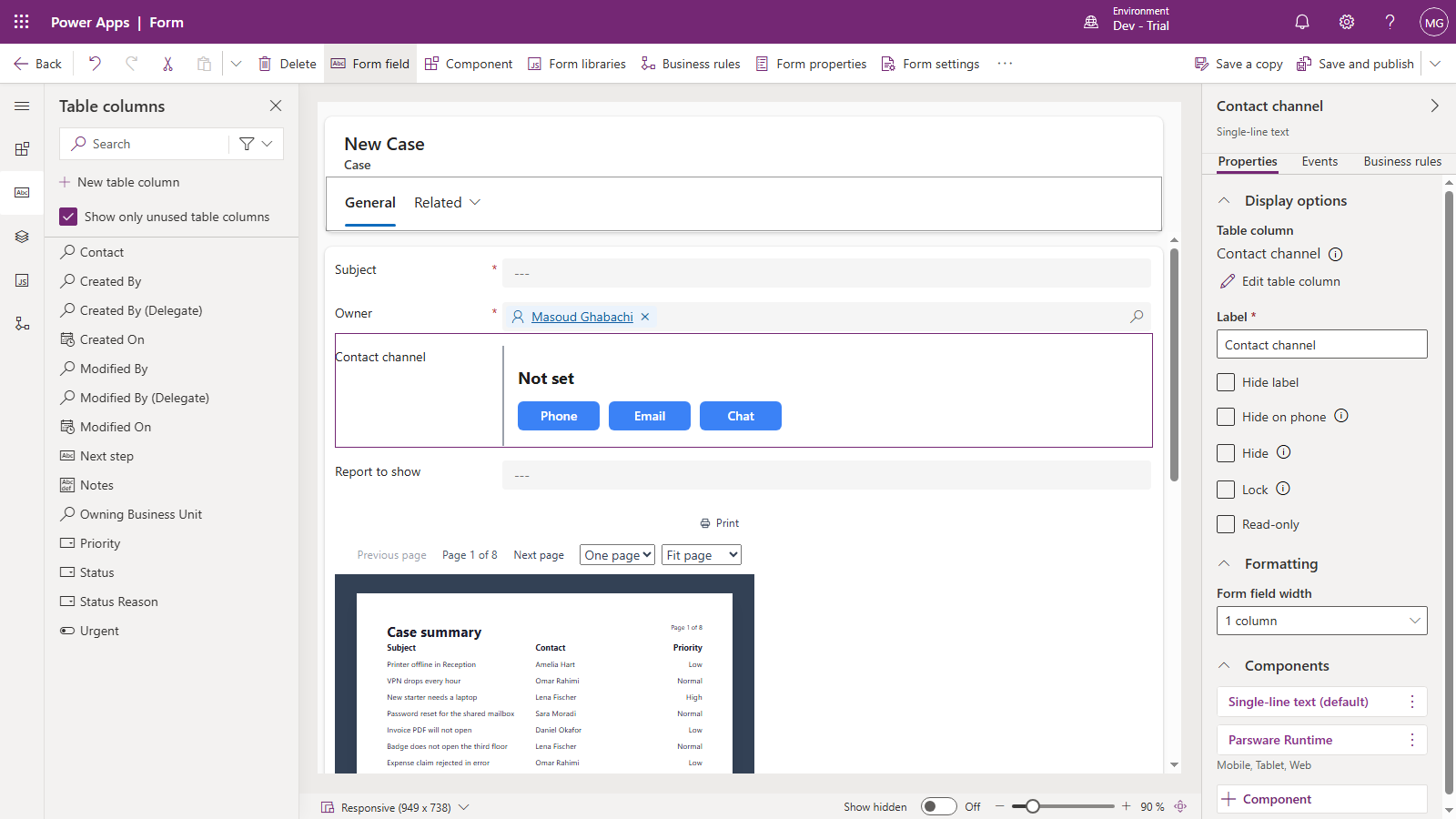
Save and publish the form.
6. Use it
Open a case. The field shows Not set. Press Email:
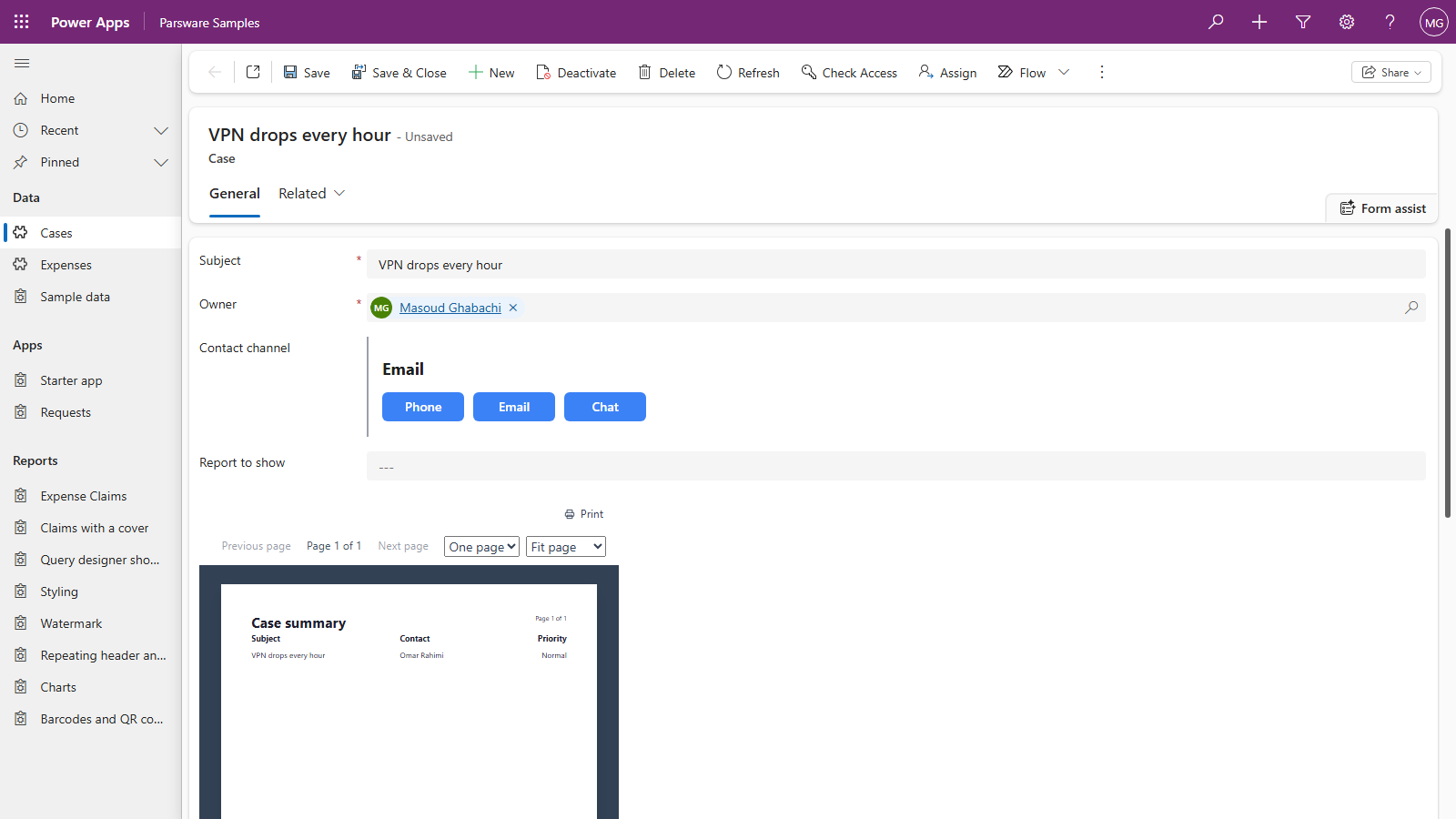
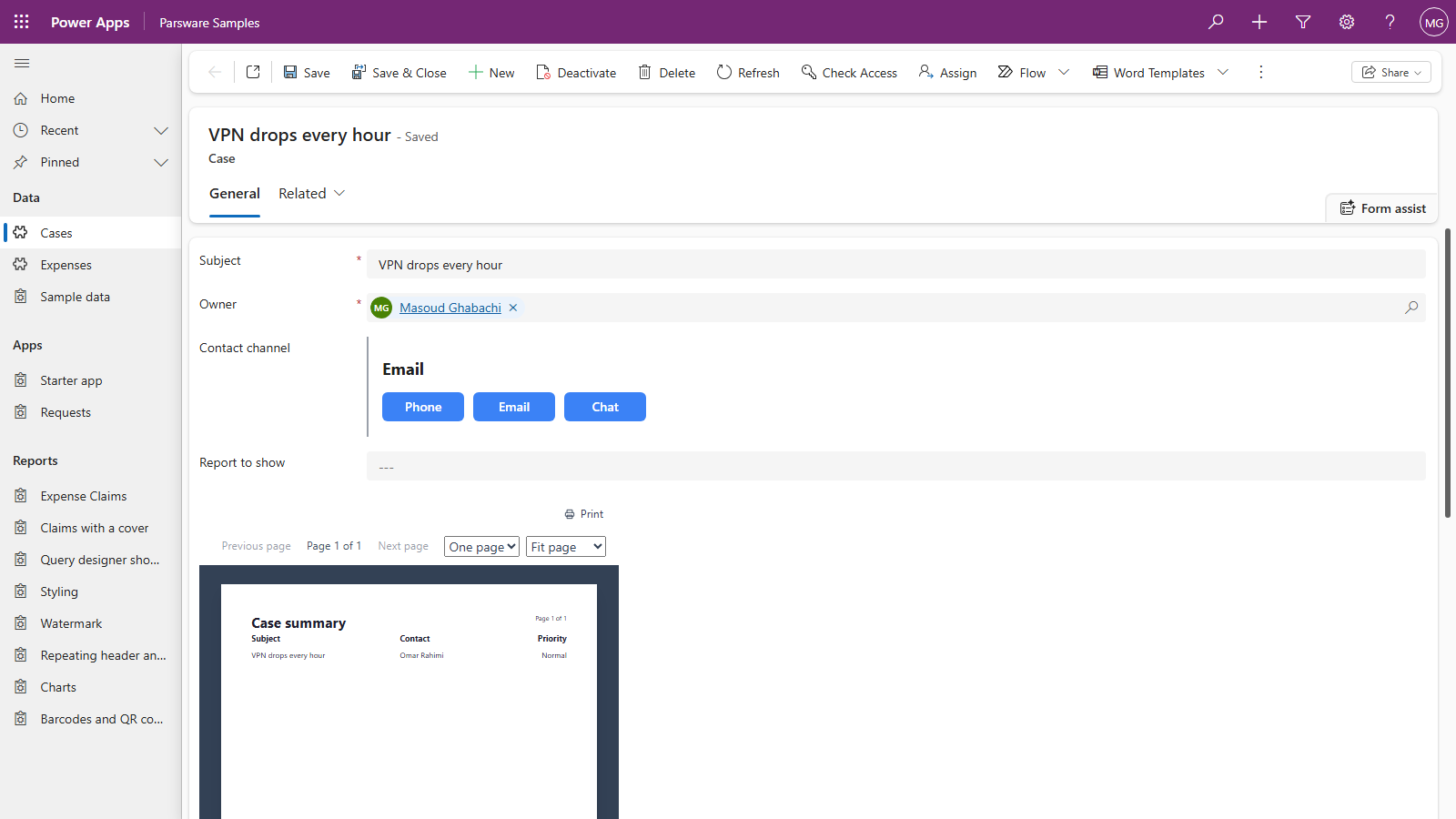
The value changed and the record says Unsaved, exactly as if somebody had typed in a text box. Press Save, reload, and the value is still there: it's in the column, where a view, a report or a flow can read it.
Good to know
- The screen works in text.
field.valueis always text, even on a number or date column, andsetFieldValuetakes text. A number column reads as1234.5, not a formatted amount, so what you read can be written straight back. - A value the column can't hold is refused, and the screen says why.
setFieldValue("lots")on a number column shows "lots" is not a number, and this is a number column, instead of silently doing nothing. - Which columns work. Text of every kind, whole and decimal numbers, currency, dates and yes/no columns. Lookups and choices can't be bound yet.
Next
One control, several columns: a drawn field that reads and writes more than the column it sits on. The whole series is in the reading list.