For Power Apps
Tables, columns and views in the pickers
Wherever the Parsware designer needs something from your Dataverse environment, a table, a view, a saved query or a column, it offers a list read from that environment rather than a box to type in. Here is every one of those pickers, what each lists, and the few places you still type a name.
Este artículo solo está disponible en inglés.
A report or a screen is only as right as the names in it. A table called par_cases when the
table is par_case doesn't fail loudly: the report prints no rows, and the screen is just empty.
So the Parsware designer doesn't ask you to type those names. Wherever it needs something from your environment, it reads the environment's own metadata and gives you a list. This article goes through every one of them. We'll use the Case list report from Your first report on Dataverse.
1. Tables
Press Datasets on the toolbar. Each dataset has a Table, and the table box is a picker: click it and your environment's tables are listed by display name, with each one's logical name underneath.
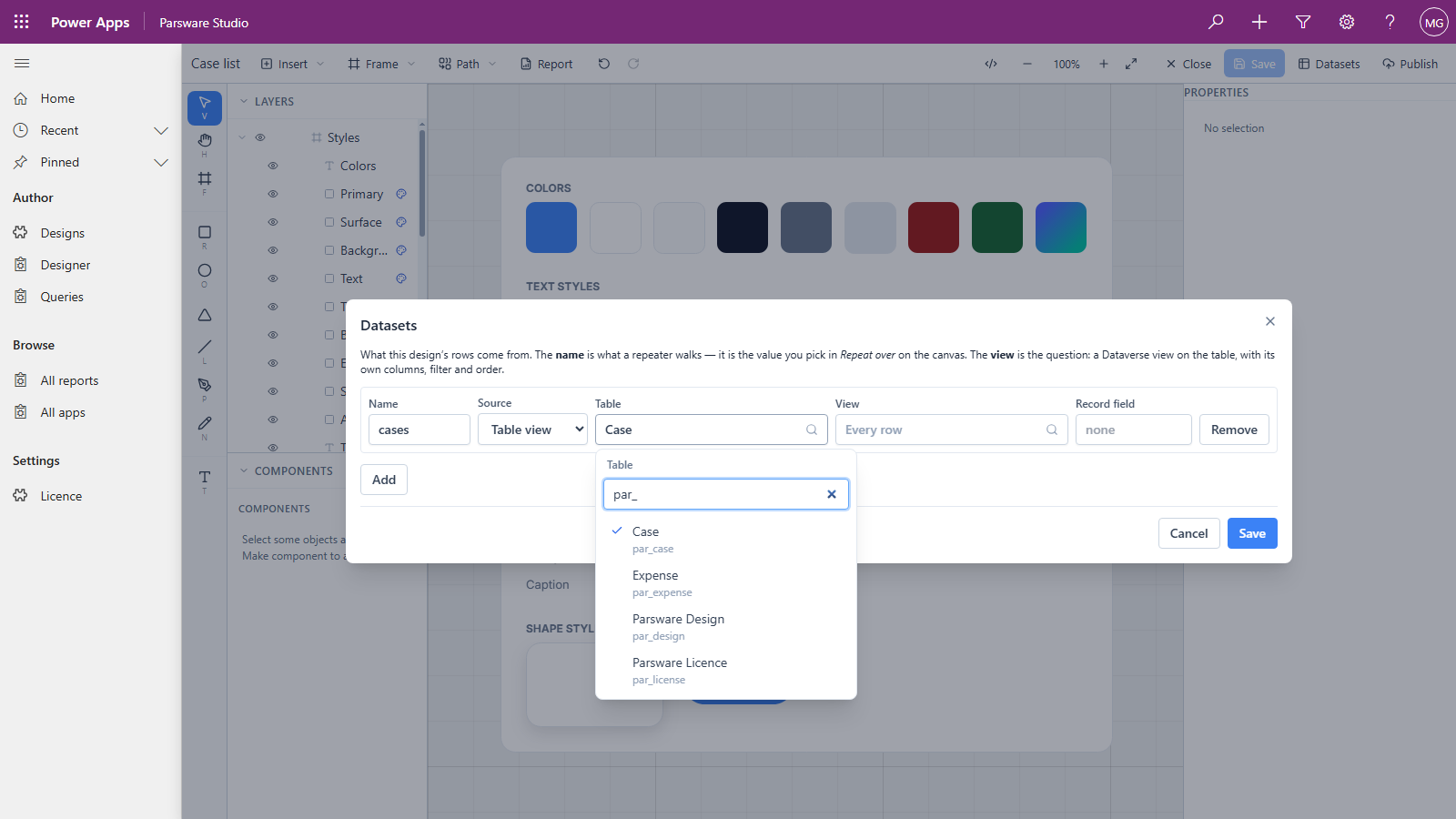
Type to narrow it. The search matches either name, so case and par_ca both find Case, and
typing your publisher's prefix, as here, lists only your own tables. The list is whatever the
environment holds right now, standard tables included, so a table you created this morning is
already in it.
2. Views
Next to the table is View. Its list is the views on the table you chose, with each view's type underneath: Public, Associated, Lookup or QuickFind.
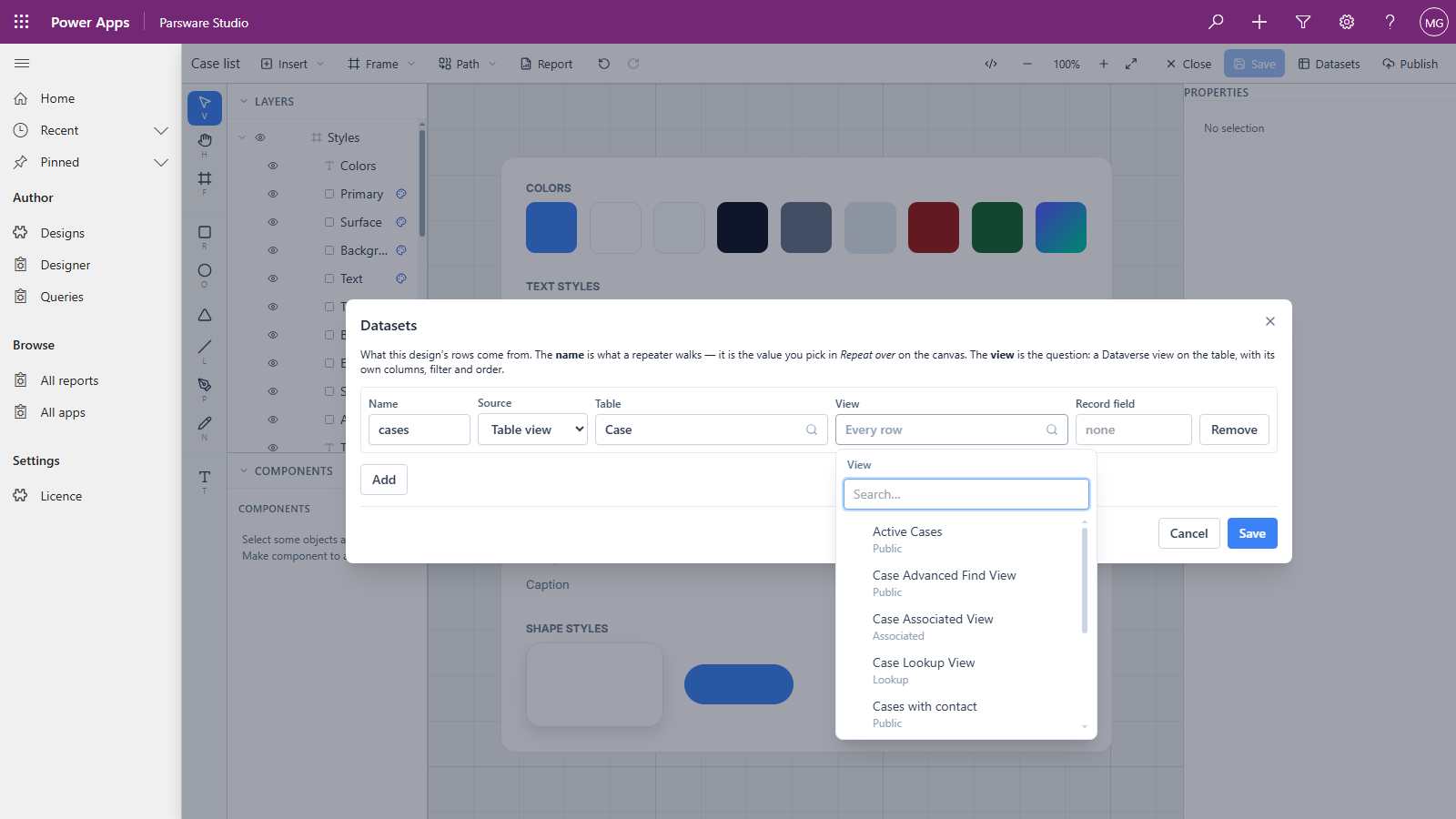
Leave it on Every row to read the whole table, up to 500 rows. Choose a view and the report reads that view's rows, in its order (see Reports from a view). Change the table and the view is cleared, since a view belongs to one table.
3. Saved queries
Set Source to Saved query and the table and view give way to a list of the saved queries in the environment:
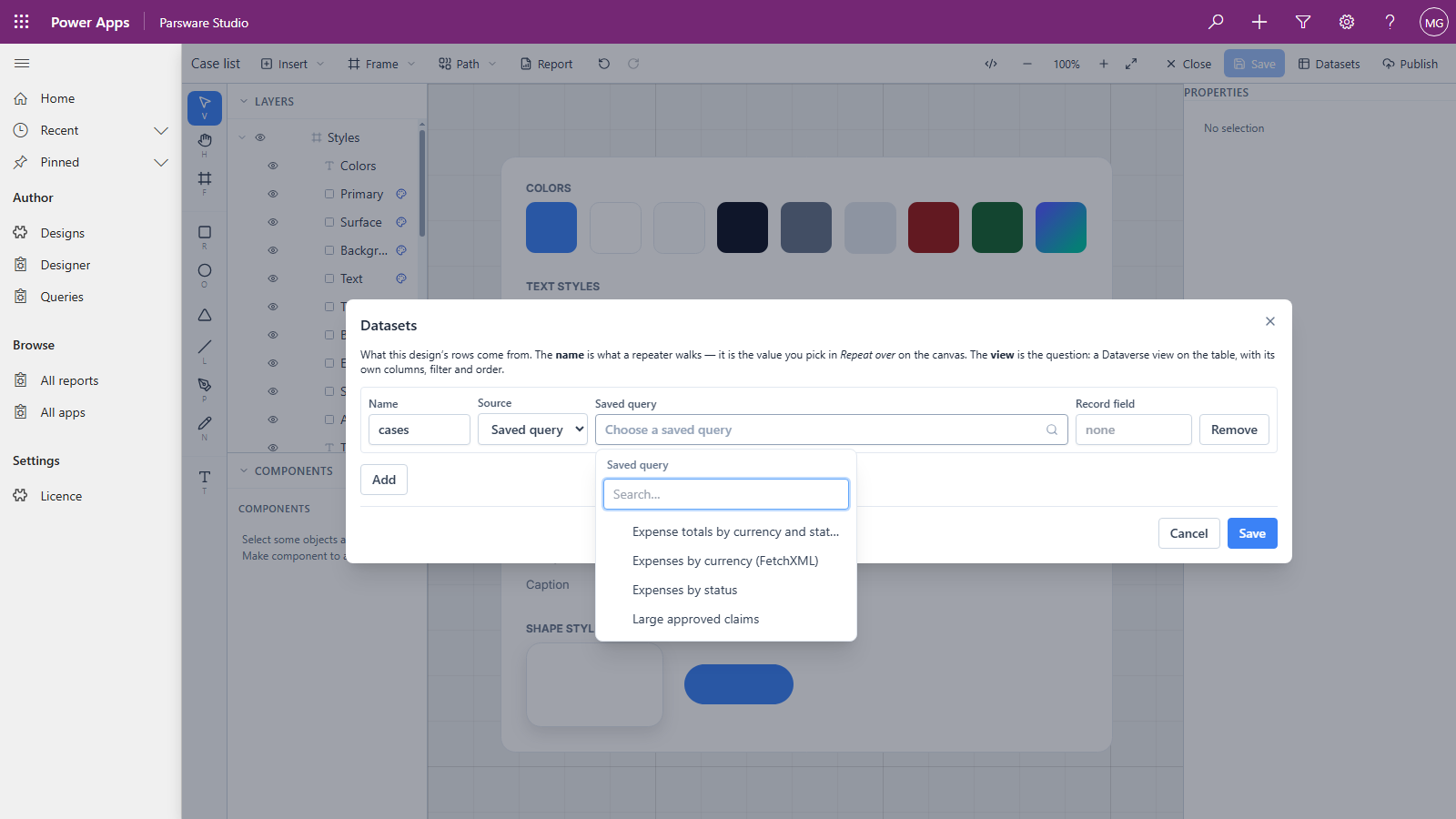
These are the queries from the Queries page in Parsware Studio, for totals and groupings a view can't express (see Totals with FetchXML).
4. Columns, on the canvas
Back on the canvas, two pickers in a report's Report tab read from those datasets:
- Repeat over, on a repeating row, lists the design's datasets by name.
- Binding, on a text box inside that row, lists the dataset's columns by display name: Subject, Priority, Created On, and so on.
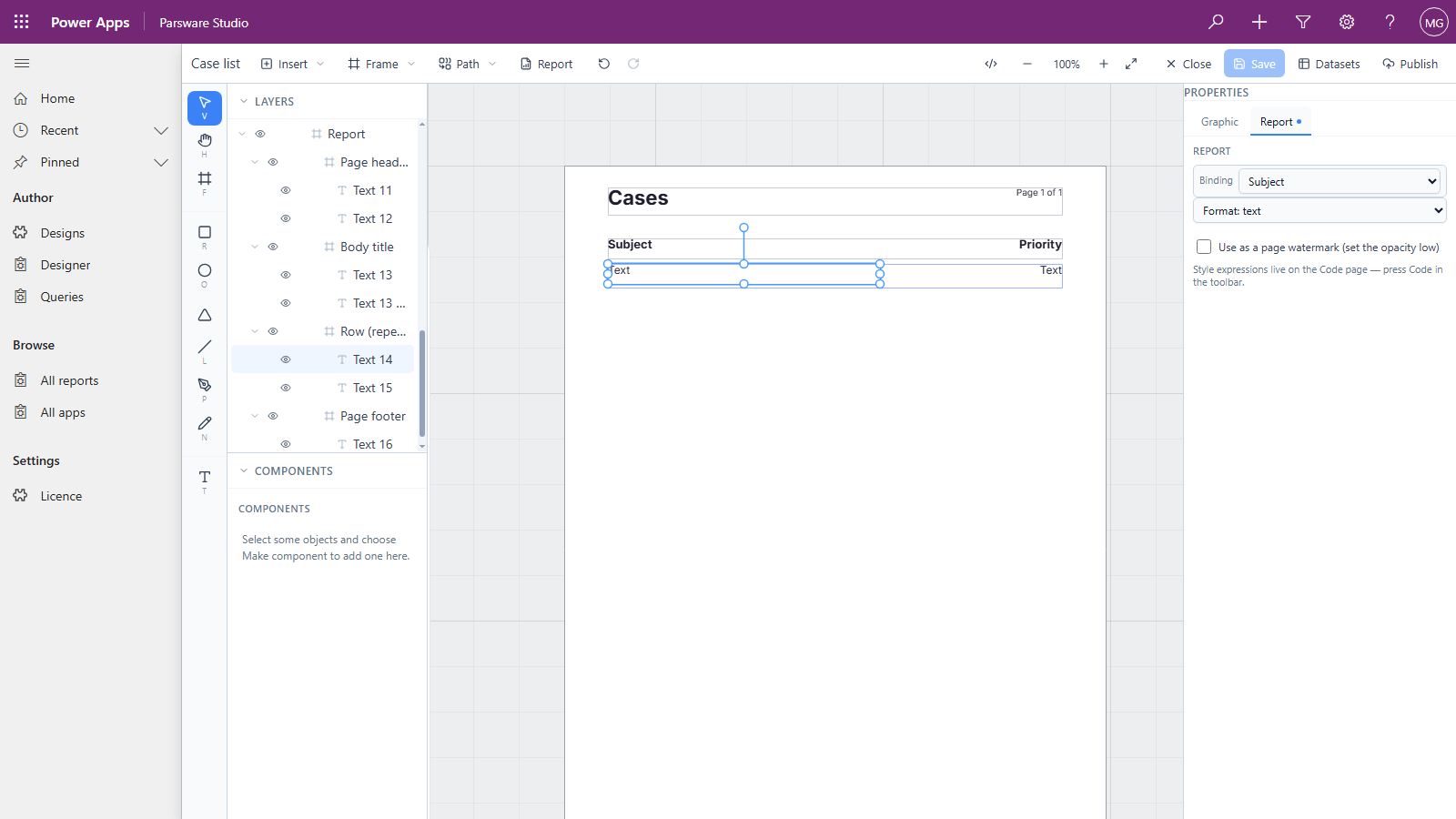
You pick Subject; the report stores par_subject. For a lookup or a choice, the picker is how
you get the label printed rather than an id or a number (see
Lookups and choices in a report).
These two are plain dropdowns rather than search boxes. On a table with a few dozen columns that's fine; on one with a hundred or more, it's a long scroll.
5. Columns, in a saved query
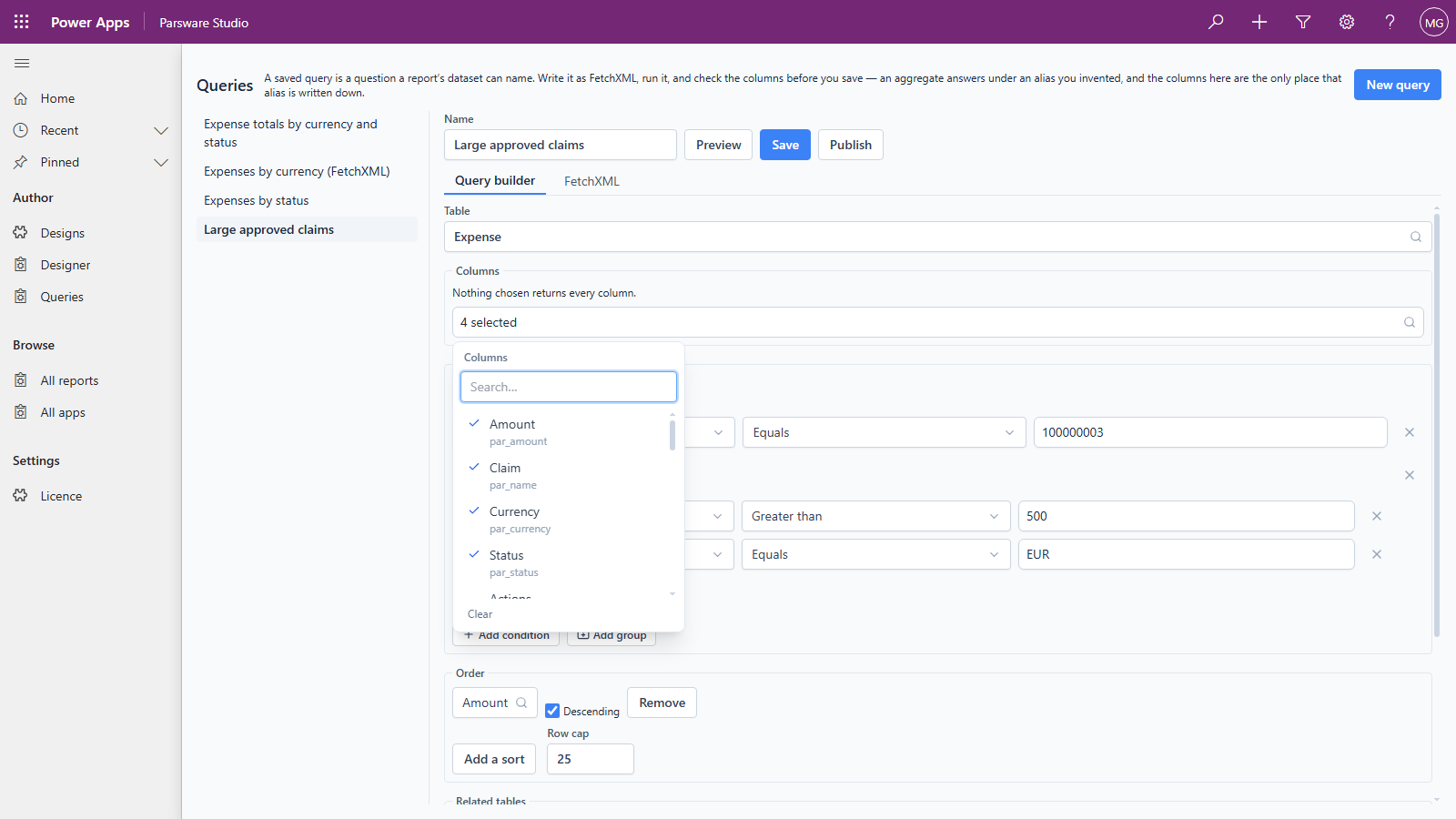
The query builder on the Queries page has a picker for every name it needs: the Table, the Columns to return, the column in each filter, and the column to order by. The columns list takes a search, ticks what's chosen, and shows logical names too:
6. Tables and columns in a script
On the code page, the editor does the same as you type: inside loadRecords(" it lists your
tables, and inside a where it lists that table's columns, with their types. That has its own
article: Scripts on a screen.
Where you still type a name
A few boxes are still free text, and it's worth knowing which:
- Record field, in the Datasets dialog, for a report on a form. It takes the logical name of
the column that holds the open record's id, such as
par_caseid(see A report on a form). - A filter's value in the query builder. For a choice column that's the choice's number, such
as
100000003, not its label. - A table named by a variable in a script, such as
loadRecords(state.table, …). That table only exists when the screen runs, so the editor can't offer its columns.
Good to know
- Each list is read once per visit. The designer asks the environment the first time it needs a list and remembers the answer while the page is open. Open Designer again from the navigation to see a table or column you created in another tab since.
- A list is a list of names, not of rows. Seeing a table in the picker doesn't mean you can read its rows: the preview reads them as you, through your security roles.
- On a form, Power Apps does the picking. The columns a Parsware control is bound to are chosen in Power Apps' own form designer, with its own column picker (see One control, several columns).
Next
Components in Power Apps designs: drawing a part once, such as a top bar, and placing it on every screen of a design. The whole series is in the reading list.