Parsware Platform
Moving around the canvas
Pan with the wheel, zoom with Ctrl, and press Shift+1 to see the whole drawing or Shift+2 to fill the window with what you selected. Trying them, we found the zoom keys missing and added them.
Este artículo solo está disponible en inglés.
A Studio app is several screens side by side on one canvas, with the drawers, the modals and the components it uses parked around them. Most of the time you're looking at a corner of it. This article is about getting to the part you want, at the size you want, without reaching for the mouse every time.
We used the Starter app sample again (samples/solutions/studio-starter-app), opened in the
designer and made fullscreen.
Panning
Three ways to move the view, all doing the same thing:
- The mouse wheel scrolls up and down, like a page. Hold Shift and it scrolls sideways. On a trackpad, two fingers scroll in any direction.
- Hold Space and drag. The pointer becomes a hand while Space is down, and goes back to what it was when you let go. This is the one to learn: it works in the middle of anything, whatever tool you're holding.
- The Hand tool (H) does the same until you pick another tool. The middle mouse button drags the view too.
Zooming
- Ctrl and the wheel zoom around the pointer, so whatever is under it stays under it. A trackpad pinch does the same.
- Ctrl+= and Ctrl+- zoom in and out around the middle of the window, as the + and − buttons in the toolbar do. On a Mac it's ⌘.
- Ctrl+0, or a click on the percentage between the two buttons, goes back to 100%.
The zoom runs from 10% to 1,000%.
Seeing everything, or just the selection
Shift+1 fits the whole drawing in the window:
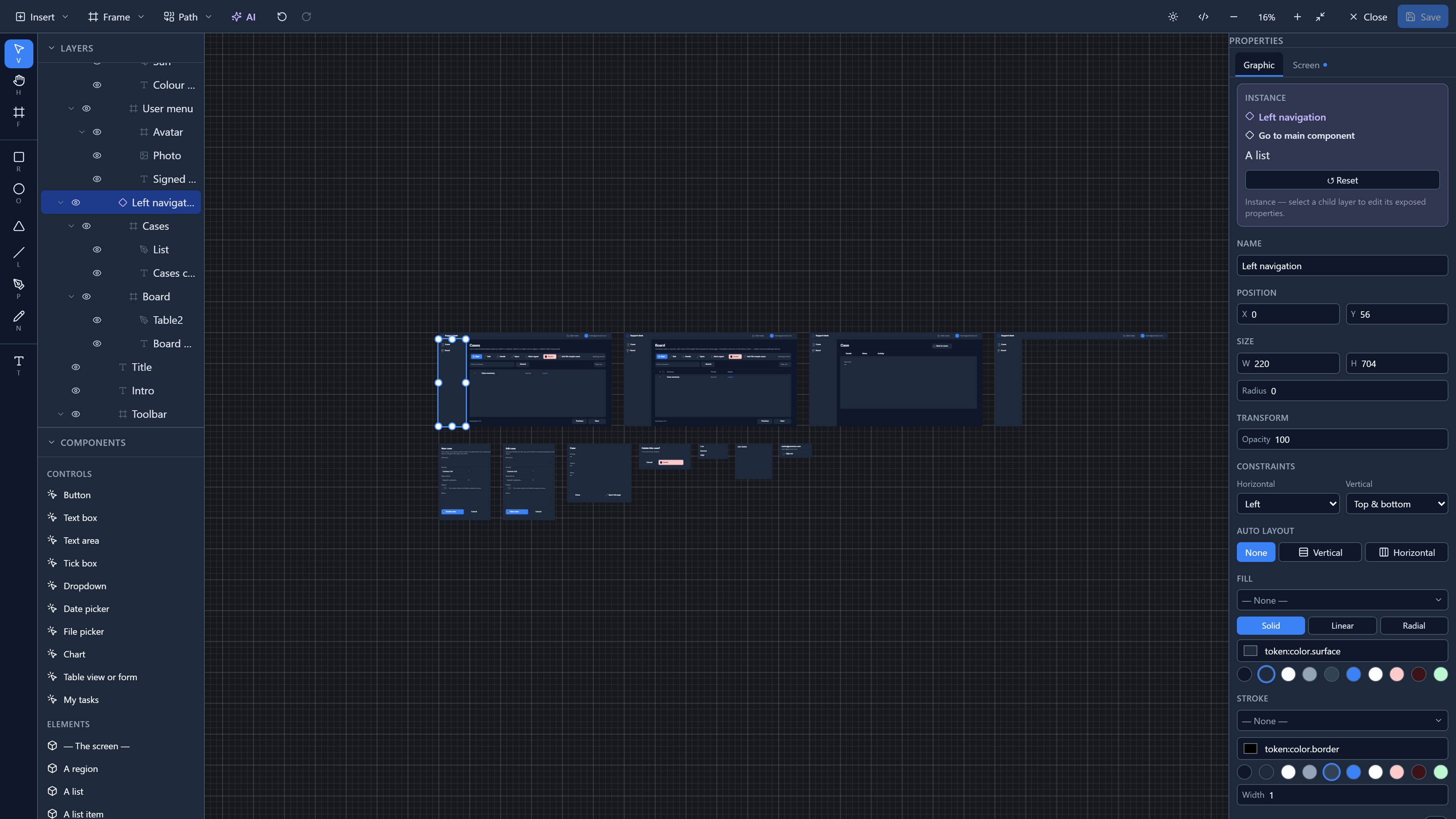
The Starter app comes out at 16%, smaller than you might expect. That's because its control components (a dropdown, a lookup, a toggle) sit 1,400 units to the left of the first screen, and its top bar and left navigation are drawn once, 4,500 units to the right. Everything counts.
Shift+2 fills the window with whatever you've selected. We double-clicked the word New on the Cases screen's toolbar to select it, and pressed Shift+2:
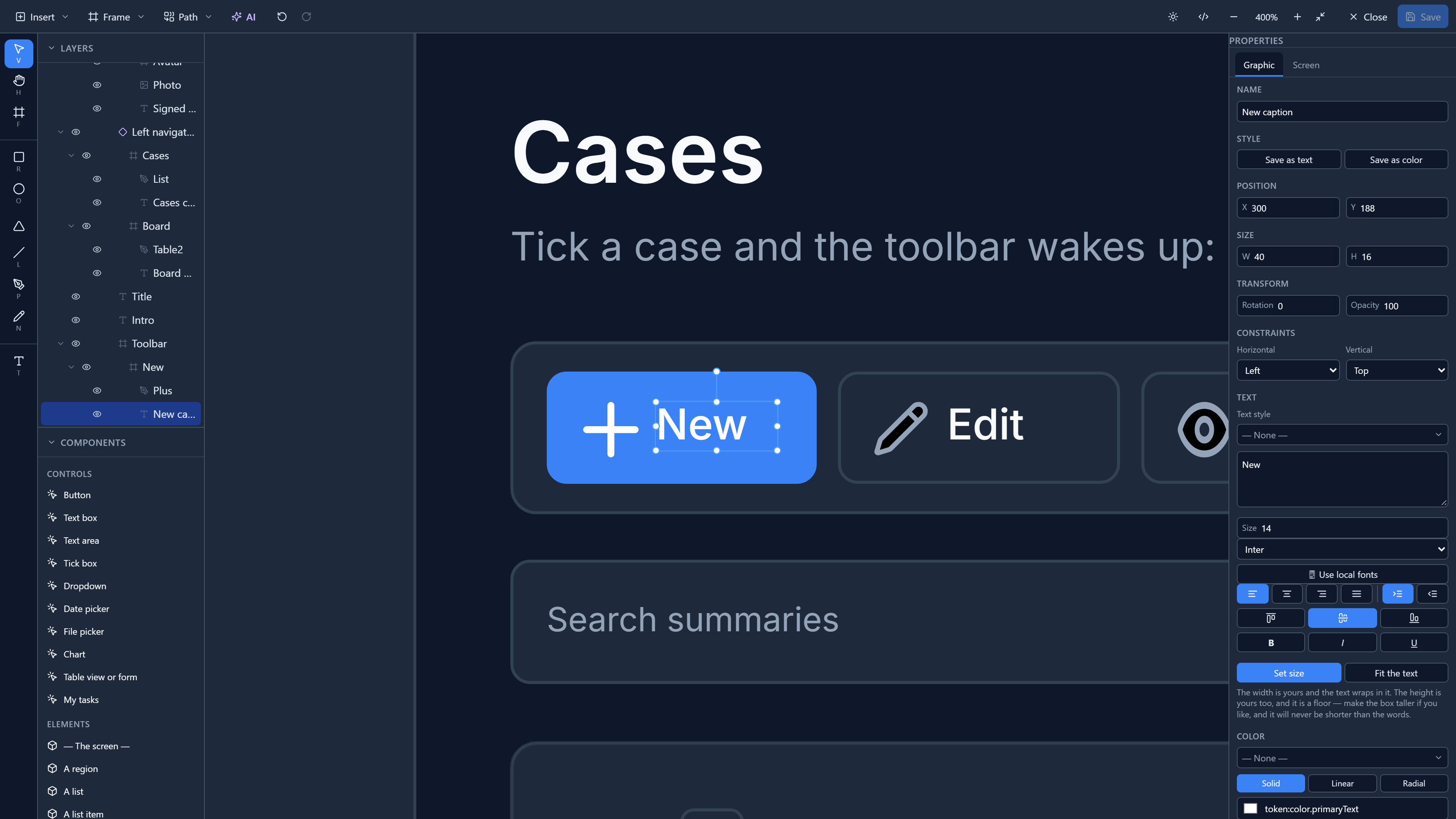
It stops at 400%, so a small selection doesn't end up as one giant letter.
Finding something you can't see
In Layers, double-click a row anywhere except on its name (the icon is a good target), and the canvas brings that object into view. Double-clicking the name renames it instead.
We were looking at the Cases screen and double-clicked the Edit case modal's row:
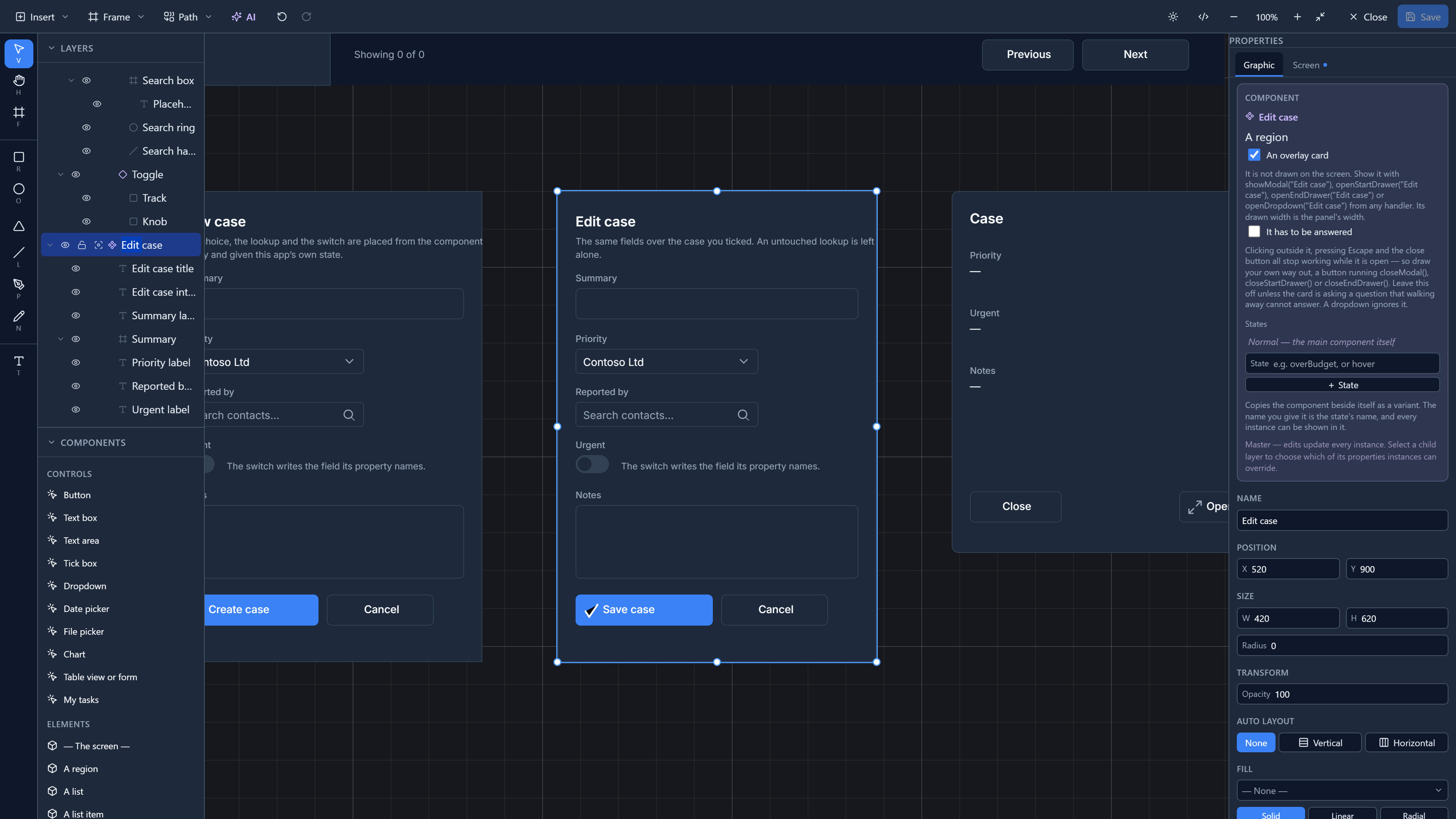
It zooms out if the object is bigger than the window, and never zooms in past 100%.
The keys
| Key | What it does |
|---|---|
| Wheel | Scroll up and down |
| Shift + wheel | Scroll sideways |
| Space + drag | Pan, whatever tool you hold |
| H | The Hand tool |
| Ctrl + wheel | Zoom around the pointer |
| Ctrl+= / Ctrl+- | Zoom in / out |
| Ctrl+0 | Back to 100% |
| Shift+1 | Fit everything |
| Shift+2 | Fit the selection |
The zoom keys are new. Trying them for this article, Ctrl+= zoomed the browser, not the drawing: the panels and the toolbar grew and the canvas didn't. Shift+1 and Shift+2 did nothing. All five now work as in the table, and the toolbar's zoom buttons name their keys when you hover over them.
Try it
Open the Starter app, press Shift+1, then click one of the screens and press Shift+2. Hold Space and drag to the drawers below, and press Ctrl+0.
Next: frames and screen sizes.